
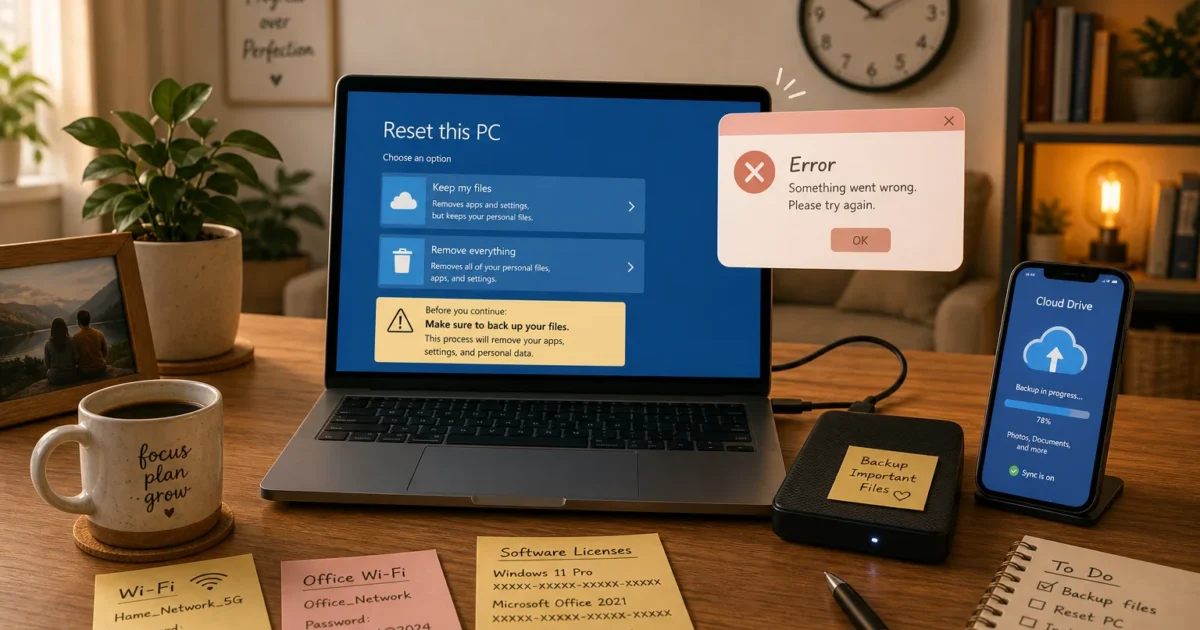
Your PC is crawling, throwing cryptic error messages that won’t quit, or you picked up some malware that just refuses to die, and every troubleshooting tip you’ve tried has gone nowhere. A factory reset is often the fastest path back to a clean, working machine. Windows 10 (and Windows 11) has this built right in with Reset this PC, no install disc or IT department required.
You’ve got a few choices depending on your situation: keep your personal files while wiping apps and settings, remove absolutely everything, or, when Windows won’t even open, kick things off from the recovery screen. This guide walks you through all three.
Before You Begin
A factory reset isn’t reversible once it’s underway. Before you start, take five minutes to sort these out:
- Back up your documents, photos, and anything important to an external drive or cloud storage (OneDrive, Google Drive, or whatever you’ve got)
- Note any paid software license keys, since you’ll need to reinstall those apps afterward
- Know your Wi-Fi password. Windows will ask for it once the setup screen appears after the reset
- Plug in your laptop if it’s on battery. A reset can take an hour or more, and you really don’t want it dying halfway through
If you’re resetting because of malware, back up files to an external drive rather than cloud sync. The last thing you want is to push corrupted or infected files into the cloud before wiping them.
How to Factory Reset Windows 10 and Keep Your Files
The Keep my files option removes your installed apps and settings but leaves your documents, photos, and personal files right where they are. It’s the right pick when your PC is acting up but you’d rather not lose your data.
Step 1: Open Windows Settings
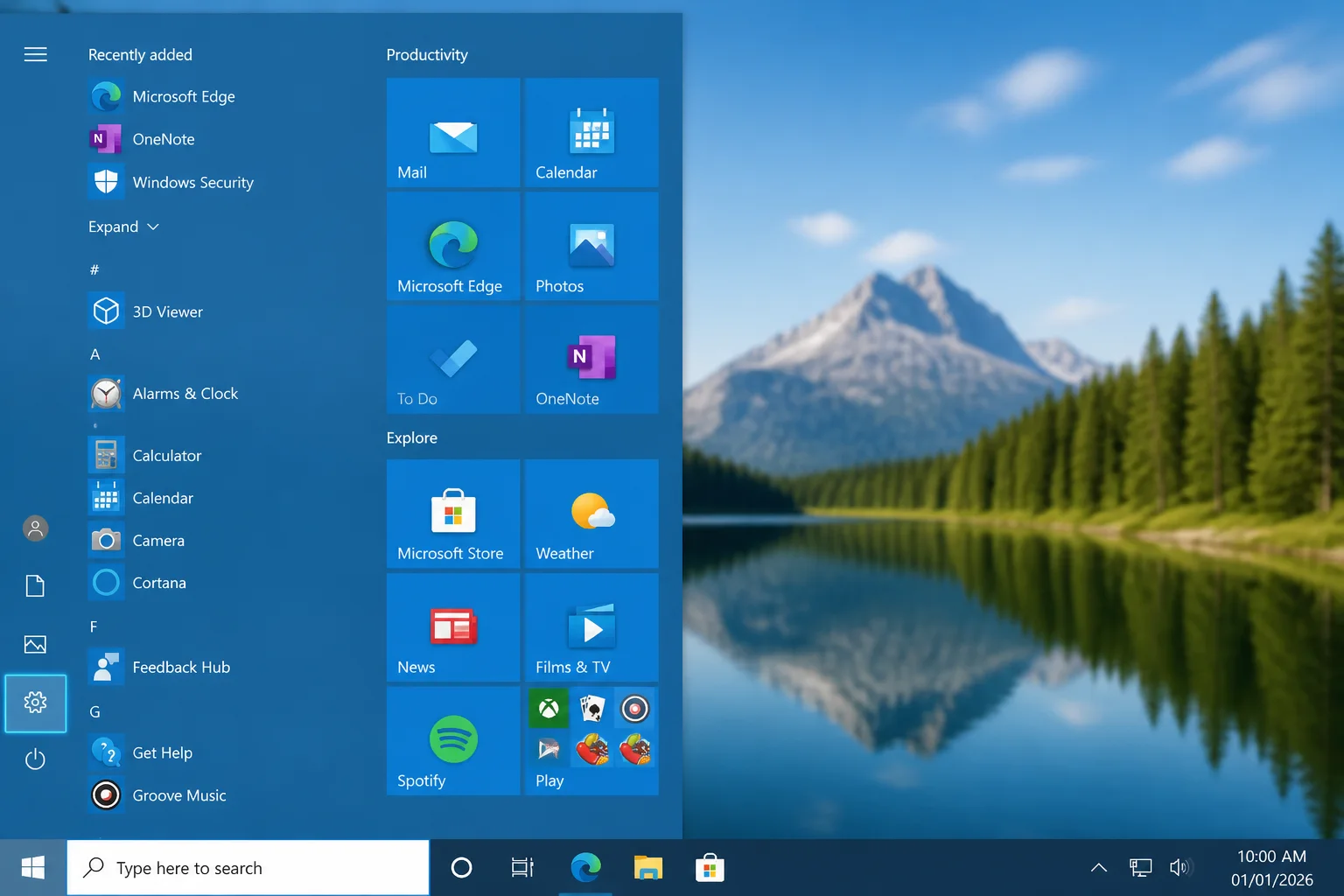
Press Windows + I, or click Start and select the gear icon.
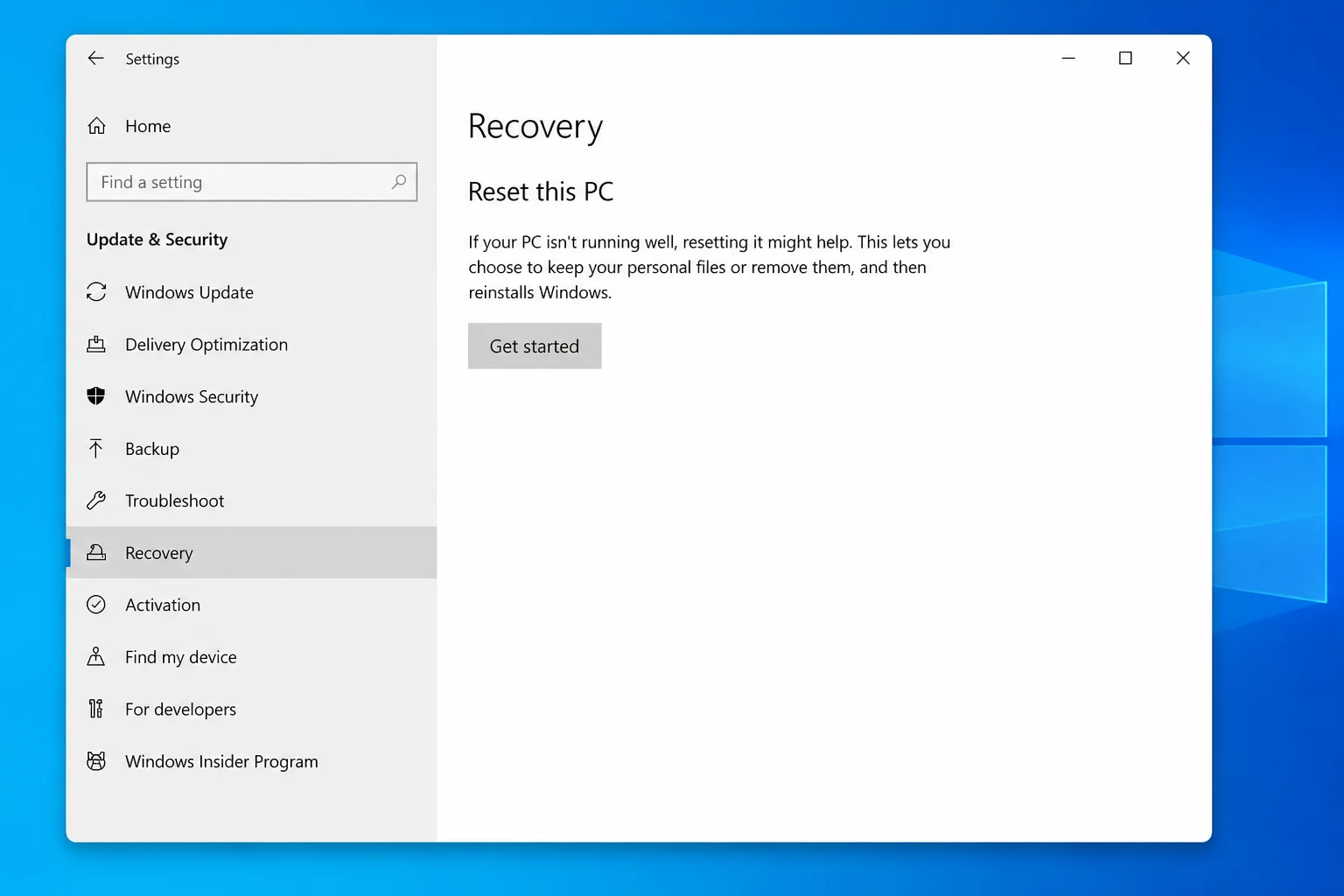
Step 2: Go to Update & Security
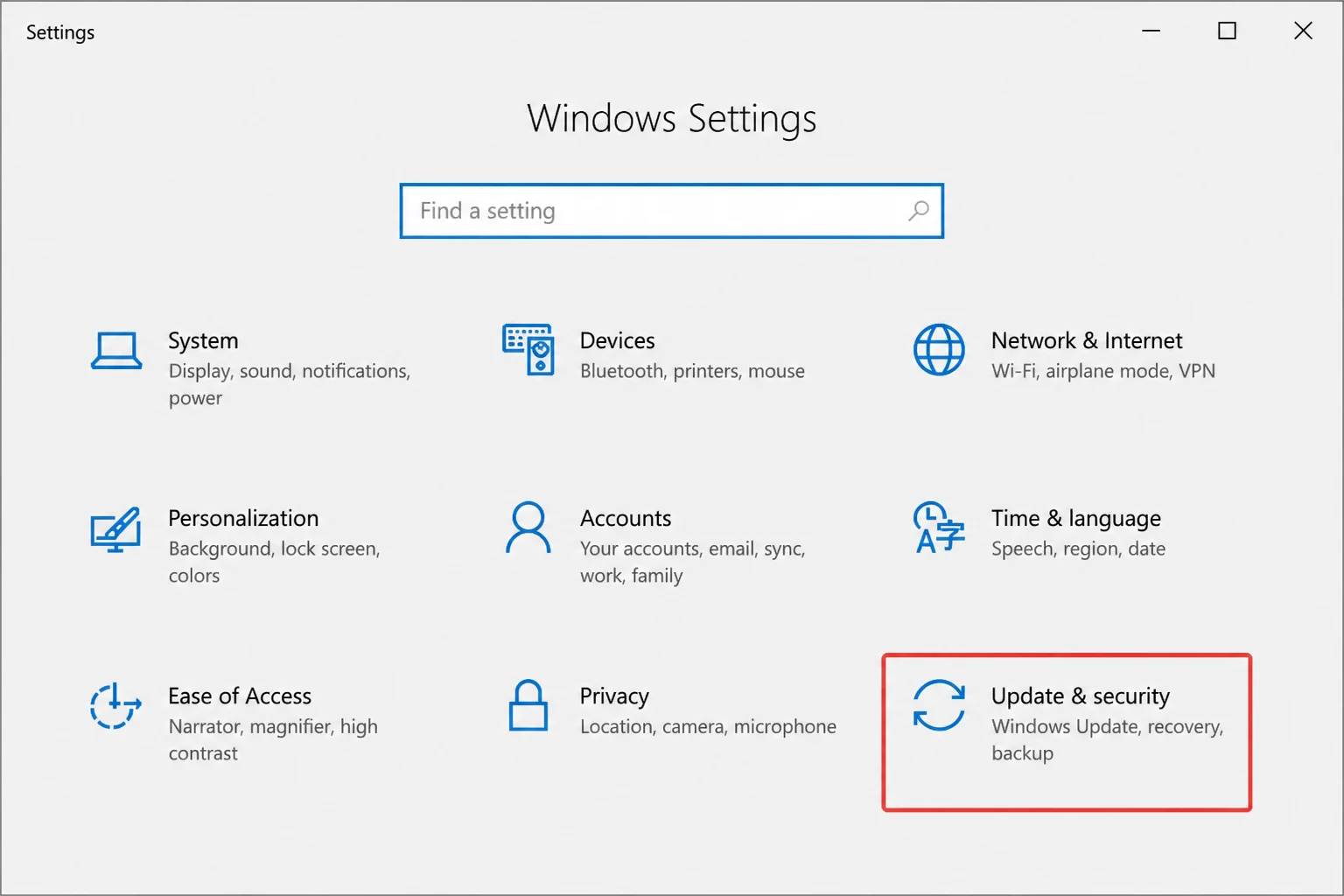
Click Update & Security.
Step 3: Select Recovery
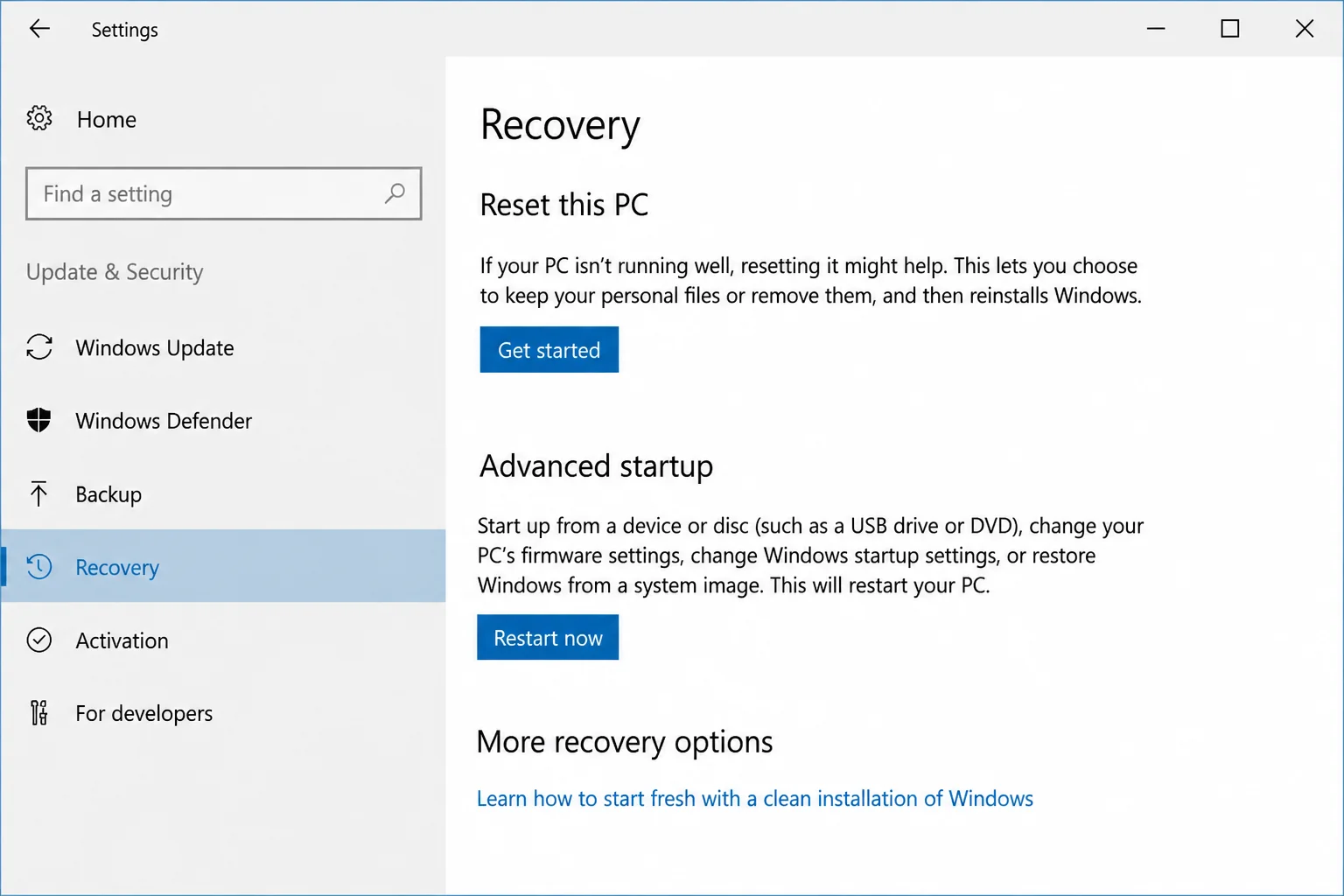
Click Recovery in the left sidebar.
Step 4: Start the Reset
Under Reset this PC, click Get started. On some Windows 10 builds this button reads Reset PC instead. Same thing, same result.
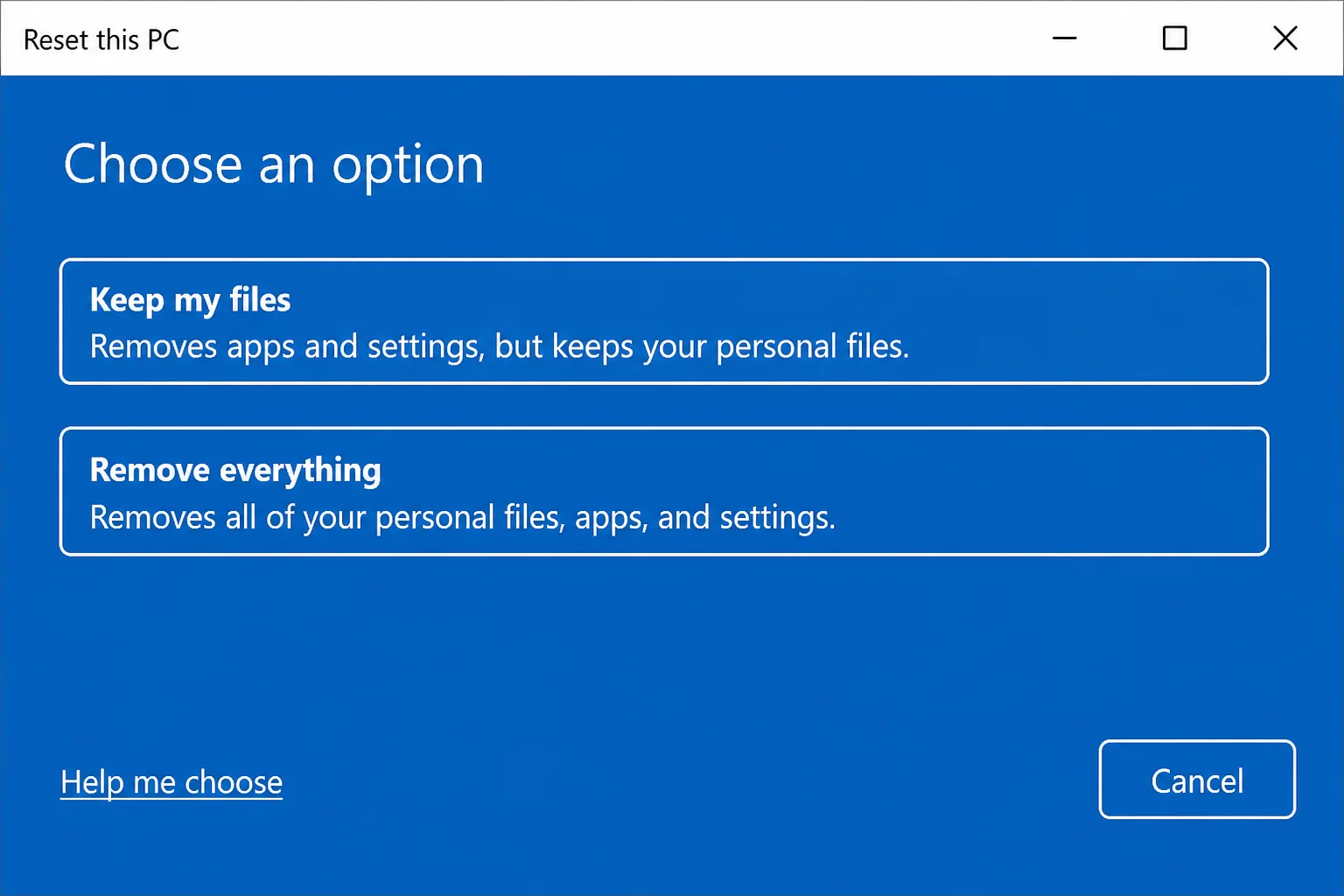
Step 5: Choose “Keep my files”
Select Keep my files from the two options that appear.
Step 6: Pick a Reinstall Method
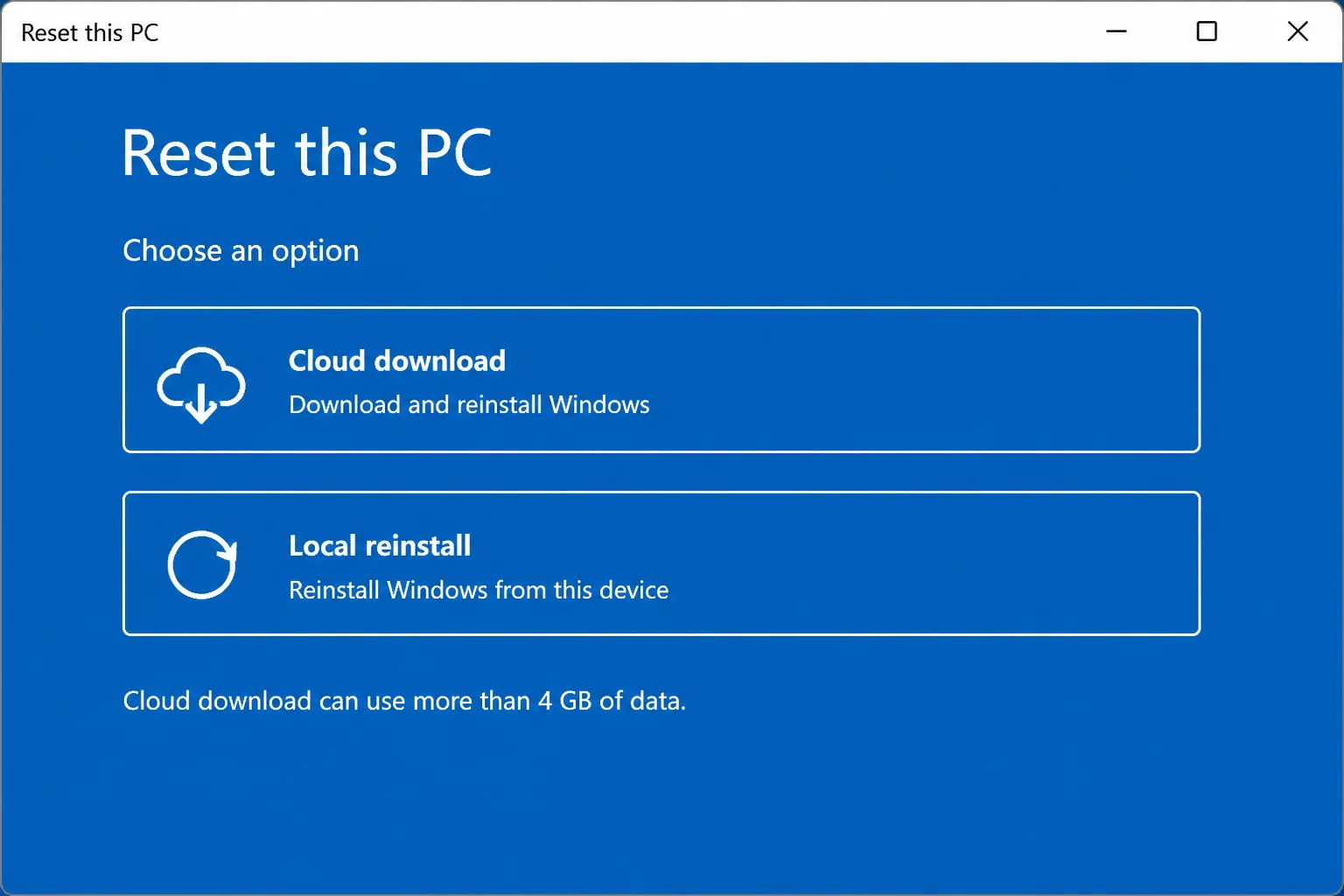
You’ll choose between Cloud download and Local reinstall:
- Cloud download downloads a fresh copy of Windows directly from Microsoft (roughly 4 GB of data). The better pick if you suspect your system files might be corrupted, or if malware may have touched them.
- Local reinstall reinstalls Windows using files already on your PC. Faster, no extra data usage, and works fine when your local installation is healthy.
Step 7: Confirm and Reset
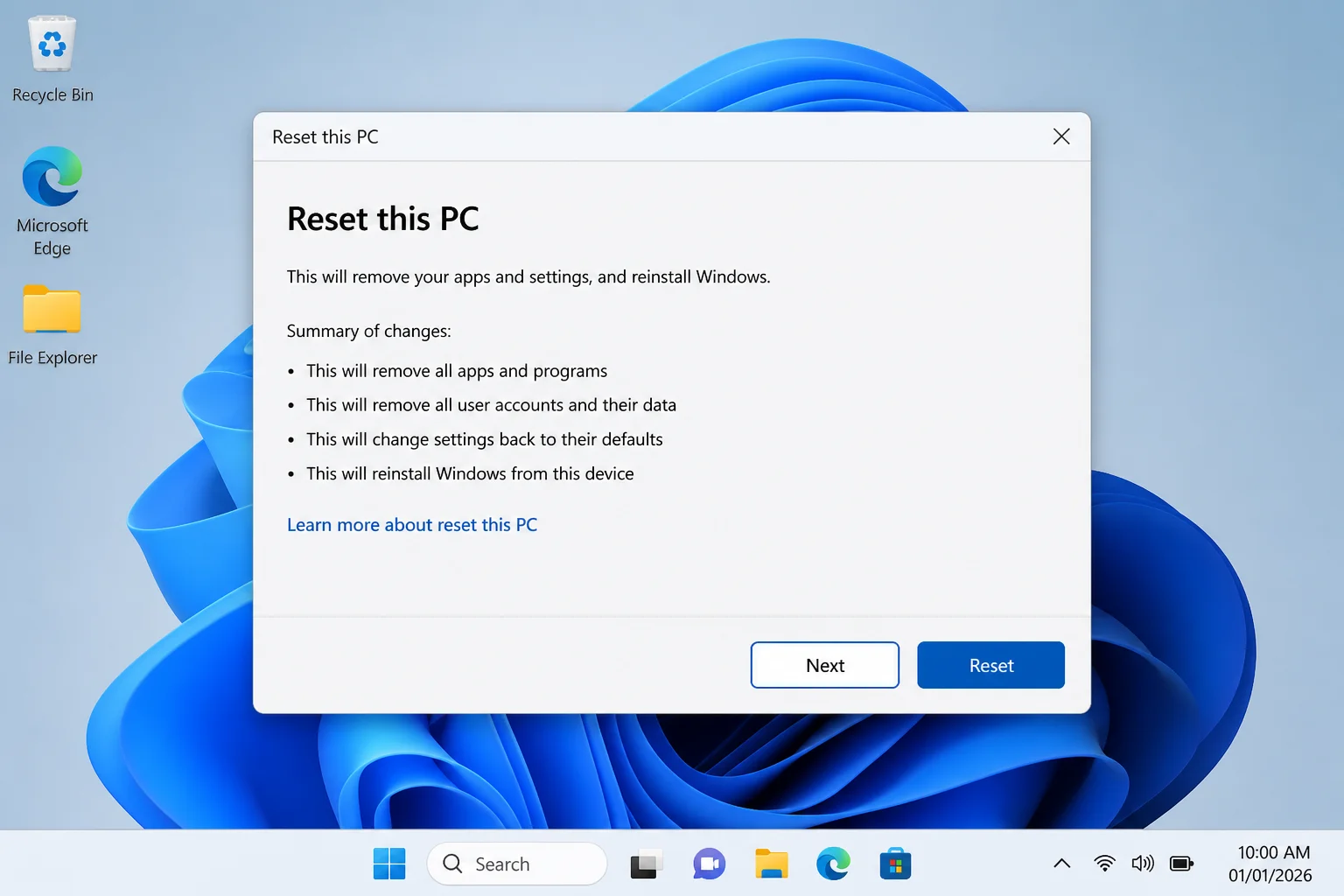
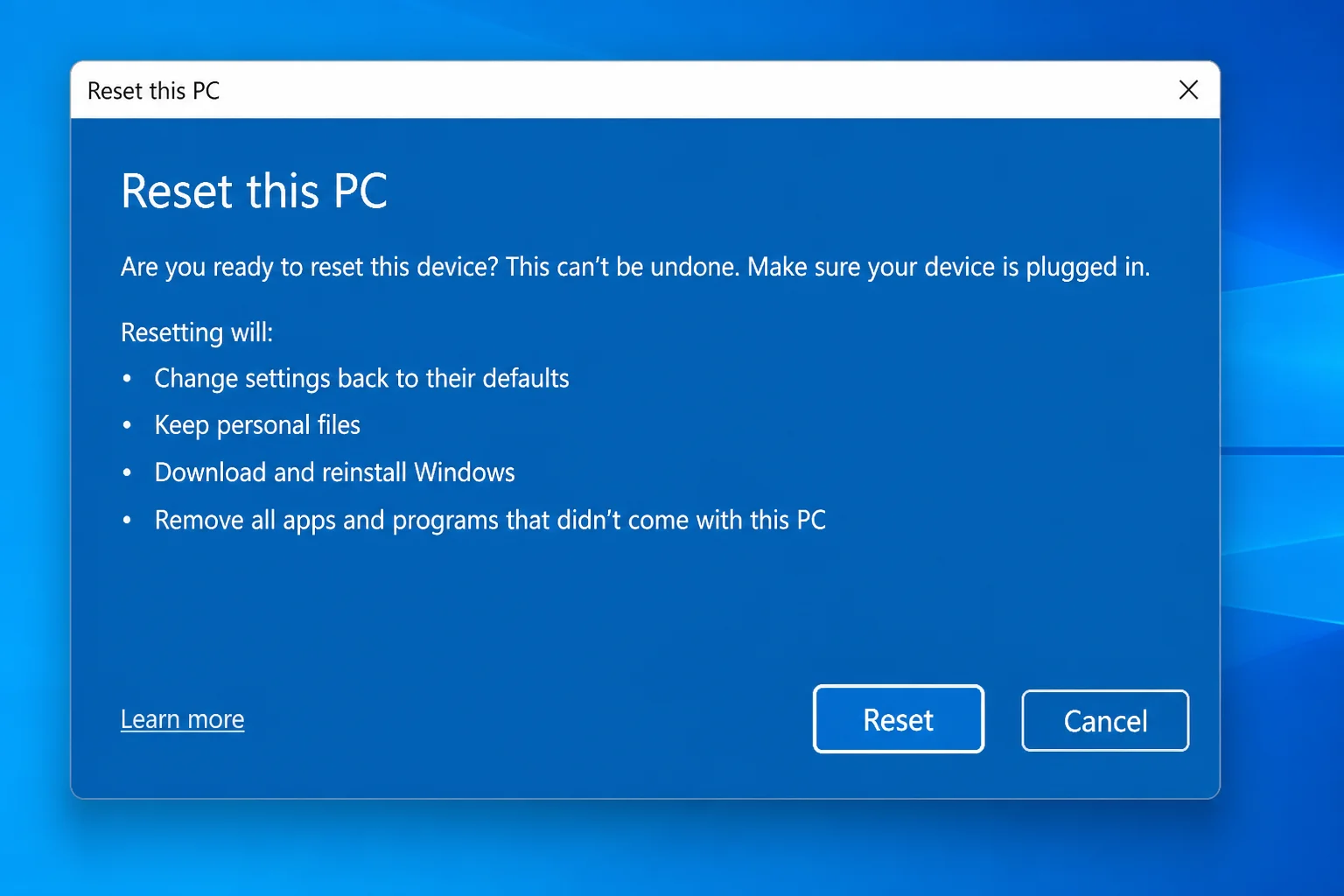
Click Next, review the summary of what’s about to happen, then click Reset. Your PC will restart several times during the process. Leave it alone until it finishes.
When it’s done, Windows walks you through setup. Your files will still be there, but you’ll need to reinstall your apps.
How to Factory Reset Windows 10 and Remove Everything
Remove everything wipes your files, apps, settings, and user accounts. It’s as close to a true factory reset as you’ll get. Use this when you’re selling or recycling the PC, or when you’ve got a serious malware infection and you want nothing to survive it.
Step 1: Open Recovery Settings
Press Windows + I to open Settings, then go to Update & Security > Recovery.
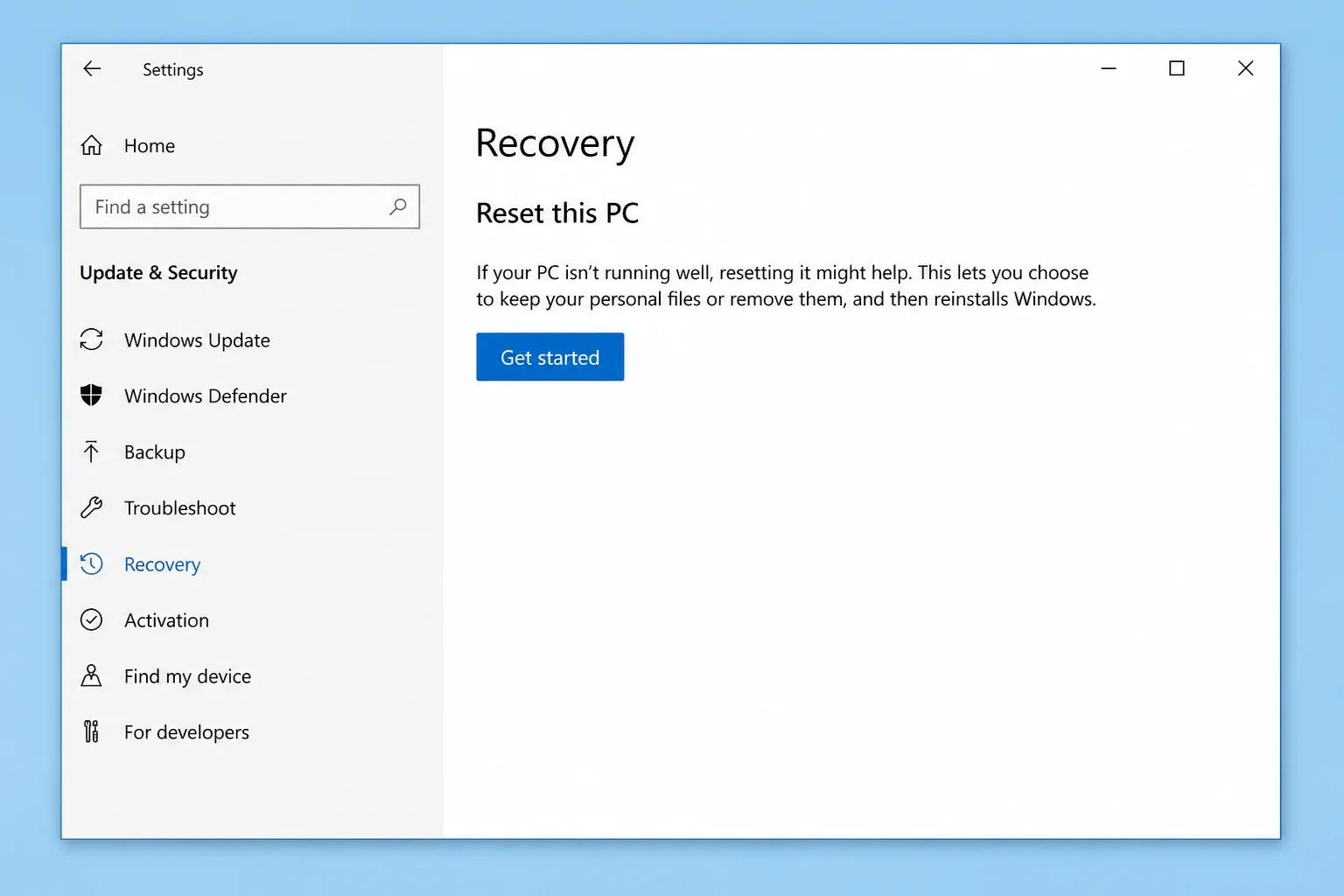
Step 2: Start the Reset
Click Get started (or Reset PC) under Reset this PC.
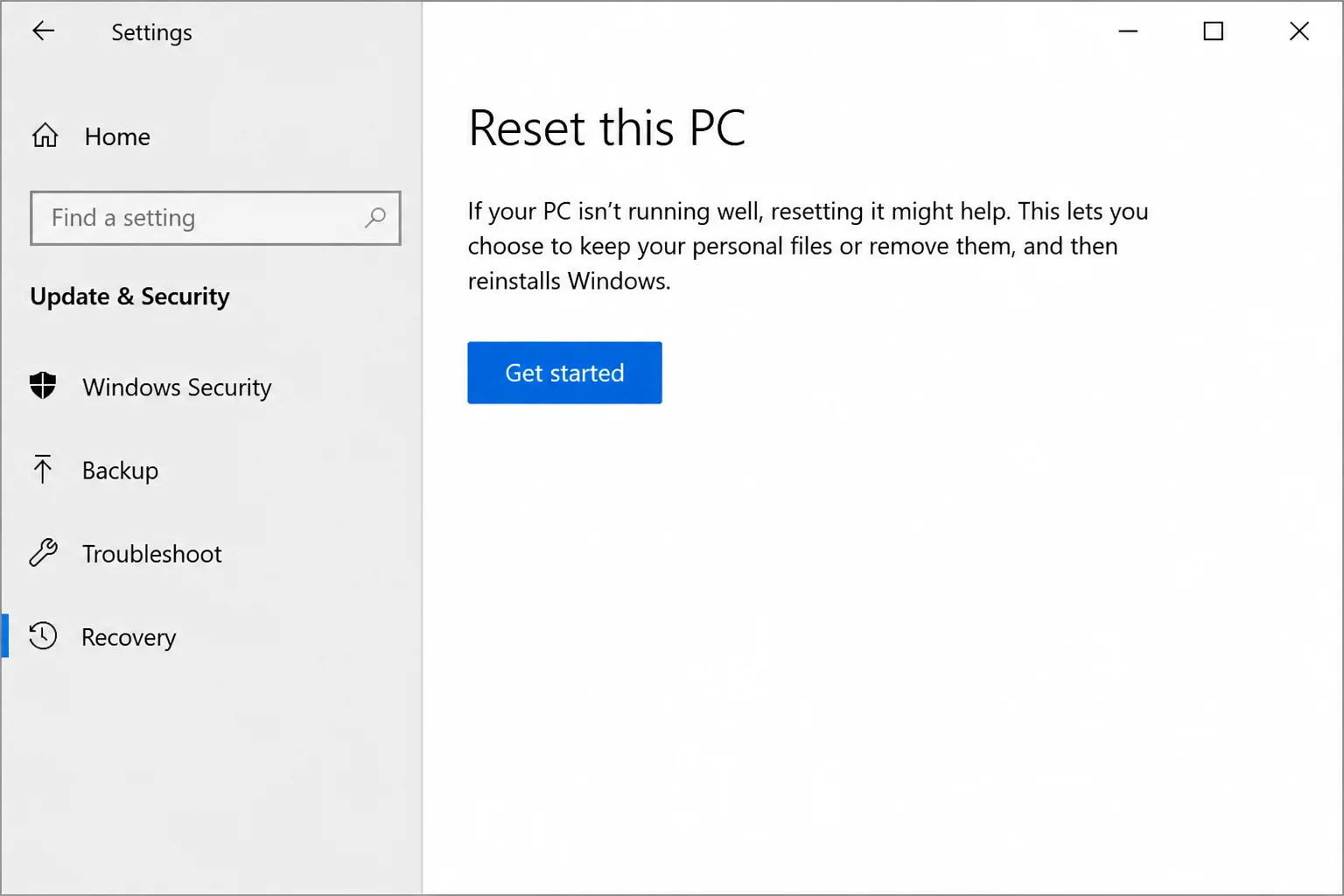
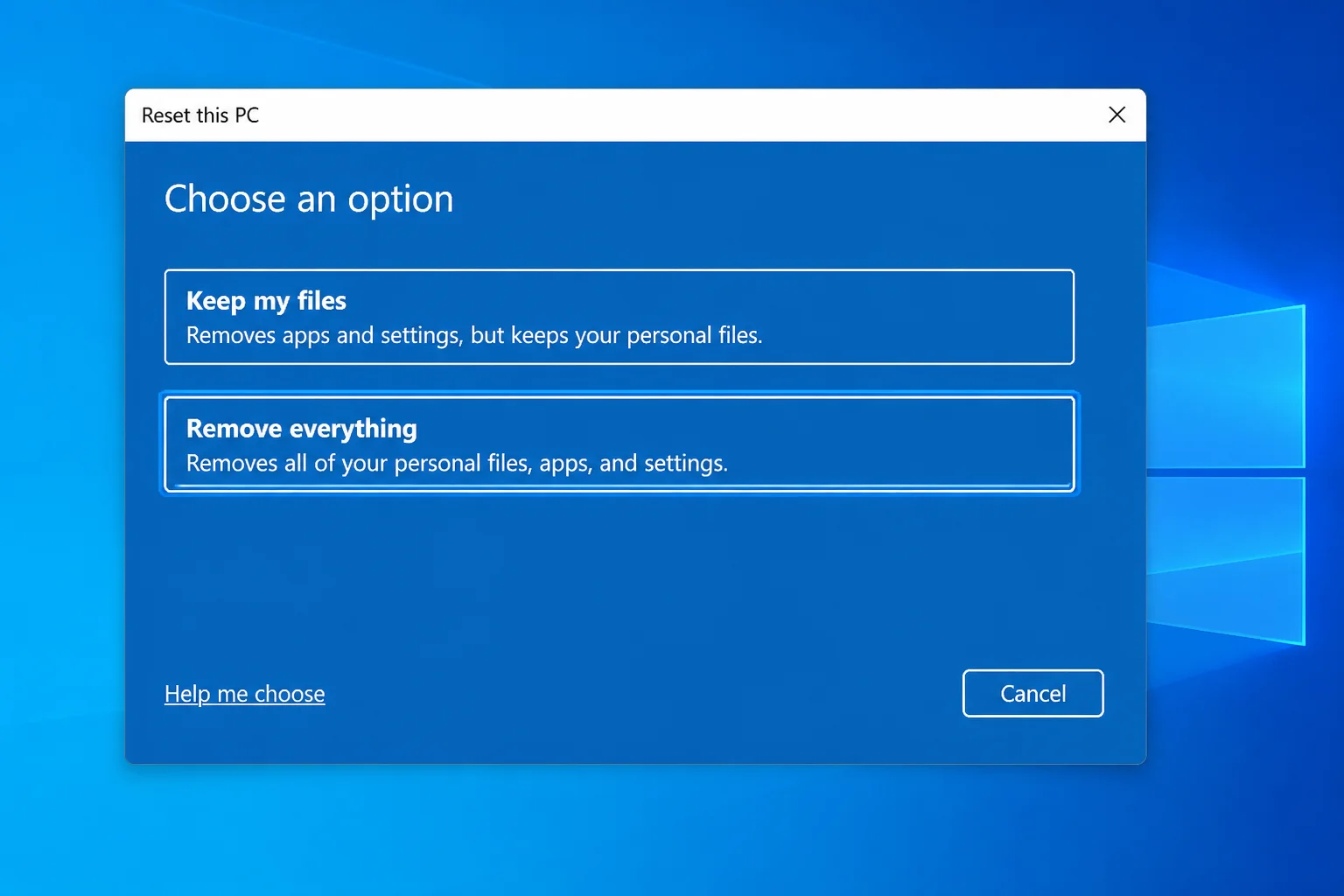
Step 3: Choose “Remove everything”
Select Remove everything.
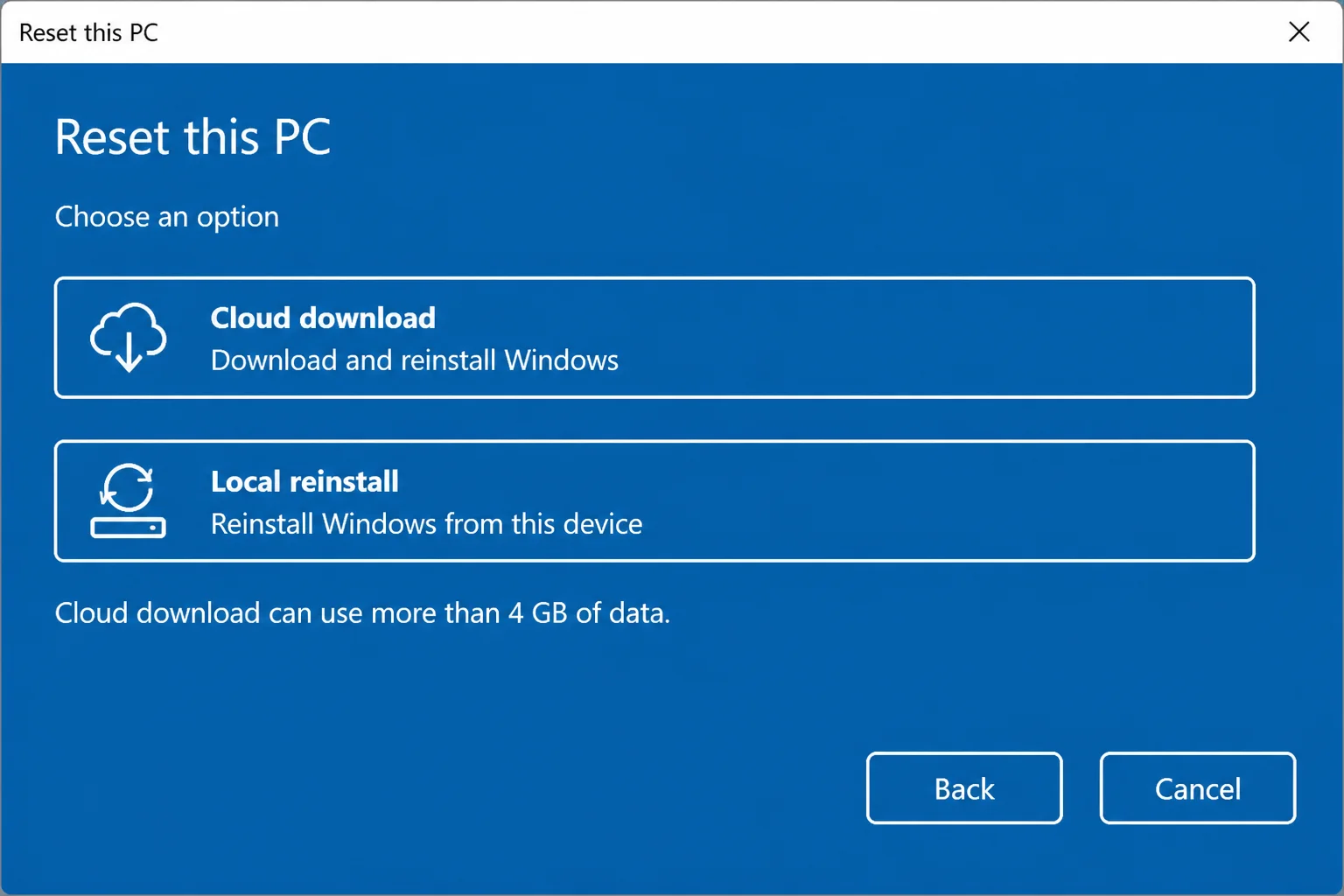
Step 4: Pick a Reinstall Method
Same choice as before: Cloud download or Local reinstall. If you’re resetting to clear malware, go with Cloud download to make sure you’re starting with completely clean Windows files, not local ones the malware may have tampered with.
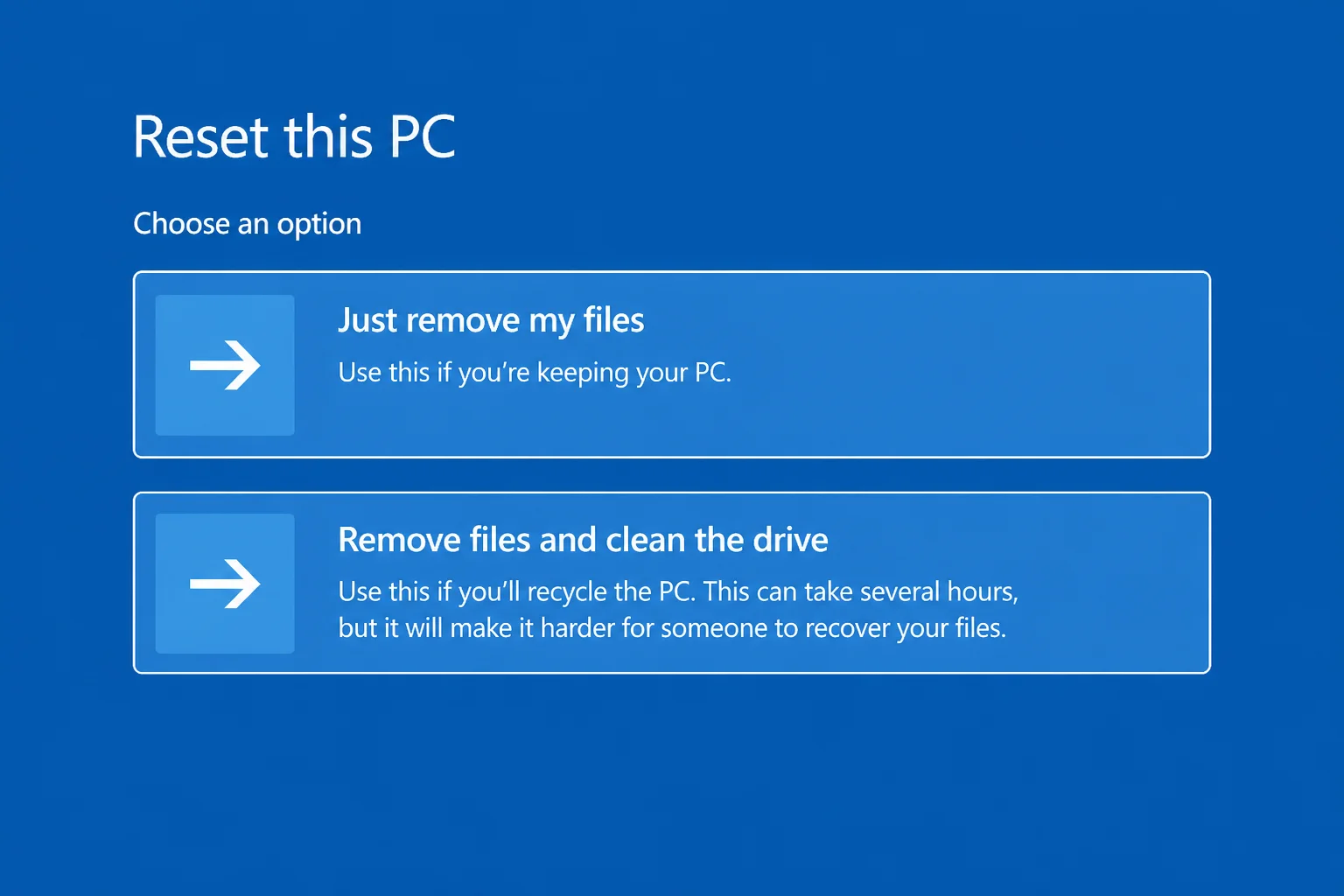
Step 5: Choose Your Drive Cleaning Option
This step matters a lot if you’re handing the PC off to someone else.
You’ll see two options:
- Just remove my files is fast (around 30 minutes), but the deleted data could theoretically be recovered with specialized tools. Fine if you’re keeping the PC yourself.
- Remove files and clean the drive is slower (one to several hours depending on drive size), but it overwrites the drive so recovering your data becomes very difficult. Use this before selling, donating, or recycling.
Step 6: Confirm and Reset
Click Next, check the summary, then click Reset. Windows will wipe everything and reboot into the initial setup screen, just like a brand-new PC.
How to Reset Windows 10 from the Sign-in Screen
Can’t get into Windows at all? If it keeps crashing before you reach the desktop, you can still start a reset from the Windows Recovery Environment (WinRE), basically a separate repair toolkit that lives on your PC and works even when Windows is completely falling apart.
Step 1: Get to the Sign-in Screen
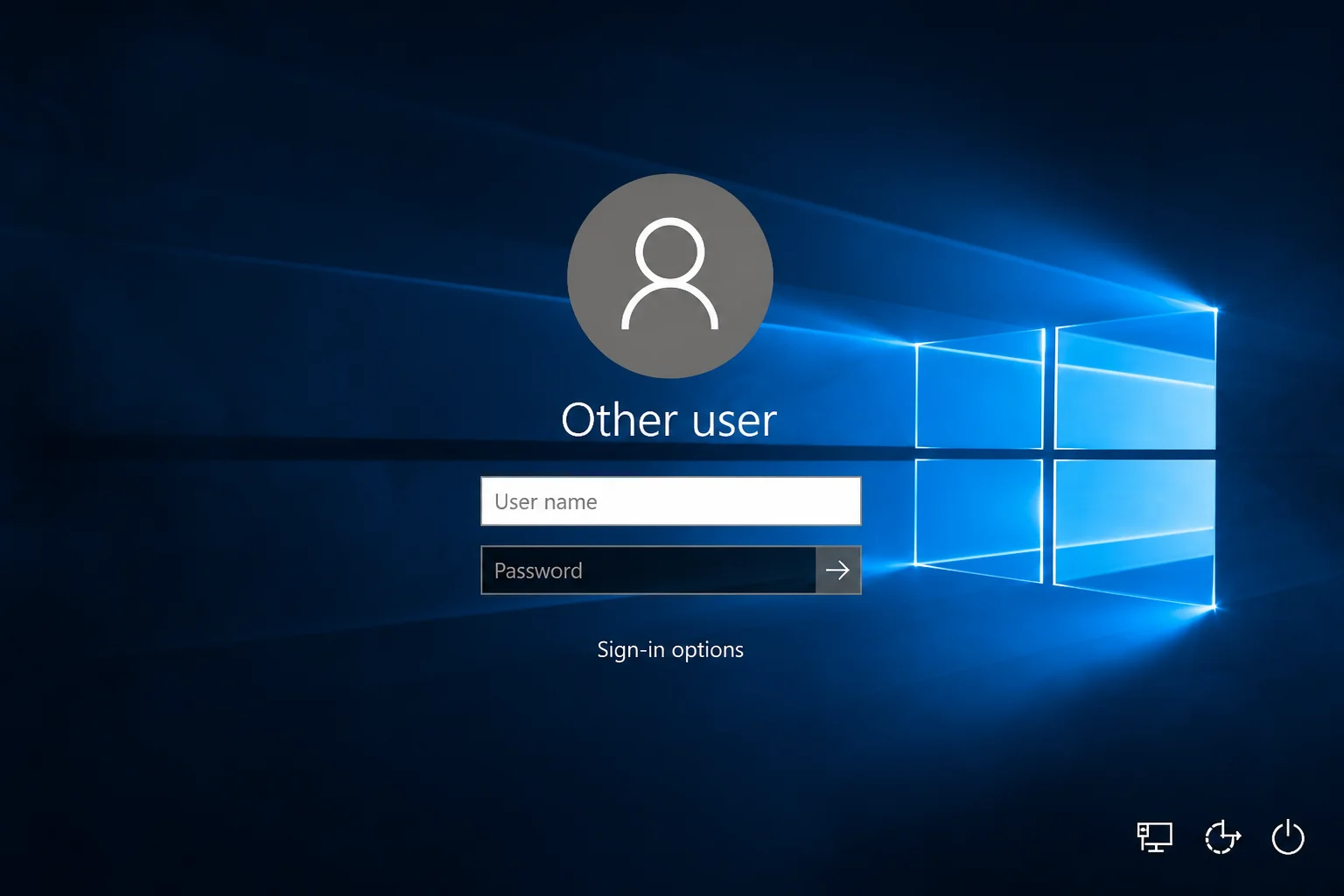
If Windows still reaches the sign-in screen, press Windows + L to lock the screen and bring it up.
Step 2: Restart into Recovery Mode
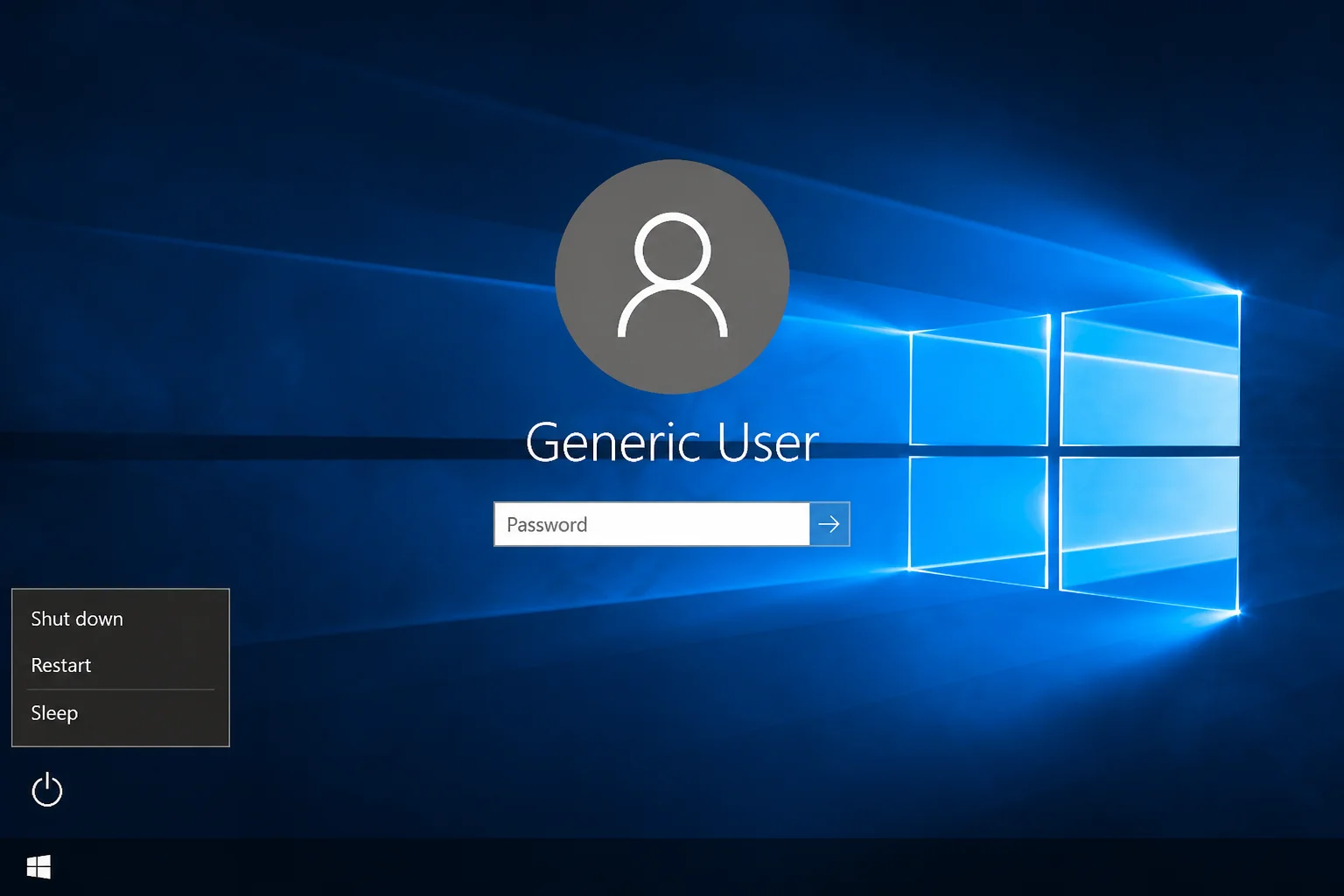
Click the Power icon in the bottom-right corner. Hold Shift and click Restart; keep holding Shift until the PC reboots.
Can’t even reach the sign-in screen? Let Windows fail to boot three times in a row. It’ll automatically drop into the recovery environment for you.
Step 3: Select Troubleshoot
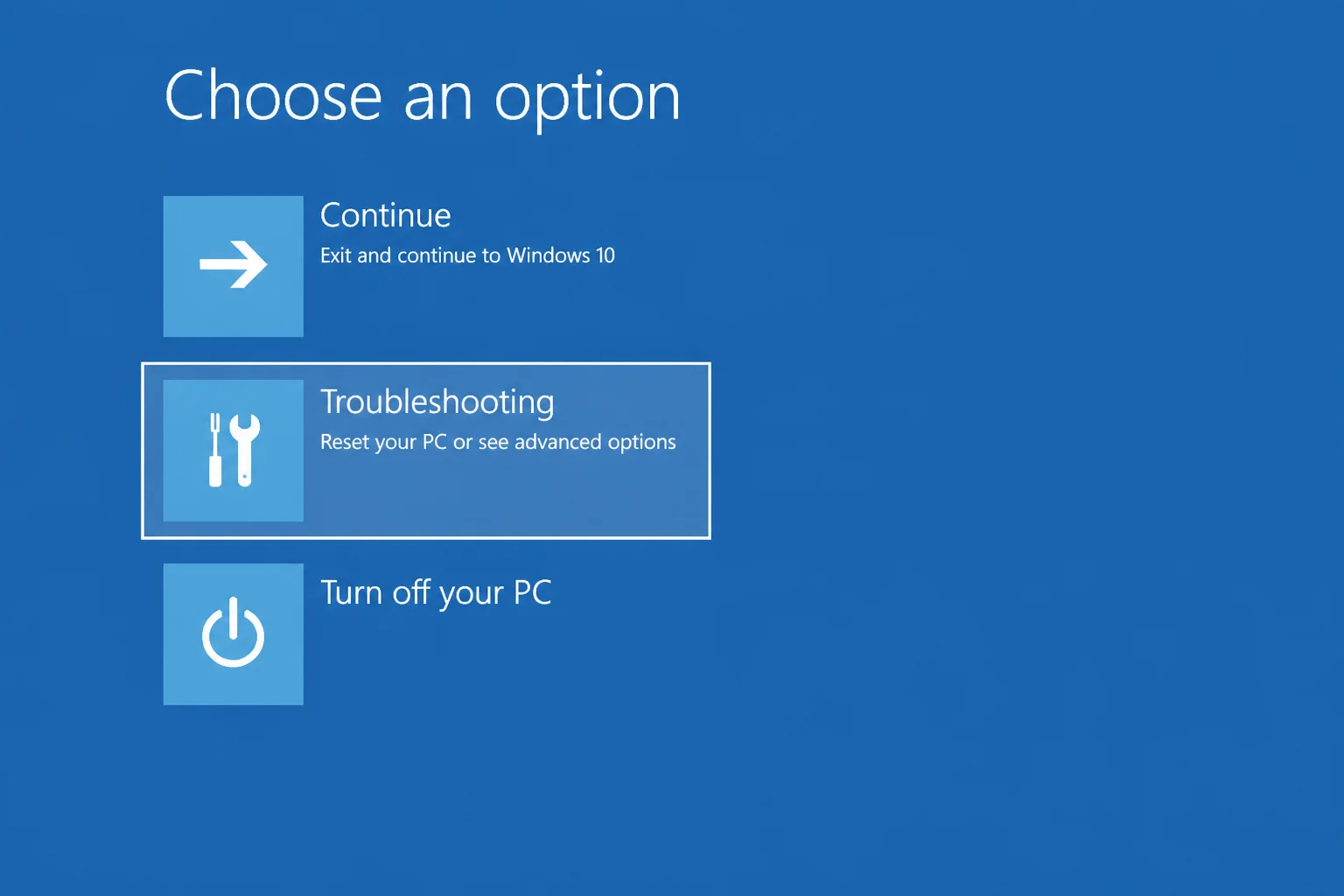
On the blue Choose an option screen, click Troubleshoot.
Step 4: Select Reset this PC
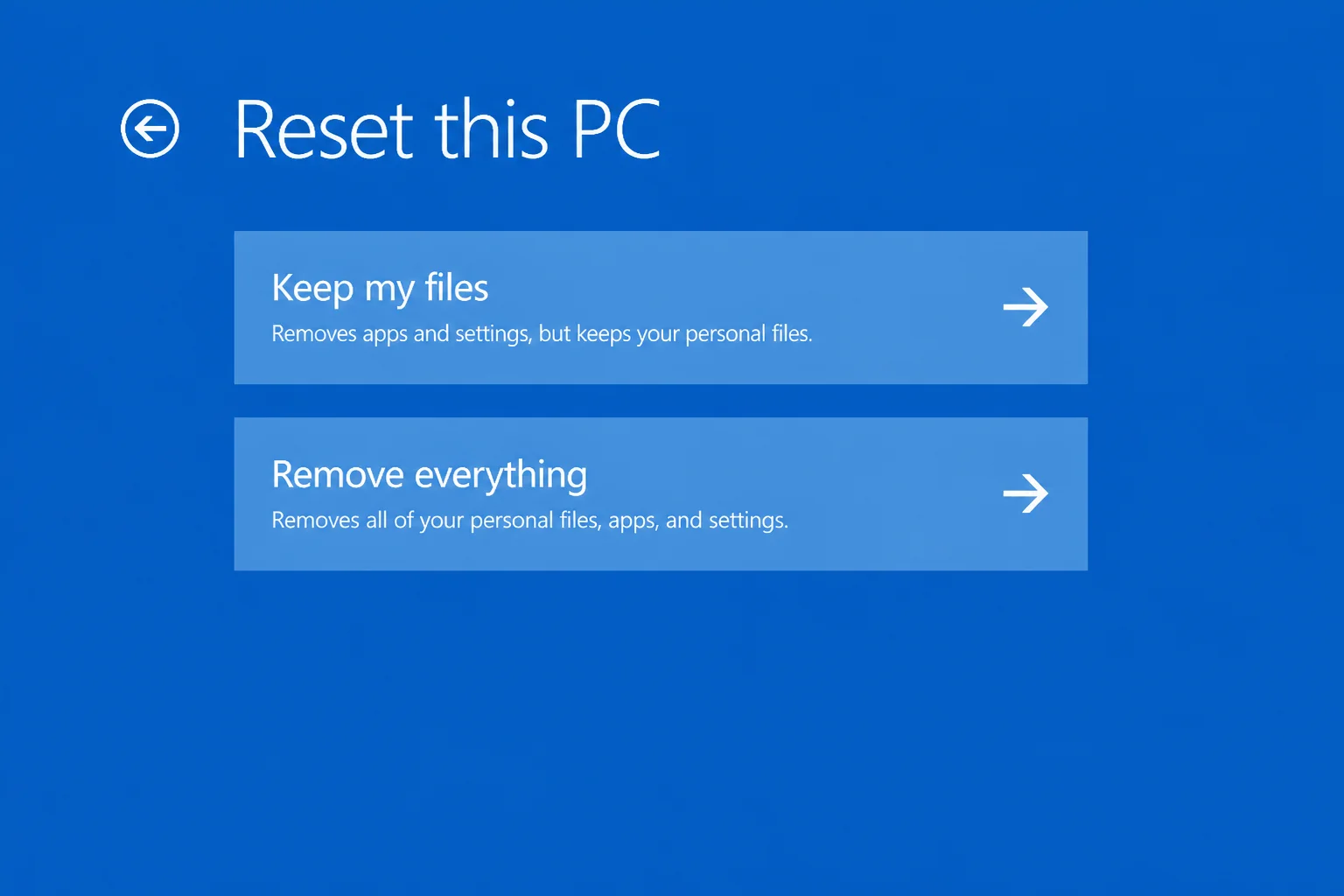
Click Reset this PC.
Step 5: Choose Your Reset Option
Pick Keep my files or Remove everything, the same options as the Settings method. On some branded PCs (Dell, HP, Lenovo, etc.), you may also see a Restore to factory settings option, which uses the original manufacturer image with all the preloaded software. If that option’s there and you want the PC exactly as it shipped, that’s the one to pick. Otherwise, Remove everything does the job.
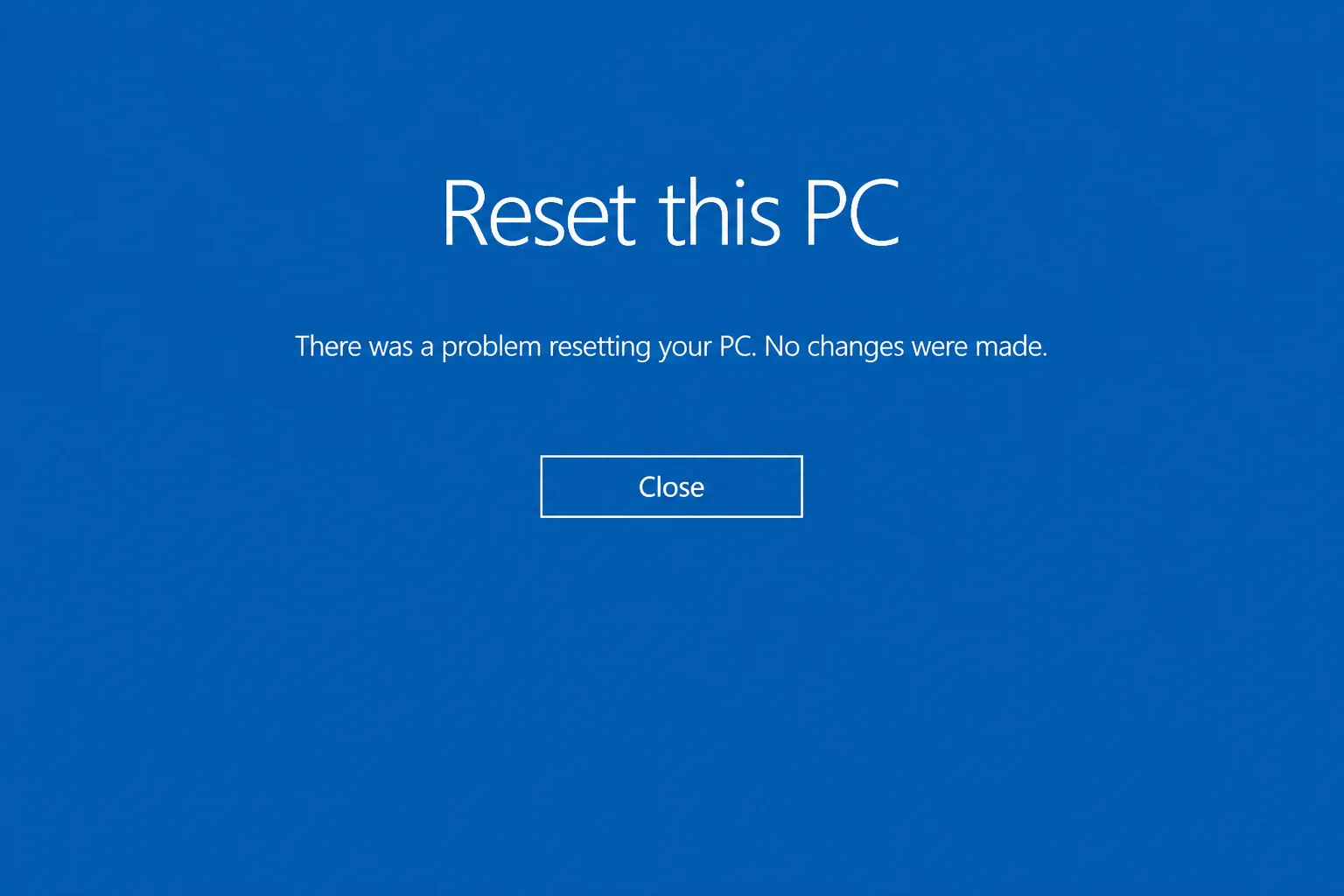
Follow the remaining prompts to complete the reset.
After the Reset: Get Windows Up to Date
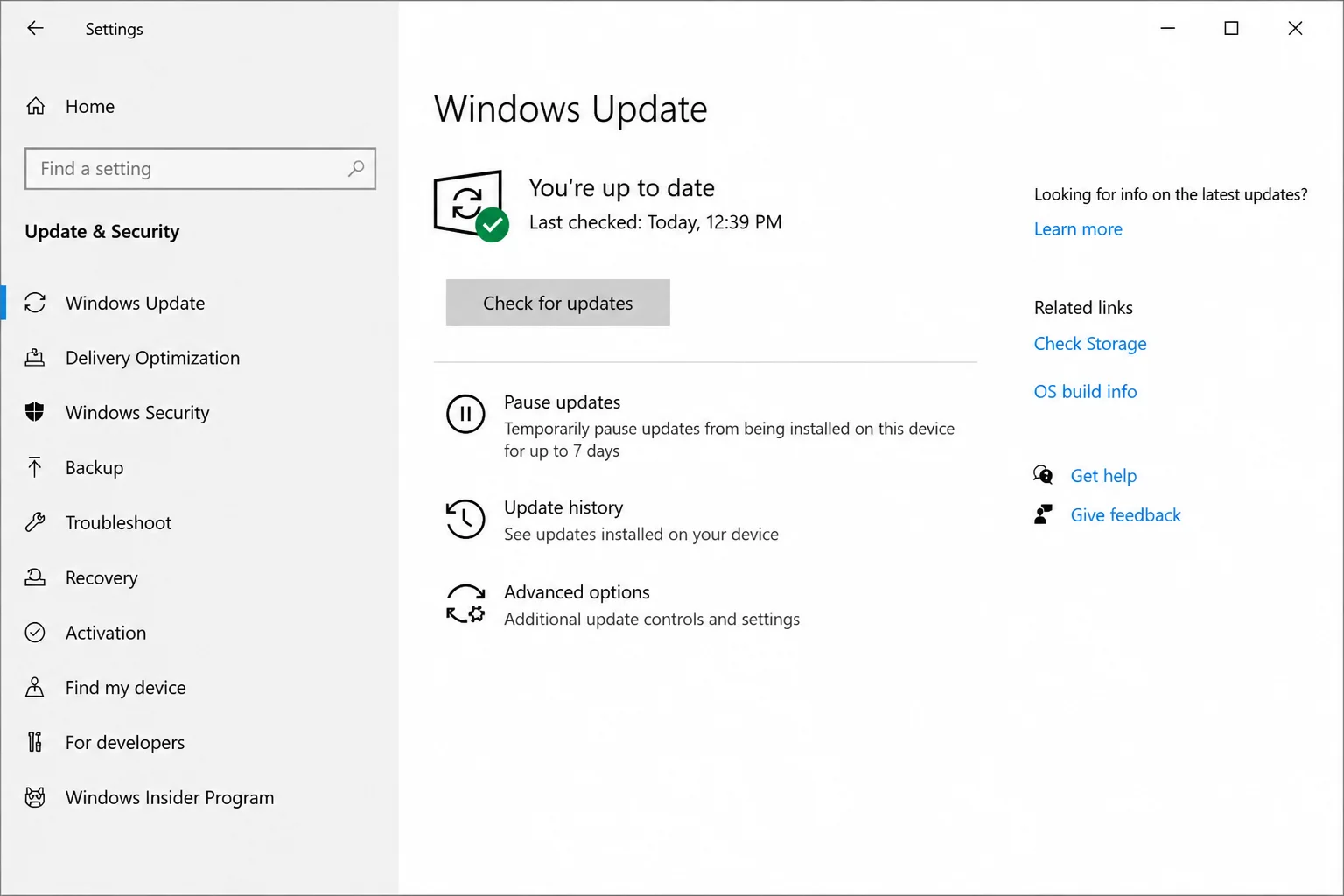
Once Windows is set back up, check for updates before you start reinstalling anything. The fresh installation might be missing security patches and driver updates.
- Press
Windows + Ito open Settings. - Go to Update & Security > Windows Update.
- Click Check for updates and let Windows download and install everything it finds.
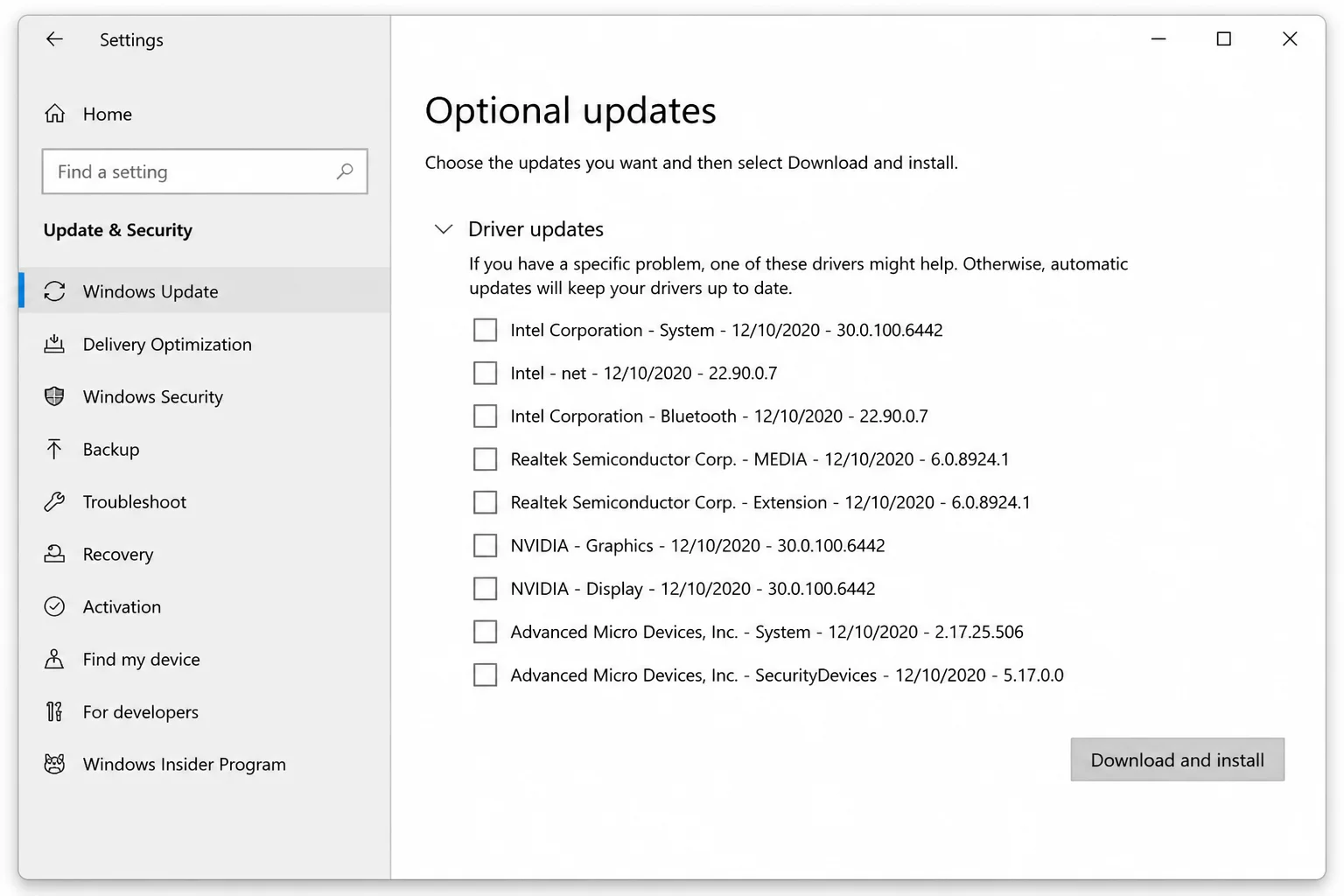
If some hardware isn’t working right (graphics, Wi-Fi, audio), check for optional driver updates too:
- Click View optional updates on the Windows Update page.
- Select the Driver updates tab.
- Check any drivers listed and click Download and install.
Tips and Troubleshooting
Common Issues
Problem: The reset fails or gets stuck at a percentage
Try the WinRE method above. It often succeeds when the Settings-based reset won’t budge. If that also fails, create bootable installation media using the Windows 10 Media Creation Tool and run a clean install from a USB drive.
Problem: You’re on Windows 11
Same process, slightly different path. Go to Settings > System > Recovery > Reset this PC > Reset PC. All the same options are there: Keep my files, Remove everything, Cloud download, Local reinstall.
Pro Tips
- Back up your browser data separately. Bookmarks, saved passwords, and extensions can live in app data folders that “Keep my files” won’t always catch. Export them before you reset.
- Cloud download is worth the data after a malware infection. A local reinstall uses existing Windows files. If malware touched those, you could be putting the same compromised files right back. Cloud download pulls a clean image from Microsoft’s servers.
- “Remove files and clean the drive” on a large hard drive takes a while. Start it before bed, not before a video call.
- Check your installed apps list before resetting. Some utilities are surprisingly hard to track down again after a reinstall. Snap a photo of your Programs list first so you know what you’re missing.
Quick Reference
| Situation | Recommended options |
|---|---|
| PC is slow or buggy | Keep my files + Local reinstall |
| Serious malware infection | Remove everything + Cloud download |
| Selling or recycling the PC | Remove everything + Remove files and clean the drive |
| Windows won’t start at all | Reset from WinRE (sign-in screen method) |
Wrapping Up
A factory reset sounds drastic, but Windows makes it pretty manageable. You pick your options, confirm, and let it run. Whether you’re giving a struggling machine a fresh start, nuking a malware infection, or wiping a PC before you hand it off, the right option is in there. Just don’t skip the backup step, and if you’re passing the PC along to someone else, the “Remove files and clean the drive” option is absolutely worth the extra wait. A couple hours of patience beats regretting it later.