

If you’ve ever had to type out a long file path in Command Prompt, something like C:\Users\YourName\Documents\Projects\OldStuff\ you know how painful it is. One typo and the whole thing fails. But here’s the thing: Command Prompt actually has a built-in auto-complete feature that lets you press Tab to fill in folder and file names automatically. You just might need to turn it on first.
In this guide, you’ll learn three ways to enable auto-complete in CMD on Windows 10 and 11: a quick one-time fix, a permanent registry tweak, and a look at PowerShell if you want something even more powerful. No tech degree required.
How CMD Auto-Complete Works
Auto-complete in Command Prompt works just like it sounds. You type the first few letters of a folder or file name, press Tab, and CMD fills in the rest. For example, instead of typing C:\Documents and Settings\, you’d just type C:\Doc and hit Tab. CMD does the rest.
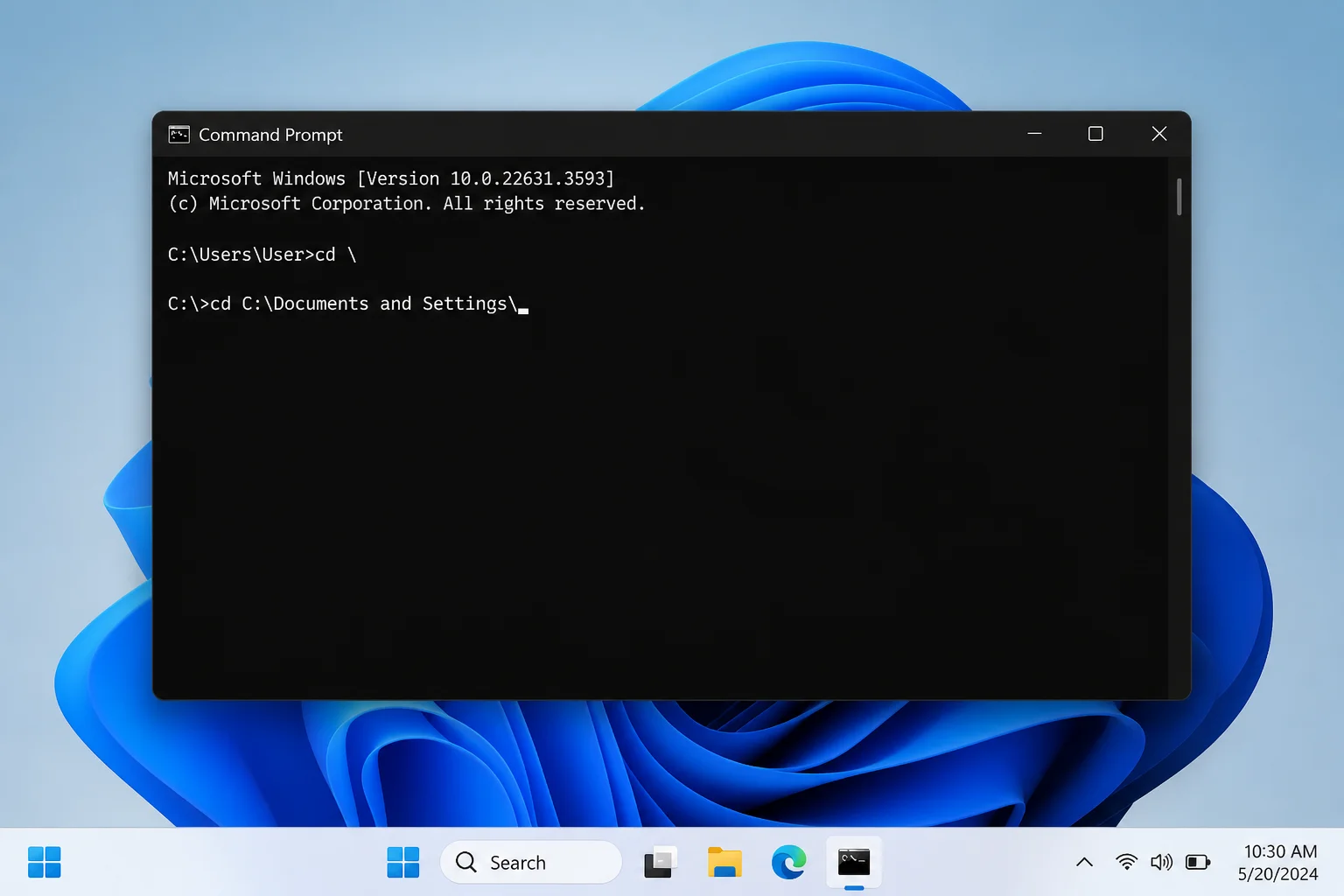
If there are multiple matches, keep pressing Tab to cycle through them in alphabetical order. It’s a small thing, but if you spend any real time in CMD, it’s a total game-changer.
Before You Begin
Make sure you have:
- A PC running Windows 10 or Windows 11
- Admin access (required for the permanent registry method)
- About 5 minutes
Option 1: Enable Auto-Complete for the Current CMD Session (No Registry Needed)
This is the quickest and safest method. It turns on auto-complete just for the Command Prompt window you open right now, with no permanent changes and no registry edits. Perfect if you’re on a work computer where you can’t mess with system settings.
Step 1: Open the Run Dialog
Press Windows + R on your keyboard to open the Run dialog box.

Step 2: Launch CMD with Auto-Complete Enabled
Type the following into the Run box and press Enter:
cmd /f:onA Command Prompt window will open with auto-complete already active. Now start typing a path and press Tab, CMD will fill it in for you. Press Tab again to cycle through other matches.
The default completion keys when using /f:on are:
Ctrl + Dto complete a directory (folder) nameCtrl + Fto complete a file name- Tab, cycles through both, depending on your system’s registry settings
When you close this CMD window, auto-complete goes away. Next time, just run cmd /f:on again.
Option 2: Enable Auto-Complete Permanently via the Registry
Want auto-complete to work every time you open Command Prompt without having to run a special command? You’ll need to make a small change in the Windows Registry, which is basically a giant settings database that Windows uses behind the scenes.
Fair warning: Editing the registry can cause problems if you change the wrong thing. Stick to the exact steps below and you’ll be fine. When in doubt, make a backup of the registry first (File > Export in Registry Editor).
Step 1: Open Registry Editor
Press Windows + R, type regedit, and press Enter. Click Yes if Windows asks for permission.
Step 2: Navigate to the Command Processor Key
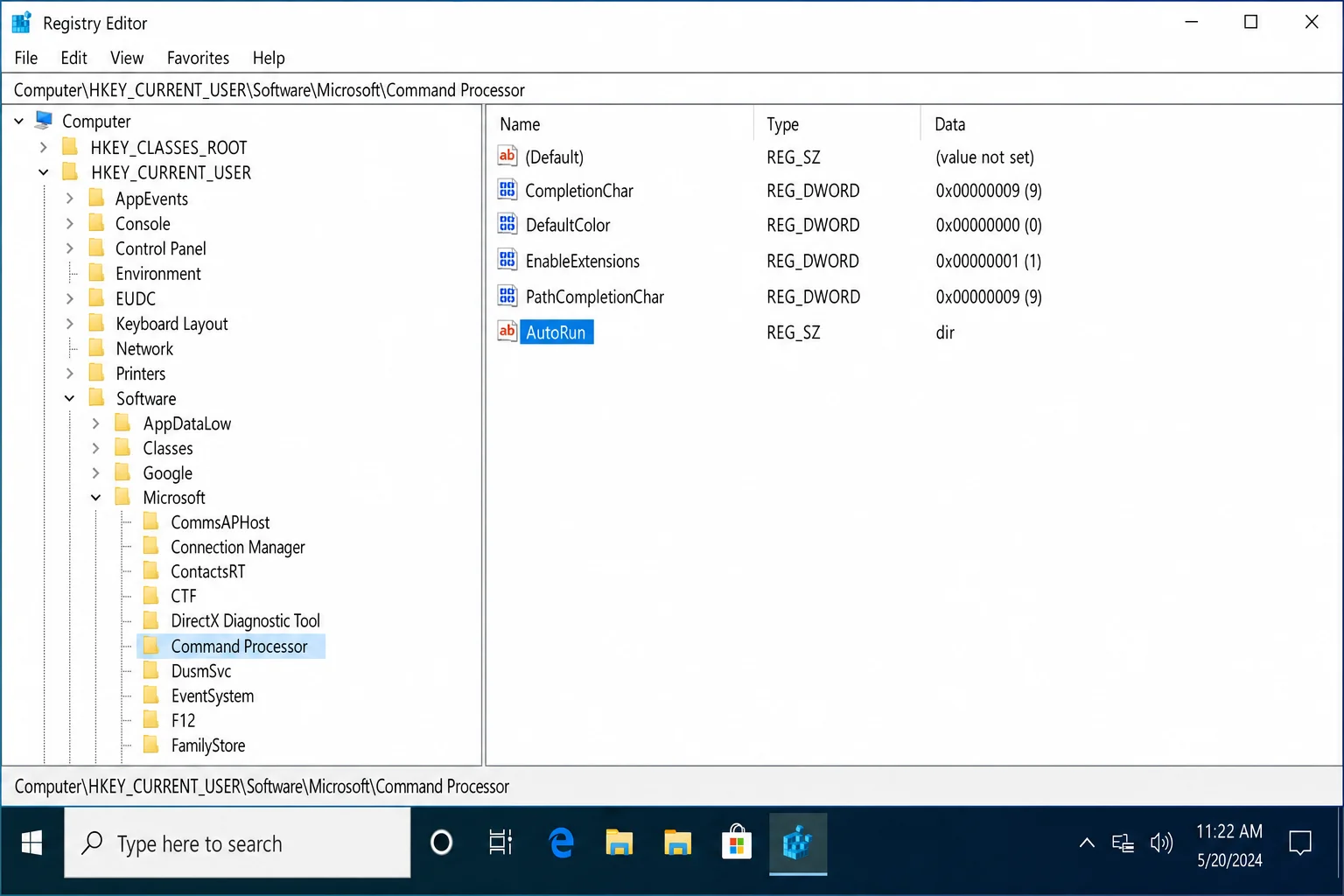
In Registry Editor, use the left-hand folder tree to navigate to this location:
HKEY_CURRENT_USER\SOFTWARE\Microsoft\Command ProcessorYou can also paste that path directly into the address bar at the top of Registry Editor and press Enter to jump straight there.
HKEY_CURRENT_USER vs. HKEY_LOCAL_MACHINE: which one?
Use HKEY_CURRENT_USER (HKCU) to change auto-complete just for your user account. Use HKEY_LOCAL_MACHINE (HKLM) to apply it to everyone on the computer (requires admin rights). If both are set, HKCU wins. For most people, HKCU is the right choice.
Step 3: Set the CompletionChar Value
In the right-hand panel, find the entry called CompletionChar and double-click it. This controls which key triggers folder name completion.
In the dialog that opens:
- Make sure Base is set to Decimal
- Change the Value data to
9 - Click OK
The value 9 maps to the Tab key. That’s it. Tab will now trigger folder auto-complete.
Step 4: Set the PathCompletionChar Value
Now find PathCompletionChar in the same panel and double-click it. This one controls file name completion. Set it to 9 (Decimal) as well, then click OK.
Setting both to 9 means Tab will complete both file and folder names. CMD will cycle through all matching items when you press Tab.
Step 5: Open a New Command Prompt
Close Registry Editor, then open a fresh Command Prompt window (the change won’t apply to any CMD windows that were already open). Type part of a path and press Tab, auto-complete should now work every time.
Prefer to skip the GUI? You can make the same registry change from an elevated Command Prompt with these two commands:
REG ADD "HKCU\SOFTWARE\Microsoft\Command Processor" /v CompletionChar /t REG_DWORD /d 9 /f
REG ADD "HKCU\SOFTWARE\Microsoft\Command Processor" /v PathCompletionChar /t REG_DWORD /d 9 /f
Run those, open a new CMD window, and you’re good to go.
Option 3: Use PowerShell for Even Better Auto-Complete
Here’s something worth knowing: if the blue terminal window on your PC says PS C:\Users\Name> at the prompt, you’re already in PowerShell, not Command Prompt. PowerShell is a more modern shell that comes built into Windows 10 and 11, and it already has auto-complete built in without any registry edits.
In PowerShell, pressing Tab cycles through matching commands, file paths, parameters, and more. But you can make it even better by enabling a menu-style completion that shows all your options at once instead of cycling through them one by one.
Step 1: Check If You Have a PowerShell Profile
Open PowerShell (search for it in the Start menu) and run this command:
if (-not (Test-Path $PROFILE)) { New-Item -Path $PROFILE -ItemType File -Force }This creates a profile file if one doesn’t already exist. Think of it as a settings file that runs every time PowerShell starts.
Step 2: Open Your Profile in Notepad
notepad $PROFILEStep 3: Add the Menu Completion Setting
In Notepad, paste in the following line:
Set-PSReadLineKeyHandler -Key Tab -Function MenuCompleteSave the file and close Notepad. Restart PowerShell.
Now when you press Tab, instead of cycling through one option at a time, you’ll see a pop-up menu of all matching completions. Use the arrow keys to pick the one you want.
You can also turn on history-based suggestions, where PowerShell predicts what you’re going to type based on commands you’ve run before:
Set-PSReadLineOption -PredictionSource HistoryAdd that to your profile file too if you want it on permanently. To turn predictions off if they get annoying:
Set-PSReadLineOption -PredictionSource NoneTips and Troubleshooting
Tab Isn’t Doing Anything in CMD
This is the most common issue. A few things to check:
- Did you open a new CMD window? Registry changes don’t apply to already-open windows. Close and reopen Command Prompt.
- Check the registry values: Open an elevated CMD and run these to see what’s currently set: If the values show
0x0, auto-complete is disabled. Set them to9using the steps above.
reg query "HKCU\SOFTWARE\Microsoft\Command Processor" /v CompletionChar
reg query "HKCU\SOFTWARE\Microsoft\Command Processor" /v PathCompletionChar- Try the session method first: Run
cmd /f:onto test if auto-complete works at all. If it does, the issue is just the registry values.
You’re on a Work or Corporate Computer
IT departments sometimes lock down registry editing, and even HKCU might be restricted on managed machines. If that’s the case, the cmd /f:on session method is your best bet since it doesn’t touch the registry at all.
Completion Cycles Through Weird Options
CMD just cycles through everything that matches what you’ve typed so far, alphabetically. If you’re getting too many results, type a few more letters to narrow it down before pressing Tab. For example, instead of C:\P, try C:\Pro to skip straight to the Program Files folders.
CMD vs. PowerShell: What’s the Difference?
Easy way to tell them apart:
- Command Prompt: Prompt looks like
C:\Users\Name>, window title says “Command Prompt” - PowerShell: Prompt looks like
PS C:\Users\Name>, often has a blue background
The registry trick only affects CMD. If you’re in PowerShell, the Tab completion settings there are separate (see Option 3 above).
Want Even More Powerful Auto-Complete?
If you live in the terminal, it’s worth checking out Windows Terminal, Microsoft’s modern terminal app that lets you run CMD, PowerShell, and even Linux shells in tabs, side by side. It doesn’t change how CMD auto-complete works, but it makes the whole experience a lot nicer. You can get it free from the Microsoft Store.
For power users who want IDE-style auto-complete across hundreds of command-line tools, Microsoft also makes inshellisense, which works with PowerShell and other shells and shows suggestions inline as you type. It requires Node.js to install, so it’s a bit more involved, but worth a look if you’re a heavy CLI user.
Wrapping Up
Typing out full file paths in Command Prompt is one of those small annoyances that adds up fast, but now you’ve got three solid ways to fix it. For a quick fix, cmd /f:on gets you going in seconds. For a permanent solution, the registry edit takes about two minutes. And if you’re open to switching things up, PowerShell’s built-in auto-complete blows CMD out of the water anyway.
Honestly, if you find yourself using the command line regularly, PowerShell with menu completion enabled is the way to go in 2026. It’s just a much better experience overall. But the CMD registry trick still works great and is a perfectly valid option if you prefer sticking with the classic Command Prompt.