
YouTube is home to unlimited educational and entertaining content. Still, you might want to block YouTube on your personal or home computer if the website’s becoming too distracting.
Putting YouTube in Restricted Mode blocks adult content and makes the platform safer for your kids or teenage children. You can also block specific channels with inappropriate content. But if you want to block access to the YouTube website on your computer, we’ll show you how it’s done. This tutorial covers steps for Mac and Windows computers.
Block YouTube on Windows PC
You can block websites by modifying the “Hosts file” that Windows uses to configure your computer’s Transmission Control Protocol/Internet Protocol (TCP/IP). TCP/IP describes a set of instructions that dictate how your computer exchanges data over the internet.
Follow the steps below to block YouTube by editing the Windows hosts file in Windows 10 or 11.
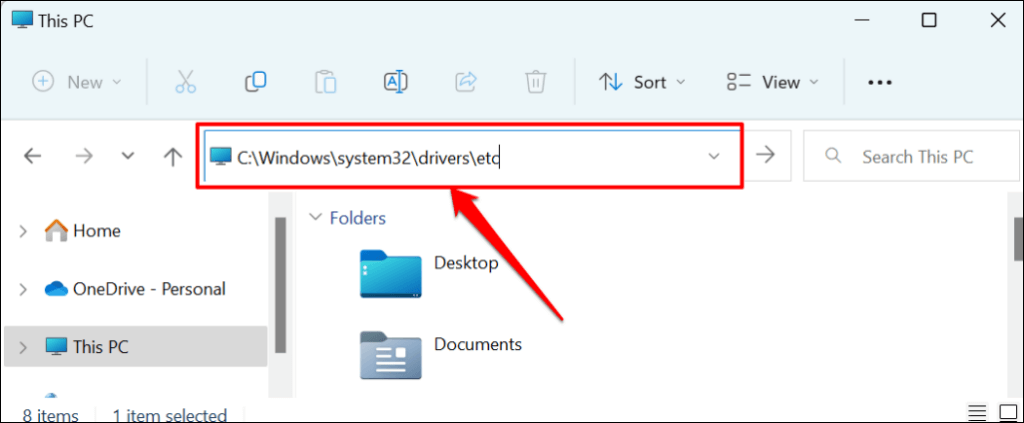
- Open the Windows File Explorer (Windows key + E), paste C:WindowsSystem32driversetc, and press Enter.
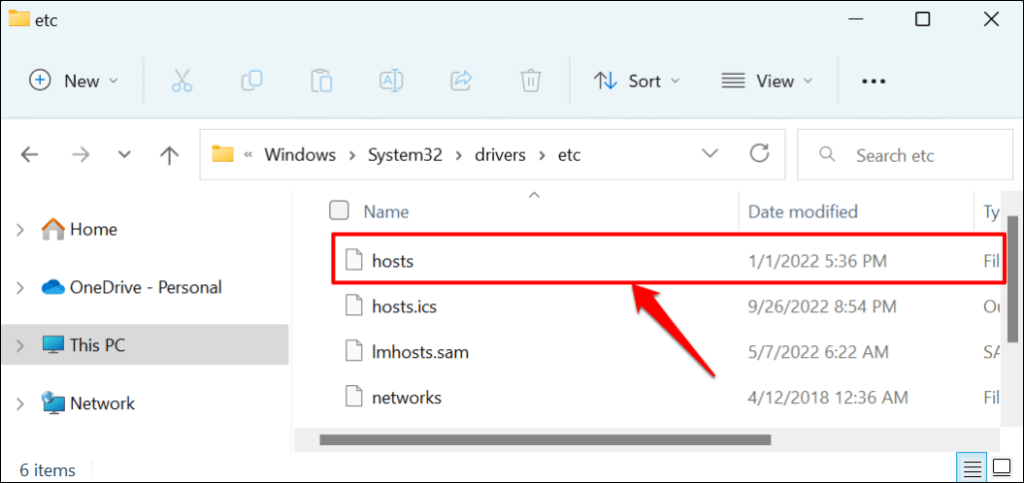
- Double-click the hosts file.
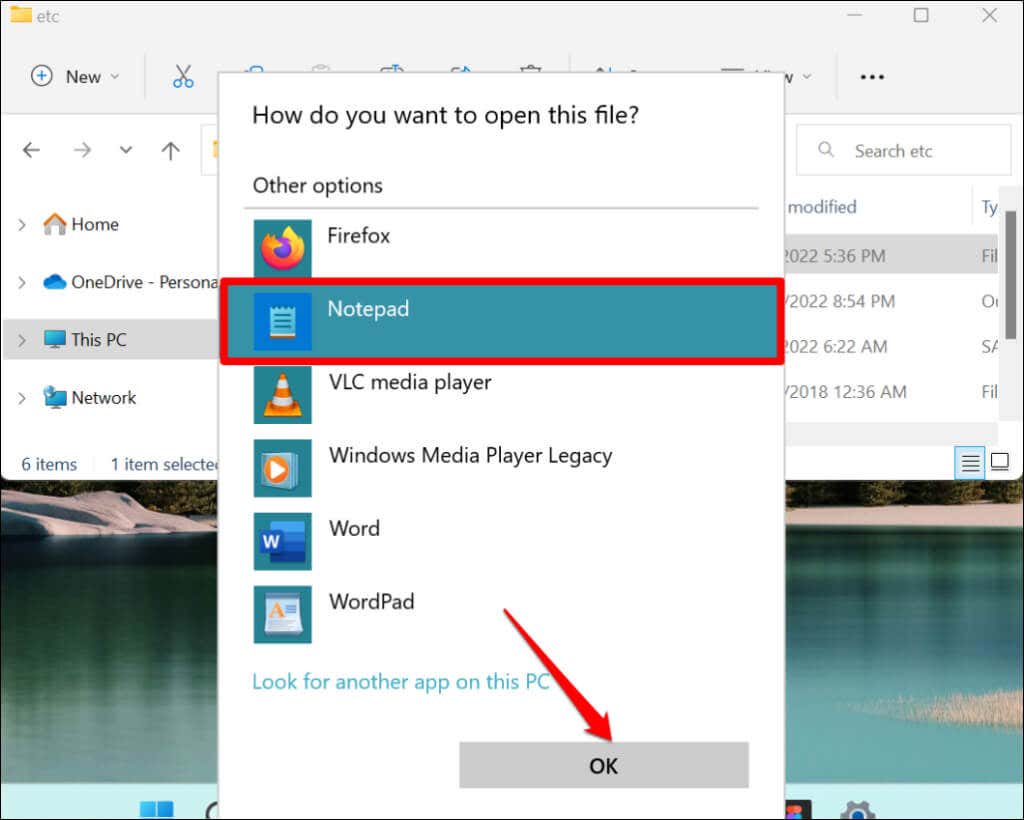
- Choose Notepad and select OK.
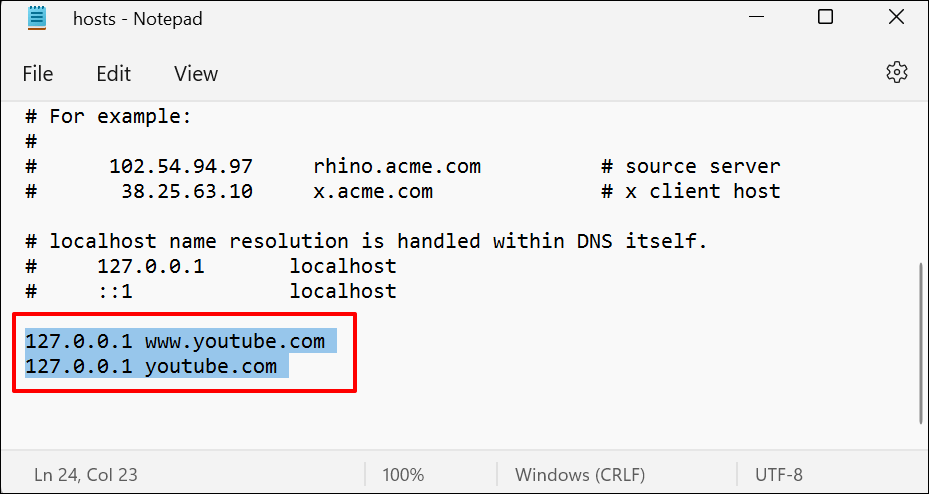
- Scroll to the bottom of the page and press Enter to go to a new line. Type 127.0.0.1, press the Spacebar, type www.youtube.com, and press Enter to move to the following line.
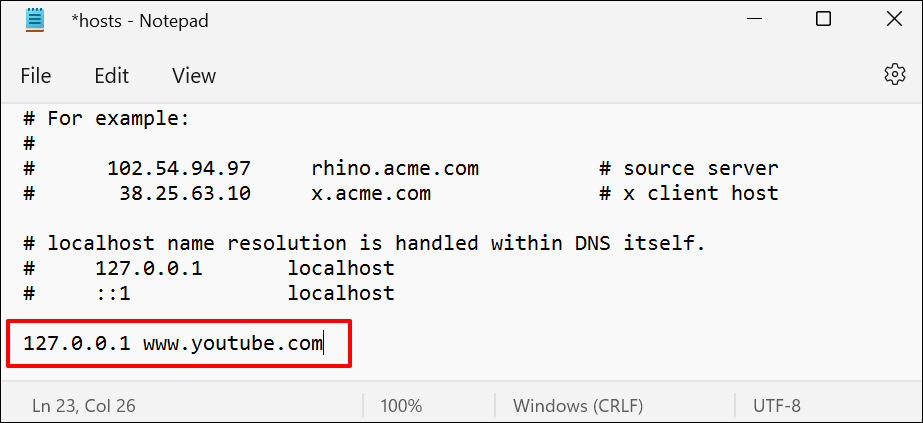
This command blocks YouTube on all browsers (Safari, Firefox, Microsoft Edge, etc.) except Google Chrome.
- Type 127.0.0.1, press the Spacebar, type youtube.com, and press the Spacebar again. This command blocks your PC’s Google Chrome browser from accessing YouTube.
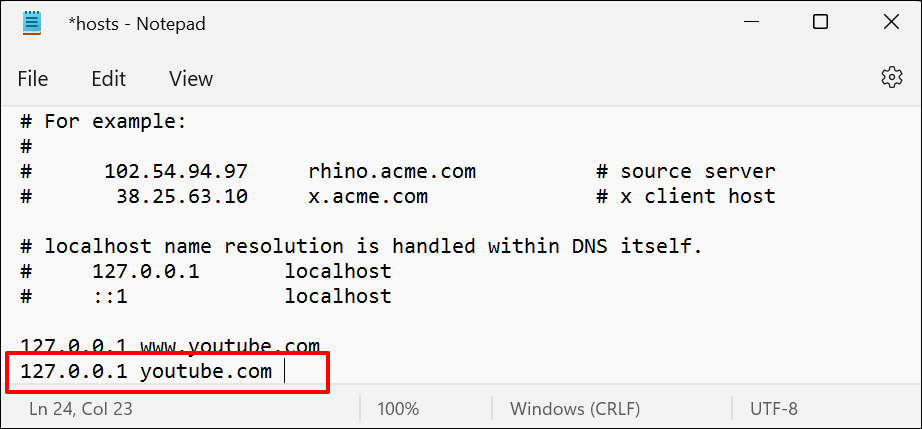
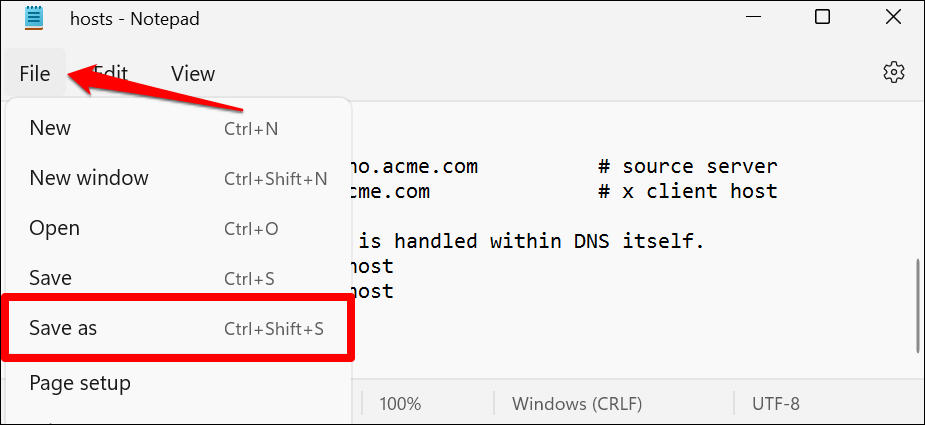
- Press Ctrl + Shift + S, or select File in the top-right corner and select Save as.
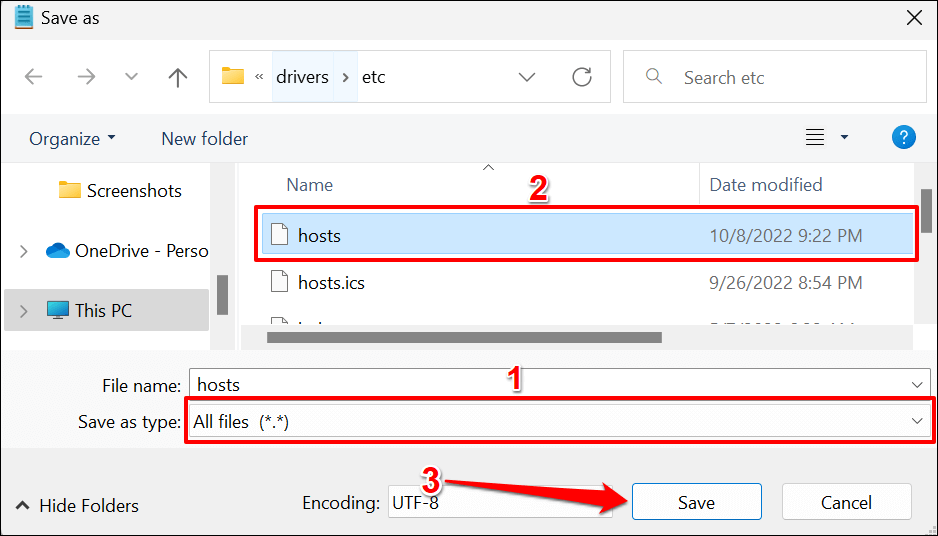
- Select All files in the “Save as type” drop-down menu. Afterward, select the hosts file in the destination folder and select Save.
- Select Yes on the pop-up window.
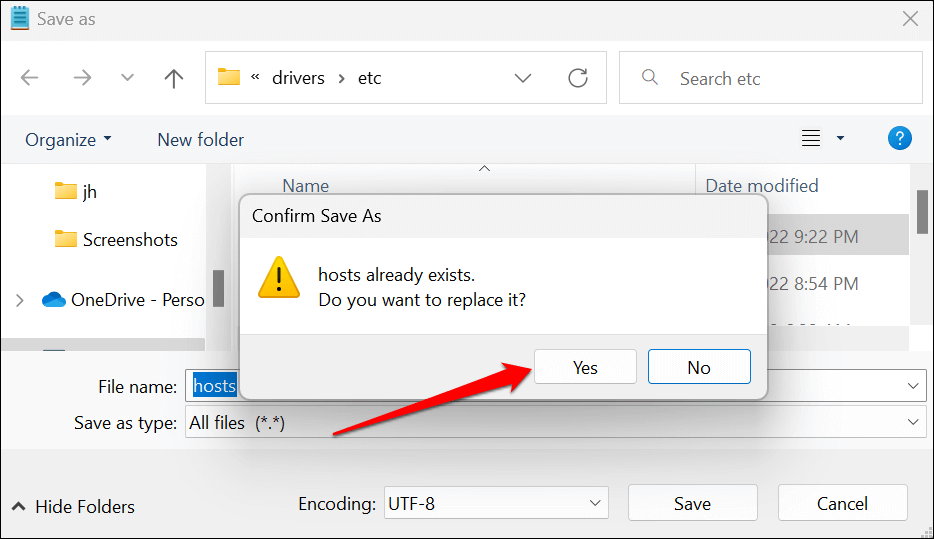
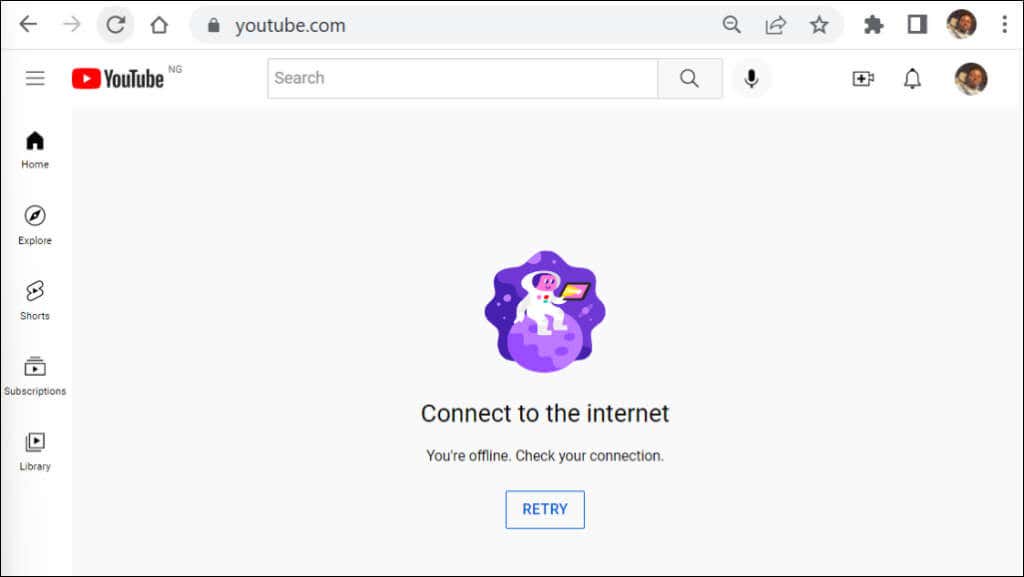
Close Notepad and try visiting YouTube in your web browser. If you followed these steps correctly, YouTube should display a “Connect to the internet. You’re offline.” error message. If you can still open YouTube, restart your computer and try again.
Unblock YouTube in Windows
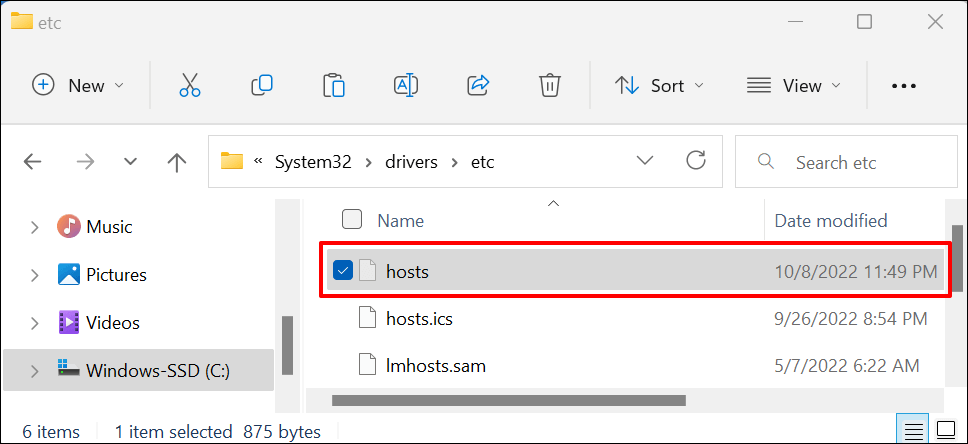
- Return to the hosts file destination (Local disk (C:) > Windows > System32 > drivers > etc) and open the hosts file using Notepad.
- Delete the IP address and YouTube website URL(s) in the document’s last line.
- Press Ctrl + S to save the hosts file. Alternatively, select File on the menu bar, and select Save.
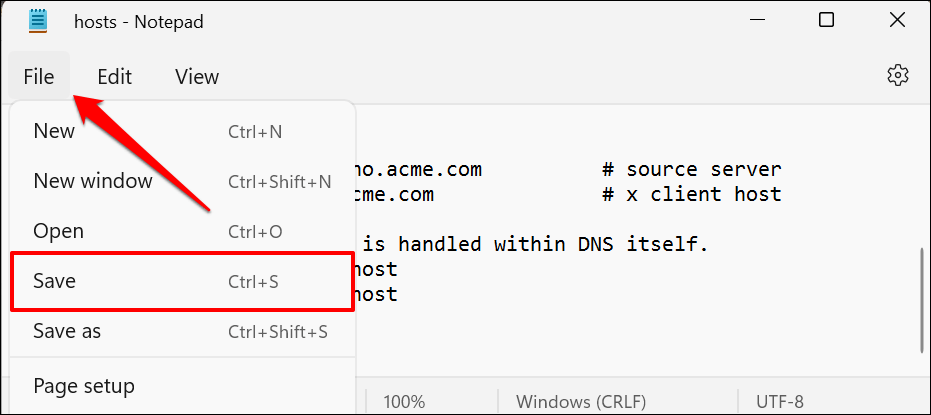
Close the hosts file in Notepad, open any web browser, and check if you can now access YouTube. Restart your computer if your browser doesn’t load YouTube.
How to Block YouTube on Your Mac
In macOS, you can block YouTube in Screen Time or by editing your Mac’s TCP/IP hosts file.
Block YouTube Using Screen Time
Screen Time on Mac computers has content restriction settings for blocking inappropriate web content. Follow the steps below to block access to YouTube on all web browsers installed on your Mac.
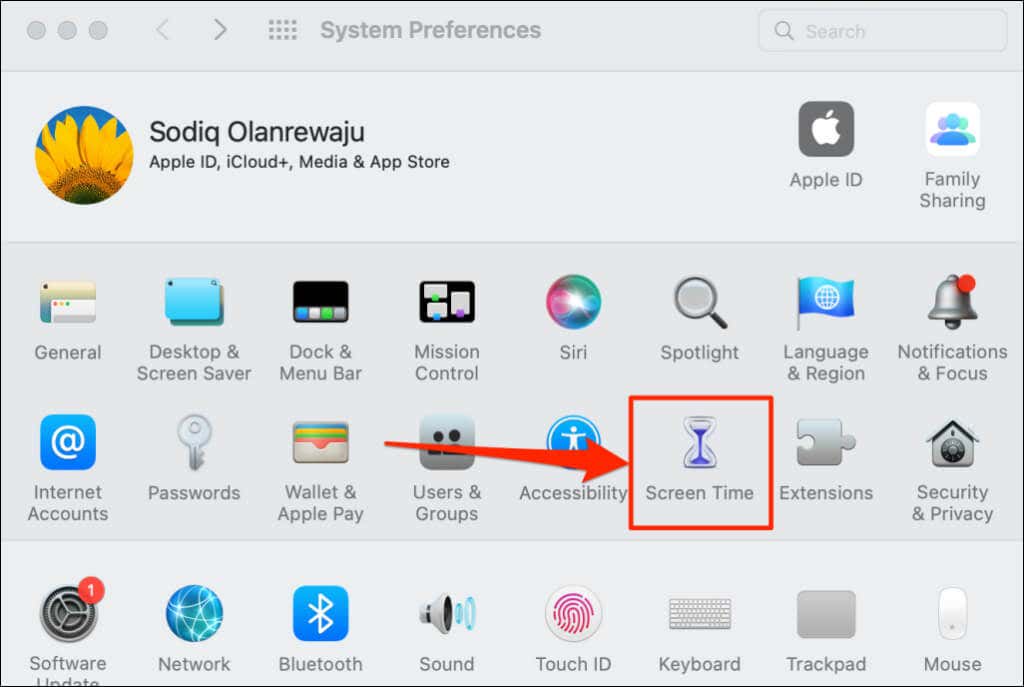
- Open System Preferences and select Screen Time.
- Select Options in the bottom-left corner and check the Use Screen Time Passcode option.
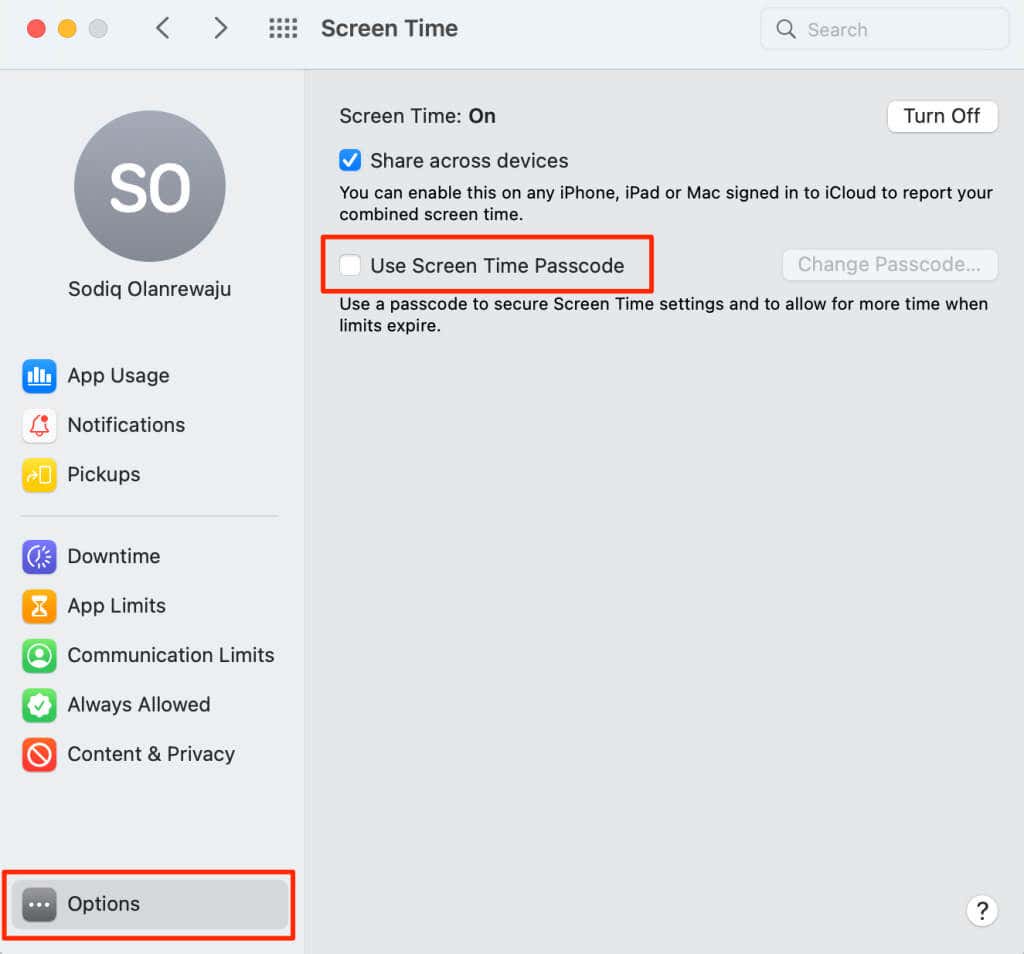
It’s possible to bypass passcode restrictions from an administrator account. Hence, Apple recommends setting a Screen Time passcode from a standard account.
If you’re using an administrator account, you’ll get a prompt to create a new administrator account on your Mac. Choose Don’t allow this user to administer this computer, create a new user account to be the administrator, and follow the prompt to create a new admin account.
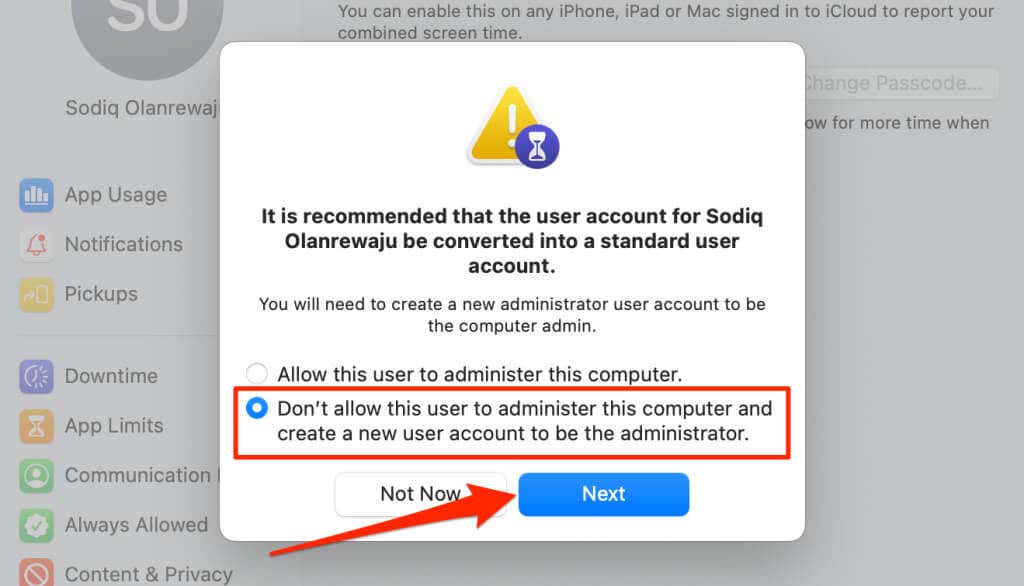
Otherwise, jump to step #3 if setting up Screen Time from a standard account.
- Enter a four-digit Screen Time passcode.
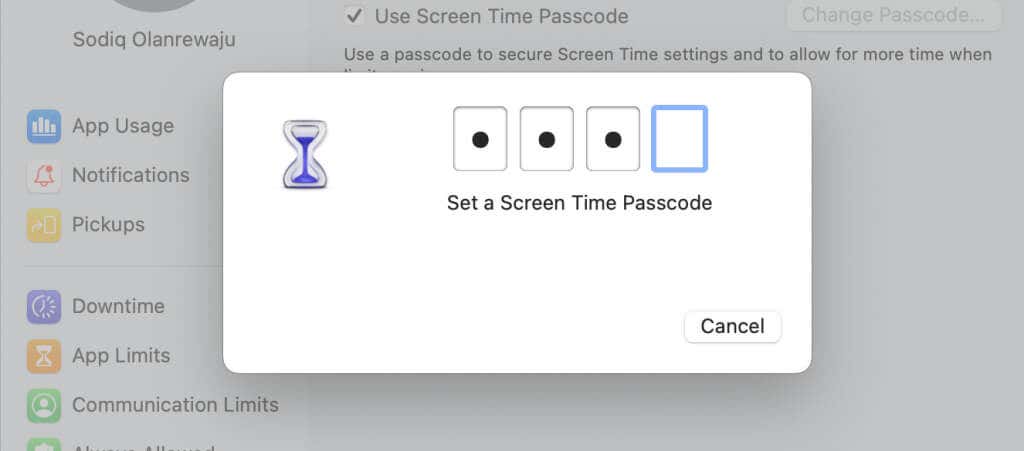
- Re-enter the four-digit Screen Time passcode to proceed.
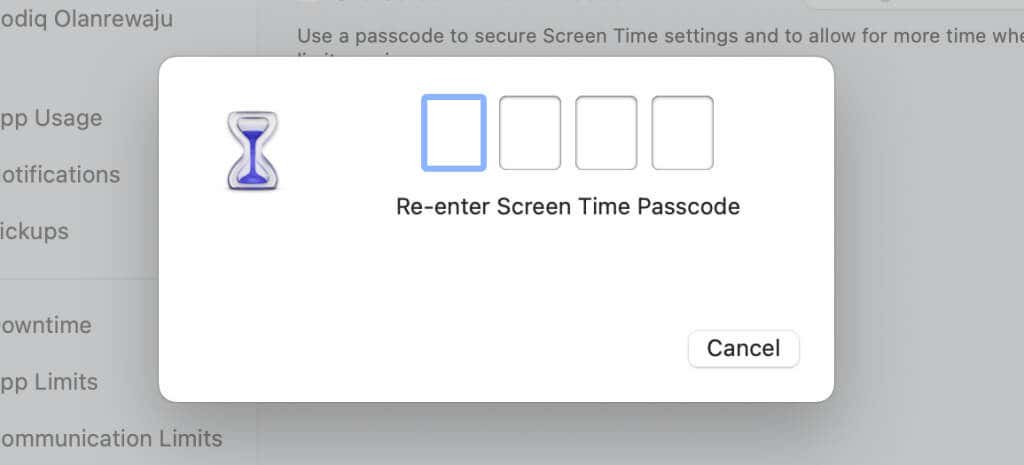
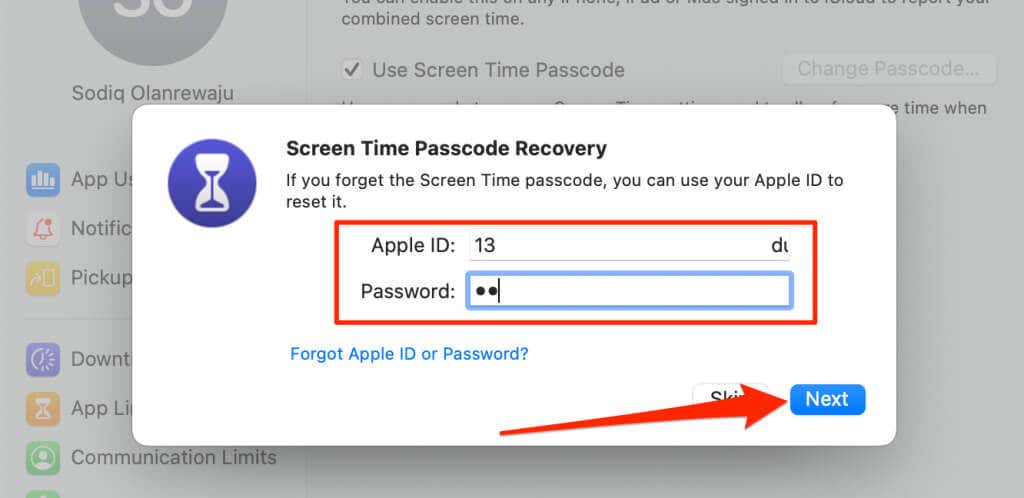
The next step is to set up the Screen Time passcode recovery. If you ever forget your Screen Time passcode, you can reset it using your Apple ID.
- Enter your Apple ID email and password and select Next.
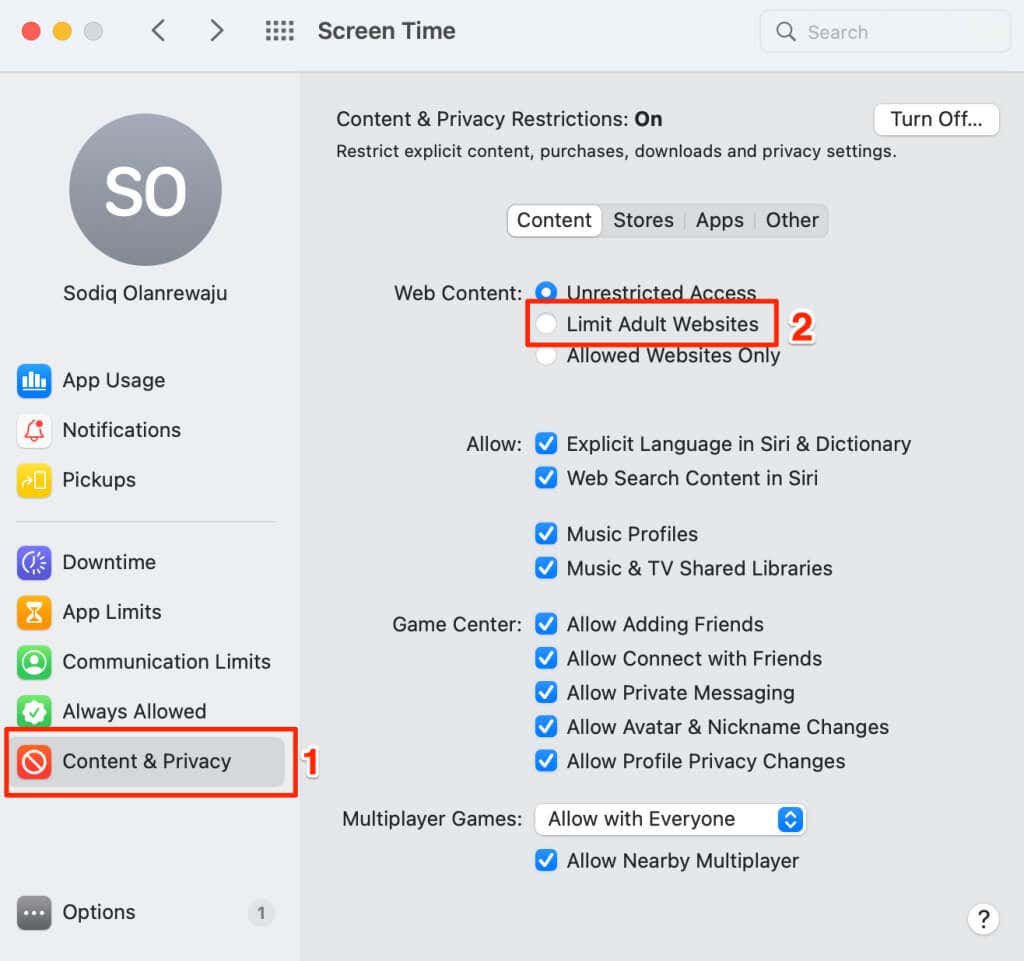
- Select Content & Privacy on the Screen Time settings menu and select Limit Adult Websites.
- Enter your Screen Time passcode.
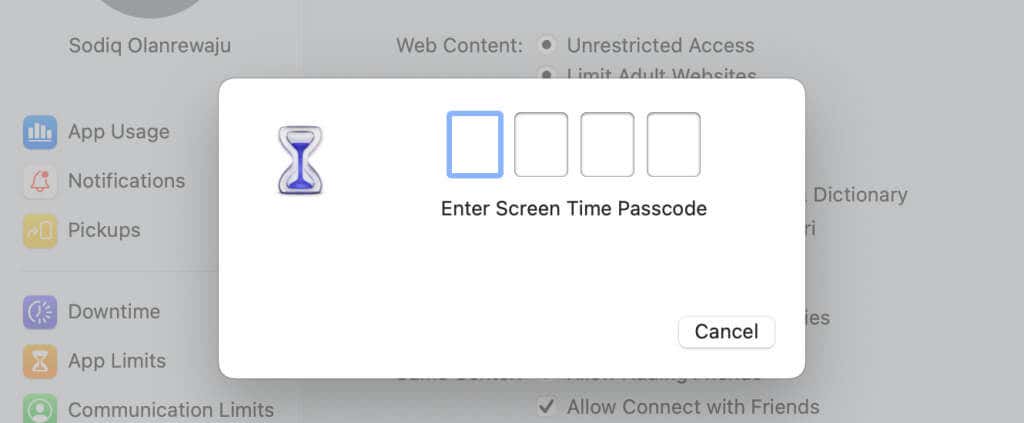
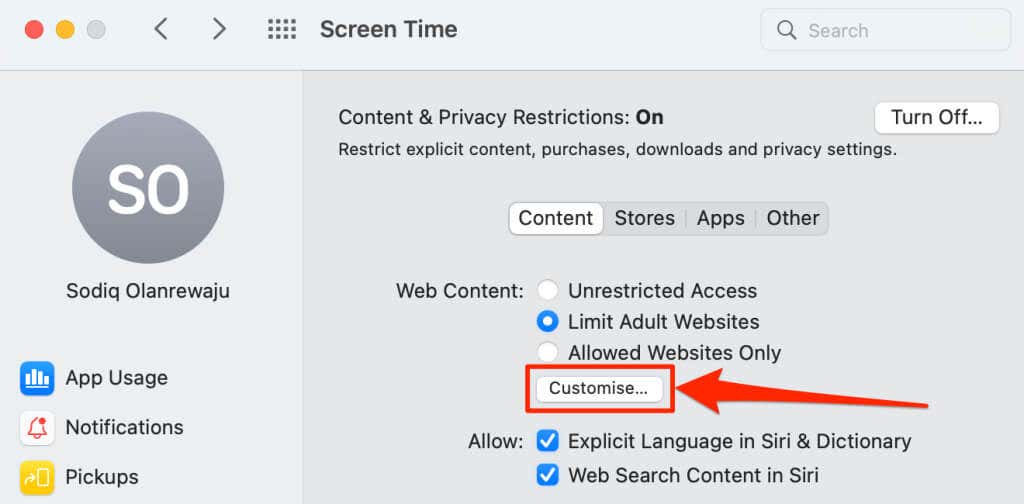
- Select Customize.
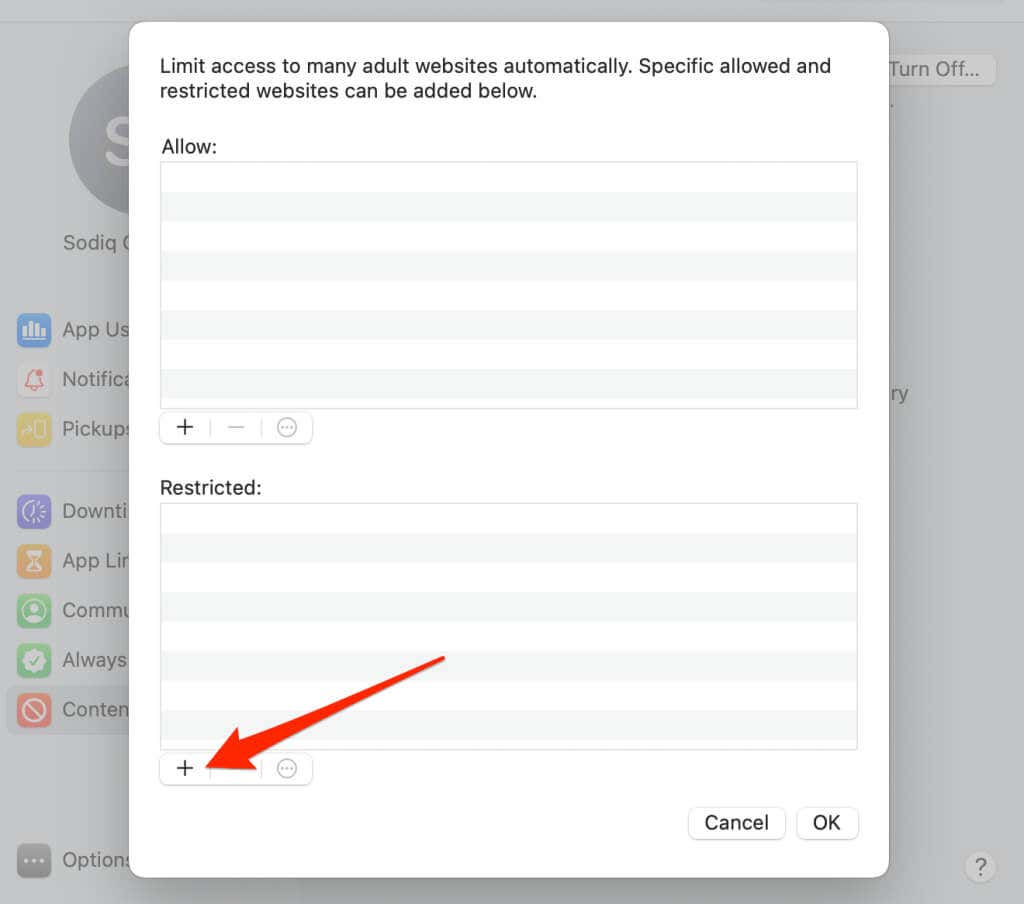
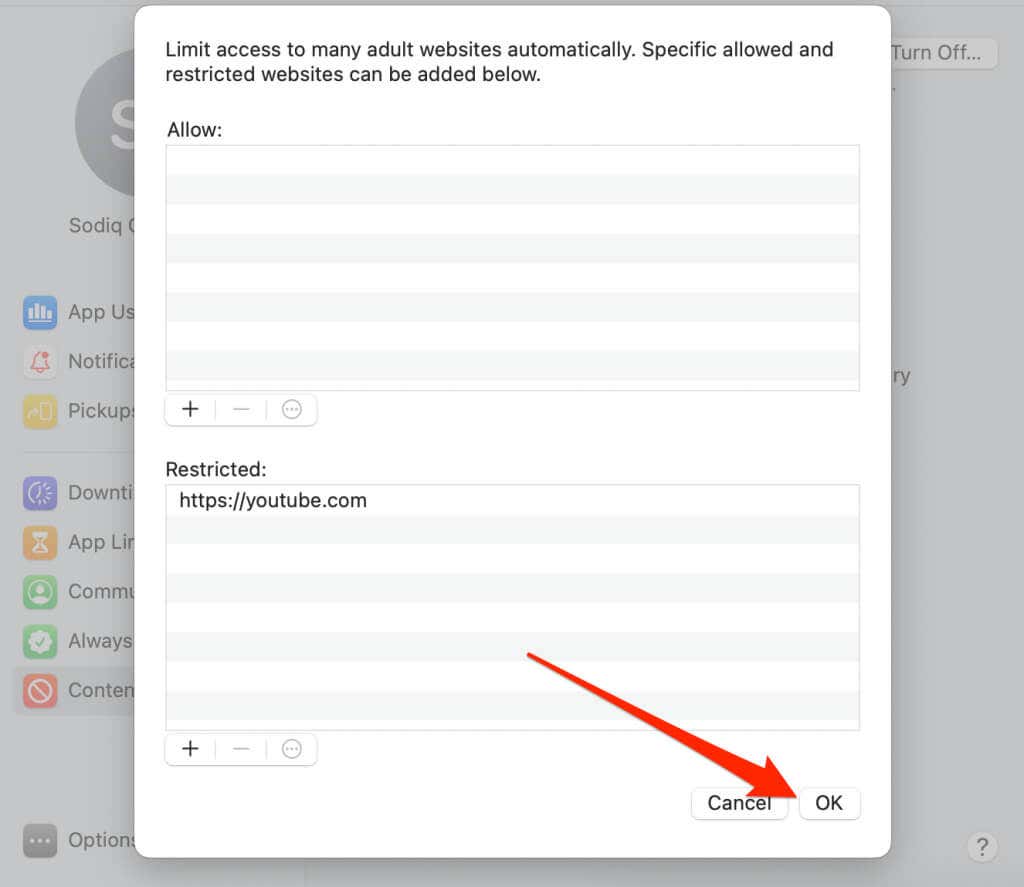
- Select the plus icon (+) in the bottom corner of the block list.
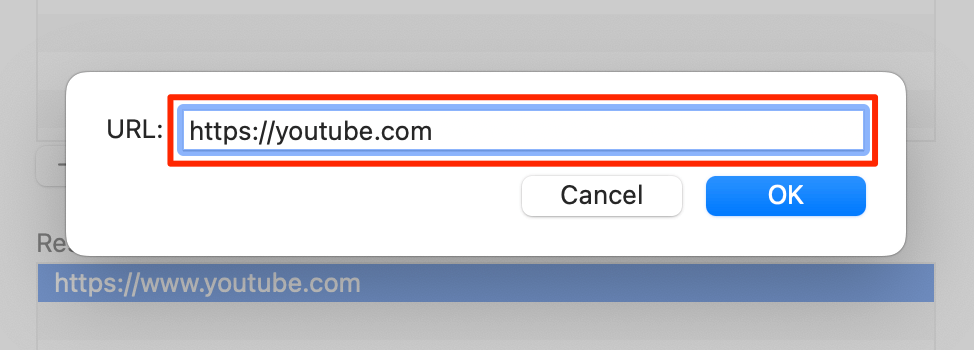
- Enter https://youtube.com in the URL dialog box and select OK.
- Select OK to save the restriction.
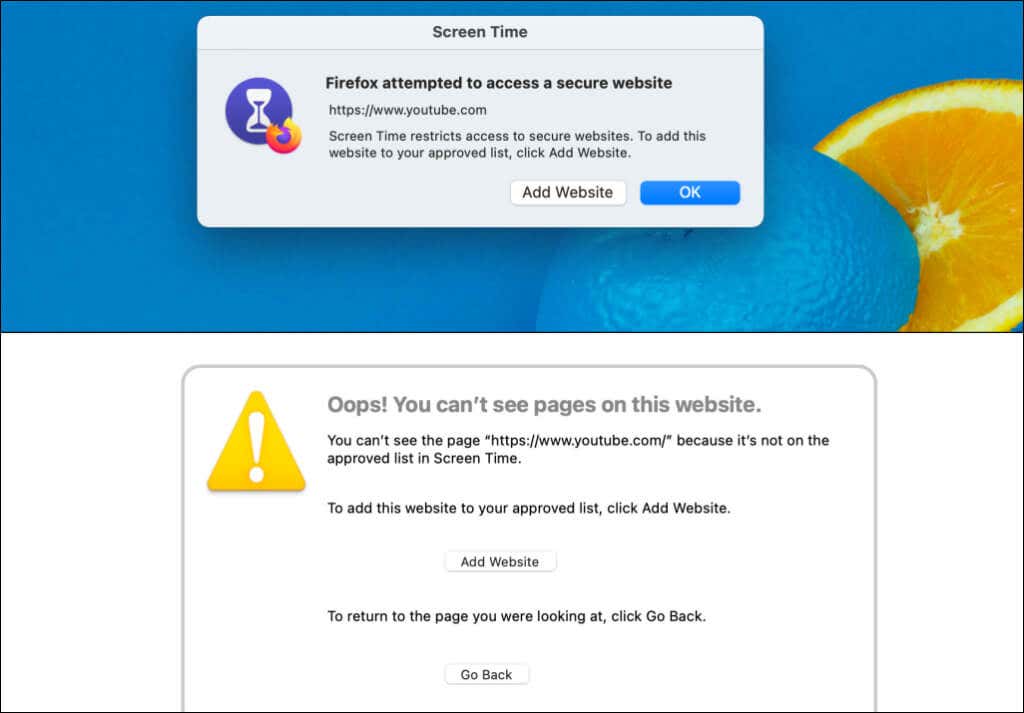
Your web browsers will display a Screen Time pop-up when anyone visits YouTube on your Mac.
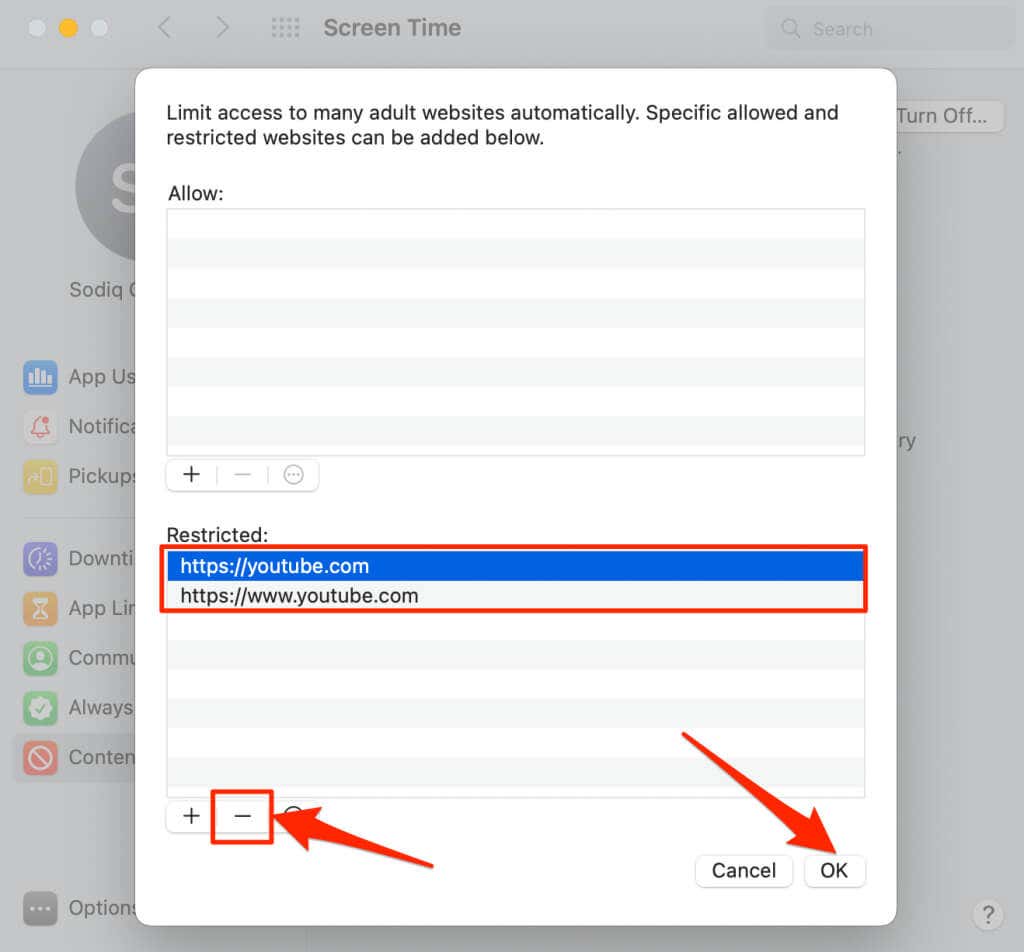
To unblock YouTube, select the YouTube URL in the “Restricted” section and the minus (—) icon in the bottom corner. Select OK to save the settings and unblock access to YouTube on all web browsers.
Block YouTube on Mac By Tweaking macOS Hosts File
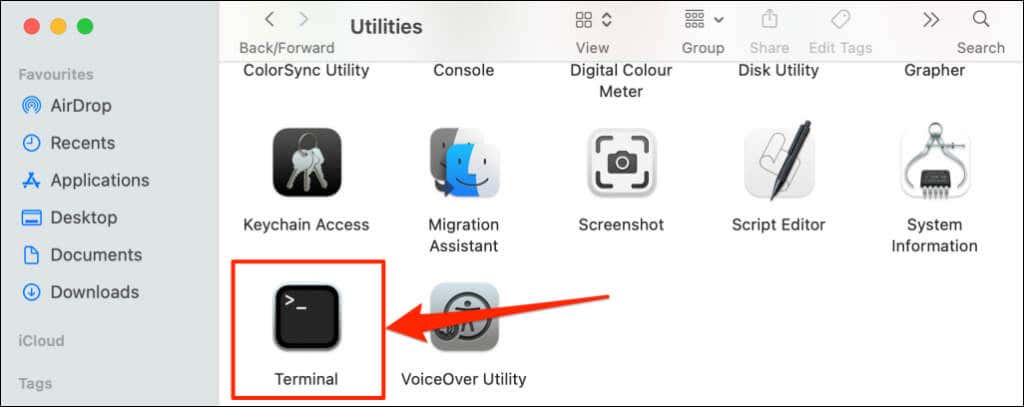
- Go to Finder > Applications > Utilities and double-click Terminal.
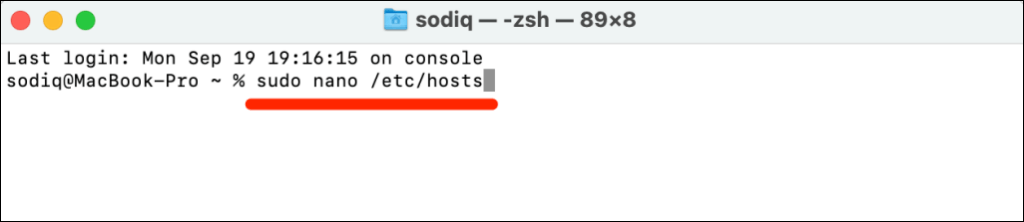
- Type or paste sudo nano /etc/hosts in the Terminal console and press Return.
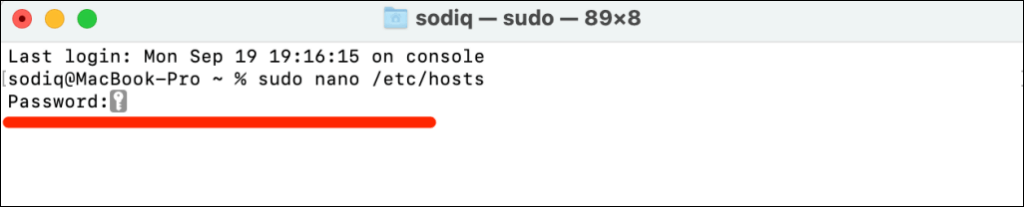
- Enter your Mac’s password and press Return.
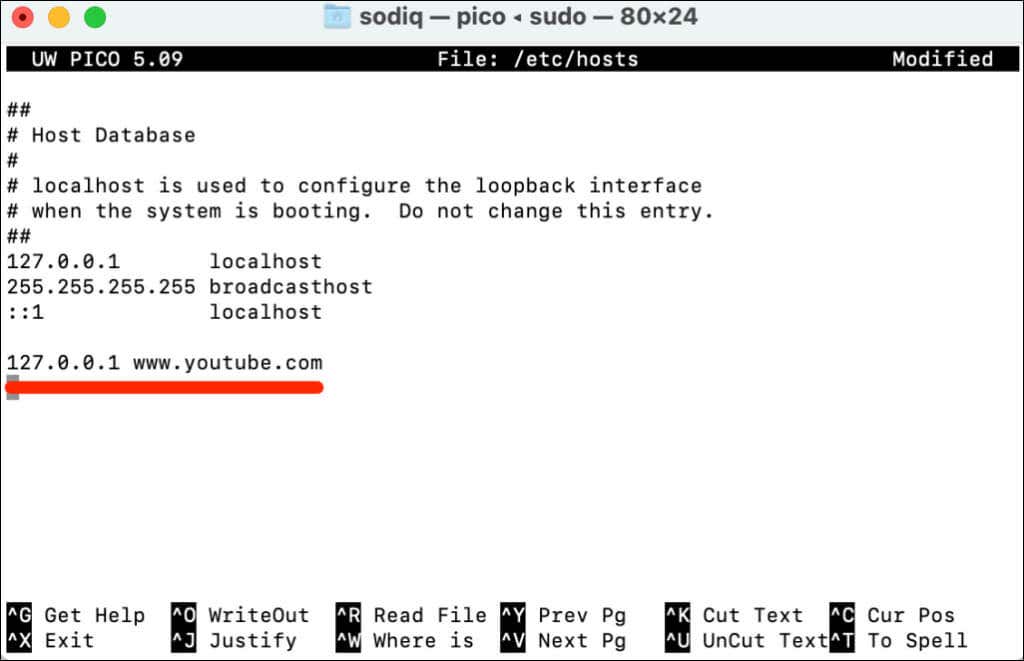
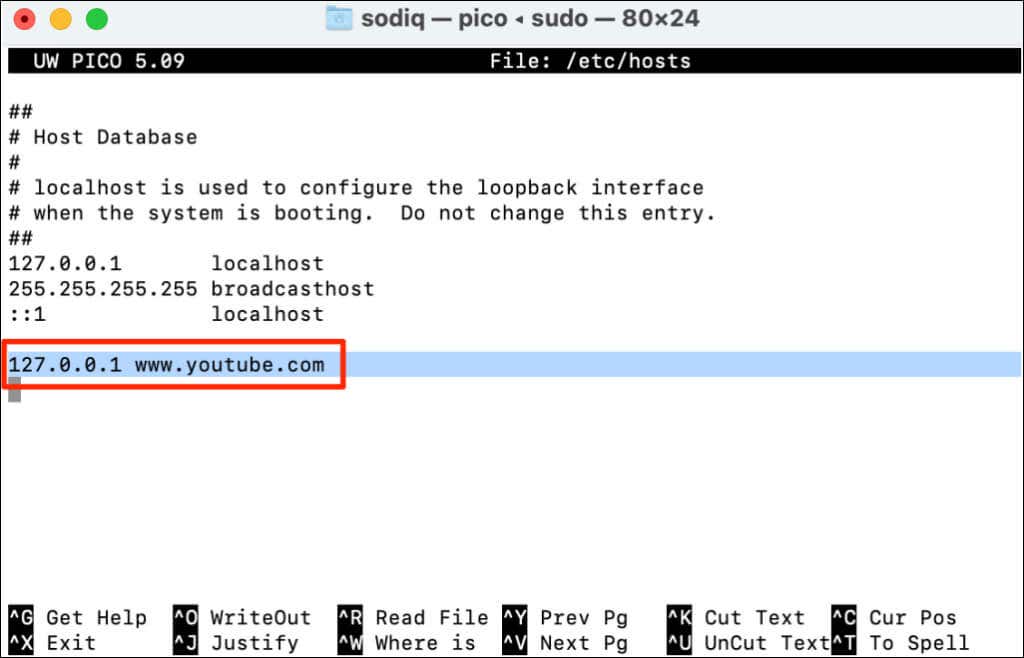
- Type or paste 127.0.0.1 www.youtube.com in the last line. Afterward, press Control + O and press Return to save the hosts file.
- Close the Terminal window, clear your browser’s cache, and check if YouTube is blocked.
You must clear your browser’s cache after editing the hosts file in Terminal. Otherwise, you and other users will still be able to access YouTube.
To unblock YouTube, reopen the hosts file in Terminal (see steps #1 — #3) and delete 127.0.0.1 www.youtube.com. Press Control + O and press Return to save the hosts file.
Use Third-Party Tool
The methods above are straightforward and work on all macOS and Windows versions. Alternatively, you can block YouTube using free parental control software or your router’s admin panel.