Skip to content
ONLINE 101010 TECH 010101 TIPS
  • Latest
  • News
  • How-To
  • Social
  • Streaming
  • Gaming
  • Reviews
  • Latest
  • News
  • How-To
  • Social
  • Streaming
  • Gaming
  • Reviews
  1. Home/
  2. Social Media/
  3. How to Add or Remove an Admin from a Facebook Group

How to Add or Remove an Admin from a Facebook Group

Elsie Otachi
July 15, 2021
6 min read
 - facebook1

Managing a group on Facebook can be challenging if you’re doing everything by yourself. You need at least one other person to help you edit and publish your content, manage comments, members, and create reports based on page metrics. 

Fortunately, Facebook lets you add people as admins or moderators of your group. The admin role can access the group and has full control over group roles, settings, posts, comments, ads, and more.

If the person no longer works in your company, or you feel the group has lost its relevance, you can remove the admins and close the group altogether.

In this guide, we’ll walk you through the steps you need to take to add or remove an admin from a Facebook group on your computer or mobile device.

How to Add an Admin to a Facebook Group

A Facebook group admin has full access and control over the group. The admin can perform all the following functions:

  • Make someone else an admin or moderator.
  • Remove other admins or moderators.
  • Manage group settings such as the group name, privacy settings, cover photos, and more.
  • Approve or deny membership requests or posts in the group.
  • Remove and block people from the group, posts, and comments on posts.
  • Pin and unpin a post.
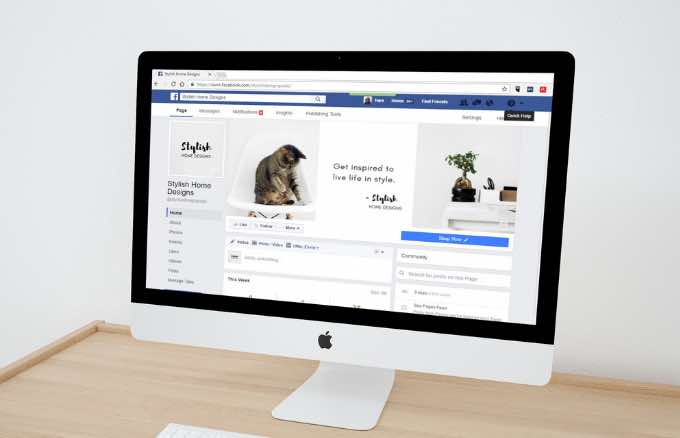
 - 01-how-to-add-or-remove-an-admin-from-a-facebook-group-add

If you’re ready to give someone else the admin role on your Facebook group, here’s how to go about it on your computer or mobile device. 

Add an Admin to a Facebook Group from a Computer

You can add an admin to a Facebook group from your Windows PC or Mac using the steps below.

Note: You must be a current group admin to make another group member an admin.

  1. Select Groups from your Facebook News Feed in the left menu.
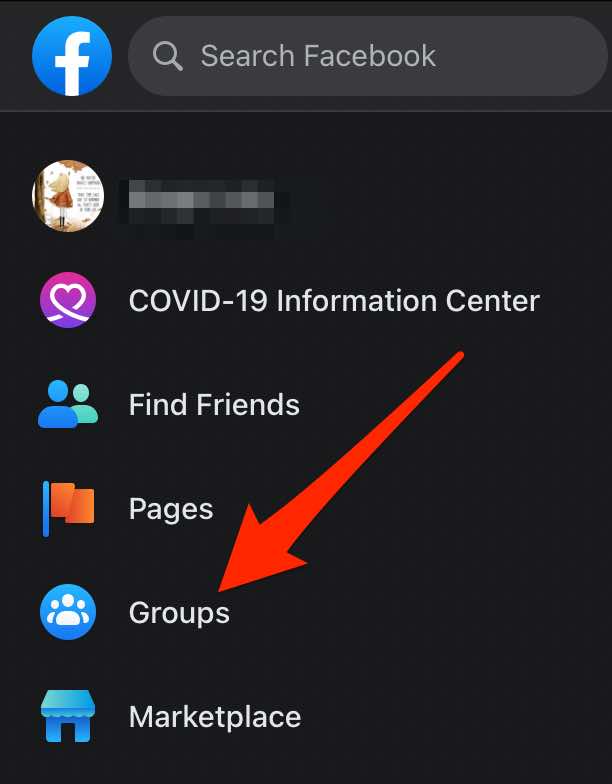
 - 02-how-to-add-or-remove-an-admin-from-a-facebook-group-news-feed-groups
  1. Next, select your group under the Groups you manage section. Select See More if you can’t see the Groups option.
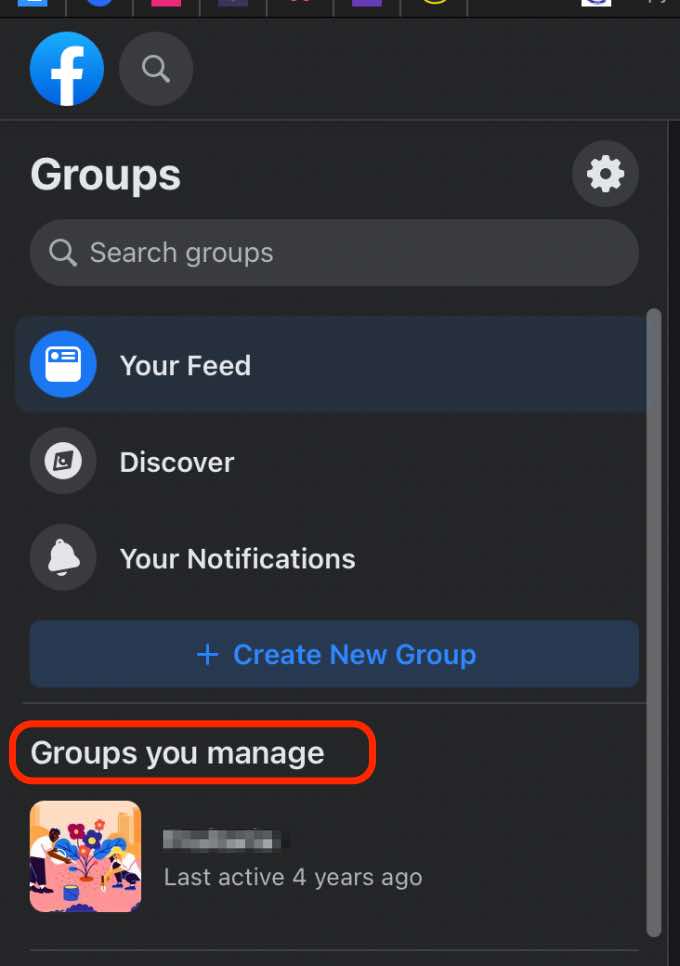
 - 03-how-to-add-or-remove-an-admin-from-a-facebook-group-groups-you-manage
  1. Select Members just under your group’s cover photo or select More if you can’t see the Members option.
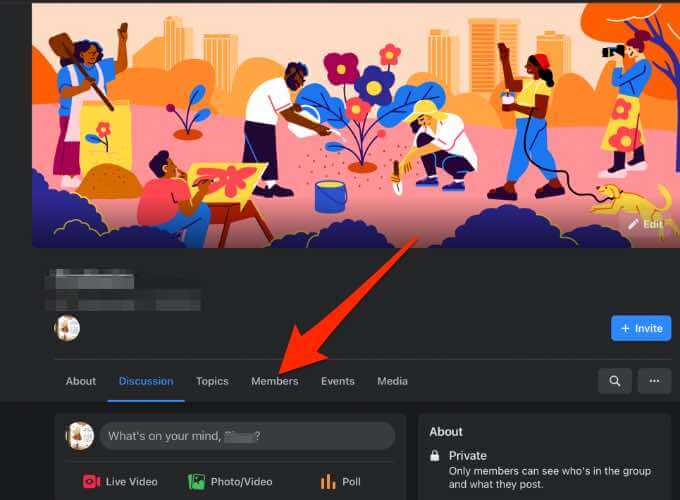
 - 04-how-to-add-or-remove-an-admin-from-a-facebook-group-members-more
  1. Find the person you want to make an admin and then select More (three dots) next to their name.
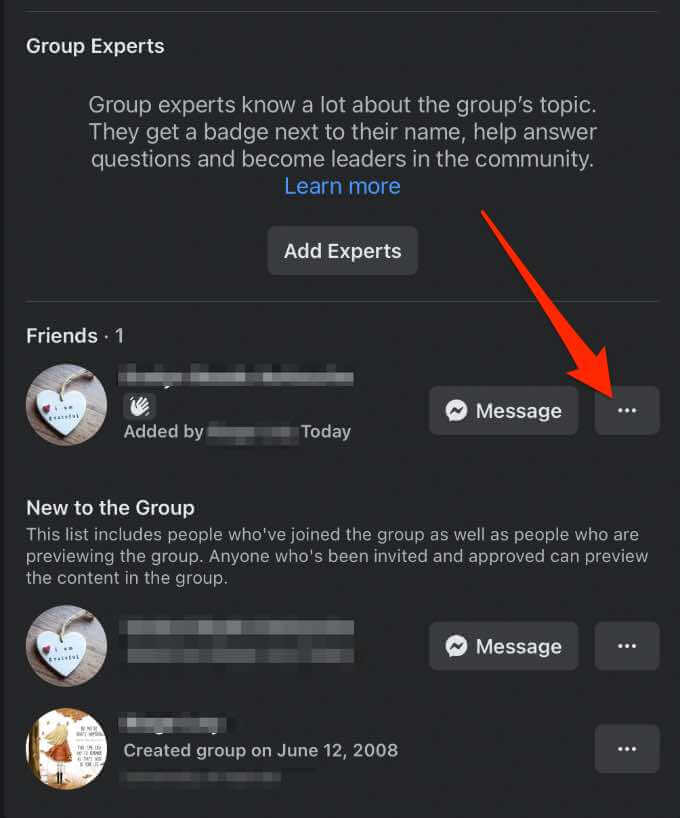
 - 05-how-to-add-or-remove-an-admin-from-a-facebook-group-more
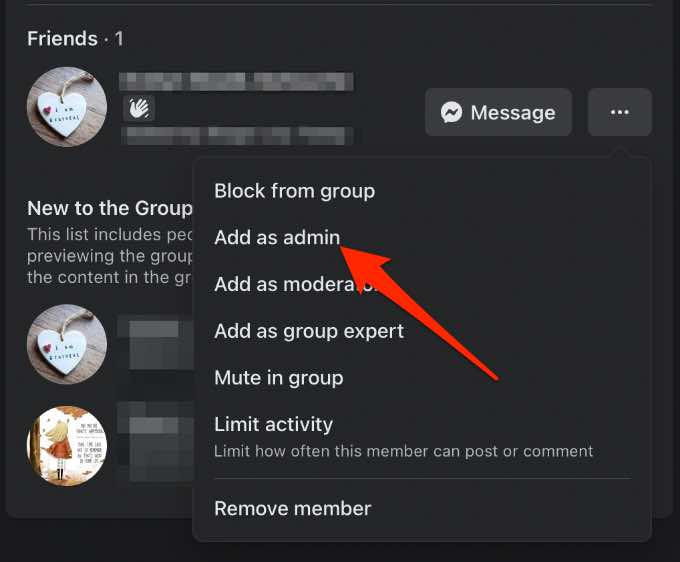
  1. Select Add as admin.
 - 06-how-to-add-or-remove-an-admin-from-a-facebook-group-add-as-admin
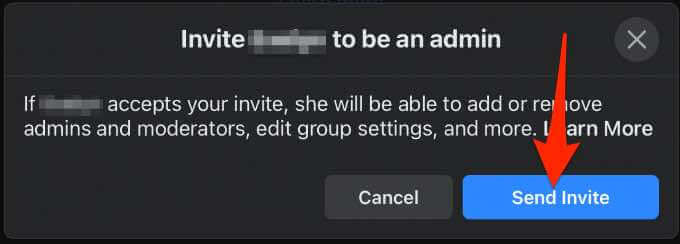
  1. Tap Send Invite.
 - 07-how-to-add-or-remove-an-admin-from-a-facebook-group-send-invite

Note: A group member has to visit the Facebook group to be made an admin. Once you add them as an admin, they have full access and control over the group activities and settings.

Cancel an Invitation to Make Someone an Admin of a Facebook Group

If you accidentally sent an invitation to be an admin to the wrong person or you no longer want them to be an admin, you can cancel the invitation using these steps.

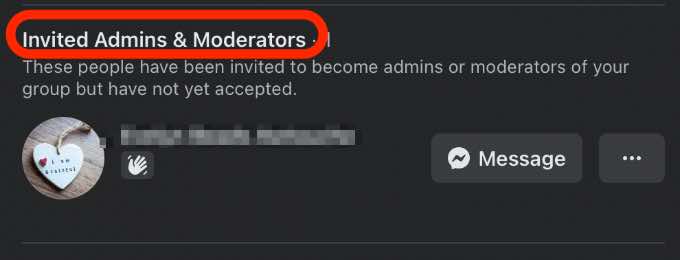
  1. Go to the group page, tap Members, and then scroll to the Invited admins & moderators section.
 - 08-how-to-add-or-remove-an-admin-from-a-facebook-group-invited-admins-and-moderators
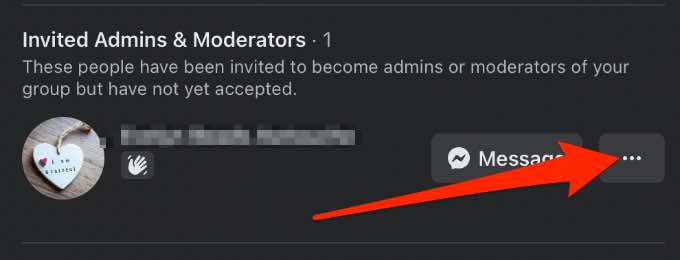
  1. Select More next to the invitee’s name.
 - 09-how-to-add-or-remove-an-admin-from-a-facebook-group-more
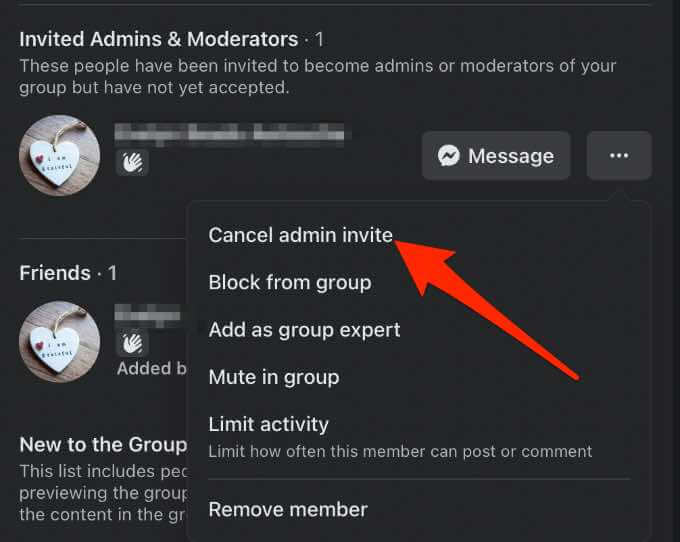
  1. Next, select Cancel admin invite.
 - 10-how-to-add-or-remove-an-admin-from-a-facebook-group-cancel-admin-invitation
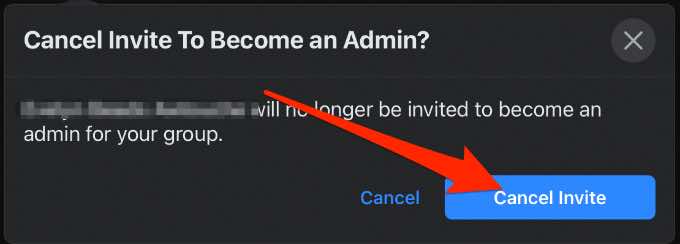
  1. Select Cancel invite to confirm the action. 
 - 11-how-to-add-or-remove-an-admin-from-a-facebook-group-cancel-invite

How to Remove an Admin from a Facebook Group on Desktop

If you want to take back control over the group or you plan to shut it down, you can easily remove an admin using these steps. 

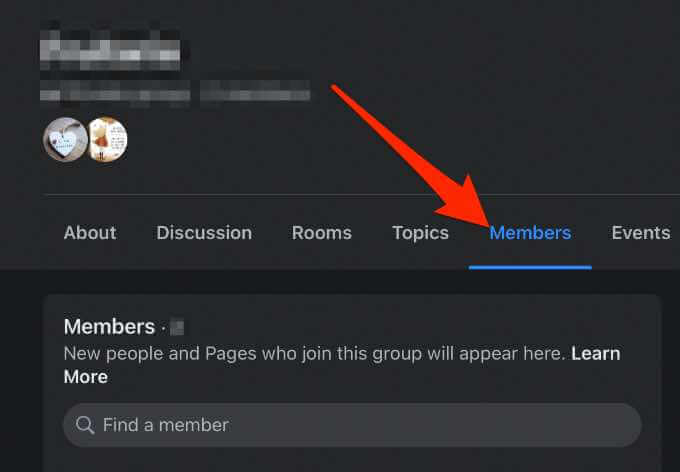
  1. Open the Facebook group and select Members.
 - 12-how-to-add-or-remove-an-admin-from-a-facebook-group-remove-members
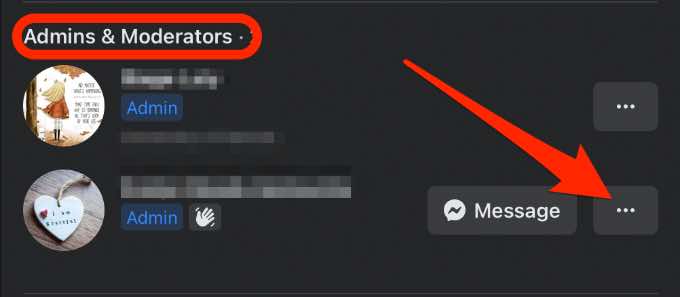
  1. Scroll to the Admins & Moderators section and tap More (three dots) next to the name of the person you want to remove as admin.
 - 13-how-to-add-or-remove-an-admin-from-a-facebook-group-remove-admins-moderators-more
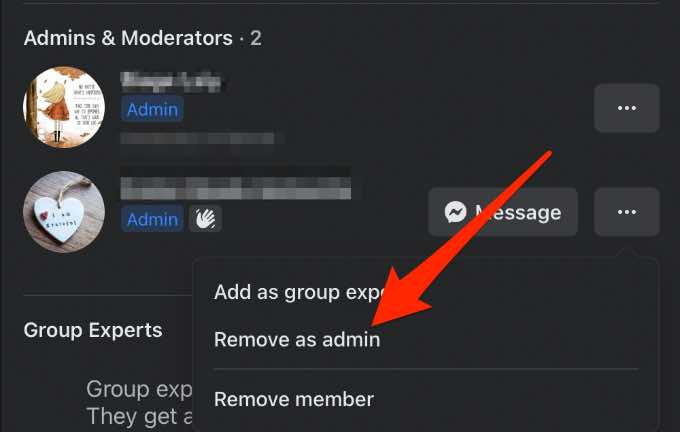
  1. Select Remove as admin.
 - 14-how-to-add-or-remove-an-admin-from-a-facebook-group-remove-as-admin
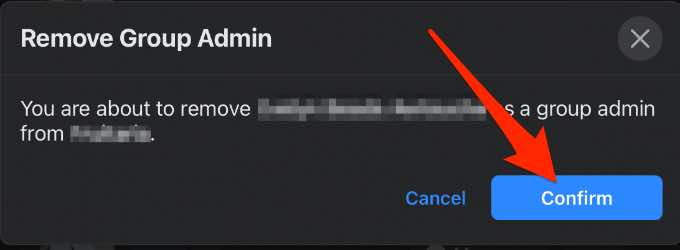
  1. Tap the blue Confirm button to complete the process.
 - 15-how-to-add-or-remove-an-admin-from-a-facebook-group-remove-confirm

How to Add an Admin to a Facebook Group Using the Facebook App

You can add someone as an admin to your Facebook group from your Android device or iPhone. Here’s how.

Add an Admin to a Facebook Group on Android

If you’re using an Android phone or tablet, use these steps to add an admin to your Facebook group.

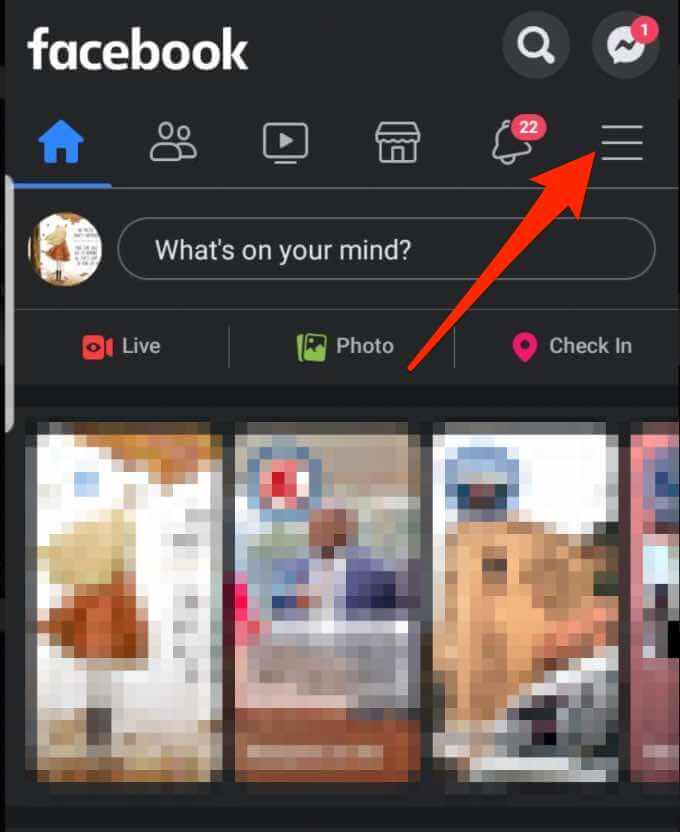
  1. Tap the menu (three horizontal lines) in the top-right corner of the Facebook app.
 - 16-how-to-add-or-remove-an-admin-from-a-facebook-group-android-menu
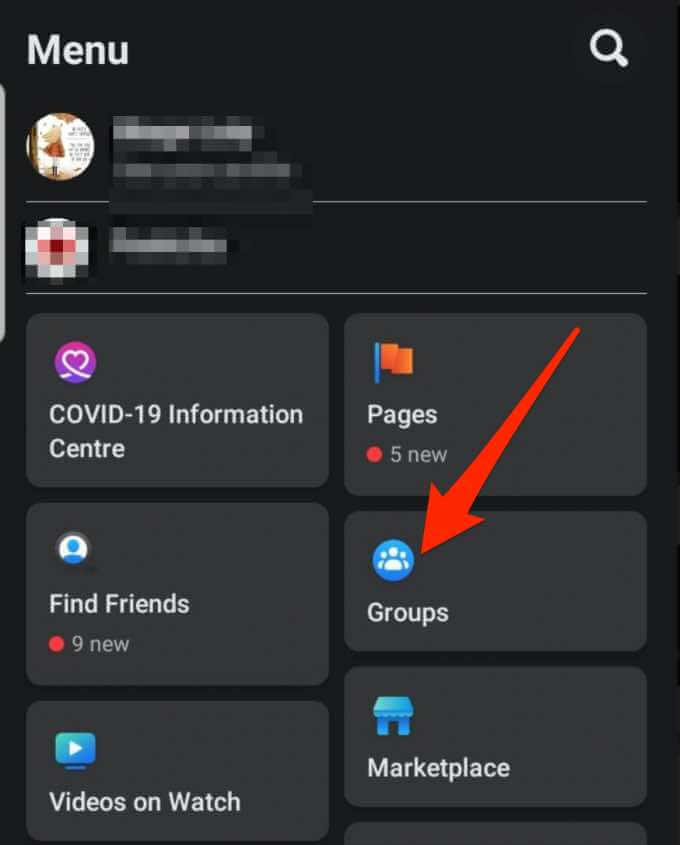
  1. Next, tap Groups.
 - 17-how-to-add-or-remove-an-admin-from-a-facebook-group-android-groups
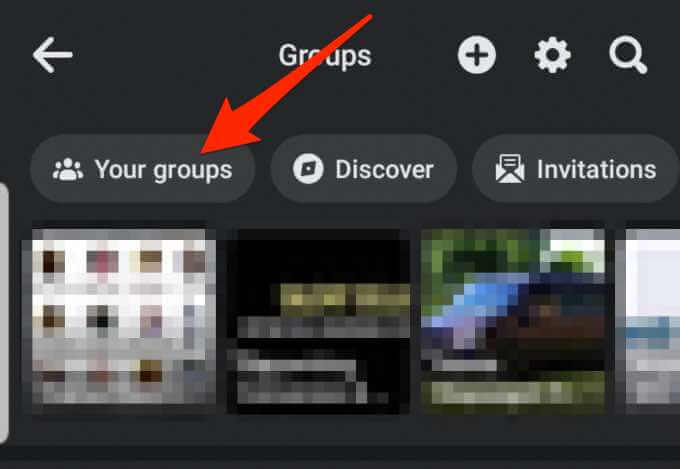
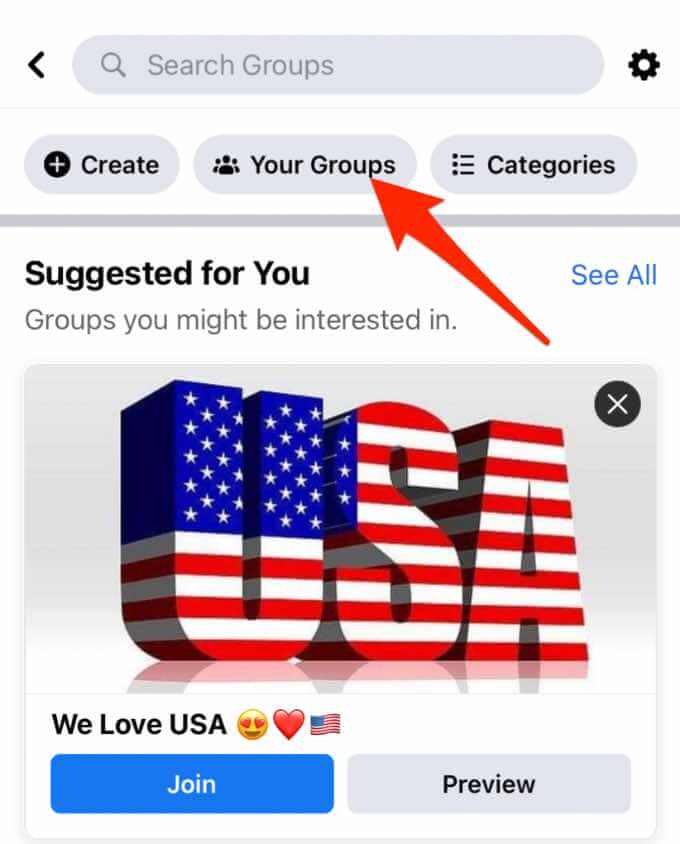
  1. Tap Your Groups.
 - 18-how-to-add-or-remove-an-admin-from-a-facebook-group-android-your-groups
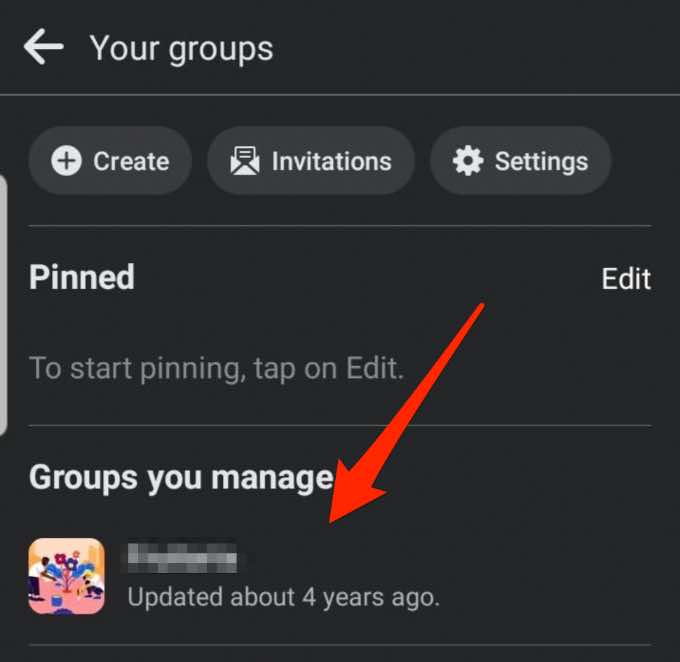
  1. Select the Facebook group under the Groups you manage section. Tap See more if you can’t see the Groups option.
 - 19-how-to-add-or-remove-an-admin-from-a-facebook-group-android-facebook-group
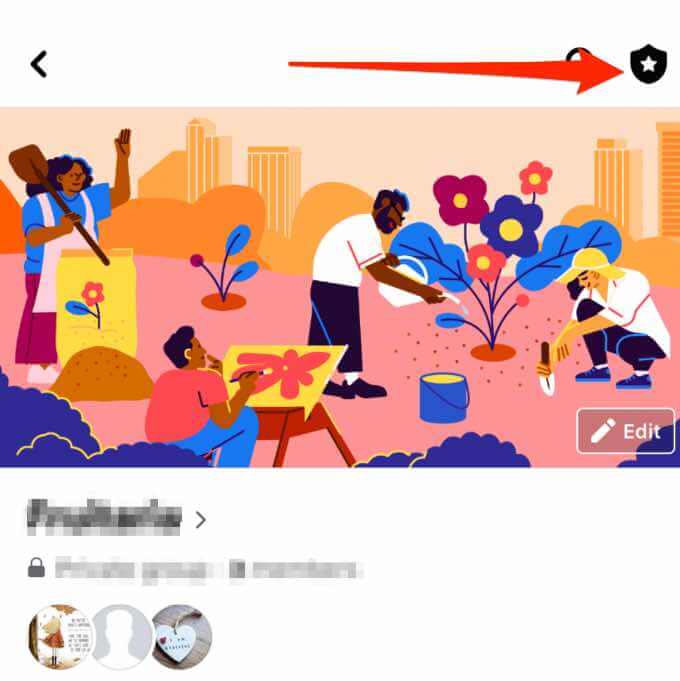
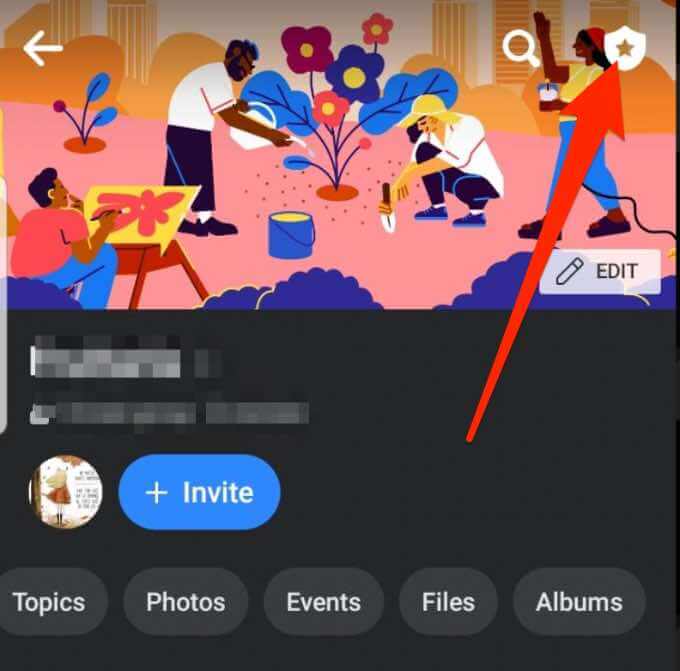
  1. Next, tap the badge icon at the top right corner of the group page.
 - 20-how-to-add-or-remove-an-admin-from-a-facebook-group-android-badge
  1. Tap Members.
 - 21-how-to-add-or-remove-an-admin-from-a-facebook-group-android-members
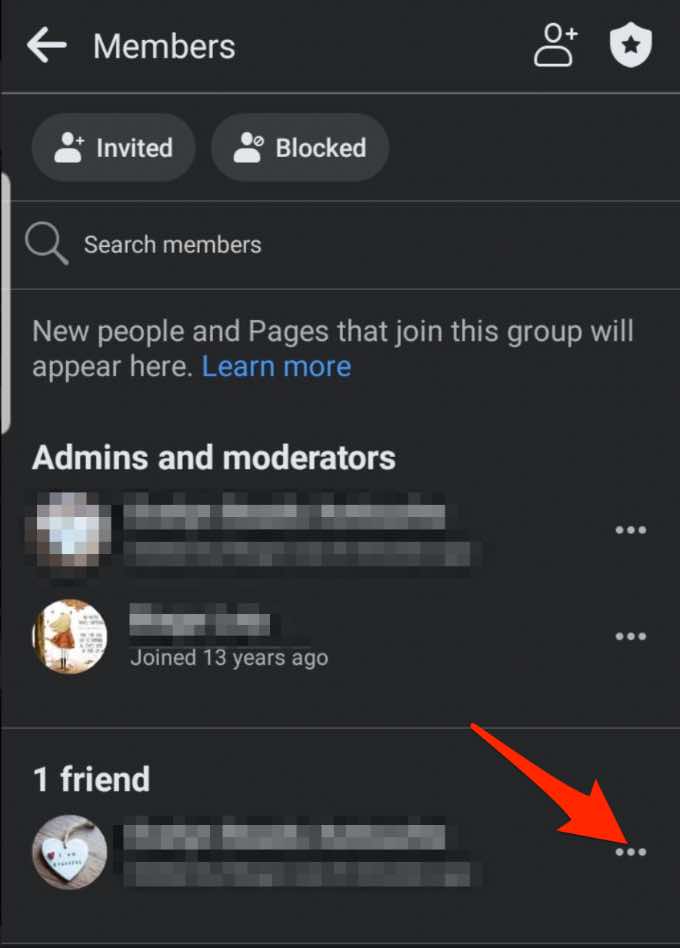
  1. Find the name of the person you want to add as an admin and then select More (three dots). 
 - 22-how-to-add-or-remove-an-admin-from-a-facebook-group-android-name-more
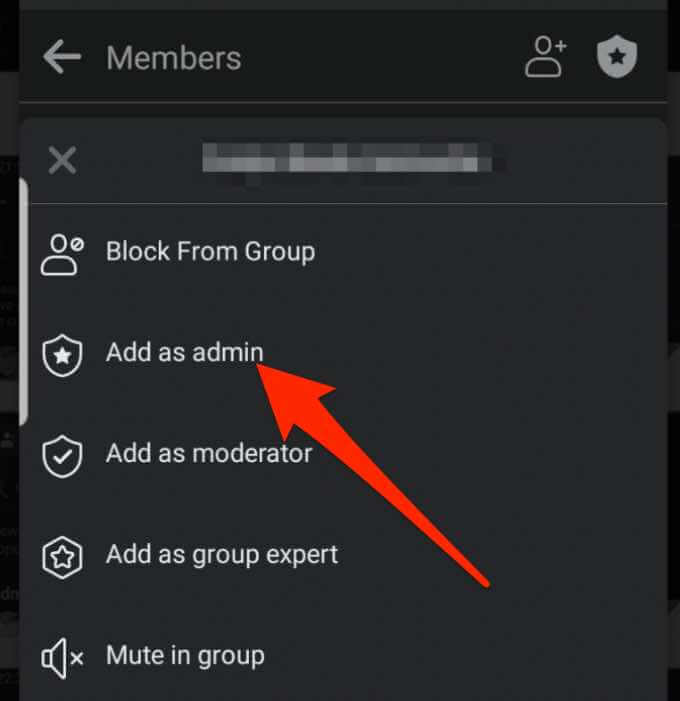
  1. Tap Add as admin.
 - 23-how-to-add-or-remove-an-admin-from-a-facebook-group-android-add-as-admin
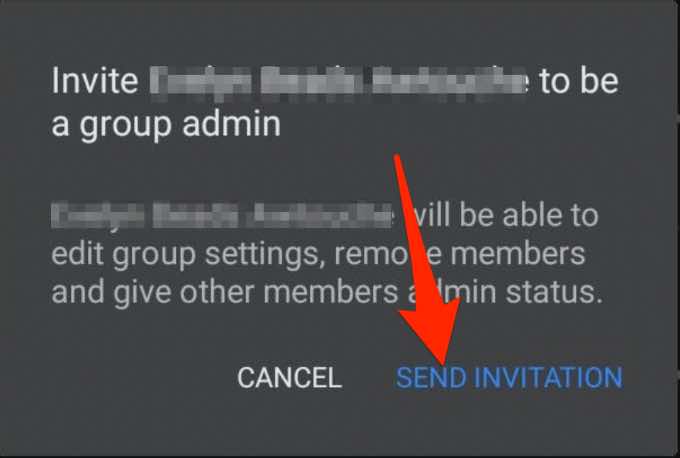
  1. Next, tap Send Invitation to confirm the action. The person will receive a notification with the invite, and once they confirm, they’ll be added as an admin on your Facebook group.
 - 24-how-to-add-or-remove-an-admin-from-a-facebook-group-android-send-invitation

Add an Admin to a Facebook Group on iPhone

If you’re using an iPhone, use these quick steps to add an admin on your Facebook group.

  1. Tap the menu > Groups. 
 - 25-how-to-add-or-remove-an-admin-from-a-facebook-group-iphone-menu-groups
  1. Next, tap Your Groups.
 - 26-how-to-add-or-remove-an-admin-from-a-facebook-group-iphone-your-groups
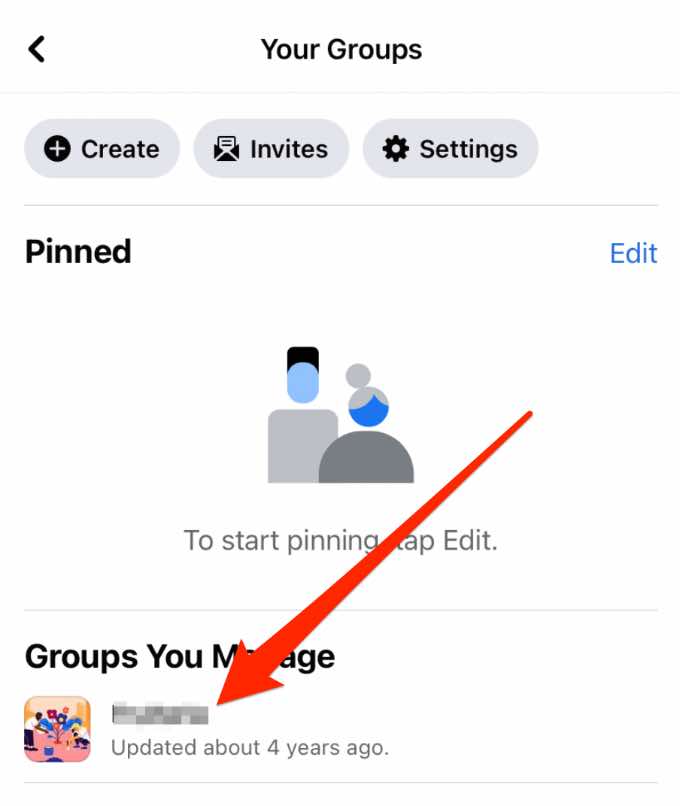
  1. Select your Facebook group from the list. 
 - 27-how-to-add-or-remove-an-admin-from-a-facebook-group-iphone-group
  1. Next, tap the badge icon.
 - 28-how-to-add-or-remove-an-admin-from-a-facebook-group-iphone-badge
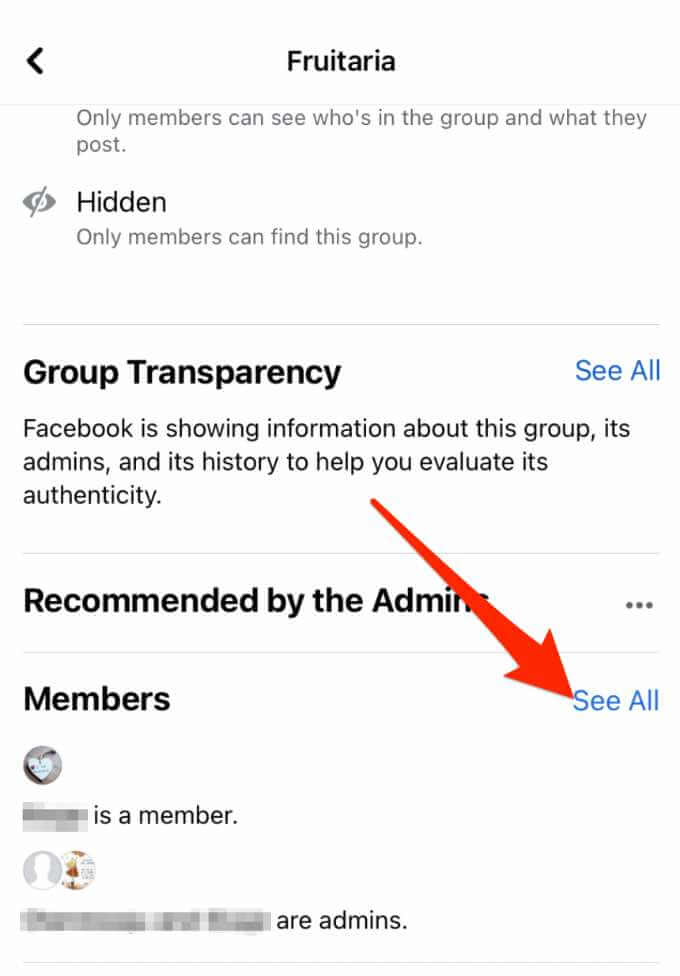
  1. Under Members tap See all.
 - 29-how-to-add-or-remove-an-admin-from-a-facebook-group-iphone-members-tool-shortcuts
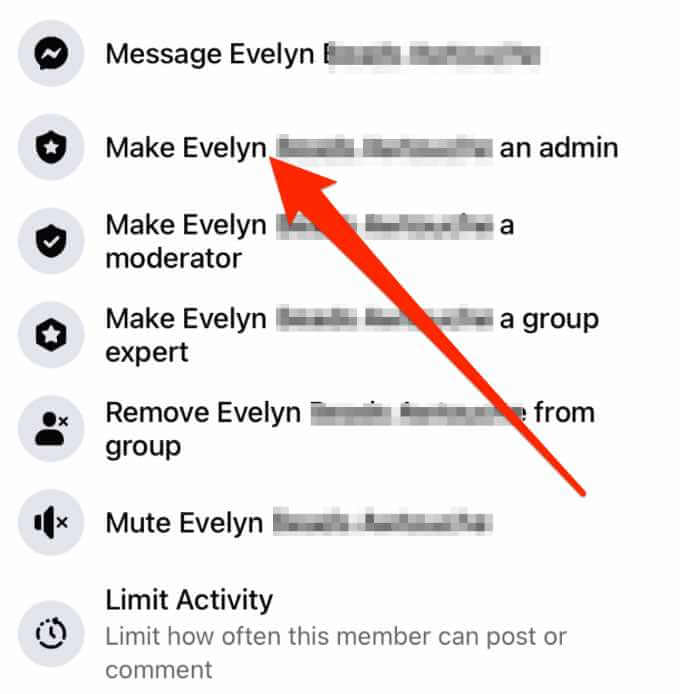
  1. Next, tap the name of the person you want to add as admin and then tap Make (name of invitee or member) admin.
 - 30-how-to-add-or-remove-an-admin-from-a-facebook-group-iphone-make-admin
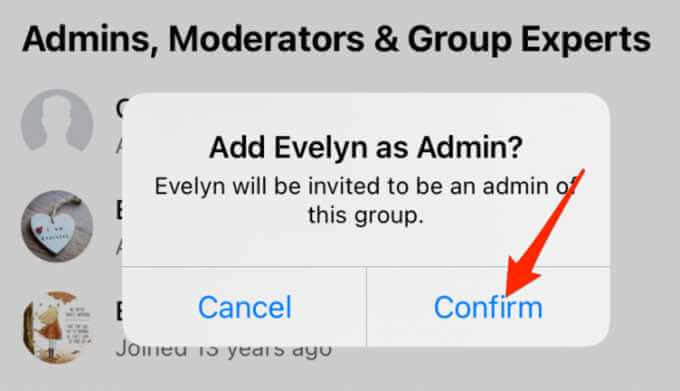
  1. Tap Confirm to complete the process.
 - 31-how-to-add-or-remove-an-admin-from-a-facebook-group-iphone-confirm

Cancel an Invitation to Make Someone an Admin of a Facebook Group From the Facebook App

You can cancel the invitation to make someone a Facebook group admin using these steps.

  1. Go to the main page of your Facebook group and tap on the group name. 
 - 32-how-to-add-or-remove-an-admin-from-a-facebook-group-cancel-invitation-app
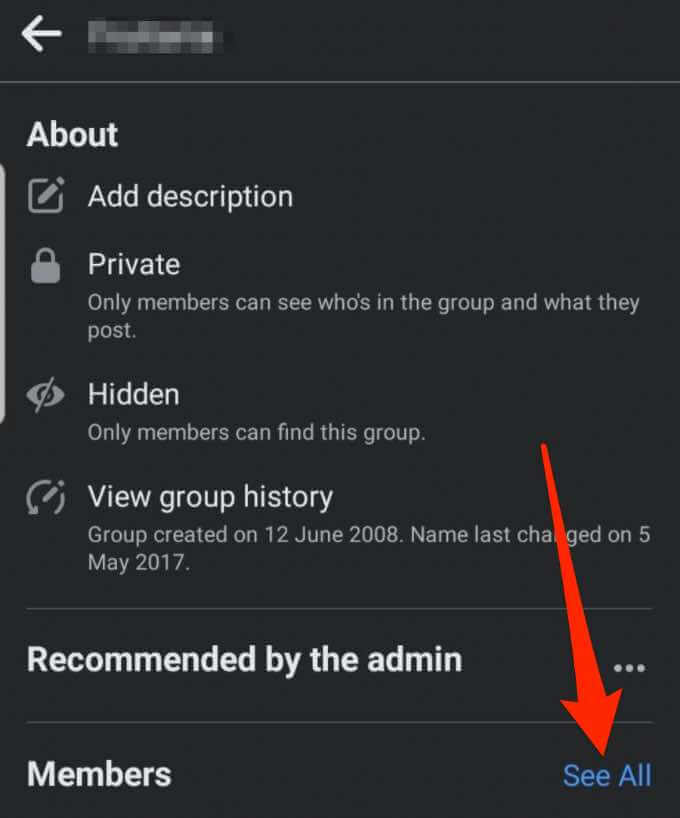
  1. Next, tap See all next to the Members section.
 - 33-how-to-add-or-remove-an-admin-from-a-facebook-group-cancel-invitation-see-all-members
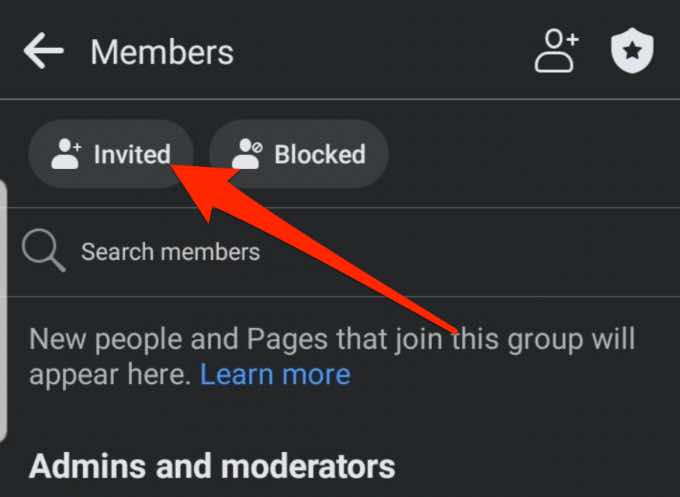
  1. Tap the Invited tab.
 - 34-how-to-add-or-remove-an-admin-from-a-facebook-group-cancel-invited
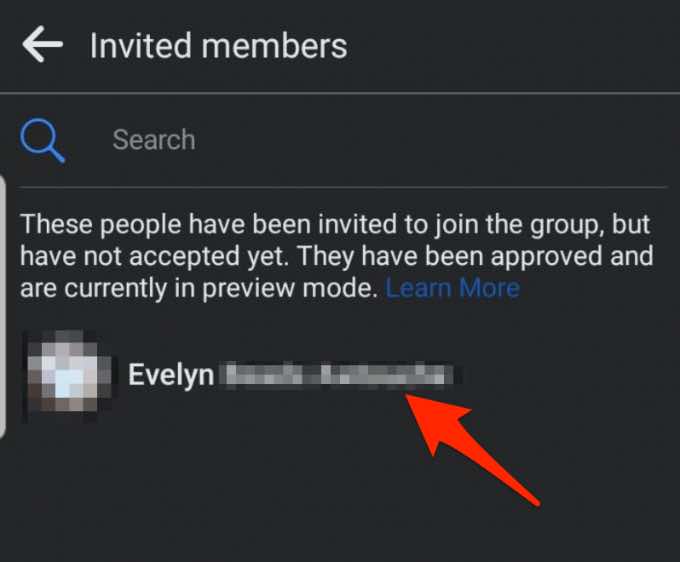
  1. Find the name of the person you invited to be an admin of the Facebook group and tap on More (three dots).
 - 35-how-to-add-or-remove-an-admin-from-a-facebook-group-name-remove
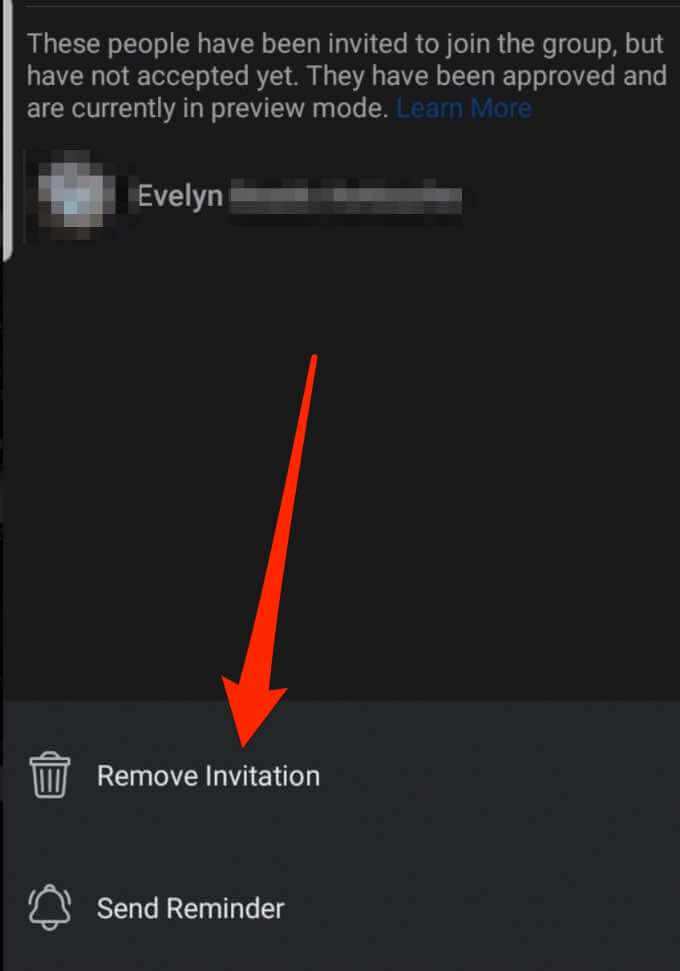
  1. Tap Remove Invitation.
 - 36-how-to-add-or-remove-an-admin-from-a-facebook-group-remove-invitation
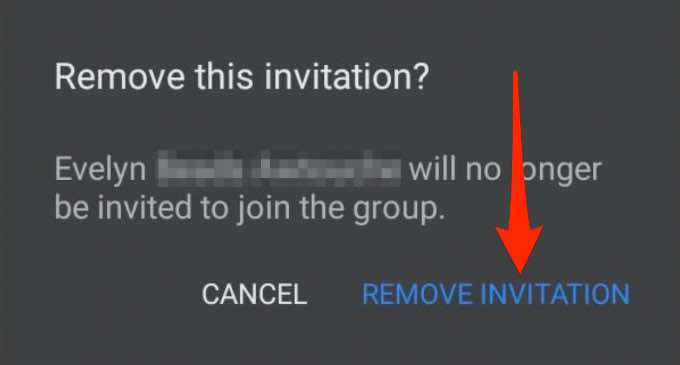
  1. Next, tap Remove Invitation again to confirm the action, and the person will no longer be invited to join the group.
 - 37-how-to-add-or-remove-an-admin-from-a-facebook-group-remove-invitation-confirm

How to Remove an Admin from a Facebook Group Through the Facebook App

If you no longer need the services of the admin you added, you can remove them easily from your Facebook group in a few quick steps. 

  1. Tap the badge icon at the top right side of the screen. 
 - 38-how-to-add-or-remove-an-admin-from-a-facebook-group-badge-icon
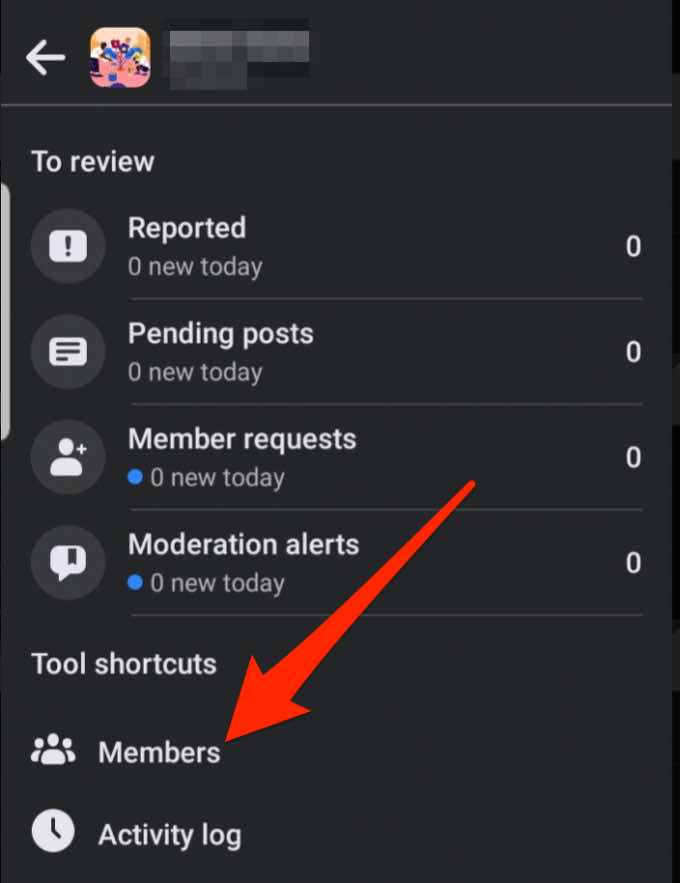
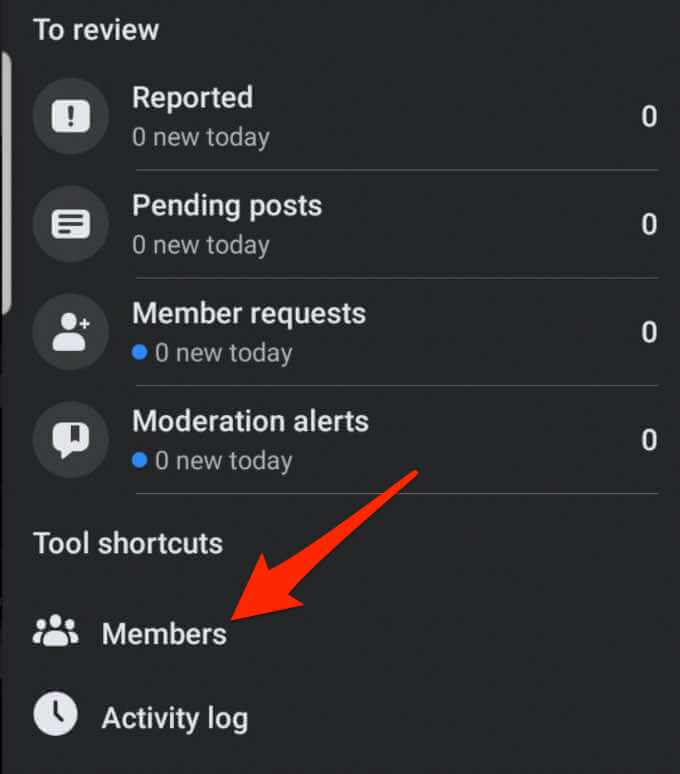
  1. Next, tap Members under Tool Shortcuts.
 - 39-how-to-add-or-remove-an-admin-from-a-facebook-group-members-tool-shortcuts
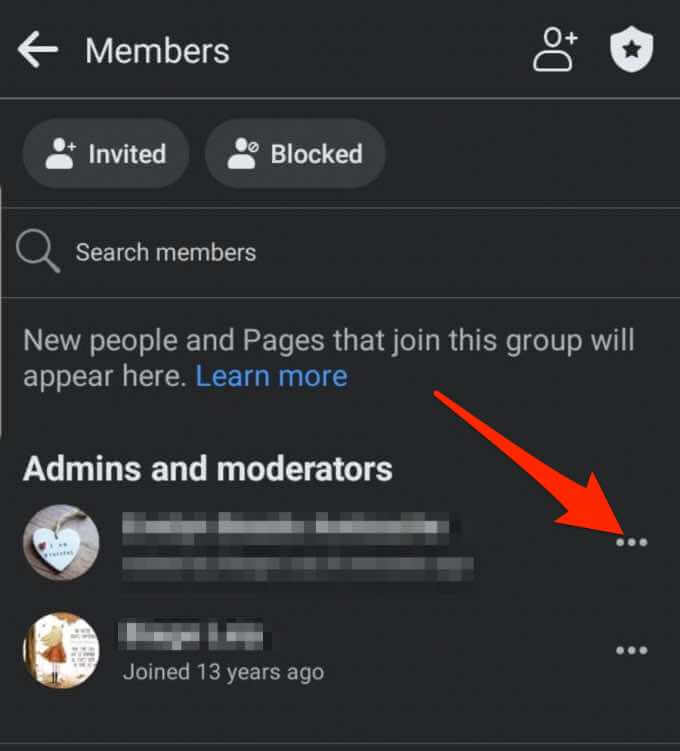
  1. Tap More (three dots) next to the name of the person that you want to remove as admin.
 - 40-how-to-add-or-remove-an-admin-from-a-facebook-group-more-name
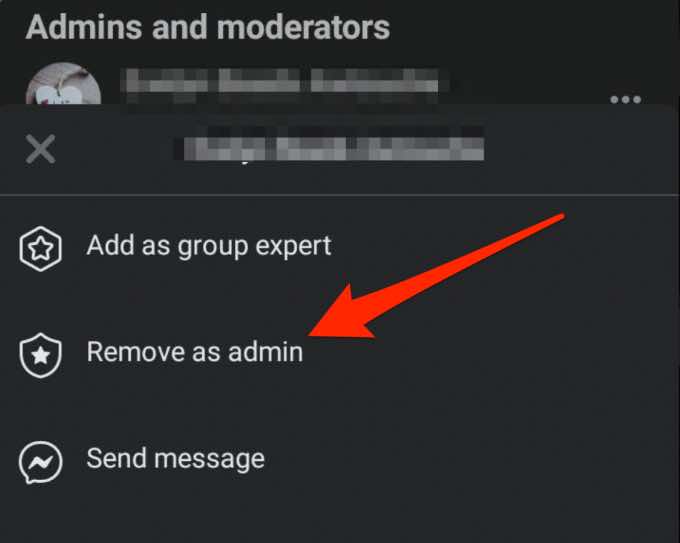
  1. Next, tap Remove as Admin.
 - 41-how-to-add-or-remove-an-admin-from-a-facebook-group-remove-admin
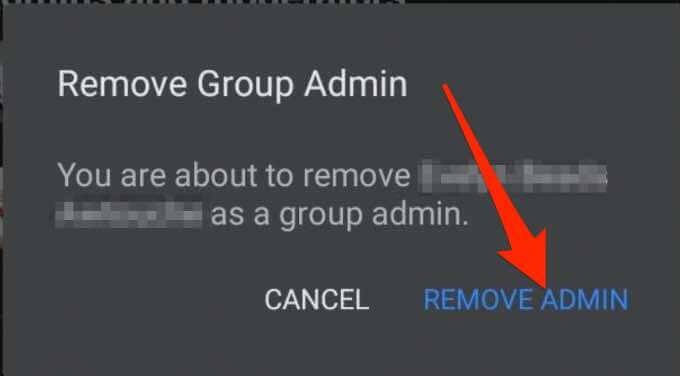
  1. Tap Remove admin to confirm the action.
 - 42-how-to-add-or-remove-an-admin-from-a-facebook-group-remove-admin-confirm

Manage Your Facebook Group Successfully

Having a Facebook group admin who can handle everything about the group makes it easier for you to manage your growing community. 

Whatever your reason for adding or removing an admin from your Facebook group, leave a comment and let us know if this guide helped you achieve your goal.

Tags: Facebook
Share
Written by

Elsie Otachi

Elsie is a technology writer and editor with a special focus on Windows, Android and iOS. She writes about software, electronics and other tech subjects, her ultimate goal being to help people out with useful solutions to their daily tech issues in a simple, straightforward and unbiased style. She has a BCom degree in Marketing and currently pursuing her Masters in Communications and New Media. <a href='https://www.online-tech-tips.com/author/eotachi/'>Read Elsie's Full Bio</a>

View Elsie's Profile

Recent Posts

  •  - personal finance tools
    10 AI Money Apps That Make Mint Look MedievalJun 6, 2025
  •  - smartwatches
    Is a Smartwatch Worth It in 2025 and Beyond?May 20, 2025
  •  - slow wifi
    How to Fix Slow Wi-Fi on Your SmartphoneMay 6, 2025
  • Programmer coding at computer. - vibe coding
    Vibe Coding 101: Your Guide to AI-Powered ProgrammingMar 26, 2025

Search

Categories

  • Gaming (345)
  • How-To (1,122)
  • News (43)
  • Reviews (438)
  • Social Media (461)
  • Streaming (174)
  • Uncategorized (4)

Popular Tags

Adobe AI Alexa Amazon Android Buying Guides ChatGPT Chrome Discord Explainers Facebook FireTV Gadget Reviews Gmail Google Google Docs Google Maps Google Sheets Home Networking Hulu Instagram Internet LinkedIn Minecraft Netflix Nintendo Switch PlayStation Premiere Reddit Remote Work Roblox Roku Roundups Smart Home Snapchat Software Reviews Spotify Steam TikTok Twitch VR WhatsApp Windows X (Twitter) YouTube

Our Publishing Family

Online Tech Tips is part of the AK Internet Consulting publishing family.

  • HELP DESK GEEK
  • THE BACK ROOM TECH
  • SWITCHING TO MAC
  • XBOX ADVISOR

Daily Email Newsletter

Connect With Us

About Online Tech Tips

Online Tech Tips has published easy-to-follow technology tutorials, honest reviews, and practical how-to guides since 2007 — helping millions of readers solve tech problems and get more from their devices.

Learn More →

© 2007-2026 Online Tech Tips.com, LLC. All Rights Reserved.

  • Home
  • About Us
  • Editorial Standards
  • Contact Us
  • Terms of Use
All systems operational