
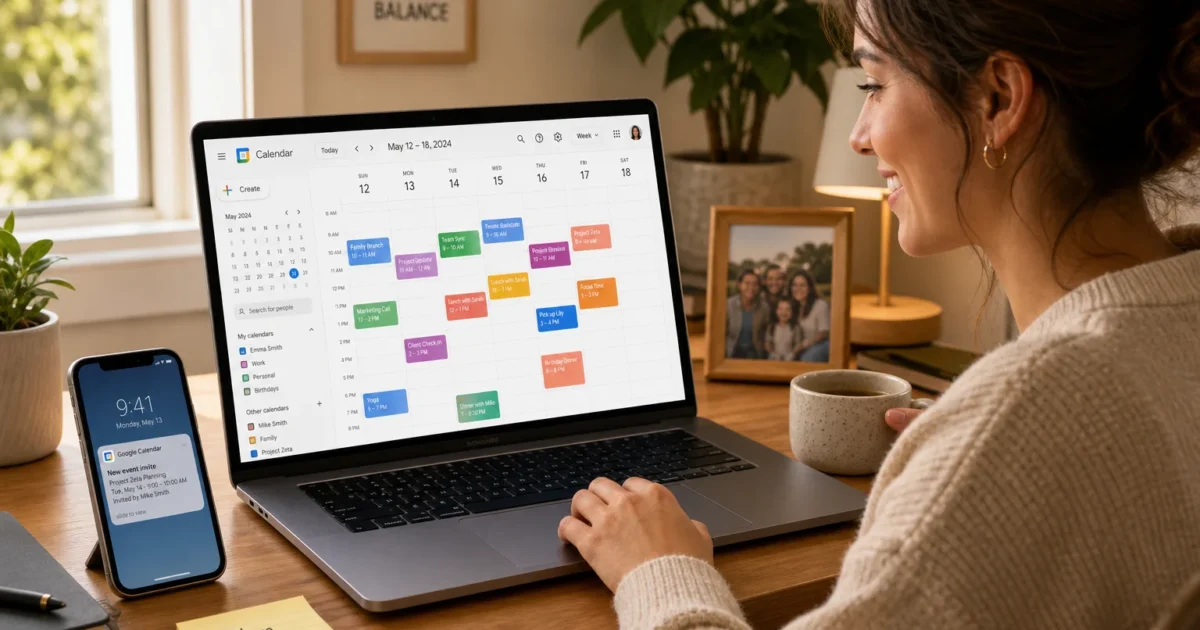
Sharing a Google Calendar should make planning easier, but one overly generous permission can expose more than you intended. If you’re cautiously hoping this takes only a few minutes, you’re in luck. The main controls live in one settings page.
This guide shows you how to share an existing calendar, create a separate shared calendar, invite guests to individual events, and control what everyone can see. You’ll also learn how to quiet notification overload (shared calendars can get noisy fast).
What Is Google Calendar Sharing?
Google Calendar sharing gives another person access to an entire calendar while letting you decide what they can view or change. It’s handy for family plans, work schedules, school events, and clubs.
Key features:
- Private sharing: Give selected people or Google Groups access.
- Public sharing: Let anyone view the calendar through a public link.
- Permission controls: Show availability, reveal event details, or allow editing.
- Individual event invitations: Invite guests without sharing the full calendar.
- Booking pages: Use Appointment Schedules when people only need to book available time.
Full sharing and ownership controls work best on the Google Calendar website. You can view shared calendars in the Android and iPhone apps, but some management options require a browser.
Before You Begin
Make sure you have:
- A Google account
- A modern browser such as Chrome, Edge, Firefox, or Safari
- The email addresses of the people you’re adding
- Permission to manage the calendar you want to share
Workplace and school accounts may have sharing limits set by a Google Workspace administrator. If a public or external sharing option is missing, your account may be working exactly as expected.
Understand Google Calendar Permissions
Google gives you four permission levels. Picking the lowest level that does the job is usually the safest choice.
| Permission | What the Person Can Do | Best For |
|---|---|---|
| See only free/busy (hide details) | See when you’re available without seeing event names or details | Scheduling meetings |
| See all event details | View event names, times, locations, and other visible details | Family or team schedules |
| Make changes to events | Create, edit, and remove events | Assistants or close collaborators |
| Make changes and manage sharing | Edit events and control who else has access | Trusted calendar managers |
I’d skip Make changes and manage sharing unless the person genuinely needs administrative control. It’s the calendar equivalent of handing someone the spare keys.
How to Share a Google Calendar With Specific People
These steps work on Windows, macOS, ChromeOS, and Linux because everything happens on the Google Calendar website.
Step 1: Open Google Calendar
Go to Google Calendar in your browser and sign in. Your calendars should appear in the left sidebar.
Step 2: Find the Calendar
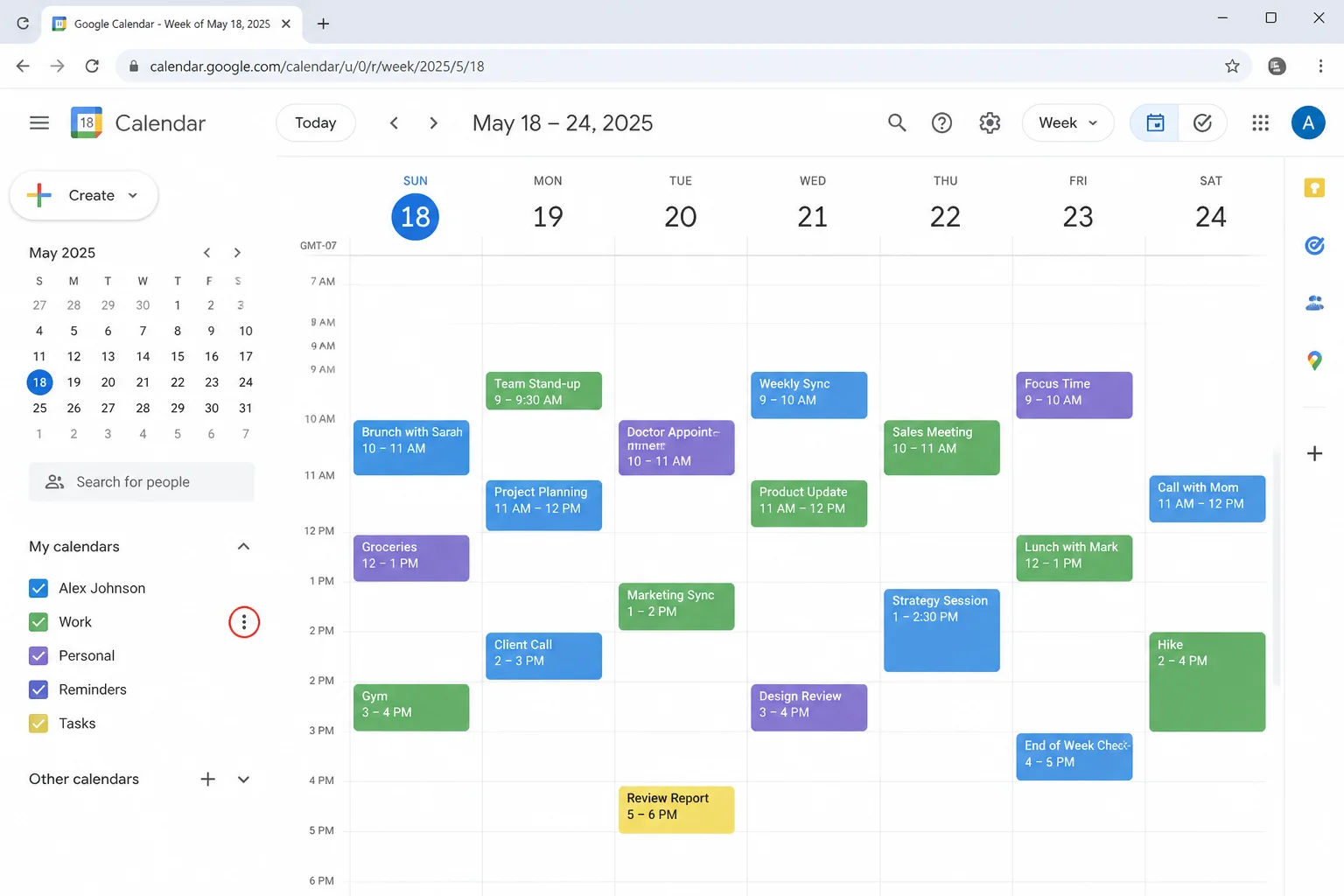
Under My calendars, hover over the calendar you want to share. Click the three-dot menu beside its name.
Step 3: Open Its Sharing Settings
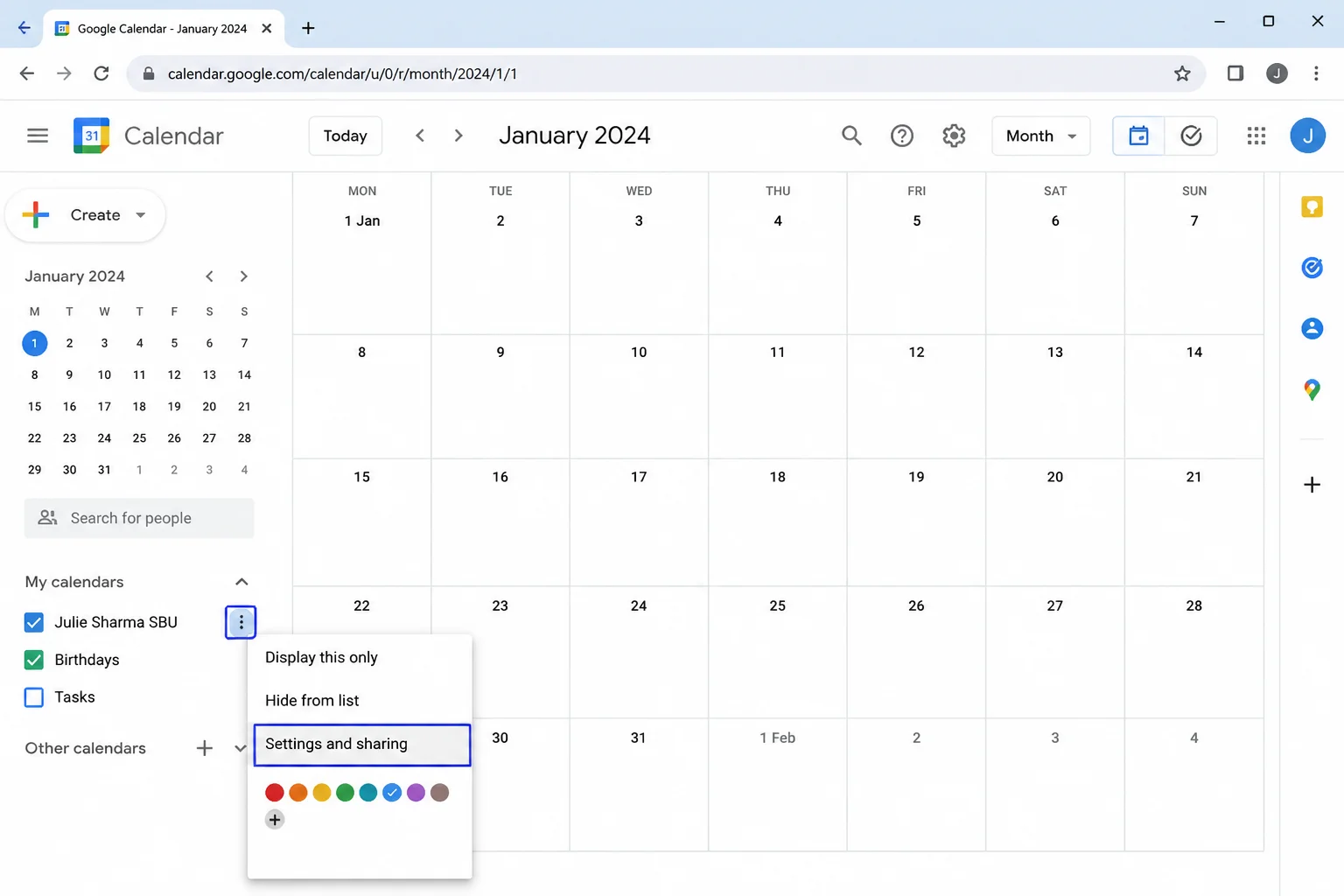
Select Settings and sharing. Google Calendar will open the settings page for that specific calendar.
Step 4: Add People or Groups
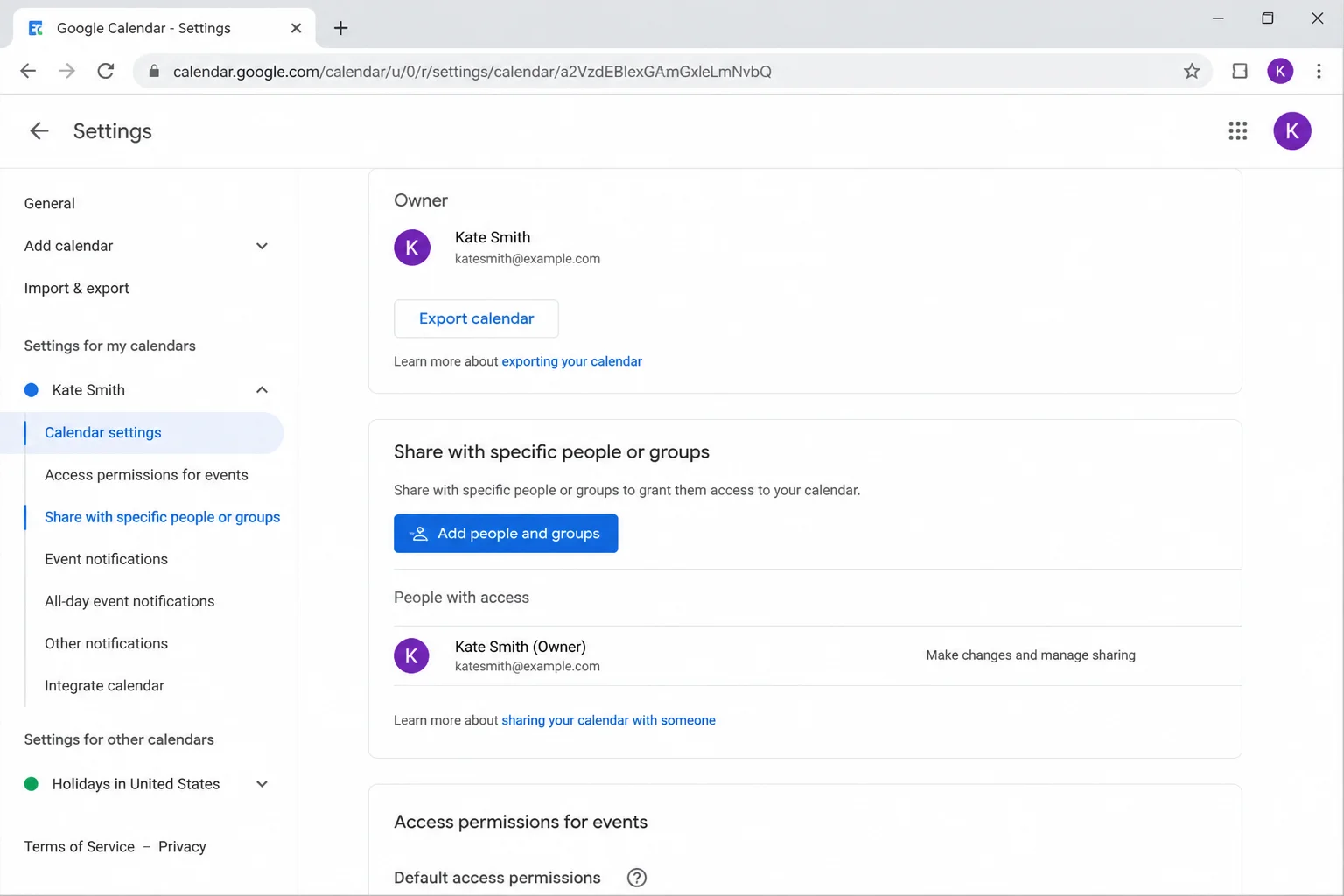
Scroll to Share with specific people or groups, then click Add people and groups.
Step 5: Choose a Permission
Enter an email address or group, select the appropriate permission from the dropdown, and click Send. The recipient will get an invitation, and the calendar can appear under their Other calendars section.
So far, so good. You can return to this section later to change someone’s permission or remove their access.
How to Make a Google Calendar Public
Public calendars work well for community events, clubs, and schedules intended for a broad audience. Be cautious here: public event details can be visible beyond the people who receive your link.
Step 1: Open Settings and Sharing
Under My calendars, open the calendar’s three-dot menu and select Settings and sharing.
Step 2: Enable Public Access
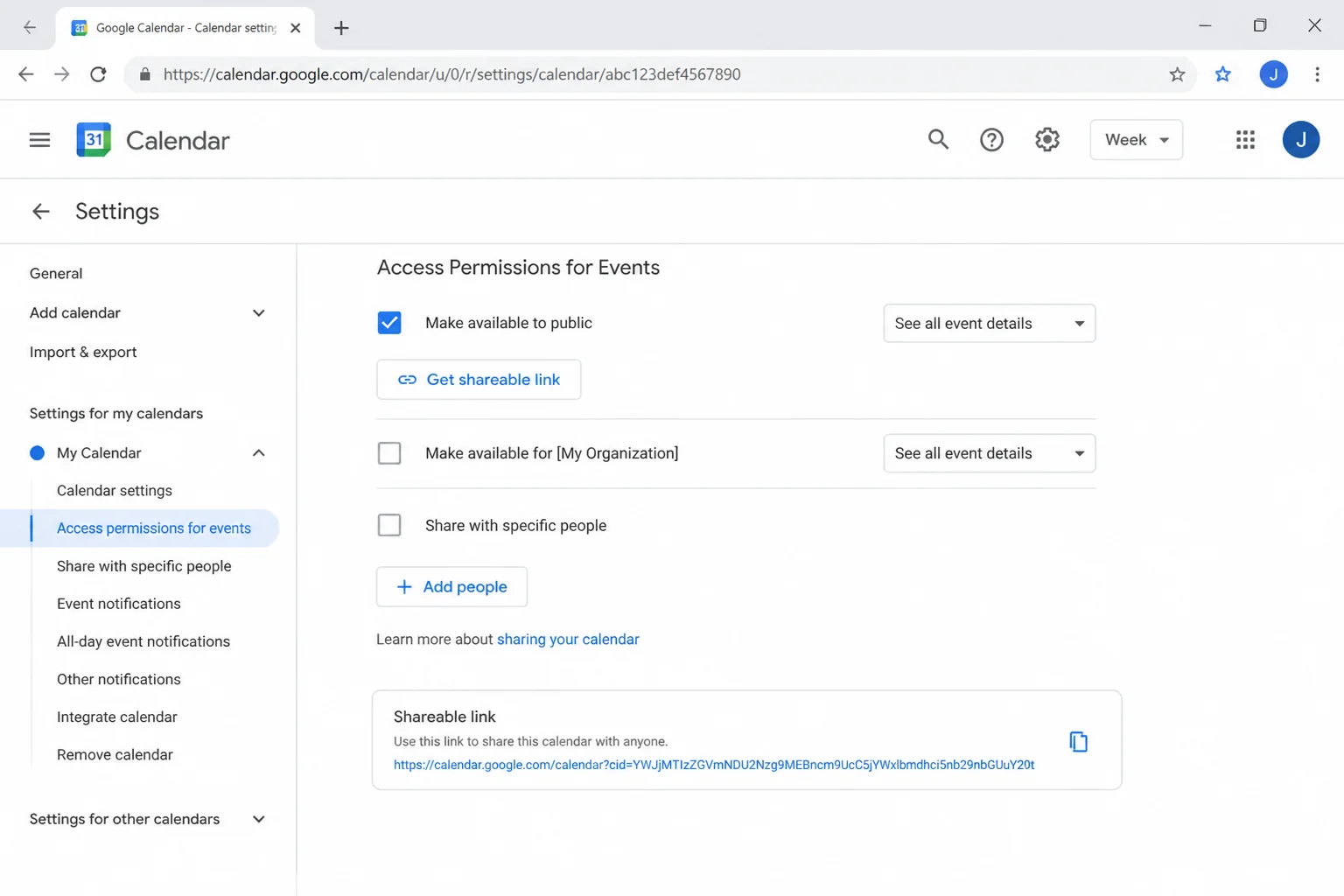
Scroll to Access permissions for events and select Make available to public. Confirm the warning if Google displays one.
Step 3: Select What People Can See
Choose one of the available visibility levels:
- See only free/busy (hide details): People see occupied time blocks without names or descriptions.
- See all event details: People see the visible information stored in each event.
Use the calendar’s shareable link to distribute it. Google Workspace accounts may also offer organization-only access, which keeps the calendar inside your workplace or school.
Public calendars can appear in search results and other Google products. Keep personal addresses, private meeting links, and sensitive notes elsewhere.
How to Create a Separate Shared Calendar
A separate calendar keeps shared plans away from your personal schedule. It’s much cleaner than adjusting the privacy of every event one at a time (and less likely to cause an awkward surprise).
- Find Other calendars in the left sidebar and click the + button.
- Select Create new calendar.
- Enter a name, an optional description, and the correct time zone.
- Click Create calendar.
- Open Settings and sharing for the new calendar.
- Add people under Share with specific people or groups.
- Assign each person the lowest permission level they need.
The new calendar will appear under My calendars. People you add can view or edit it according to their assigned permission.
How Event Visibility Works
An event’s visibility setting works alongside the calendar’s sharing permissions. That pairing can feel like two locks on the same door, but it gives you more control.
When creating or editing an event, check its visibility setting. The available wording can vary by account and calendar, but common choices include the calendar’s default visibility, Public, and Private.
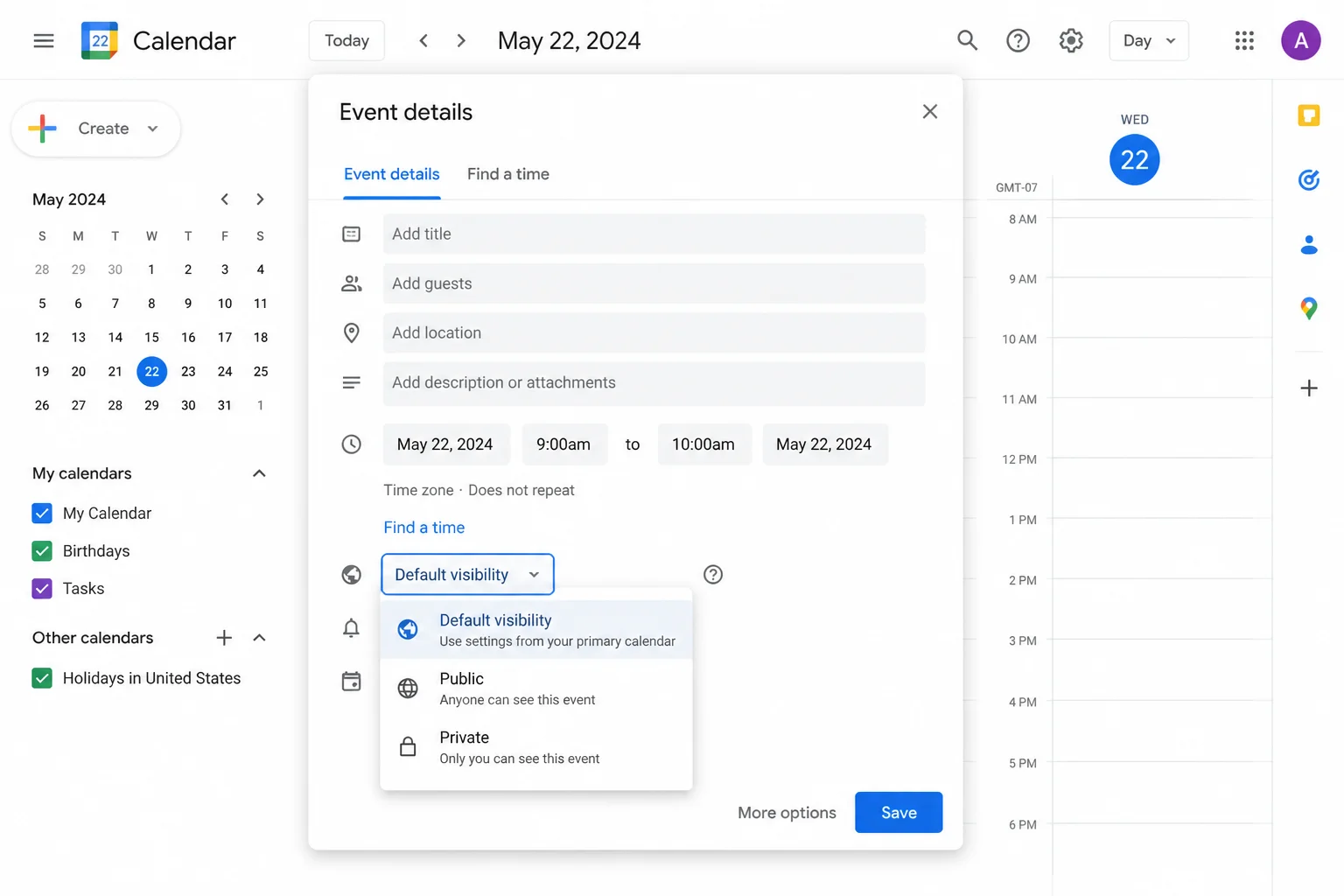
A private event on a shared calendar generally hides its details from people who lack permission to view them. They may still see that time as busy. For a fuller explanation of different permission combinations, Google provides a guide to calendar privacy and sharing options.
Before adding confidential information, check the calendar name, event visibility, and guest list. Three seconds of checking can prevent a very long afternoon.
How to Share One Event Without Sharing Your Calendar
You don’t need to share an entire calendar just to invite someone to dinner or a meeting. Add them as a guest to that event instead.
Step 1: Open the Event
Click the event, then choose the pencil-shaped Edit event button.
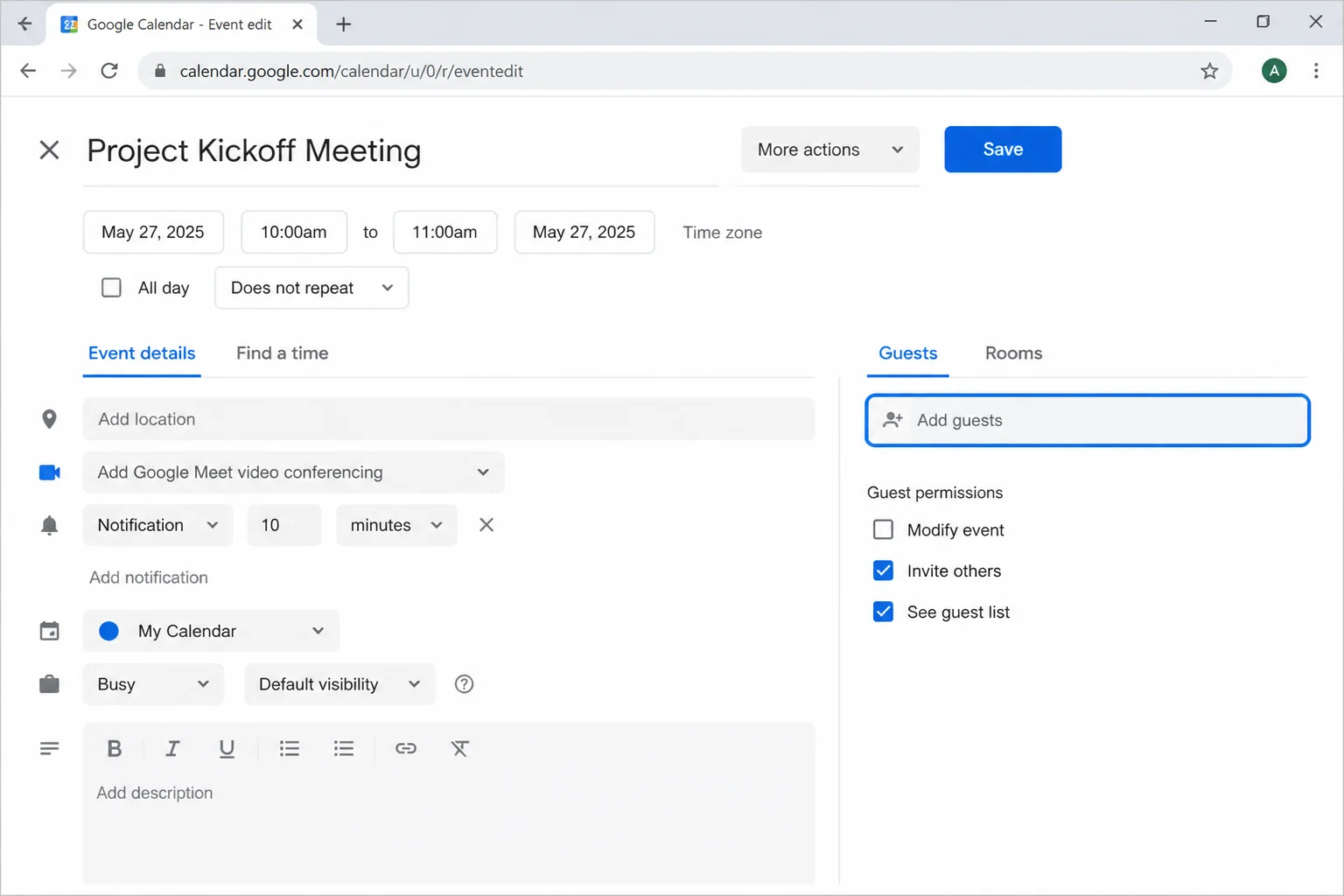
Step 2: Add Your Guests
Find the guest section, enter each person’s email address, and select them from the results.
Step 3: Set Guest Permissions
Choose whether guests can:
- Modify the event
- Invite other people
- View the guest list
Step 4: Save and Send
Click Save, then send the invitation when prompted. Guests receive the event details without gaining access to the rest of your calendar.
Google Calendar may also provide an event publishing or sharing action through the event’s menu. Its label and placement can vary by account and event type.
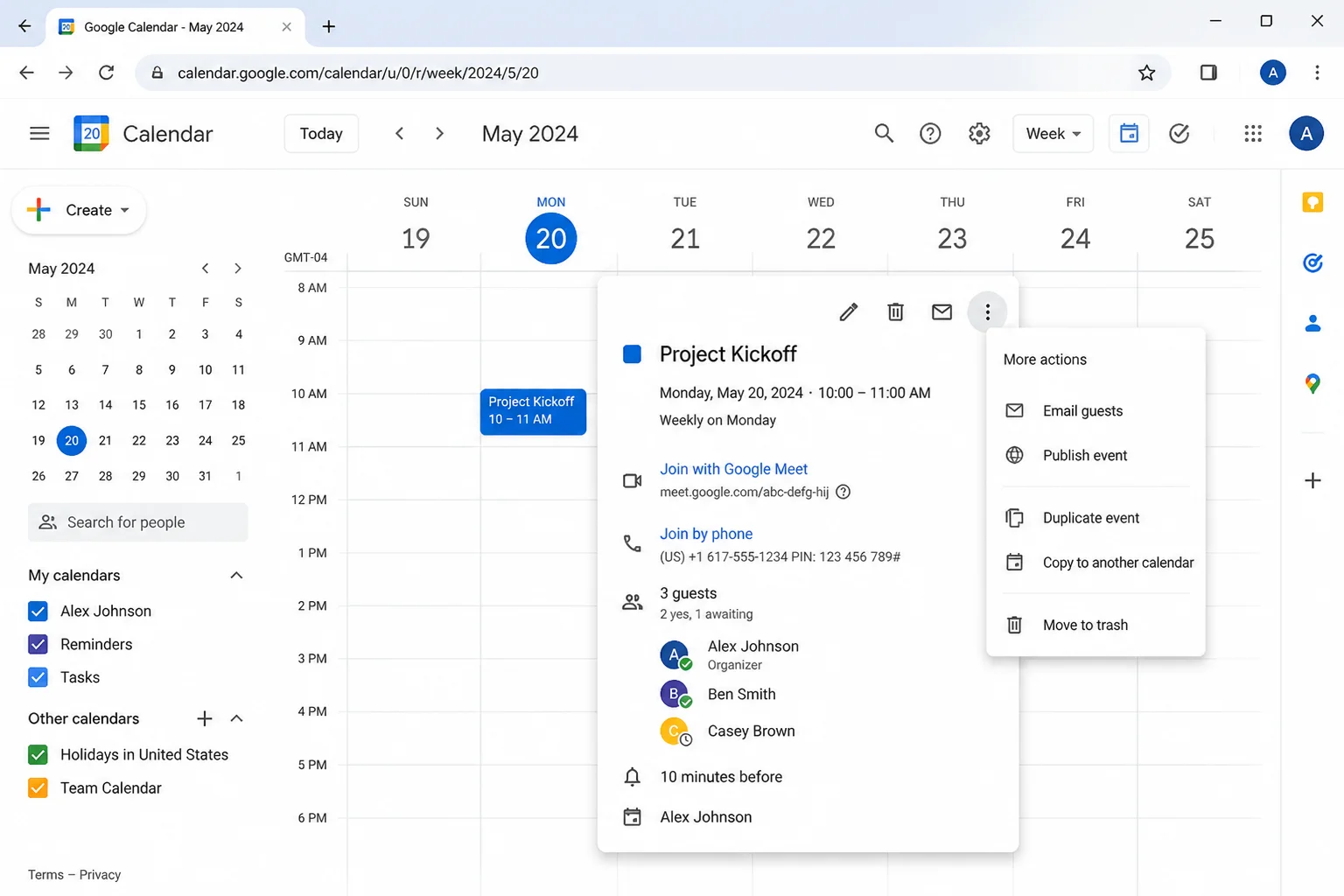
If a publishing dialog is available, review the link or website code carefully before copying it. The event’s calendar permissions and visibility still control what other people can see.
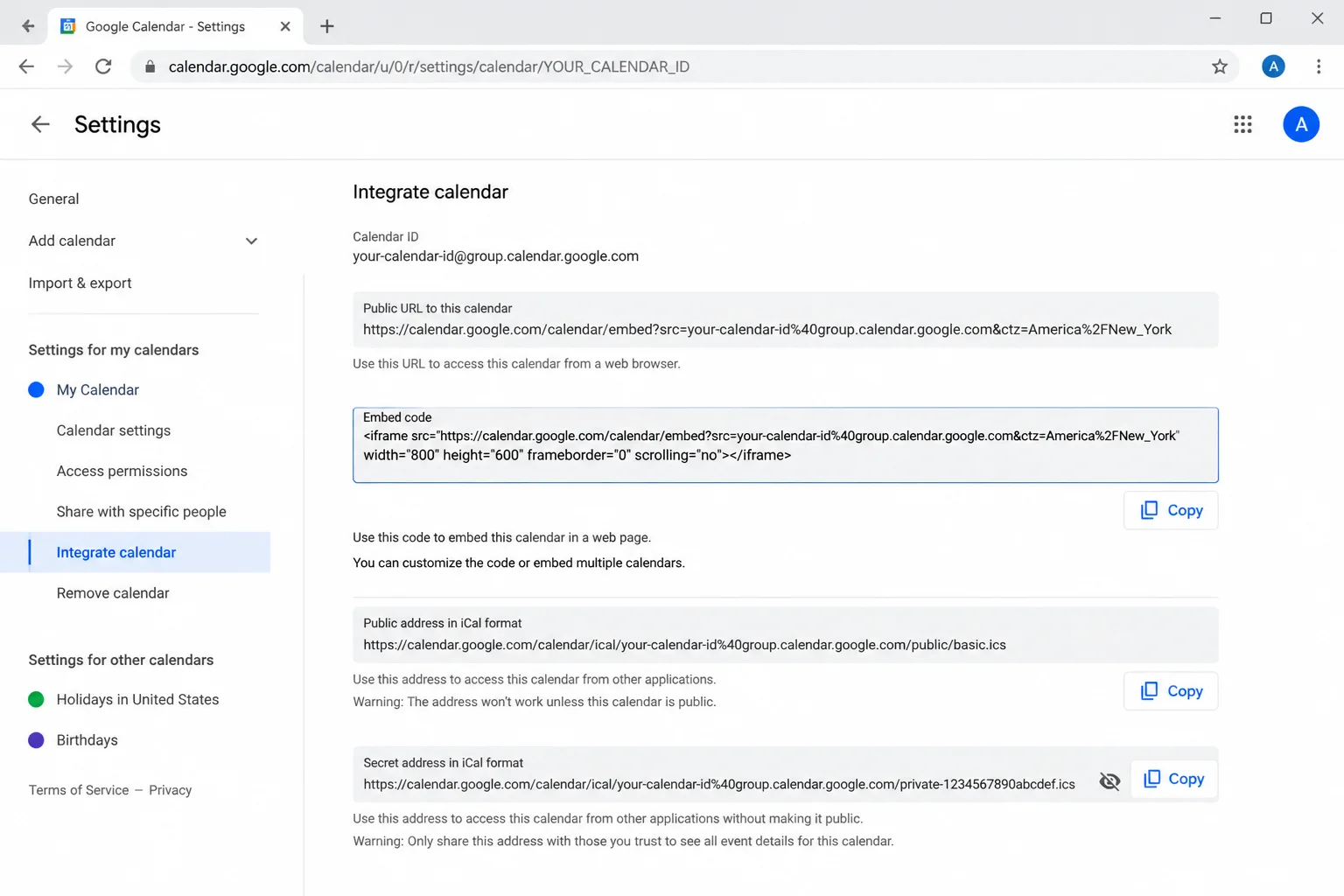
For ordinary meetings, guest invitations are the more dependable option. They also make updates and RSVP responses much easier to track.
Adjust Notifications for a Shared Calendar
A useful shared calendar can quickly become a notification machine. Set alerts separately for each calendar so somebody else’s busy schedule doesn’t keep buzzing your phone.
- Open the calendar’s Settings and sharing page.
- Scroll to Event notifications.
- Add, edit, or remove the available notification rules.
- Check any other notification options for added, changed, or canceled events.
Notification choices can differ by account and device. Adjust them to match how closely you need to follow that calendar.
How Shared Calendar Ownership Works
Every secondary calendar has one owner. A secondary calendar is simply an extra calendar you create alongside your main Google Calendar.
If you own one, it remains available in Settings even when you hide it from your calendar view. To remove it completely, you need to delete it for everyone or transfer ownership to another eligible user. The exact ownership controls and their placement can vary by account.
Only the current owner can transfer ownership. Workplace and school administrators may also block transfers outside their organization.
If you don’t own a shared calendar, you can hide it or unsubscribe without affecting anyone else. That’s much safer than deleting events one by one.
Sharing Your Availability Without Sharing a Calendar
Google Calendar’s Appointment Schedules are worth trying when people only need to book time with you. You choose the available hours, and Google creates a booking page that you can send to clients, students, or coworkers.
This approach keeps the rest of your calendar out of sight. It’s a solid choice for office hours, consultations, and support appointments where full calendar access would be overkill.
Tips and Troubleshooting
The Sharing Option Is Missing
Problem: You can’t make a calendar public or share it outside your organization.
A Google Workspace administrator may have restricted external sharing. Ask your workplace or school administrator which sharing levels your account allows.
The Recipient Can’t See the Calendar
Problem: The invitation arrived, but the calendar isn’t visible.
- Check the correct Google account: The recipient should open the invitation while signed in with the address you added.
- Look under Other calendars: The calendar may be present but unchecked or hidden.
- Send the invitation again: Remove the person’s access, add the same address, and click Send.
- Verify the permission: Confirm that the recipient hasn’t been limited to free/busy information when they need event details.
Event Details Are Hidden
Problem: Someone sees “Busy” instead of the event name.
Check both the person’s calendar permission and the event’s visibility. See only free/busy (hide details) deliberately conceals event information, while private events may hide details on an otherwise shared calendar.
An Imported Calendar Updates Slowly
Problem: Changes from an Outlook calendar or another .ics feed take a long time to appear.
Imported calendar feeds don’t always refresh quickly, and you can’t force Google Calendar to poll them more often. For time-sensitive plans, invite people directly or share the Google calendar instead.
A Shared Calendar Is Too Noisy
Problem: You’re receiving alerts for events you don’t manage.
Open that calendar’s settings and reduce its event notifications. Hiding the calendar only removes it from view; it doesn’t necessarily silence every alert.
A Calendar Won’t Disappear From Settings
Problem: You created a secondary calendar and can’t unsubscribe from it.
Owners can’t fully unsubscribe from calendars they own. Hide it from your main view, delete it for everyone, or transfer ownership and then unsubscribe.
Share Only What People Need
Google Calendar sharing works well once the permission levels make sense. You can share availability, reveal full event details, hand over editing access, or invite someone to one event without exposing everything else.
I’d recommend a separate shared calendar for families and teams because it keeps personal events safely out of the mix. Start with limited permissions, check that everything is working as expected, and raise access only when someone actually needs it.
For more information on Google Calendar, you can visit the official Google support page or check out Calendly’s guide on sharing Google Calendar.