
Some of the best lectures, debates, and music in the world is on YouTube for free. But we don’t always have the time to watch a video, and streaming audio over cell data would bankrupt us.
Wouldn’t it be great if we could just rip audio from a YouTube video? Then we could listen to it whenever we wanted.
Let’s address the issue of whether it’s legal or not to rip audio from YouTube. It depends. Just assume that everything is copyrighted. The content owner may mark the video as Creative Commons, public domain, or just say in their description that anyone can use it.
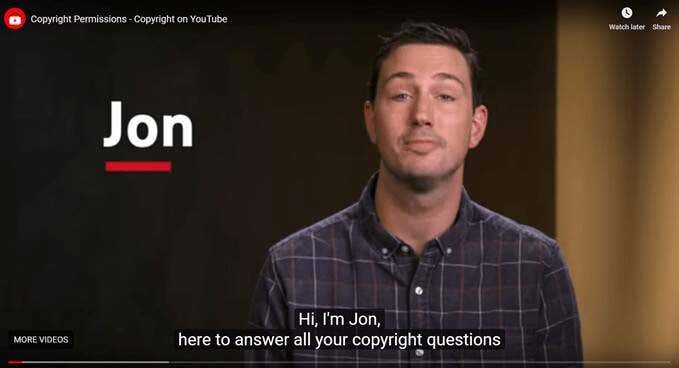
But to be completely sure, contact the owner of the content and ask for permission. Review YouTube’s frequently asked copyright questions.
For our how-to on ripping audio from YouTube, we’re going to use an interview with Sir Arthur Conan Doyle. Yes, the creator of Sherlock Holmes.

We’re going to use VideoLan’s VLC Media Player to do this. It’s a great free media player available for Windows, Mac OS X, iOS, Android, and Linux. So if you don’t have it, go download and install VLC Media Player now.
The method we’re going to use is very similar to using VLC to rip YouTube videos.
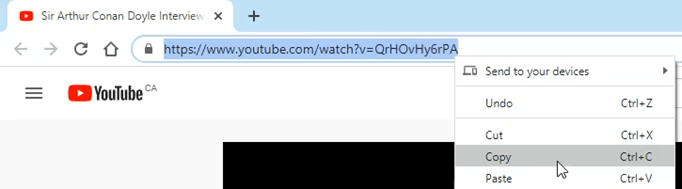
- Go to YouTube and go to the video we want to work with. Copy the entire address or URL from the location bar of the browser.
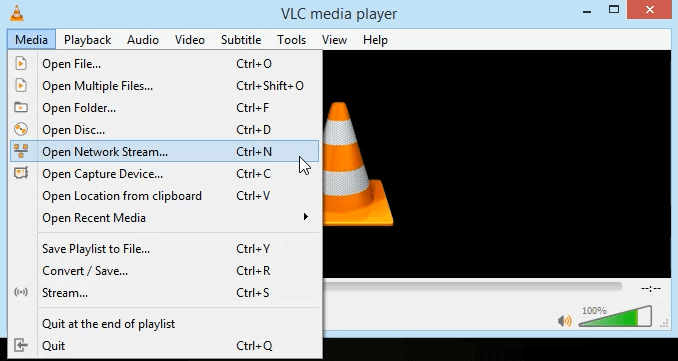
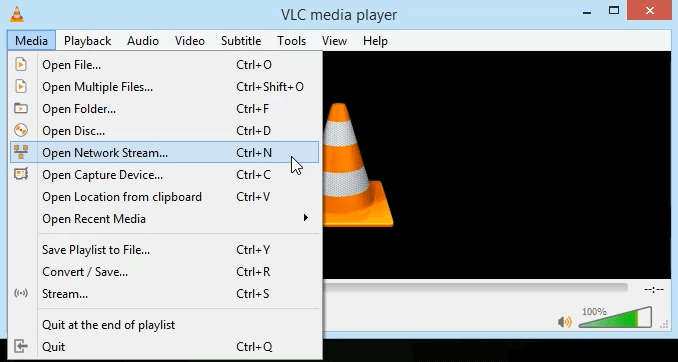
- Open VLC. On Windows, go to Media > Open Network Stream. On Mac go to File > Open Network.
- Enter the URL of the YouTube video in the network URL field. In Windows, click Play. On a Mac, click Open. The video will start to play. Let it.
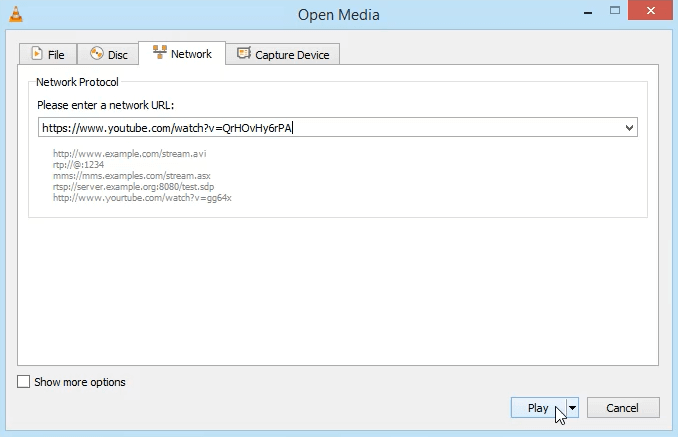
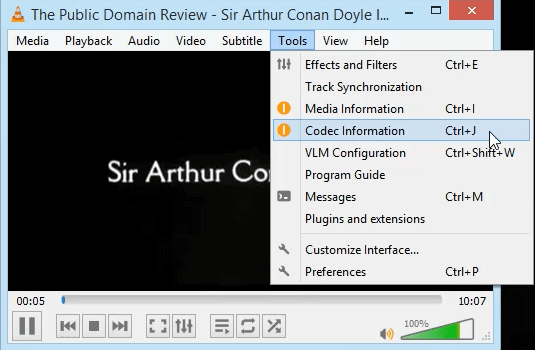
- While the video is still playing, in Windows go to Tools > Code Information. On a Mac click on Window > Media Information.
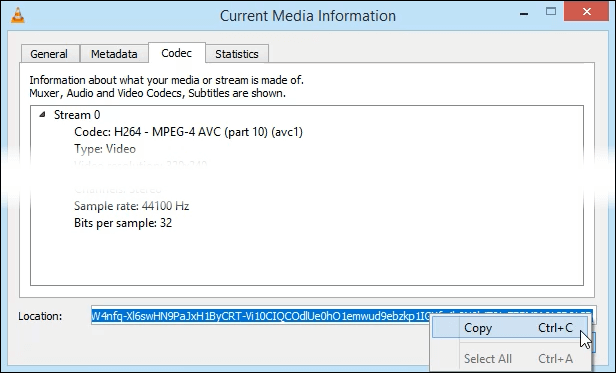
- At the bottom of the window that opens, there’s a long address in the Location field. Copy that and close that window.
- Stop the video. On Windows, go to Media > Open Network Stream. On Mac go to File > Open Network.
- Paste the long address in the network URL field. Click on the down arrow next to the Play button and click on Convert.
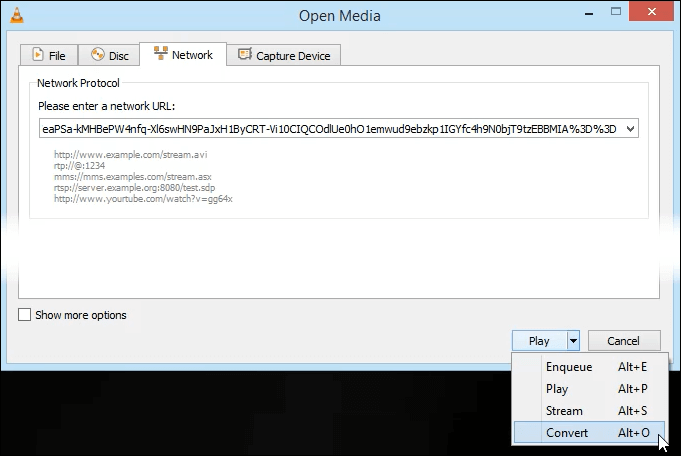
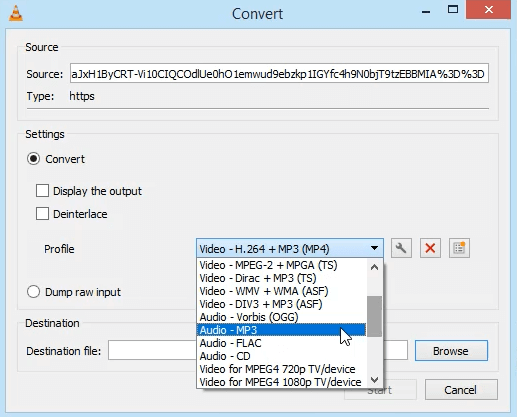
- In the window that opens, click on the Profile drop-down menu and select Audio – MP3. We could choose Audio – FLAC or Audio – CD if that’s what we wanted.
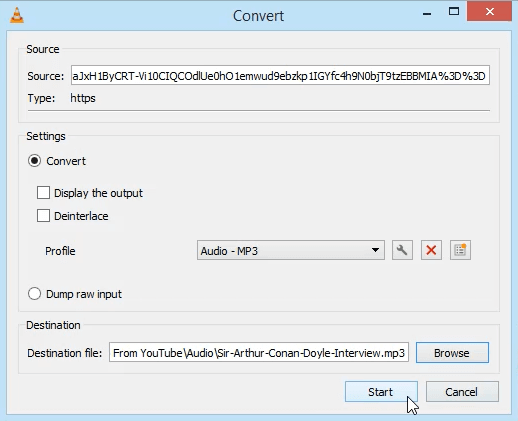
- Click on the Browse button next to the Destination file: field and choose where to save the MP3 when it’s converted. Click Start. VLC will start ripping the audio from the YouTube video and saving it as an MP3.
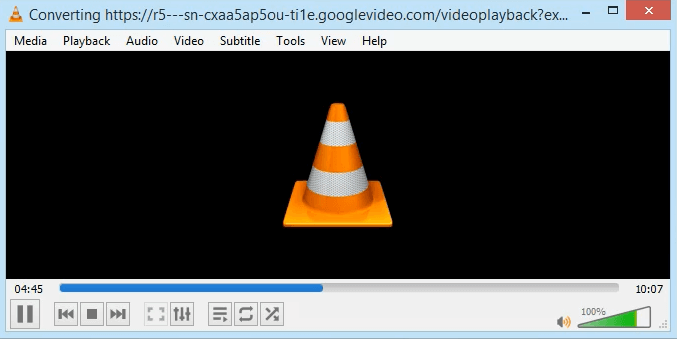
The audio ripping process will progress much quicker than if it were playing the video. This video is over 10 minutes long to watch but only took about 2 minutes to rip the audio from YouTube.
That’s It!
There is no need to go to some spammy website full of creepy ads to rip audio from YouTube. Just use VLC. If you haven’t used VLC before, learn more about it. Not only is it a great video and music player, but you can do things like stream to Chromecast, fix upside-down videos, and capture still images from movies and shows.
Know of any great public domain or creative commons YouTube channels we should follow? Or even just good royalty-free music or free audiobook sites? Let us know in the comments.