
Nothing’s more frustrating than clicking on Gmail and getting…nothing. Maybe you see a blank white page or Gmail gets stuck on that spinning loading wheel or you get hit with some cryptic error message. Whatever’s happening, you just want to check your email without pulling your hair out.
Good news: Most Gmail loading problems in Chrome are pretty straightforward to fix. We’ll walk through the most common causes and their solutions, starting with the quick fixes that work 90% of the time. No tech degree required – just follow along and you’ll be back to your inbox in no time.
Quick Diagnosis
Before diving into specific issues, try these general troubleshooting steps that solve most Gmail problems:
- Refresh the page: Hit
F5orCtrl + R(Windows) /Cmd + R(macOS) — sometimes Gmail just hiccups - Check if Gmail is down: Visit Google Workspace Status to see if there’s a widespread outage
- Try incognito mode: Press
Ctrl + Shift + N(Windows) /Cmd + Shift + N(macOS) and load Gmail. If it works here, the problem is with your extensions or cached data - Test another browser: Open Gmail in Firefox, Edge, or Safari to see if it’s a Chrome-specific issue
Common Issues and Solutions
Gmail Shows a Blank White Page
Symptoms:
- Gmail URL loads but displays only a white/blank page
- No error messages, just emptiness
- Page seems to finish loading but shows nothing
Cause: This is usually caused by corrupted browser cache or cookies that are interfering with Gmail’s interface loading properly.
Solution:
Step 1: Clear Chrome’s browsing data
- Click the three-dot menu in the top-right corner of Chrome
- Select Settings
- Click Privacy and security in the left sidebar
- Select Clear browsing data
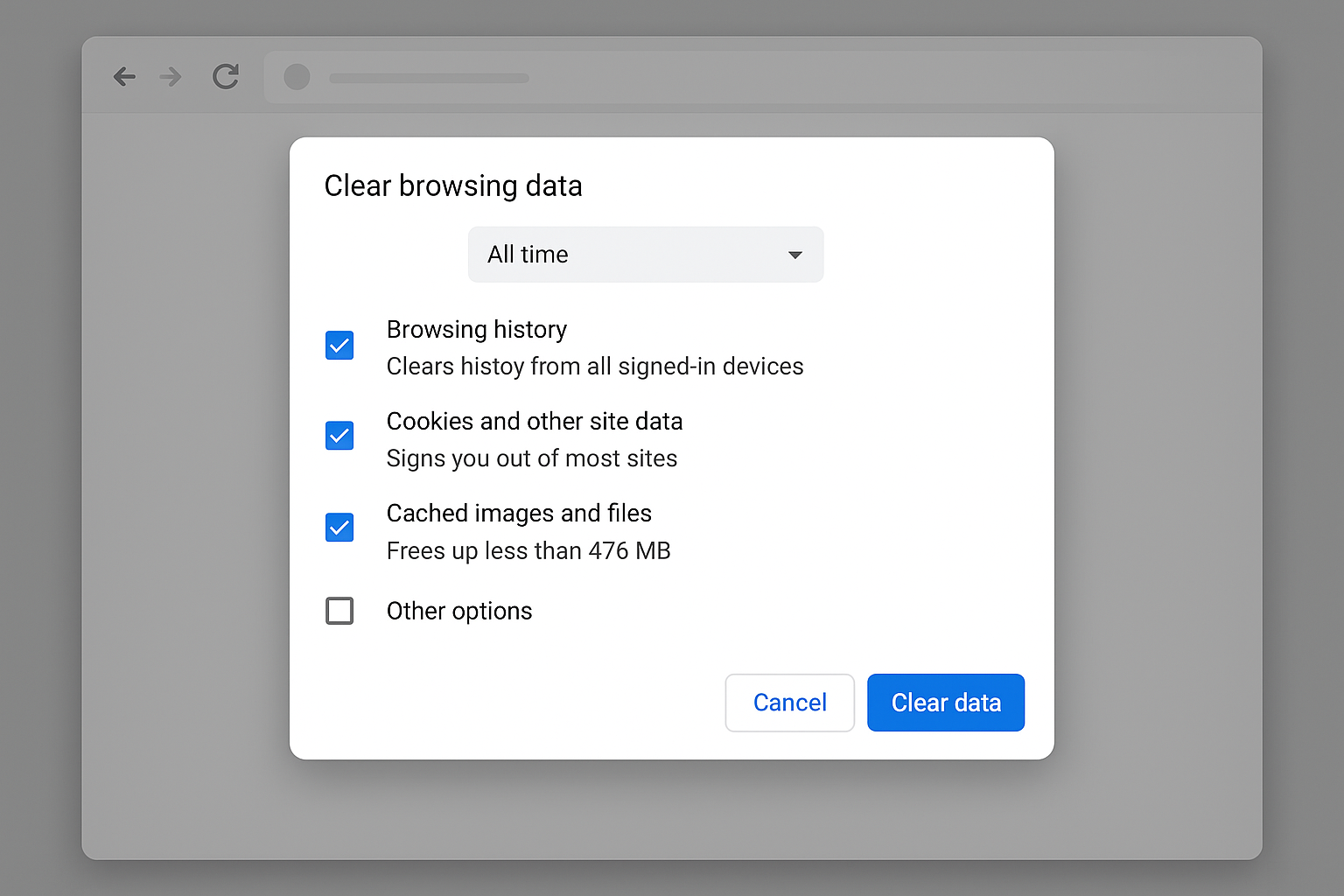
- In the dialog that opens:
– Set Time range to “All time” – Check Cookies and other site data – Check Cached images and files – Leave Browsing history unchecked (unless you want to clear that too)
- Click Clear data
Step 2: Restart Chrome completely
- Close all Chrome windows
- Wait 10 seconds
- Reopen Chrome and try Gmail again
Verify the fix: Gmail should now load normally with all interface elements visible.
Gmail Gets Stuck on Loading Screen
Symptoms:
- Gmail shows the loading spinner indefinitely
- Page never fully loads
- Sometimes you see partial Gmail interface that never completes
Cause: Browser extensions (especially ad blockers, VPNs, or security extensions) are interfering with Gmail’s loading process.
Solution:
Step 1: Disable all Chrome extensions
- Type
chrome://extensions/in the address bar and press Enter - Turn off the toggle switch for every extension you see
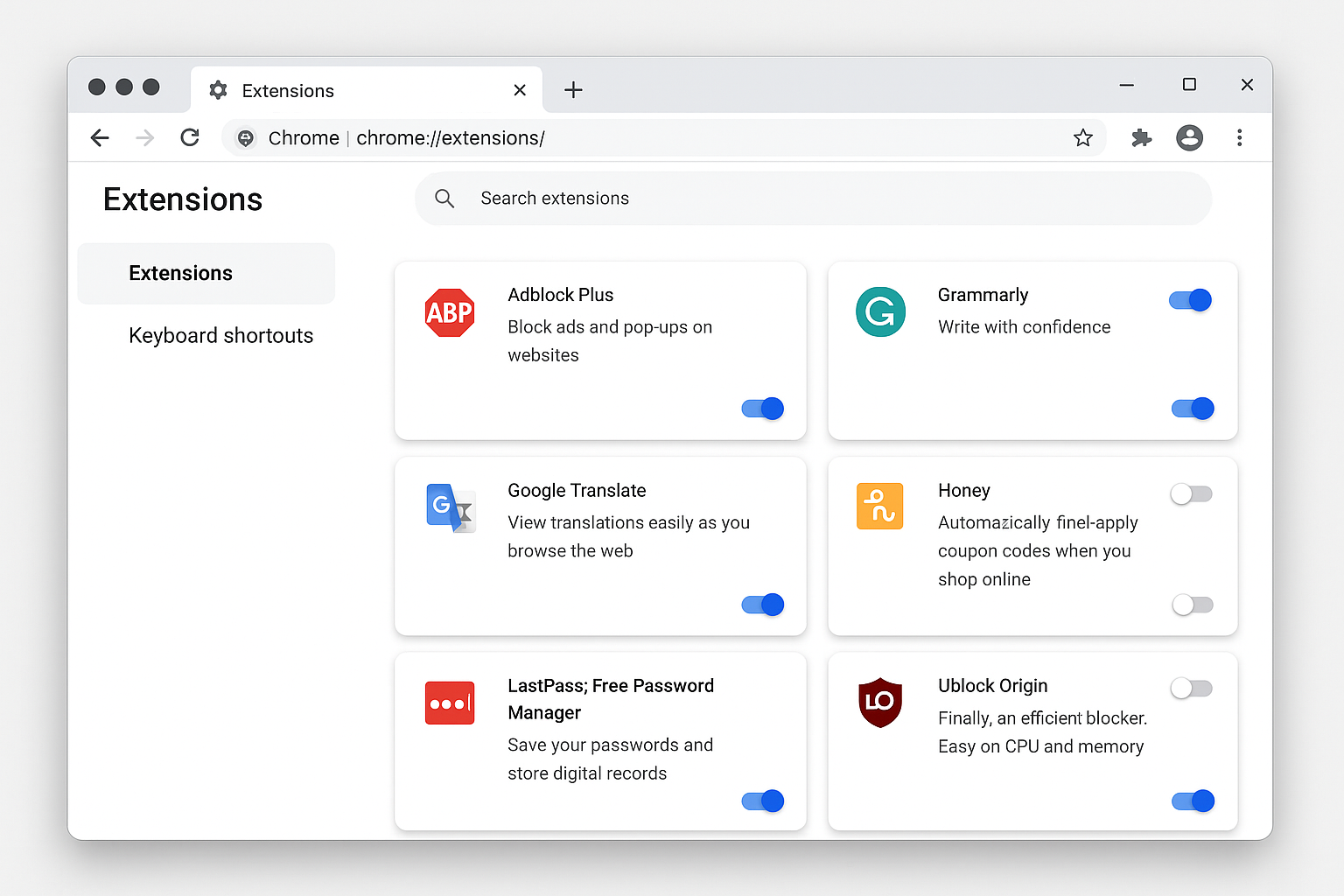
- Refresh Gmail and see if it loads
Step 2: If Gmail works, identify the problematic extension
- Go back to
chrome://extensions/ - Turn on extensions one by one
- After enabling each one, refresh Gmail to test
- When Gmail breaks again, you’ve found the culprit
- Either remove that extension or look for alternative extensions that don’t conflict
Common problematic extensions:
- Ad blockers: Try adding Gmail to your whitelist instead of disabling completely
- VPN extensions: These can slow or break Gmail loading
- Privacy/security extensions: Often block scripts Gmail needs to function
Verify the fix: Gmail should load completely without getting stuck on the loading screen.
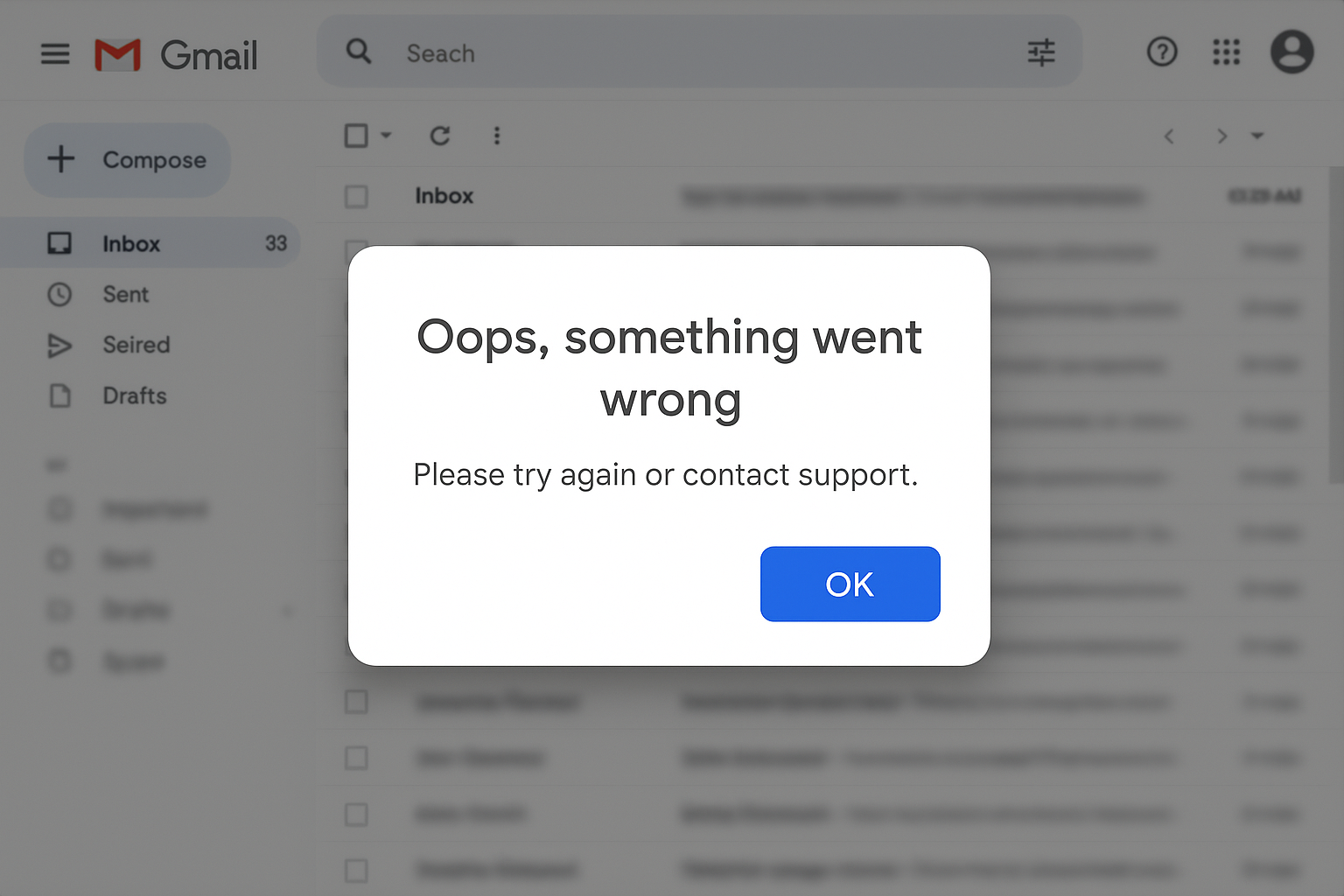
Gmail Displays “Oops, Something Went Wrong” Error
Symptoms:
- Gmail shows error message instead of your inbox
- May see “Temporary Error (500)” or similar messages
- Sometimes accompanied by a sad Gmail logo
Cause: JavaScript is disabled in Chrome, or there’s a browser compatibility issue preventing Gmail’s scripts from running.
Solution:
Step 1: Enable JavaScript
- Go to
chrome://settings/content/javascriptin the address bar - Make sure Sites can use Javascript is turned ON
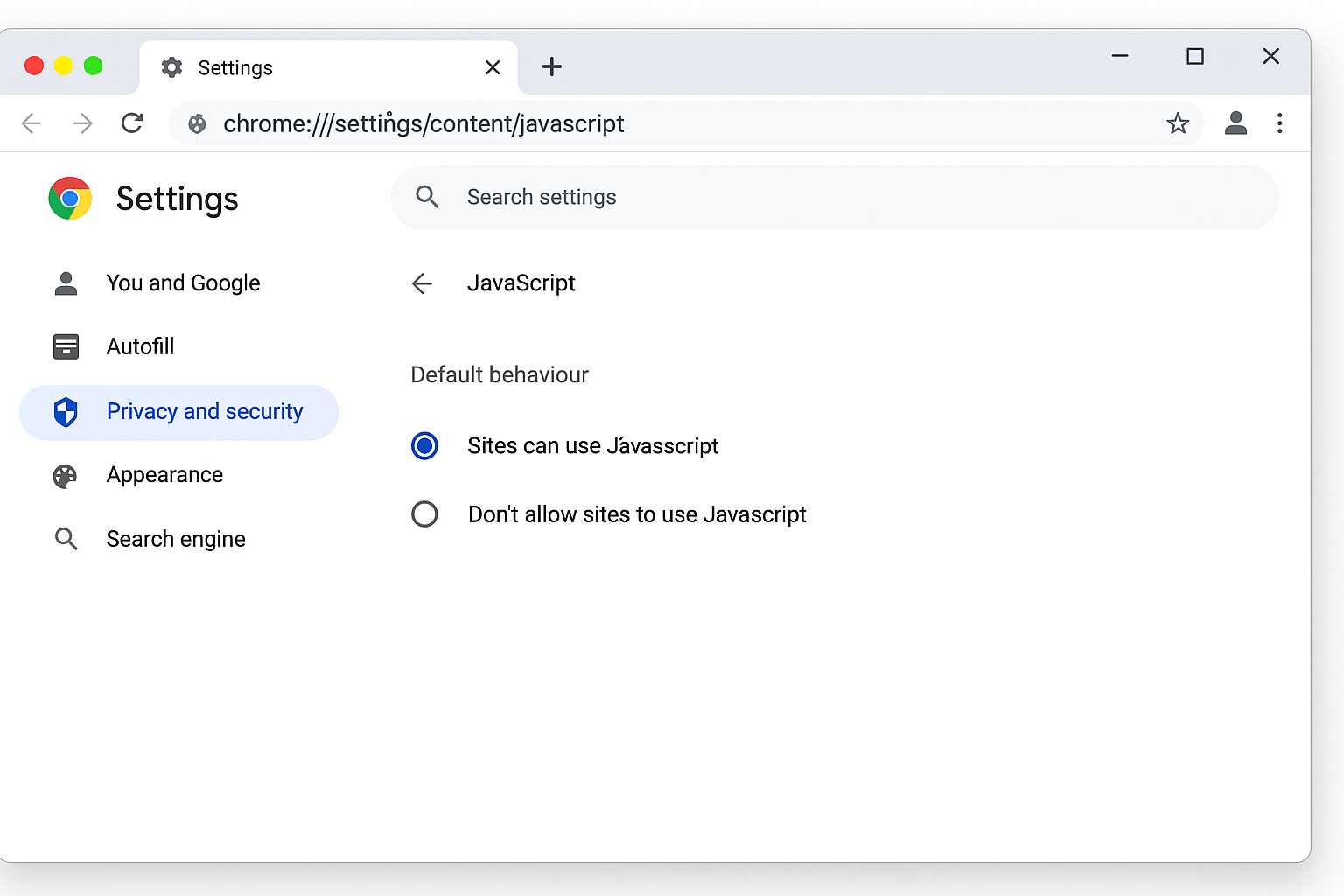
- If it was already enabled, try the next step
Step 2: Update Chrome
- Click the three-dot menu → Help → About Google Chrome
- Chrome will automatically check for and install updates
- Restart Chrome when prompted
- Try Gmail again
Step 3: Reset Chrome settings (if the above doesn’t work)
- Go to
chrome://settings/reset - Click Restore settings to their original defaults
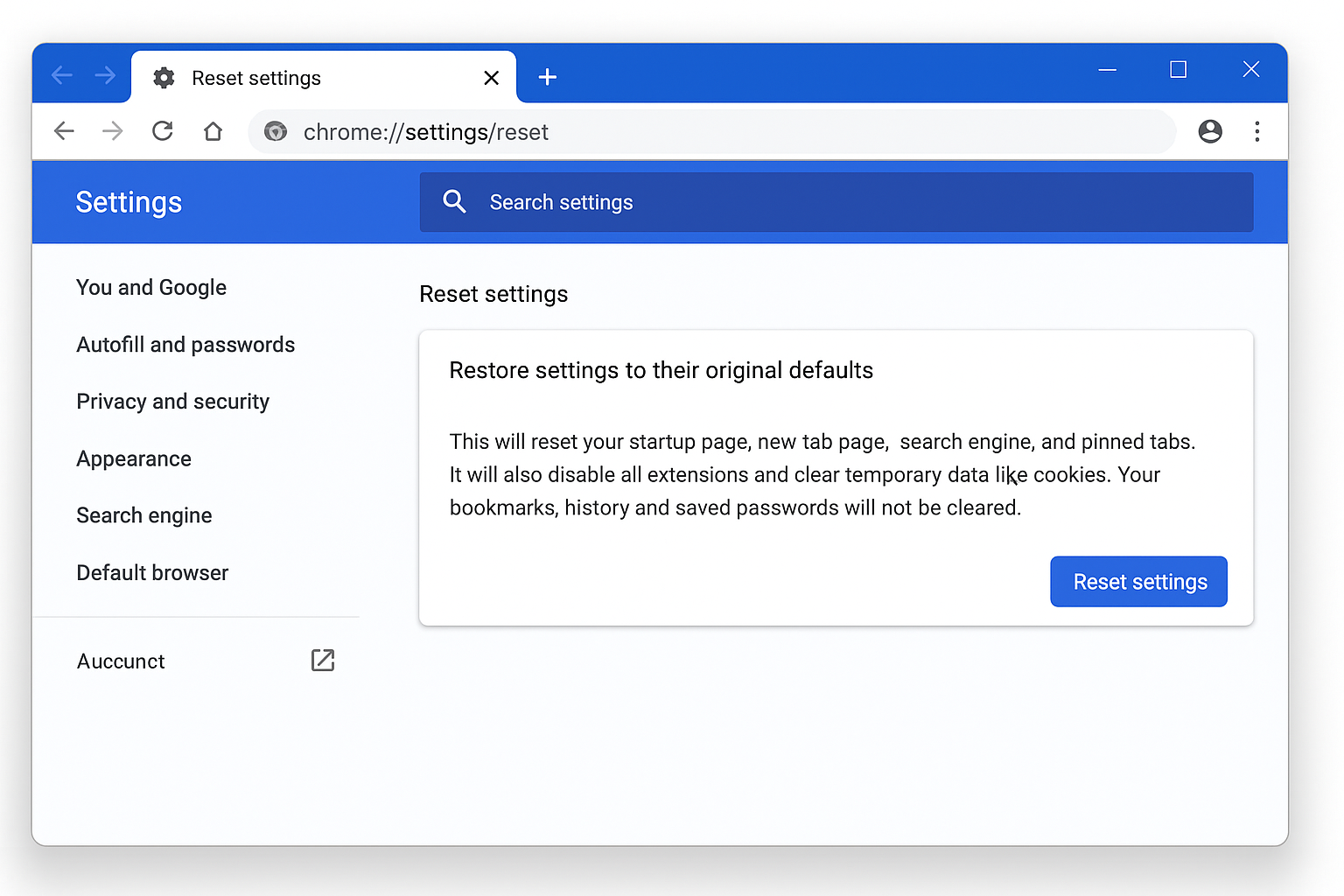
- Click Reset settings to confirm
- Restart Chrome and try Gmail
Verify the fix: Gmail should load without error messages and display your full inbox.
Gmail Loads Partially or Missing Elements
Symptoms:
- Gmail interface appears but buttons, menus, or compose window are missing
- Some text or images don’t load
- Interface looks broken or incomplete
Cause: Content blockers or strict security settings are preventing parts of Gmail from loading properly.
Solution:
Step 1: Check your ad blocker settings
If you use an ad blocker like uBlock Origin or AdBlock Plus:
- Click the ad blocker icon in your Chrome toolbar
- Look for an option to whitelist or disable the blocker for Gmail
- Add
mail.google.comto your whitelist - Refresh Gmail
Step 2: Adjust Chrome’s security settings
- Go to
chrome://settings/content - Click Pop-ups and redirects
- Add
mail.google.comto the Allow list (Gmail needs pop-ups for the compose window) - Go back and click JavaScript
- Make sure
mail.google.comisn’t in the Block list
Step 3: Disable strict tracking protection temporarily
- Go to
chrome://settings/privacy - Click Cookies and other site data
- Select Allow all cookies temporarily
- Test Gmail, then change back to your preferred setting
- If Gmail works, add
mail.google.comto your cookies allow list
Verify the fix: All Gmail interface elements should load properly, including compose button, menus, and sidebar.
Gmail Won’t Load After Chrome Update
Symptoms:
- Gmail worked fine before Chrome updated
- Now shows errors or won’t load at all
- Other websites work normally
Cause: Chrome updates sometimes change how certain features work, causing conflicts with existing browser data or settings.
Solution:
Step 1: Create a new Chrome profile
- Click your profile picture in the top-right corner of Chrome
- Click Add to create a new profile
- Set up the new profile and try accessing Gmail
- If Gmail works in the new profile, the issue is with your original profile’s data
Step 2: If the new profile works, transfer your data
- In your old profile, export bookmarks: Settings → Bookmarks → Bookmark manager → ⋮ → Export bookmarks
- Switch to the new profile
- Import bookmarks: Settings → Bookmarks → Bookmark manager → ⋮ → Import bookmarks
- Reinstall essential extensions one by one
- Delete the old profile once everything’s working
Step 3: Alternative – Reset Chrome completely
If you don’t want to create a new profile:
- Go to
chrome://settings/reset - Click Clean up computer → Find
- Let Chrome scan for harmful software
- Then click Restore settings to their original defaults
- Restart Chrome and reconfigure your essential settings
Verify the fix: Gmail should work normally in the new profile or after the reset.
Error Messages Explained
| Error Message | Meaning | Quick Fix |
|---|---|---|
| “Oops, something went wrong” | JavaScript error or browser compatibility issue | Enable JavaScript, update Chrome |
| “Temporary Error (500)” | Gmail server issue or corrupted cache | Clear browsing data, wait and retry |
| “We’re sorry, but your account is temporarily unavailable” | Account-specific issue or security block | Try incognito mode, check Google account status |
| Blank white page | Corrupted cache or extension conflict | Clear cache, disable extensions |
| “This site can’t be reached” | Network connectivity problem | Check internet connection, try different DNS |
Network Connectivity Issues
DNS Problems
If Gmail won’t load at all (not even error pages):
Step 1: Flush DNS cache
On Windows:
- Press
Windows + R - Type
cmdand press Enter - Type
ipconfig /flushdnsand press Enter - Restart Chrome
On macOS:
- Press
Cmd + Spaceand type “Terminal” - Type
sudo dscacheutil -flushcacheand press Enter - Enter your password when prompted
- Restart Chrome
Step 2: Try different DNS servers
- Go to
chrome://settings/ - Click Advanced → System
- Turn on Use secure DNS
- Select With: Cloudflare (1.1.1.1) or Google (Public DNS)
Firewall or Antivirus Blocking
Some security software can interfere with Gmail:
- Temporarily disable your antivirus/firewall
- Try loading Gmail
- If it works, add Chrome and Gmail to your security software’s whitelist
- Re-enable your security software
Browser Settings Issues
Cookies and Site Data
Gmail needs cookies to maintain your login session:
- Go to
chrome://settings/content/cookies - Make sure Allow all cookies is selected, OR
- If you prefer Block third-party cookies, add
accounts.google.comandmail.google.comto the Allow list
Pop-up Blocker
Gmail’s compose window uses pop-ups:
- Go to
chrome://settings/content/popups - Add
mail.google.comto the Allow list - This lets Gmail open compose windows without triggering the pop-up blocker
Getting Help

If you’ve tried everything above and Gmail still won’t load:
Check Chrome’s Developer Tools
- Right-click on the Gmail page and select Inspect
- Click the Console tab
- Look for red error messages as these can give clues about what’s breaking
- Take a screenshot of any errors to share when asking for help
Useful Information for Support
When contacting Google Support or posting in forums, include:
- Your Chrome version (go to
chrome://version/) - Your operating system
- What error messages you see (exact text)
- Whether incognito mode works
- Whether other Google services work (Drive, YouTube, etc.)
Community Resources
Prevention Tips
To avoid future Gmail loading issues:
- Keep Chrome updated: Enable automatic updates in Chrome settings
- Regularly clear cache: Set up Chrome to clear cache on exit, or do it manually once a month
- Be selective with extensions: Only install extensions you actually use, and remove ones you don’t
- Don’t ignore Chrome security warnings: If Chrome warns about a site or download, pay attention
- Use strong, unique passwords: Account security issues can sometimes cause loading problems
Frequently Asked Questions
Why does Gmail work in other browsers but not Chrome?
This usually means Chrome has corrupted data (cache/cookies) or a problematic extension that other browsers don’t have. Try incognito mode first. If Gmail works there, it’s definitely a Chrome-specific issue.
Will clearing my cache log me out of other websites?
Yes, clearing cookies will log you out of most websites. You can avoid this by only clearing “Cached images and files” instead of cookies, though this is less effective for Gmail issues.
Can I backup my Chrome data before troubleshooting?
Absolutely! Go to chrome://settings/syncSetup and turn on Chrome sync, or manually export your bookmarks. Your passwords are already saved to your Google account if you use Chrome’s password manager.
Why do some extensions break Gmail?
Extensions that modify web pages (ad blockers, privacy tools, page modifiers) can interfere with Gmail’s complex JavaScript. Gmail loads a lot of dynamic content, and extensions sometimes block or modify things Gmail needs to function.
Wrapping Up
Gmail loading issues in Chrome are annoying, but they’re usually fixable with some basic troubleshooting. Nine times out of ten, clearing your cache or disabling a problematic extension will get you back to your inbox. The nuclear option, resetting Chrome or creating a new profile, works when nothing else does, though you’ll need to set things up again.
If you’re still having trouble after trying these solutions, it might be time to contact Google Support or consider switching to the Gmail mobile app as a temporary backup. Sometimes the simplest solution is just using a different browser until Chrome sorts itself out!