
Do you want to know the best bitrate for streaming to Twitch or YouTube? Read through this detailed guide and you’ll have the answers you need.
Before we get started, please understand that Twitch and YouTube will deal with the data you send them differently, so we will split this guide into two sections. We will have suggestions for Twitch first and then a guide for YouTube.
If you use a re-streaming service to stream to two platforms at once, it’s best that you use the suggestions provided in the Twitch section. Alternatively, some services will allow you to choose separate settings for different platforms.
Remember that all of these settings we will talk about will be within your streaming software, not on Twitch or YouTube.
How To Choose The Best Bitrate For Twitch
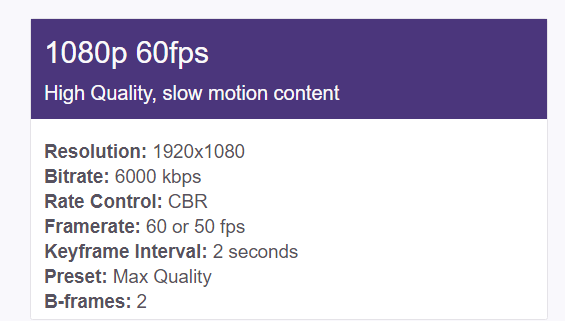
Twitch limits all uploads to 6000kbps, which means you cannot go any higher than that. However, in many cases it’s better to go lower.
Twitch will always reserve its bandwidth for its partners, so unless you stream during non-peak hours, your viewers won’t get access to quality options. This means that when you stream on Twitch, your viewers may be forced to view your stream in the quality that you upload to Twitch’s servers.
If you stream at a certain bitrate, your viewers need to have the download speed to be able to match your upload. For most viewers, a bitrate for 6000kbps will be too high. Unless you are guaranteed to get quality options on your stream, you should opt for lower settings instead.
A good starting point would be to stream at 720P at 60FPS. If you are playing a shooter game or any game with high paced action, 60FPS is highly recommended. For this, Twitch recommends the following settings.
- Bitrate: 4500kbps
- Keyframe interval: 2 seconds
- Preset: Max Quality
- B-frames: 2
If you are playing a game that doesn’t have much action, you could choose to go for 30fps and 720P resolution. For this, keep the same settings as above, but limit your bitrate to 3000kbps.
In the future, your channel may grow to the point where you get partnered. At that point, you will be given quality options. This means viewers will get to choose what quality to stream in, so it’s best to go for the highest quality possible. In this case, you will have two options on Twitch – 1080p or 900p.
Once again, the settings above are suggested, but for both 1080p and 900p, 6,000kbps is recommended.
What If My Upload Speed Is Too Slow?
Twitch recommends 3,000kbps (around 0.4MB/s) for 720p at 30 frames per second. If your upload speed is lower than this, you should try to find an alternative internet solution. You could opt for a lower resolution, but the quality would not be satisfactory.
If your upload speed is higher than 3,000kbps but lower than 6,000kbps, you can use the following information as a guide.
The Best Bitrate Based On Your Upload Speed For Twitch:
- 4,000kbps or less – 720p 30fps
- 5,000 kbps or less – 720p 60fps
- 6,000 kbps – 900p 60fps
- 6,000kbps with partner – 1080p 60fps
How To Choose The Best Bitrate For YouTube
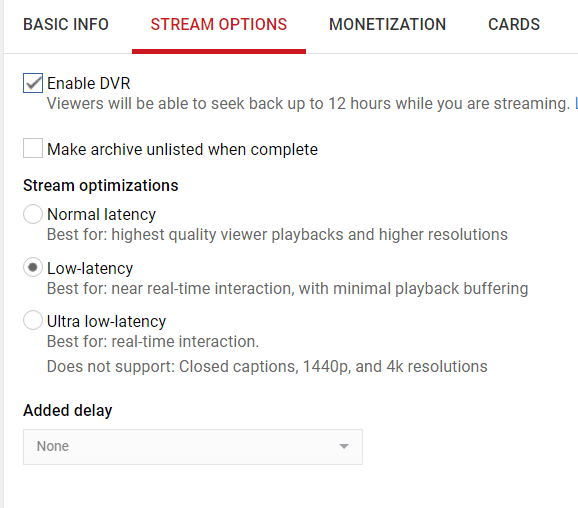
YouTube automatically transcodes your stream, no matter how many viewers you have. That means viewers will have all quality options from 360p to the highest quality you are streaming.
That means you should stream at the highest bitrate possible. Your viewers can then choose which quality option they want and they won’t have any issues with buffering.
However, if you want to stream at a certain resolution, YouTube does recommend the following ranges. It’s highly recommended to choose the higher range in this list for the most optimal experience for your viewers.
YouTube Recommended Bitrate (kbps)
- 4K 60fps – 20,000-51,000
- 4K – 13,000-34,000
- 1440p 60fps – 9,000-18,000
- 1440p – 6,000-13,000
- 1080p 60fps – 4,500-9,000
- 1080p – 3,000-6,000
- 720p 60fps 2,250-6,000
- 720p – 1,500-4,000
- 480p – 500-2,000