
Chrome just updated overnight and now your password manager won’t fill passwords, your ad blocker stopped working, or worse: all your extensions are acting like they’ve never seen your browser before. Sound familiar? You’re definitely not alone in this frustration.
Chrome extensions break after updates for predictable reasons: permission changes, cached data corruption, and compatibility hiccups between the new Chrome version and older extension code. The good news? Most of these issues have quick fixes that don’t require a computer science degree. This guide gives you an “Emergency Kit” approach with solutions organized by time investment, from 2-minute quick fixes that work 80% of the time to comprehensive 15-minute solutions for stubborn problems.
Quick Diagnosis: Is It Really the Update?
Before diving into fixes, let’s confirm Chrome updates are actually the culprit (and not something else going wrong).
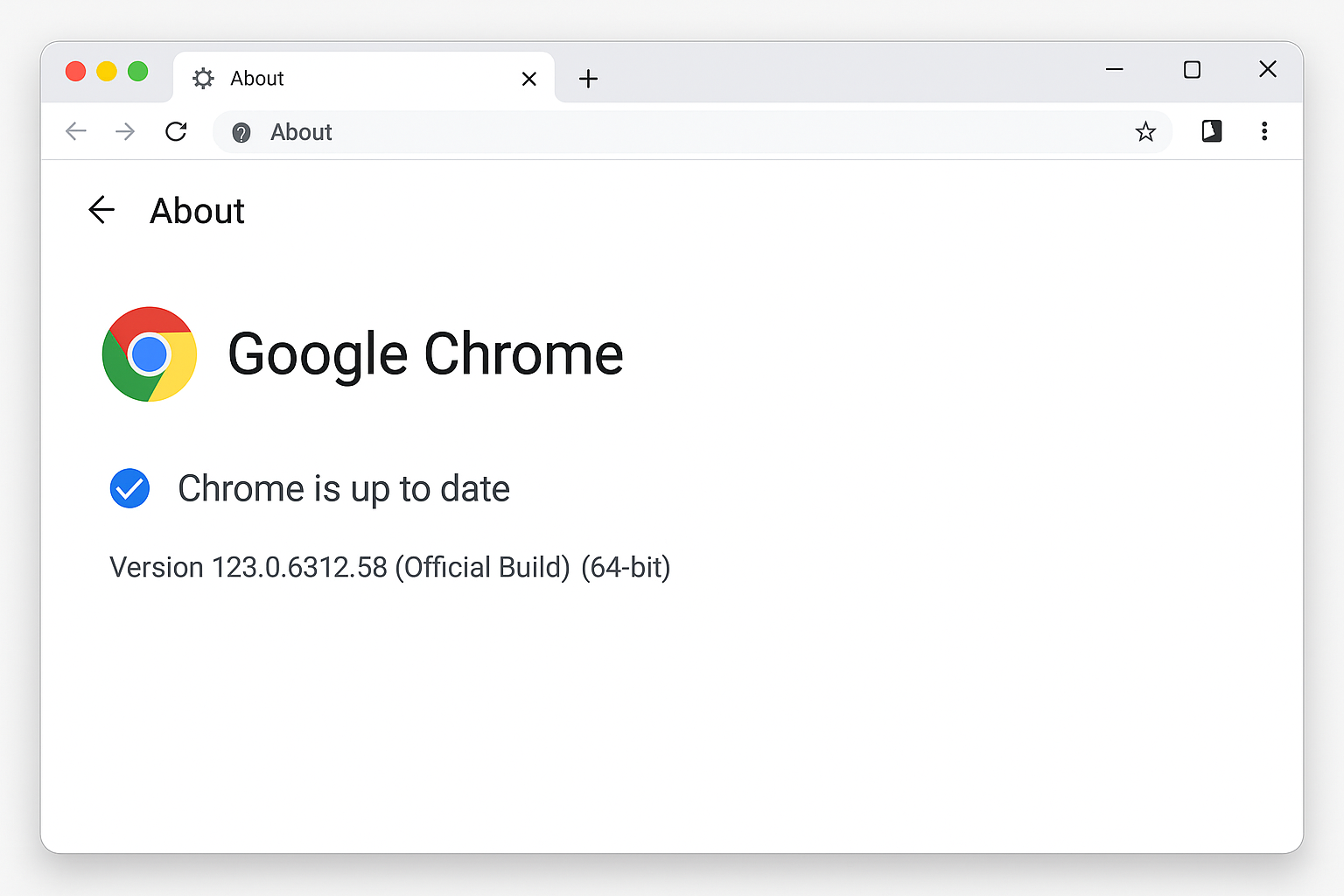
Check Your Chrome Version:
- Type
chrome://settings/helpin your address bar - Look for “Chrome is up to date” or a recent update date
- If you see a version number like 130.x.x.x or newer, you’ve had a recent update
Quick Extension Status Check:
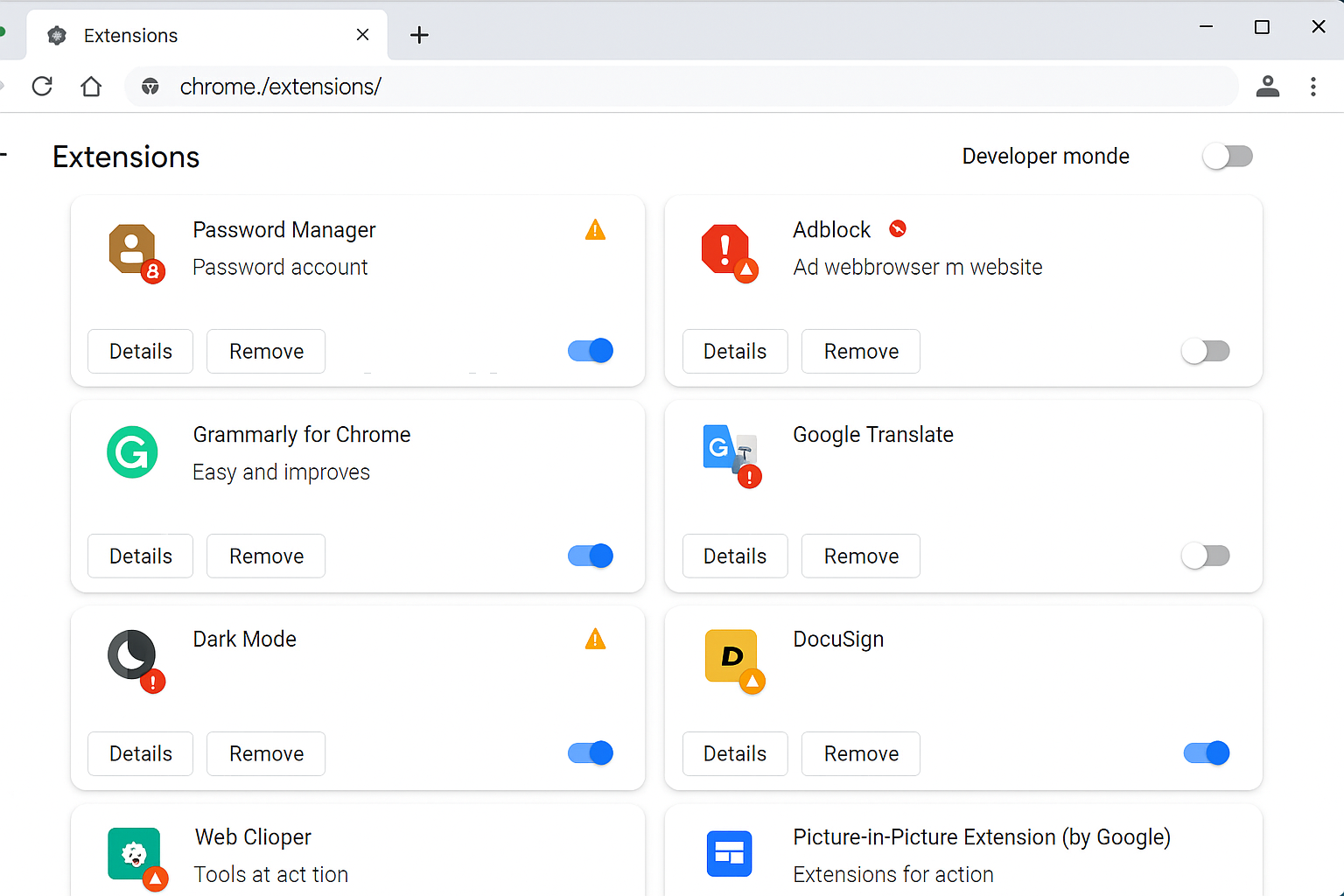
- Go to
chrome://extensions/in your address bar - Look for extensions that are grayed out or show error messages
- Check if multiple extensions stopped working around the same time
Signs This Is Update-Related:
- Extensions worked fine yesterday but broke today
- Multiple extensions stopped working simultaneously
- Extension icons are grayed out or missing from your toolbar
- You’re getting “Extension error” notifications
The 2-Minute Fixes (Works 80% of the Time)
Start here with these simple solutions that fix most post-update extension problems without any risk to your data.
Simple Extension Toggle (The Universal Fix)
This refreshes the extension’s connection to Chrome and often resolves permission issues that updates can cause.
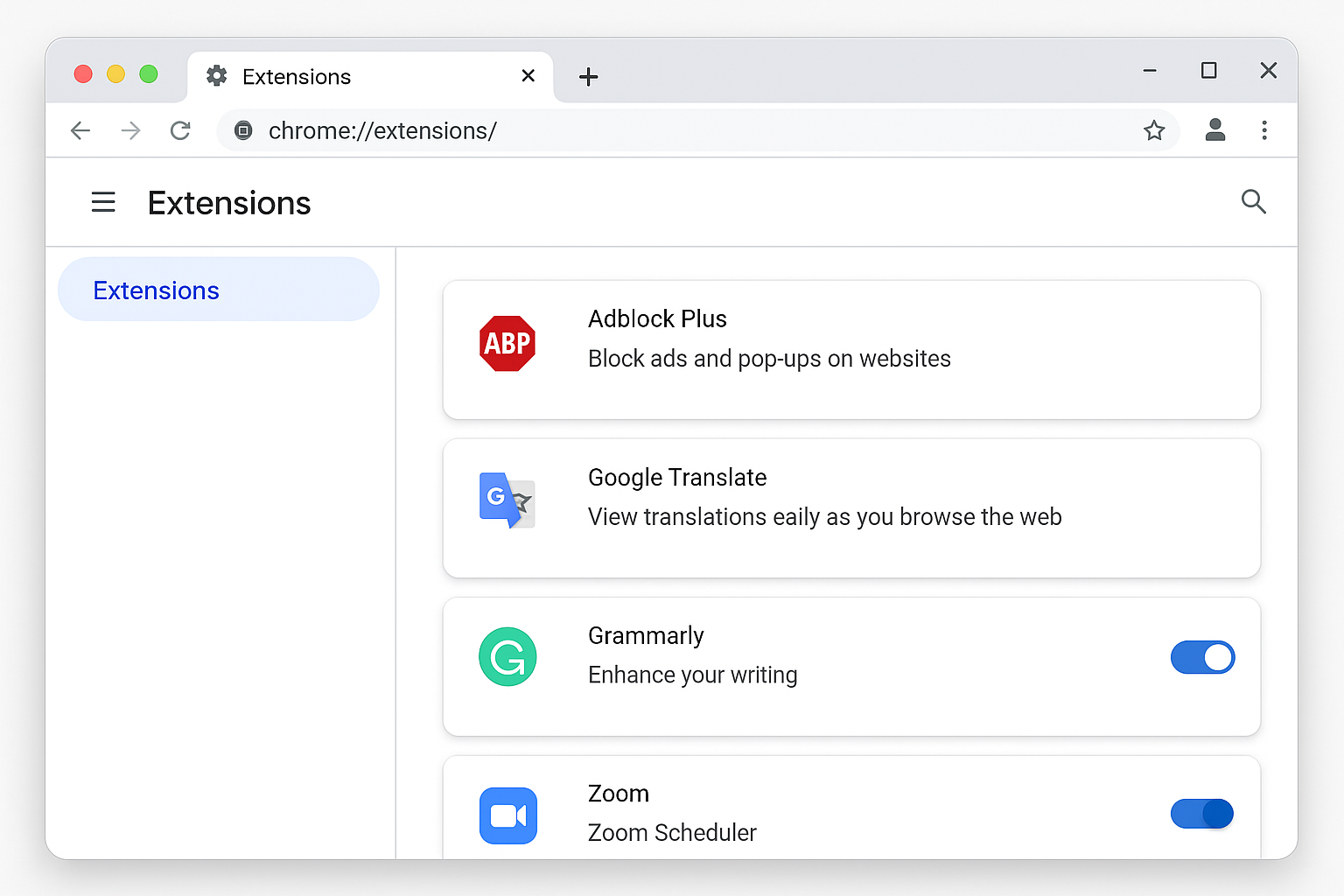
- Go to
chrome://extensions/or click the three-dot menu > More tools > Extensions - Find your problematic extension
- Toggle it off, wait 5 seconds, then toggle it back on
- Test the extension immediately
Why this works: Chrome updates sometimes reset internal permission connections. Toggling forces the extension to re-establish its permissions and reload its code.
Proper Chrome Restart Sequence
Not all restarts are created equal. Here’s the right way to restart Chrome after an update:
- Close all Chrome windows completely (don’t just minimize them)
- Wait 10 seconds for background processes to fully close
- Reopen Chrome and test your extensions
For Windows: Check your system tray and make sure Chrome isn’t still running in the background
For macOS: Use Cmd + Q to fully quit Chrome (don’t just close the window with the red X)
Check Extension Permissions
Chrome updates can reset permissions, especially for extensions that access websites or your personal data.
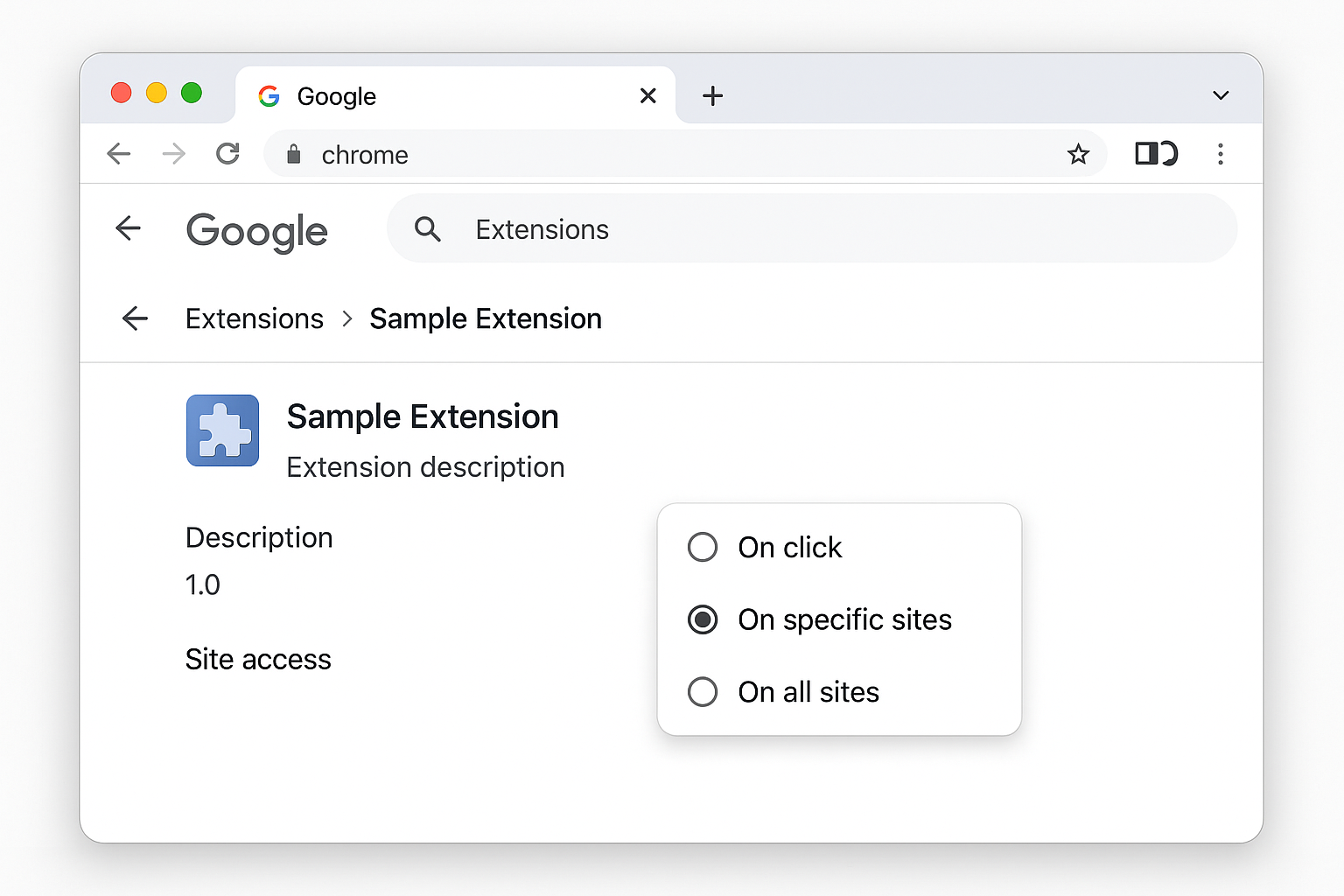
- Go to
chrome://extensions/ - Click Details on your problematic extension
- Scroll to Site access and check the settings
- If it says “On click” instead of “On all sites,” change it back to your preferred setting
The 5-Minute Solutions (When Quick Fixes Don’t Work)
If the 2-minute fixes didn’t solve your problem, these solutions address deeper issues like corrupted cache data and extension compatibility problems.
Clear Extension Data and Cache
Sometimes Chrome updates leave behind corrupted cache files that confuse extensions.
Clear Browser Cache:
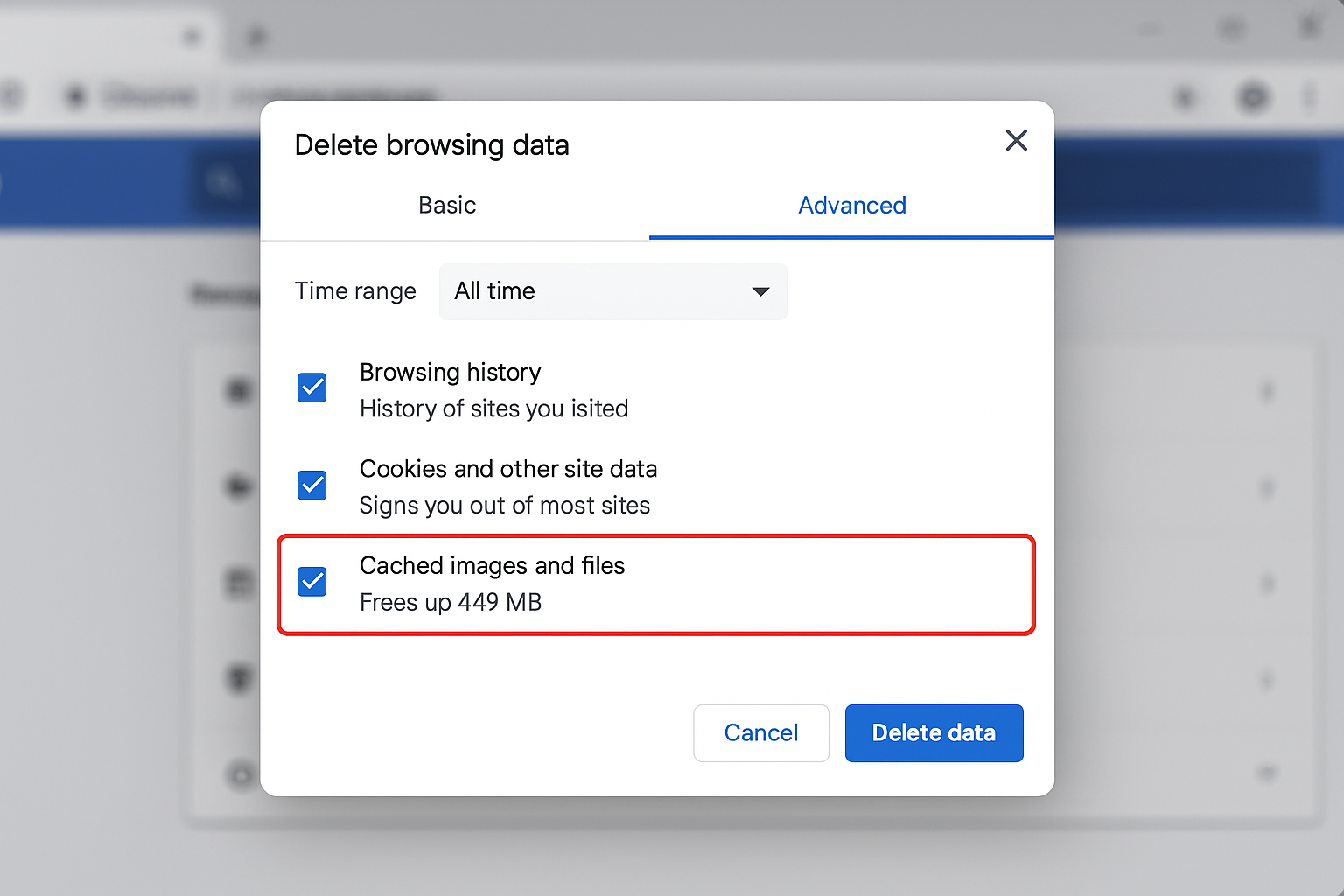
- Press
Ctrl + Shift + Delete(Windows) orCmd + Shift + Delete(macOS) - Select All time from the time range dropdown
- Check Cached images and files (keep other items unchecked to preserve passwords and bookmarks)
- Click Clear data
Clear Specific Extension Data:
- Go to
chrome://settings/content/all - Search for websites your extension uses (like the extension’s settings page)
- Click the trash icon next to those sites
- Restart Chrome and test the extension
Update Extensions Manually
Chrome usually auto-updates extensions, but sometimes they get stuck. Here’s how to force an update:
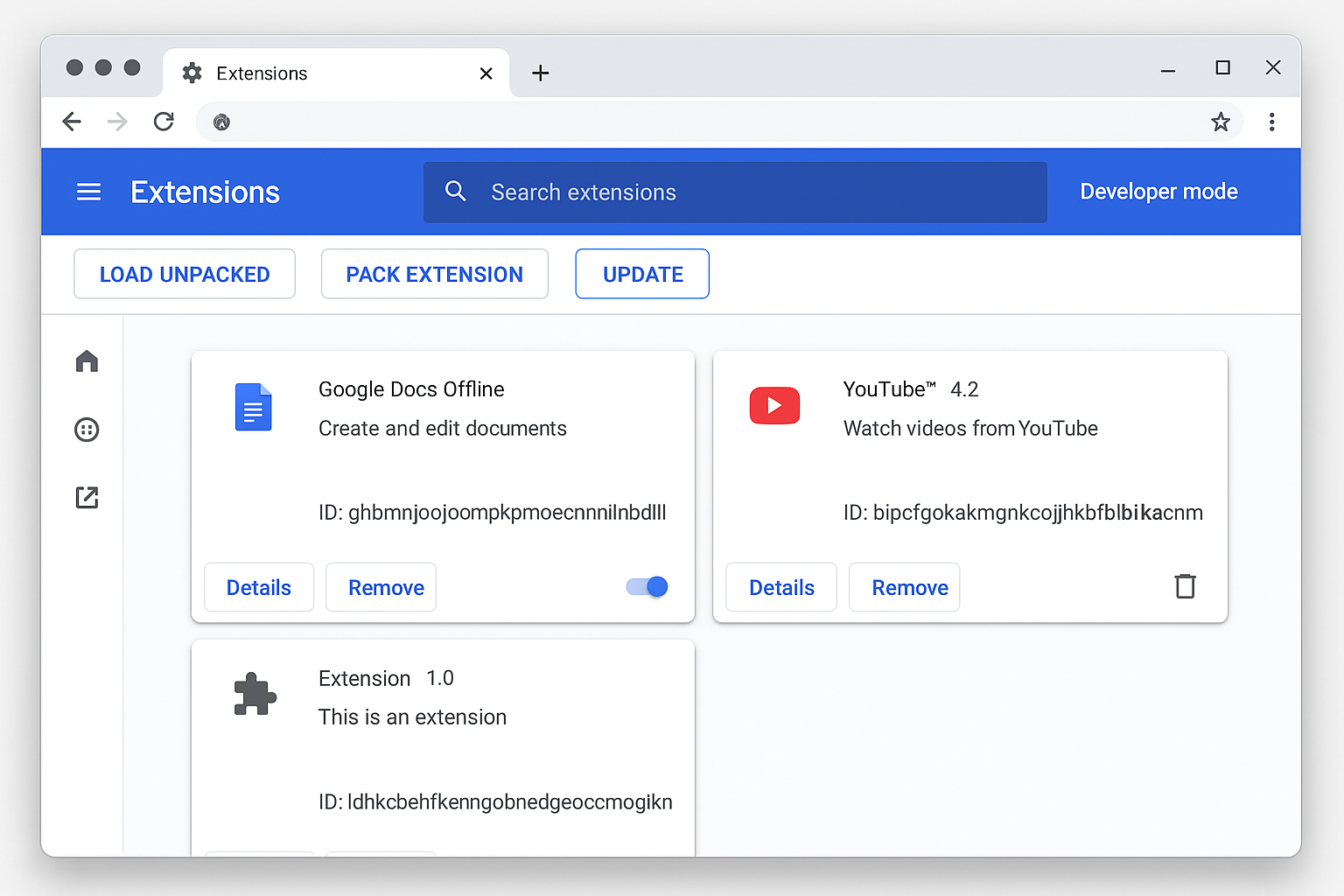
- Go to
chrome://extensions/ - Toggle Developer mode on (top right corner)
- Click Update button that appears
- Wait for the update process to complete
- Turn Developer mode back off
Check Extension Compatibility:
- Visit the extension’s Chrome Web Store page
- Look for recent reviews mentioning Chrome version issues
- Check if the developer posted any updates about compatibility
Disable Enhanced Security Temporarily
Chrome’s newer security features sometimes block extensions that worked fine before.
- Go to
chrome://settings/privacy - Click Security
- Under Safe Browsing, select Standard protection instead of Enhanced protection
- Test your extensions
- You can re-enable enhanced protection later if needed
Important: This is a temporary troubleshooting step. Re-enable enhanced security once your extensions are working.
The 15-Minute Deep Dive (Comprehensive Troubleshooting)
When simpler fixes don’t work, these comprehensive solutions address profile corruption, extension conflicts, and deeper compatibility issues.
Chrome Profile Issues and Solutions
Sometimes Chrome updates corrupt user profiles, breaking all extensions at once.
Create a Test Profile:
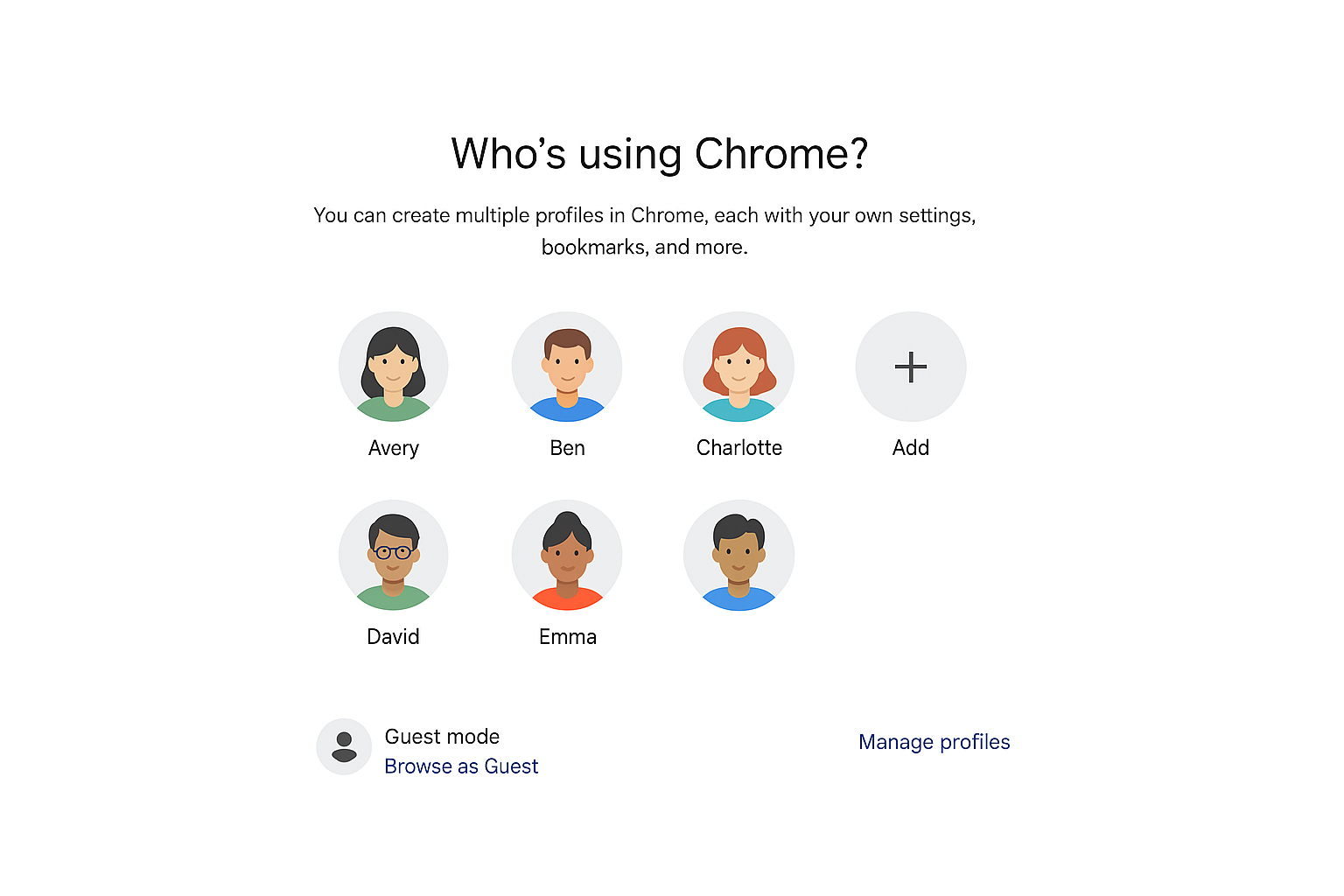
- Go to
chrome://settings/people - Click Add person
- Create a new profile with a different name
- Install one of your problematic extensions in the new profile
- Test if it works there
If Extensions Work in the New Profile: Your original profile is corrupted. You’ll need to migrate your data:
- Export bookmarks from your old profile:
chrome://bookmarks/> three-dot menu > Export bookmarks - Note down your installed extensions (screenshot the extensions page)
- Switch to the new profile permanently
- Import bookmarks and reinstall extensions
- Sign back into websites and extensions
Extension Conflict Resolution
Multiple extensions can conflict with each other, especially after updates change how they interact.
Process of Elimination Method:
- Go to
chrome://extensions/ - Disable all extensions except the one you’re trying to fix
- Test if that extension works alone
- If it works, re-enable other extensions one by one
- When the problem returns, you’ve found the conflicting extension
Common Conflicting Combinations:
- Multiple ad blockers (uBlock Origin + AdBlock Plus)
- Password managers + browser’s built-in password manager
- VPN extensions + proxy extensions
- Multiple privacy/security extensions
Developer Mode Troubleshooting
For persistent issues, Chrome’s developer tools can show you exactly what’s wrong.
Enable Advanced Diagnostics:
- Go to
chrome://extensions/ - Toggle Developer mode on
- Look for red error messages under problematic extensions
- Click Errors if you see them
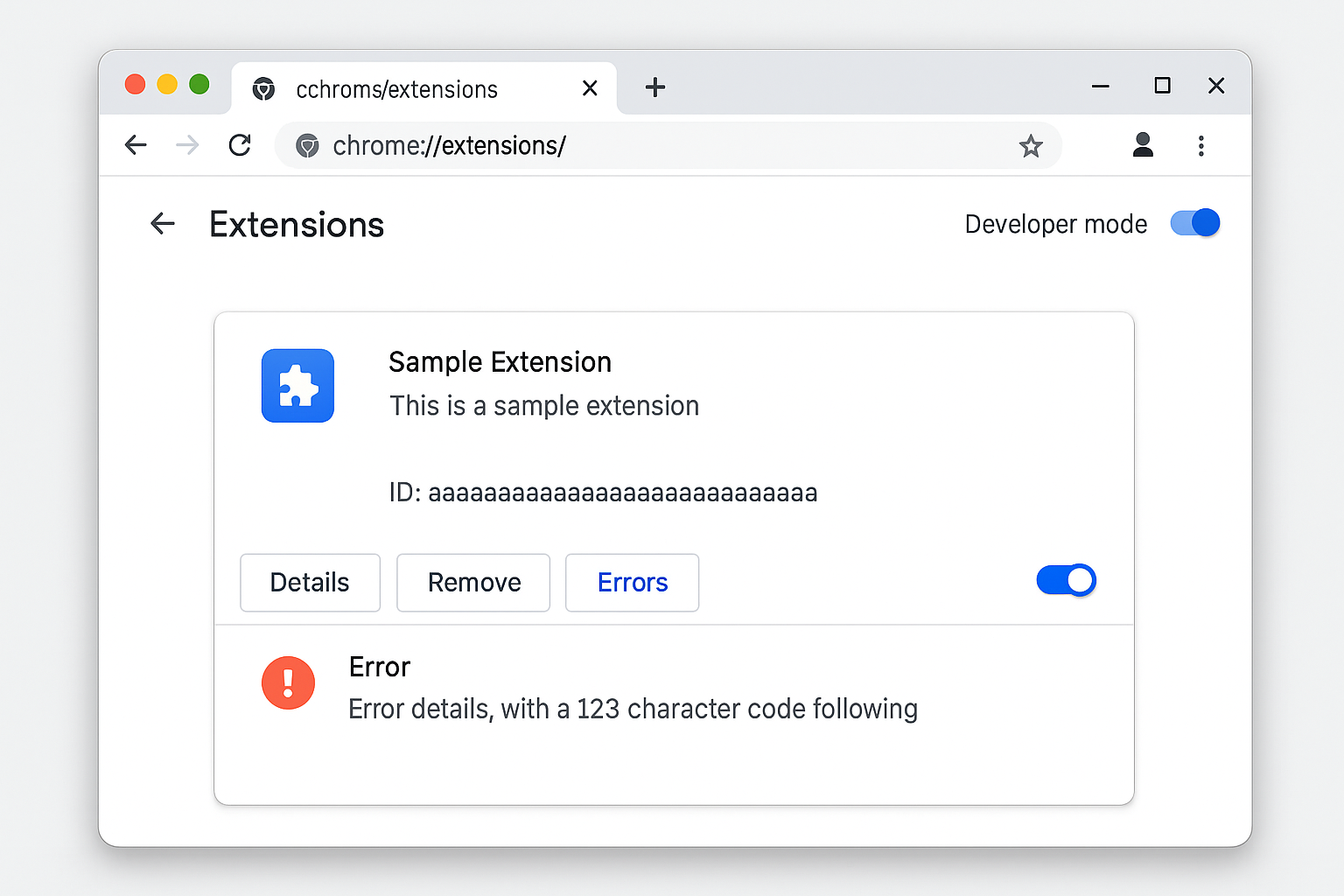
Read Error Messages: Common error patterns and what they mean:
“Manifest version 2 is deprecated”
= Extension needs developer update“Could not load icon”
= Extension files are corrupted, try reinstalling“Extension context invalidated”
= Chrome profile issue, try the new profile solution above
When to Contact Extension Developers: If you see specific error codes, screenshot them and report to the extension developer through the Chrome Web Store. Include:
- Your Chrome version (
chrome://settings/help) - The exact error message
- When the problem started
Nuclear Options: When Nothing Else Works
These are last-resort solutions for when extensions are completely broken and nothing else has worked.
Complete Chrome Reset (With Data Backup)
Before You Reset – Backup Checklist:
- [ ] Export bookmarks:
chrome://bookmarks/> three-dot menu > Export bookmarks - [ ] Screenshot your extensions page to remember what you had installed
- [ ] Note down important extension settings (password manager vaults are usually cloud-synced)
- [ ] Export any local extension data if possible
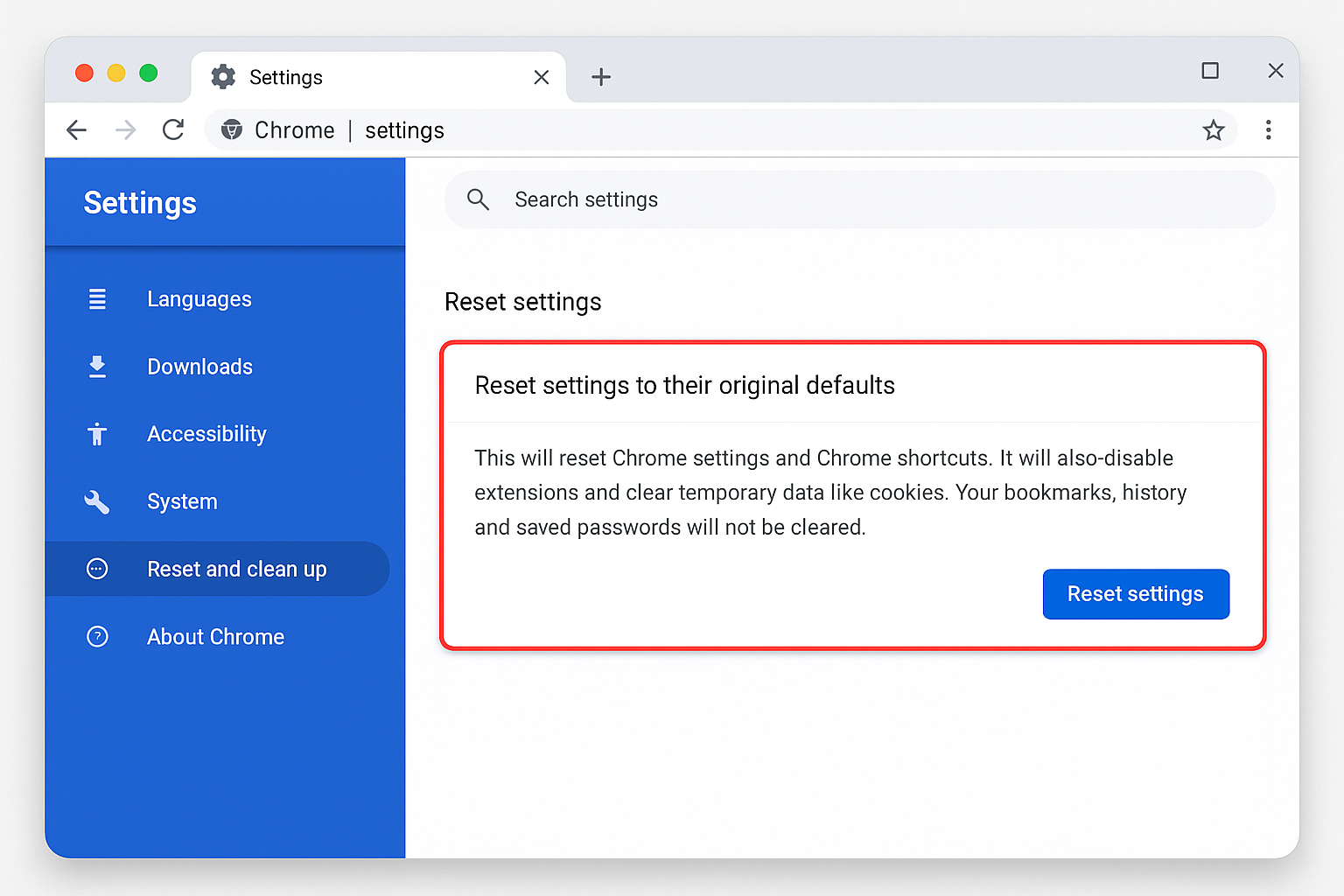
Reset Chrome:
- Go to
chrome://settings/reset - Click Restore settings to their original defaults
- Click Reset settings to confirm
- Restart Chrome completely
After Reset:
- Import your bookmarks
- Reinstall extensions one by one
- Reconfigure extension settings
- Sign back into your accounts
Extension Alternatives and Replacements
Sometimes the nuclear option is switching to a different extension entirely:
Popular Extension Alternatives:
| Broken Extension | Alternative Options |
|---|---|
| AdBlock Plus | uBlock Origin, AdGuard |
| LastPass | Bitwarden, 1Password, Chrome’s built-in manager |
| Honey | Capital One Shopping, InvisibleHand |
| Grammarly | LanguageTool, Chrome’s built-in spell check |
Data Migration Tips:
- Most password managers have export/import features
- Bookmark managers usually sync through your Google account
- Screenshot important extension settings before switching
Prevention: Avoiding Future Extension Breakage
Extension Health Monitoring
Signs an Extension Might Break Soon:
- No updates from the developer in 6+ months
- Lots of recent negative reviews mentioning bugs
- Developer hasn’t updated for new Chrome features
- Extension uses deprecated Chrome APIs
Build Redundancy:
- Don’t rely on a single extension for critical functions
- Keep backup extensions installed but disabled
- Use Chrome’s built-in features when possible (password manager, ad blocking in incognito mode)
Chrome Update Management
While you can’t stop Chrome updates entirely (and shouldn’t for security reasons), you can prepare:
Update Preparation Checklist:
- Check your extensions page monthly for outdated extensions
- Read Chrome release notes for breaking changes
- Keep a list of your essential extensions and their alternatives
- Export important data regularly
Platform-Specific Issues
Windows
Windows-Specific Extension Problems:
- Antivirus interference: Some antivirus programs block extension updates. Temporarily disable real-time protection during troubleshooting.
- Registry issues: If extensions won’t install, run
sfc /scannowin Command Prompt as administrator.
macOS
macOS-Specific Extension Problems:
- Gatekeeper blocking: If extensions won’t install, go to System Settings > Privacy & Security and allow Chrome to install extensions.
- Keychain issues: Password manager extensions might need keychain access re-authorization after Chrome updates.
Web (Chromebook)
Chromebook-Specific Extension Problems:
- Enterprise restrictions: School/work Chromebooks might have extension policies. Contact your IT administrator.
- Storage limitations: Clear local storage if extensions won’t update due to space issues.
Error Messages Explained
| Error Message | Meaning | Quick Fix |
|---|---|---|
“This extension may have been corrupted” | Extension files are damaged | Remove and reinstall from Chrome Web Store |
“Extension context invalidated” | Chrome profile corruption | Try creating a new Chrome profile |
“Could not load manifest” | Extension installation failed | Clear cache and try reinstalling |
“Manifest version 2 is deprecated” | Extension needs developer update | Contact developer or find alternative |
“Extension is not from Chrome Web Store” | Security restriction on non-store extensions | Enable Developer mode or reinstall from official store |
Getting Help
Useful Debug Information
When reporting extension issues, include:
- Chrome version:
chrome://version/ - Extension version: Found on
chrome://extensions/ - Operating system and version
- Exact error messages (screenshot them)
- Steps that reproduce the problem
Community Resources
- Chrome Web Store Support
- Chrome Help Community
- Extension-specific support (usually linked from the Chrome Web Store page)
- Reddit communities: r/chrome, r/chromeos
Wrapping Up
Chrome extension problems after updates are frustrating, but they’re usually fixable with the right approach. The simple toggle trick works most of the time, and even the more complex solutions like profile resets aren’t as scary as they sound (especially with proper backups). I’ve found that keeping a mental list of alternative extensions is just as valuable as knowing these troubleshooting steps and sometimes switching tools is faster than fighting with broken ones.
| Time Investment | Solution | Success Rate |
|---|---|---|
| 2 minutes | Extension toggle + restart | ~80% |
| 5 minutes | Cache clearing + manual updates | ~15% |
| 15 minutes | Profile troubleshooting + conflict resolution | ~4% |
| Nuclear options | Chrome reset + extension replacement | ~1% |
Remember: Your extension data is usually safer than you think. Most modern extensions sync settings to the cloud and Chrome’s built-in backup features protect your bookmarks and passwords through the worst troubleshooting scenarios.