
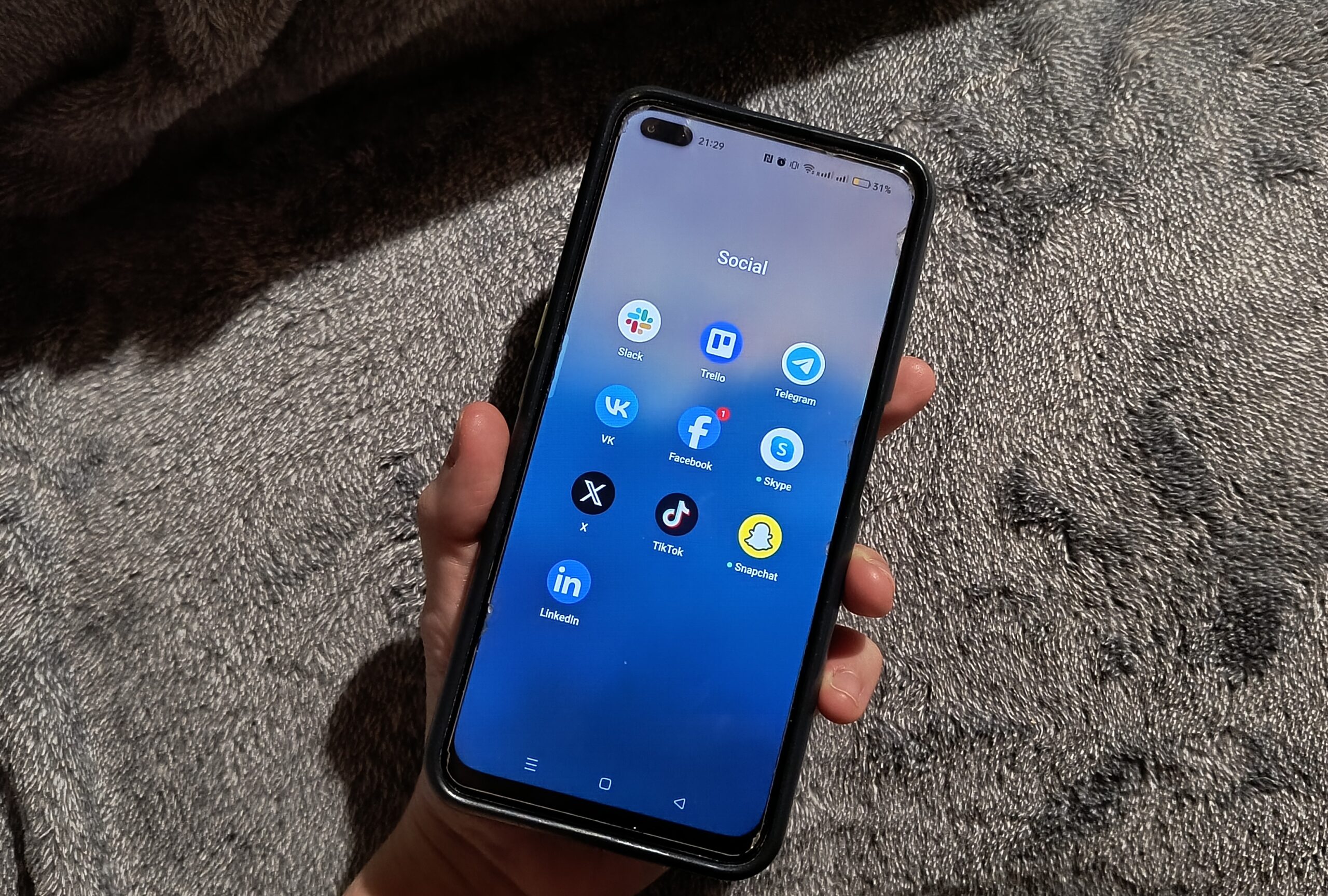
Have you ever wondered if Facebook lets people know when you take a screenshot?
In this article, we’ll look into whether Facebook notifies users when someone snaps a screenshot of their story, profile pic, or messages. We’ll also explore different situations on Facebook and Messenger to give you a clear picture of when, if ever, you might get an alert. Let’s dive in and find out what really happens when you hit that screenshot button.
Does Facebook Send Screenshot Notifications?
The short answer is no — Facebook doesn’t notify anyone when you take a screenshot.
Unlike platforms like Snapchat, where you get an alert if someone grabs a screenshot of your story or chat, Facebook stays quiet about it. Whether you’re snapping a shot of someone’s story, post, profile, or even a private message, Facebook doesn’t send alerts to the person.

But before you go on a screenshot spree, it’s good to keep Facebook’s policies regarding privacy in mind. While the platform doesn’t track or alert about screenshots, it’s still important to respect people’s privacy. And who knows, if enough users start requesting the screenshot detection feature, Facebook might follow Snapchat’s lead one day. For now, though, your Facebook’s screenshots are private.
Why Doesn’t Facebook Notify Users About Screenshots?
Facebook’s choice not to notify users about screenshots boils down to its focus on open sharing and keeping interactions as easy as possible.
Compared to other social media apps like Snapchat, where things like user privacy and disappearing messages features are front and center, Facebook is built more for sharing and connecting freely without worrying about notifications. So, it’s clear Facebook isn’t aiming to deter people from checking out posts, stories, or profiles by sending explicit notifications every time someone takes a screenshot.
User privacy is still important on Facebook, of course, but the platform has leaned toward giving users the freedom to interact without limits. Their approach is more about encouraging public engagement than policing content use.
By not tracking screenshots, Facebook keeps things simple, letting users browse and share comfortably without interruption.
Does Facebook Notify After a Story Screenshot?
When it comes to taking screenshots of Facebook stories, there’s no notification feature here – meaning that if you snap a screenshot of someone’s story, Facebook won’t let them know.
For social media platforms like Snapchat, screenshot alerts have become their signature feature. Facebook doesn’t take the same approach with stories. Instagram, owned by the same company, also doesn’t notify users if someone screenshots their stories, so Facebook’s choice isn’t surprising.
Currently, there’s no word about adding screenshot notifications for Facebook stories in the future, though they do sometimes tweak their privacy settings. If you’re worried about who might capture your Facebook story, we recommend adjusting your story privacy settings to control who can view it in the first place.
Does Facebook Notify for Profile Picture Screenshots?
If someone goes on your Facebook profile page and takes a screenshot of your profile picture, Facebook doesn’t notify you. Since profile pictures are often public by default, it’s likely Facebook sees no need to send notifications for these.
But if you’re concerned about digital privacy, you can take a few steps to protect your profile photo. One option is to limit who can view it by adjusting your privacy settings – like setting visibility to Friends Only so only your friends can see your Facebook content (posts and stories).

You can also try locking your profile or using the profile picture guard (if either of these features is available in your country). The profile picture guard is a tool that adds an extra layer of protection to your profile photo. When enabled, it prevents others from downloading or sharing your profile picture, and it also displays a small shield icon as a visual indicator that your photo is protected. This guard can be particularly helpful if you want to limit how others interact with your main image.

While it doesn’t stop people from taking screenshots, it does deter others from easily misusing your profile picture. Sadly, the feature isn’t yet available everywhere. But if you find that it’s available in your country, you can go to your profile, select your profile picture, and choose Turn on Profile Picture Guard from the options to enable it.
Does Facebook Notify Screenshots in Messenger Conversations?
Finally, does Facebook notify anyone if you take a screenshot of a Messenger chat? If it’s a regular chat, Facebook won’t alert them. In regular chats in Facebook Messenger, you can take screenshots without anyone finding out.
However, things change when you use Secret Conversations. These are end-to-end encrypted chats, which means only you and the other person can see the messages (and not Facebook). Recently, Facebook added a feature where if someone takes a screenshot of a disappearing message in these secret chats, the other user will receive a notification about it. The goal is to enhance privacy for those more sensitive messages.

In short, for standard Messenger chats, there’s no alert for screenshots, but in Secret Conversations, you have that added layer of security with notifications for disappearing messages.
If user privacy is your main concern, we recommend using Secret Conversations, as it can help you feel a bit safer.
How to Adjust Notification Settings on Facebook
Even though Facebook doesn’t currently protect you from people taking screenshots of your personal content and messages, there are still things you can do to strengthen your privacy on the platform.
Here’s a user-friendly guide on adjusting your notification settings on Facebook to help you do that.
- Start by logging into your Facebook account using the smartphone app or website.
- In your Facebook account, open Menu. Scroll down and select Settings & Privacy, then select Settings.

- In the settings menu, look for Notifications. Here, you can control how and when you get alerts about different activities on your account. You can customize notifications for things like comments, friend requests, and messages. Turn off notifications for things you don’t want to be disturbed by.

- To control who sees your posts and Facebook stories, go to the Audience and visibility section in the settings. Here, you can adjust your audience settings and set your Posts, Stories, and other profile information to be accessible to different categories of people.

Here are the options you can choose from:
- Public: Everyone can view the content of your Facebook profile.
- Friends: Limit your audience to just your friends.
- Friends except: Limit your audience even further to exclude some specific people from your friends list from viewing your content.
- Specific friends: Choose specific people in your friends list to be your audience.
- Only me: Limit your audience to just yourself.
- Acquaintances: Choose specific people who can see your information and posts.
- Go back to your profile Settings, select Privacy Center, and perform a Privacy Checkup of your Facebook account to make sure you’re happy with how other users see the content on your page.

- Facebook has other tools for monitoring your account’s activity as well. To stay on top of what activity your Facebook friends see on your page and more, go to Settings & privacy > Activity log. There, you can see and control all of your activities on the social media platform to make sure nothing slips through your fingers.

Even though Facebook doesn’t notify you about screenshots, you can still protect your privacy. Regularly review your privacy settings, be mindful of what you share, and remember to use the audience selector for posts and stories.
More Tips For Improved Privacy on Facebook
Here are some tips if you’re concerned about who sees and gets a hold of your content and sensitive information on Facebook.
- Be Careful with Friend Requests: Only accept friend requests from people you know to make sure you’re not accidentally adding someone who might be stalking you.
- Watch What You Share: Think twice before posting any personal info like your location or address.
- Regularly Update Your Settings: Facebook’s features change, so keep your settings current to match your privacy needs.
With these steps, you’ll have better control over your Facebook experience and feel more secure while connecting with friends and family.
Conclusion
Sadly, Facebook doesn’t send notifications when someone takes a screenshot of most types of content, like stories, profile pictures, or messages.
This means that while you might share your life on the platform, you can’t really know who’s keeping a digital memento of your posts and chats. Unlike apps like Snapchat, which alert users when someone screenshots their snaps, Facebook keeps things pretty open.
If you’re concerned about your privacy, make sure to check your settings and adjust them to your comfort level. Stay aware and proactive about your online interactions, and take the time to explore how you can better protect your online privacy while enjoying everything Facebook has to offer.