

Ever tried pressing Ctrl-Alt-Delete while connected to a remote computer, only to have it open Task Manager on your local machine instead? You’re not alone, this is one of those quirks that catches everyone off guard when they first start using Remote Desktop.
The good news is there’s a simple workaround that’s been around for years (and a few newer tricks worth knowing about). In this guide, you’ll learn exactly how to send Ctrl-Alt-Delete to remote machines, plus what to do when things get complicated with multiple remote sessions.
What Is Remote Desktop?
Remote Desktop is a built-in Windows feature that lets you connect to and control another computer over a network as if you were sitting right in front of it. It’s incredibly useful for IT support, accessing your work computer from home, or managing servers.
Key Features:
- Full desktop control: See and interact with the remote computer’s desktop
- File transfer: Copy files between local and remote machines
- Multi-monitor support: Use multiple screens when connecting remotely
- Secure connection: All data is encrypted during transmission
Why Ctrl-Alt-Delete Doesn’t Work Normally
Here’s the thing: when you press Ctrl-Alt-Delete during a remote session, Windows intercepts it locally before it can reach the remote computer. This is actually by design! Microsoft figured there would be times when you’d want to access your local Task Manager or lock your own computer, even while connected remotely.
So instead of getting frustrated when it doesn’t work, just remember that Windows is trying to be helpful (even if it doesn’t always feel that way).
How to Send Ctrl-Alt-Delete to Remote Desktop
The Standard Method: Ctrl-Alt-End
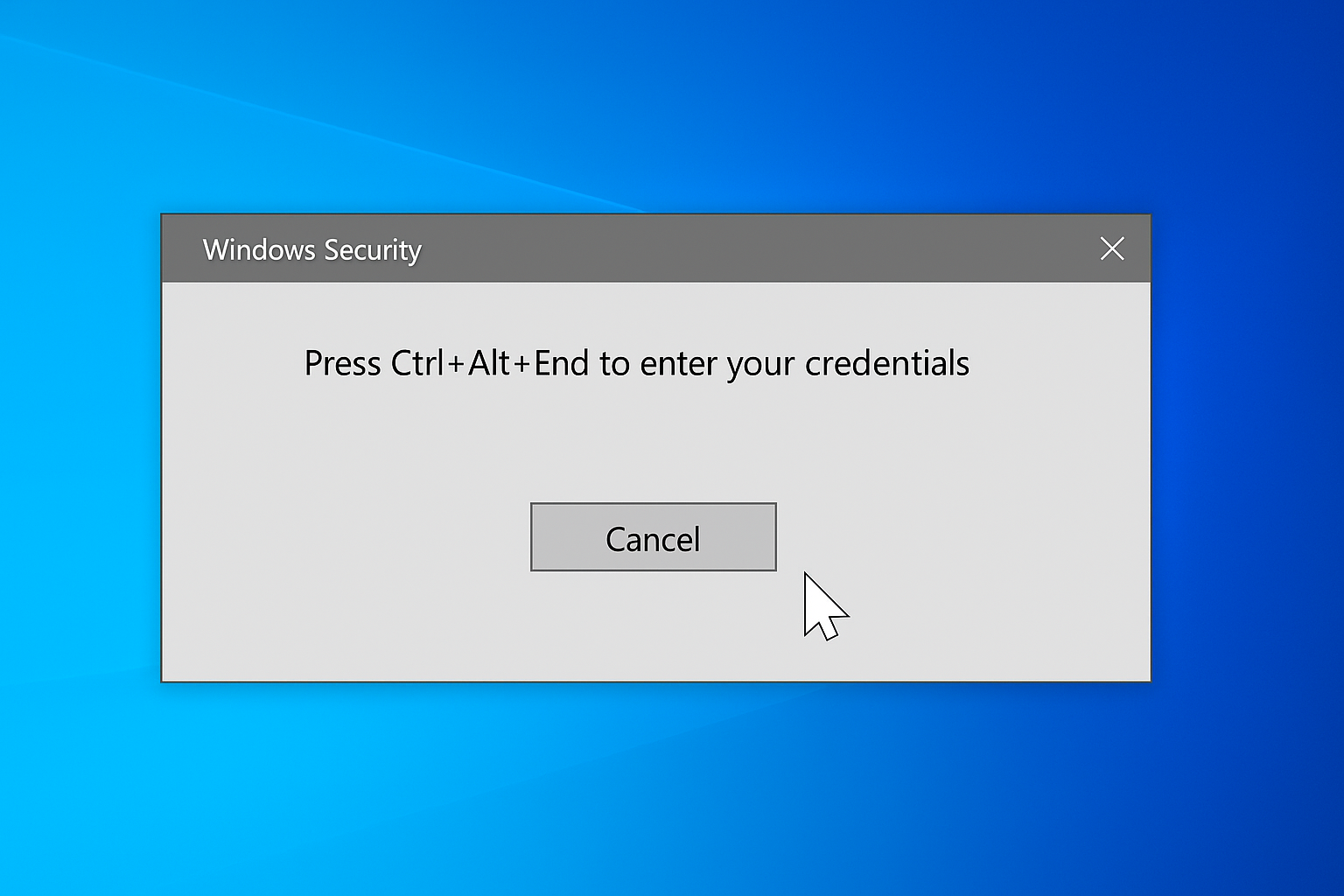
The most reliable way to send Ctrl-Alt-Delete to a remote machine is to use this keyboard shortcut instead:
Press: Ctrl + Alt + End
That’s it! This combination tells Windows “send this to the remote computer, not my local one.” It works in both windowed and full-screen remote desktop sessions, though some users report better reliability when running in full-screen mode.
Configure Remote Desktop Settings (Windows 10/11)
If you want all your keyboard shortcuts to go to the remote computer by default, you can change this setting:
- Press
Windows + Rto open the Run dialog - Type mstsc and press Enter to open Remote Desktop Connection
- Click Show Options to expand the connection dialog
- Navigate to the Local Resources tab
- Under Keyboard, find Apply Windows key combinations
- Select On the remote computer from the dropdown menu
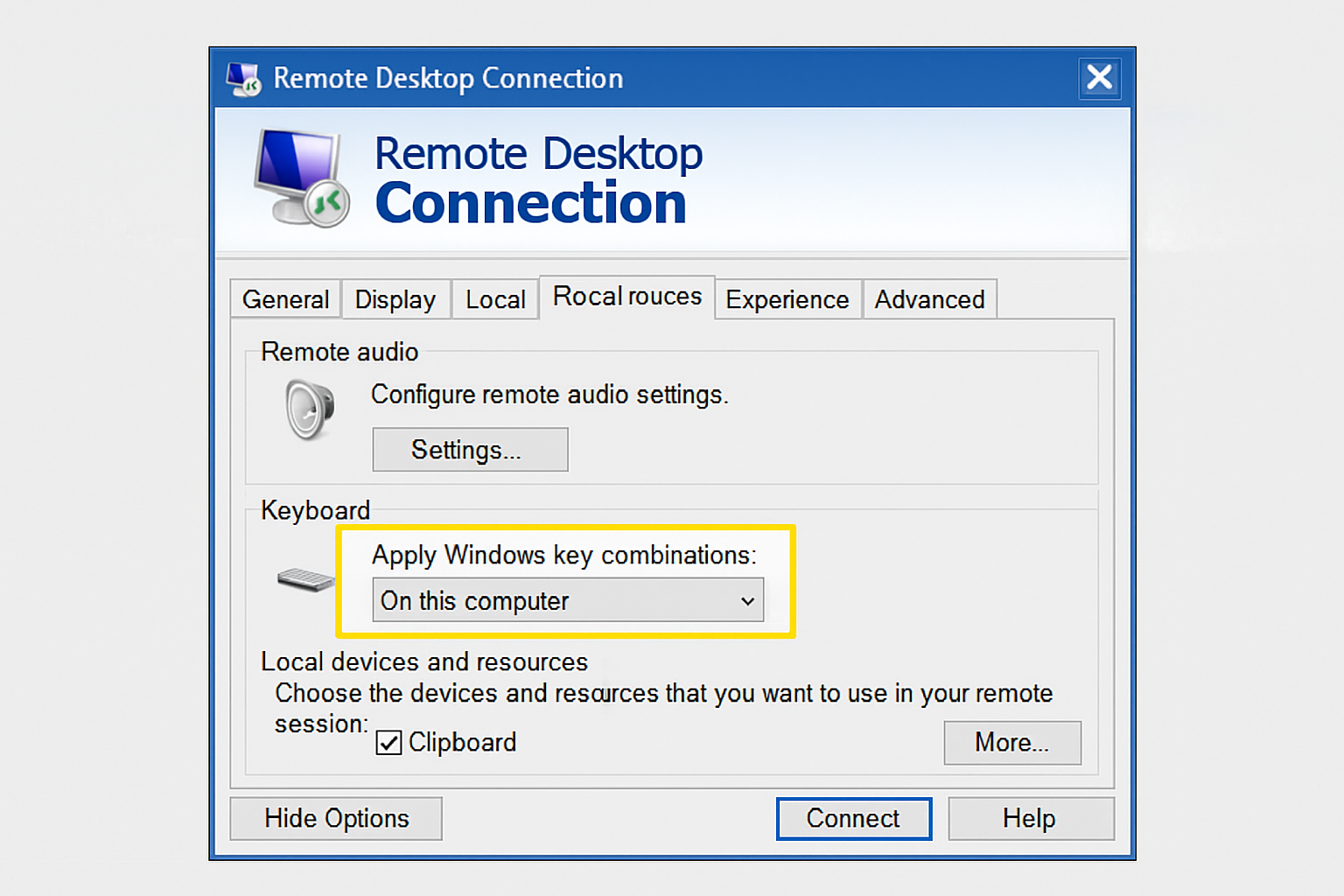
Now when you connect, your keyboard shortcuts (including the standard Ctrl-Alt-Delete) should work on the remote machine instead of locally.
Using the On-Screen Keyboard
Sometimes the standard shortcuts don’t work, especially in complex setups. Here’s a reliable backup method:
- While connected to the remote computer, press
Windows + R - Type osk and press Enter to open the On-Screen Keyboard
- Click Ctrl and Alt on the virtual keyboard (they’ll stay highlighted)
- Click Del on the virtual keyboard
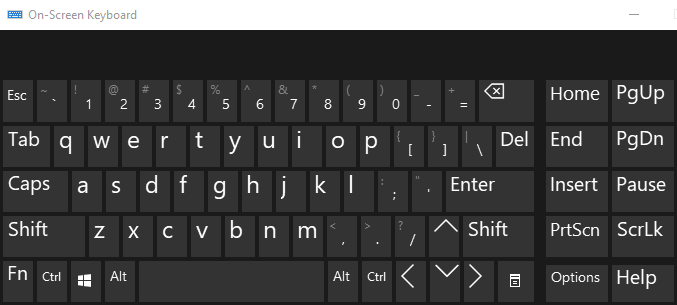
This method is particularly useful when you’re dealing with multiple remote sessions (like connecting from Computer A to Computer B, which is itself connected to Computer C).
For Mac Users Connecting to Windows
If you’re using a Mac to connect to a Windows machine via Remote Desktop, the process is slightly different:
Using Microsoft Remote Desktop for Mac
- Download Microsoft Remote Desktop from the Mac App Store
- Connect to your Windows machine
- Use Command + Option + Delete to send Ctrl-Alt-Delete to the remote Windows computer
Alternative for Mac Users
If that doesn’t work, you can also:
- Use Command + Option + Escape to open the Force Quit Applications window (similar to Task Manager)
- Or use the on-screen keyboard method described above once connected
Handling Multiple Remote Sessions
Things get tricky when you’re connecting through multiple computers (A connects to B, B connects to C). Here’s how to handle it:
Method 1: On-Screen Keyboard on the Final Machine
- On the final remote computer (C), open the On-Screen Keyboard (
Windows + R, then type osk) - On your local machine (A), press and hold Ctrl and Alt on your physical keyboard
- Click Del on the on-screen keyboard of the final machine
Method 2: Chain the Shortcuts
- On the middle computer (B), open the On-Screen Keyboard
- Use Ctrl + Alt + End on your local machine (A)
- This sends Ctrl-Alt-Delete to the final machine (C)
Other Useful Remote Desktop Shortcuts
While we’re talking about keyboard shortcuts, here are some other handy ones for Remote Desktop sessions:
- Alt + Page Up: Switch between programs (replaces Alt + Tab)
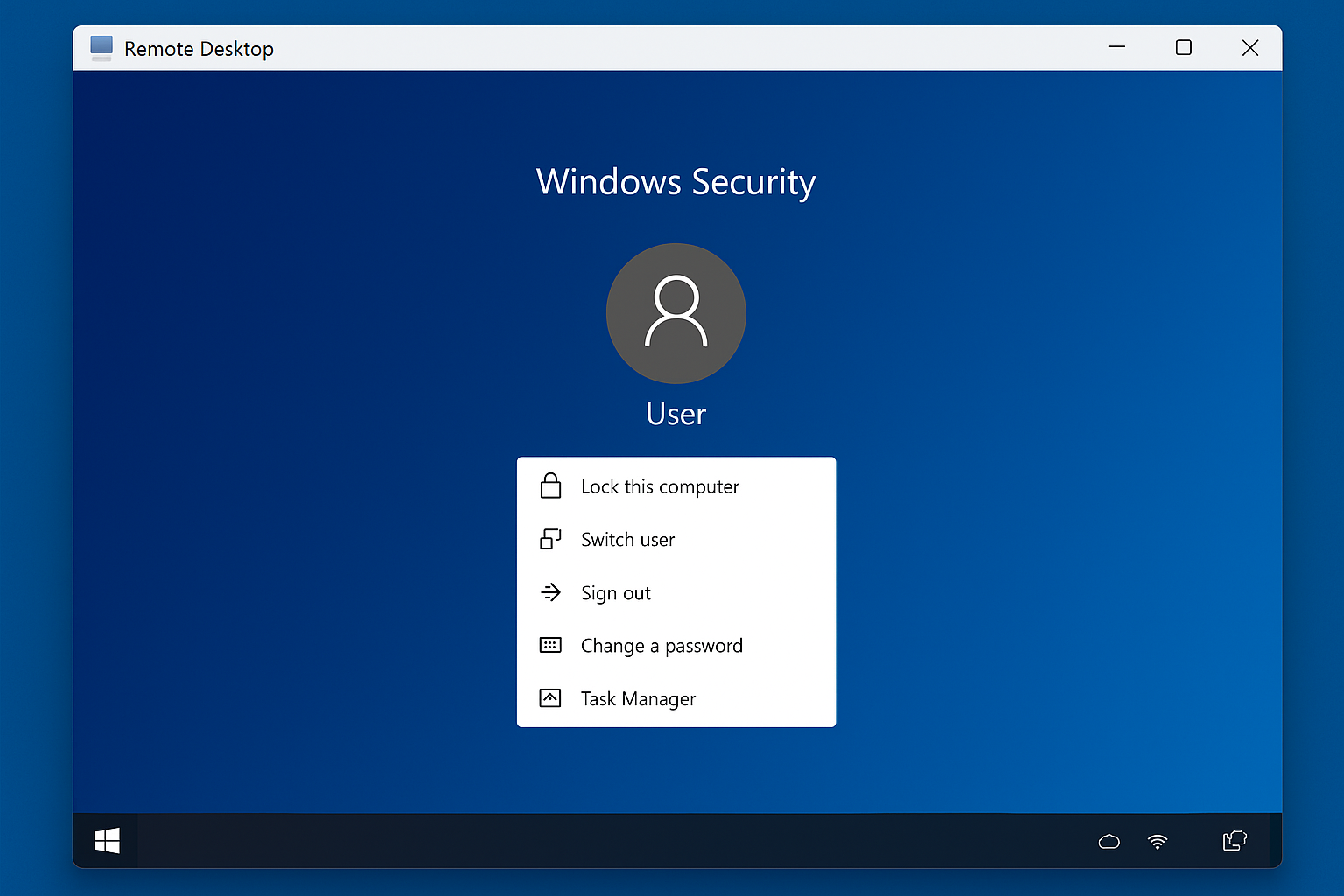
- Ctrl + Alt + End: Open Task Manager on remote computer
- Alt + Home: Open Start menu on remote computer
- Ctrl + Alt + Plus (+): Take screenshot of entire remote desktop
- Ctrl + Alt + Minus (-): Take screenshot of active window only
Tips and Troubleshooting
Common Issues
Problem: Ctrl-Alt-End isn’t working
This usually happens when your Remote Desktop settings are configured incorrectly. Try this:
- Disconnect from the remote session
- In the Remote Desktop Connection dialog, click Show Options
- Go to Local Resources > Keyboard
- Change the setting to On the remote computer
- Reconnect and try again
Problem: Multiple remote sessions are confusing
When you’re going through several computers, it’s easy to lose track of which shortcuts work where. The on-screen keyboard method is your most reliable option in these situations.
Pro Tips
- Full-screen mode: Some users report that Ctrl-Alt-End works more reliably when Remote Desktop is running in full-screen mode
- Remember the context: If you’re troubleshooting a frozen remote computer, Ctrl-Alt-End followed by Task Manager is often your best bet
- Test first: Before you need it in an emergency, test these shortcuts to make sure they work in your specific setup
Wrapping Up
So there you have it — Ctrl-Alt-End is your new best friend for remote desktop sessions. It’s one of those simple solutions that works reliably once you know about it. The on-screen keyboard method is a solid backup when things get complicated with multiple remote connections.
Honestly, it’s a bit annoying that Microsoft didn’t make this more obvious, but at least the workaround is straightforward. Once you get used to pressing End instead of Delete, it becomes second nature.
Whether you’re managing servers, providing remote support, or just accessing your work computer from home, these shortcuts will save you from the frustration of having commands execute on the wrong machine. Just remember: when in doubt, Ctrl-Alt-End is your friend.