
Tired of squinting at Netflix on your laptop screen when there’s a perfectly good TV sitting right there? You’re not alone. Whether you’re binge-watching the latest series or settling in for movie night, everything’s better on the big screen.
Getting Netflix on your TV is way easier than it used to be and you probably already have what you need to make it happen. In this guide, we’ll walk you through six different ways to stream Netflix to your TV – from the simplest plug-and-play options to more advanced setups.
What You Need to Know First
Before we dive into the methods, here’s what’s changed since Netflix’s early days. The company now offers three different plans with different streaming capabilities:
- Standard with Ads: $7.99/month, 2 simultaneous streams, 1080p resolution
- Standard (no Ads): $17.99/month, 2 simultaneous streams, 1080p resolution
- Premium (no Ads): $24.99/month, 4 simultaneous streams, 4K Ultra HD + HDR
Your plan determines how many devices can stream at once and what video quality you’ll get. For TV streaming, you’ll want at least the Standard plan to get full HD quality.
Internet Speed Requirements:
- SD streaming: 3 Mbps download speed
- HD streaming: 5 Mbps download speed
- 4K Ultra HD: 25 Mbps download speed
Important Device Warning: Netflix is discontinuing support for older smart TVs and gaming consoles in March 2026. If your device suddenly stops working with Netflix, you’ll need to upgrade to a current streaming device.
Method 1: Use a Streaming Device (Easiest Option)
This is hands-down the simplest way to get Netflix on your TV, especially if you have an older TV or one without built-in smart features.
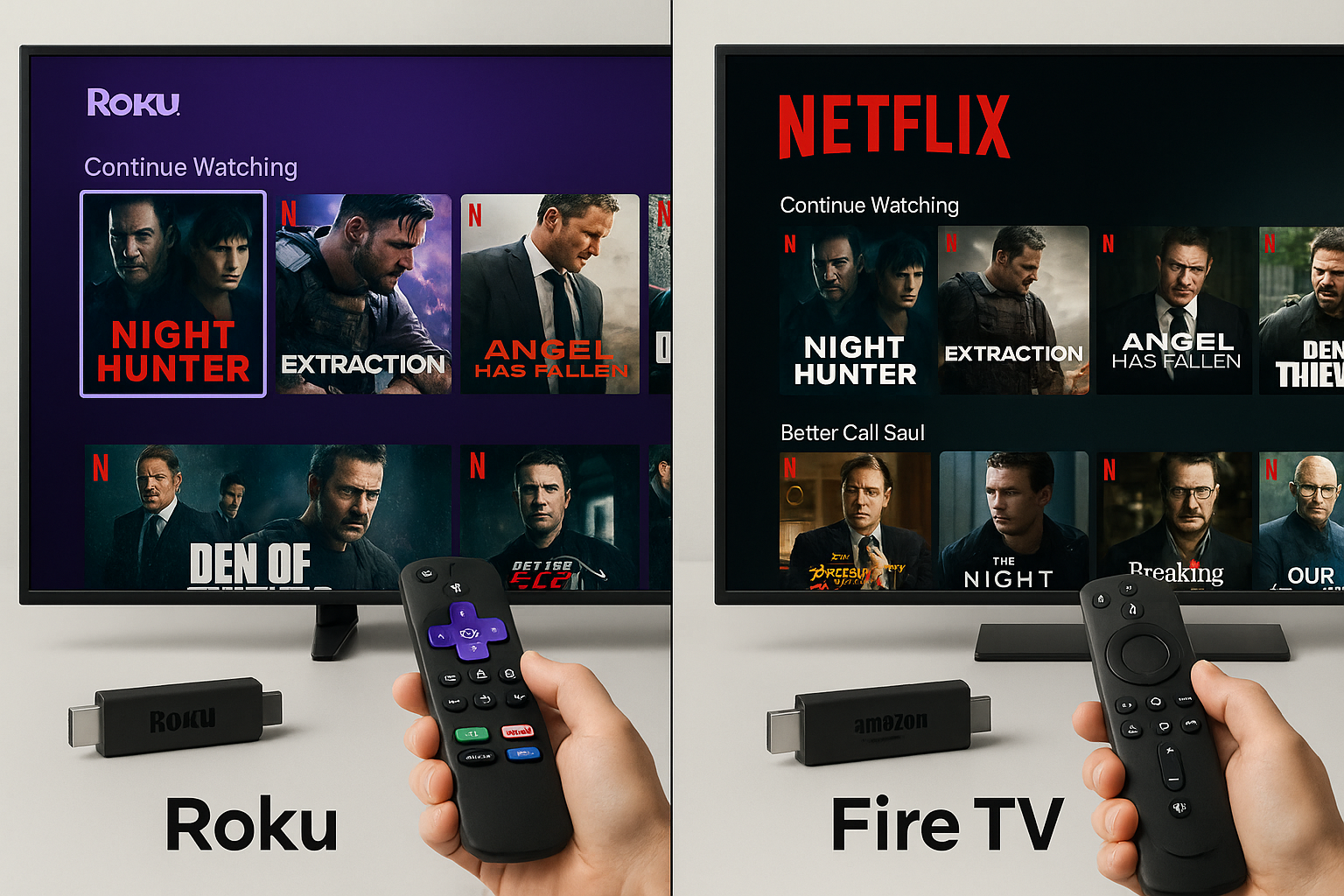
Best Budget Options
- Roku Streaming Stick HD: $17.99 — Great for HD streaming, super simple interface
- Amazon Fire TV Stick 4K Plus: $24.99 — Supports 4K if you have a Premium Netflix plan
- Google Chromecast with Google TV: $169.99 — Cast from your phone or use the remote
How to Set It Up
- Plug the streaming stick into any HDMI port on your TV
- Connect the device to your Wi-Fi network using the on-screen setup
- Download the Netflix app from the device’s app store
- Sign in with your Netflix account credentials
- Start streaming!
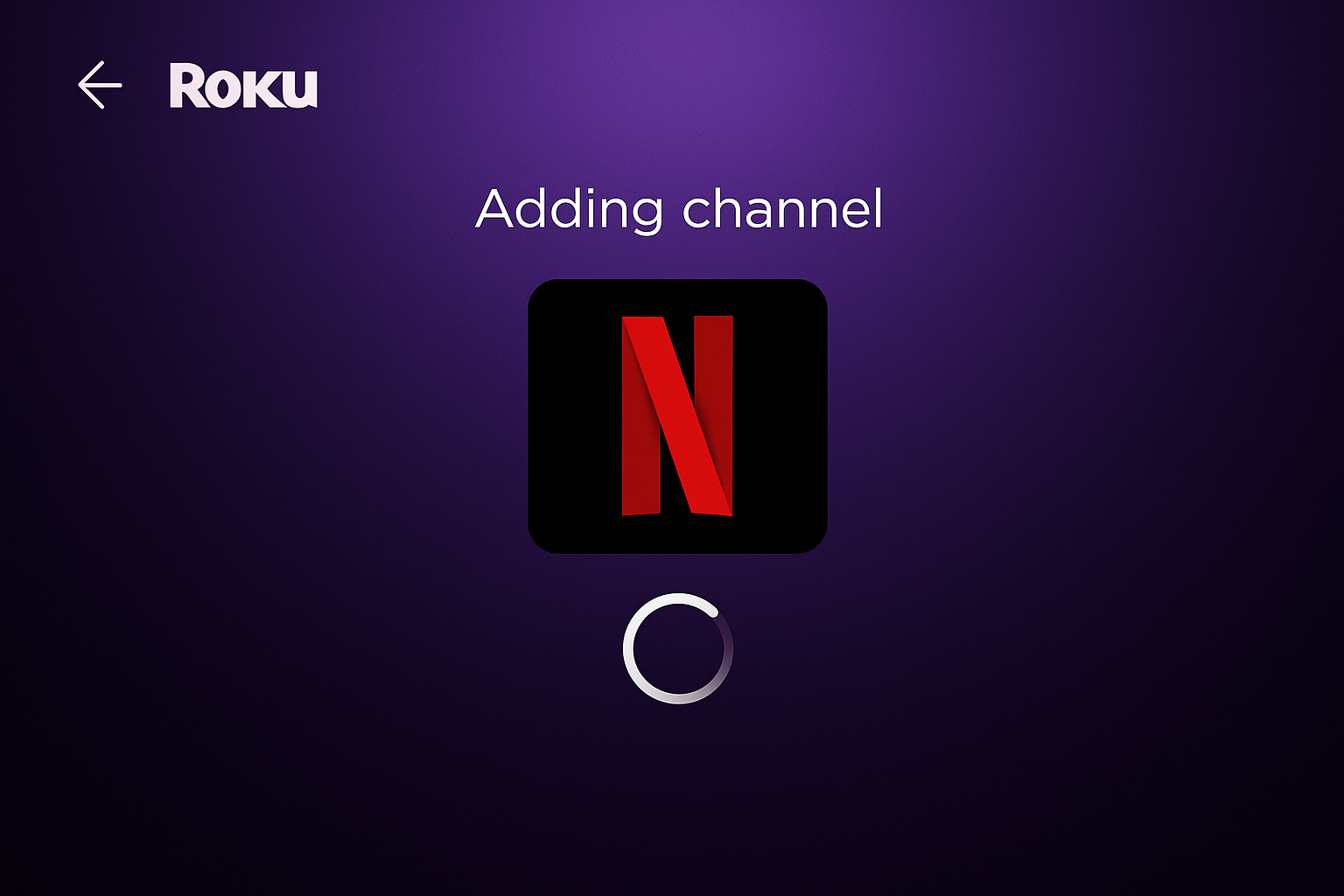
The whole process takes about 10 minutes, and these devices work with any TV that has an HDMI port — even TVs from the early 2000s.
Method 2: Smart TV Built-in Apps
If you bought your TV in the last few years, it probably already has Netflix built right in. Look for a “Smart TV” logo or Netflix button on your remote.
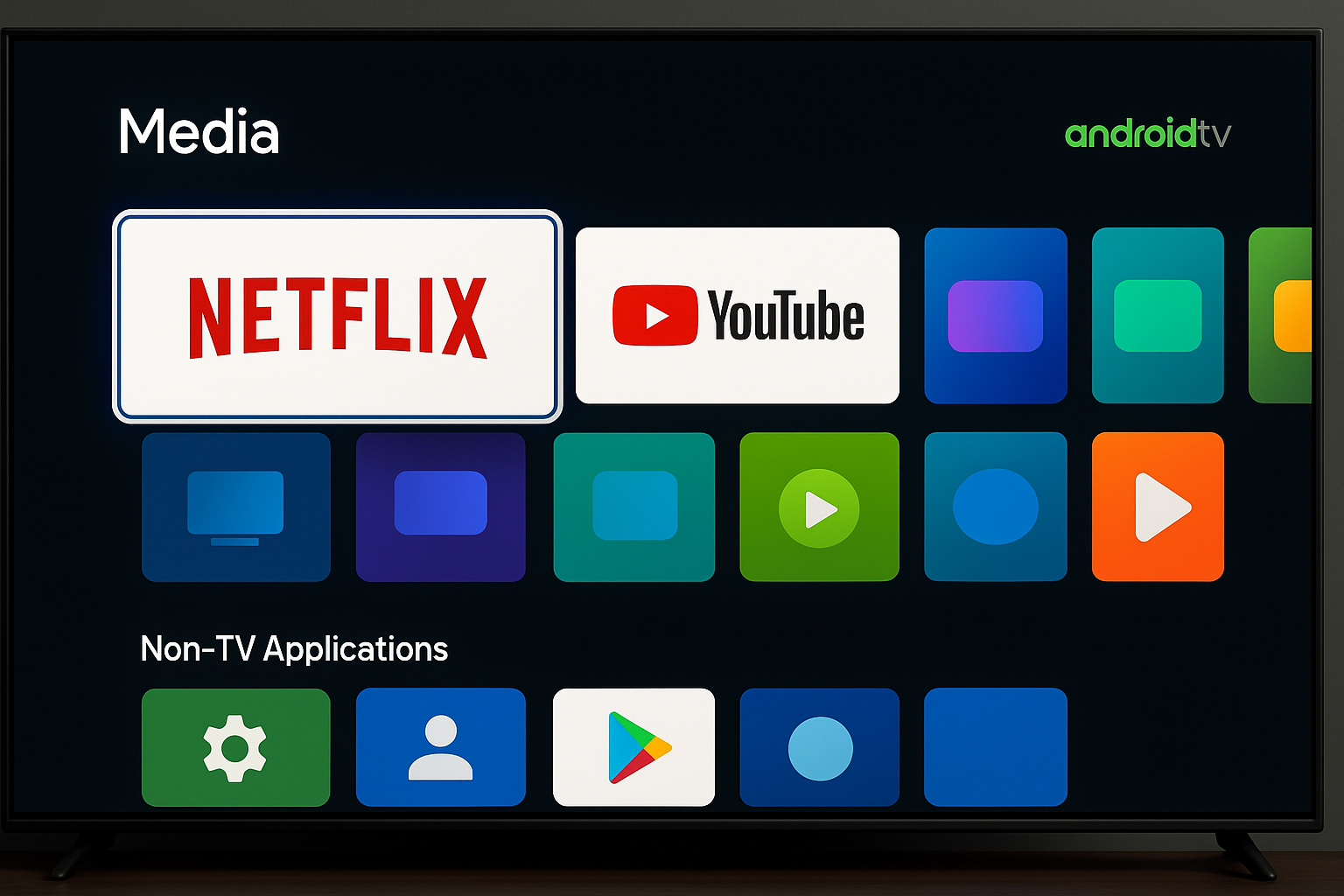
How to Access Netflix on Your Smart TV
- Press the Home or Smart button on your TV remote
- Navigate to the Netflix app (it’s usually on the main screen)
- Select the app and sign in with your Netflix account
- Connect your TV to Wi-Fi if you haven’t already
Supported Brands: Samsung, LG, Sony, Vizio, TCL, Hisense, and most other major TV manufacturers include Netflix support.
Pro Tip: This is currently the only way to watch Netflix’s 4K content if you have a 4K TV and the Premium plan. Streaming devices can do 4K too, but smart TV apps often provide the smoothest 4K experience.
Method 3: Gaming Consoles
Got an Xbox, PlayStation, or Nintendo Switch? You’re already set for Netflix streaming.
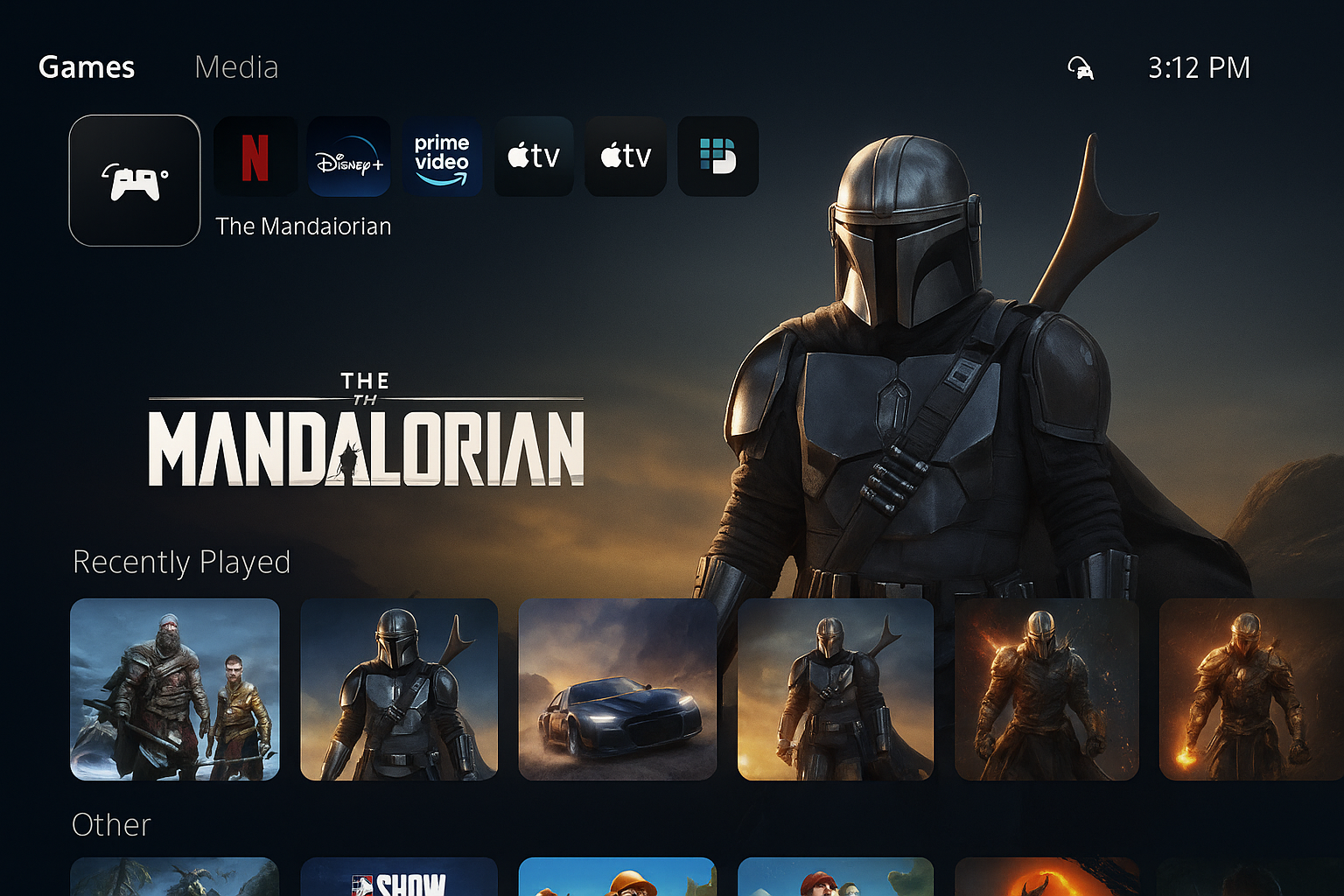
Current Console Support
- Xbox Series X/S and Xbox One: Download Netflix from the Microsoft Store
- PlayStation 5 and PS4: Find Netflix in the Media section of the PlayStation Store
- Nintendo Switch: Currently not supported (Netflix removed the app in 2021)
Setup Process
- Go to your console’s app store
- Search for “Netflix” and download the app
- Launch Netflix and sign in with your account
- Use your controller to navigate and select content
Gaming consoles are great if you’re already using them regularly, but they do use more power than dedicated streaming devices.
Method 4: Apple TV
If you’re deep in the Apple ecosystem, Apple TV provides the smoothest experience for iPhone and Mac users.
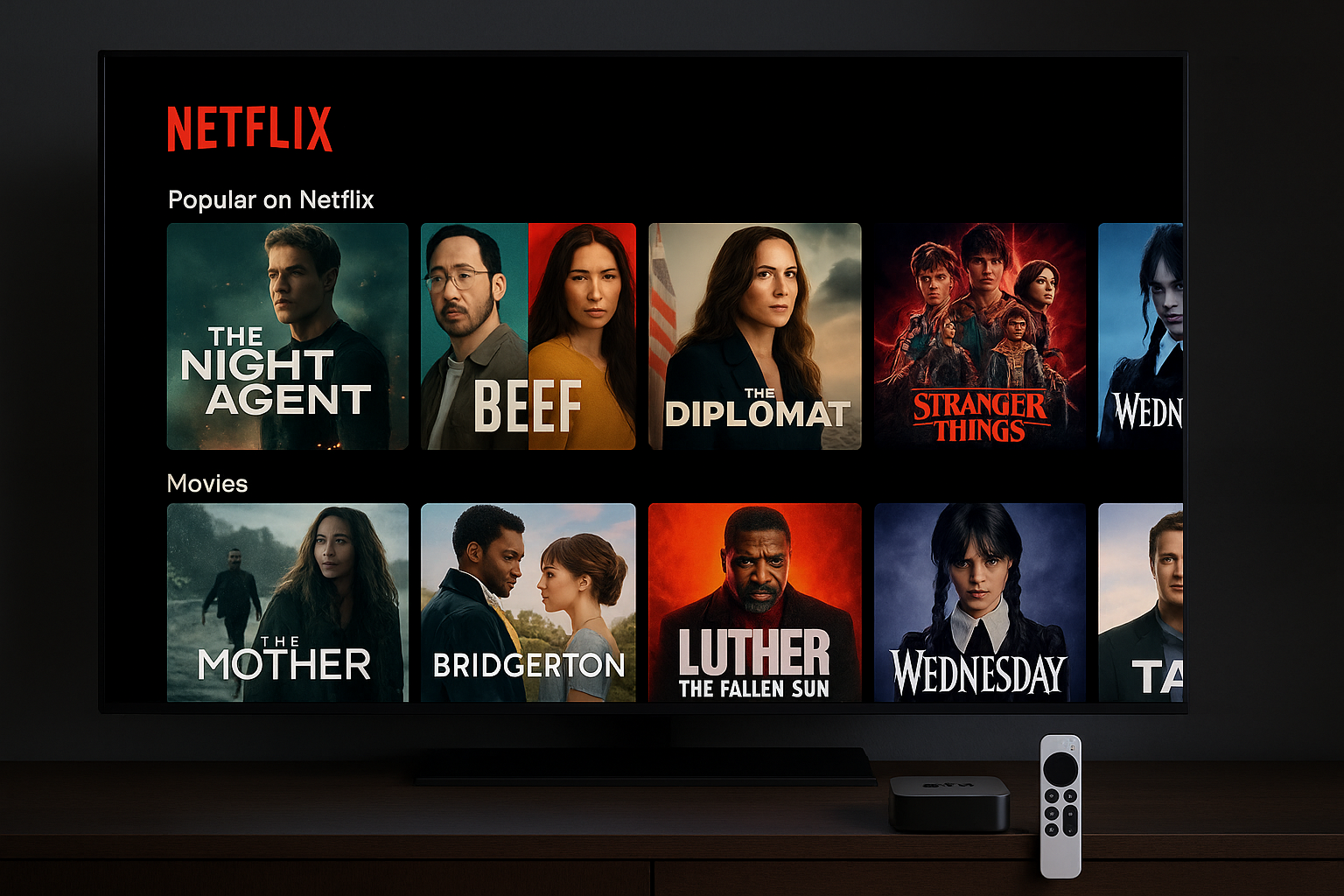
The current Apple TV 4K costs $150 (64GB) or $190 (128GB). It supports 4K HDR content and integrates perfectly with other Apple devices.
Apple TV Setup
- Connect Apple TV to your TV via HDMI
- Follow the on-screen setup using your iPhone or the included remote
- Download Netflix from the App Store
- Sign in and start streaming
Bonus Features: AirPlay support lets you easily cast Netflix from your iPhone or iPad to the TV, and Siri voice control makes finding content super easy.
Method 5: Connect Your Computer Directly
Sometimes the old-school approach works best. If you’ve got a laptop or desktop near your TV, a simple cable connection gives you access to everything on your computer not just Netflix.
What You’ll Need
- HDMI cable: Best option for modern computers and TVs
- USB-C to HDMI adapter: For newer laptops without HDMI ports
- DisplayPort to HDMI cable: For some desktop computers
Connection Steps
On Windows
- Connect the HDMI cable between your computer and TV
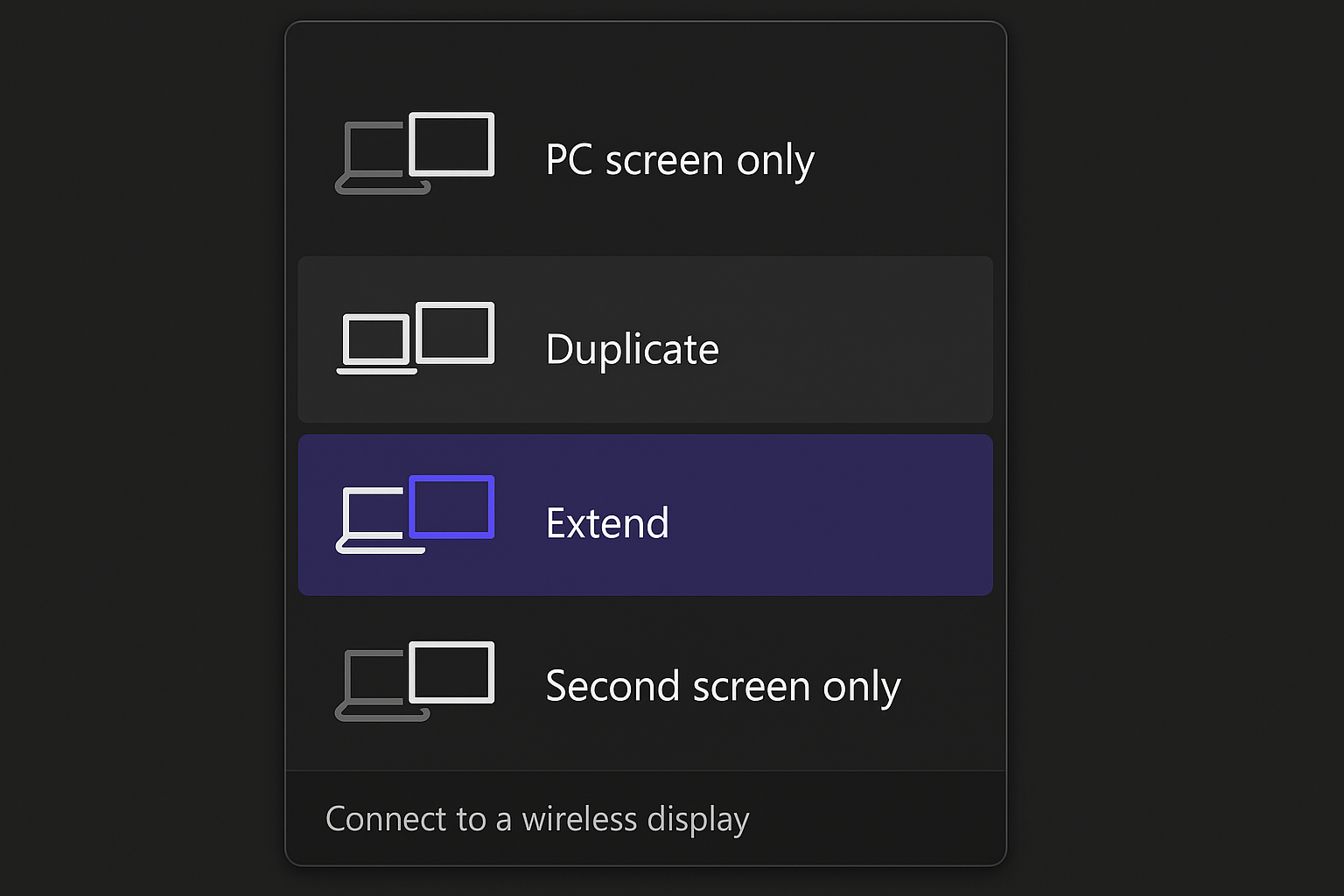
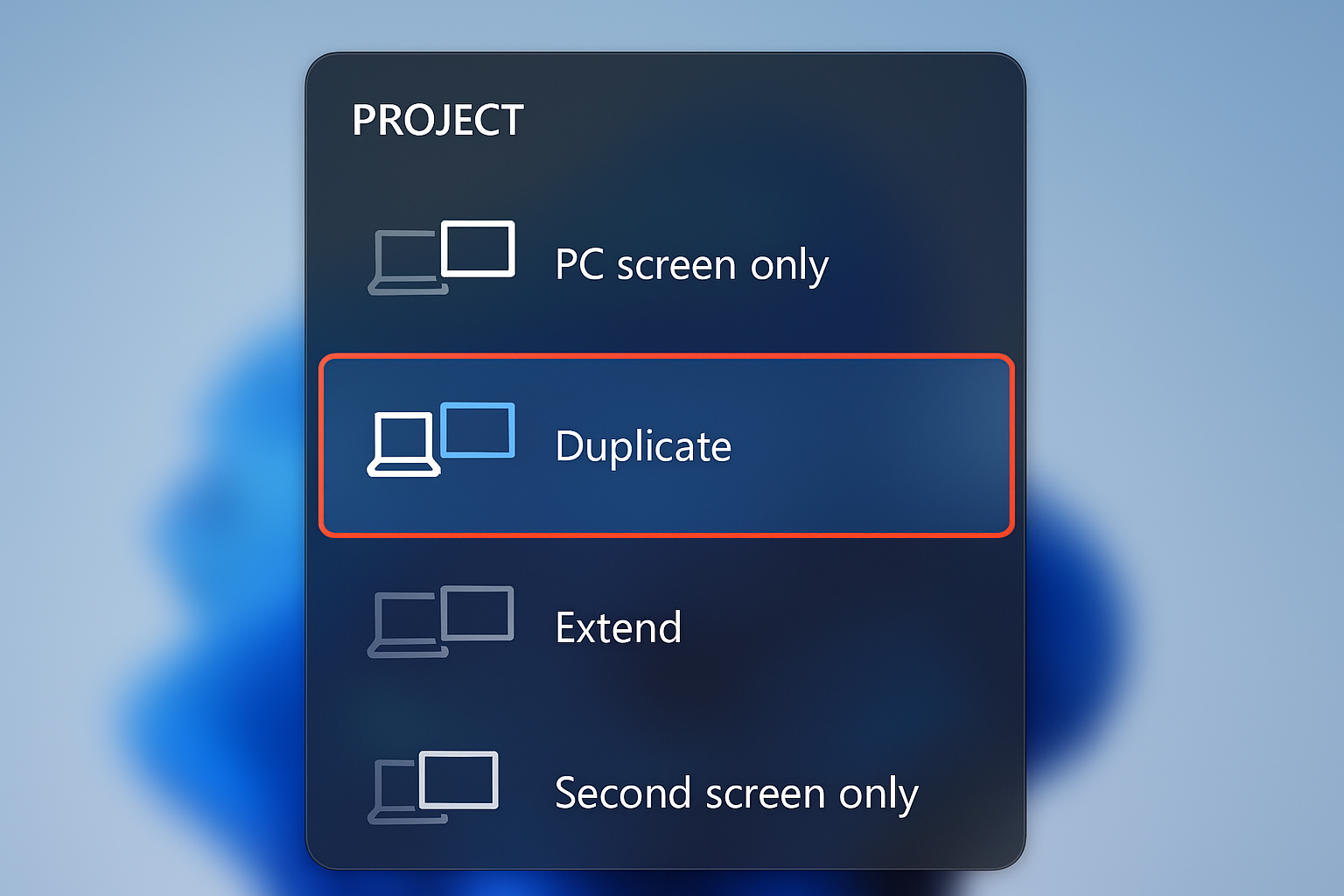
- Press
Windows + Pto open display options - Select Duplicate or Extend depending on your preference
- Open Netflix in your browser and play content
On macOS
- Connect the cable or adapter to your Mac
- Open System Settings > Displays
- Choose your mirroring preference
- Launch Netflix in Safari or Chrome
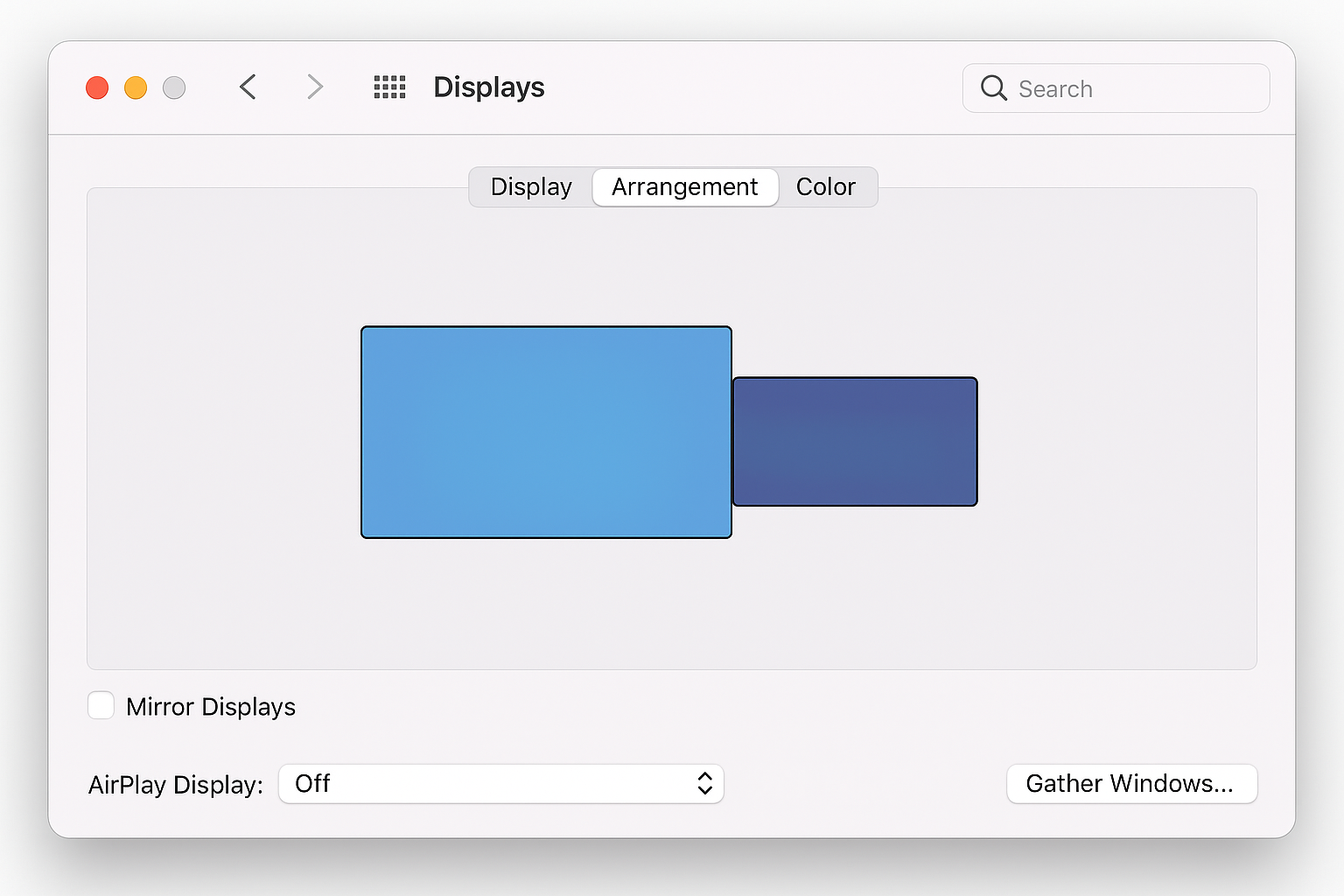
Why This Method Rocks: You get access to every streaming service, not just Netflix. Plus, you can browse the web, check email, or work on other stuff while Netflix plays in the background.
Method 6: Chromecast from Your Phone
Already have a Chromecast or Chromecast-enabled device? You can cast Netflix directly from your phone or tablet.
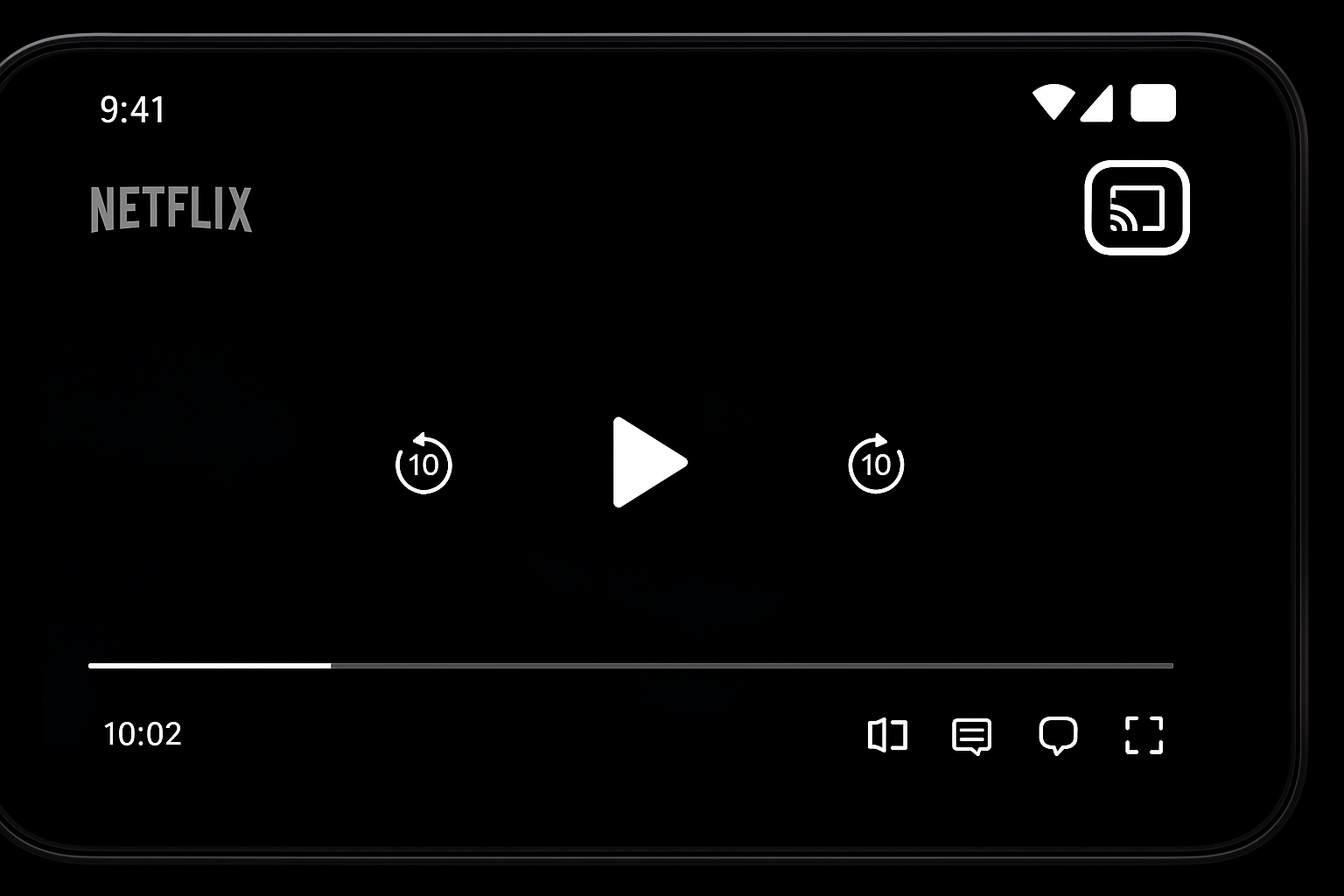
How to Cast Netflix
- Make sure your phone and Chromecast are on the same Wi-Fi network
- Open the Netflix app on your phone
- Tap the Cast icon (looks like a rectangle with Wi-Fi waves)
- Select your Chromecast device
- Choose what you want to watch — it’ll appear on your TV
Your phone becomes the remote control, and you can still use it for other things while Netflix plays on the TV.
Troubleshooting Common Issues
Netflix Won’t Load or Keeps Buffering
- Check Your Internet Speed: Run a speed test to make sure you’re meeting the minimum requirements
- Restart Your Streaming Device: Unplug it for 30 seconds, then plug it back in
- Move Closer to Your Router: Walls and distance can weaken Wi-Fi signals
- Close Other Apps: Too many devices using your internet can slow things down
“Too Many Streams” Error
This happens when you exceed your plan’s simultaneous stream limit. Check which devices are currently streaming and close Netflix on devices you’re not using.
Poor Video Quality
- Check Your Netflix Plan: The Standard with Ads and Standard plans max out at 1080p
- Verify Your Internet Speed: 4K requires a solid 25 Mbps connection
- Adjust Netflix Quality Settings: Go to your account settings on Netflix.com and set video quality to “High”
Account Sharing and Household Rules
Here’s something that’s changed significantly: Netflix now restricts password sharing. Your account works at your registered household location, but if you want to add someone outside your household, it costs extra:
- Standard Plan: Add 1 extra member for $8.99/month
- Premium Plan: Add up to 2 extra members for $8.99/month each
If you’re traveling or using Netflix at a different location temporarily, you can still access your account — but frequent use outside your household might trigger verification requests.
Which Method Should You Choose?
For Most People: Get a Roku Streaming Stick HD ($15.99) or Amazon Fire TV Stick ($21.99). They’re cheap, reliable, and work with any TV.
For 4K TVs: Use your smart TV’s built-in Netflix app or upgrade to a 4K streaming device if your TV doesn’t have smart features.
For Apple Users: Apple TV 4K provides the best integration with iPhones and Macs, but it’s pricier.
For Gamers: If you already have an Xbox or PlayStation, just download the Netflix app — no additional hardware needed.
For Computer Users: A simple HDMI cable gives you the most flexibility, letting you access any streaming service or website.
Wrapping Up
Getting Netflix on your TV doesn’t have to be complicated or expensive. Whether you go with a $16 streaming stick or use the smart TV you already own, you’ll be watching Netflix on the big screen in minutes, not hours.
The streaming landscape keeps evolving, but these methods will work reliably for years to come. Just remember that if you have an older device that suddenly stops working with Netflix, a basic streaming stick is the quickest fix. Your binge-watching sessions will thank you!