

If you have a YouTube TV subscription, you can use the YouTube TV family sharing (also known as YouTube TV Family Groups) feature to share that subscription with up to 5 family members. Once you create your family group, you’re the family manager.
In this article, you’ll learn how to set up YouTube TV family sharing, add or remove members, and the requirements and limitations of this service.
YouTube TV Family Group Requirements
There are a few limitations to how the YouTube TV family group works.
- Family members you invite must be at least 13 years old.
- The family manager must be at least 18 years old and have a Google account.
- You and your family must live in the United States.
- No one in your family group can be part of another family group.
Additionally, YouTube TV is for regular Google account holders only, and if you’ve signed up with a G Suite account, you won’t be able to create a family group.
How to Create a Family Group
To set up a Family Group, you simply need to set up your home location and add family members to the group.
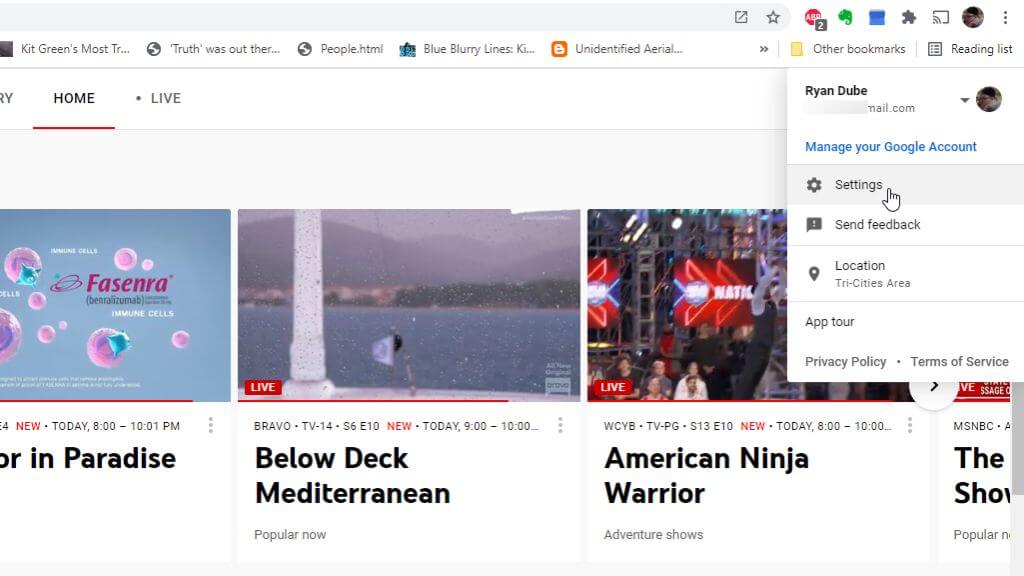
1. Sign in to your YouTube TV account, select your profile photo and select Settings.
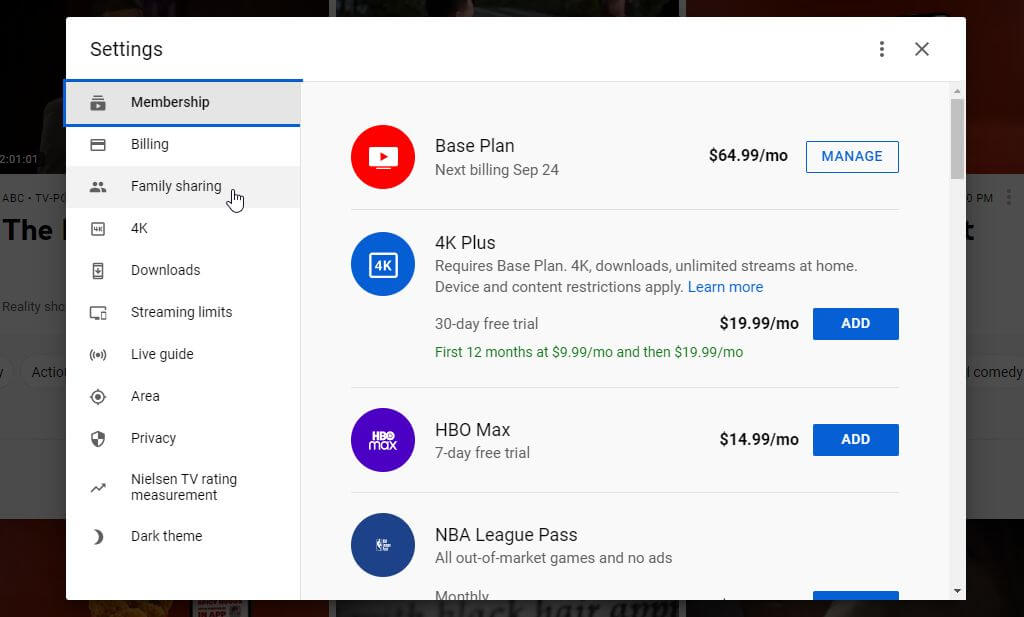
2. Select Family sharing from the left menu in the Settings window.
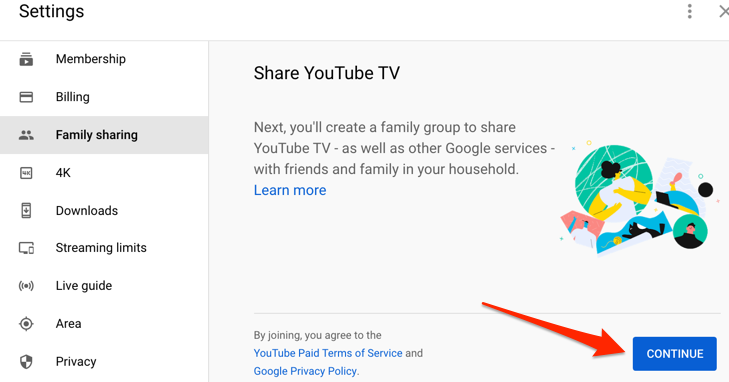
3. Select Continue to walk through the wizard for creating a family group.
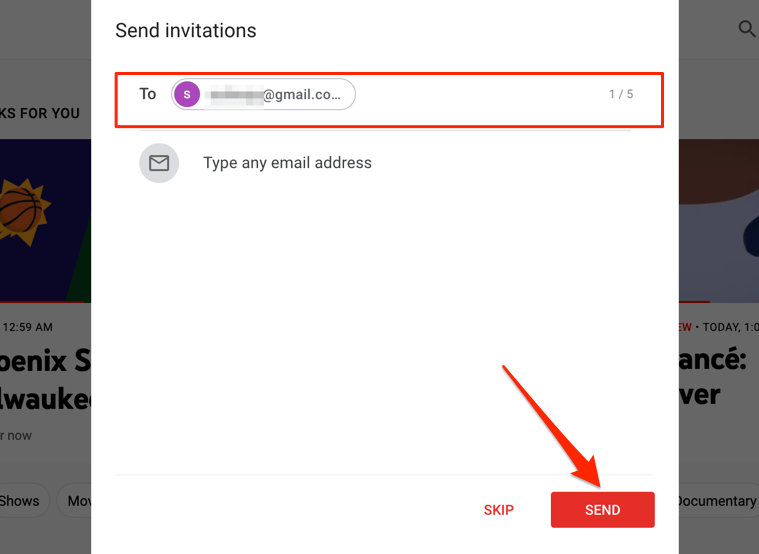
4. Walk through the wizard to invite each family member by their email address and select Send.
5. When finished, you’ll see a confirmation message. Select Go To YouTube TV to get started!
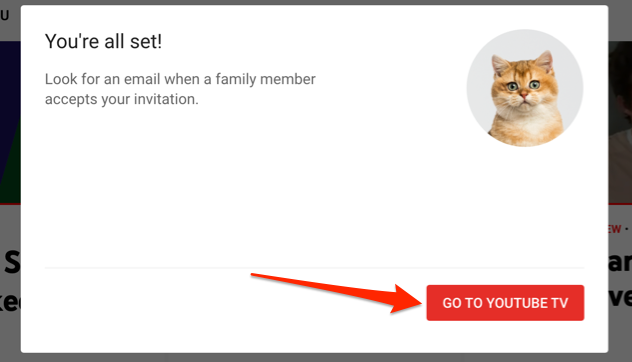
Your Google family group is now ready for you to start using YouTube TV once you’ve added your family members using the steps below.
How to Add and Remove Family Members
If you didn’t add all of your family members when you created the group and want to invite more, use the following steps.
1. Sign in to your YouTube TV account and access the Family Sharing Settings page.
2. Select the Manage link.
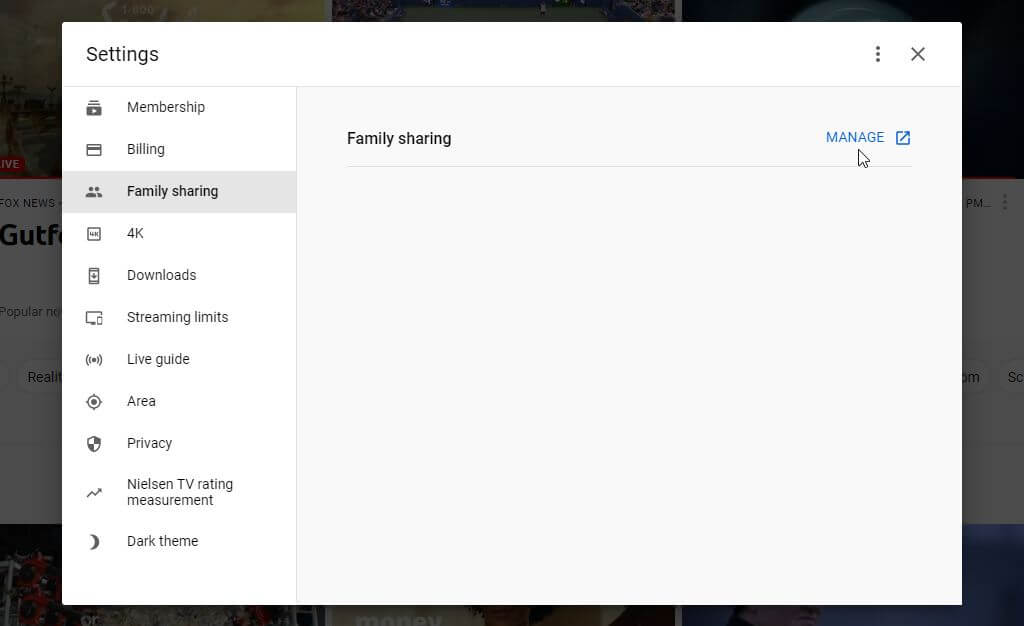
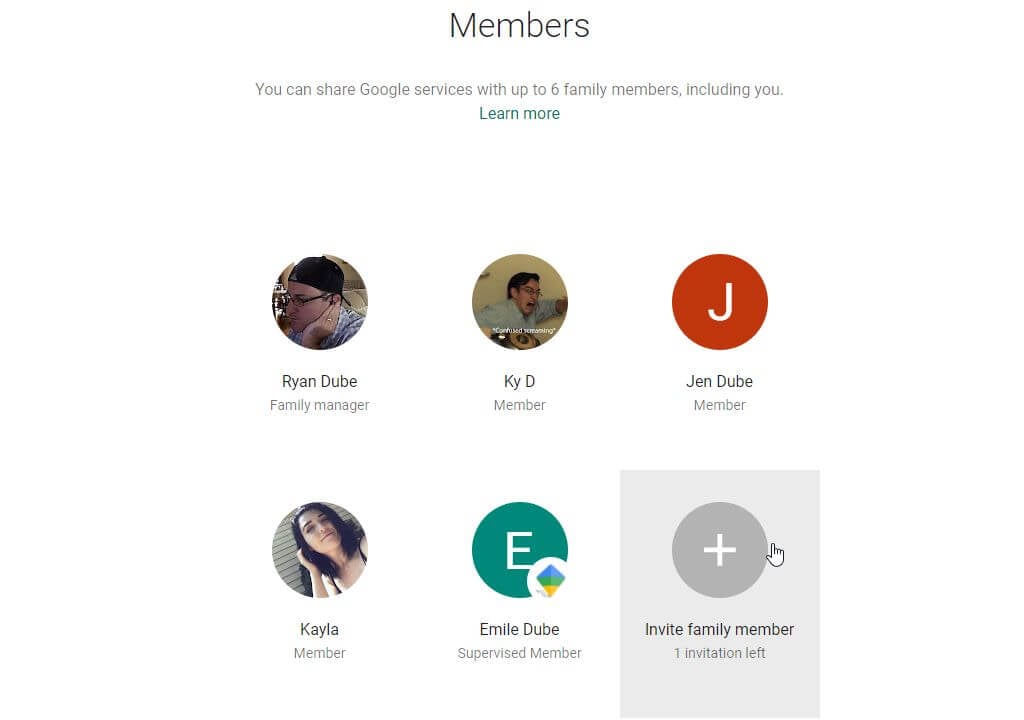
3. To add a new family member, select Invite family member. Existing family members will already be listed.
4. Add the email address for the family member you want to invite. If they’re in your Google Contact list, you’ll see them under the email field. Select the family contact to add them.
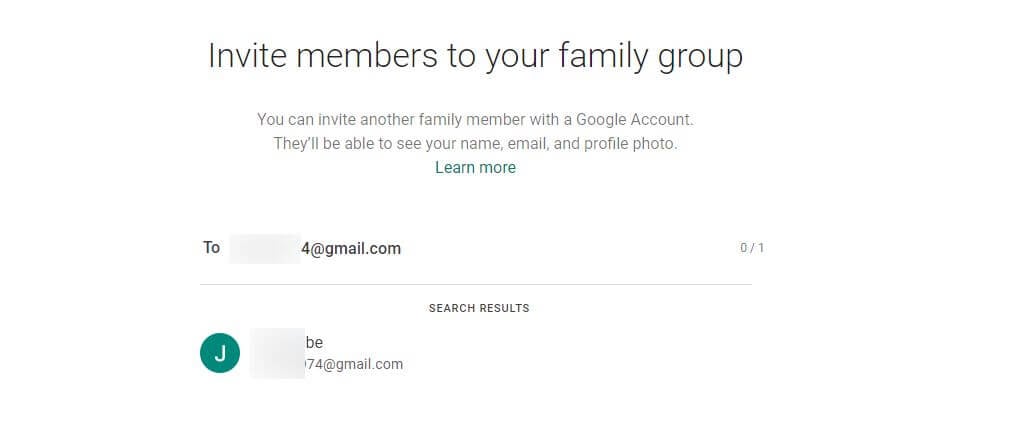
5. Select the Send button to email the invite to that family member.
If you’re a family member who’s received an invite, follow the instructions in the email link to join the family group.
How to Leave or Delete a Family Group
You’ll need to leave your original family group before you can start a new family group of your own.
Leave YouTube TV Family Sharing
- Sign in to your YouTube TV account, select your profile photo, and select Settings
- Select the Manage link.
- Click on the Leave family group option in the left menu. Next, you’ll need to enter your Google password and confirm that you want to leave the group.
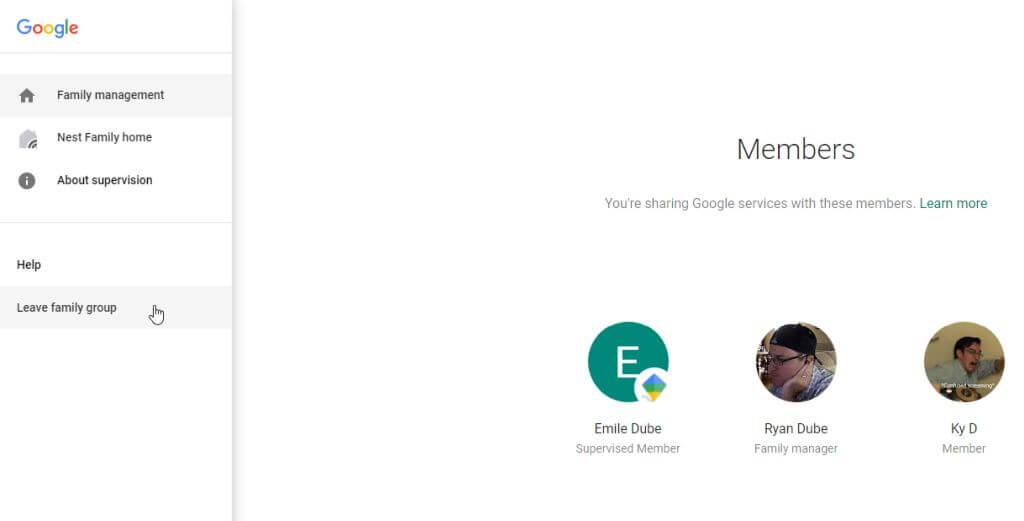
You’ll no longer be a member of the Google family group and will lose access to YouTube TV family sharing.
Note: Leaving the Google family group will only remove you from the group. Your Google account will stay active along with all your personal Google services.
Delete YouTube TV Family Group
The only person who can delete a family group is the person who created the group — the family manager. Make sure you’re logged into Google and YouTube TV using that account.
- Sign in to your YouTube TV account, select your profile photo, and select Settings.
- Select Family sharing from the left menu.
- Select Manage.
- Select Delete family group from the left menu.
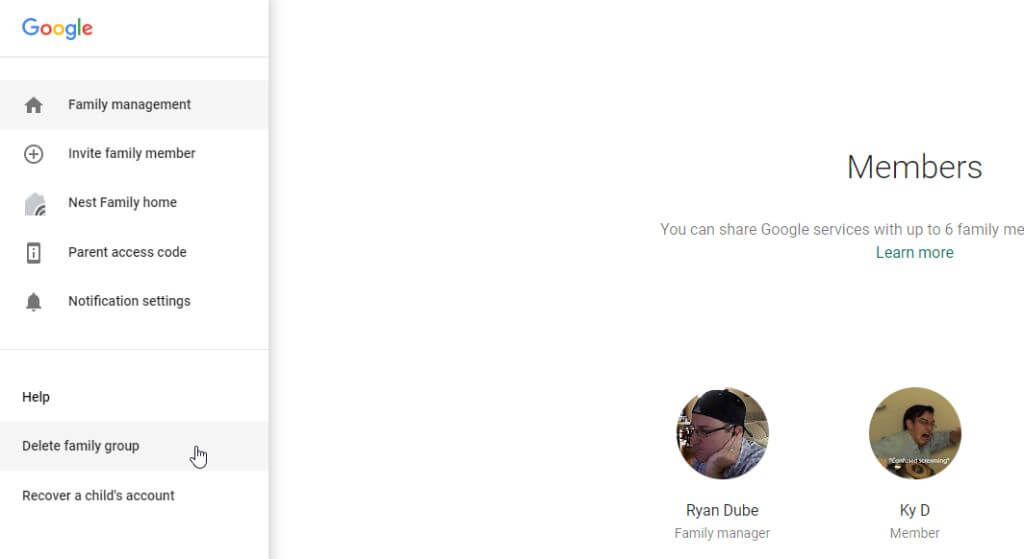
- Enter your password again, and select the Confirm button.
Upon deleting the group, only you will be able to use your YouTube TV membership.
YouTube TV Family Sharing Limitations
Think again if you plan to add friends or people outside your family to your family group. YouTube TV identifies you or your family members’ location using the internet connection you’re using. This is also how YouTube TV provides location-appropriate content.
Since you have to set the home area as the family manager, if someone attempts to access the YouTube TV family sharing service from another location using a different Wi-Fi, YouTube will block it. This is because everyone you provide your membership to must be living in the same household. One way around this is to watch YouTube TV using cellular data, so long as you have a plan where you can consume that much data without significant charges.
If your family group members never use the YouTube TV membership, they’ll eventually get automatically removed after 90 days, and you’ll have to invite them again.
Finally, YouTube only allows using YouTube TV on 3 devices (not 5) simultaneously in your home on the base plan. But, individual members could potentially use more than one available device if they’re streaming YouTube TV at the same time on multiple devices.