

When you post something on Facebook, it’s out there for your friends or more to see, depending on your privacy settings. Your posts can be “shared.” That means people can post your posts on their profile, now allowing their social circle to see your posts. You’ll get notifications on Facebook when someone shares your post, and you can see how many people have shared it.
However, you may want to see more details on who is sharing your post and who is interacting with the shared post on their Facebook profile. This is easy to do. In this article, we’ll show you how to find this information and how to find your Facebook privacy settings to change who can share your posts.
How to See Who Shared Your Facebook Post
If you don’t see who shared your Facebook post in your notifications, you’ll need to go to the post itself to see who shared it. Follow these steps to do so.
- On Facebook, go to the post you shared.
- Look at the bottom of the post, where you see the likes and reactions, and in the right-hand corner you can see the number of shares above the share button.
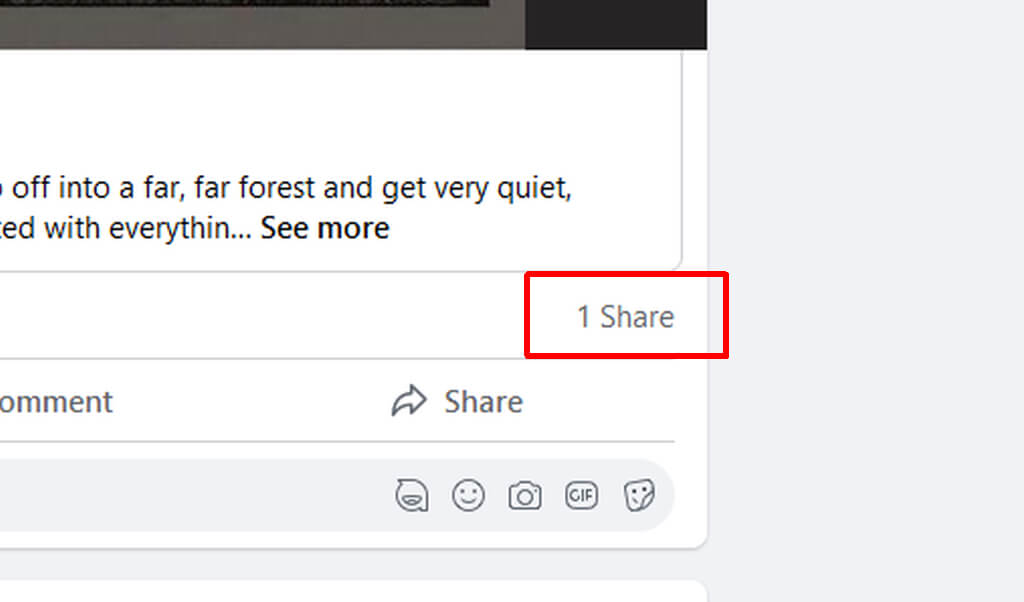
- Hover the mouse over the number of shares to see the names of the persons who have shared the post.
- You can click on the number of people sharing the post to see individual shares from each person, including any comments they may have added as well as people who have reacted to the shared post.
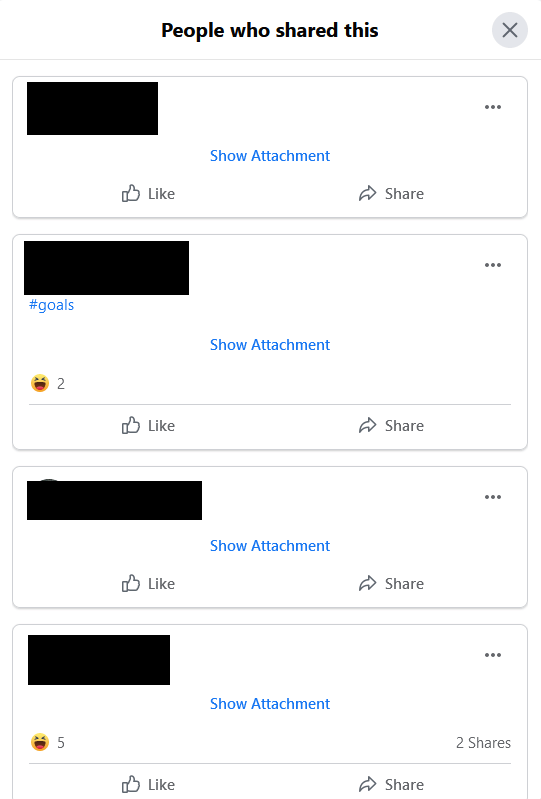
From this point, you can see all the people who shared your post and find their Facebook accounts by clicking on their names. You’ll also see others’ comments on the shared post. This can give you a good idea of who has seen your post.
How to Change Facebook Post Settings
If you find that you don’t want certain people to share your post, there’s a way you can prevent this from happening. It’s as simple as going into your Facebook settings and changing a few things. Here’s how to do so.
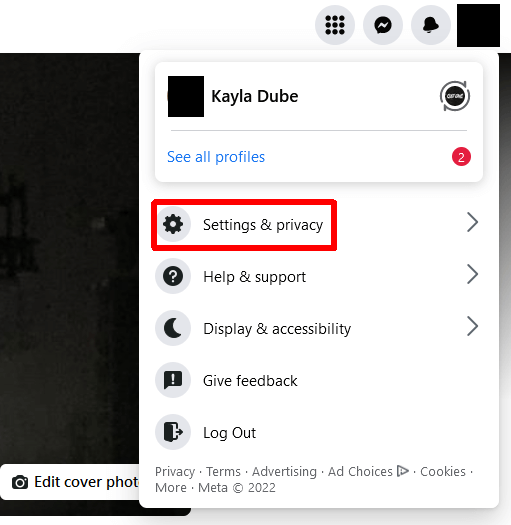
- On Facebook, in the top-right corner, select your profile picture.
- Select Settings & Privacy > Settings.
- Go to Privacy.
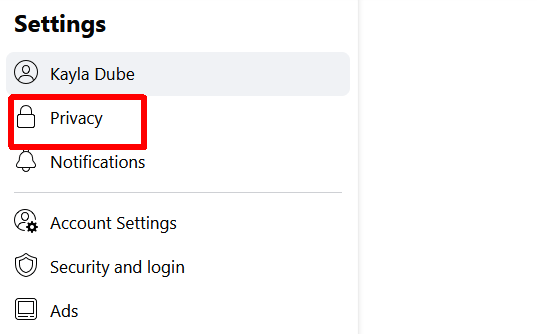
- Here you can limit both your older posts as well as future posts. Next to Who can see your future posts? select Edit.
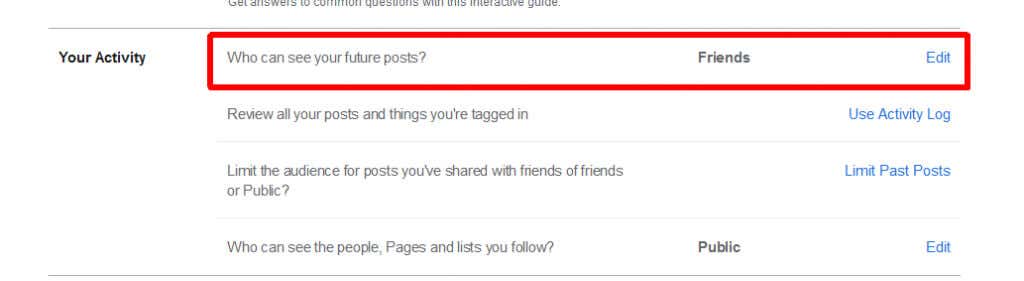
- Select who you want to see and consequently be able to share your posts.
- You can also select Limit Past Posts to limit who can see and interact with your previous posts. By doing this, you will limit all your past posts to Friends.
Going forward, Facebook will default to these privacy settings when you create a new post. Only the people who you choose to see your posts will be able to share them. However, you also can change these settings for each post. This means you can prevent sharing on any post you want. Here’s how.
- Find the post on Facebook you want to limit sharing for.
- Click on the three dots in the top-right corner and select Edit Audience.
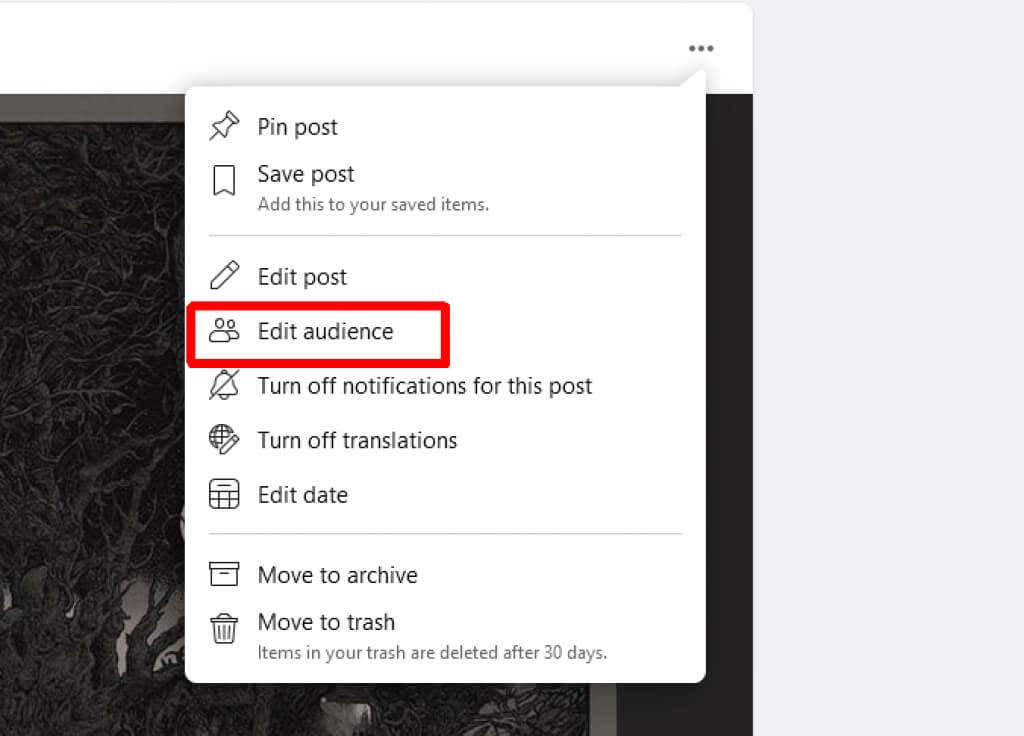
- From here, you can choose who you want to be able to see and share your posts.
With this option, you can choose between only Facebook friends, certain people, or just you who can see the post. This will stop the rampant sharing of your posts with anyone.
See Who Shared Your Facebook Posts
Whether your post has gotten a few shares or tons of them, you may want to see who has shared it on their profile. Thankfully this is very easy to do on Facebook, and you can quickly see not only the sharers but their comments and reactions.