
Skip to content
ONLINE 101010 TECH 010101 TIPS
  • Latest
  • News
  • How-To
  • Social
  • Streaming
  • Gaming
  • Reviews
  • Latest
  • News
  • How-To
  • Social
  • Streaming
  • Gaming
  • Reviews
  1. Home/
  2. Social Media/
  3. How To Rip YouTube Videos Using VLC Player

How To Rip YouTube Videos Using VLC Player

Mark O'Neill
December 3, 2019
2 min read
 - 00-featuredimage

If you want to rip a YouTube video to your computer, you have lots of online options. Too many in fact to know which ones are better and more trustworthy than the others.

We have previously shown you a few sites which help you download videos and playlists, but that involves using other peoples servers, checking the page source, hunting for obscure download links, and dealing with endless NSFW pop-ups on other peoples domains. 

Why bother with all that when you can quickly and effortlessly rip a YouTube video using a software app most people already have installed on their computer? I refer of course to VLC Player.

This example has been done on a MacOS laptop but the Windows method is very similar.

How To Rip a YouTube Video Using VLC Player

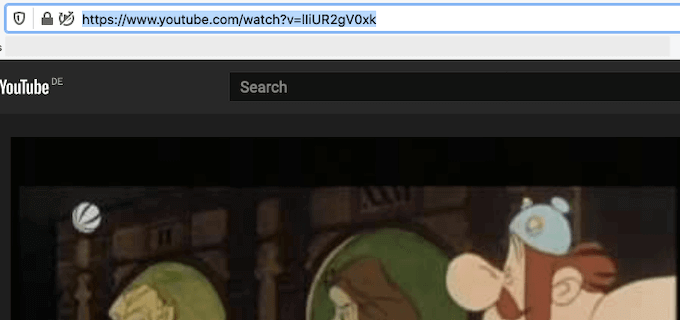
  • Go to the YouTube page of the video you want to rip and copy the URL of the video.
 - 01
  • If you haven’t already installed VLC Player, grab it from the website and install it. It’s free. 
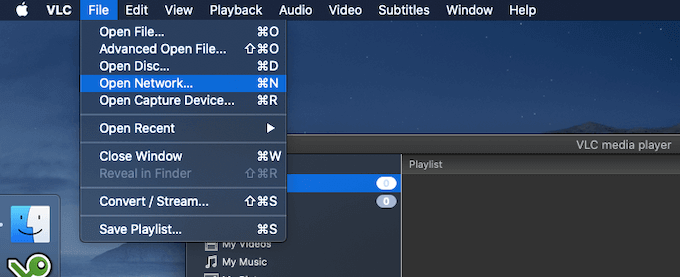
  • When it’s installed, open it up and choose File – Open Network. On Windows, it’s Media – Open Network Stream.
 - 02
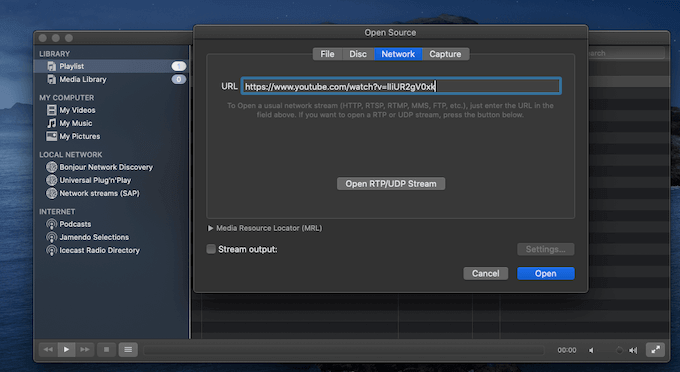
  • In the box that pops up, paste the YouTube URL of the video you want to rip.
 - 03
  • The YouTube video will now proceed to stream inside VLC.

 - 04
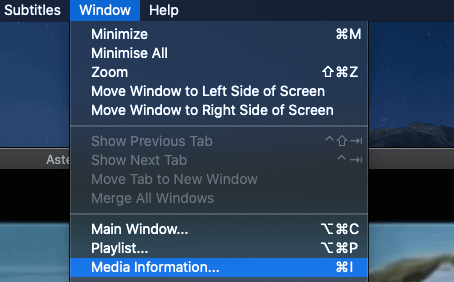
  • If you are on a Mac, now click Window – Media Information. If on Windows, go to Tools – Codec Information.
 - 05
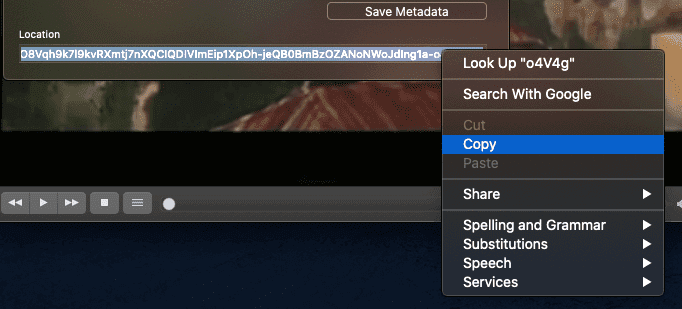
  • At the very bottom of the screen is a very long link in the Location field. Highlight the entire link, right-click and select Copy.
 - 06
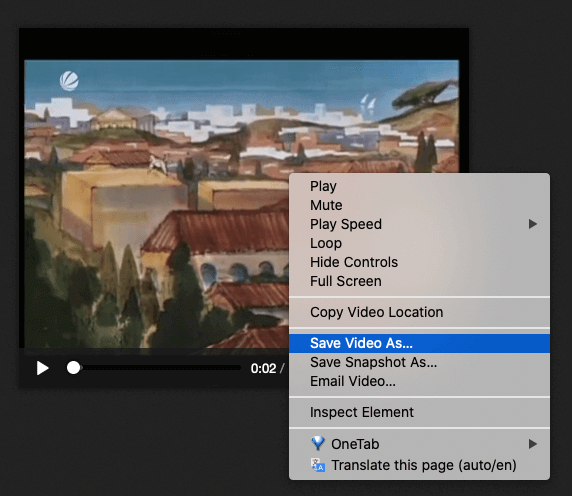
  • Go to a browser and in the URL address bar, paste that long link from the Location field in VLC. The YouTube video should now start playing automatically in the browser. Right-click on the video and choose Save Video As.
 - 07
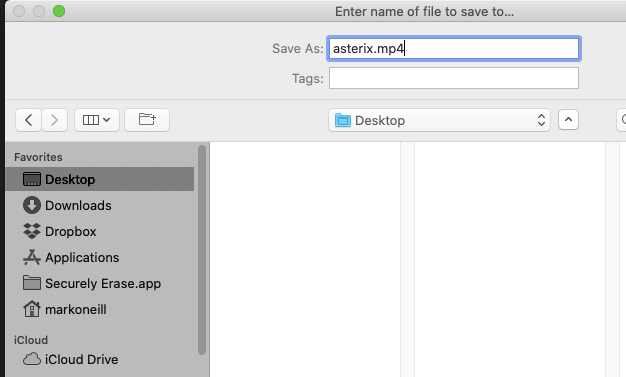
  • By default, the video will be saved as videoplayback (without a format). So give your file a name and try first with an mp4 format. If that doesn’t work, then try avi.
 - 08
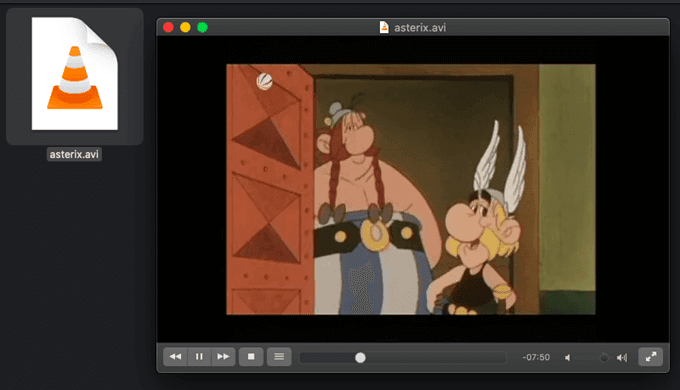
  • Your file will now be downloaded to your computer in the quality that the original uploader provided it in. So picture and audio quality will vary.
 - 09

Given how easy ripping a YouTube video was, who needs online converters and hunting through website page sources? I sure don’t.

Tags: YouTube
Share
Written by

Mark O'Neill

Mark O'Neill is a British award-winning fiction author now living in Würzburg, Germany. He is the creator of the acclaimed Department 89 spy thriller series and the Scorpion novels. <a href='https://www.online-tech-tips.com/author/markoneill/'>Read Mark's Full Bio</a>

View Mark's Profile

Recent Posts

  •  - personal finance tools
    10 AI Money Apps That Make Mint Look MedievalJun 6, 2025
  •  - smartwatches
    Is a Smartwatch Worth It in 2025 and Beyond?May 20, 2025
  •  - slow wifi
    How to Fix Slow Wi-Fi on Your SmartphoneMay 6, 2025
  • Programmer coding at computer. - vibe coding
    Vibe Coding 101: Your Guide to AI-Powered ProgrammingMar 26, 2025

Search

Categories

  • Gaming (345)
  • How-To (1,122)
  • News (43)
  • Reviews (438)
  • Social Media (461)
  • Streaming (174)
  • Uncategorized (4)

Popular Tags

Adobe AI Alexa Amazon Android Buying Guides ChatGPT Chrome Discord Explainers Facebook FireTV Gadget Reviews Gmail Google Google Docs Google Maps Google Sheets Home Networking Hulu Instagram Internet LinkedIn Minecraft Netflix Nintendo Switch PlayStation Premiere Reddit Remote Work Roblox Roku Roundups Smart Home Snapchat Software Reviews Spotify Steam TikTok Twitch VR WhatsApp Windows X (Twitter) YouTube

Our Publishing Family

Online Tech Tips is part of the AK Internet Consulting publishing family.

  • HELP DESK GEEK
  • THE BACK ROOM TECH
  • SWITCHING TO MAC
  • XBOX ADVISOR

Daily Email Newsletter

Connect With Us

About Online Tech Tips

Online Tech Tips has published easy-to-follow technology tutorials, honest reviews, and practical how-to guides since 2007 — helping millions of readers solve tech problems and get more from their devices.

Learn More →

© 2007-2026 Online Tech Tips.com, LLC.
All Rights Reserved.

  • Home
  • About Us
  • Editorial Standards
  • Contact Us
  • Terms of Use
  • Privacy Policy
Online