
Does Instagram display a “Couldn’t refresh feed” error when you open the app’s home page? This tutorial explains why that happens and highlights several ways to fix Instagram’s couldn’t refresh feed issue (on Android and iOS).
Why Instagram Couldn’t Refresh Feed
Instagram displays the “Couldn’t refresh feed” error message when it fails to fetch new content. That usually happens due to a poor internet connection, but it could also be because the platform’s servers are experiencing downtime. Software bugs, corrupt cache data, and incorrect date/time settings can also trigger the error message.
How to Fix “Instagram Couldn’t Refresh Feed”
Depending on what’s causing the issue, there are several ways to stop the “Couldn’t refresh feed” error on Instagram. Force closing, updating, or reinstalling the Instagram app might fix the problem. Other times, the solution lies in rebooting your device or internet router. Follow the troubleshooting steps below to get Instagram fetching new content on your feed.
1. Check Your Internet Connection
Poor internet connection is the major culprit for the “Couldn’t refresh feed” error on Instagram. If Instagram won’t load or refresh your feed, it’s likely due to network connectivity issues. Before anything, verify that your device has an active internet connection—cellular or Wi-Fi.
Open any web browser and visit any website. If your phone has an internet connection, these websites should load. Otherwise, there’s something wrong somewhere with your device’s network connectivity.
If you’re using cellular or mobile data, try the fixes in our mobile data troubleshooting tutorial. For Samsung users, check out 12 ways to fix mobile data Issues on Samsung phones. If your device is using a wireless connection, see our tutorial on fixing Wi-Fi connectivity issues on mobile.
VPNs, firewalls, and other network apps can cause interference that prevents Instagram from loading content. If you’re using any of these apps, turning it off might fix the Instagram feed problem. Contact your cellular carrier or internet service provider for assistance if the error persists.
2. Check if Instagram Is Down
Instagram’s servers sometimes experience downtime, rendering the platform temporarily unavailable. If you, your friends, and other Instagram users are experiencing the refresh feed issue, there’s a chance Instagram servers are down.
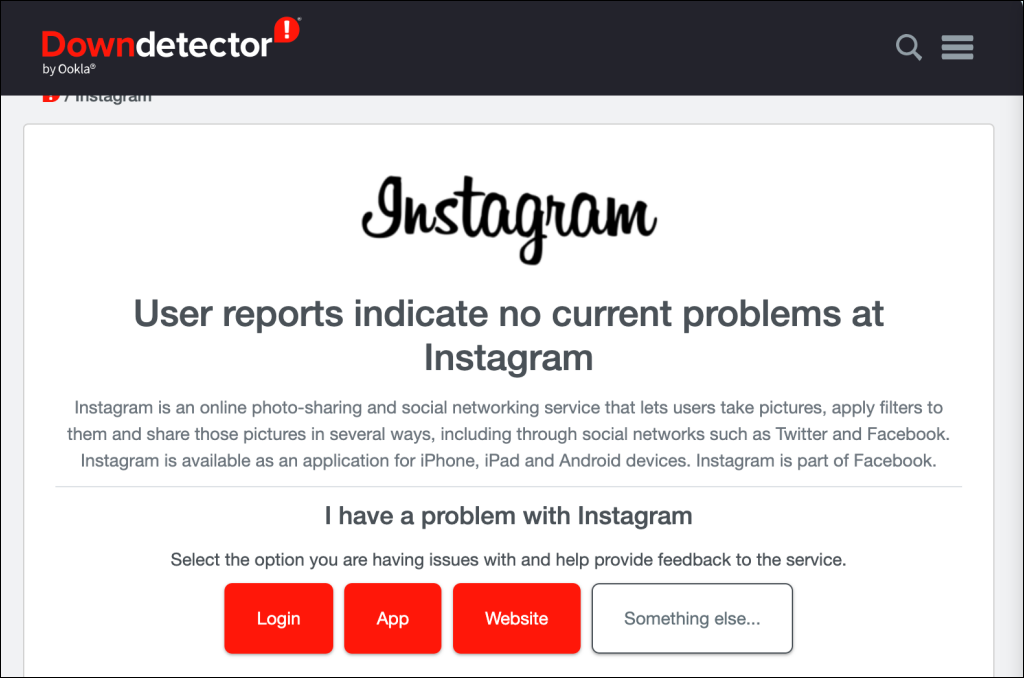
Head over to site-monitoring websites like Downdetector to check Instagram’s server status. The website will tell you if Instagram is experiencing downtime and if other users are getting the same error message.
If the servers are unavailable, you’ll have to wait until the company brings them back up. Otherwise, proceed to the next troubleshooting fix if Downdetector says Instagram servers are up and running.
3. Force Close Instagram
Force-close and reopen Instagram if the app fails to refresh content on your feed. The steps to force close Instagram on Android and iOS devices are straightforward.
How to Force Close Instagram on Android
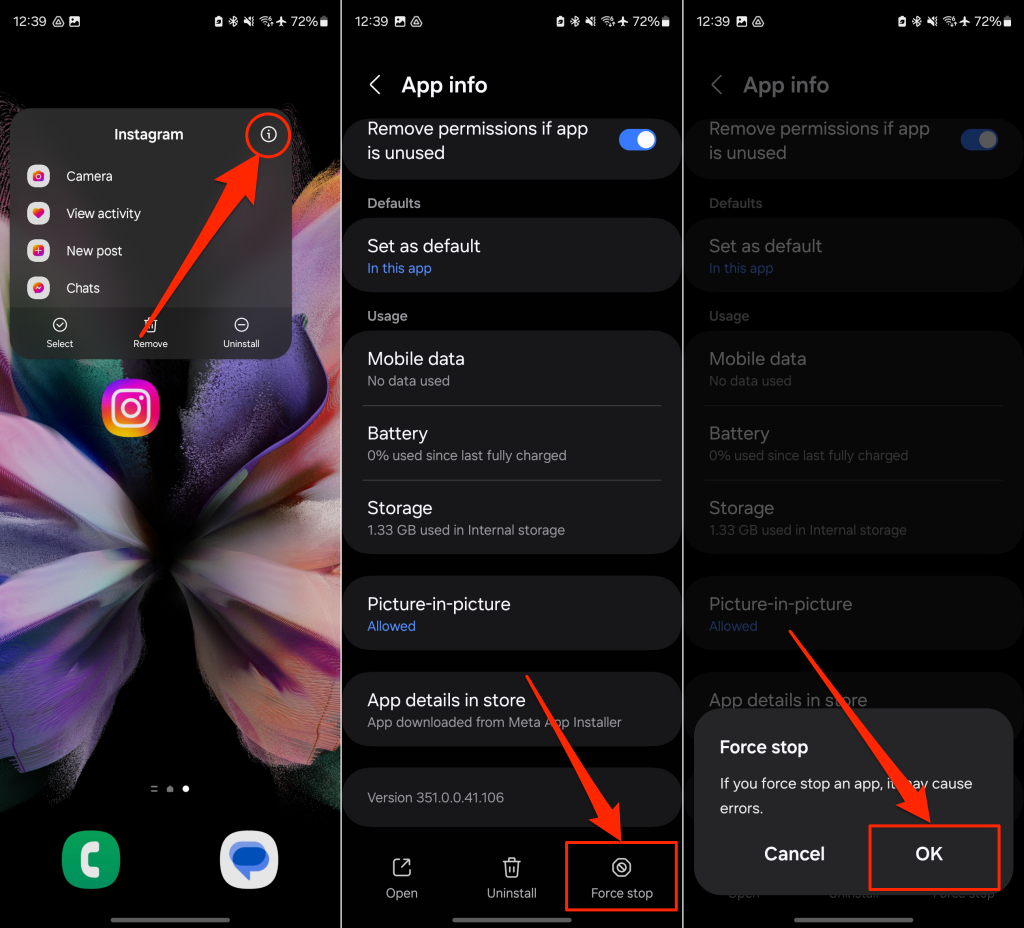
- Long-press the Instagram app icon and tap the Info (i) icon on the pop-up menu.
- Tap Force stop and select OK on the confirmation pop-up.
How to Force Close Instagram on iOS
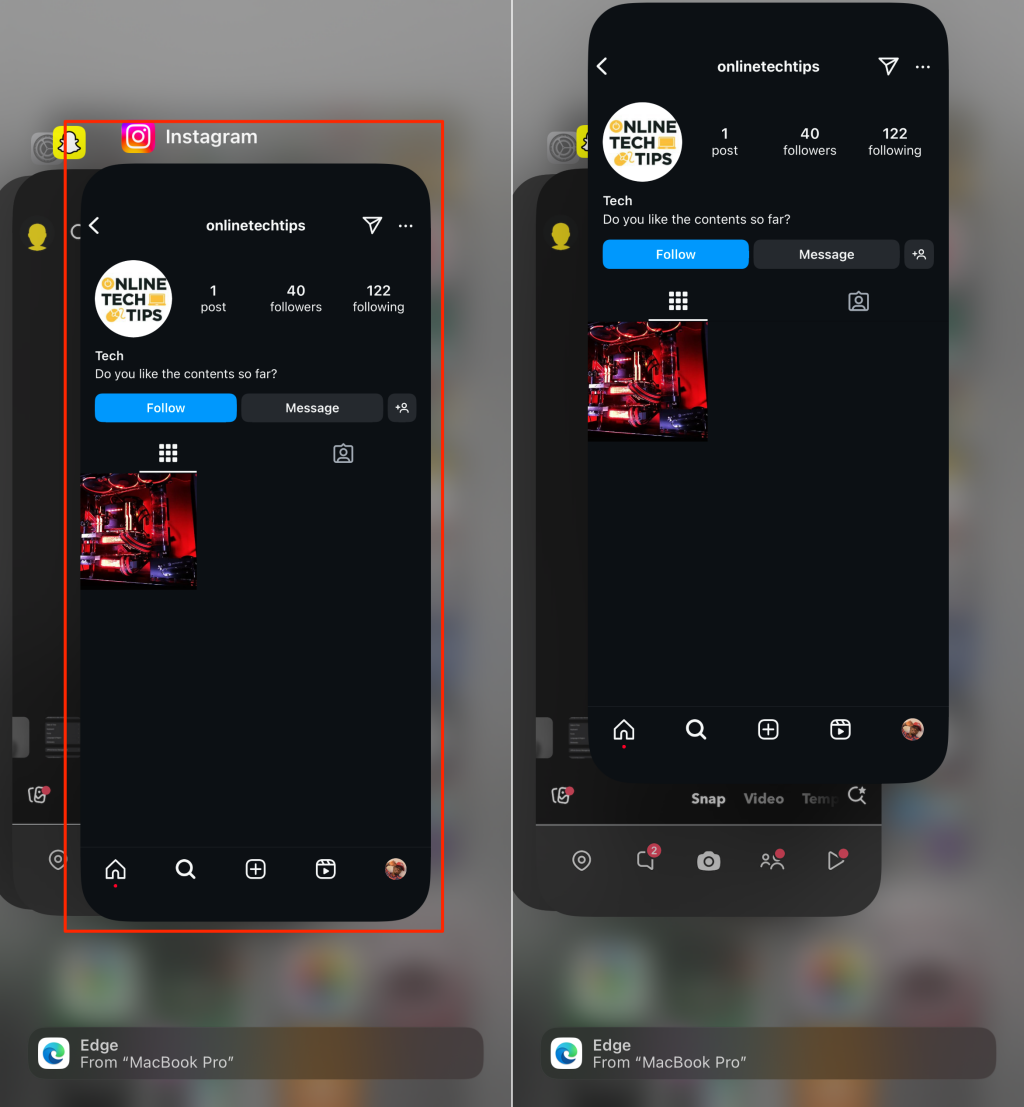
- Swipe up from the bottom of your iPhone and pause in the middle of the screen to open the App Switcher. If your iPhone has a Home button, double-click the Home button to launch the App Switcher.
- Swipe up on the Instagram app preview to close it.
4. Restart Your Device
Temporary system glitches on iOS and Android smartphones sometimes cause Instagram to lag and display error messages. Restarting your phone can fix Instagram and other malfunctioning applications.
How to Restart Your iPhone
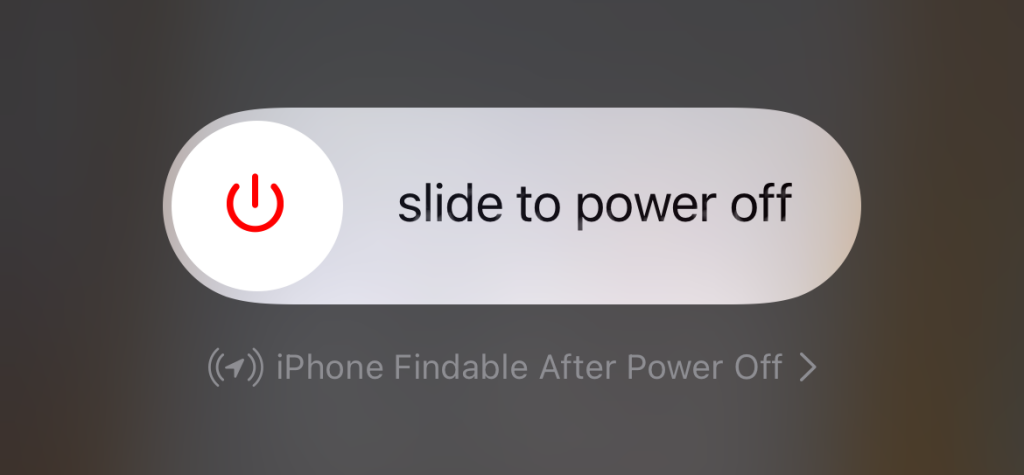
- Press and hold down the Volume Up/Down and Side buttons until the power menu appears.
- Drag the Power icon to the right to turn off your phone.
Alternatively, head to Settings > General > Shut Down and drag the power slider.
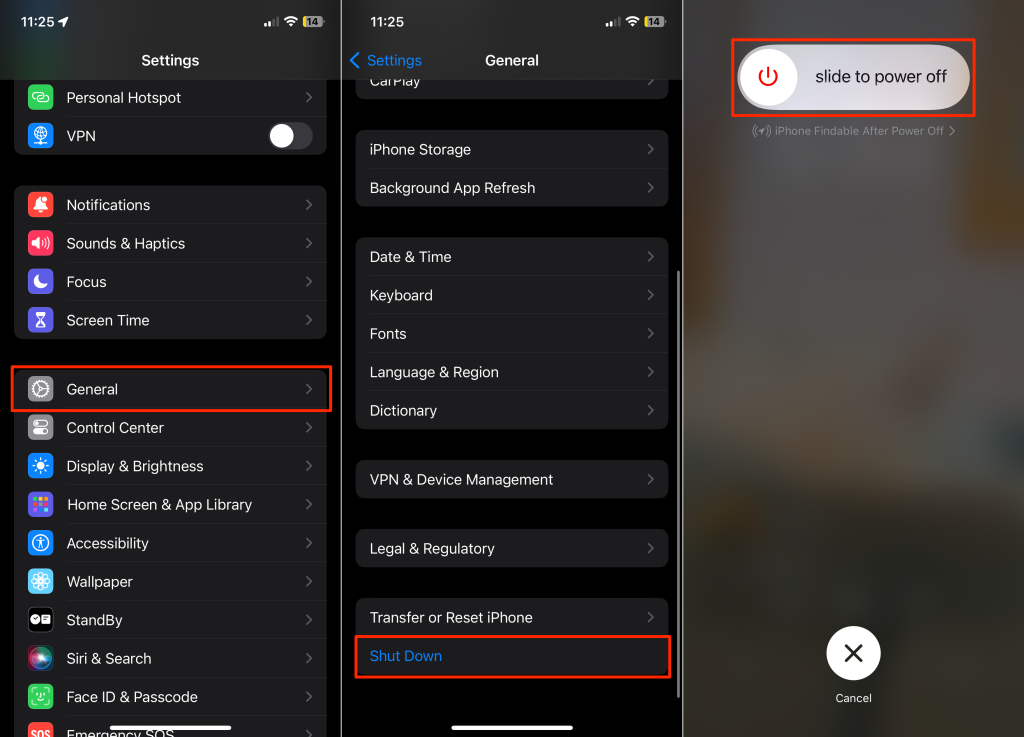
- Wait 2-5 minutes for your iPhone to shut down, then press and hold the Side button to turn it back on. Release the Side button when the Apple logo appears.
How to Restart Your Android Phone
Many Android devices have a “restart” option in their power menus. For some Android phone models, pressing and holding the Power button reveals the power menu.
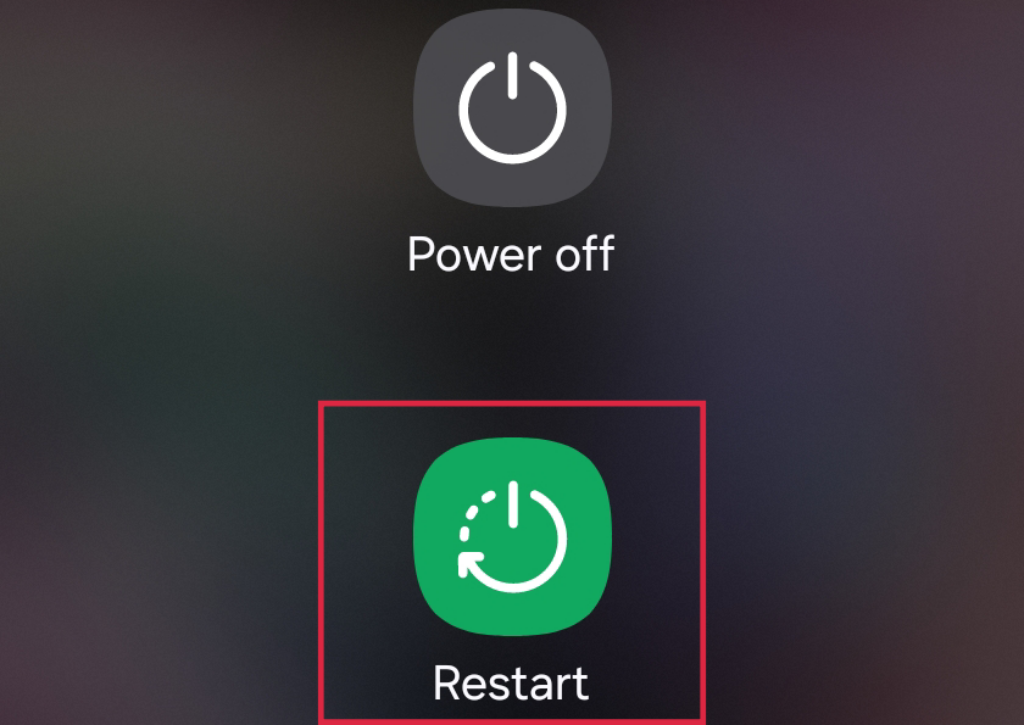
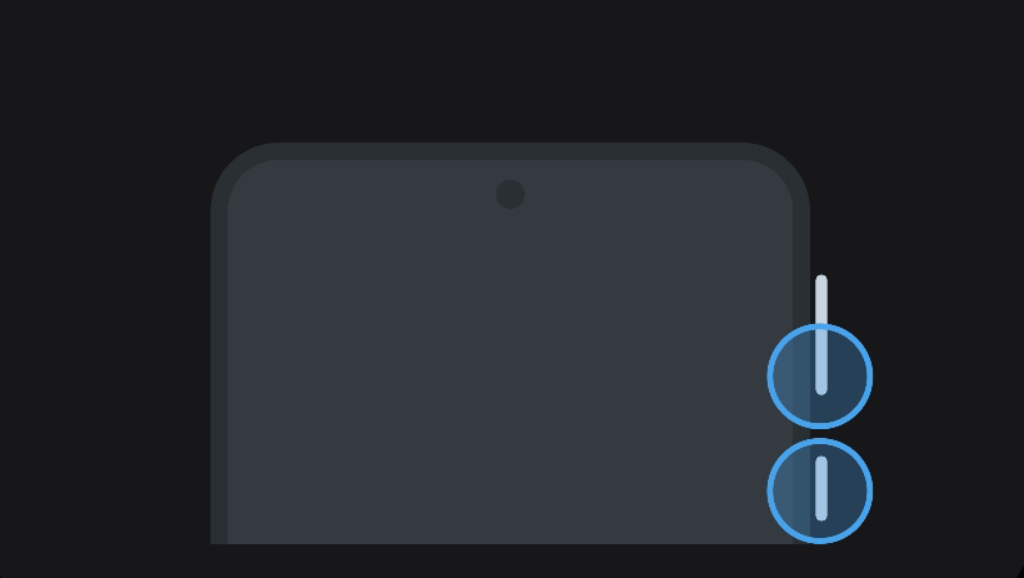
For Samsung phones and some other devices, press and hold the Volume Down and Power buttons for 3-5 seconds and tap Restart in the power menu.
5. Clear Instagram’s Cache Data
Instagram stores cache files on your device to speed up the app’s overall performance. However, the cache data is vulnerable to corruption, which can trigger the “Couldn’t refresh feed” error message and other issues.
Clearing the Instagram app cache can resolve the refresh feed problem. When you delete Instagram’s cache, you don’t lose your account data, login session, and other personal data.
Note that you can only clear Instagram’s cache on Android devices; iOS doesn’t let users clear an application’s cache data. Follow the steps below to clear Instagram’s cache on your Android device.
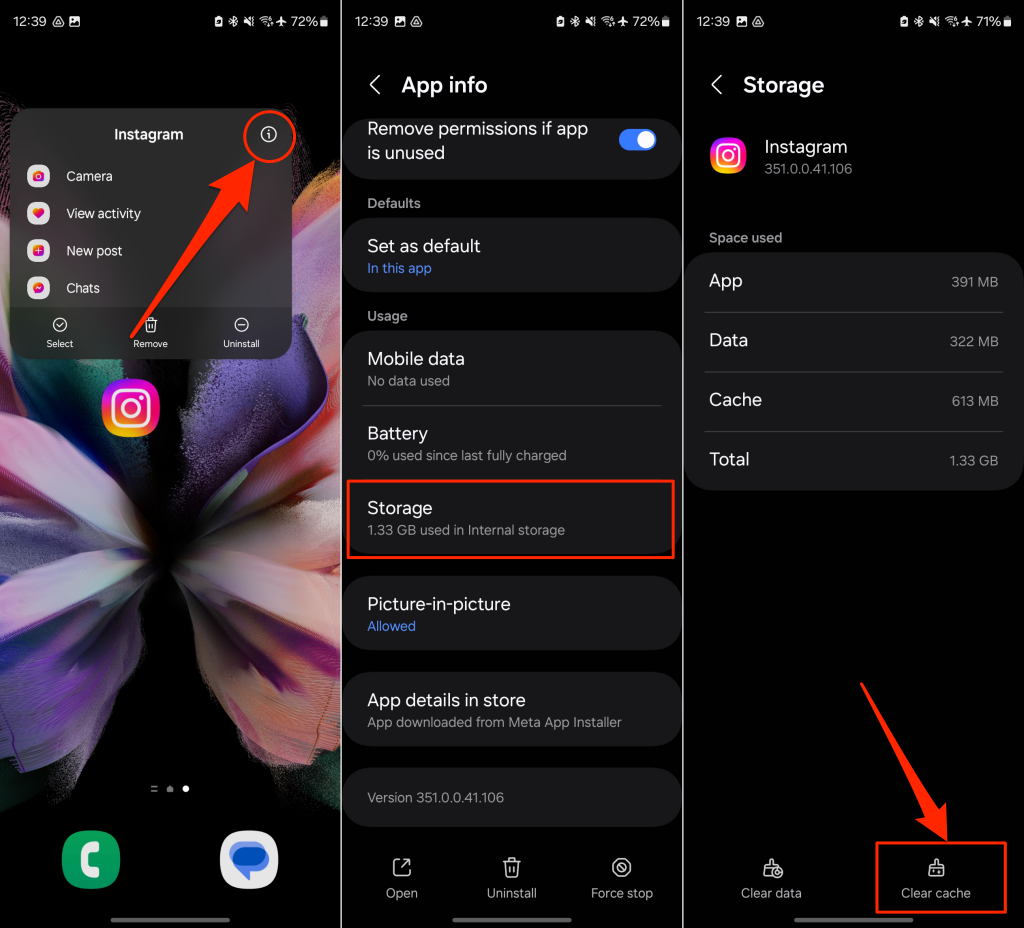
- Long-press the Instagram app icon and tap the Info (i) icon on the pop-up menu.
- Tap Storage and select Clear cache. Afterward, reopen Instagram and check if the app works fine.
6. Log Out Of Your Instagram Account (and Back In)
You could get the “Couldn’t refresh feed” Instagram error because your login session is experiencing an issue. Signing out of Instagram and logging might stop the error message. Keep your login details handy, as you’ll need those to sign in to your account in the app.
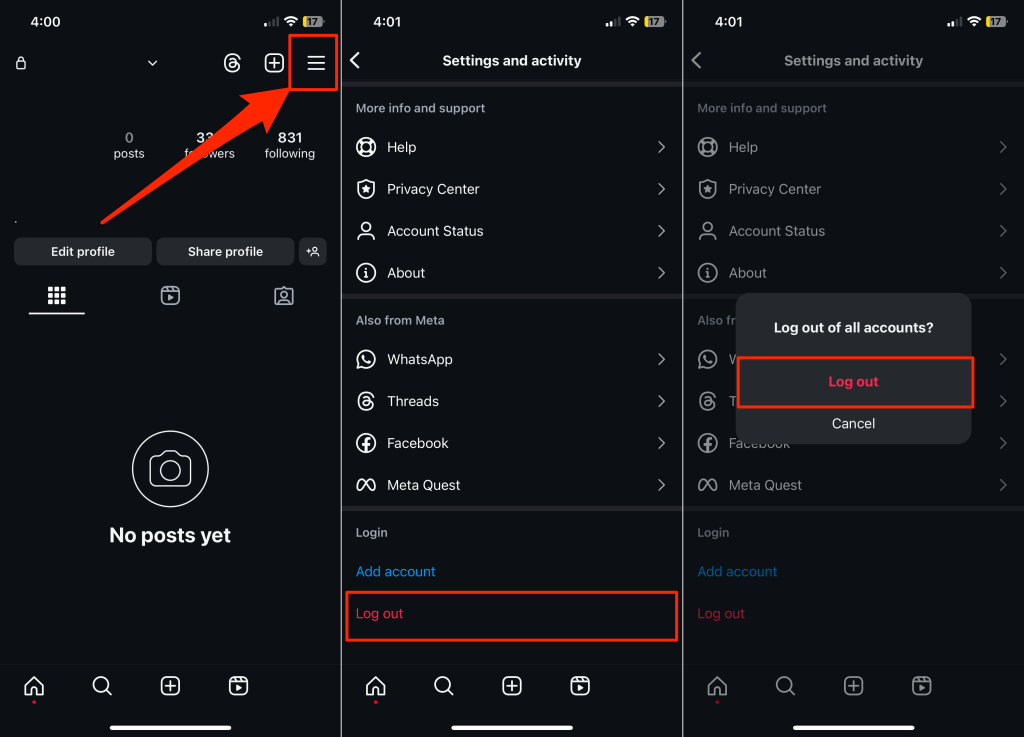
- Open the Instagram app and tap your profile picture in the bottom-right corner.
- Next, tap the More options icon in the top-right corner.
- Scroll down the “Settings and activity” page, tap Log out, and select Log out again on the confirmation pop-up.
Log back into your account and check if the app loads and refreshes content on your feed. If the feed problems persist, proceed to the next troubleshooting fix below.
7. Turn Off Instagram’s Data Saver Mode
Instagram preloads content by default so that it loads faster when you scroll down your feed. The app also has a “Data saver” feature that stops it from preloading content. While this feature does reduce the app’s data usage, it can sometimes delay Instagram’s content refresh speed.
If you have “Data saver” enabled in Instagram, turning it off could get the app to work properly without any error.
How to Turn Off Instagram Data Saver (Android)
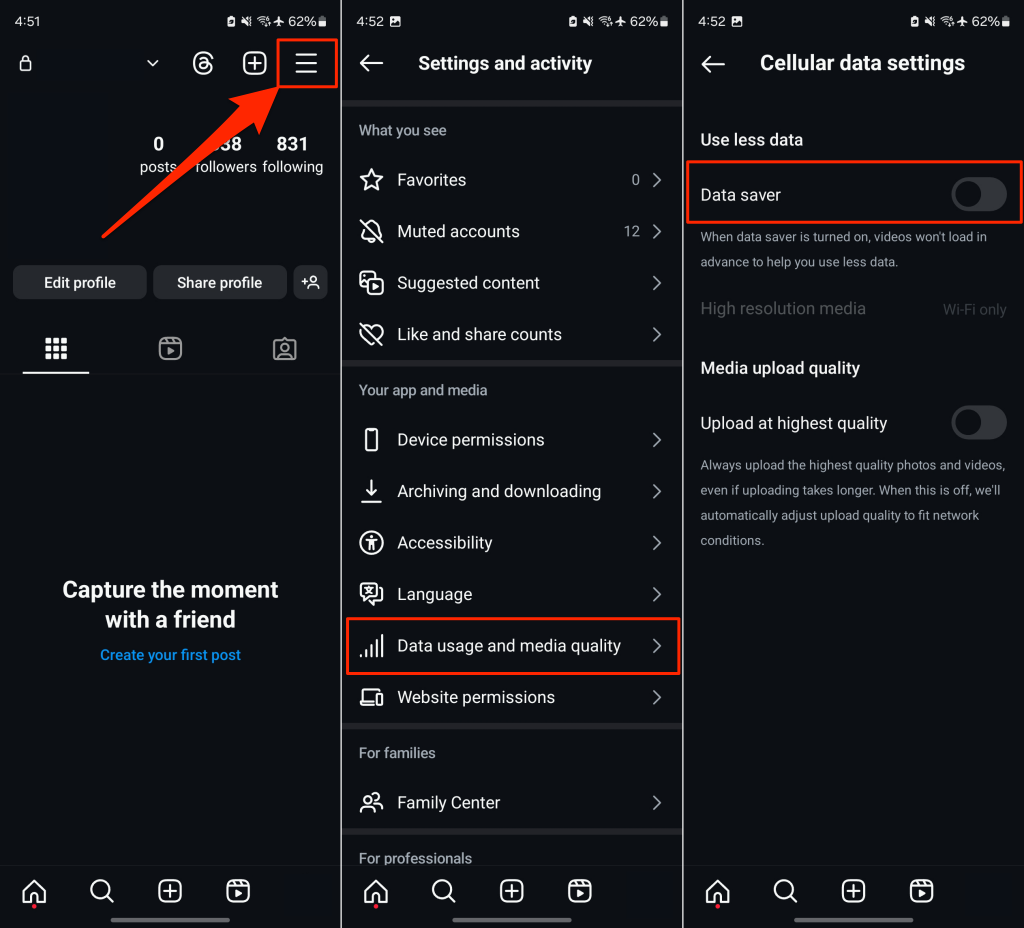
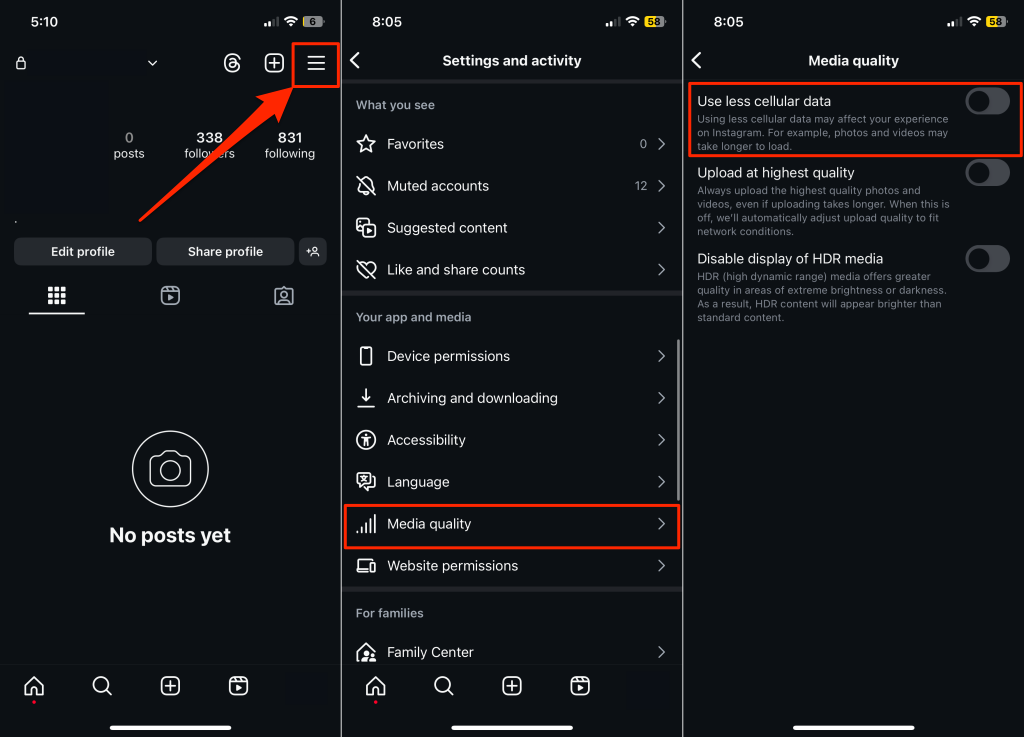
- Open the Instagram app, tap your profile photo, and select the More options icon in the top-right corner.
- Scroll down the “Settings and activity” page and tap Data usage and media quality.
- Toggle off Data saver.
How to Turn Off Instagram Data Saver (iPhone)
- Open Instagram, select your profile photo, and tap the More options icon in the top-right corner.
- Next, select Media quality on the “Settings and activity” screen.
- Finally, turn off Use less cellular data.
8. Adjust Your Phone’s Date and Time Settings
Instagram and other apps require the correct date and time to work correctly. Incorrect date/time settings might prevent Instagram from loading content. Head to your phone’s settings menu and ensure you have the accurate date and time settings.
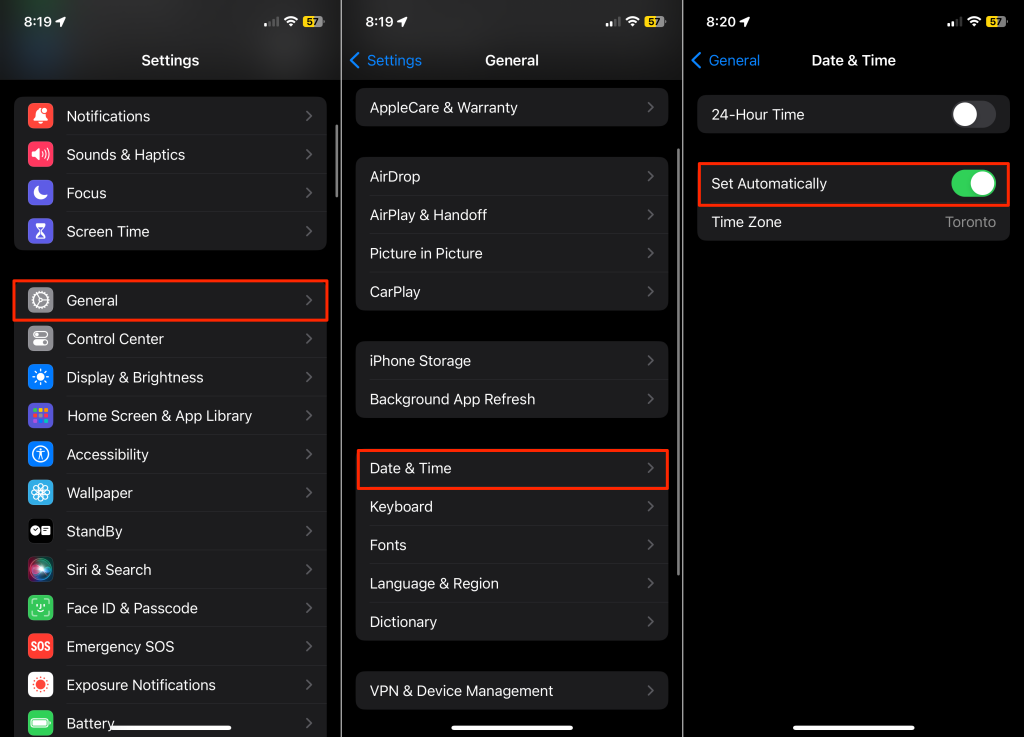
How to Adjust Date and Time Settings on iPhone
Go to Settings > General > Date & Time and toggle on Set Automatically.
How to Adjust Date and Time Settings on Android
If your phone runs stock Android, go to Settings > System settings > Date & time and turn on both Set time automatically and Set time zone automatically.
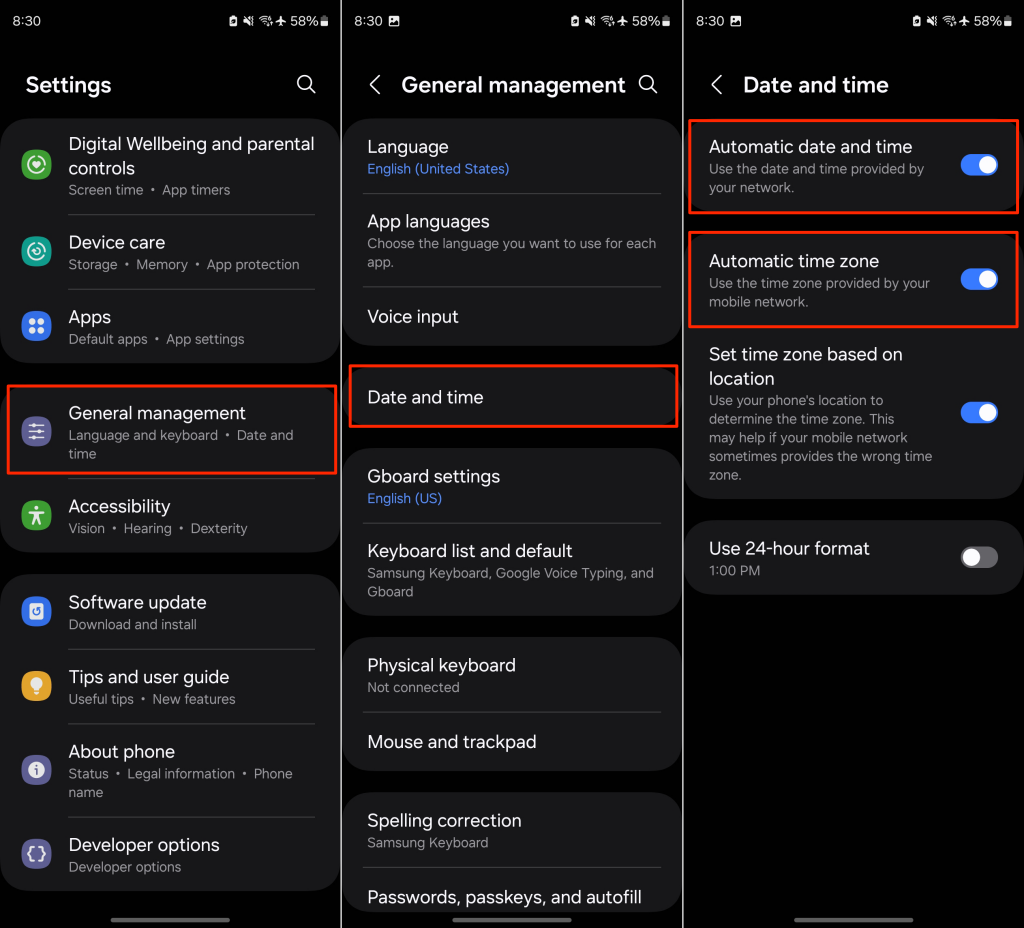
For Samsung devices, head to Settings > General management > Date and time, and toggle on Automatic date and time and Automatic time zone.
9. Update the Instagram App
An outdated app often has bugs that cause it to crash, malfunction, or throw several errors. If the refresh issue persists after trying the above fixes, ensure you aren’t using an outdated version of Instagram. Open your device’s app store and update Instagram to the latest version.
How to Update Instagram on iPhone
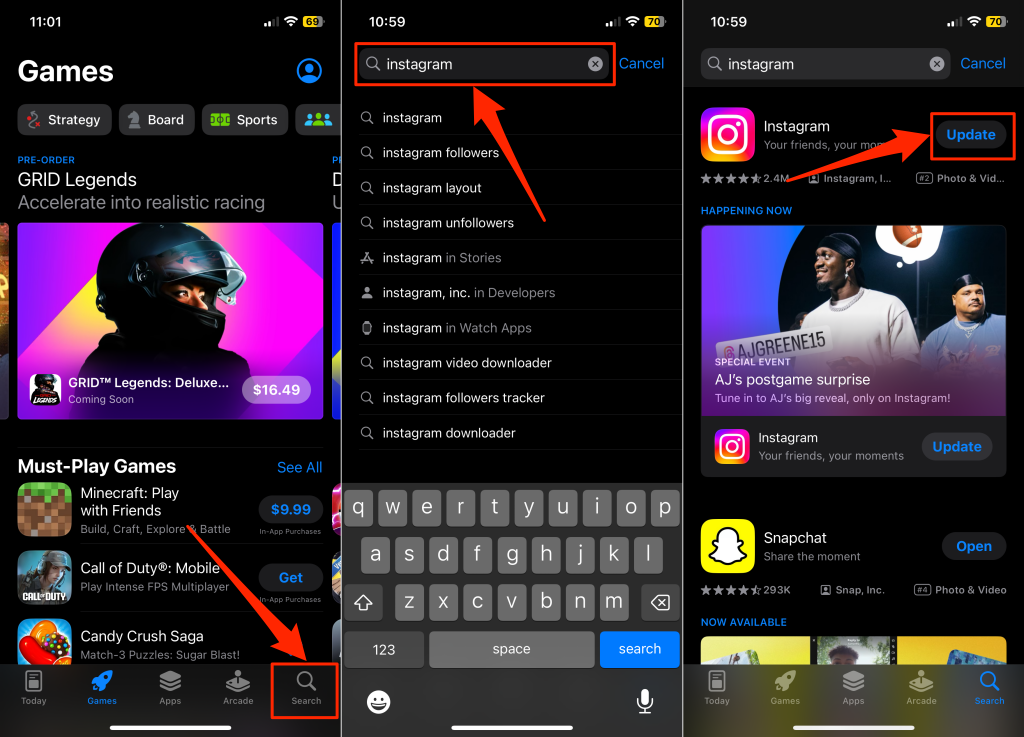
Follow the steps below to update Instagram to the latest version on your iPhone.
- Open the App Store and tap your profile icon in the top-right corner.
- Scroll down to the “Upcoming Automatic Updates” section and tap Update next to Instagram.
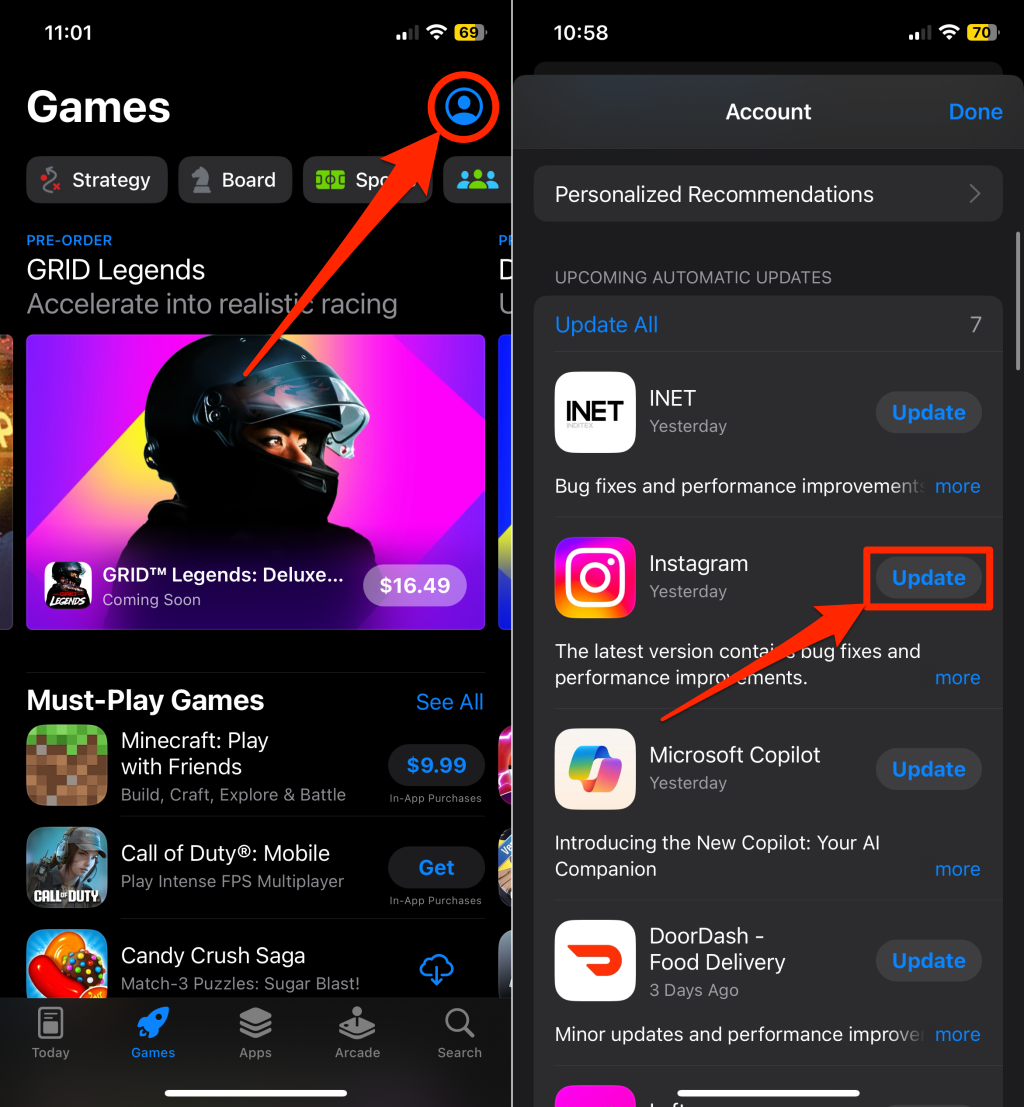
Alternatively, open the Search tab, type “instagram” in the search bar, and tap the Update button next to Instagram.
How to Update Instagram on Android
Follow the steps below to update the Instagram app on your Android device to the latest version.
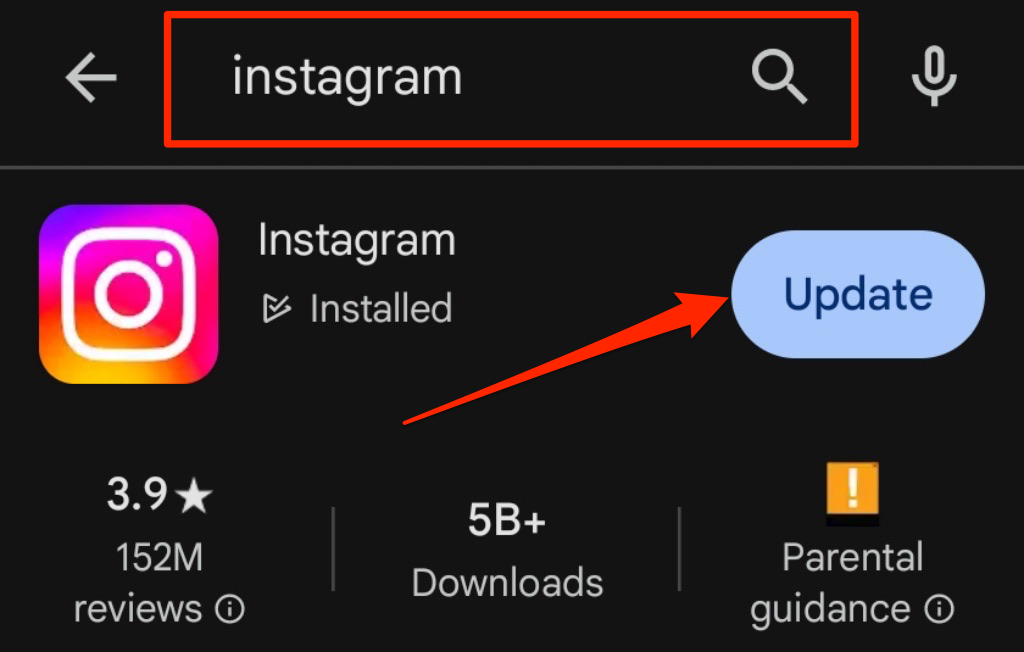
- Open Google Play Store and enter “Instagram” in the search bar.
- If you see an “Update” button next to Instagram, you have an outdated version of the app. Tap the Update button to install the latest version on your phone or tablet.
10. Reinstall the Instagram App
The Instagram app may keep throwing the “Couldn’t refresh feed” error due to corrupt core files. Uninstalling and reinstalling Instagram can replace the corrupt files and get the app working again.
How to Reinstall Instagram On iPhone
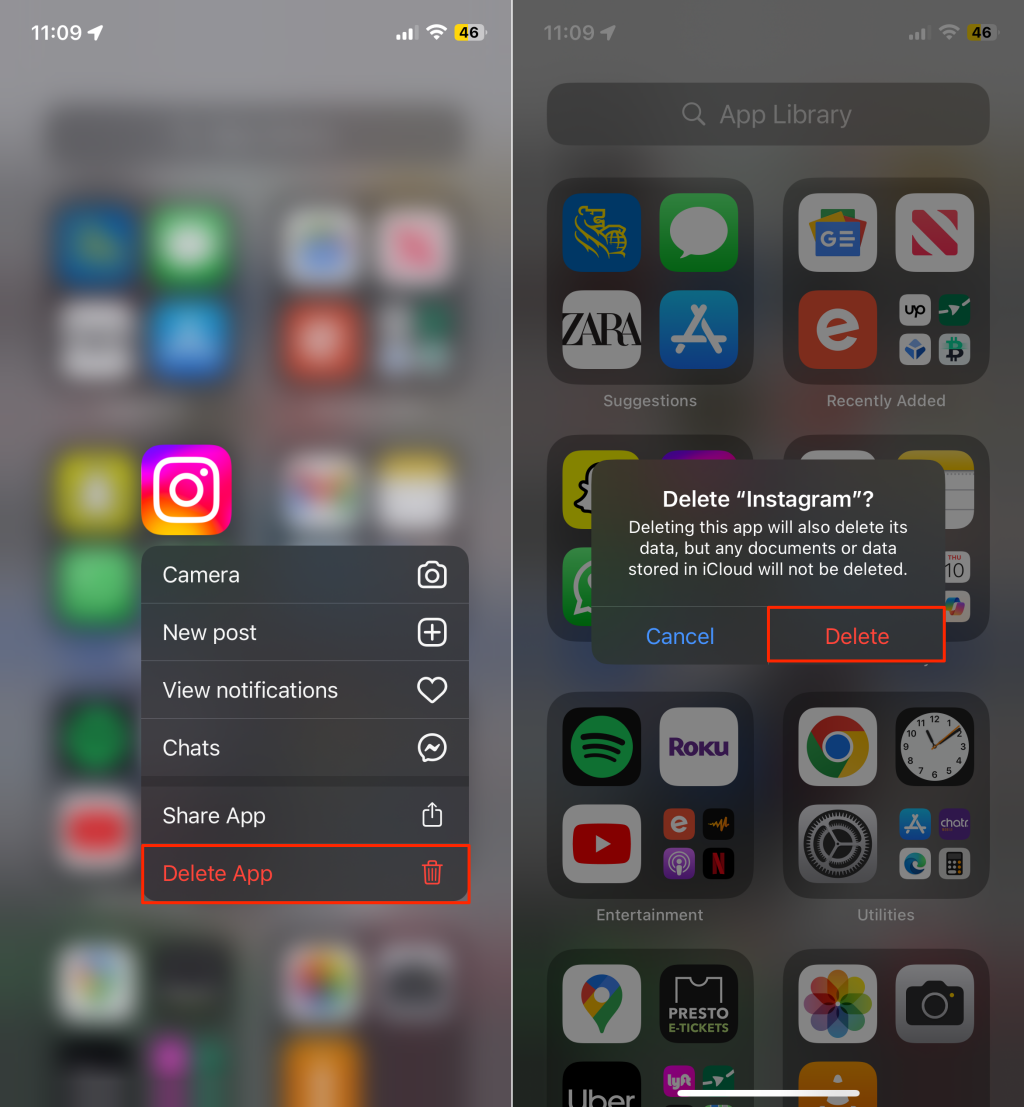
- Open your iPhone’s app library, then tap and hold the Instagram app icon.
- Select Delete App on the pop-up menu.
- Tap Delete to uninstall Instagram from your iPhone.
- Reinstall Instagram from the App Store and check if it loads the content feed.
How to Reinstall Instagram on Android
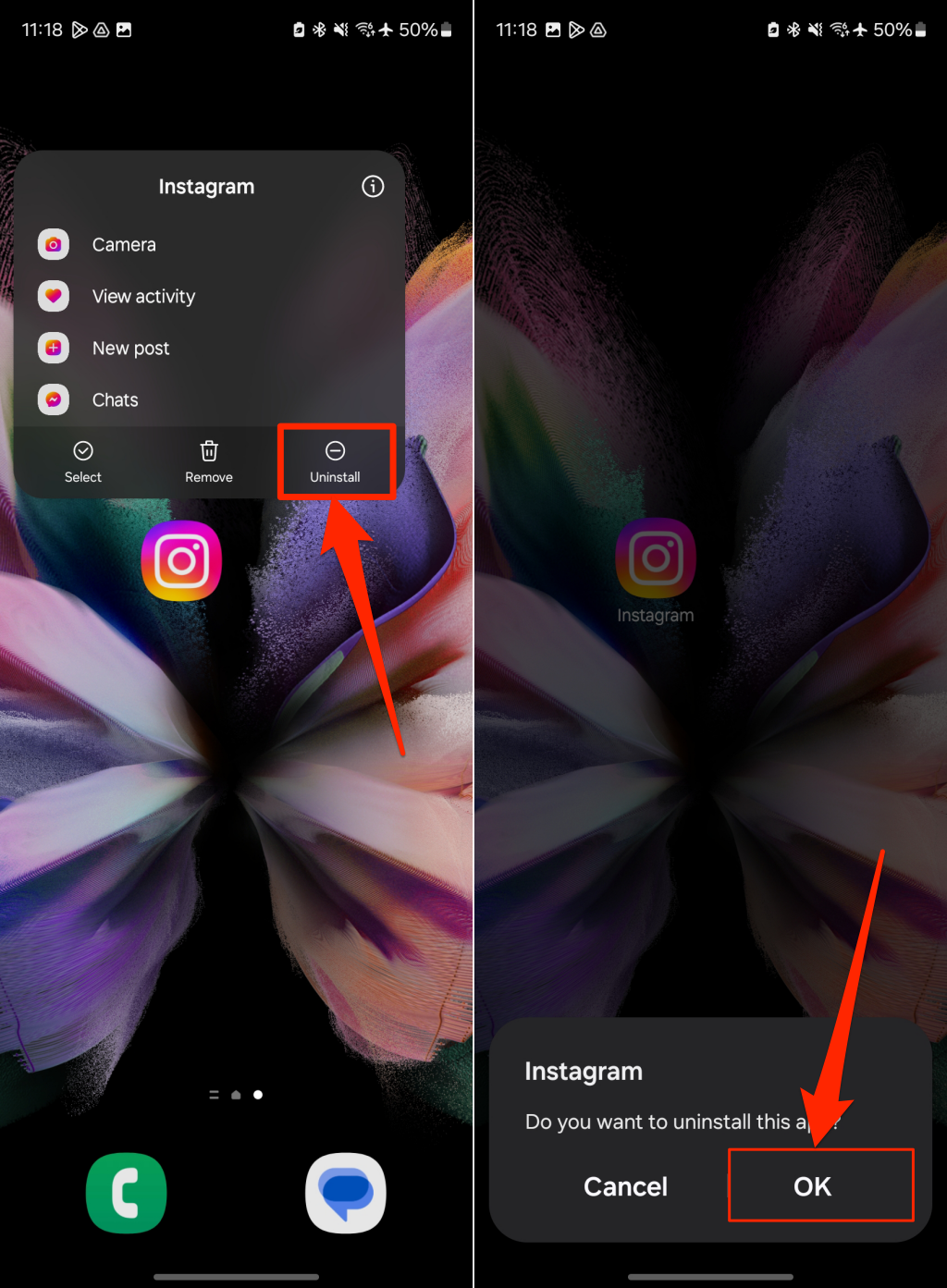
- Tap and hold the Instagram app icon and select Uninstall.
- Select OK on the confirmation screen to uninstall Instagram from your device.
- Reinstall Instagram from the Play Store. Next, sign in to your account and check if the app loads the content feed without error.
Fix Instagram and Get Your Feed Refreshed
The “Couldn’t refresh feed” error on Instagram prevents you from viewing newer content in the app. All the methods above should get Instagram to load your feed without issues. If the issue persists, submit a report to Instagram—launch Instagram, shake your phone, and follow the on-screen instructions.