
Skip to content
ONLINE 101010 TECH 010101 TIPS
  • Latest
  • News
  • How-To
  • Social
  • Streaming
  • Gaming
  • Reviews
  • Latest
  • News
  • How-To
  • Social
  • Streaming
  • Gaming
  • Reviews
  1. Home/
  2. Social Media/
  3. How To Download a Full-Size Version Of An Image From Instagram

How To Download a Full-Size Version Of An Image From Instagram

Mark O'Neill
June 2, 2019
3 min read
 - 01

Instagram is rapidly overtaking other social networking sites as the place to post your photos of selfies, lunch, and belly button lint. But what if, when you are scrolling, you want to save a copy of an image?

Unlike other sites, such as Facebook, it isn’t possible to right-click on an image and choose “Save As”. The “Save As” option is there, but you can only save as a HTML webpage, not in an image format.

Grabbing Your Version

If you are not too fussed about how big the picture is, you can just screenshot the screen then trim down to size. This is what I do a lot of the time.

But if someone has posted a truly sensational picture, and you want the full size version, then you are going to need to go a bit further – and it can only be done on the desktop, not your mobile Instagram app.

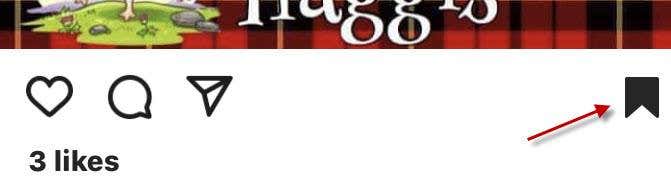
If you are on your mobile device when you first see the image, you will need to bookmark it to find it easily again. Just tap the bookmark icon to the right of the picture.
 - 02

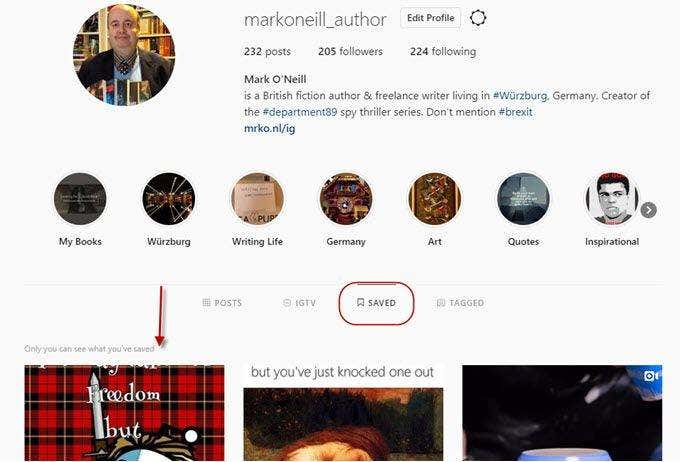
Now to go to your Instagram author page on a desktop and click on the “Saved” section. Now click on the picture you just bookmarked.
 - 03

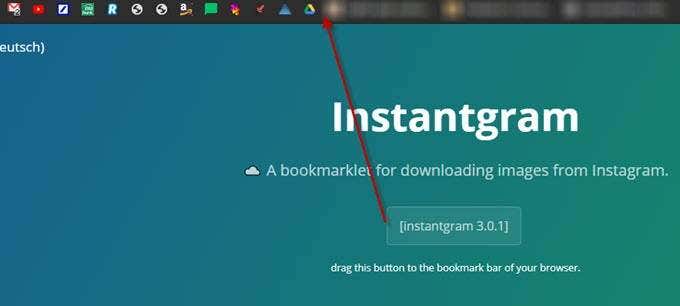
Now go to Instantgram which is a browser bookmarklet. Drag the bookmarklet from the rectangle on the page up to your browser bar.
 - 04

Go back to the image in Instagram and now click the Instantgram bookmarklet once.

 - 05

A new tab will now open with the full-size version of the picture.

 - 06

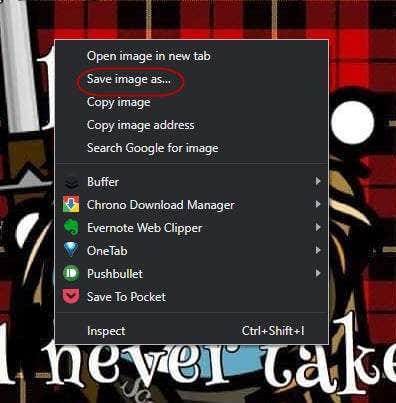
Now you can save the image as an image and not as a stupid HTML page.
 - 07

Why Instagram chooses to make downloading images this difficult is beyond me, especially when everybody these days knows how to make a screenshot. It’s also a bit awkward that this can only be done on a desktop computer and not on your mobile device.

It’s also worth bearing in mind that you may go to these extra lengths and end up with an image size not much bigger than what you would have got if you had simply screenshotted it to begin with. There’s no guarantee the original image poster uploaded something enormous to begin with.

Check out our other Instagram articles on the best apps for using Instagram on a PC and how to properly browse and search Instagram.

Tags: Instagram
Share
Written by

Mark O'Neill

Mark O'Neill is a British award-winning fiction author now living in Würzburg, Germany. He is the creator of the acclaimed Department 89 spy thriller series and the Scorpion novels. <a href='https://www.online-tech-tips.com/author/markoneill/'>Read Mark's Full Bio</a>

View Mark's Profile

Recent Posts

  •  - personal finance tools
    10 AI Money Apps That Make Mint Look MedievalJun 6, 2025
  •  - smartwatches
    Is a Smartwatch Worth It in 2025 and Beyond?May 20, 2025
  •  - slow wifi
    How to Fix Slow Wi-Fi on Your SmartphoneMay 6, 2025
  • Programmer coding at computer. - vibe coding
    Vibe Coding 101: Your Guide to AI-Powered ProgrammingMar 26, 2025

Search

Categories

  • Gaming (345)
  • How-To (1,122)
  • News (43)
  • Reviews (438)
  • Social Media (461)
  • Streaming (174)
  • Uncategorized (4)

Popular Tags

Adobe AI Alexa Amazon Android Buying Guides ChatGPT Chrome Discord Explainers Facebook FireTV Gadget Reviews Gmail Google Google Docs Google Maps Google Sheets Home Networking Hulu Instagram Internet LinkedIn Minecraft Netflix Nintendo Switch PlayStation Premiere Reddit Remote Work Roblox Roku Roundups Smart Home Snapchat Software Reviews Spotify Steam TikTok Twitch VR WhatsApp Windows X (Twitter) YouTube

Our Publishing Family

Online Tech Tips is part of the AK Internet Consulting publishing family.

  • HELP DESK GEEK
  • THE BACK ROOM TECH
  • SWITCHING TO MAC
  • XBOX ADVISOR

Daily Email Newsletter

Connect With Us

About Online Tech Tips

Online Tech Tips has published easy-to-follow technology tutorials, honest reviews, and practical how-to guides since 2007 — helping millions of readers solve tech problems and get more from their devices.

Learn More →

© 2007-2026 Online Tech Tips.com, LLC. All Rights Reserved.

  • Home
  • About Us
  • Editorial Standards
  • Contact Us
  • Terms of Use
All systems operational