

When you start your first Discord server, one of the first things you may want to do is to create roles within it that you can assign to your server users. Roles in Discord are positions that provide certain abilities within the group. For example, someone with an Admin role might have the ability to ban users, change names, or moderate the chat.
Doing this is a very easy process, and as the owner of a server you can change the roles within it whenever you want. Here’s how to add, manage, and delete roles in your own Discord server.
How to Add Roles in Discord
Once you create your server, you’ll be taken to the general text chat channel. From here, you’ll be able to fully customize your server, including adding roles. Follow these steps in order to add some.
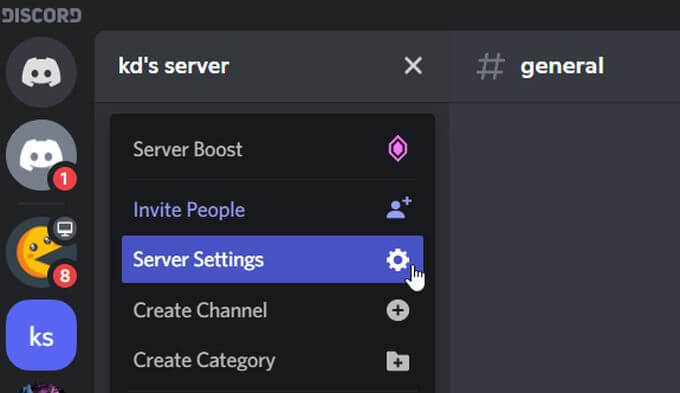
- Next to the name of your server, there is an icon of a down arrow. Click this to open up a dropdown and select Server Settings.
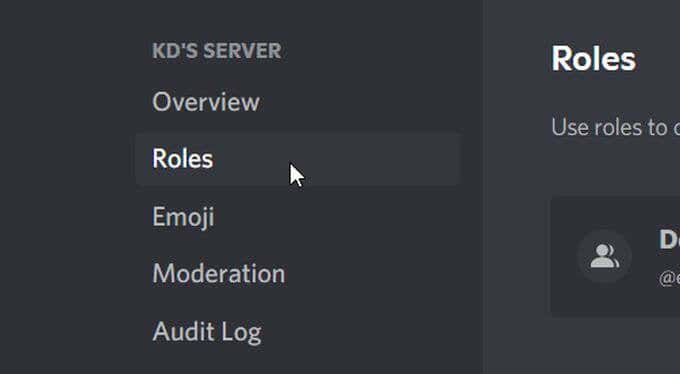
- On the sidebar, select Roles.
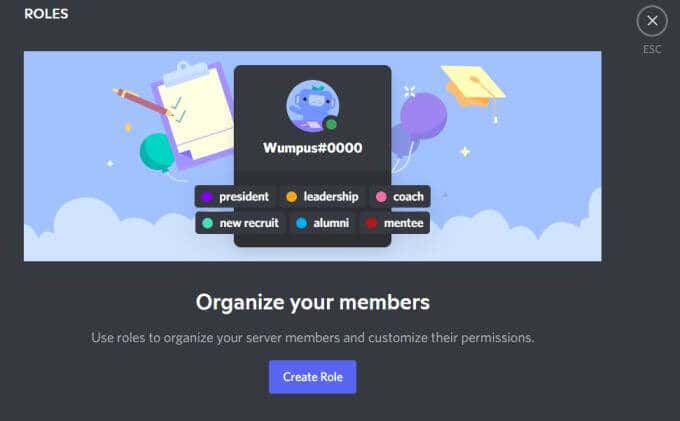
- On this page there is a large button in the center that reads Create Role. Select this.
- You’ll now be on the role creation page. In the first tab you’ll be able to edit the role’s display within your server, such as the name of the role and the assigned color.

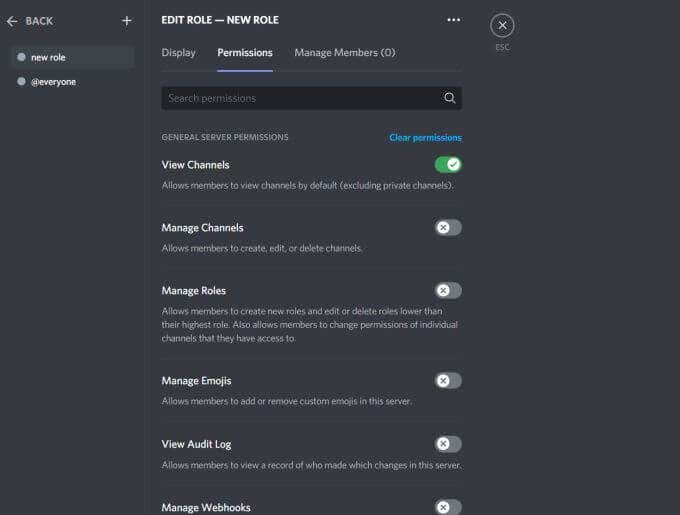
- On the Permissions tab, you can then assign permissions to the role. These are actions that the user is allowed to do on this server.
- On the Manage Members tab, you can then add members of your server to this role.
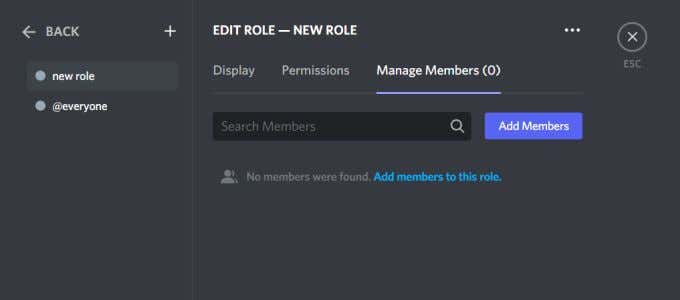
- Once you’re done creating your role, select the green Save Changes button.

After this, the role will be added to your server. When you go to the main channel in your server, you should see the role and the members you’ve added to the role just below it.
How to Manage Roles in Discord
Once you’ve created a role, you always have the option to edit it whenever you want or need to. This may be necessary if more members join, if you ever want to change role names, or to change permissions.
Here’s how to manage the roles you have created.
- When you open the Roles page in the Server Settings, you will see a list of every role you’ve already created.
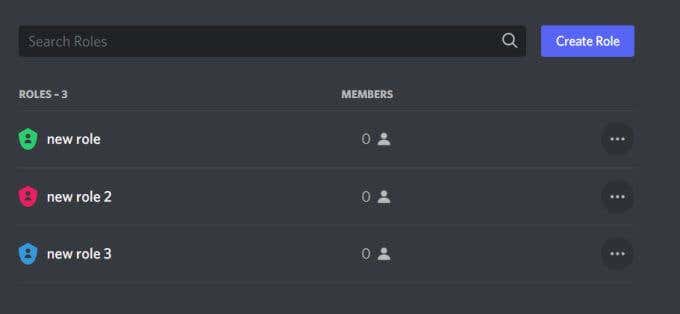
- Besides each created role, you’ll see how many members are assigned to it. You can click on this number to be taken to the Manage Members tab in the role editor. There, you can see the names of members, as well as add or remove members from the role. You should also know that members can have multiple roles within a server.
- Back on the main Roles page, you can also click on the pencil icon when you hover over a role to be brought to the role editor.

- Once you’ve finished editing your Discord roles, remember to click the green Save Changes button.
You’ll also notice that there is a default role that’s automatically been created– the @everyone role. This is one that applies to everyone who is part of the server. To edit this role, you can go to the role editor for any of your current roles, and then on the sidebar select the @everyone role.
There’s no limit to how many times you can change the options of each role, so don’t worry about making your role perfect right away. In fact, you’ll probably need to edit roles often at first as you get a feel for how they operate and how permissions work.
How to Delete Roles in Discord
In this role creation and editing process, if you find that you no longer need or want a role in your server, you can also delete them. Be careful with this, though, as there’s no way you can get a deleted Discord role back other than making an entirely new one.
Here’s how to delete a Discord server role.
- Go to Server Settings > Roles.
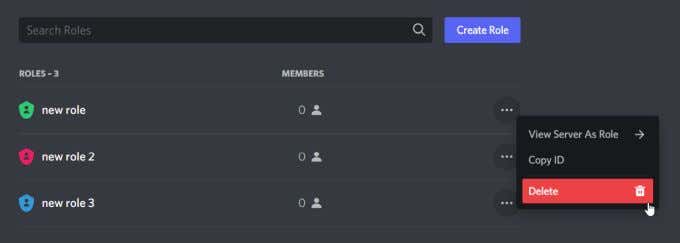
- In the list of all created roles, find the one you want to delete. Select the ellipses icon on the right end side, and then select Delete.
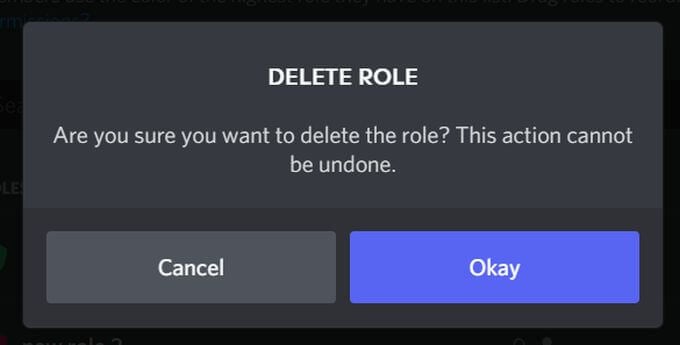
- There will be a pop up to confirm whether or not you want to delete the role and warning you that a role deletion cannot be undone. If you still want to delete the role, select Okay.
- The role should be removed from the list and no longer available on the server.
Once you delete a role, everyone who was initially assigned that role will no longer have it assigned to them, but will still be part of the @everyone role.
If you delete a role that has been granted a lot of permissions, such as an admin role, if you are the owner of the server you will still have full admin capabilities. However, anyone else you have designated as an admin will lose their permissions if the role is deleted. So, keep this in mind when getting rid of roles.
Adding, Managing, and Deleting Roles in Discord
Making a Discord server can be a great experience. It lets you bring together friends or people who share common interests. Creating Discord roles adds another layer to your Discord server to make things safer with moderators, or fun and interesting by adding unique roles that members can attain.
Since you always have the ability to edit and delete roles as well, it makes the whole process much smoother and takes a lot of headache out of trying to create your very own Discord server environment.