

Ever tried explaining something over the phone that would take 30 seconds to show on screen? Yeah, that’s why screen sharing exists. Whether you’re helping your parents troubleshoot their computer, collaborating on a work project, or running a meeting with people scattered across the country, screen sharing has become as essential as email.
The screen sharing landscape has completely transformed since the early days. What used to require downloading sketchy software and crossing your fingers it would work now happens with a single click in your browser. Better yet, most of the best tools are completely free (with some reasonable limits, of course).
What is Screen Sharing?
Screen sharing lets you broadcast what’s on your computer screen to other people in real-time. Think of it like holding up your laptop screen for someone to see, except they can be anywhere in the world and you don’t get a sore arm.
Key features you’ll find in modern screen sharing tools:
- Browser-based access: Most tools work directly in web browsers without downloads
- Mobile support: View shared screens on phones and tablets
- Remote control: Let someone else control your mouse and keyboard (when you want them to)
- Multi-platform support: Works across Windows, macOS, iOS, and Android
- Recording capabilities: Save important sessions for later reference
The 6 Best Free Screen Sharing Tools
1. Zoom — Best for General Meetings
Let’s be honest, Zoom became a household name for a reason. It just works and it works well across every device you can think of.
What you get for free:
- Up to 100 participants in group meetings (40-minute limit)
- Unlimited one-on-one meetings
- Screen sharing with annotation tools
- Cross-platform support (Windows, macOS, iOS, Android)
- Recording to local computer
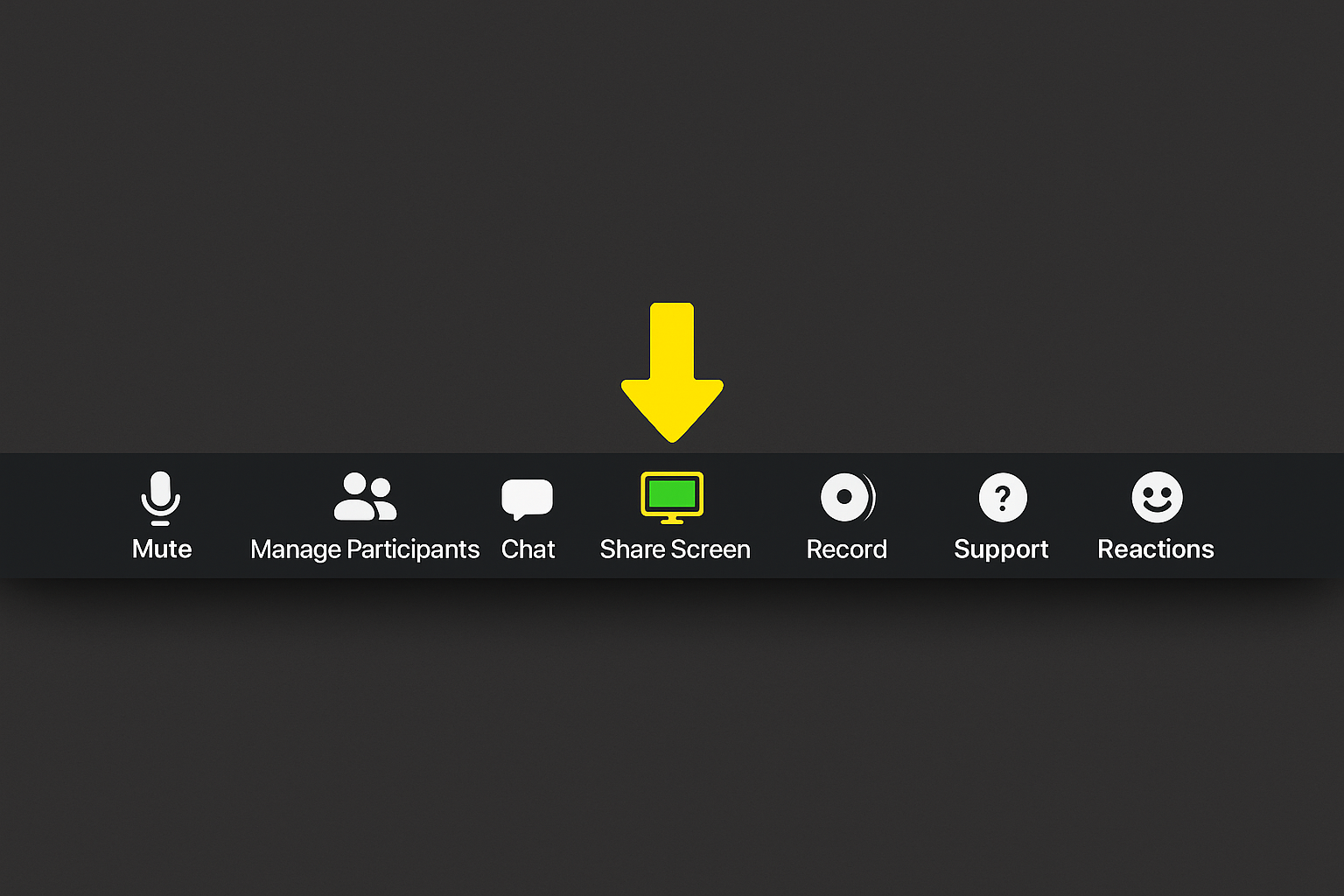
Best for: Regular team meetings, webinars, and situations where you need rock-solid reliability. The 40-minute limit on group calls is annoying, but you can always start a new meeting.
2. Microsoft Teams — Best for Workplace Collaboration
If your workplace uses Office 365 or you’re already in the Microsoft ecosystem, Teams is a no-brainer. It integrates seamlessly with all your work tools.
What you get for free:
- Unlimited group meetings (no time limits)
- Up to 100 participants
- Integration with Office apps
- File sharing during meetings
- Chat and collaboration tools
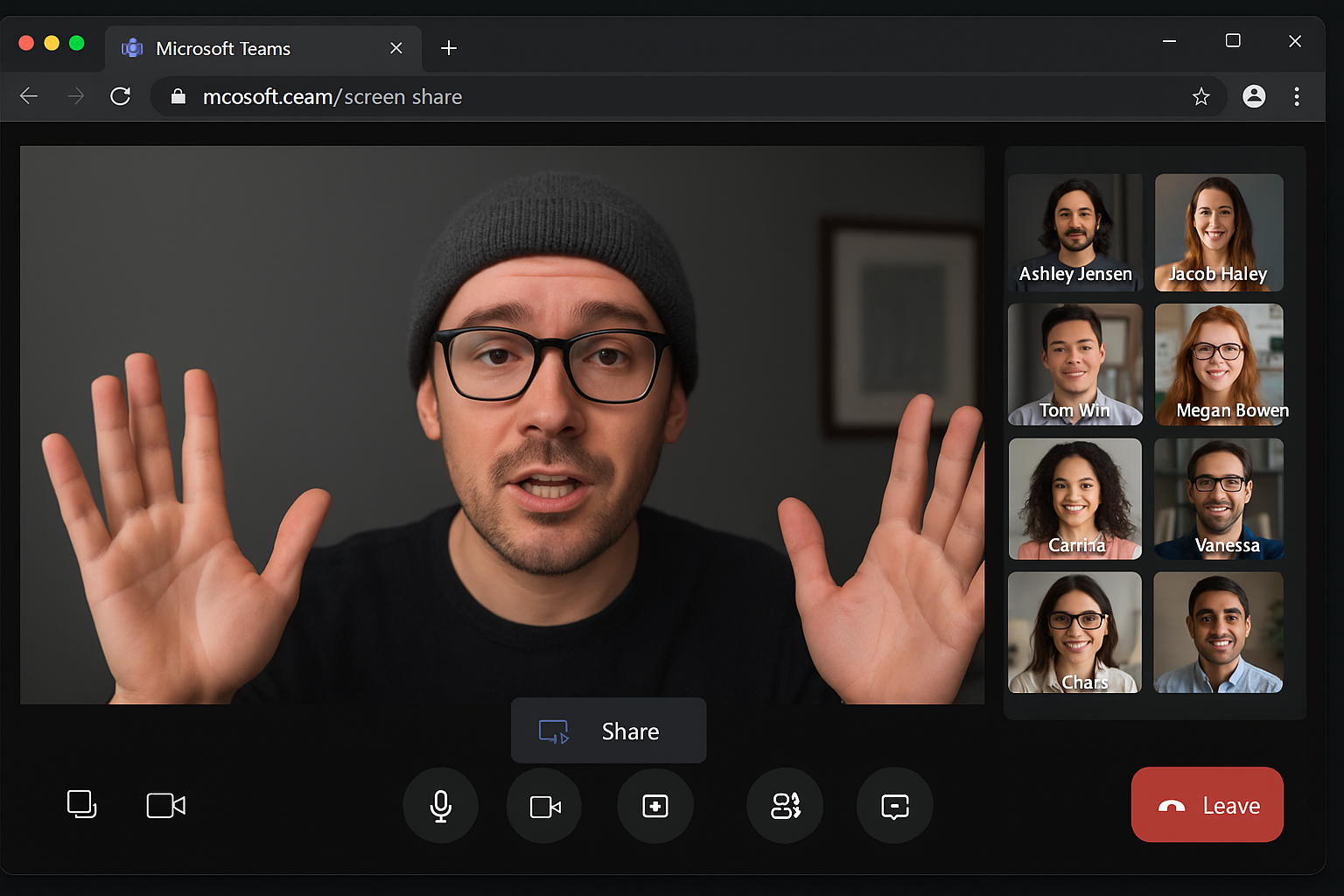
Best for: Work meetings where you need to collaborate on documents or presentations. The Office integration is killer if you’re already using Word, Excel, or PowerPoint.
3. Google Meet — Best for Quick, No-Hassle Sharing
Google Meet wins on simplicity. No downloads, no account creation for participants, just click a link and you’re in.
What you get for free:
- 60-minute group meetings (up to 100 participants)
- Unlimited one-on-one meetings
- Works entirely in your browser
- Integration with Gmail and Google Calendar
- Live captions (pretty handy)
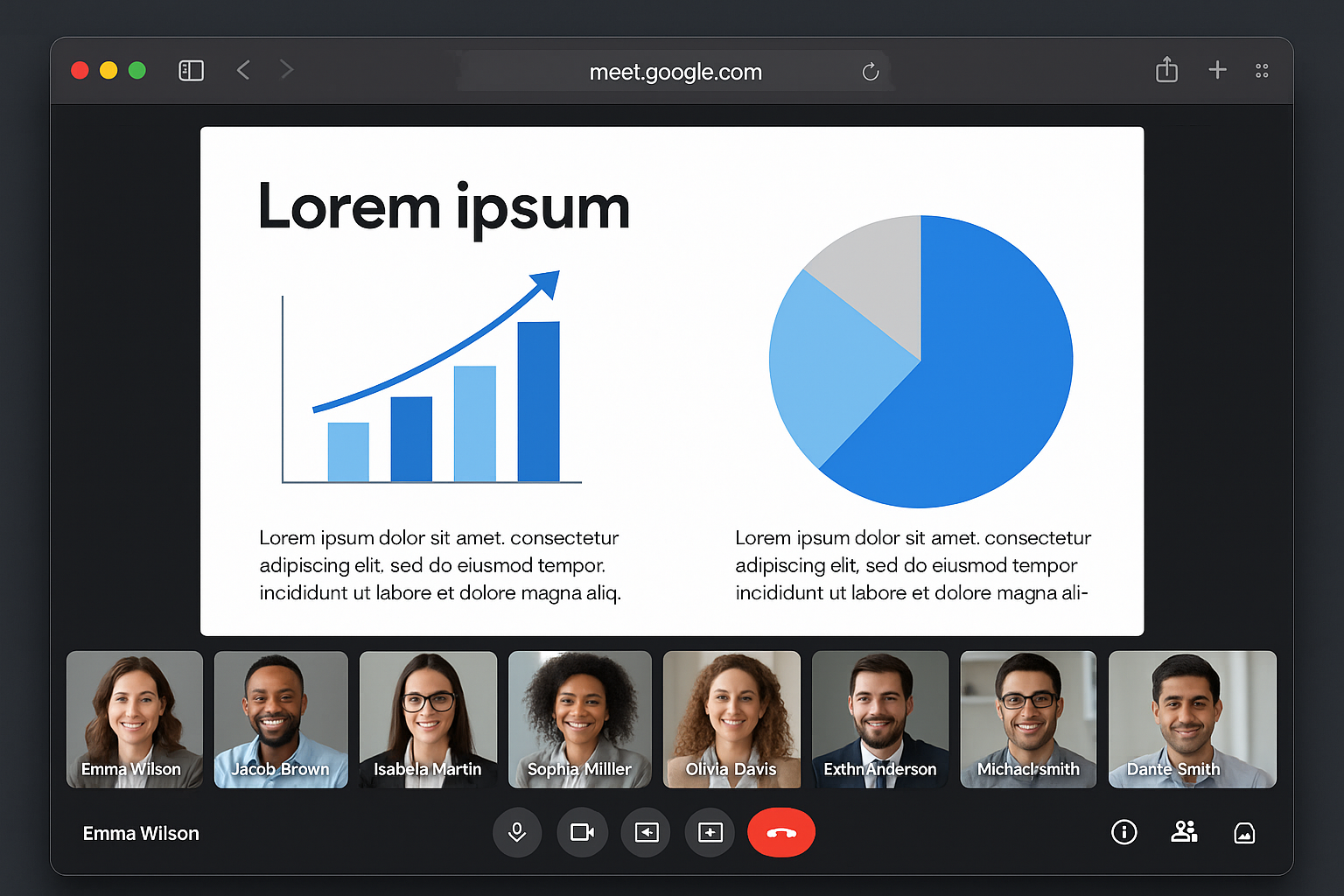
Best for: When you need to share something quickly without any setup. Perfect for impromptu meetings or helping someone who’s not tech-savvy.
4. Discord — Best for Gaming and Streaming
Don’t sleep on Discord for screen sharing. While it’s known for gaming, its “Go Live” feature is actually fantastic for sharing high-performance content like games, video editing, or anything that needs smooth framerates.
What you get for free:
- Low-latency screen sharing
- Stream to up to 10 people (more with Nitro)
- Voice channels for ongoing communication
- Works great for gaming content
- Mobile apps for viewing on the go
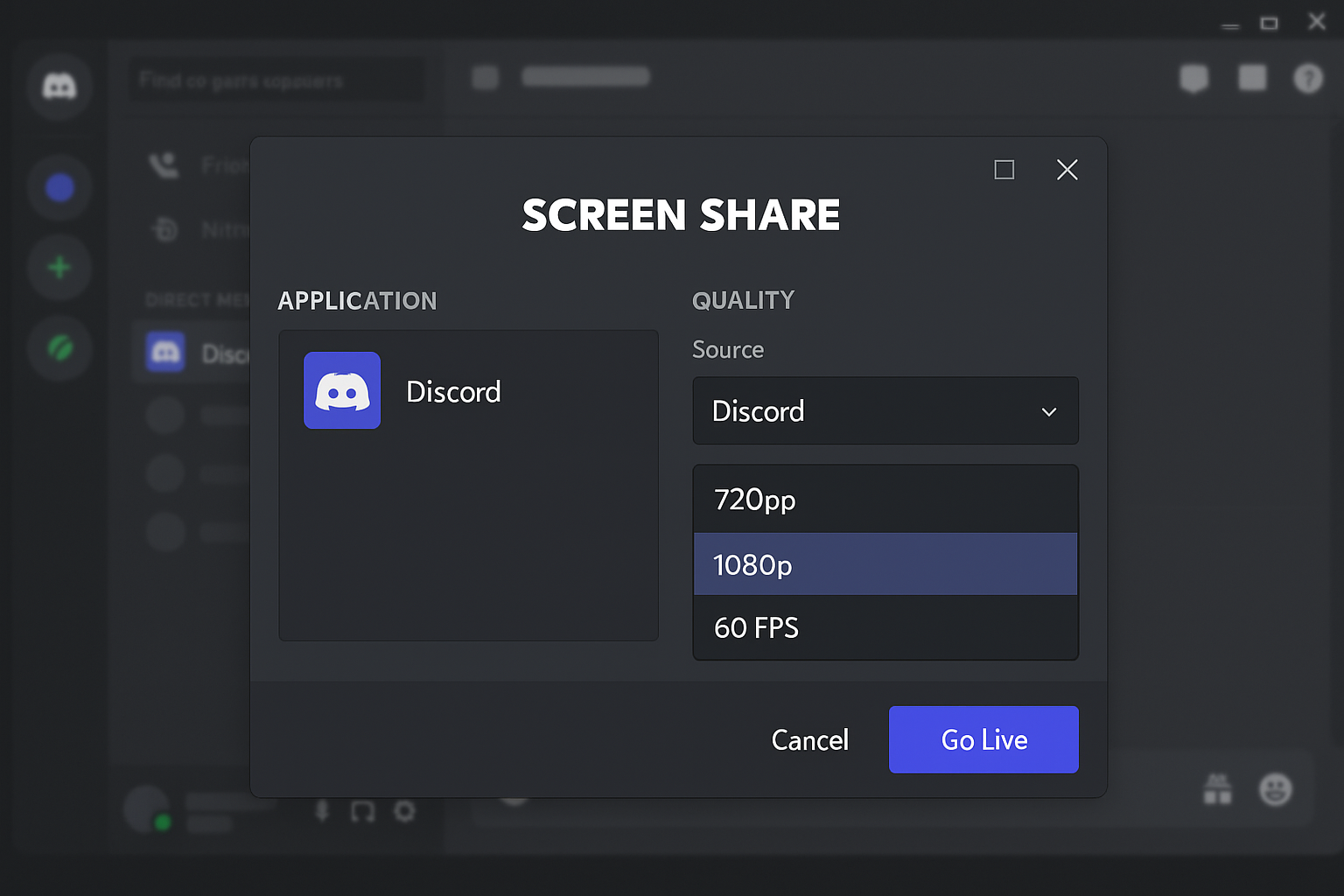
Best for: Gaming sessions, creative work that needs smooth performance, or casual hangouts with friends. The streaming quality is surprisingly good.
5. TeamViewer — Best for Remote IT Support
TeamViewer is the gold standard for remote computer access. While it’s more complex than other options, it’s unbeatable when you need full control of someone’s computer.
What you get for free (personal use):
- Full remote computer control
- File transfer capabilities
- Unattended access (access computers when no one’s there)
- Cross-platform support
- High security and encryption
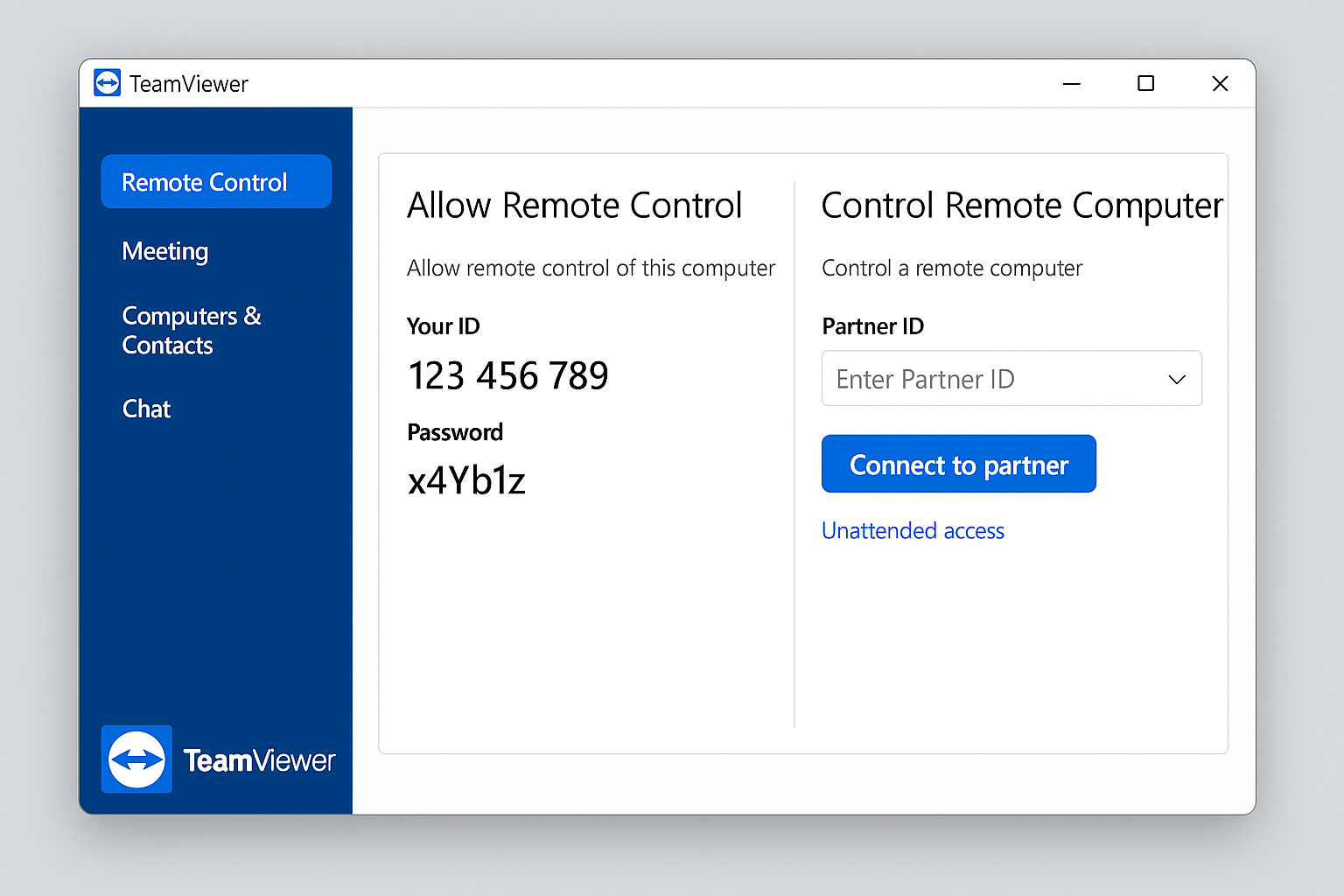
Best for: IT support, helping family members with computer problems, or accessing your own computer remotely. Fair warning: they’re pretty strict about the “personal use only” limitation.
6. AnyDesk — Best Lightweight Alternative
AnyDesk is like TeamViewer’s faster, lighter cousin. It’s designed for performance and works well even on slower internet connections.
What you get for free:
- Fast, low-latency connections
- Small download size
- Good performance on slow networks
- Simple interface
- Cross-platform support
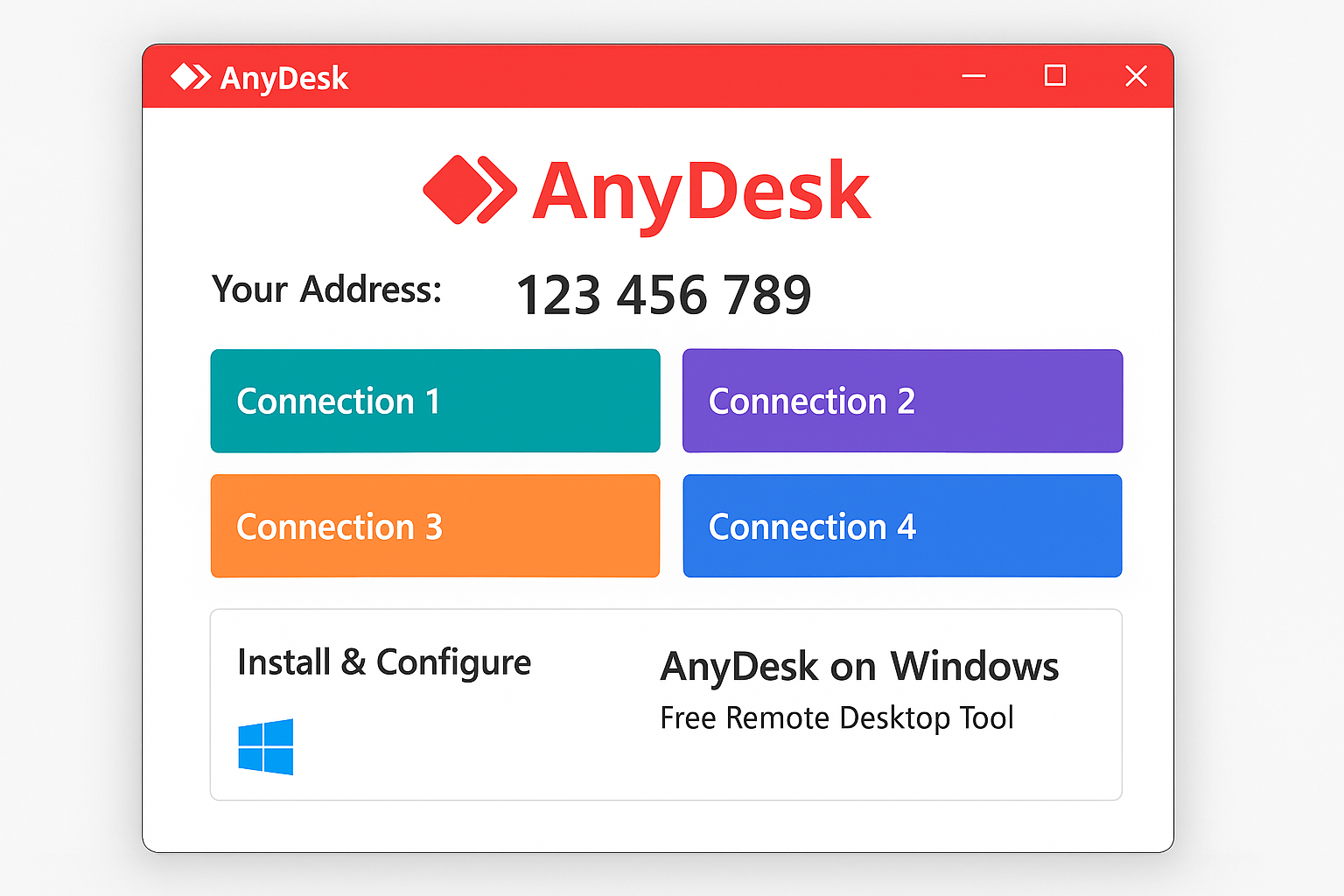
Best for: When you need the capabilities of TeamViewer but want something faster and more lightweight. Great for technical support scenarios.
How to Choose the Right Tool
Here’s the thing, the “best” screen sharing tool depends entirely on what you’re trying to do:
- Quick help for family: Google Meet (no downloads, easy links)
- Regular work meetings: Microsoft Teams or Zoom (depending on your workplace)
- Gaming or creative work: Discord (optimized for performance)
- IT support: TeamViewer or AnyDesk (full remote control)
- Large presentations: Zoom (handles 100+ people reliably)
- Casual collaboration: Any of the browser-based options work great
Tips for Better Screen Sharing
Close unnecessary apps: Your computer will perform better, and you won’t accidentally share something embarrassing. Nobody needs to see your 47 open browser tabs.
Test your setup first: Do a quick test call before important meetings. Murphy’s law says your microphone will stop working right when you need it most.
Use a wired internet connection when possible: Wi-Fi works fine for most cases, but ethernet gives you more stable performance for important calls.
Share specific windows, not your entire screen: Most tools let you share just one application window. This keeps your desktop clutter private and helps viewers focus.
Have a backup plan: Keep a second tool handy. If Zoom is acting up, you can quickly switch to Google Meet or Teams.
Common Issues and Solutions
Common Problems
Problem: “I can’t see the screen share option”
This usually happens when your browser is blocking screen capture permissions. Look for a camera or screen icon in your address bar and make sure permissions are enabled. In Chrome, you might need to click the shield icon and allow screen sharing.
Problem: The shared screen is laggy or choppy
Try sharing a specific window instead of your entire screen, close other applications, or switch to a wired internet connection. If you’re sharing video content, some tools handle it better than others (Discord is great for this).
Problem: Audio isn’t sharing with the screen
Most tools have a separate checkbox for “Share computer audio” or “Include system audio.” Look for this option when you start screen sharing as it’s easy to miss.
Pro Tips
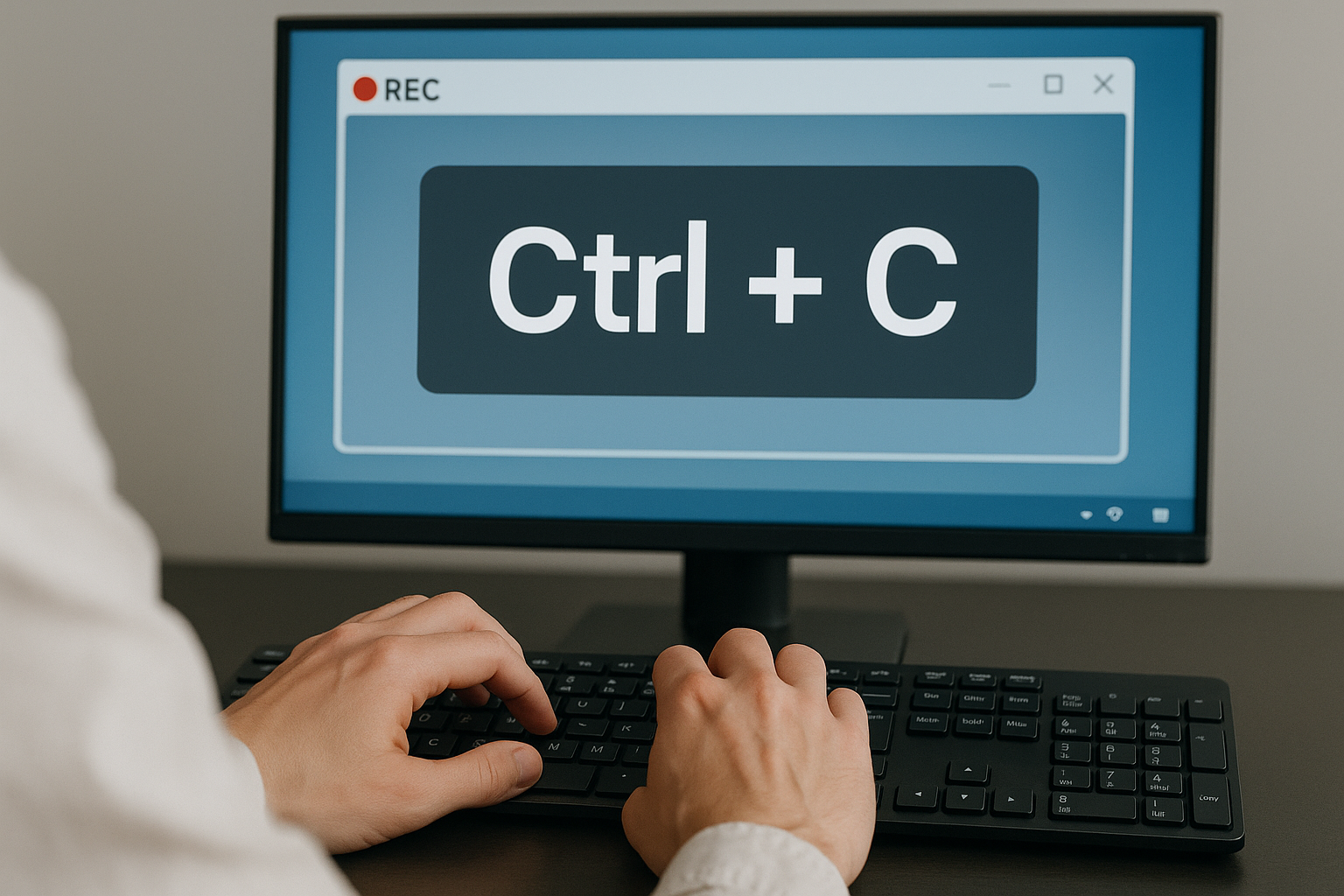
Keyboard shortcuts save time: Most tools have hotkeys for muting (Ctrl + Shift + M in many apps), turning video on/off, and starting screen shares.
Use presenter mode: Many tools have a “presenter” or “focus” mode that automatically highlights the shared screen and mutes participants. Perfect for presentations.
Record important sessions: If you’re doing training or troubleshooting, recording the session means you can refer back to it later or share it with people who missed the meeting.
The Bottom Line
Screen sharing has come a long way from the janky Java applets of the early 2010s. These modern tools just work and most of them work really well for free. Zoom and Google Meet are your safe bets for general use, Teams is perfect if you’re already in the Microsoft world and Discord surprised me with how good it is for high-performance content.
The best part? You don’t have to commit to just one. I keep Google Meet bookmarked for quick help sessions, use Teams for work stuff and fire up Discord when I want to show friends a game. Having options is never a bad thing, especially when they’re free.