

Did you know that Twitter churns through over 500 million tweets per day? While plenty of that is content that you and I might not care about, if even 1% interests us then we’ve got a never-ending supply of fresh material on our hands! However, how are we supposed to go through millions of tweets on a daily basis? The answer is a bit cliché—very carefully, of course.
Twitter is very generous with the number of search operators that it supports. These operators allow us to dig down and search through videos, images, retweets, lists, and much more.
However, most of us aren’t taking advantage of these and are only performing simple keyword-based searches. When you’re searching for something specific, that just doesn’t cut it.
In this article, let’s go over Twitter’s many different search operators and learn how to narrow our searches down to get the exact content we’re looking for.
Basic Search Operators for Twitter
Twitter’s most basic search operators are a set that you expect out of most search engines. The ability to exclude certain terms and search for an exact phrase are things we’ve come to expect, and Twitter doesn’t sell us short.
“” (quotation marks)
The quotation marks search operator limits results to tweets that contain an exact phrase. This is not case sensitive, and it’s the default behavior for single-word search terms.
- Example: “world series”

– (hyphen)
The quotation marks search operator limits results to tweets that do not include the term thereafter. This operator can’t be used by itself, and you must surround the term with quotation marks if it uses more than one word.
- Example: baseball -basketball
? (question mark)
The quotation marks search operator limits results to tweets that contain a question.
- Example: wedding ?
OR
The “OR” search operator limits results to tweets that include either term. You must surround a term with quotation marks if it uses more than one word.
- Example: sink OR swim
Interaction-Based Search Operators for Twitter
As a social media site that revolves heavily around communicating with others, Twitter supports multiple search operators that allow us to filter through user interactions. These include mentions, replies, and lists.
@ (“at” sign)
The “at” sign search operator limits results to tweets that mention the Twitter user thereafter.
- Example: @jack

to
The “to” search operator limits results to tweets that are directed to or made in reply to the Twitter user thereafter.
- Example: to:shaq
from
The “from” search operator limits results to tweets that are sent by the Twitter user thereafter.
- Example: from:aoc
list
The “list” search operator limits results to tweets that are sent by members of the Twitter list thereafter. This requires both the username of the Twitter user who owns the list and the list’s URL slug.
- Example: list:scobleizer/world-news
Filter-Based Search Operators for Twitter
Some of Twitter’s most powerful and specific filtering options revolve around the “filter” operator. With this operator, we can narrow down tweets by what type of media they contain, when they were tweeted, and which sites they link to.
filter:safe
The “filter:safe” search operator limits results to tweets that are marked as safe and not potentially sensitive. This operator can’t be used by itself.
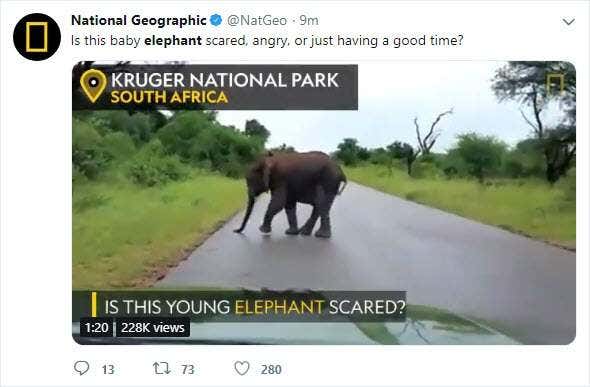
- Example: elephant filter:safe
filter:media
The “filter:media” search operator limits results to tweets that contain an image or video. This operator can’t be used by itself.
- Example: kitten filter:media
filter:retweets
The “filter:retweets” search operator limits results to tweets that are not retweets. This operator can’t be used by itself.
- Example: politics filter:retweets
filter:native_video
The “filter:native_video” search operator limits results to tweets that contain video from Amplify, Periscope, or Vine. This operator can’t be used by itself, and you can also filter specifically by video platforms with “filter:periscope” and “filter:vine”.
- Example: meme filter:native_video
filter:images
The “filter:images” search operator limits results to tweets that contain images. This operator can’t be used by itself, and you can only search for natively-hosted images with “filter:twimg”.
- Example: dunk filter:images
filter:links
The “filter:links” search operator limits results to tweets that contain links. This operator can’t be used by itself and will include tweets with comments on a retweet that contains a link.
- Example: france filter:links
url:amazon
The “url” search operator limits results to tweets that contain a link including the text thereafter. This operator can’t be used by itself.
- Example: game url:amazon
since
The “since” search operator limits results to tweets that have been tweeted after the date thereafter (year-month-day format). This operator can’t be used by itself.
- Example: hurricane since:2017-09-20
until
The “until” search operator limits results to tweets that have been tweeted after the date thereafter (year-month-day format). This operator can’t be used by itself.
- Example: earthquake until:2018-02-11
A great trick you can use is combining the hyphen search operator with any of the “filter” operators. This will allow you to do things like search for tweets that don’t contain images or contain potentially sensitive material. Stringing together more than one operator can really laser-focus your search to the exact results that you’re looking for.
Get creative when you’re searching through Twitter! Your search is only limited by your mastery of Twitter and these search operators, and there are billions of tweets for you to browse through. You’re guaranteed to find something that will surprise you.
Want to know how you can achieve these same results with Google’s search? Check out our article on Google search operators.