

Pinterest is a social media network that allows you to pin images you find online and create boards to inspire and motivate yourself and others. If you’ve spent a fair amount of time pinning items and creating boards on Pinterest, you might decide you want to delete or archive a board. We’ll show you how to delete a board on Pinterest in the iOS and Android apps as well as on the desktop site — plus how to archive a board if that’s better for your needs.
How to Delete Pinterest Boards on the Web
It’s easy to delete a Pinterest board you no longer need on the Pinterest desktop site. Here’s how to do it:
- Go to Pinterest.com (or whichever site you usually visit for your country).
- Log into your Pinterest account.
- Click your profile picture at the top right.
- Find the board you want to delete and click to open it.
- Click the three dots to the right of the board name.
- Select Edit Board.
- Scroll down and select Delete Board.
- Click Delete to confirm you want to delete the board.
- Your Pinterest board should now be deleted!

How to Delete a Board on Pinterest on the iOS/Android App
If you’re using the Pinterest iOS or Android app, it’s just as easy to delete a board you are done with. Here’s how to do it:
- Open the Pinterest app on your device and log in.
- Tap your profile picture at the bottom right.
- Tap the board you want to delete.
- Tap the three dots at the top right, and select Edit Board.
- Scroll down and tap Delete.
- Confirm you want to delete this board by tapping Delete again.

How to Restore a Deleted Pinterest Board
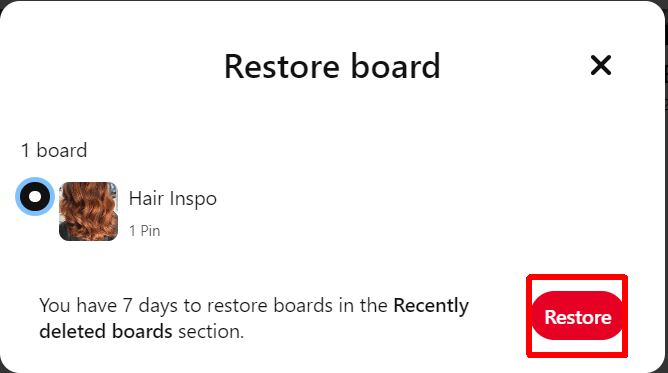
Don’t panic if you delete a board by accident or decide you still need the board. It’s easy to restore deleted Pinterest boards. Note that you can’t restore boards via the iOS or Android apps, so you’ll need to log into your Pinterest account on a desktop device. Just follow the below steps:
- Click your profile picture at the top right of the screen.
- Scroll down to Recently Deleted Boards.
- Click Restore Boards.

- Find the board you want to restore, click it, and click Restore.
How to Archive Boards on Pinterest on the Web
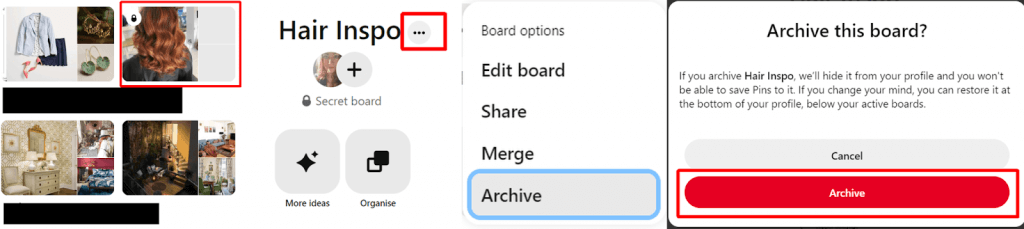
Deleting a board also deletes all of its pins. What if you’re unsure whether you’ll need your board (or its pins) again in the future? It might be better to archive your board rather than delete it. This moves your board to the bottom of your profile, below active boards, and means you can no longer save pins to the board you archived. It also won’t appear on your public profile.
- Go to Pinterest.com (or whichever site you usually visit for your country).
- Log into your account.
- Click your profile picture at the top right.
- Click the board you want to archive to open it.
- Click the three dots next to the board name.
- Select Archive.
- To confirm, click Archive again.
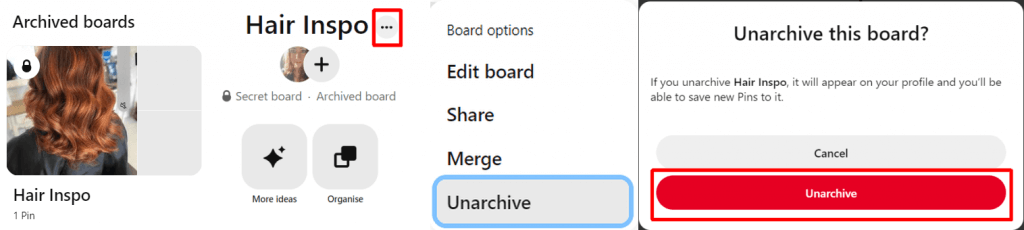
- To unarchive a board that you need, click on your profile photo, then scroll down to Archived Boards. Click on the board you want to unarchive, then click the three dots next to the board name, and click Unarchive. On the following screen, click Unarchive to confirm.
How to Archive Boards on the Pinterest iOS/Android App
The steps to take to archive boards on the Pinterest mobile app for iOS and Android devices are pretty simple. Here’s how to archive boards you no longer need, but might need later:
- Open the Pinterest app and log into your account.
- Tap your profile picture at the bottom right.
- Tap the board you want to archive.
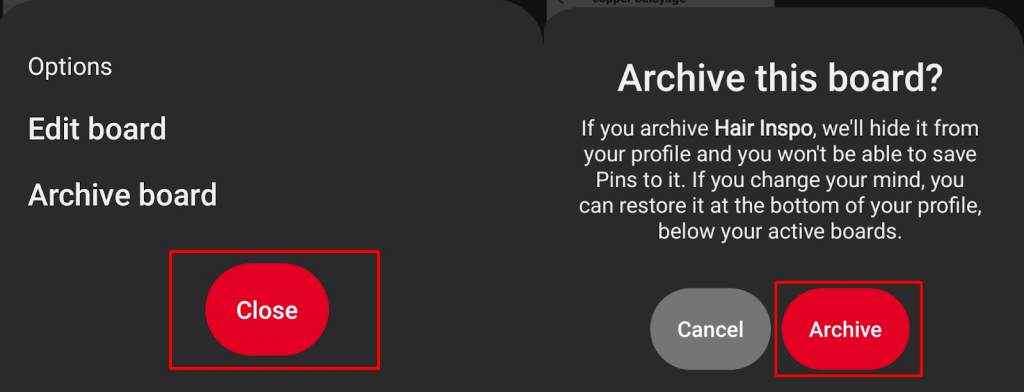
- Tap the three dots menu at the top right.
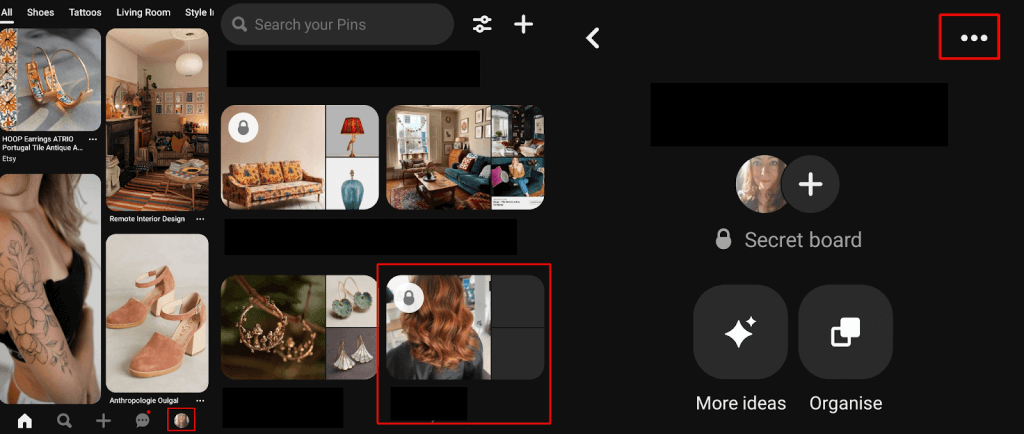
- Select Archive Board, then tap Archive to confirm.
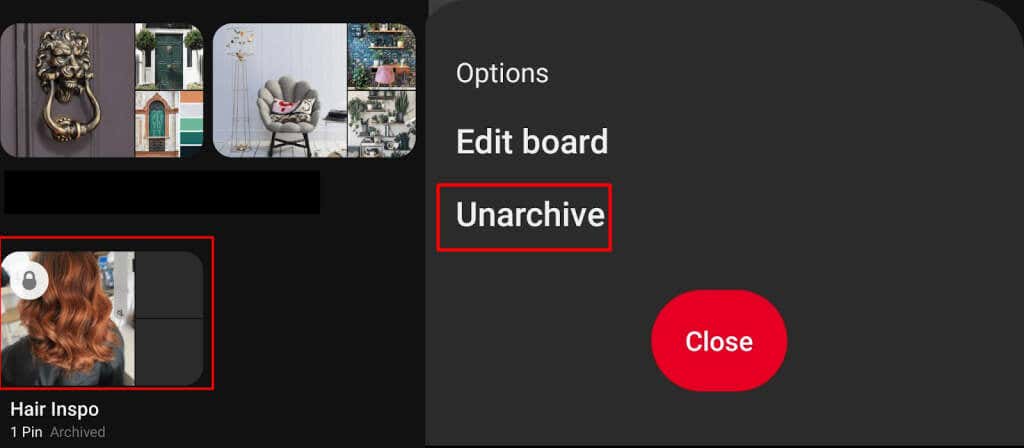
- If you change your mind and want to unarchive this board, just look for it at the bottom of your boards, tap the board, tap the three dots menu at the top right, then select Unarchive > Unarchive to confirm.
As you can see, deleting boards on Pinterest is easy to do if you no longer need them — and if you make a mistake and delete a board accidentally or decide you need it again, it’s easy to restore a deleted board. The other alternative is to archive a board so that it’s still accessible when you need it in the future, but not cluttering up the view of your active boards. Want to know how to do more on Instagram? Why not check out how to create a Pinterest Idea Pin?