

Instagram isn’t only a place where you can show off your pictures. Its messaging system is popular for quick conversations with friends and family and is a great alternative to Facebook.
But words do not always express what we feel or think about other people’s messages. That’s why you can also react to messages on Instagram using emojis. This article will show you how.
How to React to Messages on Instagram
Reacting to Instagram messages is pretty straightforward. However, if you don’t have the latest version of the Instagram app, you might not even be able to see the option to react to messages. That’s why you’ll first need to update Instagram:
- Visit the Google Play Store if you’re an Android user or the App Store if you’re an iPhone user.
- Find the Instagram app and tap the Update button.
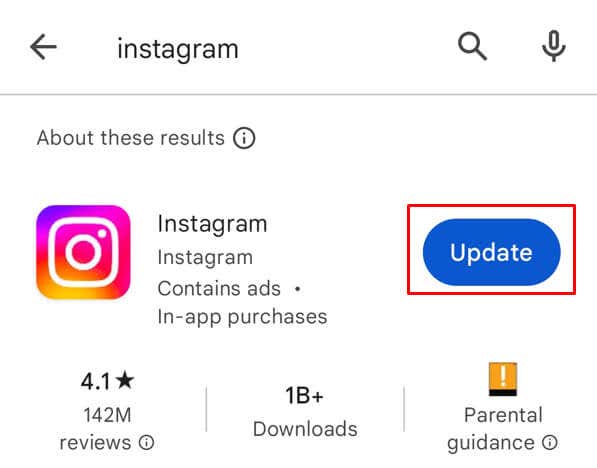
- Wait until the update is finished.
Now that you updated your Instagram app, let’s learn how to react to messages:
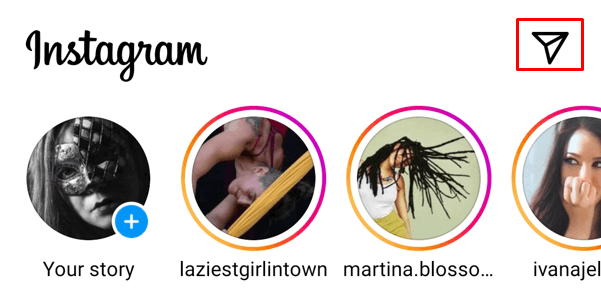
- Open up a conversation in your Instagram messages. Tap the Messages (paper airplane icon) on the top-right side of the screen and find the DM you want to react to.
- Double-tap on a DM to react with a heart emoji. This is the default Instagram reaction.
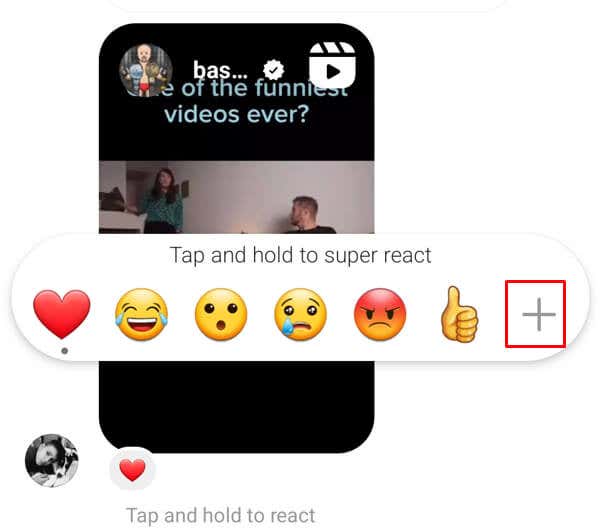
- To react with a different emoji, press and hold a message to bring up the list of emojis. To open the whole emoji list, tap the plus button.
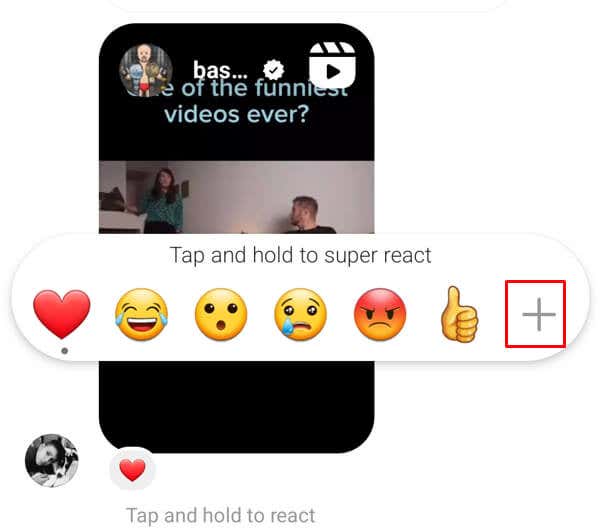
- Choose and tap the one that you’d like to react with.
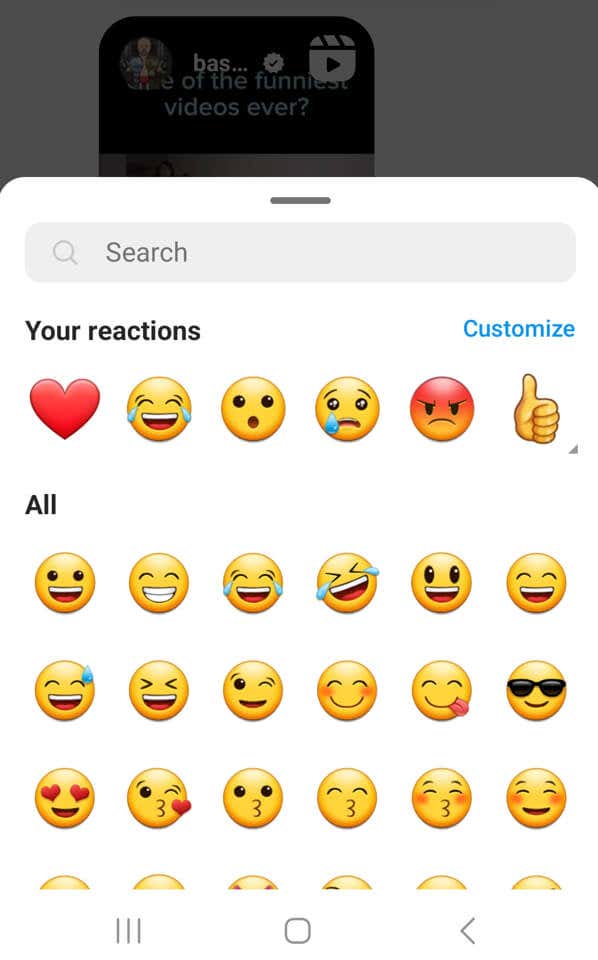
And that’s it! You just reacted to an Instagram message with an emoji that clearly shows your feelings about its content.
How to React to Messages on Instagram from the Web
Reacting to Instagram DMs from your PC is as simple as from the mobile app. Here’s what you need to do:
- Open your favorite web browser, go to the Instagram web page, and log in to your Instagram account.
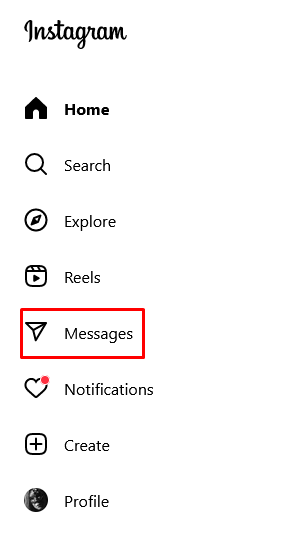
- Select the Messenger icon from the left side menu to go to Direct Messages. Find the conversation you’ll react to.
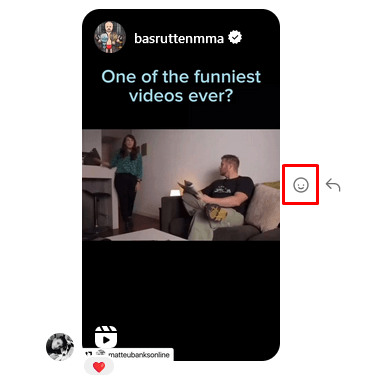
- Place your cursor over the message you want to react to and select the reaction icon on the right side of the message. It’s represented by a smiley face or a heart icon and contains a list of emojis.
- Select the reaction you like the most from the pop-up menu (thumbs up, laughing emoji, fire, heart, or any other available emoji).
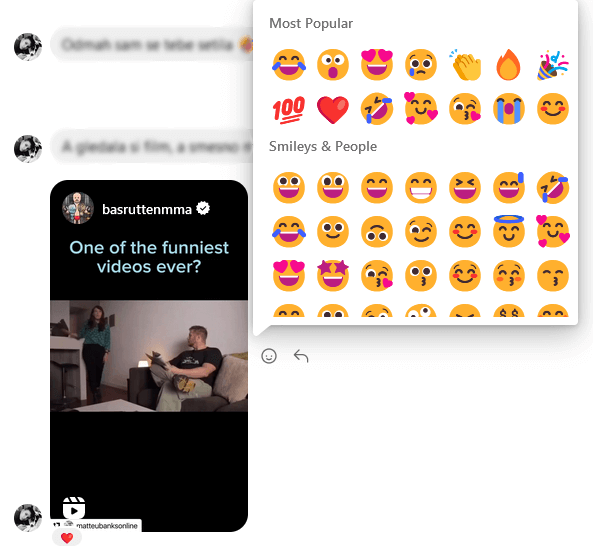
As you can see, reacting to Instagram messages on a PC is just as easy.
Related: Check out our guide on troubleshooting when you can’t reply to messages on Instagram if you’re having trouble there.
Customize Default Instagram Emoji Reactions
By default, Instagram offers a list of six emojis to react with. But you can customize this shortlist and put your custom emojis instead. You can even replace the default heart emoji. They will always display first when you want to react to DMs.
Follow these steps to personalize the emoji reaction list:
- Open your Instagram app and make sure you are logged in.
- Open a DM you want to react to (or any other DM will serve the purpose).
- Tap and hold a message. When the emoji list shows up, tap the Plus icon (+) on the right side.
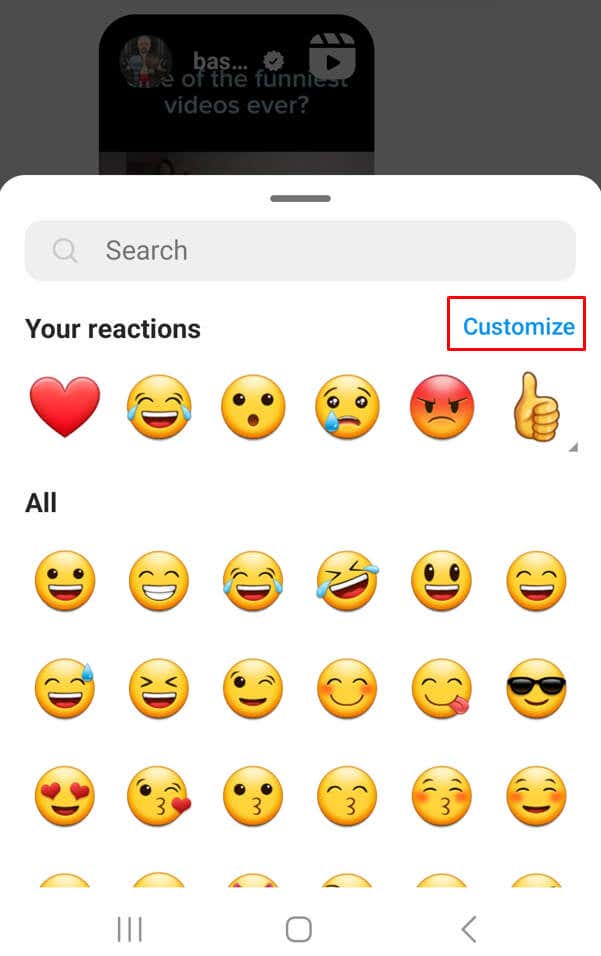
- When the emoji list opens, tap Customize.
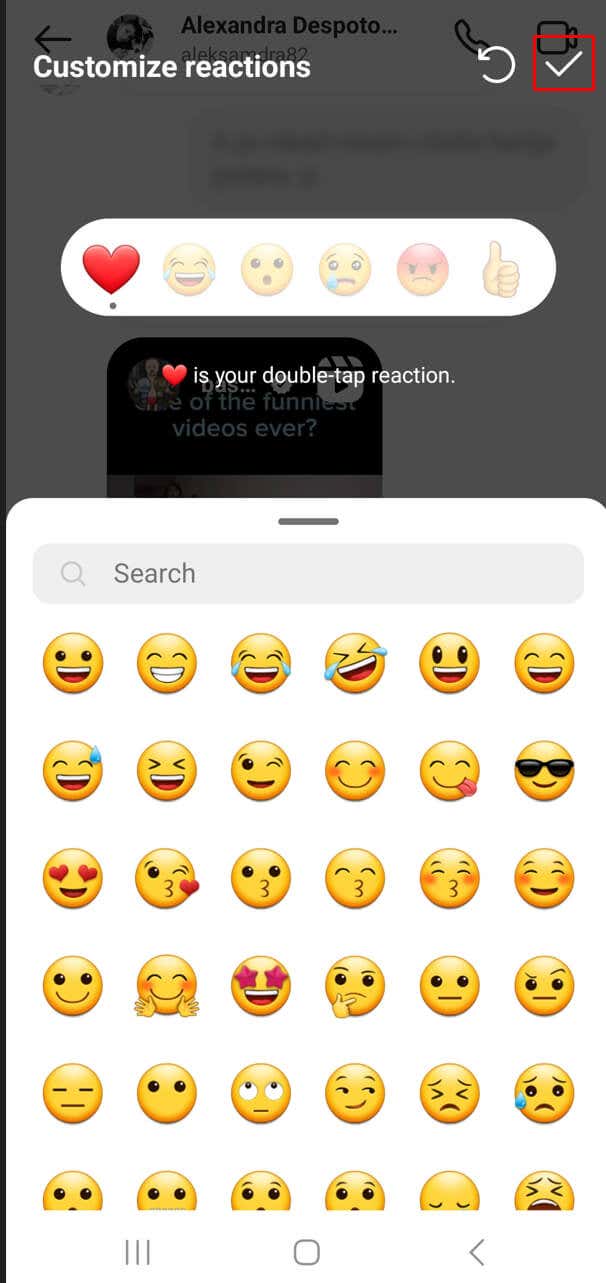
- Select the reaction emojis you want. When done, tap the check mark at the top right corner of the screen.
And there you have it! Three easy methods of reacting to messages on Instagram. Spice up your conversations and tell others how you feel or when you’re using sarcasm.