

When one of your Instagram posts becomes popular, keeping track of the comments can be difficult. You don’t want people who only just discovered your Instagram profile to see too many negative comments (if any), and don’t want to miss any positive comments yourself.
Instagram now allows you to pin a comment to place it above all other past and future comments to your post. Here’s everything you need to know about pinning comments on Instagram as well as an instruction on how to do it in the Instagram app.
What’s a Pinned Comment on Instagram?
The feature that allows you to pin Instagram comments was introduced to counter cyber-bullying. It allows users to highlight comments with more positive content and drown out any harmful or offensive comments on their Instagram accounts.
Pinning a comment is a way to keep a specific comment at the top of your post for everyone to see. Thanks to this new feature, you can pick up to three comments that you like the most and place them at the top of the list.

You can use pinned comments to highlight an important message that one of your followers shared, like a question, a thank you message or a call to action. The pinned comments feature can help you keep positive feedback messages on top of the comments thread and visible for longer.
As an influencer, you can use this tool to avoid negativity and internet trolls in your comments section.
Before you try this feature, here are a few things you need to know about pinning a comment on Instagram.
- You can pin up to three comments (per post) to the top of your feed posts.
- Instagram only allows you to pin comments on your own posts on the platform.
- You can’t pin your own comments, only those left by other users.
- Besides text, pinned comments can contain emojis, links, and other media files.
- You can pin comments on all types of Instagram content, including Instagram Live videos and Instagram Reels. However, there’s no way to pin comments for an Instagram Story.
- When you pin a comment, the user will get a notification from Instagram.
How to Pin a Comment on Instagram
If you want to pin a comment to the top of your Instagram post, follow the steps below. The instructions to pin a comment are similar for Android and iOS users.
- Open the Instagram app on your device and sign into your account.
- Navigate to one of your Instagram posts.
- Select the speech bubble icon under your post to open the comments section. Then find the comment you want to pin.

- On Android: select and hold the comment until the toolbar appears at the top of the screen.
- On iPhone: swipe left on the comment you want to feature.
- Select the thumbtack icon (or the pushpin icon) to pin the comment.

When you try to pin a comment for the first time, a verification message will appear explaining the basics behind the feature will appear.
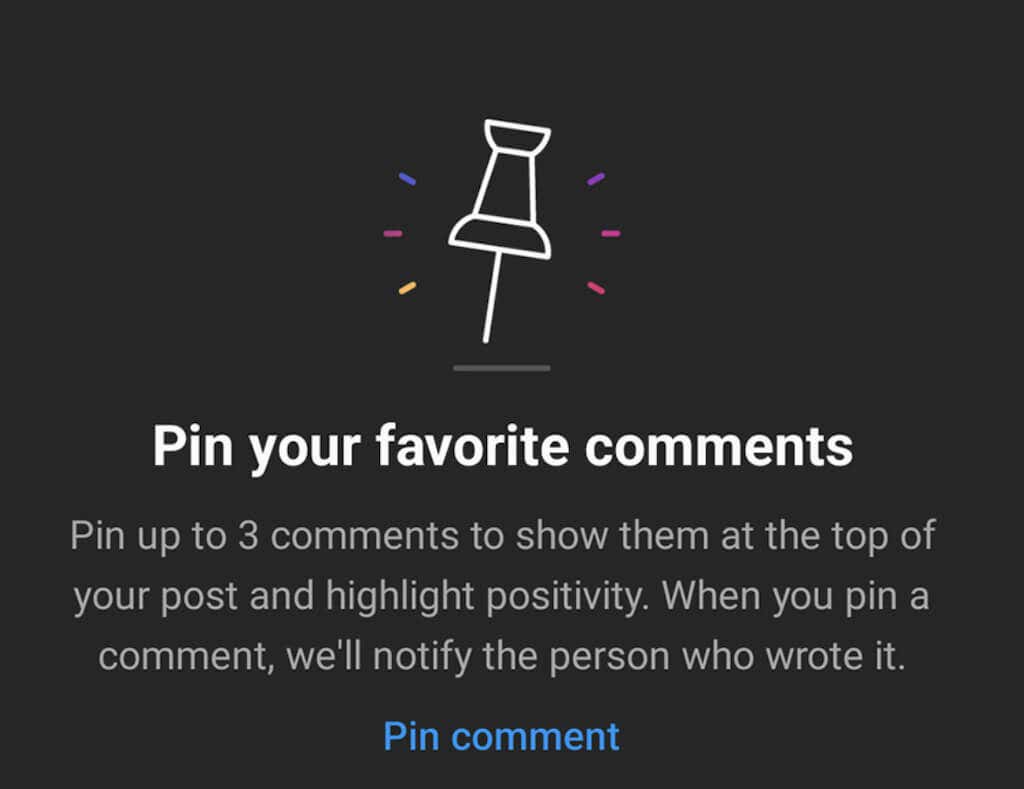
Select Pin comment to proceed. The comment will now say Pinned next to the person’s name.
How to Unpin a Comment on Instagram
With more comments appearing on your Instagram post, you might change your mind and choose new comments you want to display above everything else. Luckily, unpinning comments on Instagram is just as simple.
To unpin a comment on Instagram, find the post and comment in question and select the pin icon.

You’ll see the Unpin comment pop-up window appear. Select Unpin to confirm.
How to Manage Your Instagram Comments
While pinned comments are great for bringing your followers’ attention to a specific link, question, or piece of important information, you only get a limited number of the comments you can pin. On top of that, if your account is overflowing with negative or offensive comments, keeping one positive comment on top of the comments section isn’t going to fix the problem.
If you want to manage your social media content more closely, here are a few other options Instagram offers to control which comments people see on your posts. Follow the steps below to manage the comments you receive on Instagram.
- Open Instagram and log into your account.
- Go to the comments section of one of your posts.
- In the comments section, select the three vertical dots icon in the top right corner of the screen to access Comment Controls.
- You’ll see different control options divided into two sections: For all posts and For this post.
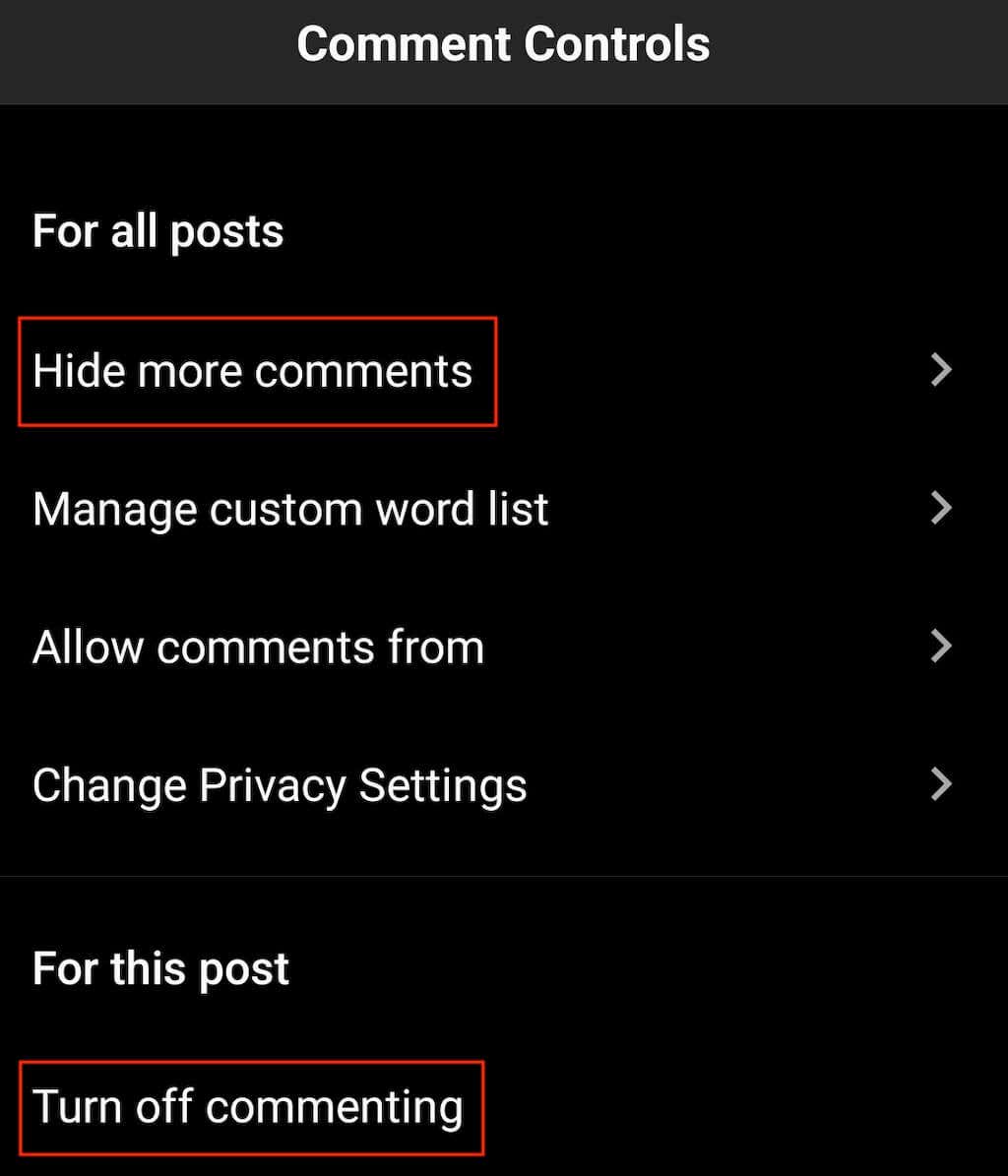
From here, you can disable all comments (for the selected post) by choosing Turn off commenting.
You can also edit your comments settings to hide offensive comments from your posts. To do that, select Hide more comments, then turn on both Hide comments and Advanced comment filtering. The same section features an option to Hide message requests that contain spam, scams, or any type of offensive content.
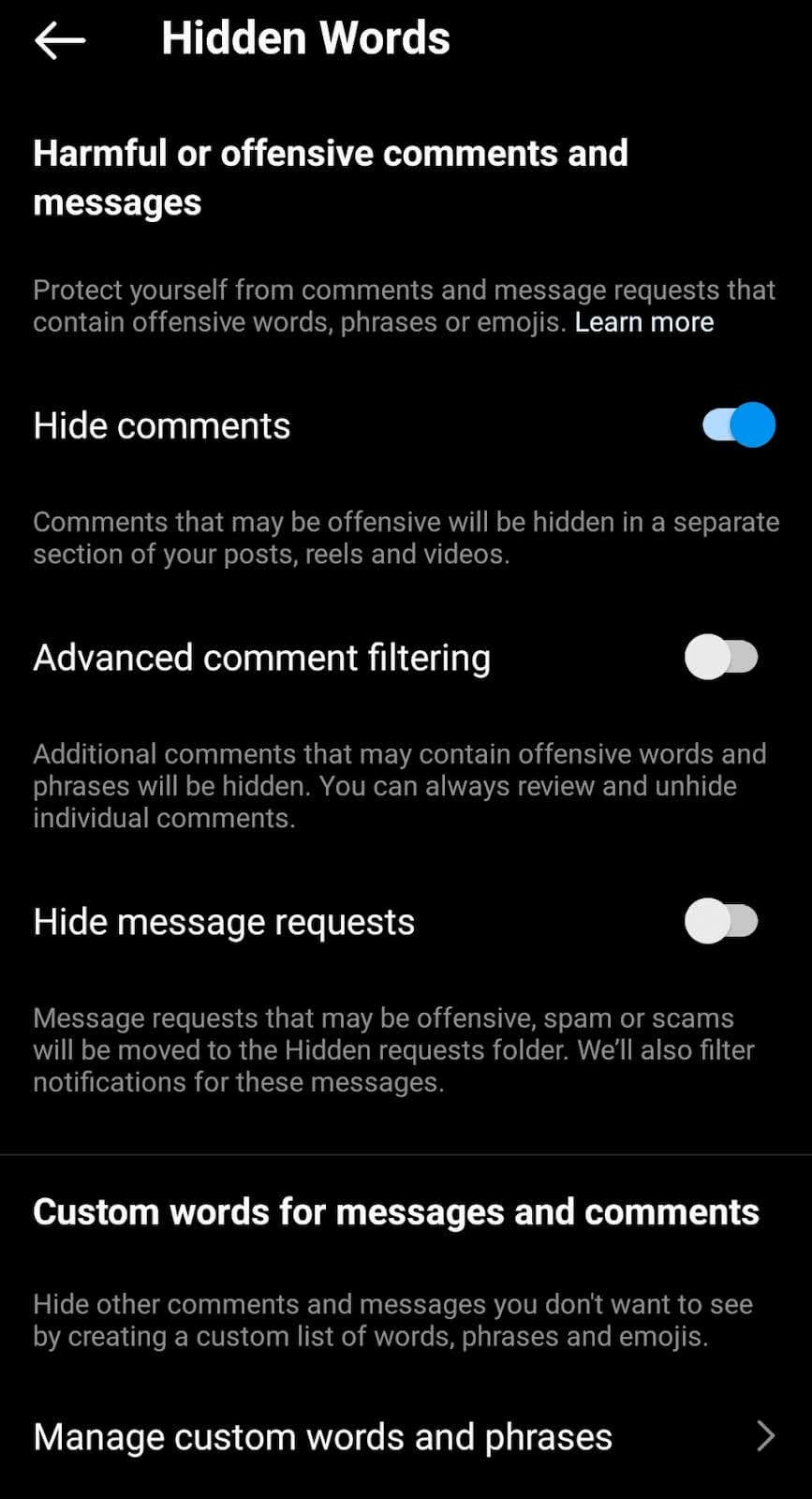
If you want to take it a step further, select Manage custom words and phrases. In this section, you can add specific words, phrases, and even emojis that Instagram’s algorithm will filter out from your comment section.
Finally, you can just mass delete comments from your posts that you don’t like and restrict or block the users who left them.
Choose Which Comments Stay on Top
Pinned comments are the latest addition to the features that give Instagram users more control over their accounts. Learn how to use this feature to your advantage early on to get the most out of it.