
WhatsApp automatically downloads documents and media files (photos, audio, videos, animated GIFs) by default. If you have a capped data plan, disabling auto-download is an excellent way to reduce your data usage.
You can also turn off file auto-download for cellular data and Wi-Fi connections. This tutorial will show you how to stop WhatsApp from auto-saving images to your device’s gallery.
Note: WhatsApp always downloads voice messages (or voice notes), and there’s no way to disable or turn off automatic downloads for voice messages.
Stop WhatsApp Media Auto-Download (Android)
Follow the steps below to stop WhatsApp from saving photos to your Android phone’s gallery.
- Open WhatsApp, tap the three-dot menu icon in the top-right corner, and select Settings.
- Tap Storage and data (or Data and storage usage) on the WhatsApp settings page.
You’ll find the following options in the “Media auto-download” section: When using mobile data, When connected to Wi-Fi, and When roaming.
- Select When using mobile data, deselect the file types you don’t want WhatsApp downloading automatically, and tap OK. That’ll stop auto-download when you use WhatsApp on cellular data.
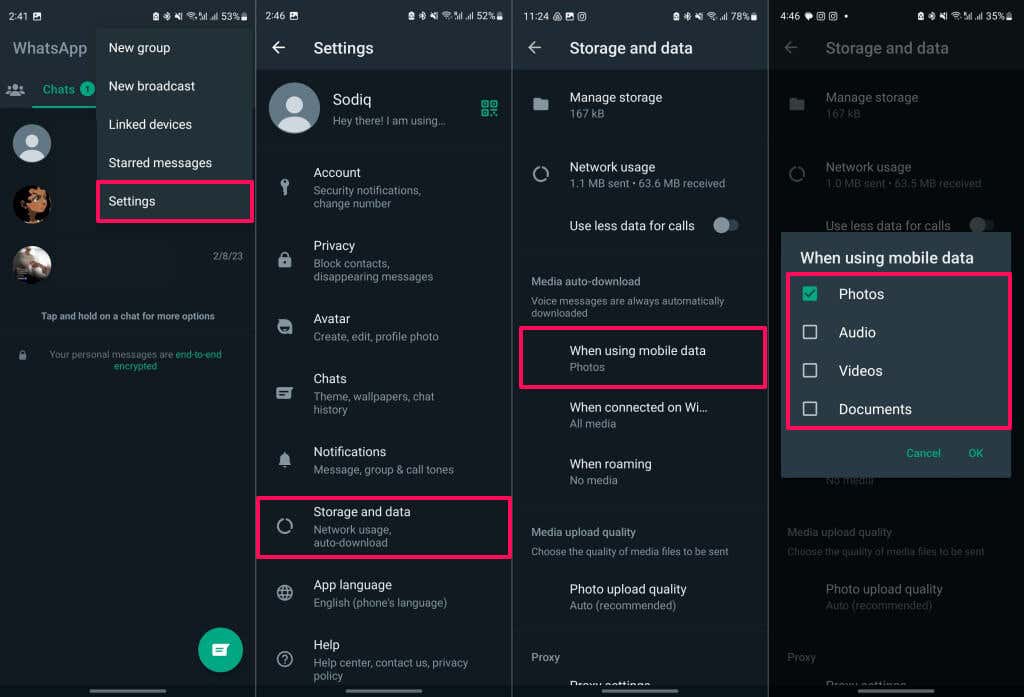
- To stop media auto-download for Wi-Fi connection, tap When connected on Wi-Fi and deselect files or media you don’t want WhatsApp to auto-download. Tap OK to save your changes.
- If you’re roaming your cellular network, tap When roaming and deselect file types you don’t want auto-downloaded on your device.
Stop WhatsApp Media Auto-Download (iOS)
Open WhatsApp on your Apple iPhone and follow the steps below.
- Tap the Settings icon in the bottom-right corner, and select Storage and Data.
- Check the “Media Auto-Download” section for options to change WhatsApp auto-download settings. Select Photos and choose Never to stop WhatsApp from saving pictures to your iPhone camera roll.
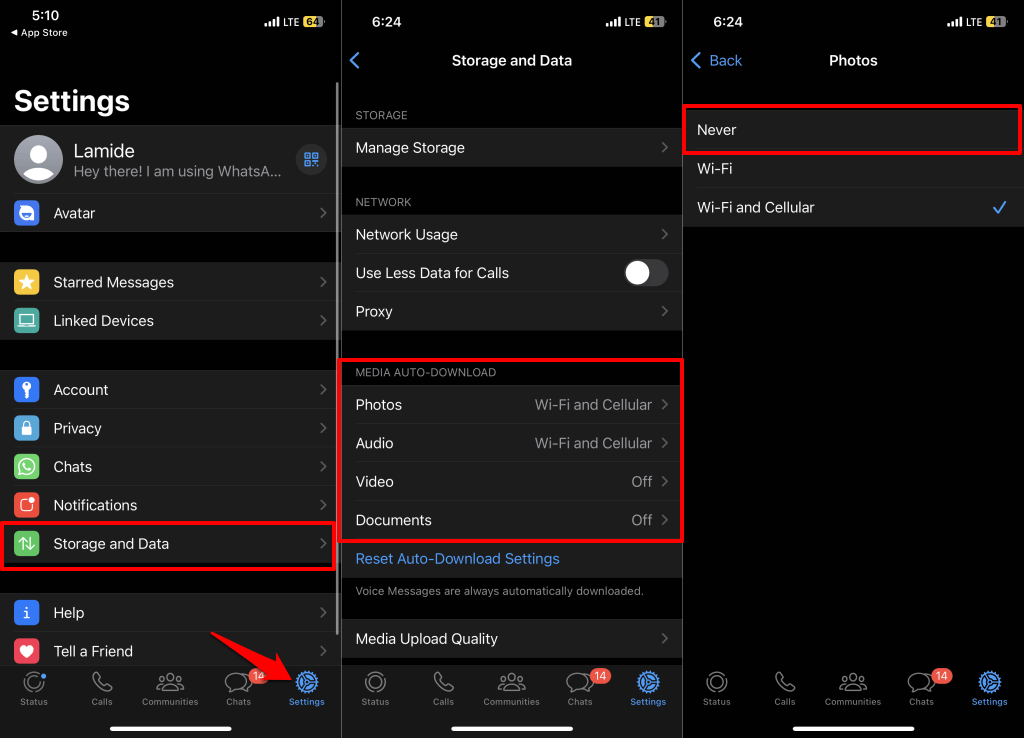
Do the same for other media types or documents. Select Audio, Video, or Documents and choose the Never auto-download option.
Change Media Auto-Download Settings for Individual Or Group Chat
Does WhatsApp automatically download photos and videos from specific people or groups? Follow the steps below to stop WhatsApp from saving media files to your gallery.
Adjust Auto-Download Settings on iOS Devices
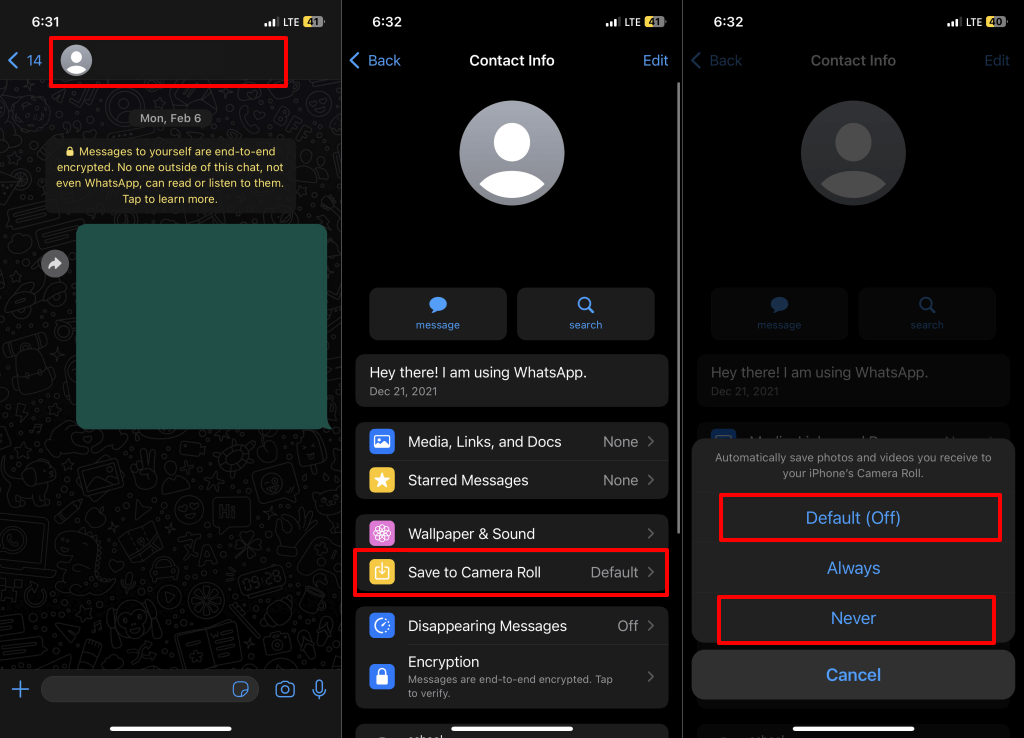
- Open the WhatsApp chat or group where you want to stop the media auto-download.
- Tap the person or group’s profile picture and select Save to Camera Roll on the “Contact Info” or “Group Info” page.
- Select Default (Off) or Never to disable media auto-download for the conversation. New videos or photos from the chat will no longer be saved to your phone’s gallery.
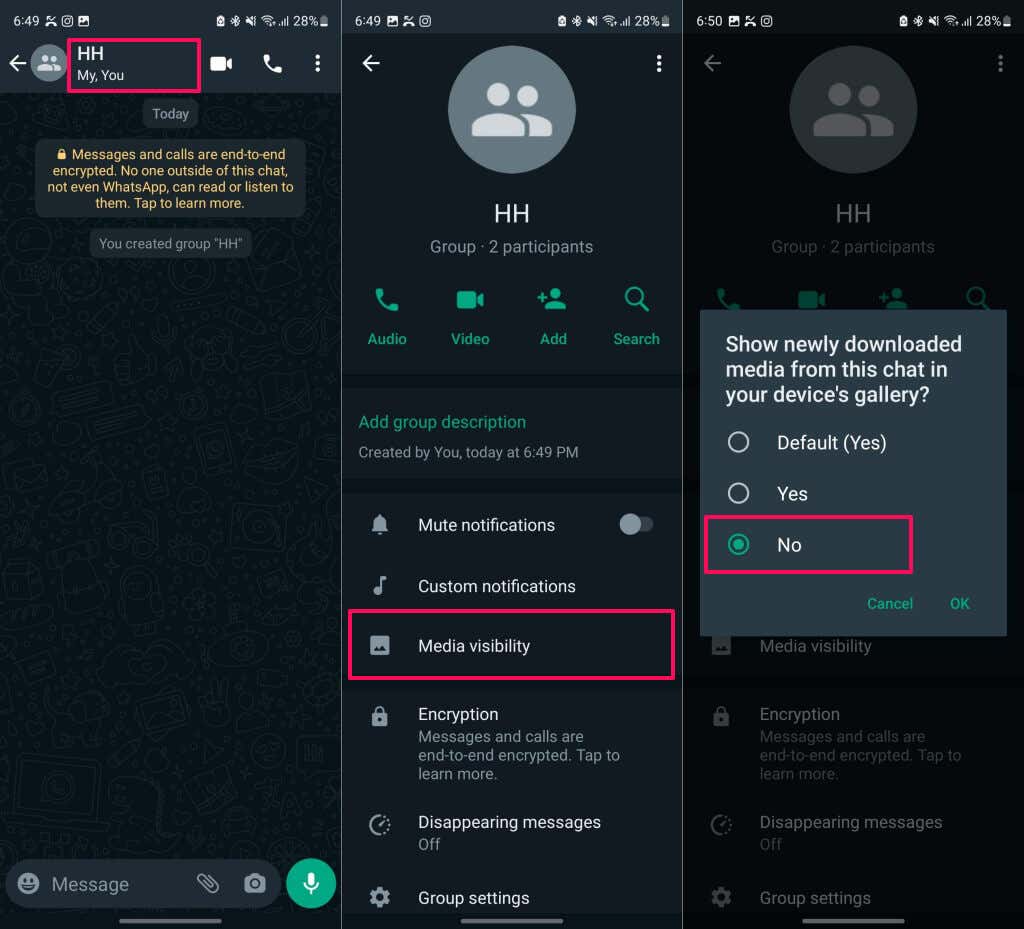
Adjust Auto-Download Settings on Android Devices
- Launch WhatsApp and open a conversation or group chat.
- Tap Media visibility, select No, and tap OK.
How to Manually Save WhatsApp Images or Files
With auto-download disabled, you must manually download media files to view or save them to your phone’s storage.
Manually Save WhatsApp Images/Files (iOS)
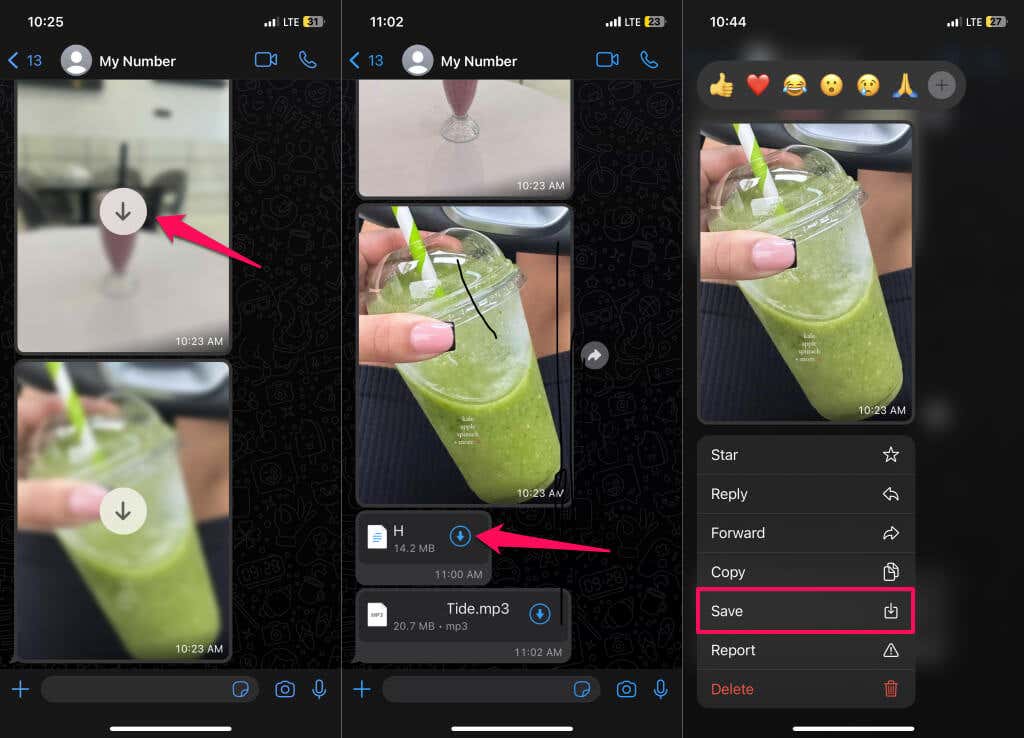
- When you receive a media file in WhatsApp, tap the Download icon to view the file’s content.
- Afterward, tap and hold the file and select Save. Check steps #3 and #4 to see how to save multiple files simultaneously.
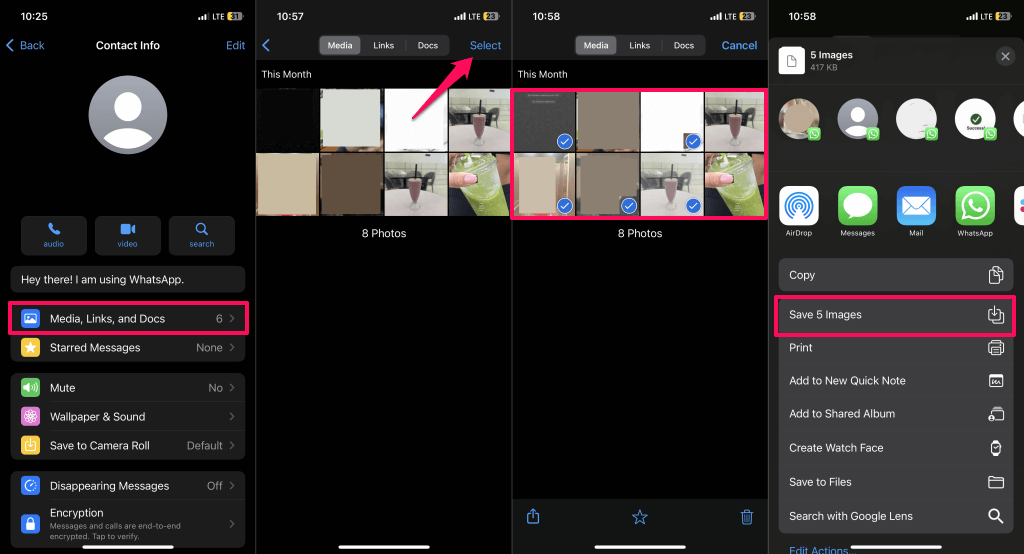
- Tap the person or group profile photo, select Media, Links, and Docs, and open the Media or Docs tab.
- Tap Select in the top-right corner and select the images, videos, or documents you want to save.
- Tap the Share icon in the bottom-left corner, select Save N Images, and check the Photos app for the files.
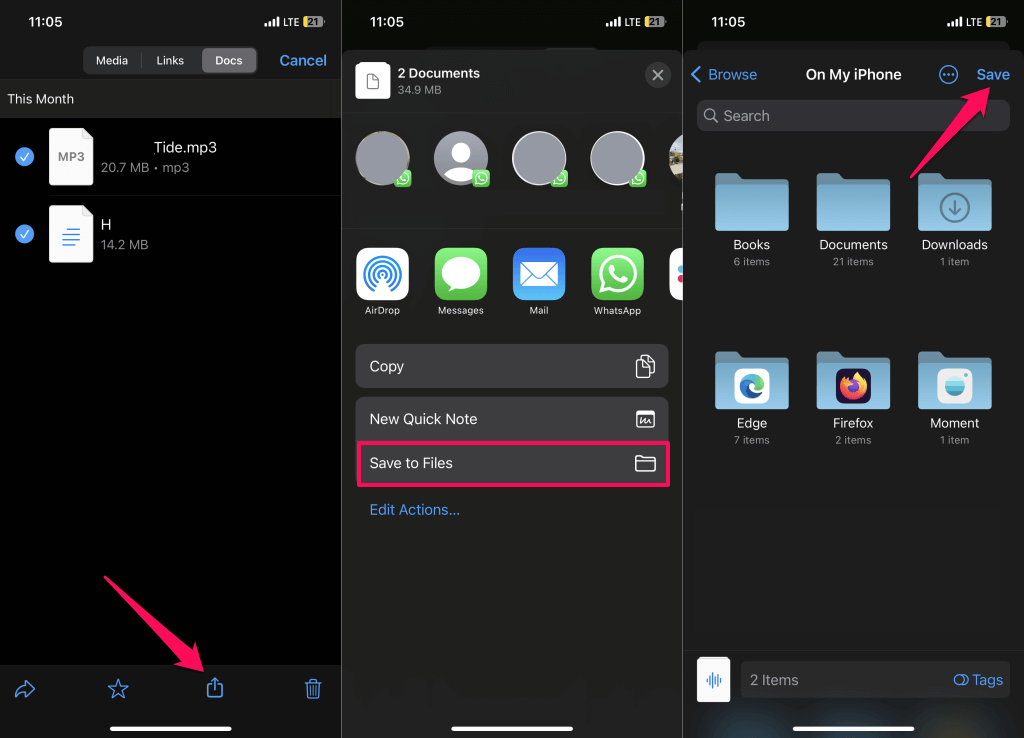
If you’re saving multiple documents, select Save to Files, choose the destination folder, and select Save.
Manually Save WhatsApp Images/Files (Android)
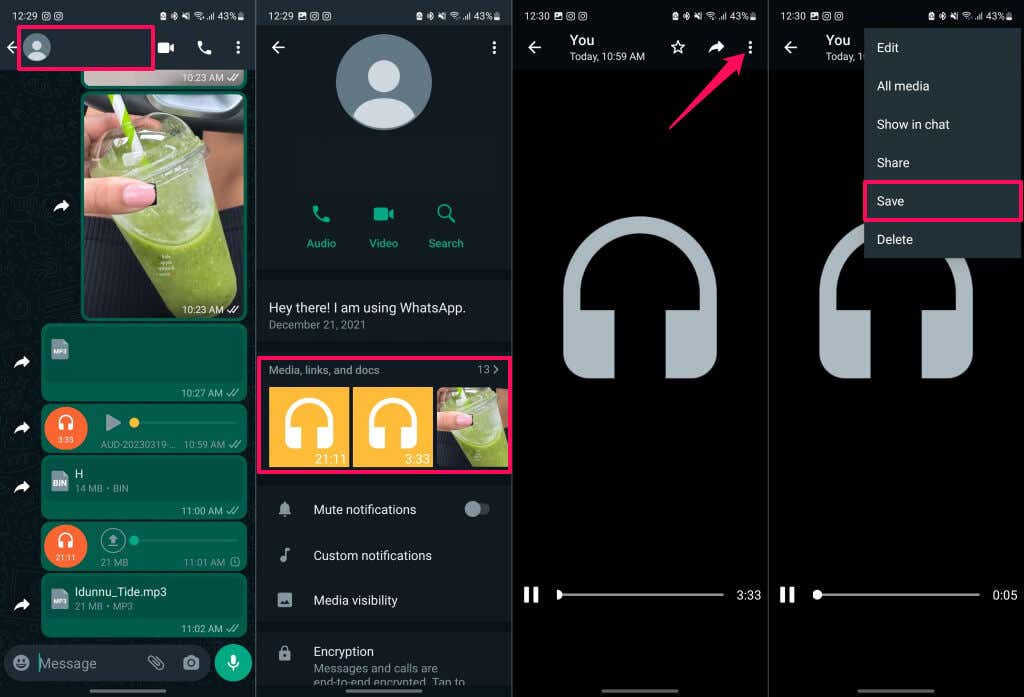
- Open an individual or group chat and tap the person or group name.
- Tap Media, links, and docs and select the image or document you want to save.
- Tap the three-dot menu icon in the top-right corner and select Save.
Cheers to a Cleaner Gallery
WhatsApp’s auto-download feature can quickly fill your phone’s gallery and storage space with unwanted media or files. Disable auto-download for both Wi-Fi and cellular data if you don’t want WhatsApp downloading files without your approval.