Skip to content
ONLINE 101010 TECH 010101 TIPS
  • News
  • How-To
  • Social
  • Streaming
  • Gaming
  • Reviews
  • News
  • How-To
  • Social
  • Streaming
  • Gaming
  • Reviews
  1. Home/
  2. Social Media/
  3. How to Delete Your Snapchat Bitmoji

How to Delete Your Snapchat Bitmoji

Kayla Dube
March 14, 2023
3 min read
 - preview-media-title-4

Snapchat introduced Bitmoji avatars in 2016, and they have gained popularity on the platform. These avatars allow you to present a virtual version of yourself to your Snapchat friends. However, you may be confused if you want to remove your Bitmoji from your Snapchat account entirely.

Unlinking your Snapchat Bitmoji avatar from your Snapchat profile is possible. But do remember that if you created your Bitmoji on Snapchat instead of the Bitmoji app, your avatar will be permanently deleted. So, if you want a Bitmoji again, you’ll have to create it from scratch. This article will guide you through the entire process.

How to Delete Your Snapchat Bitmoji

You can remove your Bitmoji from Snapchat right from the Snapchat app. Follow these steps to delete your Snapchat Bitmoji quickly:

  1. Open the Snapchat app.
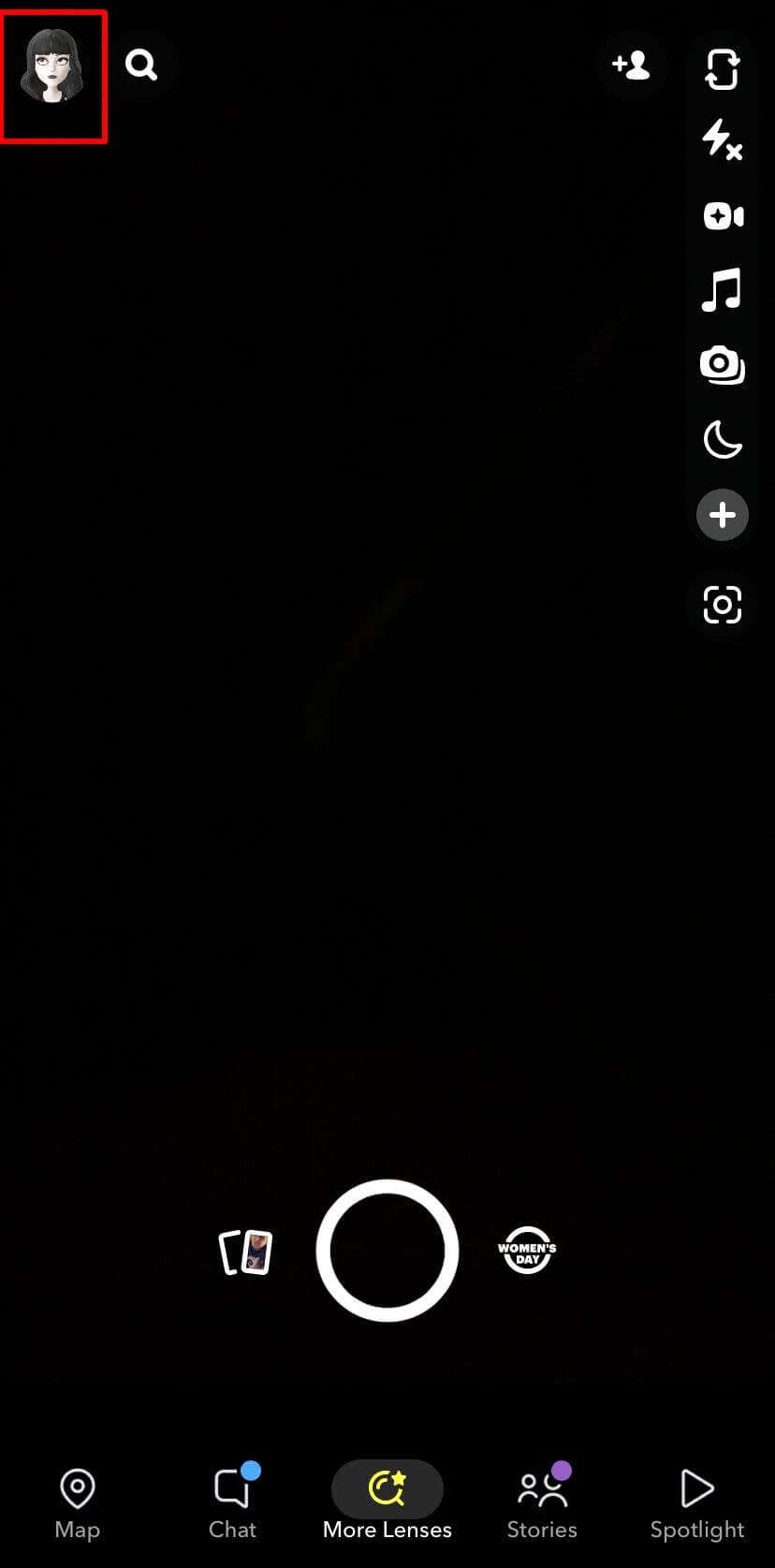
  1. Tap on your profile picture in the top left.
 - how-to-delete-your-snapchat-bitmoji-2-compressed
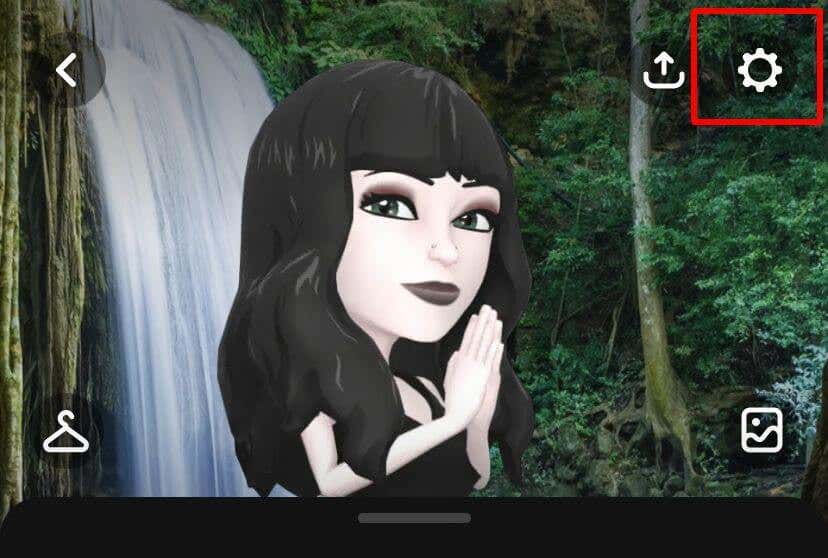
  1. Tap on the Settings icon in the top right corner.
 - how-to-delete-your-snapchat-bitmoji-3-compressed
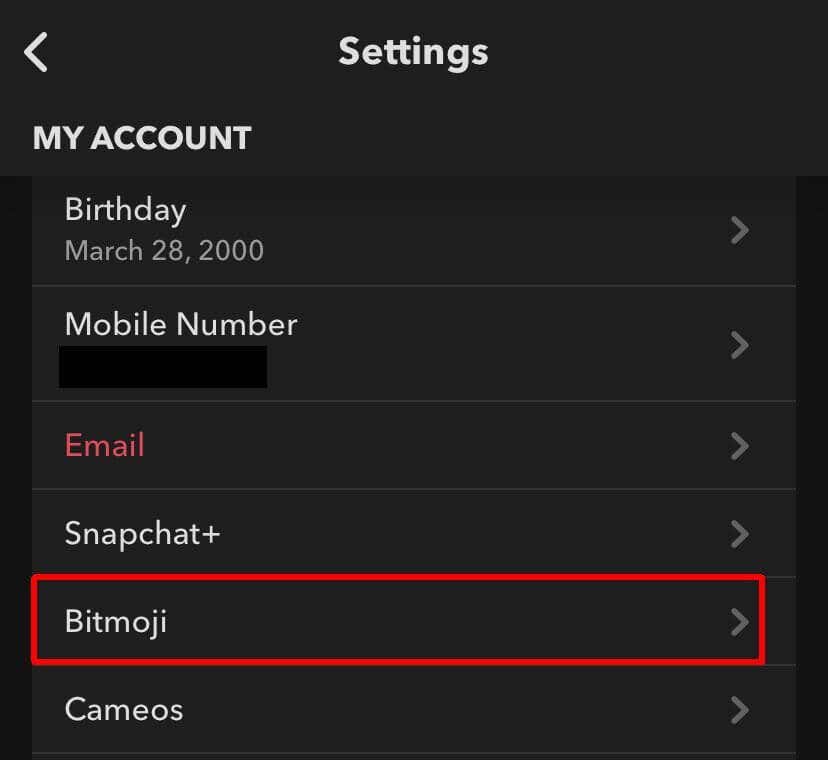
  1. Under My Account, tap on Bitmoji.
 - how-to-delete-your-snapchat-bitmoji-4-compressed
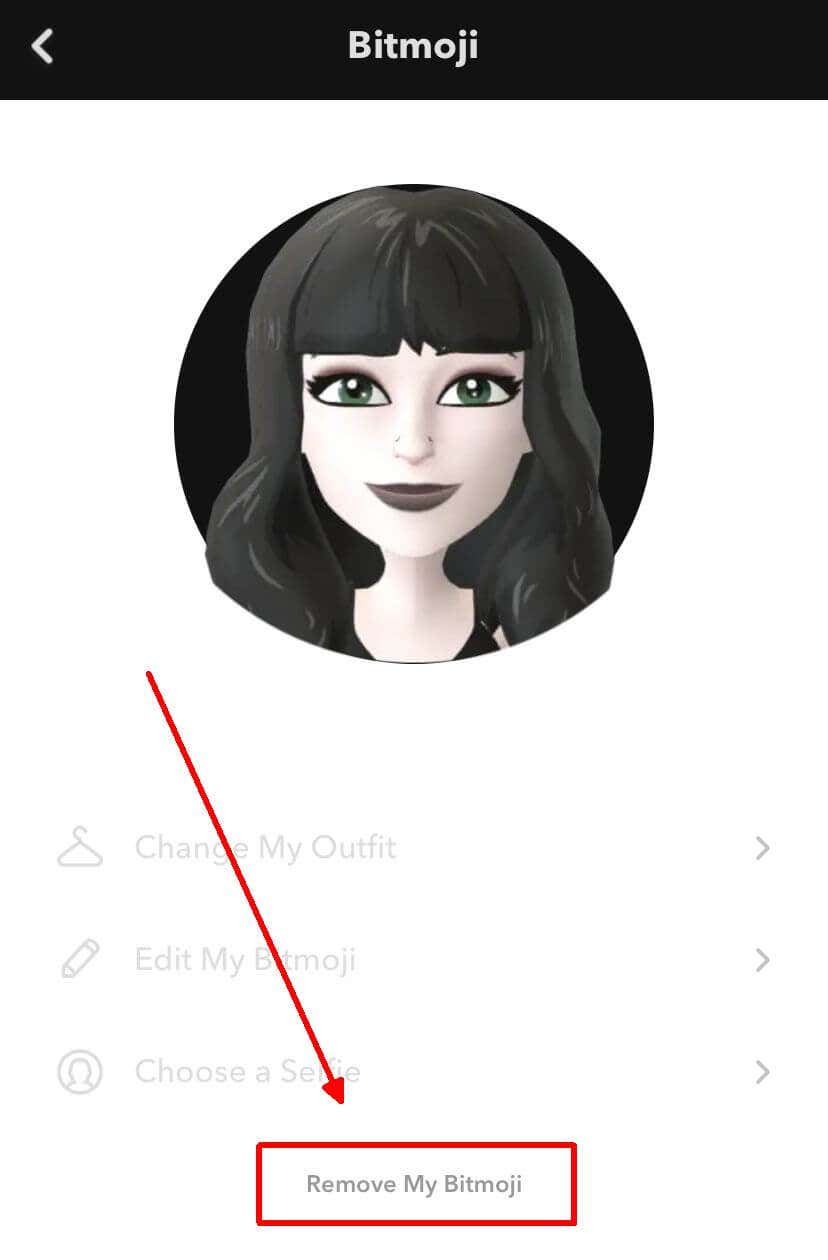
  1. At the very bottom, tap on Remove My Bitmoji.
 - how-to-delete-your-snapchat-bitmoji-5-compressed
  1. Confirm the deletion by tapping Remove.

You will now have a blank Snapchat avatar unless you create a new Bitmoji. You can do this by returning to your profile screen and selecting Create My Avatar. Note that if you don’t have a Bitmoji, you won’t be able to use features such as Bitmoji stickers or the Bitmoji keyboard.

How to Link a New Bitmoji From the App

Deleting your original Bitmoji to link a brand new one from the Bitmoji app is also easy. The steps below outline how to create a new Bitmoji using the Bitmoji app and how to link it to Snapchat.

  1. Open the Bitmoji app.
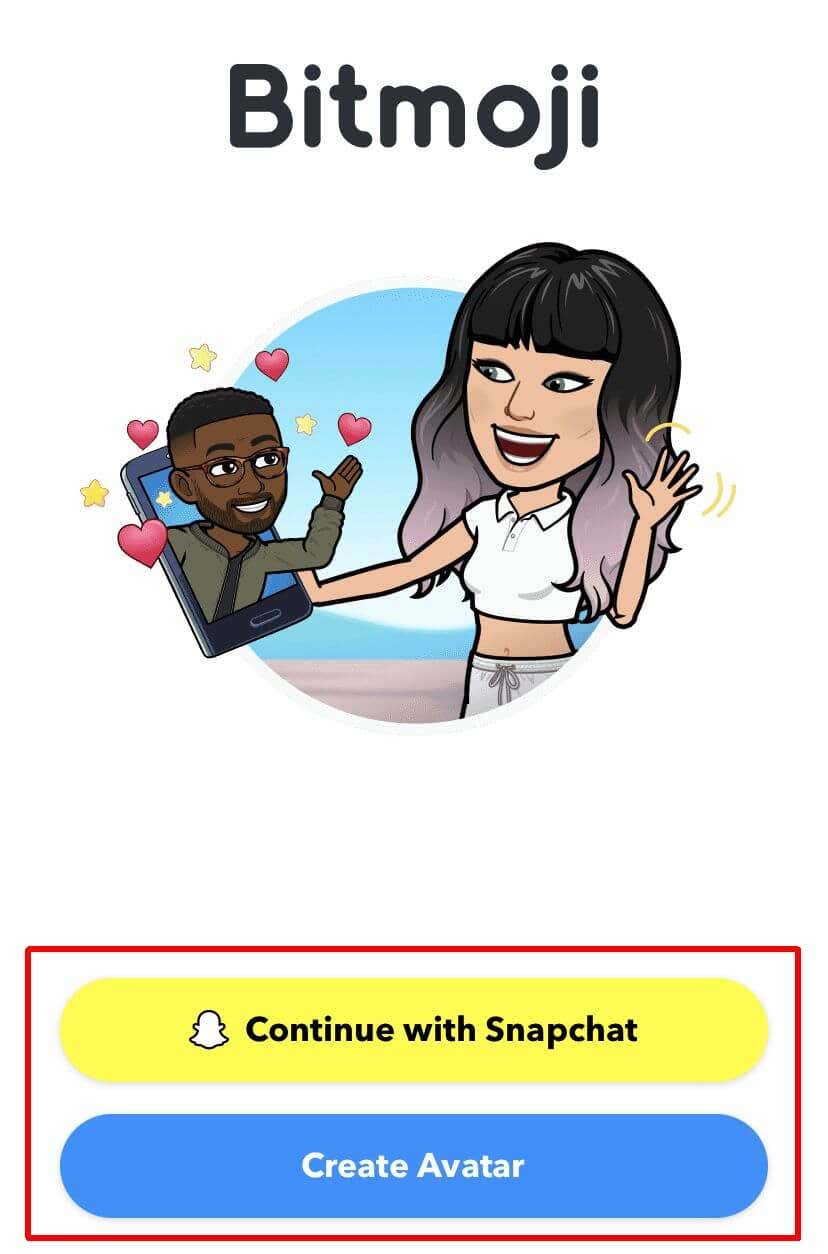
  1. Select Continue with Snapchat.
 - how-to-delete-your-snapchat-bitmoji-6-compressed
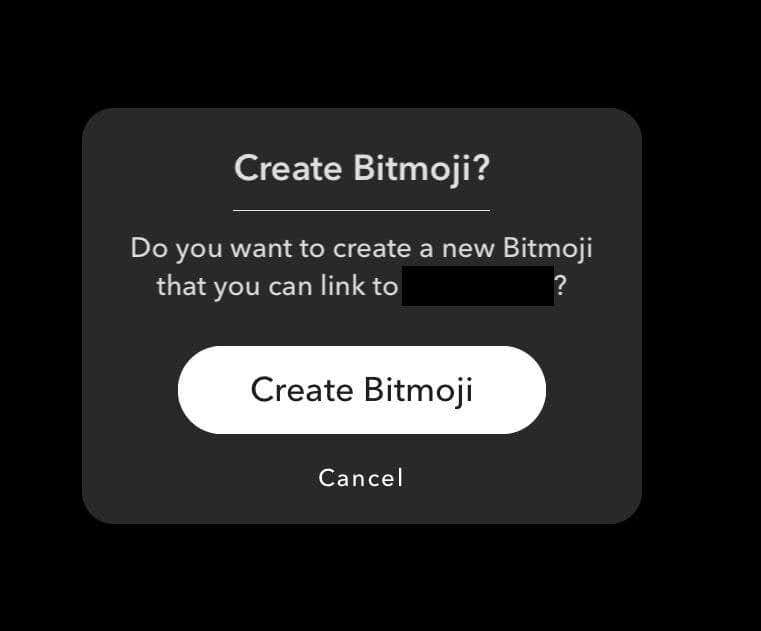
  1. Tap on Create Bitmoji.
 - how-to-delete-your-snapchat-bitmoji-7-compressed
  1. Make and edit your Bitmoji within the app. Tap Save when you’re finished.
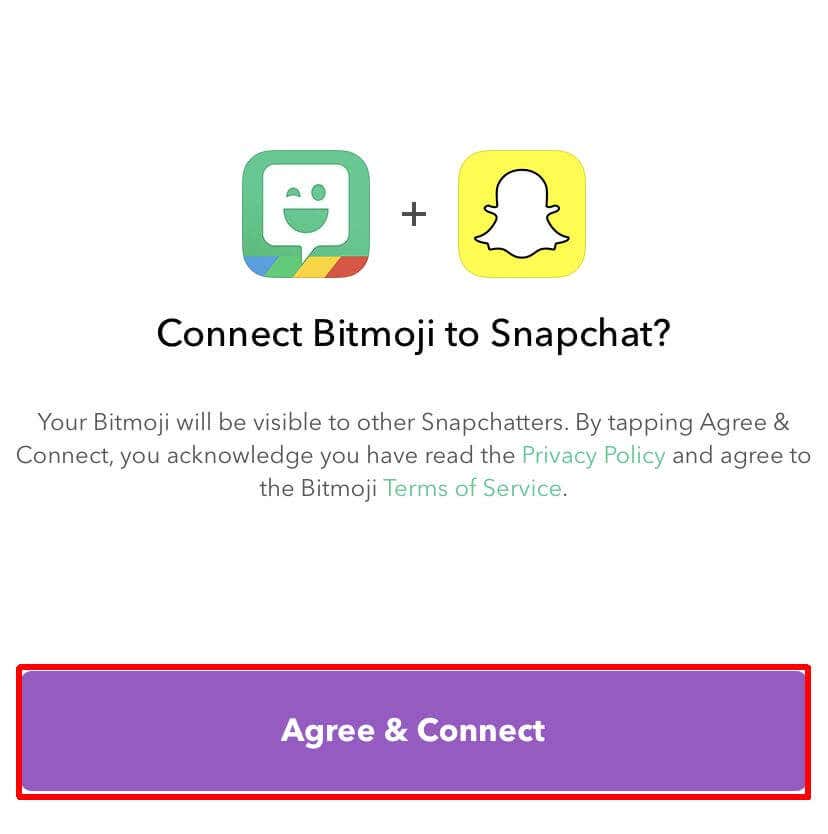
  1. Tap on Agree & Connect to link your new Bitmoji to Snapchat.
 - how-to-delete-your-snapchat-bitmoji-8-compressed

If you had a background and pose set up with your previous Bitmoji icon, you’ll need to go in and change these as well. You can do this from your Snapchat profile page in the app by tapping on the picture icon near the upper right side.

If you want to create a Bitmoji character without creating it through Snapchat, you can select Create Avatar instead of Create with Snapchat. From there, you can still link the Bitmoji to Snapchat through the Bitmoji app, but if you remove that Bitmoji from Snapchat it will not be deleted entirely. So this is a good reason to create your Bitmoji through the app instead.

Remove Your Bitmoji From Snapchat Easily

No matter your reasons for deleting your Bitmoji from Snapchat, it’s easy to do right from the app. With just a few taps, you can delete your avatar right away. It’s also not too hard to create a new Bitmoji if you feel like you want one again, whether through Snapchat or the Bitmoji app itself.

Tags: Snapchat
Share
Written by

Kayla Dube

Since she was a child, Kayla has had a fascination with technology, video games, and filmmaking. Growing up she wrote on multiple personal blogs about these topics, enjoying the process of breaking down technical concepts. Most recently her focus has shifted to writing, and Kayla now reviews and writes technology, video editing, and gaming related articles. <a href='https://www.online-tech-tips.com/author/kdube/'>Read Kayla's Full Bio</a>

View Kayla's Profile

Recent Posts

  •  - featured
    The 8 Best Free Anime Apps and Sites for iPhone and Android in 2026Mar 30, 2026
  • Gmail Not Loading in Chrome? Here's How to Fix It (2026) - Gmail Not Loading in Chrome? Here's How to Fix It (2026)
    Gmail Not Loading in Chrome? Here’s How to Fix It (2026)Mar 28, 2026
  • How to Fix Chrome Extensions Not Working After Update: The Extension Emergency Kit - How to Fix Chrome Extensions Not Working After Update: The Extension Emergency Kit
    How to Fix Chrome Extensions Not Working After Update: The Extension Emergency KitMar 27, 2026
  • Steam front page on desktop computer - steam
    How to Fix “Something Went Wrong While Displaying This Content” Error in SteamMar 27, 2026

Search

Categories

  • Gaming (346)
  • How-To (1,118)
  • News (44)
  • Reviews (438)
  • Social Media (462)
  • Streaming (174)
  • Uncategorized (4)

Popular Tags

Adobe AI Alexa Amazon Android Buying Guides ChatGPT Chrome Discord Explainers Facebook FireTV Gadget Reviews Gmail Google Google Docs Google Maps Google Sheets Home Networking Hulu Instagram Internet LinkedIn Minecraft Netflix Nintendo Switch PlayStation Premiere Reddit Remote Work Roblox Roku Roundups Smart Home Snapchat Software Reviews Spotify Steam TikTok Twitch VR WhatsApp Windows X (Twitter) YouTube

Our Publishing Family

Online Tech Tips is part of the AK Internet Consulting publishing family.

  • HELP DESK GEEK
  • THE BACK ROOM TECH
  • SWITCHING TO MAC
  • XBOX ADVISOR

Daily Email Newsletter

Connect With Us

About Online Tech Tips

Online Tech Tips has published easy-to-follow technology tutorials, honest reviews, and practical how-to guides since 2007 — helping millions of readers solve tech problems and get more from their devices.

Learn More →

© 2007-2026 Online Tech Tips.com, LLC.
All Rights Reserved.

  • Home
  • About Us
  • Editorial Standards
  • Contact Us
  • Terms of Use
  • Privacy Policy
Online