

Is your WhatsApp backup stuck during upload to iCloud or Google Drive or taking a lot longer than it typically does? This tutorial will help you understand why and how to fix the issue on Android or iOS devices.
Why is WhatsApp Stuck on Backup?
Backing up WhatsApp data helps you avoid data loss. Also, having a backup lets you quickly transfer your WhatsApp chat when switching from iPhone to Android, Android to Android, or iPhone to iPhone. When you get a new phone, you can restore WhatsApp backup and use the app without losing any of your data. So, what delays or prevents WhatsApp from backing up your chats?
Several issues could cause your WhatsApp backup to get stuck. These include insufficient/low storage space, poor internet connection, software bugs, and even temporary glitches with the WhatsApp application. If you’re attempting the backup on cellular/mobile data, switch to a Wi-Fi network and try again.
Follow the steps below to troubleshoot and fix WhatsApp backup stuck issues on iOS and Android devices.
How to Fix WhatsApp Backup Stuck on Android
First, ensure your Android phone has a stable internet connection (preferably a strong Wi-Fi network). Additionally, ensure your WhatsApp account is linked to an active Google account. You can check it in WhatsApp’s backup settings (go to Settings > Chats > Chat backup > Backup to Google Drive).
1. Force Quit WhatsApp
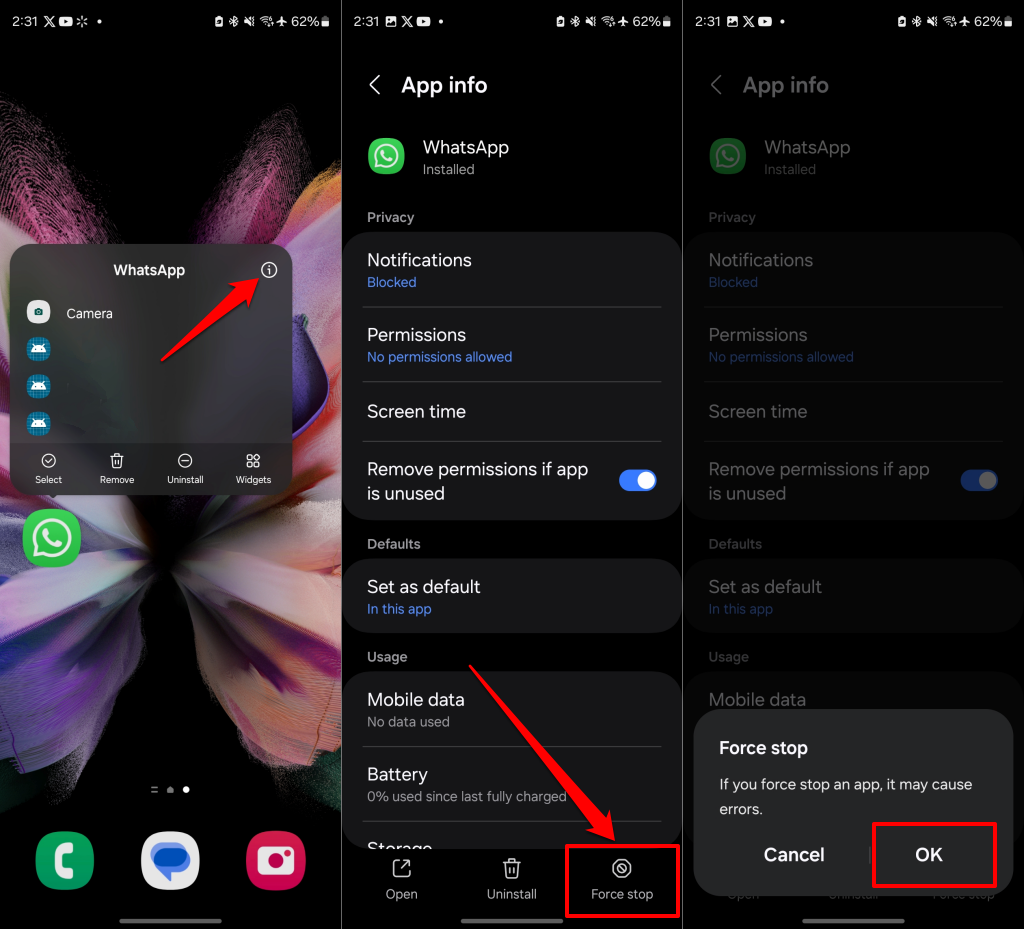
If your WhatsApp chat history is stuck on backup, the WhatsApp app may not be working correctly. We recommend force-closing WhatsApp, restarting the app, and rerunning the backup first.
- Tap and hold the WhatsApp app icon for 3-5 seconds, then tap the Info (i) icon on the pop-up menu.
- Tap Force stop and select OK.
- Open WhatsApp and then try backing up your chats again.

2. Exclude Videos From Backup
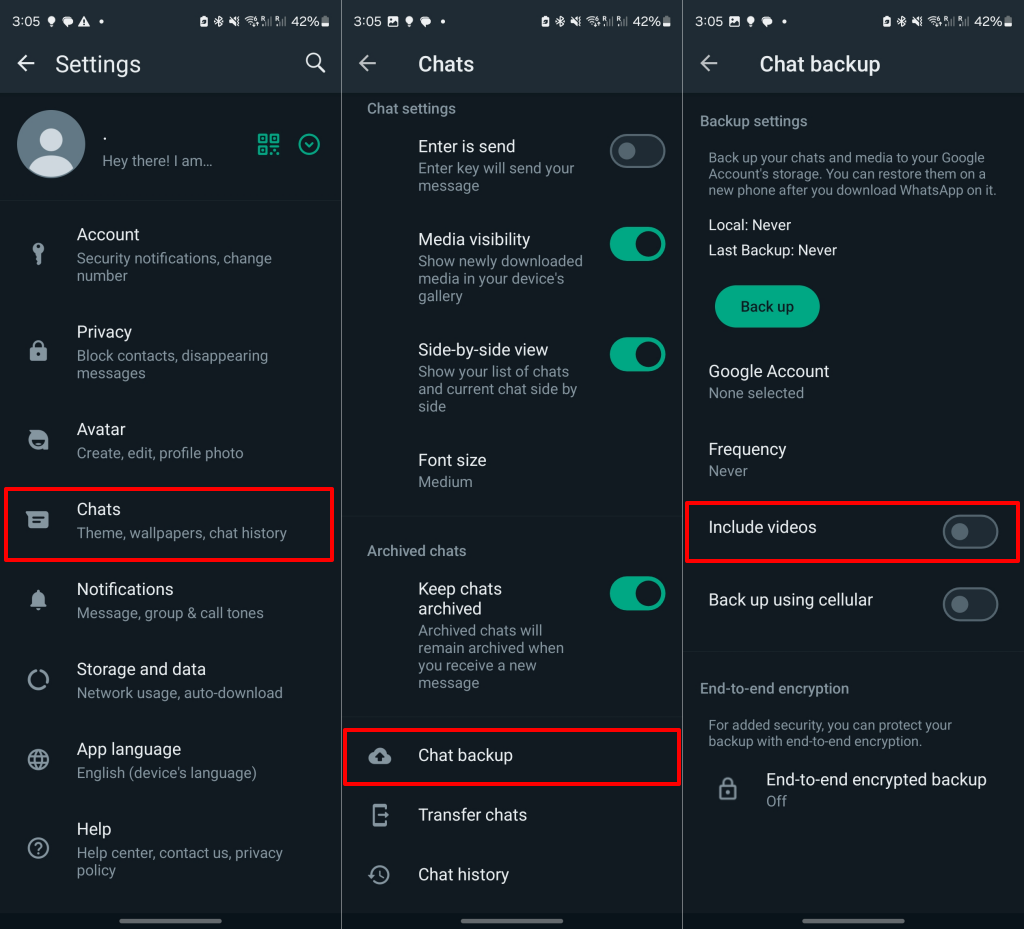
WhatsApp typically takes more time to complete large backups, which could be why the app struggles to complete the backup. Expect your backup to be large if your conversations include (many) videos. You could hasten the backup by connecting your phone to a high-speed Wi-Fi network. Alternatively, you could exclude videos from the backup, especially if you don’t think videos are essential. Close and reopen WhatsApp, then configure the app to exclude videos from chat backup.
Head to Settings > Chats > Chat backup and toggle off the Include videos options.
3. Clear WhatsApp Cache
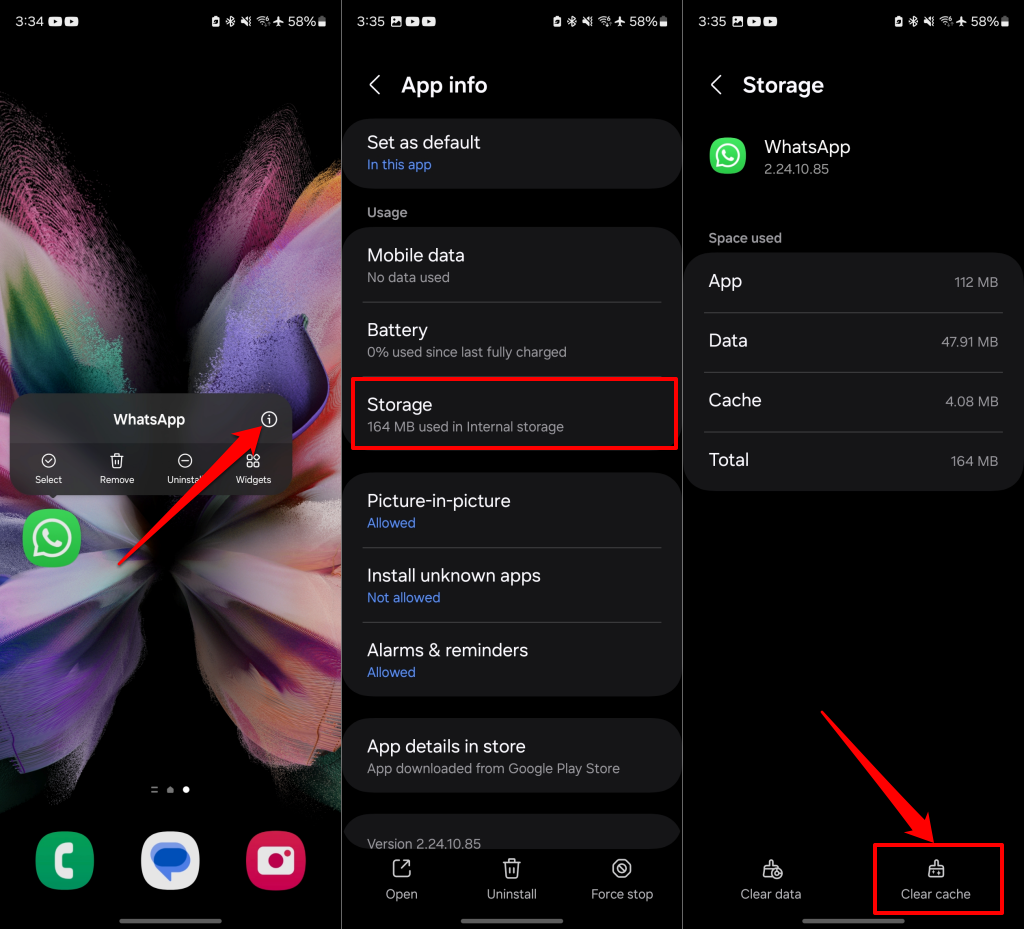
When WhatsApp accumulates cache or temporary files, the app might malfunction and fail to back up your chat. Clearing WhatsApp’s cache can help fix issues affecting the backup process.
Note: Deleting WhatsApp cache won’t delete your chat history or sign you out of WhatsApp.
- Tap and hold the WhatsApp app icon and tap the Info (i) icon.
- Select Storage on the “App info” page.
- Tap Clear cache to delete WhatsApp cache data from your device.
4. Reset Your Network/Connection Settings
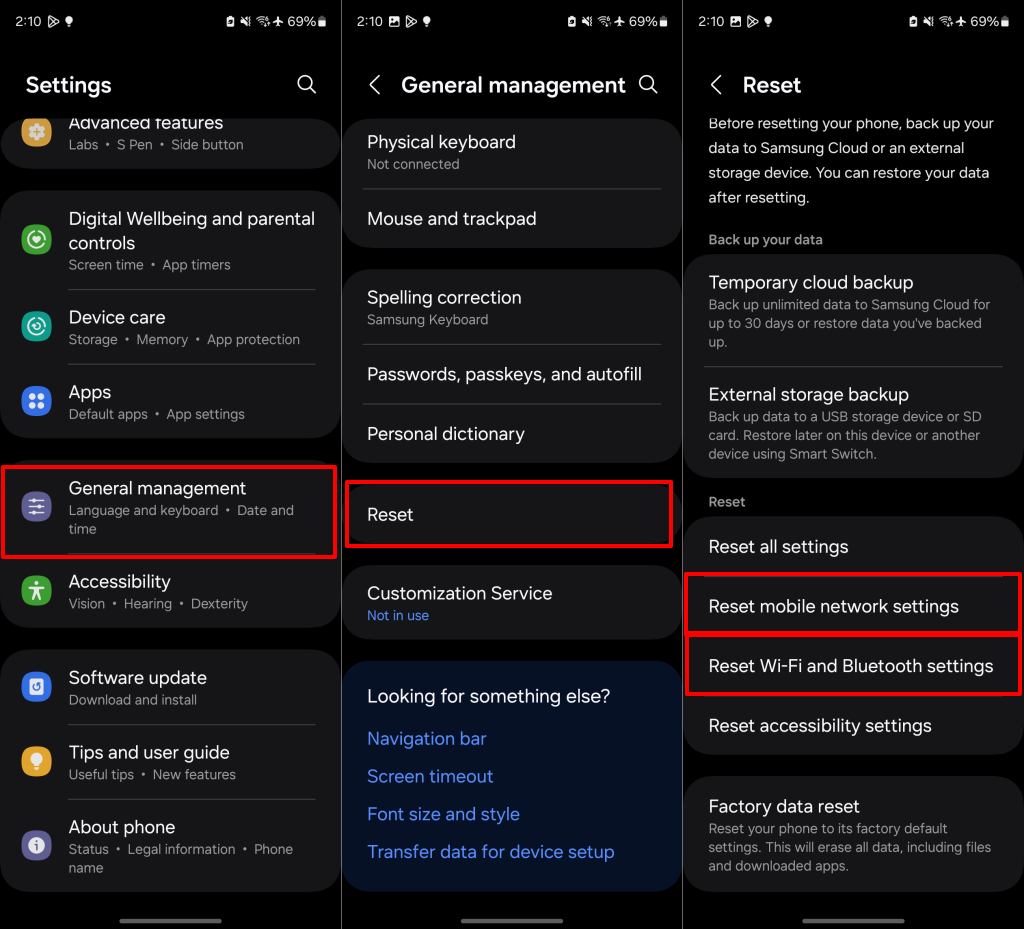
Restoring your device’s connectivity settings to factory default can fix issues with WhatsApp chat backup. To reset a network on a stock Android device, head to Settings > System > Reset options > Reset Wi-Fi, mobile & Bluetooth > Reset settings.
If you have a Samsung phone, go to Settings > General management > Reset and tap Reset mobile network settings. Select Reset Wi-Fi and Bluetooth settings to restore your device’s Wi-Fi settings to default.
5. Quit WhatsApp Beta Program
Android WhatsApp users can sign up for the WhatsApp Beta program. The Beta program allows participants to test new updates and features before their official public release.
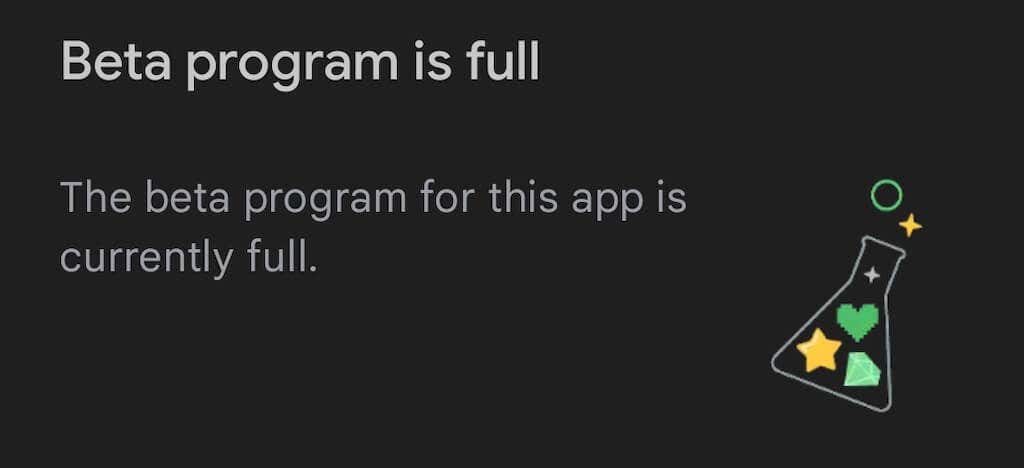
However, the app’s beta version is usually unstable and causes several issues. Try quitting the beta program to see if that fixes the WhatsApp backup stuck problem.
6. Delete Old Backups From Google Drive
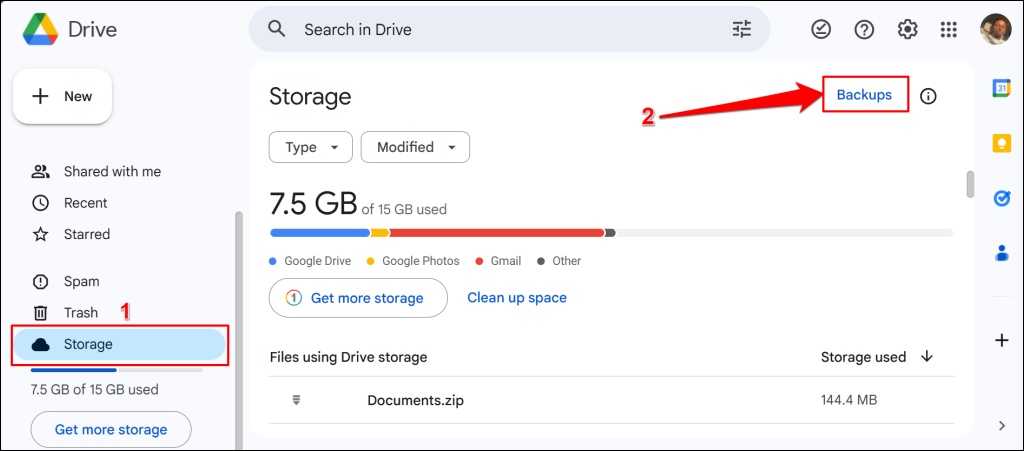
Existing backups sometimes interfere with the creation of new backups. Deleting one backup to make way for a new one might fix the problem. Open your Goole Drive storage in a web browser and follow the steps below to remove old WhatsApp backup files.
- Select Storage in the sidebar and Backups in the top-right corner.
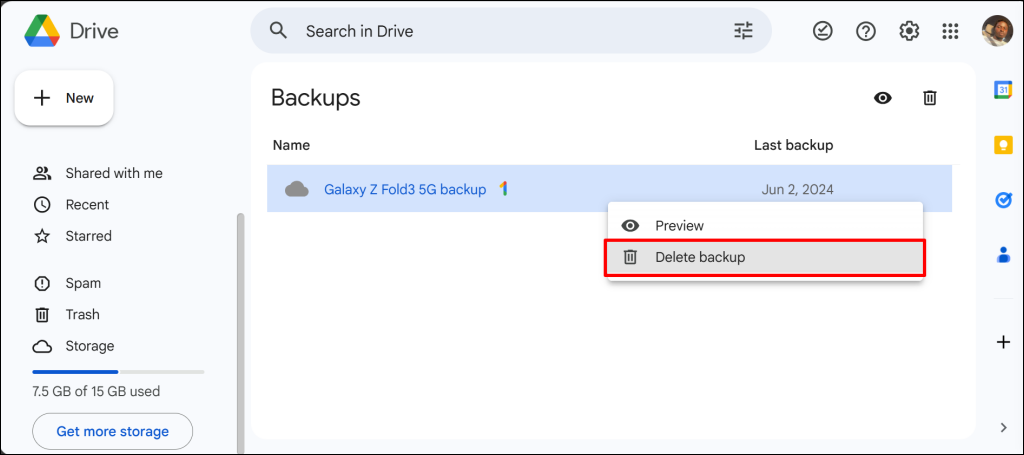
- Right-click the existing backup you want to delete and select Delete backup. Then, restart the WhatsApp backup and check if it goes through without issues.
Launch WhatsApp, back up your chats, and see if the app creates a new backup in Google Drive. Update or reinstall WhatsApp if it still won’t back up your chats.
7. Free Up Google Drive Storage
Ensure your Google Drive has sufficient storage. Otherwise, you’ll run into issues backing up your WhatsApp data.
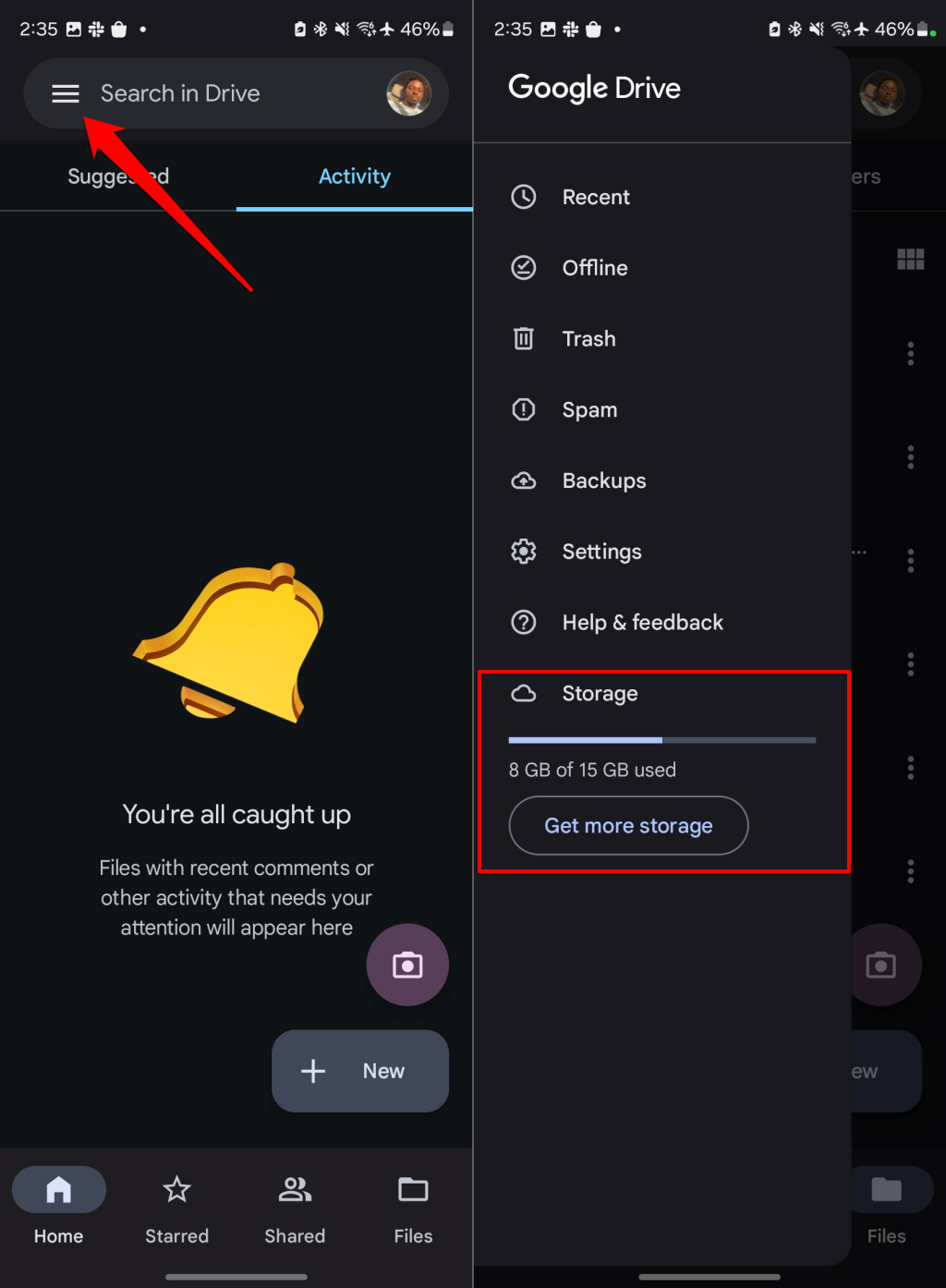
Open the Drive app and tap the hamburger menu icon to check your cloud storage status.
Tap Get storage to buy a Google One plan if you’re running low on storage space. Alternatively, optimize your Drive storage to free up space for new backups.
8. Reinstall or Update WhatsApp
An outdated or buggy WhatsApp version can cause issues when backing up chats on your Android device. Open the Google Play Store app and search for “whatsapp.” Tap Update to install the latest instant messenger version on your Android phone.
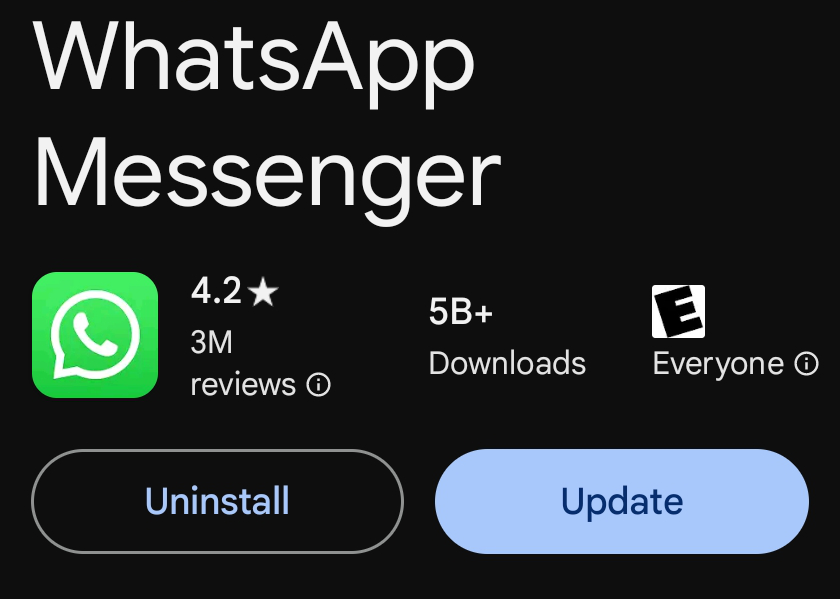
Reopen WhatsApp after installing the update and check if that fixed the issue. If you have the latest WhatsApp version on your device, uninstalling and reinstalling the app might fix the backup issue.
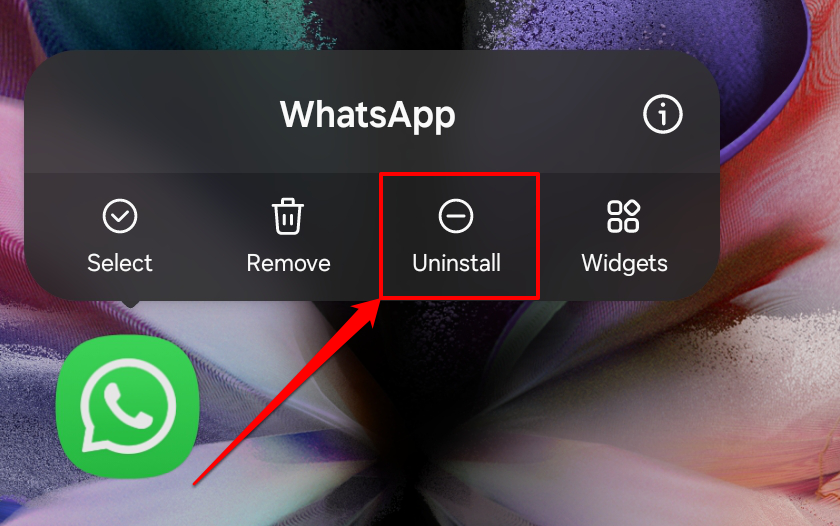
Tap the Uninstall option on the WhatsApp Messenger Play Store page to delete the app. Alternatively, tap and hold the WhatsApp icon in your app library, then select Uninstall.
9. Update Google Play Services
Updating Google Play services can resolve app malfunctions on your Android device. Google Play Services affects almost every app-related process on your phone. If you’ve never downloaded software updates for Google Play services, you might have an outdated version that causes problems with other apps on your smartphone. Close WhatsApp and follow the steps below.
- Open the Settings app, tap App & notifications, and select See all apps. Go to Settings > Apps on Samsung devices to see all installed applications.
- Locate and select Google Play services.
- Scroll down the app info page and select App Details or App details in store.
- Tap the Update button to update Google Play services.
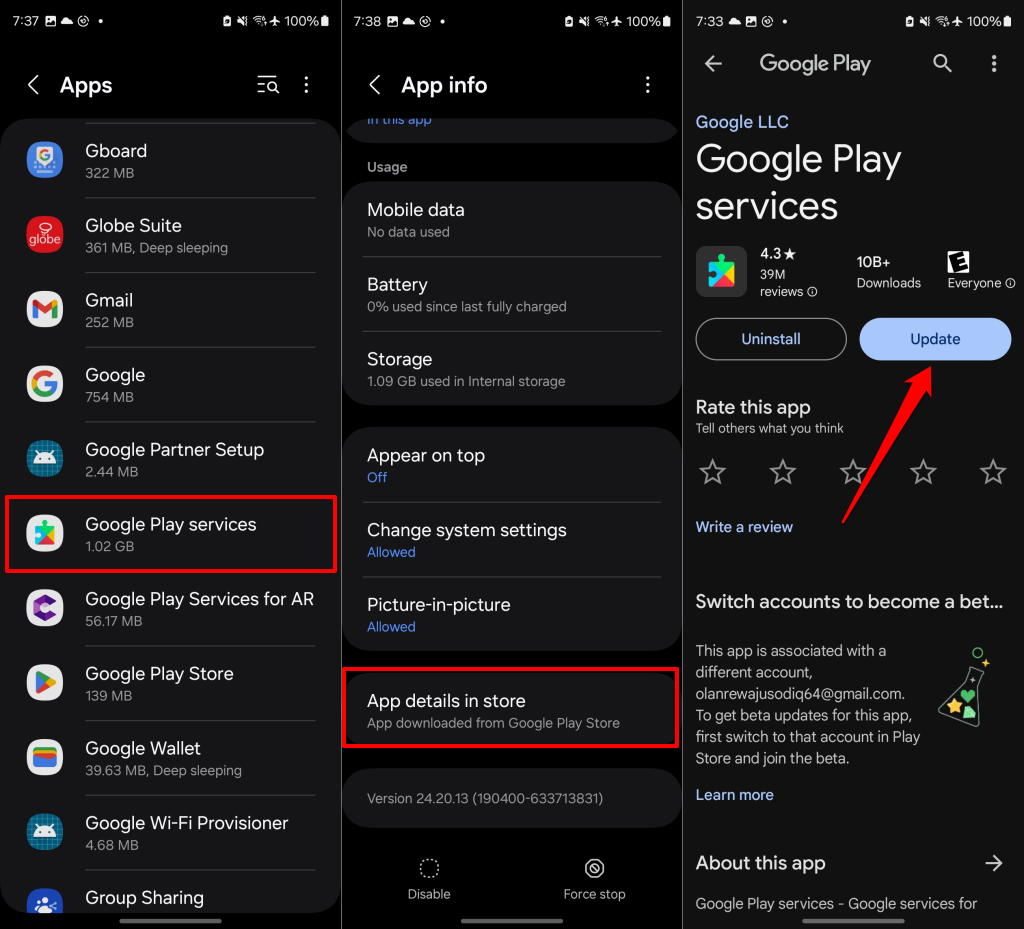
Reopen WhatsApp and check if it executes a complete backup without interruption or issue.
10. Restart Your Device
Try one of the universal solutions for smartphone software glitches: turn your device off and back on. This process refreshes your phone’s operating system and can fix performance-related issues that cause WhatsApp to malfunction. Our tutorial on restarting Android smartphones has instructions for rebooting different Android device models and OS versions.
How to Fix WhatsApp Backup Stuck on iPhone
Is WhatsApp backup taking too long on your iOS device? Try the following techniques to fix the issue.
1. Check Your iCloud Storage
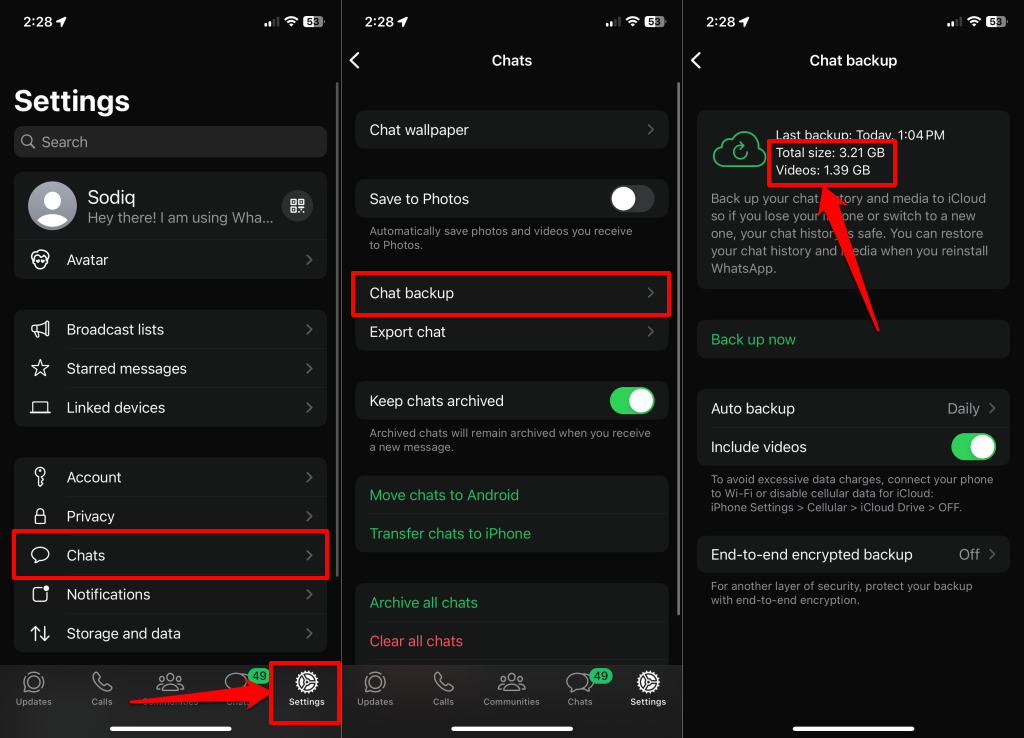
Your device won’t back up WhatsApp files if your iCloud account has insufficient storage space. Check the size of the WhatsApp backup, then check how much iCloud storage space you have left. You’ll encounter the WhatsApp backup stuck problem if the backup size exceeds the free space in iCloud. Here’s how to check WhatsApp’s backup size on your iPhone:
Open WhatsApp Settings and go to Chats > Chat backup to the size of your WhatsApp backup file.
Open your iPhone Settings, tap your Apple ID name, and select iCloud to check your storage space.
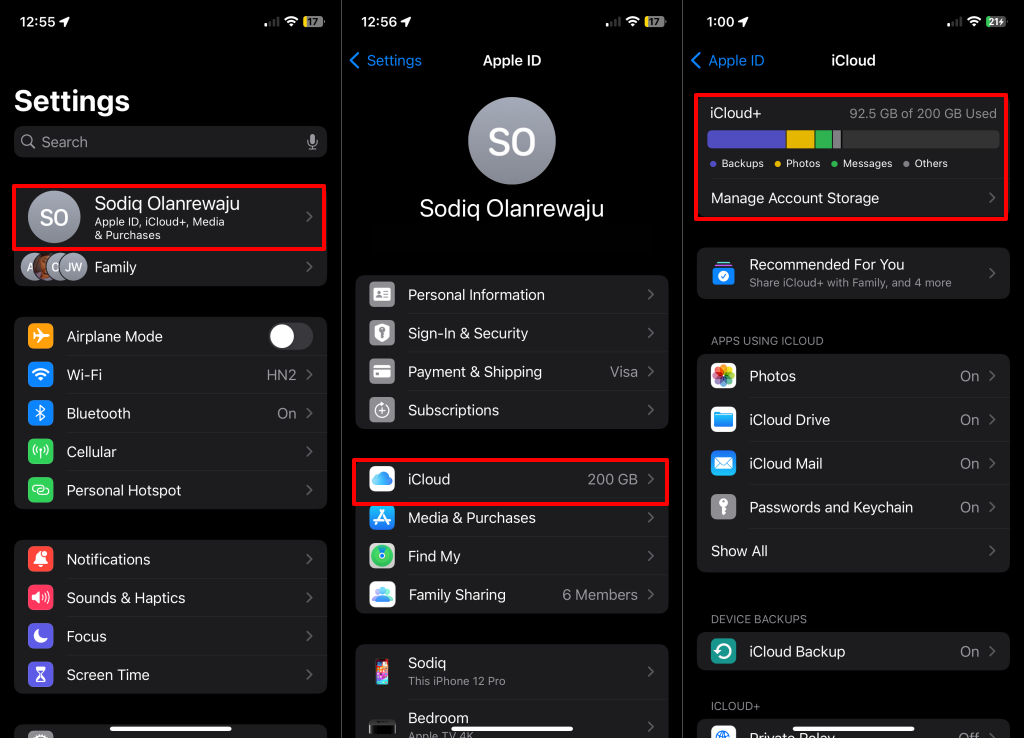
Upgrade to iCloud+ if your WhatsApp backup size exceeds the free storage space available in iCloud. Alternatively, delete unneeded items that are eating your storage—see how to clear or free up iCloud storage. Reattempt backing up WhatsApp if you have enough iCloud storage to accommodate the backup.
2. (Re)Sync WhatsApp to iCloud Drive
Configure your iPhone to allow WhatsApp to synchronize data to iCloud Drive. Otherwise, you might encounter issues backing up your WhatsApp messages.
- Open your iPhone Settings, tap your Apple ID name, and go to iCloud > iCloud Drive.
- Select App Syncing to iCloud Drive and toggle on WhatsApp.If the option is on, turn it off and back on, then try backing up your WhatsApp chats again.
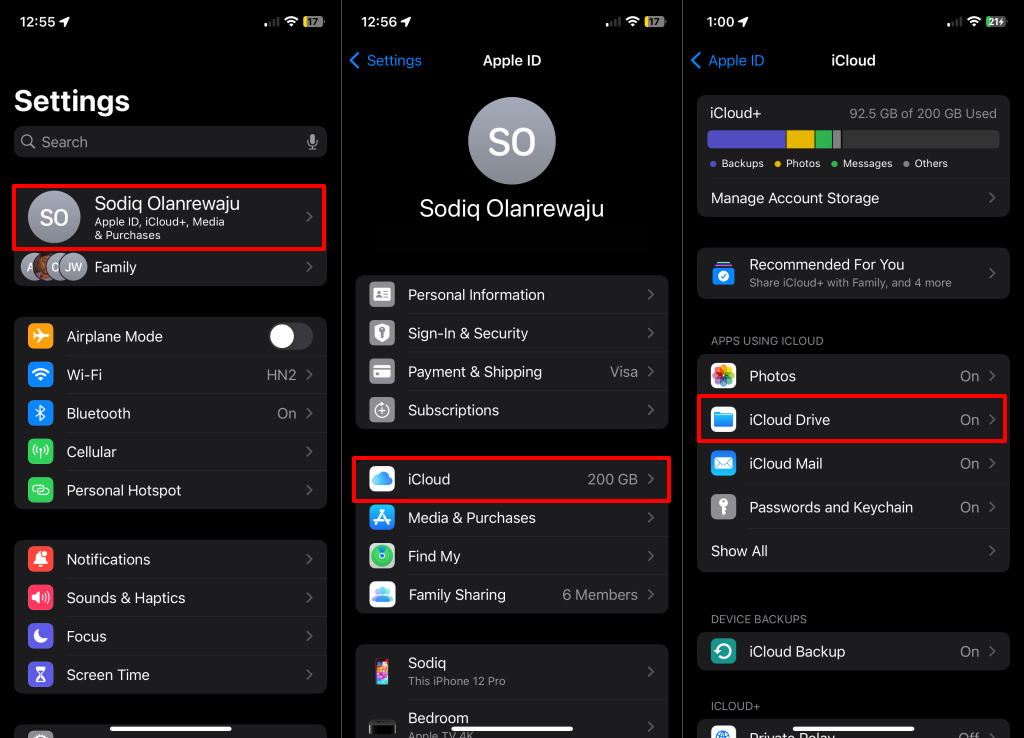
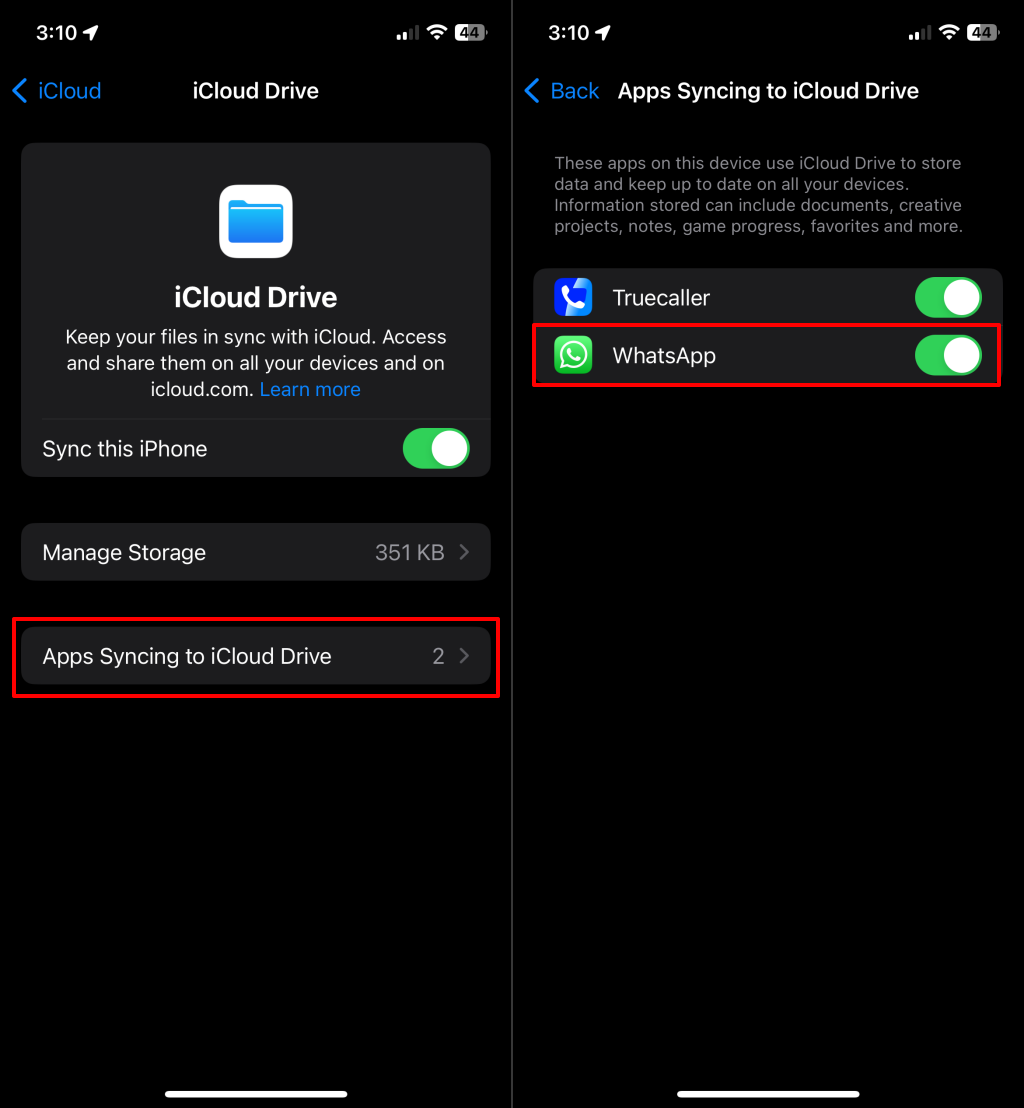 If the option is on, turn it off and back on, then try backing up your WhatsApp chats again.
3. Check iCloud Services Status
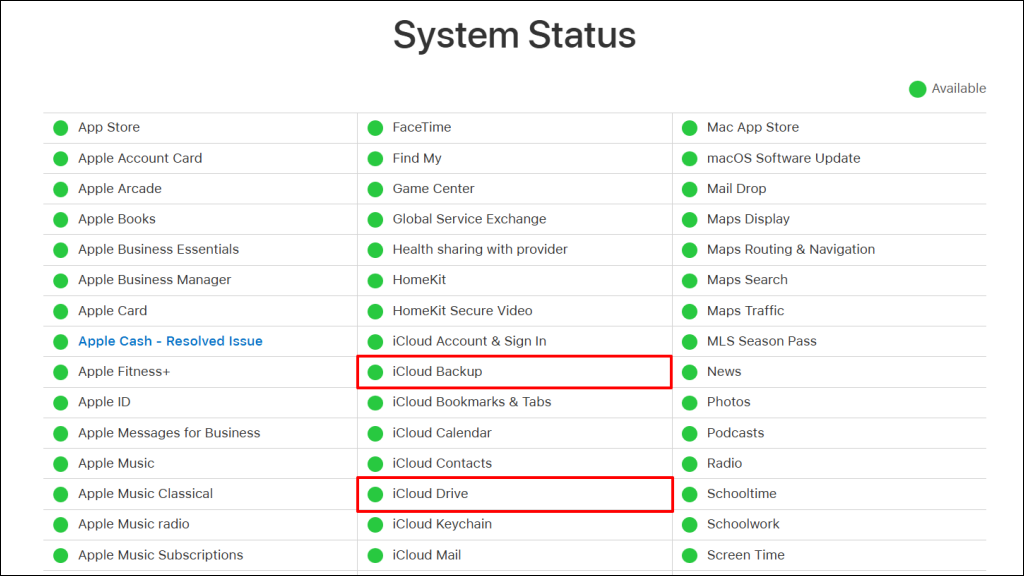
WhatsApp chat backup sometimes fails when iCloud services are experiencing an issue. Use Apple’s System Status to check for services like iCloud Backup or Drive. A green status light means the services are online/available, while a yellow/red light means they’re temporarily offline/unavailable. Report the downtime to Apple Support and backup WhatsApp when the affected services are back online.
4. Update Your iPhone’s Software
Running an old iOS version on your iPhone could cause some apps to malfunction. If you haven’t updated your iPhone in a while, do so before attempting another WhatsApp data backup.
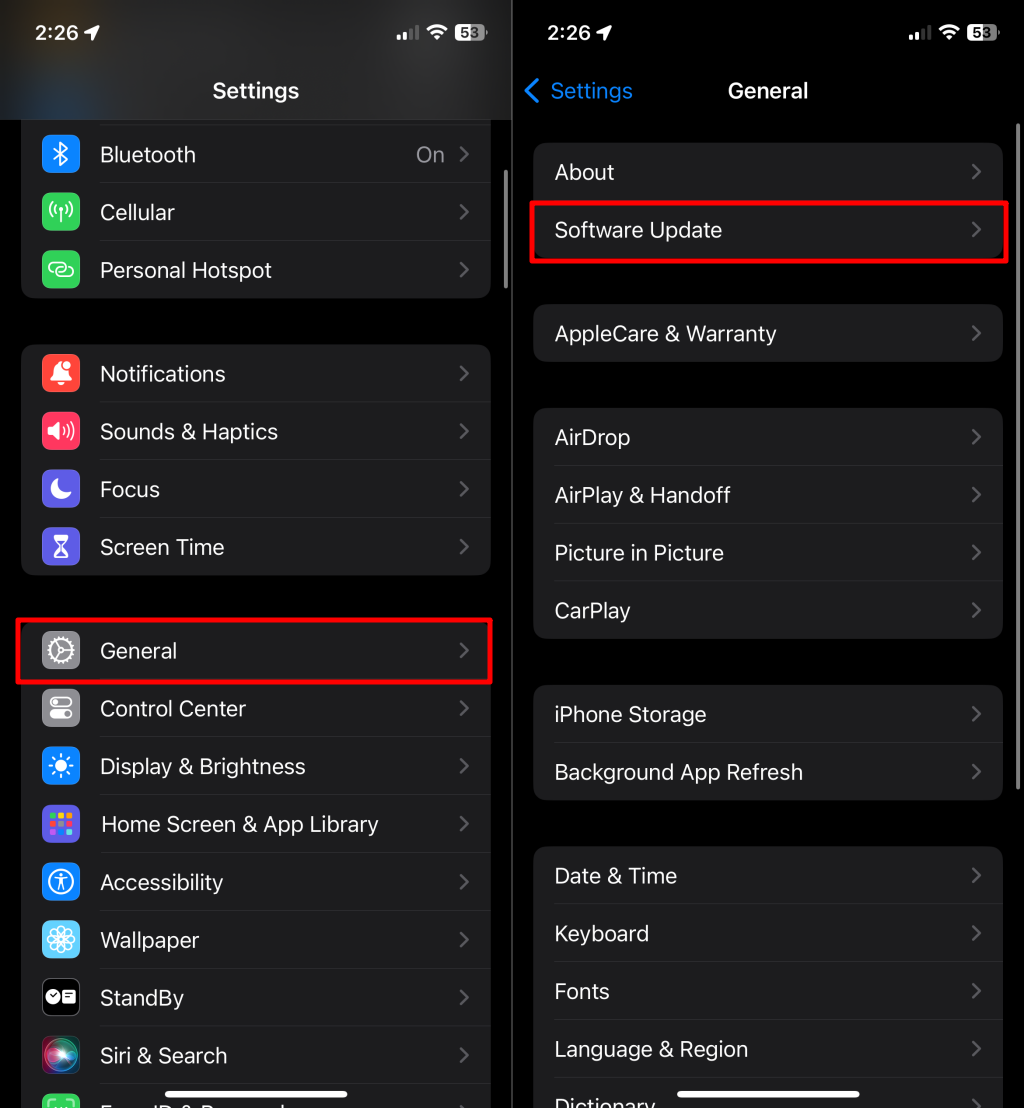
Open the Settings app, go to General > Software Update, and install the latest stable iOS version. Afterward, launch WhatsApp and check if you can back up your chats.
5. Restart Your iPhone
If the WhatsApp backup stuck issue persists after trying the above fixes, reboot your iPhone. A system reboot can get rid of corrupt app cache data affecting WhatsApp. There are different ways to restart an iPhone, depending on which model you use. See our tutorial on restarting any iPhone model for step-by-step instructions.
6. Reset Network/Connection Settings
Internet connectivity issues are another common cause of WhatsApp backup failures. If you’re using Wi-Fi, rebooting or resetting your router might fix issues with your internet connection. Otherwise, reset your device network/connection settings.
Open your iPhone Settings, go to General > Transfer or Reset iPhone > Reset > Reset Network Settings to perform a network reset.
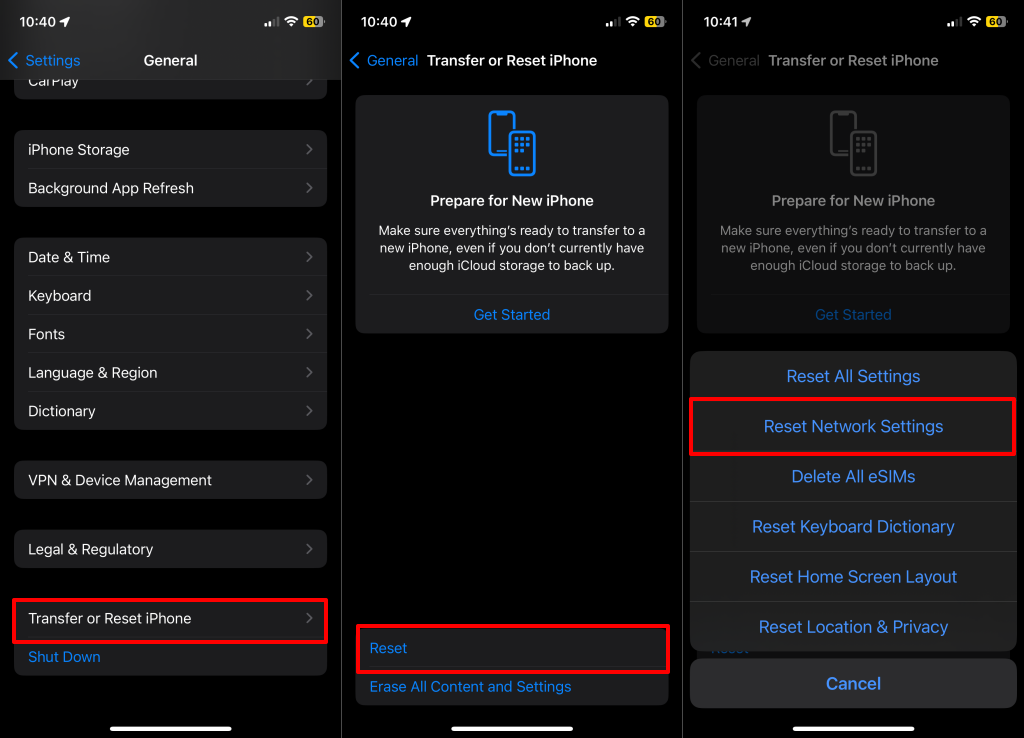
The network reset operation restarts your iPhone. Connect your device to Wi-Fi and check if you can create a WhatsApp backup.
How to Fix WhatsApp Backup Stuck on Desktop
WhatsApp Web and WhatsApp for desktop (Mac and Windows) don’t have a chat backup feature. You can only back up your chats through WhatsApp for iOS and Android. Hence, fixing the WhatsApp backup stuck issue from your computer is impossible. The troubleshooting recommendations above should allow WhatsApp to back up chats on your phone without problems.
If the issue persists, we recommend backing up your WhatsApp chats using alternative third-party solutions. You can back up your app’s data to a computer without any hassle using desktop apps like MobileTrans (Android-to-PC backup) or iTunes (iPhone-to-Mac backup).