
Boomerang videos started as a trend on Instagram. Since then, people have continued sharing them on social media platforms, and Boomerangs have grown more popular by the day. Apps like Snapchat or Instagram have built-in features to create new Boomerangs. But what if you want to turn an existing video into a Boomerang? This tutorial will show you how to turn a video into a Boomerang on smartphones and computers.
What’s a Boomerang?
A Boomerang video is a short video that repeatedly loops back and forth for about 4-6 seconds. It has no audio and is similar to GIFs or Live Photos on iPhones/iPads.
Boomerangs on your Instagram Stories help grab your audience’s attention. Since Instagram introduced them in 2015, Boomerang clips have become trendy on Instagram and other social media platforms.

The Instagram app has built-in functionality that allows you to record short video clips with a Boomerang effect. When filming your new Instagram Story, you only need to switch to Boomerang mode to make a Boomerang video.
A separate (but discontinued) Boomerang app by Instagram lets you record new Boomerang videos. However, the Instagram app cannot Boomerang an existing video. Use a third-party Boomerang maker app to create Boomerang videos from an existing/old video.
How to Turn a Video Into a Boomerang?
Want to turn videos from your phone into Boomerangs? Video editors with “Boomerang” functionality make it easy to do so. When choosing a Boomerang video maker, ensure the app is compatible with your device and lets you add a Boomerang effect to existing videos.
Finally, verify an app’s pricing model before downloading it. While most Boomerang video makers are free, they usually add a watermark to your videos. Purchasing a subscription or making a one-time payment removes the watermark from the video clip.
Here are some of the best video makers you can use to create Boomerang videos from an existing video clip. We’ll also show you how to turn a video into a Boomerang clip using these apps.
CapCut
Compatibility: Android, iOS, Web, Mac.
CapCut is a 100% free all-in-one video editor by ByteDance with dozens of video editing tools to help you turn any video into a masterpiece. You can use it to trim your video, add transitions between video clips, royalty-free background music, and more.
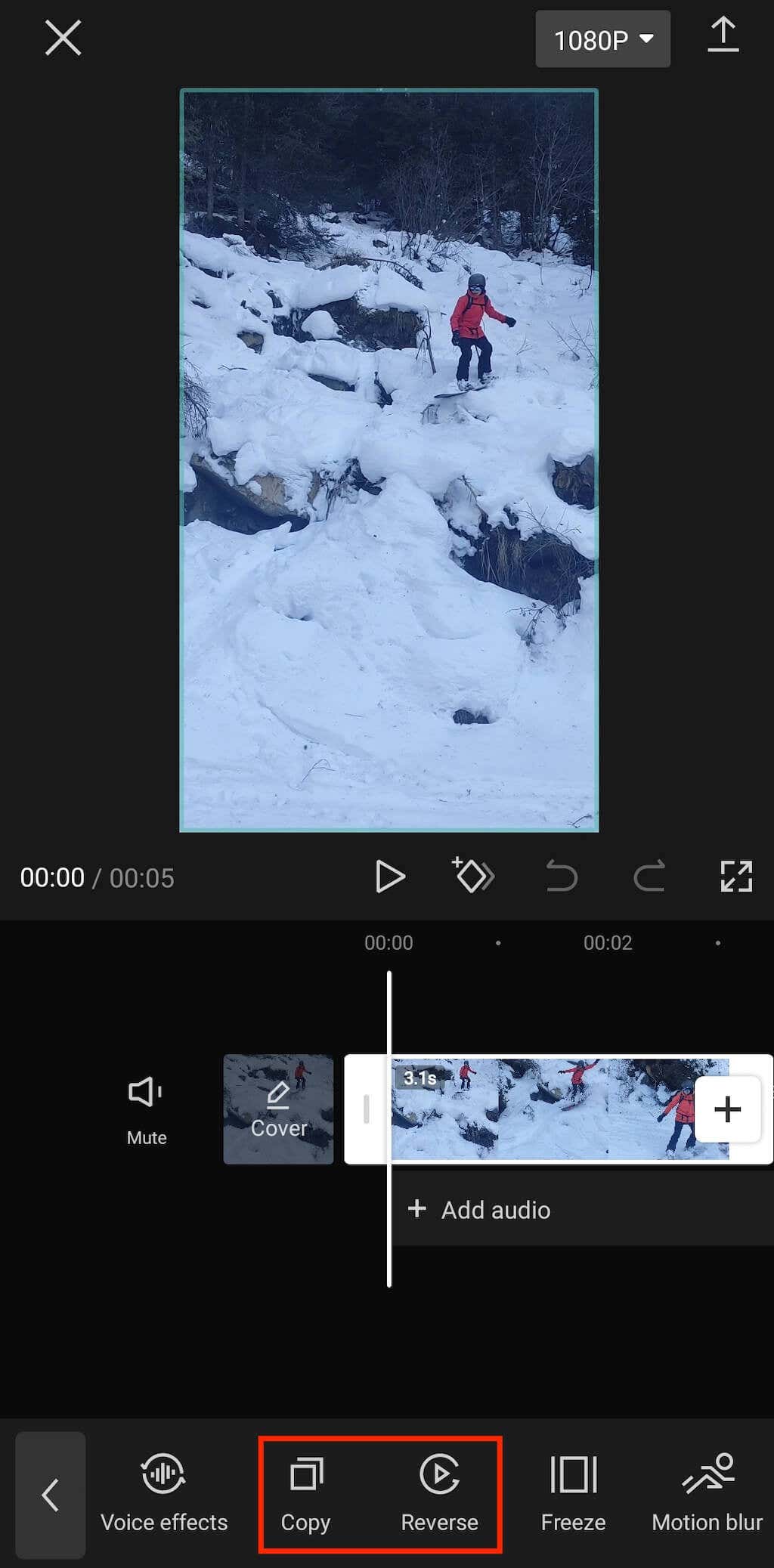
CapCup does not have a dedicated Boomerang video maker or tool. However, you can use the app’s “Copy” and “Reverse” features to create a Boomerang video from an existing clip.
Download CapCut from your device’s app store and follow the steps below to Boomerang an existing video.
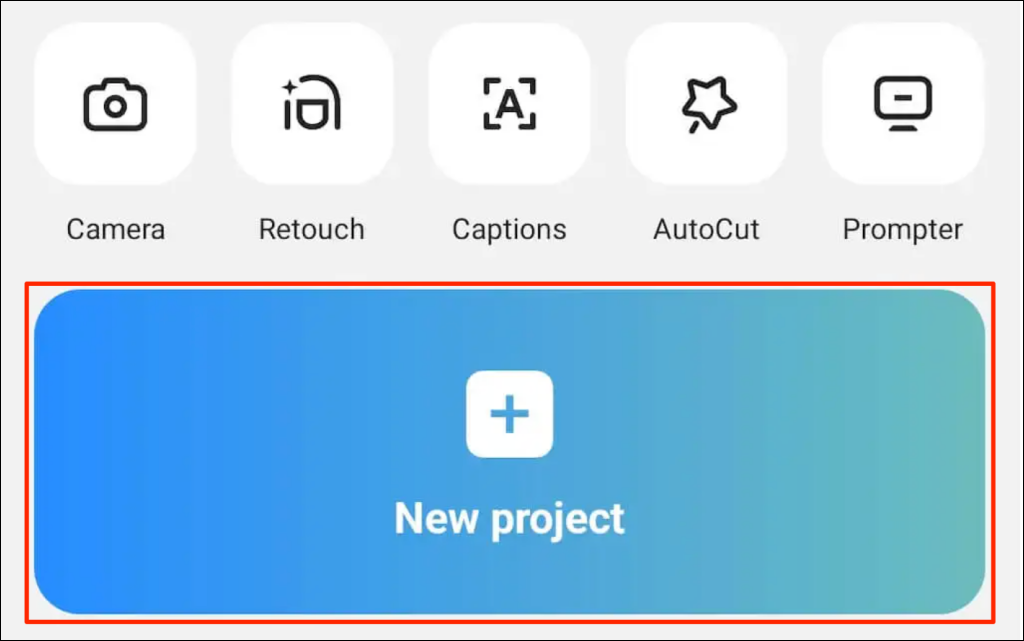
- Open CapCut and tap New project.
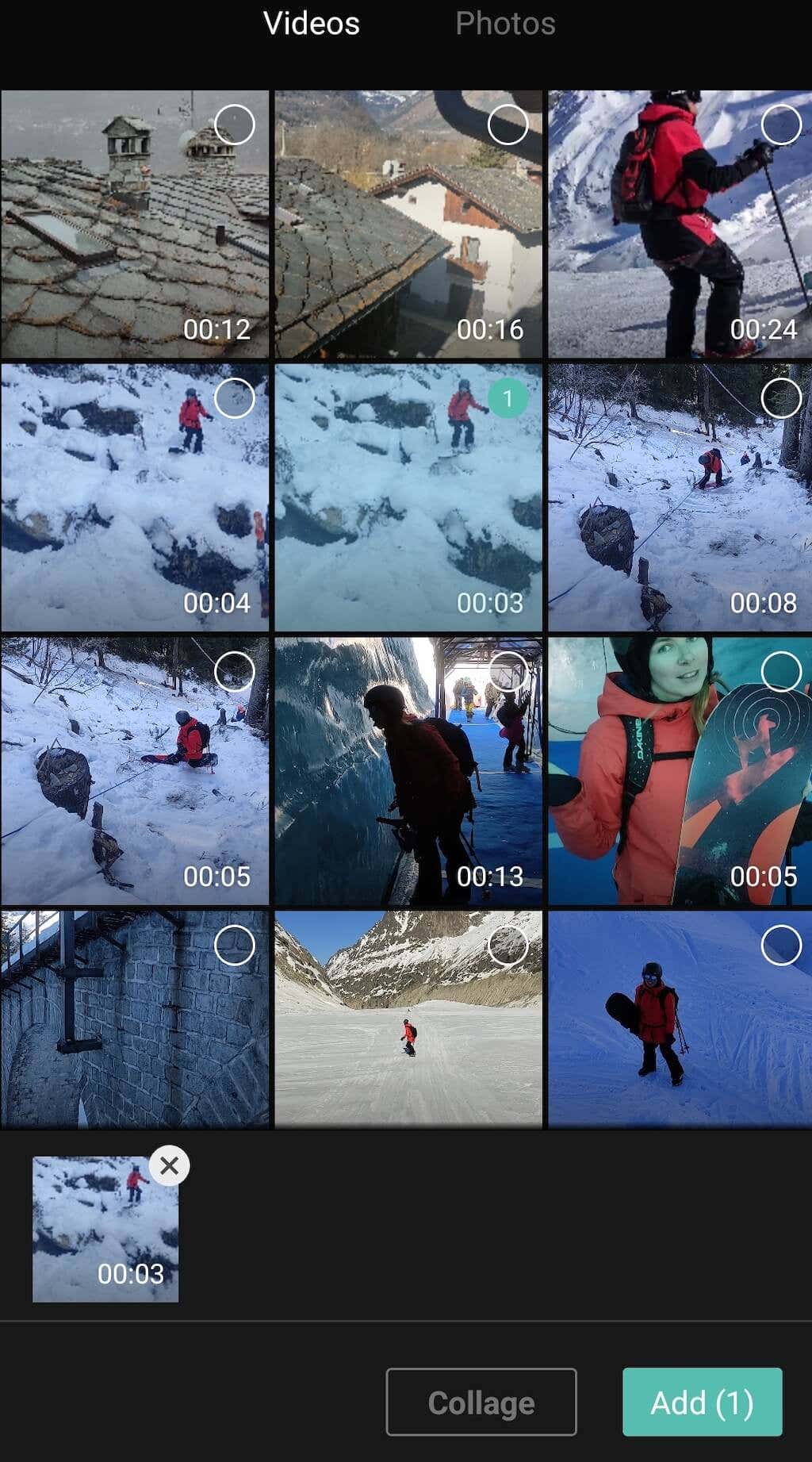
- Choose the video you want to turn into a Boomerang from your camera roll and tap Add.
- Scroll through the tools on the bottom menu for the Copy and Reverse options. To make your Boomerang longer, repeat this step and add more copies of your original video.
- CapCut automatically adds the “Ending” to your video with the app’s watermark, but you can easily remove it by selecting Delete in the bottom-right corner.
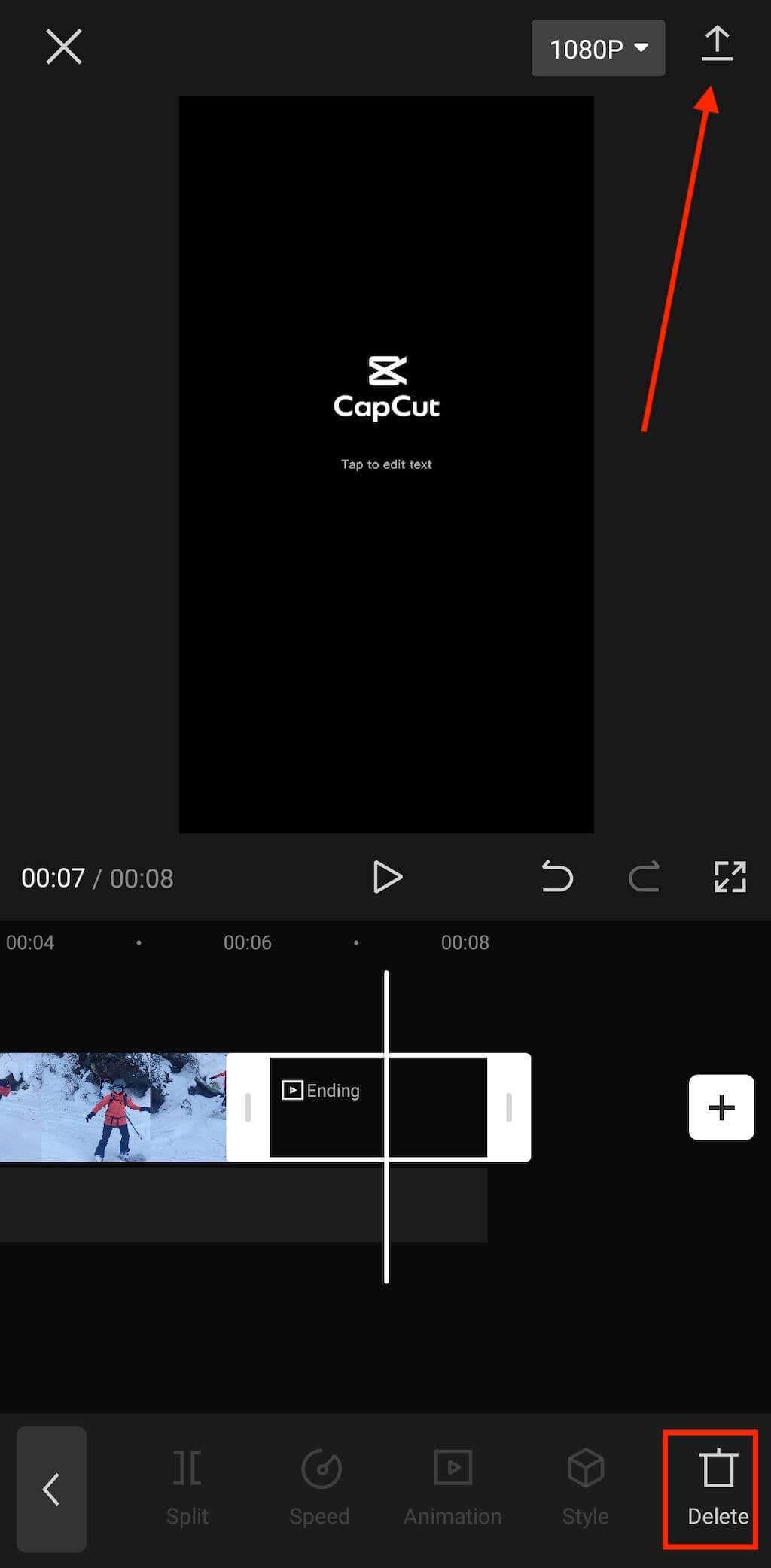
- Select the arrow icon in the top right corner to Export your video.
That’s how to turn a video into a Boomerang using CapCut. Check your device’s gallery, camera roll, or file manager for the Boomerang video.
KineMaster
Compatibility: Android, iOS.
KineMaster is an all-around video editing tool for mobile devices—not just a Boomerang app. It’s a free video editor available for Android or iOS devices. However, using KineMaster without a subscription means occasional ads and watermarked video clips. You can download the app from Apple App Store and Google Play Store.
Follow the steps below to Boomerang an existing video using KineMaster.
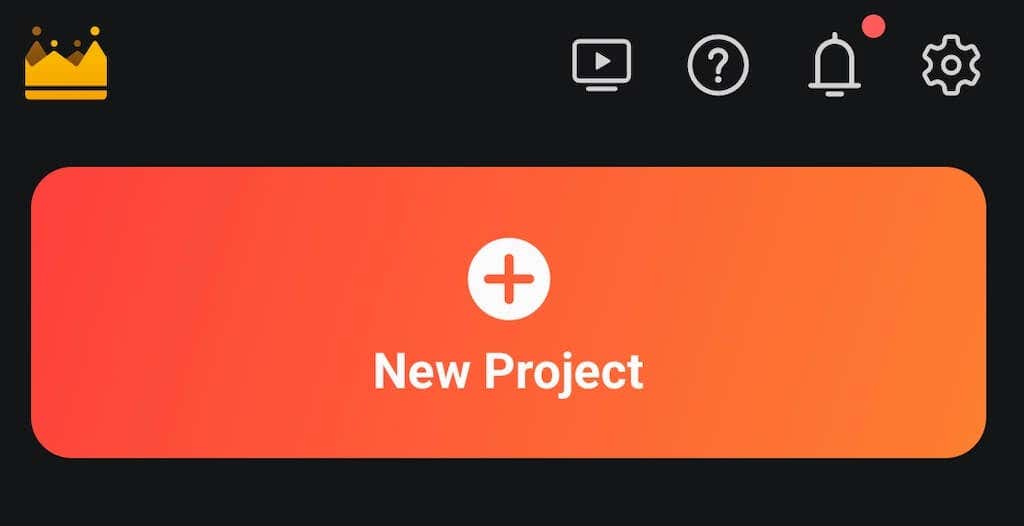
- Open the KineMaster app on your smartphone and select Create > New Project.
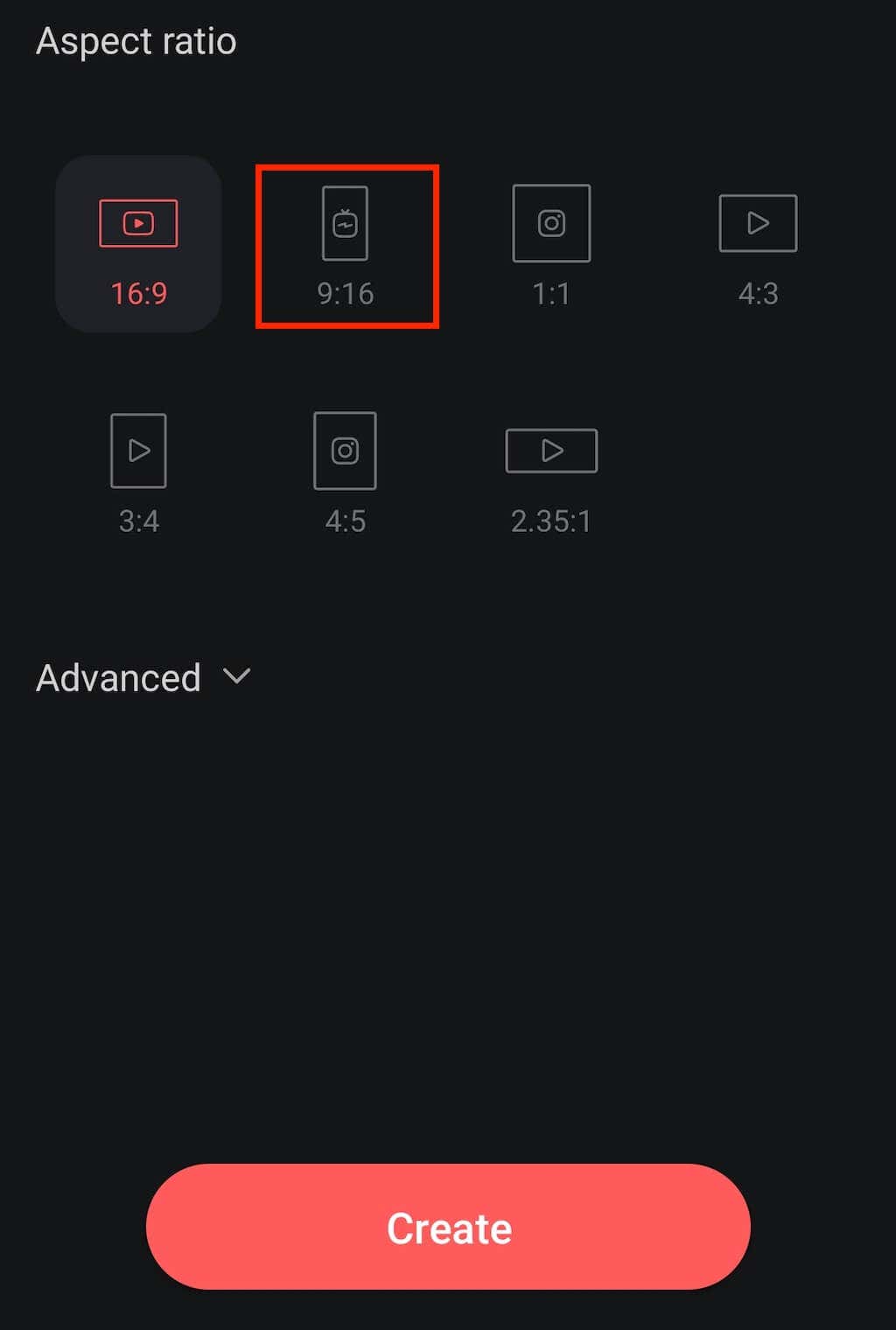
- Choose an Aspect ratio for your video. 9:16 is the perfect option for Boomerang videos on Instagram and other social media platforms like TikTok. Select Create to continue.
- Select the video file from your phone that you want to turn into a Boomerang from your phone.
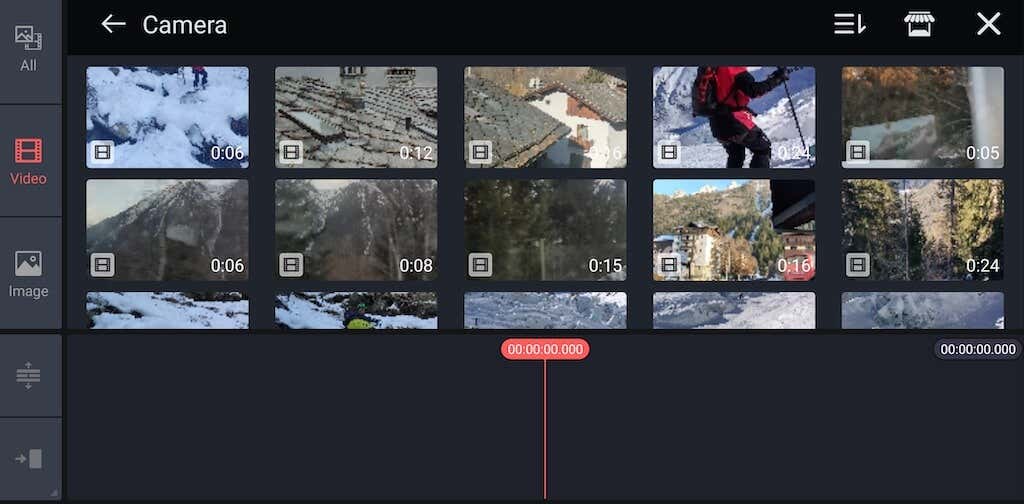
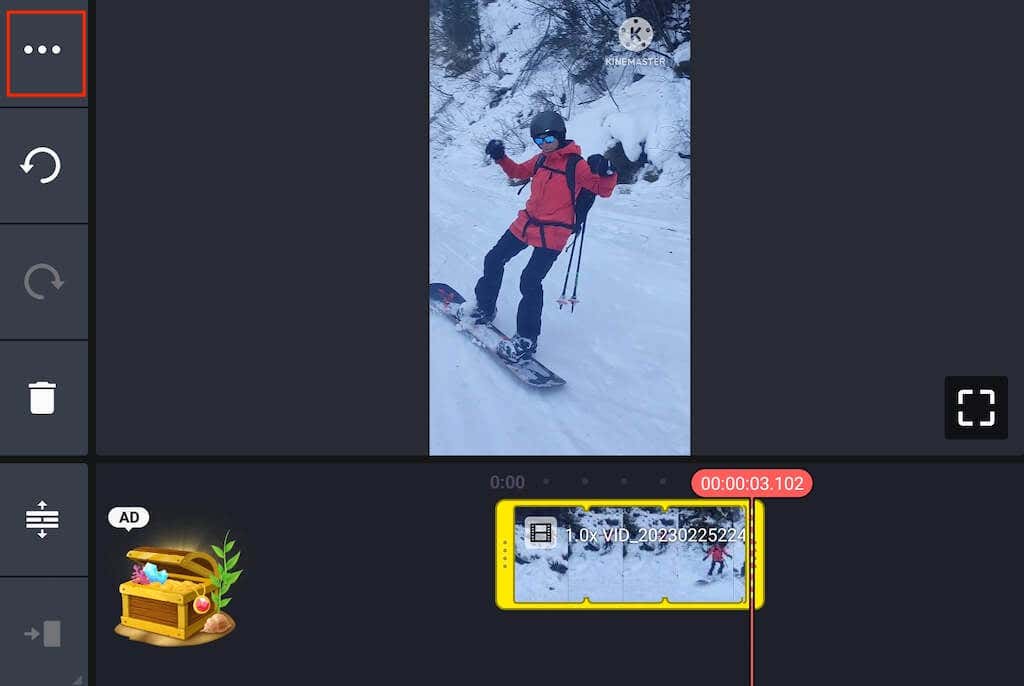
- Select the three horizontal dots icon in the top left corner to open more options, then select Duplicate.
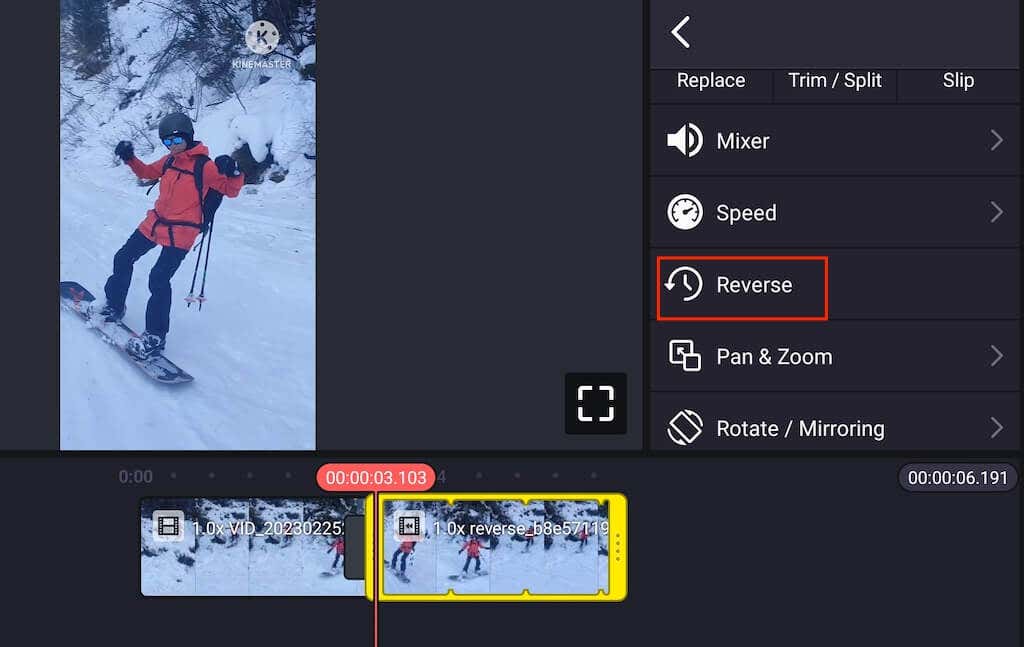
- Click on the duplicated clip and select Reverse from the menu on the right side of the screen.
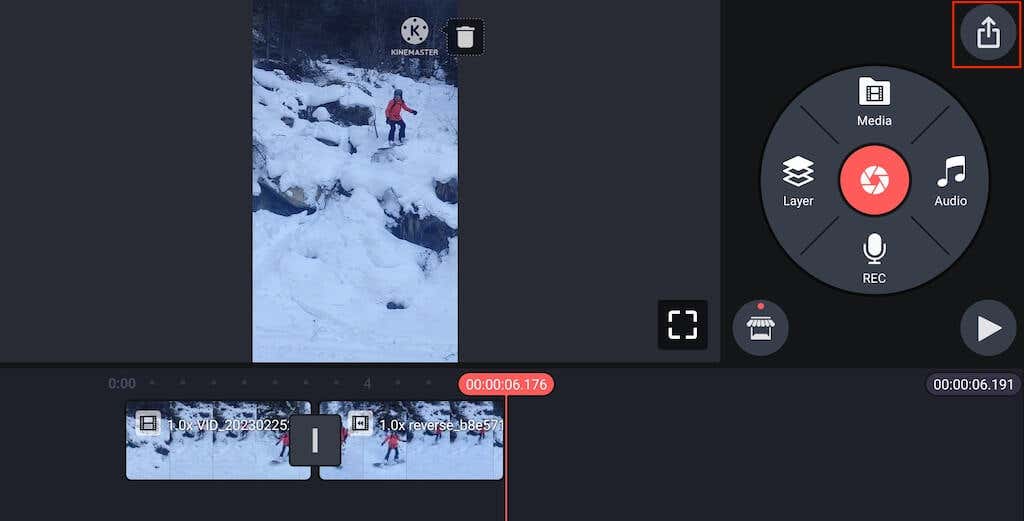
- Select the Export button and Save as Video to download your Boomerang to your phone’s gallery.
Kapwing
Compatibility: Web
Those who don’t want to download a new app and learn their way around it can use the Kapwing web video editor to create a Boomerang video. This web tool allows you to turn any existing video into a Boomerang online for free in minutes. If you want to remove the Kapwing watermark, you’ll have to buy one of the Kapwing subscription plans (which starts at $6 per month).
Follow the steps below to turn your video into a Boomerang using Kapwing.
- Open the Kapwing Stop Motion Video Maker in your web browser.
- Select Upload or paste a URL to upload your video.
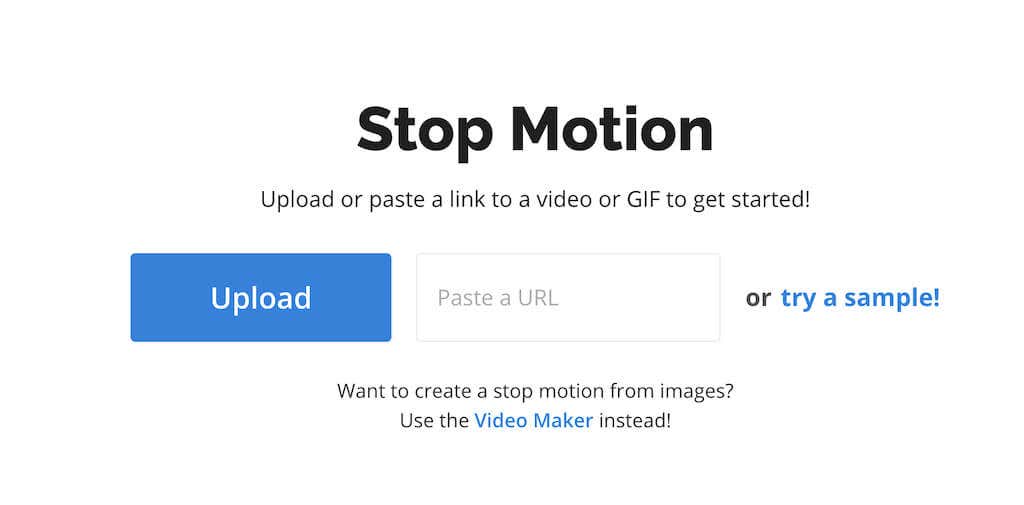
- Select fast under Speed, 0.2s clip rate, and check the Play back in reverse option for the best Boomerang effect.

- Select Create, then select Download to save your Boomerang video.
Clideo
Compatibility: Web.
Clideo is an alternative to Kapwing that is also beginner-friendly and extremely easy to use. This video maker allows you to cut, compress, merge, and crop your video files, add subtitles, and speed them up. The dedicated Stop Motion video-making tool will enable you to create Boomerang-like videos from videos on your computer or smartphone.
Here’s how to create Boomerang looped videos from existing video files/ using Clideo.
- Open the Clideo website in your web browser and select Stop Motion from the list of tools.
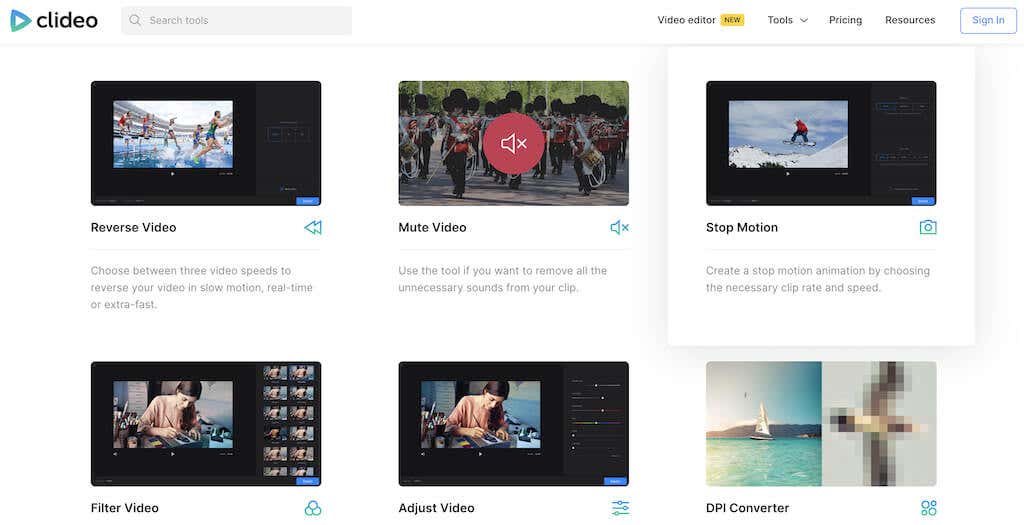
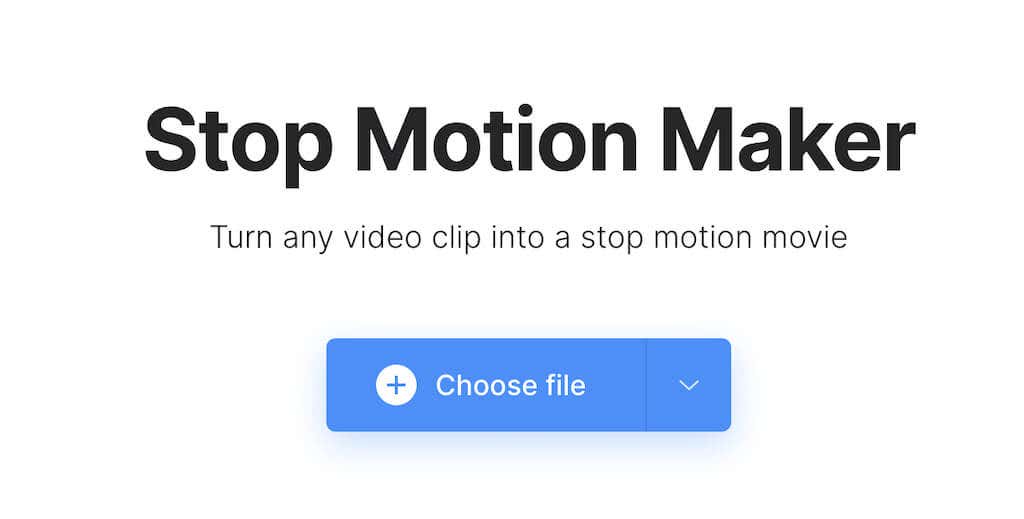
- Select Choose file and upload the video you want to turn into a Boomerang.
- Choose the Fast video speed settings, 0.2s clip rate, and the Append reversed video checkbox for best results.
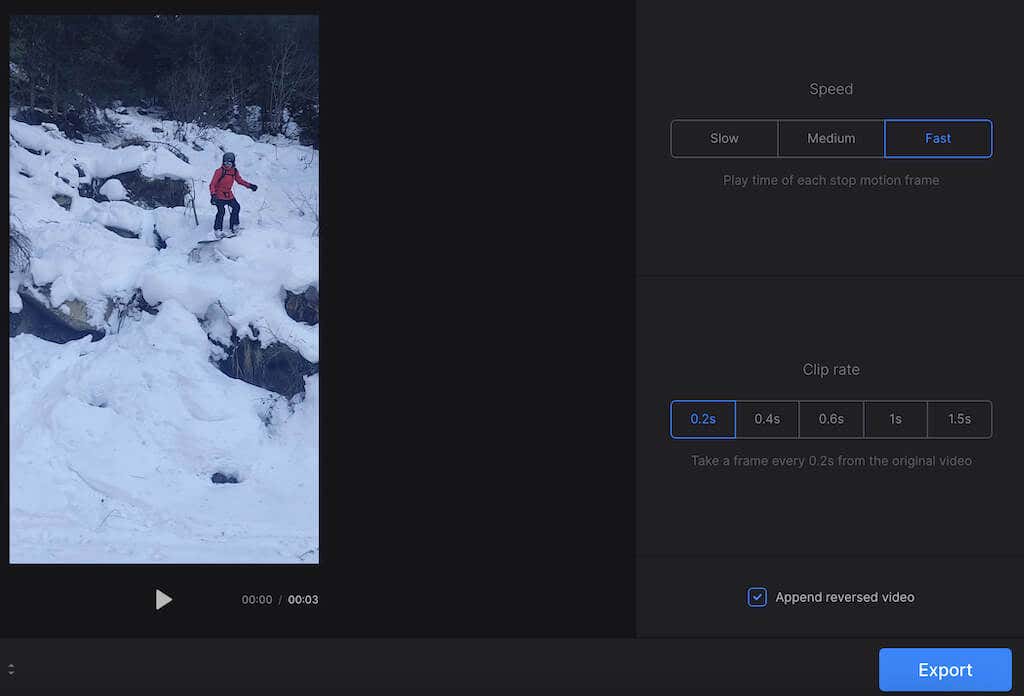
- Select Export to download your Boomerang video. To remove the Clideo watermark, buy a subscription for $6 or $9 per month.
VideoProc Vlogger
Compatibility: Windows, Mac.
VideoProc Vlogger is a free video editing software you can download and use on your computer. It allows you to make basic edits like adjusting your video’s speed, trimming it, or removing or adding music, as well as more advanced edits like creating the picture-in-picture effect, adding animation, and more.
VideoProc Vlogger is a free tool for PC and Mac computers. It’s an excellent option for those who don’t want to rely on their internet connection. Follow the steps below to create a Boomerang using VideoProc Vlogger.
- Download the VideoProc Vlogger app on your computer and open it.
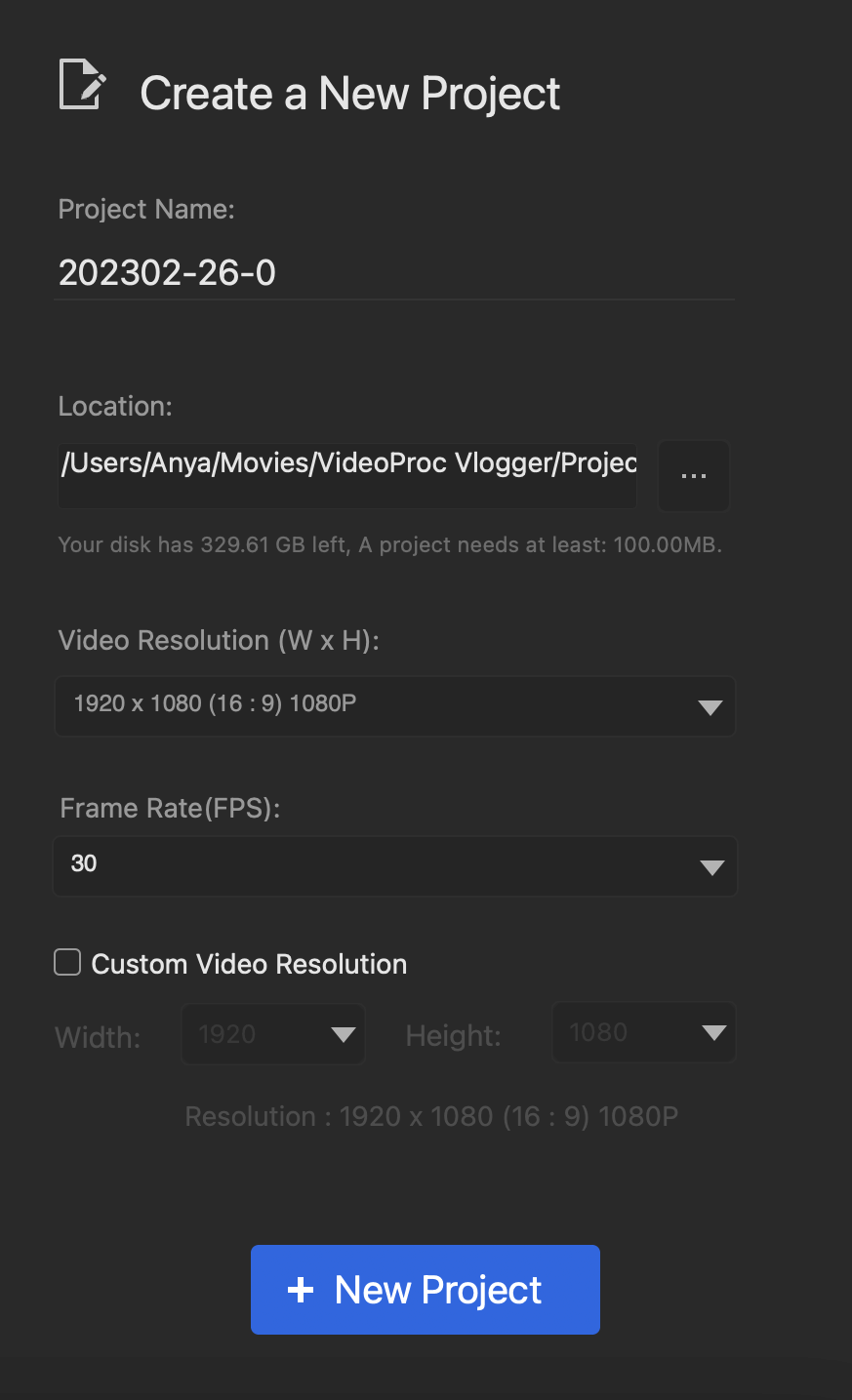
- Select New Project.
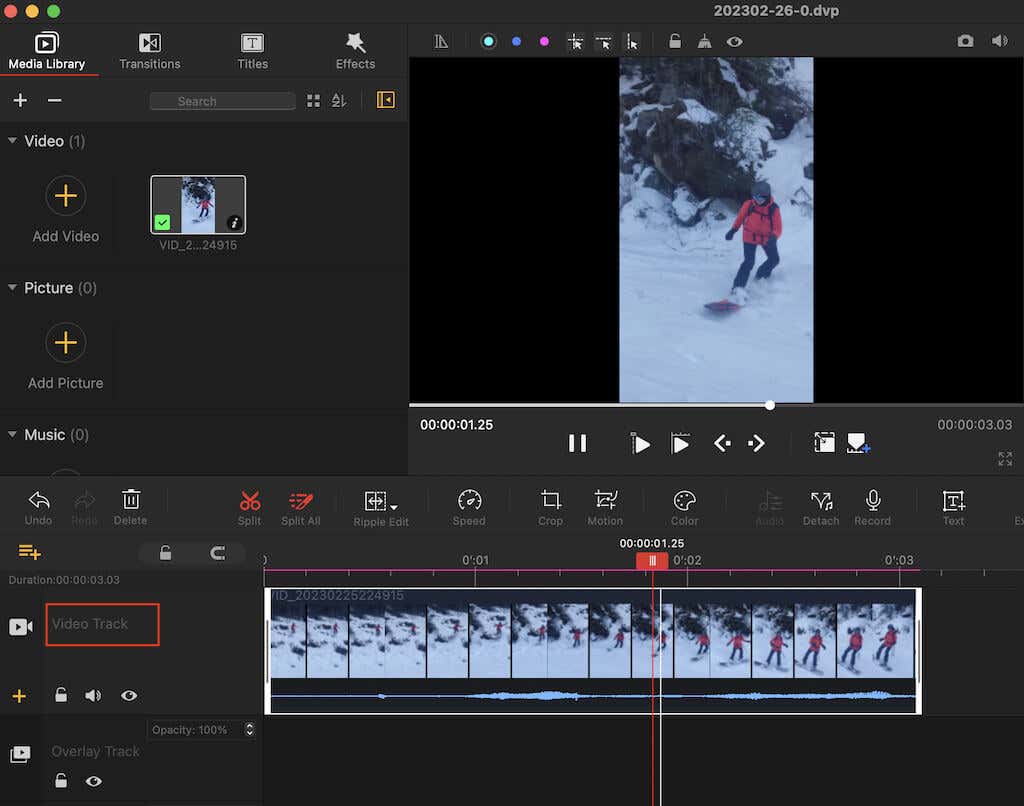
- Upload the video you want to turn into a Boomerang into the Media Library.
- Drag the video onto Video Track.
- Select the video from Video Track, then use the Ctrl + C & Ctrl + V (Cmd + C & Cmd + V) keyboard shortcuts to create a copy of the video.
- Select the copied video, then scroll down through the options in the top right corner of the app, and select Reverse Play.
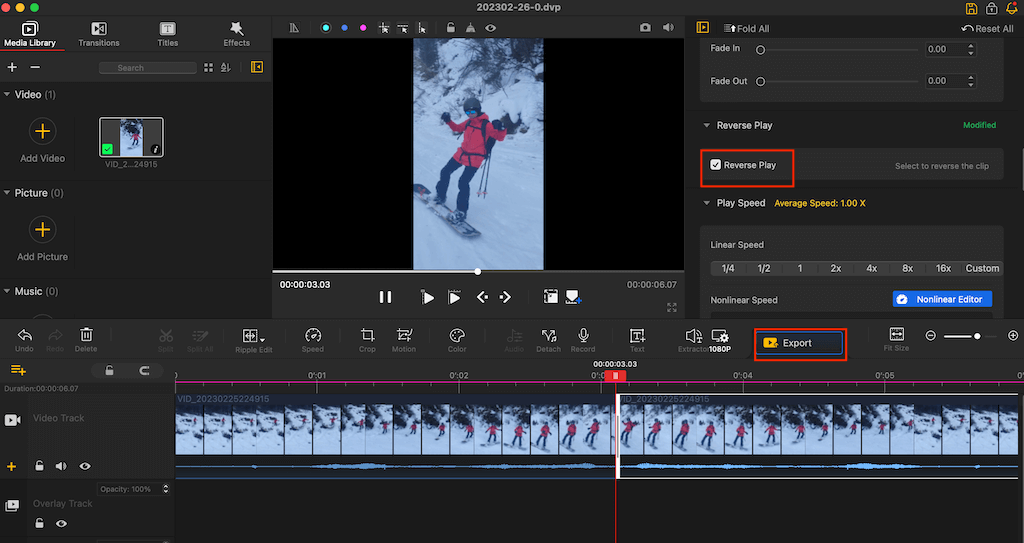
- Select Export > Start to download your Boomerang video. On the next screen, choose the folder you want the Boomerang video saved.
How to Make a Boomerang with Instagram
Install the Instagram app on your Android or iOS device, and follow the steps below to make a Boomerang video.
- Open Instagram and swipe left on your homepage or feed.
- Select the Boomerang (Infinity sign) icon on the left menu and tap the Boomerang button to start recording a Boomerang video.
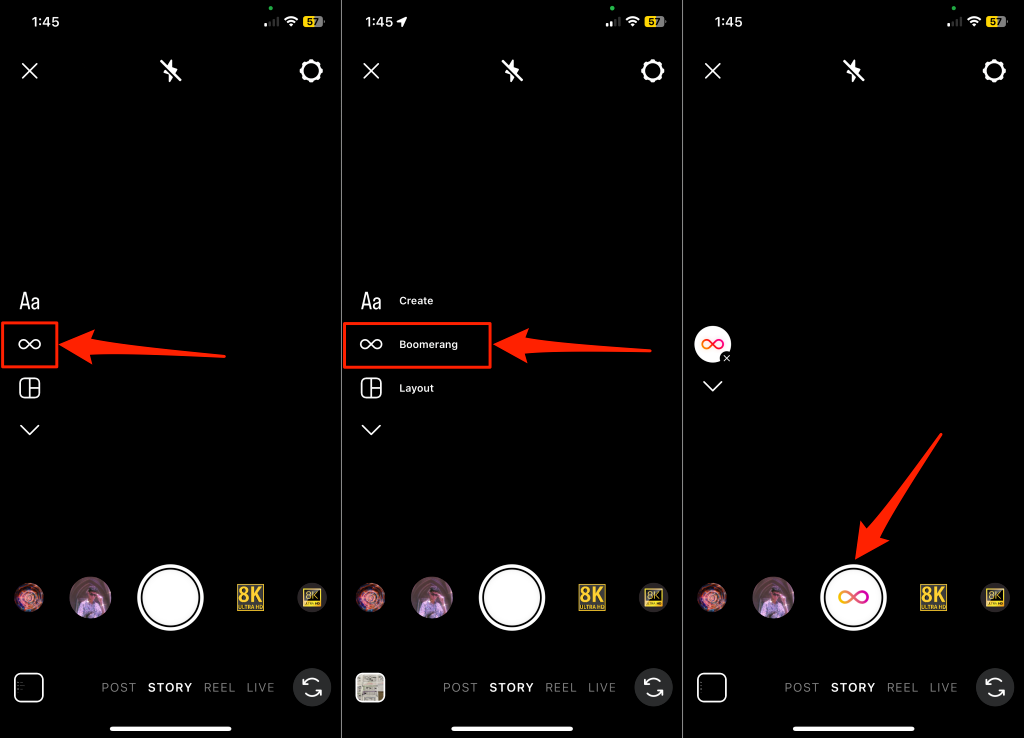
Instagram flashes your device’s screen while recording the Boomerang video. Proceed to the next step to edit, publish, or save the video to your device.
- To trim the clip or add an effect to the Boomerang video, tap the Boomerang icon in the top menu and choose your preferred effect. Tap Done to save the effect and continue to post the Boomerang video to your story.
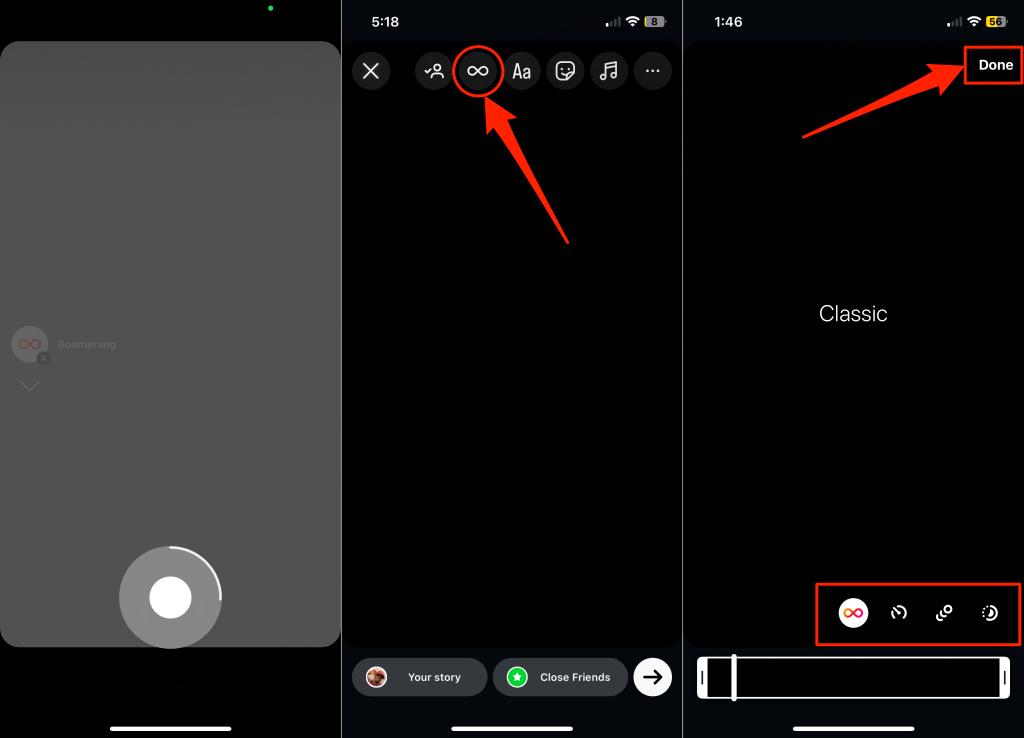
Instagram has four Boomerang modes: Classic, Slow-Mo, Echo, and Duo mode. Our tutorial on making Boomerang videos on Instagram explains what these effects do.
- Tap Your Story to post the Boomerang video to your Instagram Story or Close Friends to share with people in your Close Friends list.
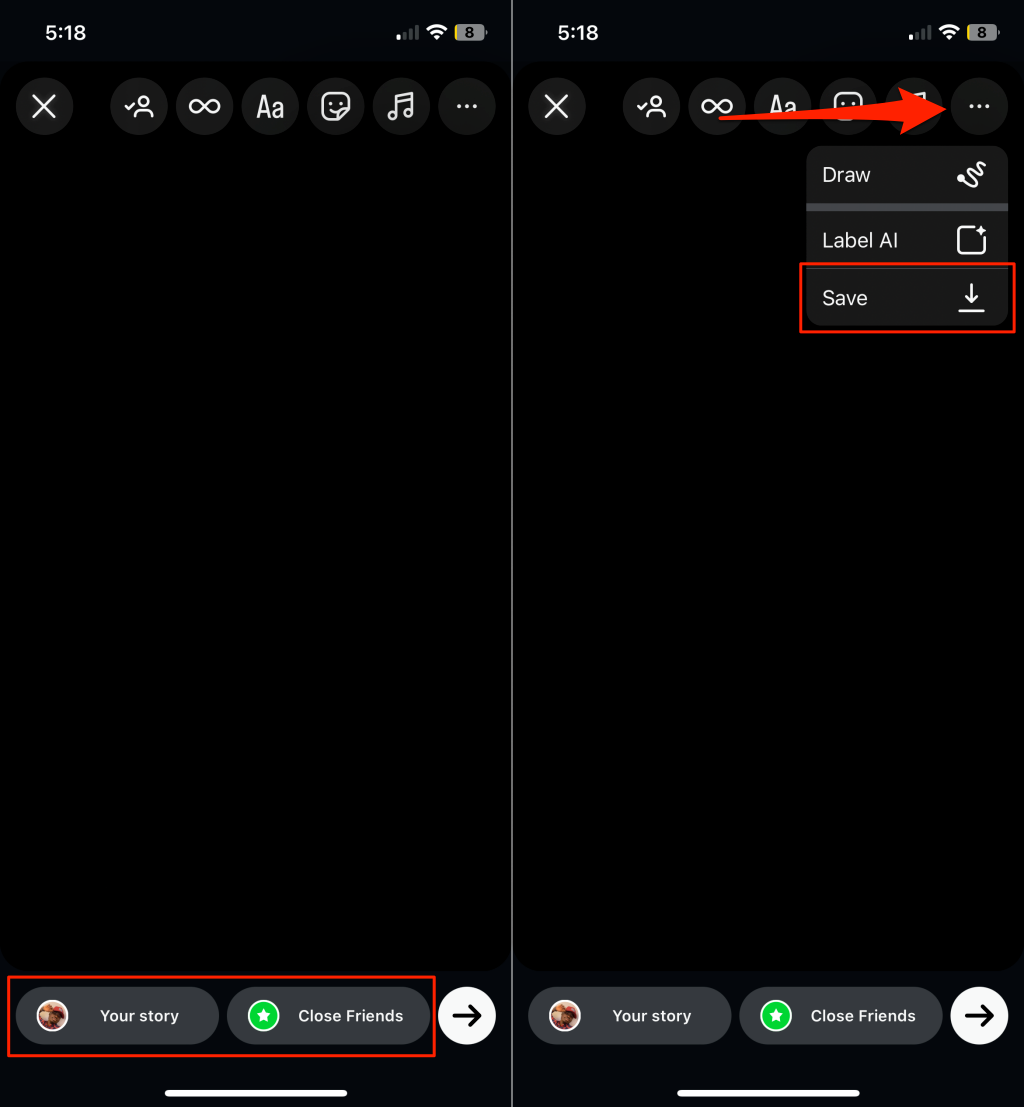
You can save the Boomerang video to your device without sharing it to your Instagram Stories. Tap the three-dot icon in the top-right corner and select Save.
How to Make a Boomerang on iPhone?
Using the Photos app, you can convert new and existing Live Photos on your iPhone or iPad into Boomerangs. Adding a “Bounce” effect to Live Photos makes them Boomerangs. Take a Live Photo on your iPhone or iPad and follow the steps below to convert it to a Boomerang video.
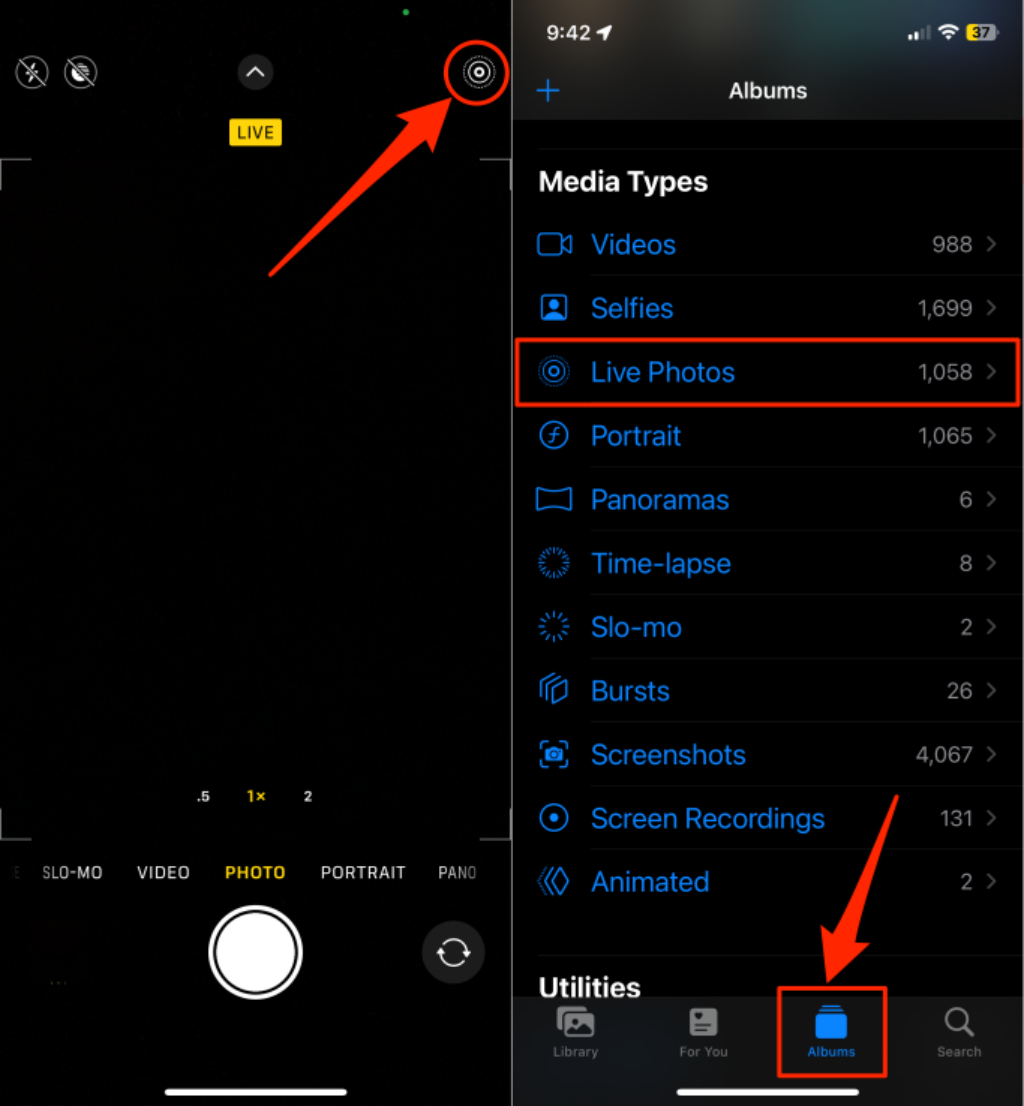
- To take a new Live Photo, open the Camera app and tap the Live Photo icon in the top-right corner.
To make an existing photo a Boomerang, open “Albums” tab in the Photos app, select Live Photos, and choose the photo.
- Open the Live Photo drop-down icon in the top-left corner and select Bounce.
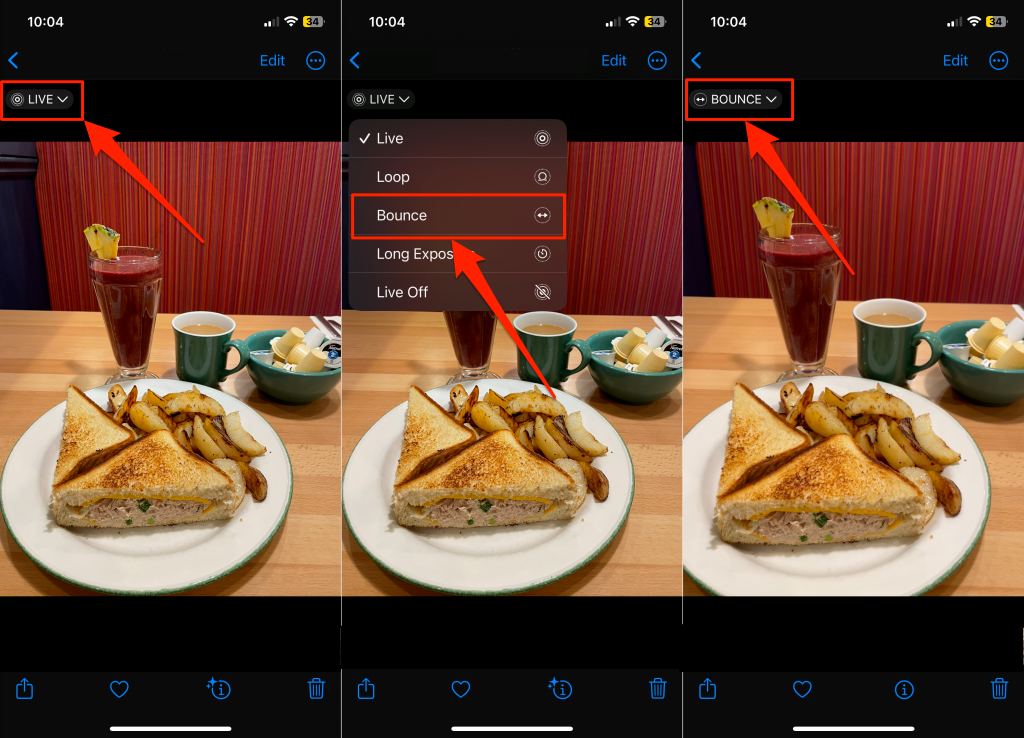
Be careful not to choose the Loop video option, as it doesn’t create a Boomerang video. “Loop” converts a Live Photo into a short video that loops or restarts every time, while “Bounce” continually reverses the video (like a Boomerang) from start to finish—and back to the start.
How to Post a Boomerang on TikTok
TikTok currently doesn’t have a built-in Boomerang feature or tools that lets you add a similar effect to videos. To post a Boomerang video on TikTok, create one on Instagram, save it to your device, then post on YouTube. Alternatively, use a Boomerang maker app to turn a video into a Boomerang, then post on TikTok.
Boomerang an Existing Video
These apps let you repurpose regular videos into stimulating Boomerangs. The best and easiest way to create a new Boomerang video is using the Snapchat or Instagram app. Use third-party applications recommended above to loop videos or add Boomerang effects to existing or pre-recorded videos in your camera roll.