
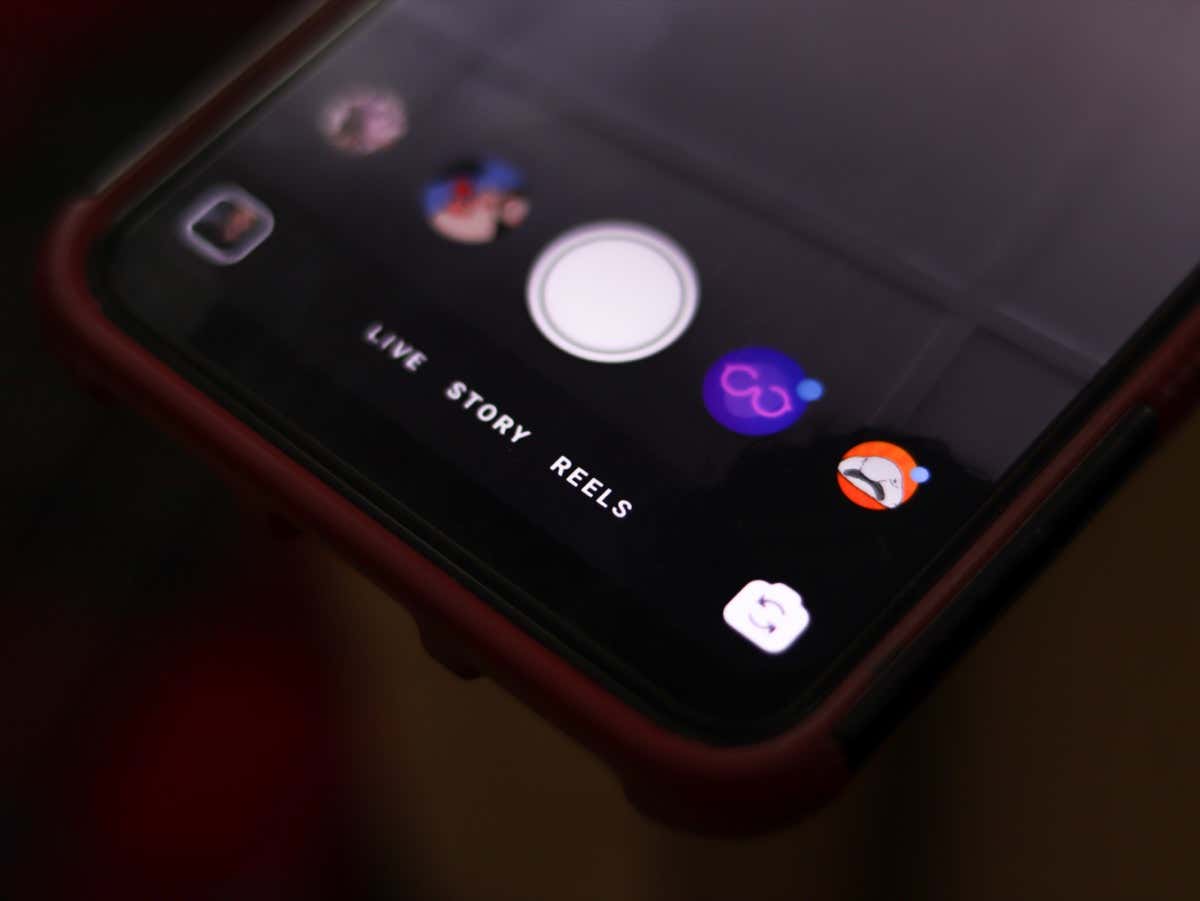
Instagram Stories have become the number one tool on the platform for interacting with followers. Instagram has added many customization options to the Stories feature for you to play with. For example, you can add stickers and music to your Instagram Story and make a photo collage inside your Stories.
In this short tutorial, we’ll show you how to change the background color of your Instagram story using the Draw and Create Instagram tools.
How to Change the Background Color on Instagram Story
You can use two ways to change an IG Story’s background color. One of them allows you to include a photo or a video in your Instagram Story, and the other lets you create a Story with just text and Instagram stickers.
The instructions are similar for both iOS and Android users. However, the option to post Stories is only available for smartphone users now, so if you’re using Instagram web, you won’t be able to apply these.
How to Change Your Instagram Story Background Color Using the Draw Tool
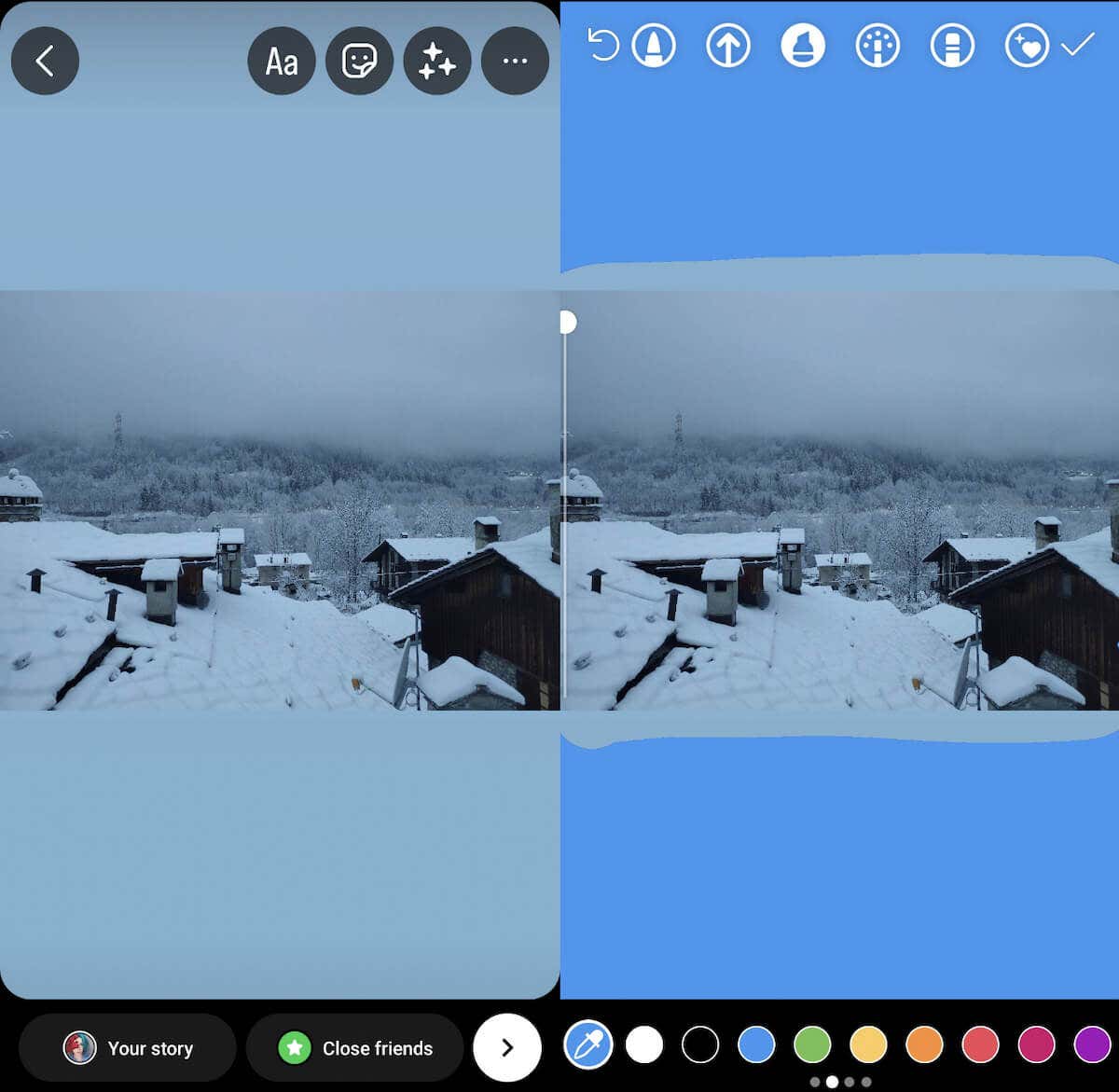
Most Insta Stories have a picture or a video in them. Unless your picture covers the whole screen, a blank space will be left in the background. Instagram will fill it in with a default background color, but there are better solutions than the default color.
Of course, you can use an app like No Crop that will fill in the background with a solid color or blurred extensions of your image. But if you don’t want to bother installing and using an extra app, you can fix the empty background issue right in the Instagram app. You can use the Draw tool in Instagram Stories to create a new background color.
To change the background color of an Instagram story using the Draw tool, follow the steps below.
- Open Instagram on your smartphone.
- Long-press Your Story at the top of the screen, then select Add to your story to create a new Story.

- Select a photo or a video from your camera roll that you’d like to upload. You can resize it or move it around your screen anywhere you want.
- In the top right corner, select the three dots icon. Then select Draw.

- You’ll see a toolbar menu appear at the top of the screen. You can choose any of these tools (like a Pen tool) to create a solid background for your Story. To do that, select one of the color options at the bottom of the screen or use the color dropper tool to detect the color on the picture.

- Long press anywhere on the screen to apply the chosen color.

- If you’d rather have a transparent story background instead of a solid background color, choose the Highlighter tool from the toolbar and repeat the process.
- Now that your background is ready, select the Eraser tool from the toolbar and use it to remove the color covering your picture or video. This can be a difficult process and can take a while. You can always use the Undo button in the top left if you make a mistake.

When you’re done, you can also add stickers or GIFs to your Story before publishing it.
How to Change the Background Color of Your Story using the Create Tool
Another technique that allows you to change your Instagram Story’s background color is the Create tool. This tool provides you with multiple Story templates to choose from, and you can use them to quickly publish a Poll, a Happy Birthday wish, a GIF, and even your own past Stories from the Story Archive. However, the Create tool doesn’t allow you to use new photos or videos in the story.

Here’s how to use the Create tool to use different colors as your Instagram Story background.
- Open Instagram and swipe right to start creating a new Story.
- From the menu on the left, select the Aa Create icon.

- Choose a template depending on the type of Story you want to post.
- In the bottom-right corner of the screen, select the color circle icon to change the background color. You can choose one of the solid or gradient colors.

How to Use a Photo as Your Story Background
You might want to use another photo or image on your phone as your Story background. To do that, follow the simple steps below:
- When creating a new Instagram Story, open your phone’s camera roll and select the picture you want to use as the background image.

- Use pinch-to-zoom gestures to adjust the sizing of the image.
- From the Menu on the top of the screen, select Stickers and add the photo you want to feature in your Story.
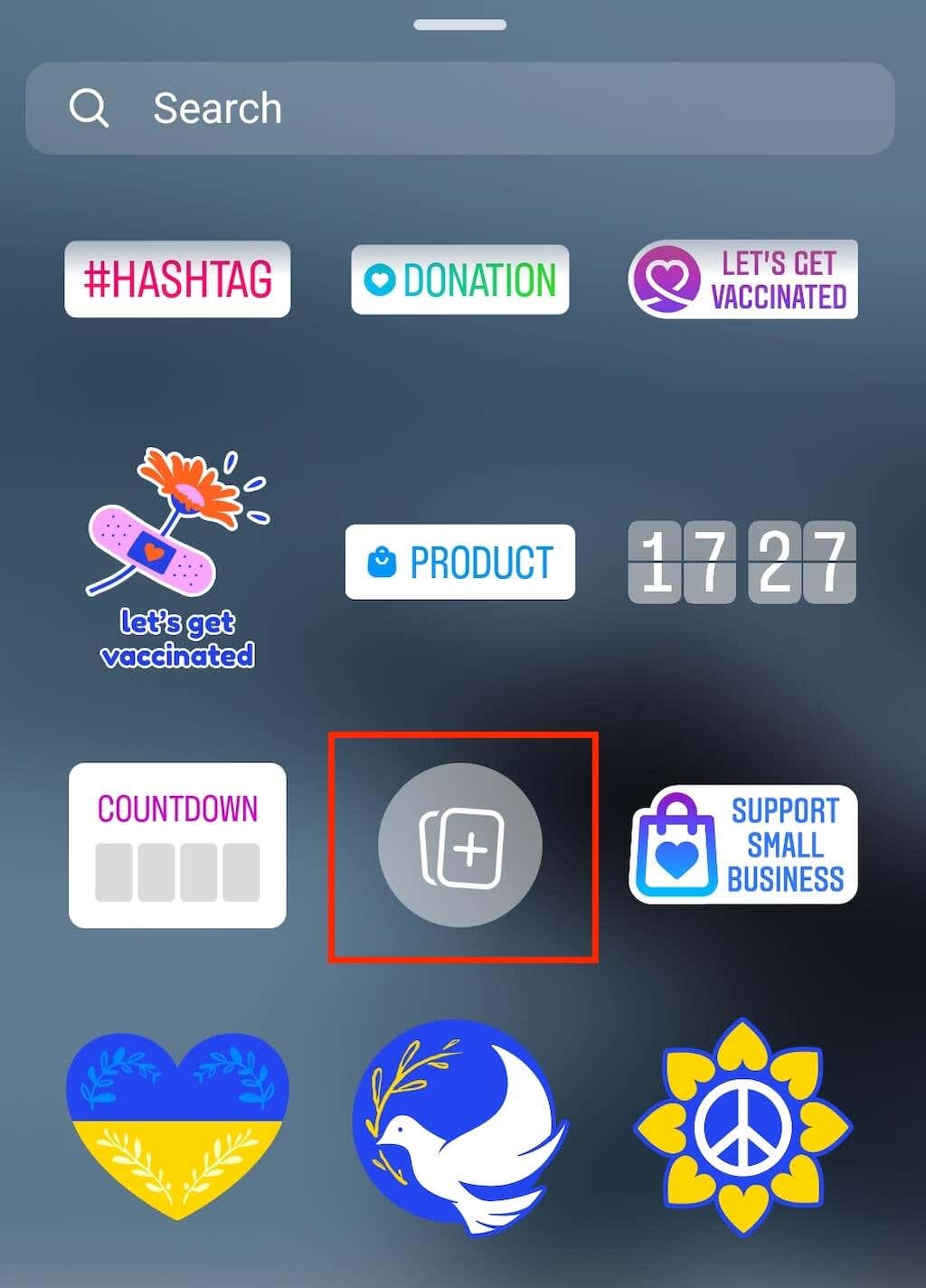
- You can change the shape and size of your sticker image to fit your Instagram Story.
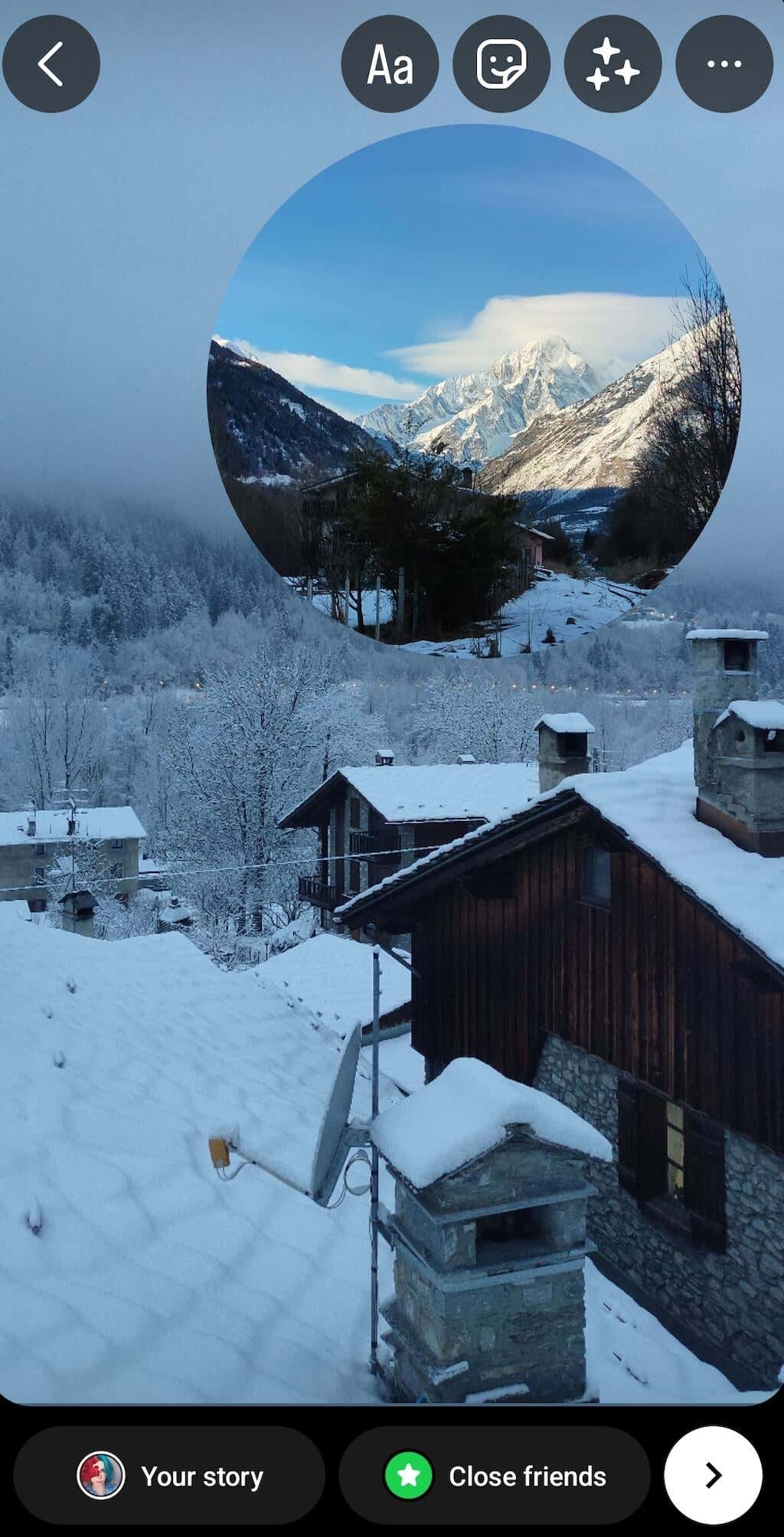
When you’re happy with your images in the Story, you can add text, music, or other stickers before publishing.
Make Your Instagram Story Stand Out
Aside from changing the background color, you can customize your story in several ways. You can use different fonts, music pieces, stickers, and links to make your stories more interactive for your social media audience.
People are more likely to repost, screenshot, and share Stories that look authentic and fun. It will, in turn, drive more traffic and help you grow your Instagram account.