

Don’t know how to stop the endless stream of Discord notifications? We’re here to help. This tutorial will show you how to set up and use Do Not Disturb (DND) on Discord.
Why You Need DND on Discord
Discord is an app designed for gamers to have group voice chats while playing. Each Discord server has several members and plenty of groups within the server itself. If you follow a bunch of different streamers and video games, you’re probably a member of all of their Discord servers too.
Not only do you get notifications from Discord groups, but you’d also get alerts for direct messages from individuals, and even pings from bots on the service. This means that you could get hundreds of pings every minute, which can be very problematic.
This is why you’d want to set up DND on Discord. Here’s everything you need to know about reducing the number of desktop notifications you receive on Discord and also the flurry of alerts on mobile.
How to Enable Do Not Disturb Mode on Discord’s Desktop Apps
The Discord desktop app is identical across Microsoft Windows, Apple’s macOS, and Linux. We’ll show you multiple ways to reduce the number of notifications on Discord.
The easiest method is to enable the Do Not Disturb status on the Discord app. Open Discord on your computer and log in to your account. Click your profile picture in the bottom-left corner of the Discord window next to your Discord account username.
By default, your Discord status will either be “Online” (when you’re active) or “Idle” (when you’ve been away from the app for a while). You can select Do Not Disturb here to mute all desktop notifications on Discord. Discord will mute these notifications till you change your status manually.
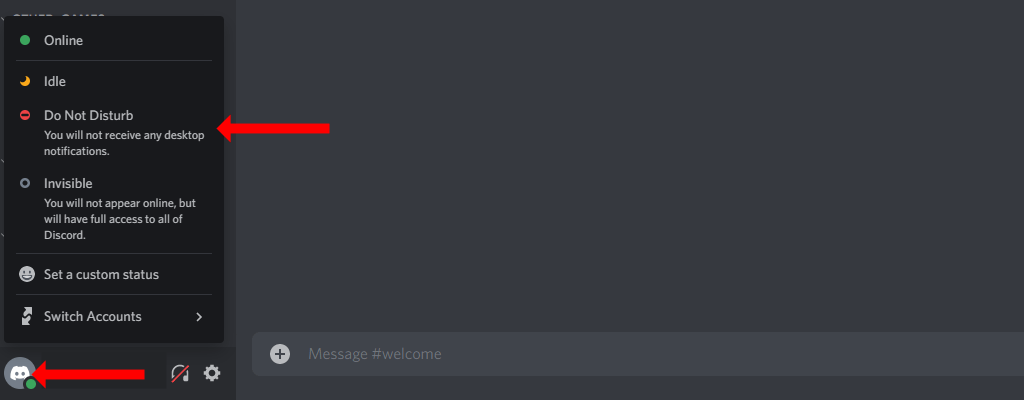
Note that choosing Invisible or Idle status modes will not mute notifications on Discord.
If the standard Do Not Disturb user status is a bit too vanilla for you, you can add some flavor to it by setting a custom status on Discord. To do this, click your profile picture in the bottom-left corner of the Discord window. Then, select Set a custom status.
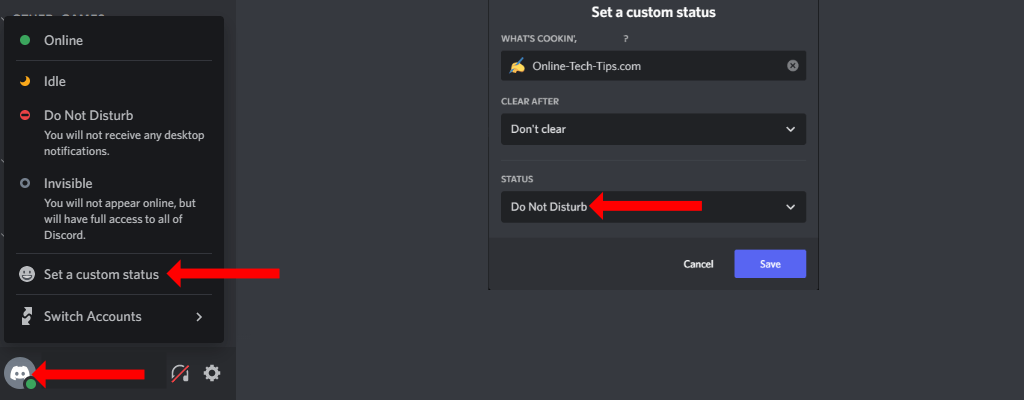
This will open a pop-up, where Discord lets you set a status of your choice. Choose whatever you like in the first two options, which include an emoji of your choice, some text, and when you want to clear your custom status. Then, under the third option (Status), select Do Not Disturb from the drop-down menu. Click Save when you’re done.
This is how you can use Discord’s set status feature to create a custom DND status for yourself. This functionality has the exact same effect as the standard Do Not Disturb status–all desktop notifications (including text messages and voice channels) will be muted on Discord.
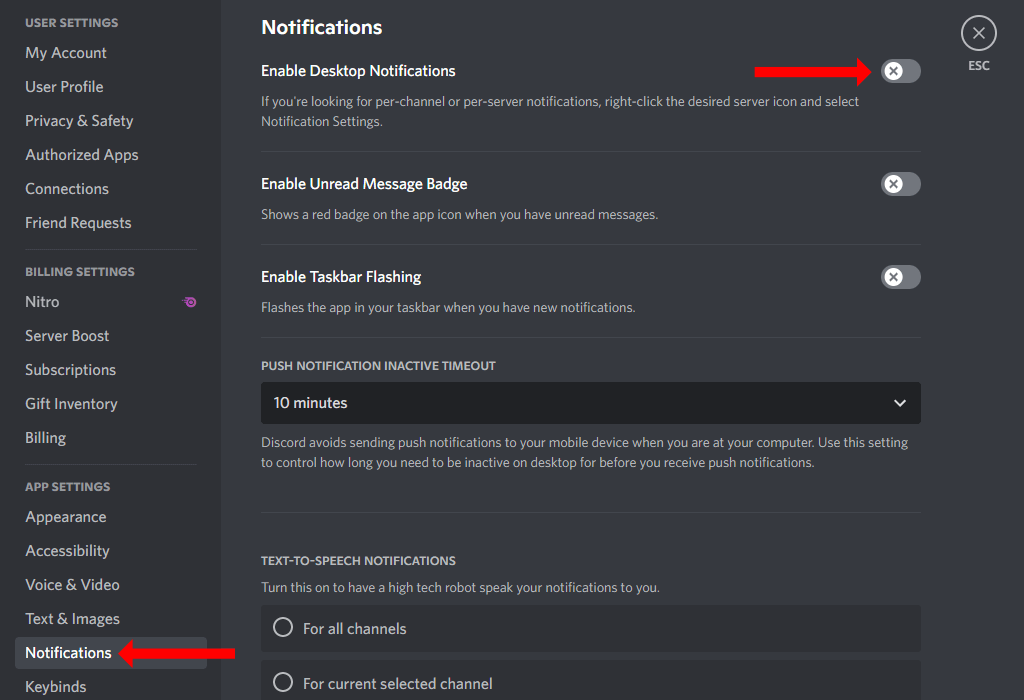
You can still quickly mute desktop notifications if you don’t want to change your online status on Discord. To do this, click the gear icon in the bottom-left corner of Discord’s window. This will appear to the right of your username and open Discord settings.
In the left sidebar, select Notifications, which is under App Settings. Disable Enable Desktop Notifications. This will stop all notifications from Discord on your computer.
How to Enable Do Not Disturb for Specific Discord Servers
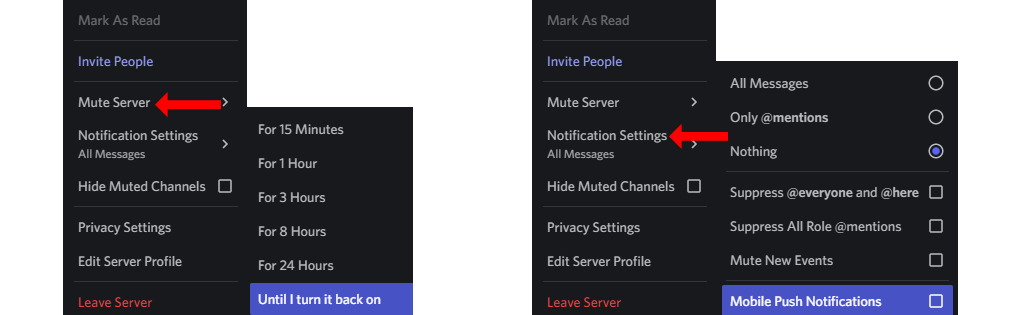
If you don’t want to disable all desktop notifications, but only those for specific servers, there’s a way to do that easily. On Discord’s desktop apps, right-click the icon for any server (you’ll see these in the app’s left pane) and select Mute Server. Next, choose the duration you want to mute it for, and Discord will pause all notifications from that server accordingly.
You can also change the notification settings for each Discord server similarly. Right-click the server’s icon and select Notification Settings. Here you can select which kinds of notifications you’d like to receive and even disable mobile notifications for specific servers.
How to Enable Do Not Disturb on Discord Mobile Apps
If you’re using Discord on iOS or Android, you can still enable Do Not Disturb easily. Open Discord on your iPhone or your Android phone. If you see text messages, you can swipe toward the right to reveal the list of servers and channels.
Now tap the profile icon in the bottom-right corner and tap Set Status. Select Do Not Disturb to enable DND on Discord mobile.
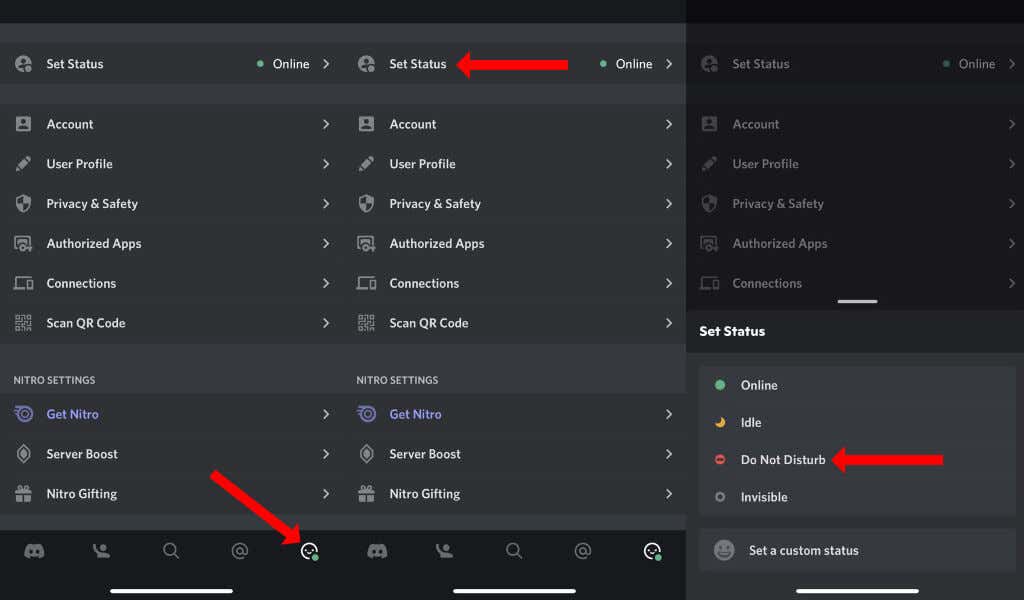
This feature doesn’t work as well on Discord mobile as on its desktop apps. That’s because Do Not Disturb is an active status on Discord. When Discord detects that you’re offline, the Do Not Disturb status is overridden and you may start getting notifications again.
To avoid this problem, it’s better to mute servers and change the notification settings for each server. On Discord for iPhone and Android, you can do this by tapping the Discord icon in the bottom-left corner of the screen. This will reveal all servers in your Discord account.
Tap and hold any Discord server’s icon and select Notifications.You can select Mute [SERVER NAME] to disable notifications from that server.
Alternatively, you can enable Do Not Disturb for your smartphone or disable notifications for Discord entirely. For example, on an iPhone you can disable Discord notifications by going to Settings > Notifications > Discord. Now turn off Allow Notifications.
On Android, you can go to Settings > Apps & Notifications > See All Apps > Discord > Notifications. Now you can disable All Discord Notifications to mute alerts from the app. It’s worth noting that these steps may vary depending on the version and flavor of Android your smartphone is running.
Enjoy the Peace
Once you reduce the notification overload from Discord, the app becomes far more useful. You don’t have to feel badgered by useless alerts and can finally focus on the groups you care about the most.
With Discord’s notification problems fixed, you should check out how to make a custom Discord status with YouTube, Twitch, and more. Don’t forget to make the most of Discord’s in-game overlay too.