

Facebook is known for being a place online where people can meet others, share information, and create communities around a common interest. Group pages on Facebook are very popular for this reason, with many groups having thousands of members at one time.
If you’re thinking about starting your own Facebook group page for a certain interest, it’s actually very easy to do. You’ll automatically become the admin of the group, allowing you to manage all aspects of it, which becomes necessary as more people join.
In this guide you’ll learn how to create a group page on Facebook as well as how to manage it.
How to Create a Group Page on Facebook
Creating a group page on Facebook is easy and doesn’t have any requirements besides having a Facebook account. When you’re ready to create your group, just get on your Facebook newsfeed and follow these steps.
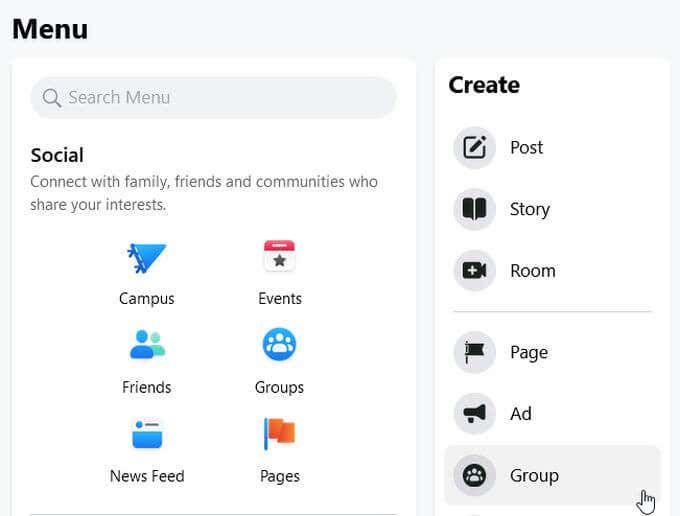
- In the top right corner, click on the icon of a square made of dots labeled Menu when you hover over it.
- Underneath the Create sidebar, select Group. This will take you to the group creation page.
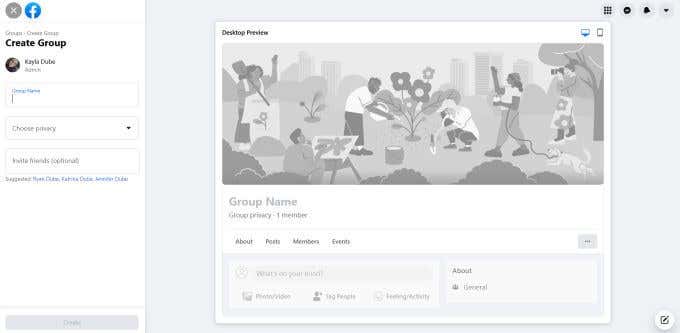
- Here you’ll want to enter the group name, privacy and visibility settings, and then invite friends to your group if you wish to. Then select Create.
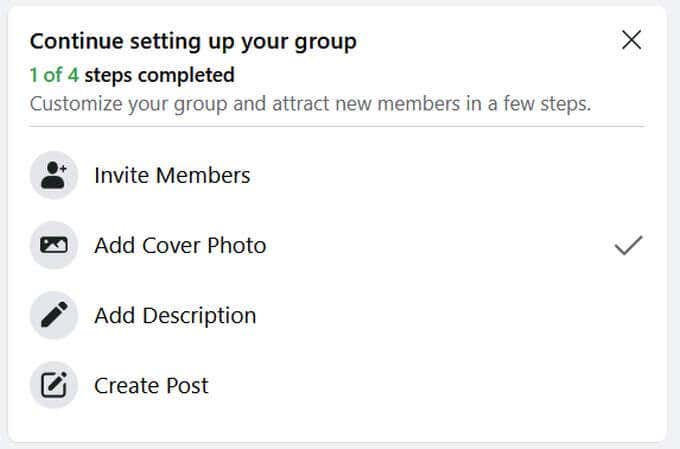
- From here there are a few more things you may want to do in order to make your group complete. Scroll down and on the right side you should see a box labeled Continue setting up your group. You can select these tasks to complete them.
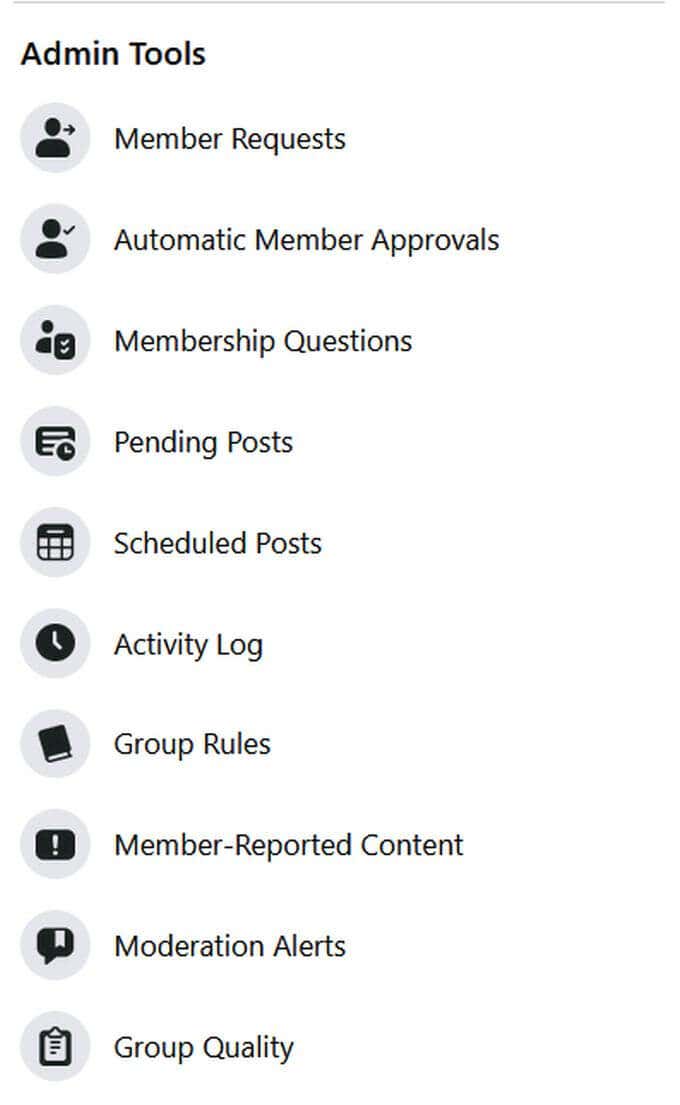
- On the left-hand side you’ll see a sidebar called Admin Tools. There are also a few things here you may want to set up before having members come into your group. For example, you can set up the group rules, as well as questions users need to answer before they may be accepted as a member.
- You may also want to create a first post to introduce the group to new members. You can do this by using the text box near the top of your group’s feed.

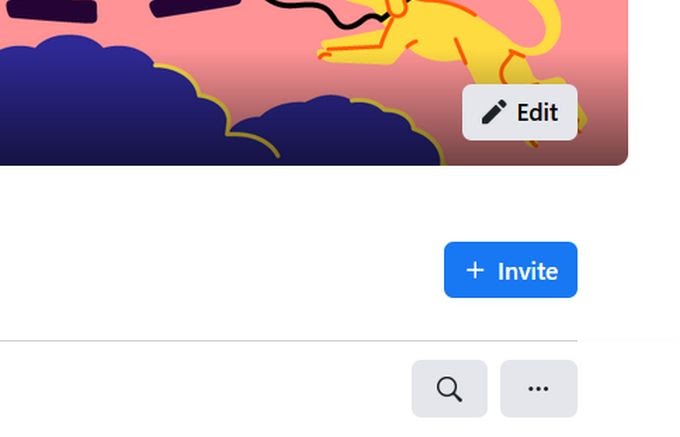
After completing these steps, you’ll want to invite new members to your group. You can do this by clicking on the Invite button next to your group’s name.
Managing Your Group Page
Once your group page is up and running, you have a number of controls available to manage the group. Depending on the privacy settings of the group, you may have more or less control of who enters the group and what gets posted.
If you set your group page to Private, you’ll be able to review new member requests and accept or decline them. You can also set up membership questions that users can answer to gain access to your group.
If you set your group to Public, you won’t be able to review new members but you can still review posts members make. You’ll also have access to the Admin Assist option, where you can set criteria for posts and actions and let Admin Assist enact them automatically.
Here’s how to use each option in the Admin Tools sidebar.
Member Requests
This option is only available if you set your group to Private. Here you’ll find people who have requested to join the group, and you can either accept or deny their requests. You will be able to view some information about the user, such as location and answers to any membership questions, to make your decision about their member request.
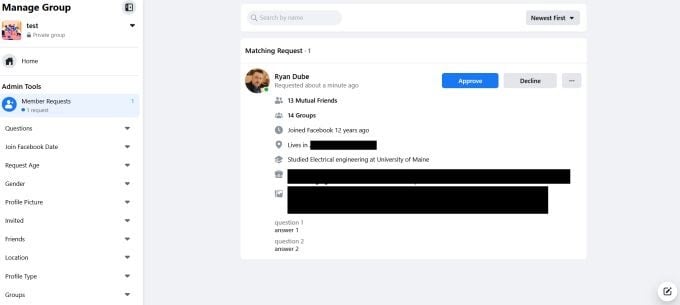
If you invite a member to a private group, they will be able to get in automatically without answering questions.
Automatic Member Approvals
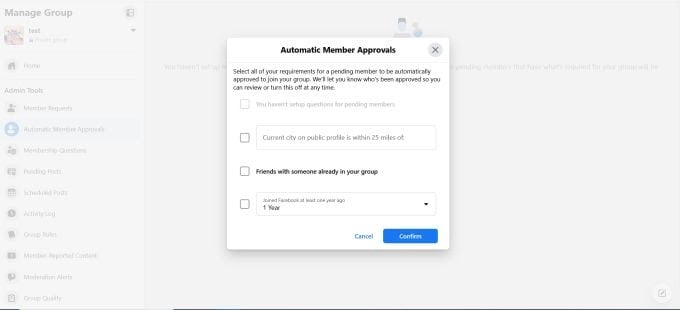
This option is also only available for Private groups. Here you can select certain criteria such as answers to questions, location, length on Facebook, etc., that will automatically grant membership to requests that meet such criteria.
Membership Questions
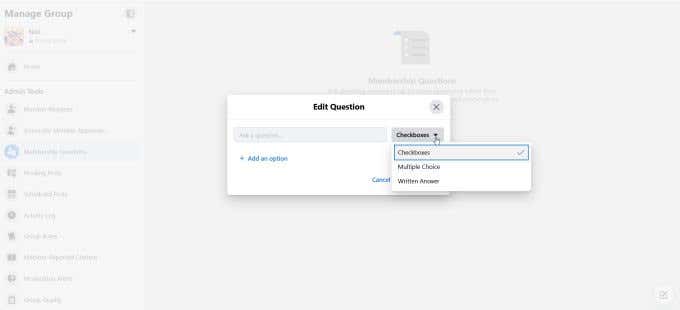
If you set your group to Private, you can set up questions here for new members to answer before getting accepted into your group. These are questions you can review in the Member Requests section.
Pending Posts
These are posts other group members have made that will first go to you for approval before being posted in the group.
Scheduled Posts
Here you can see what posts you have scheduled to be posted in the future. To create a scheduled post, follow these steps:
- Either click on Create a Post in the Scheduled Posts section, or go to your group’s main feed and type in the post text box.
- After writing your post, select the calendar icon in the bottom right corner.
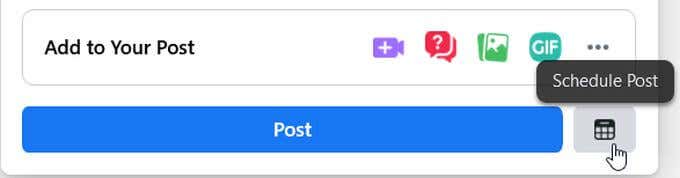
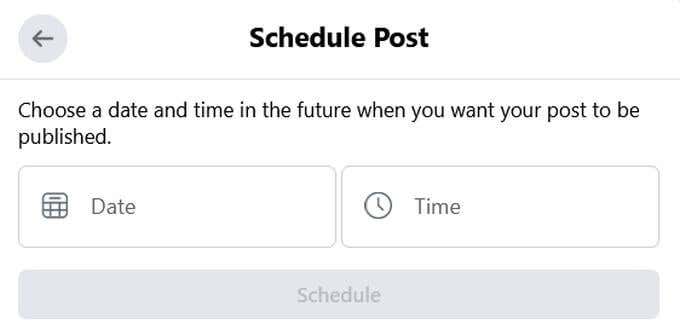
- Set a date and time you’d like this post to be scheduled for, then select Schedule.
Activity Log
Here you can see all the admin actions as well as member activity taking place within the group. You can filter activity by dates, certain admins/moderators, certain group members, or activity type.

Group Rules
This is where you can set up the rules for your group which you want your members to follow. This is important as it sets the precedent for behavior within your group as well as a guide for what behaviors constitute removal from the group.
Member-Reported Content
This is where you’ll find content within the group that has been reported by other members. You can review these reports and decide whether or not to take action.
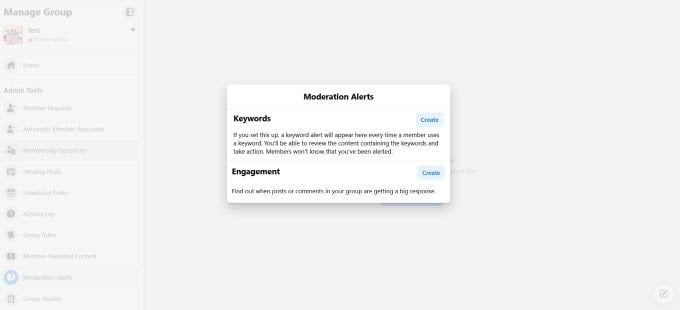
Moderation Alerts
If you want to, you can set up certain keywords or activities to alert you whenever they take place in the group. This can be a good tool for moderating your group if you want to make sure rules are being followed.
Group Quality
This is where Facebook will let you know if content within your group is going against Facebook policies as a whole, allowing you to monitor Facebook’s involvement in your group. If group quality is too low, your group may risk being disabled.
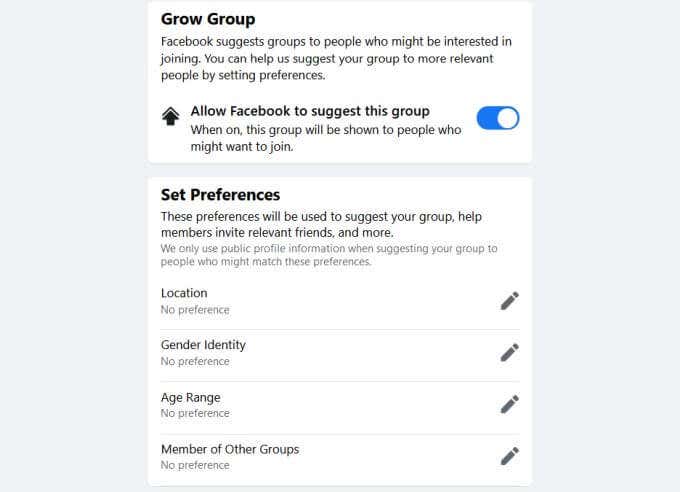
Grow Group
This feature helps Facebook suggest your group to users who may want to join. You can select certain preferences for who you would like Facebook to promote your group to.
Creating a Group Page on Facebook Is Easy
Groups can be a wonderful place to grow a community of people interested in the same topic, or to share experiences and help others. Facebook makes the process of creating and managing a group very easy, so you can cultivate the kind of group you are proud of having.