
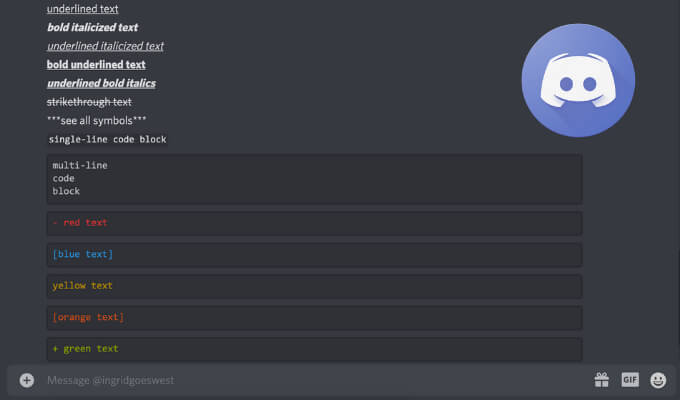
Do you use Discord daily? Then you’ve probably seen someone use bolded or colored text in a Discord server or in your DMs before. Whether you’re a complete beginner or have your own Discord server, you can learn simple commands to do basic text formatting like writing in bold or italics, as well as advanced text formatting like using code blocks.
While you’re using Discord, Markdown is a powerful system running in the background that handles all of the text formatting. Markdown helps you add variety to your communication on the platform.
How to Bold Text in Discord
If you want to emphasize something in Discord, whether it’s an entire message or just a part of it, you can use bolded text.
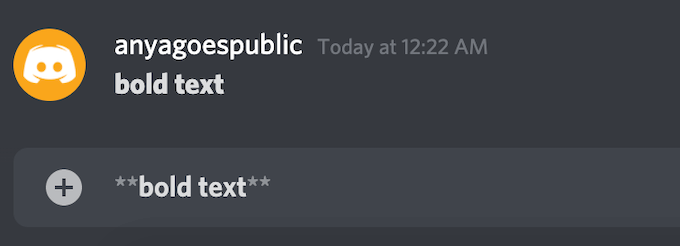
To bold text in Discord, use two asterisks or stars (*) at the beginning and end of your message.
Example: **bold text**.
Note: For this and other markdown codes that use the asterisk, if you’re using a standard English keyboard, you can insert an asterisk using a Shift + 8 keyboard shortcut.
How to Italicize Text in Discord
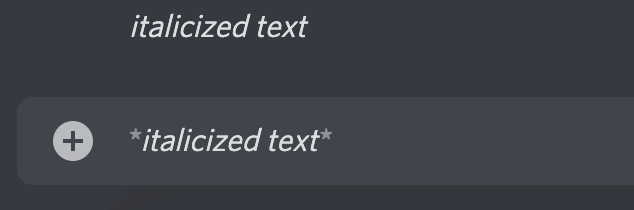
To italicize text in Discord, use one asterisk at the beginning and end of your message.
Example: *italicized text*.
How to Underline Text in Discord
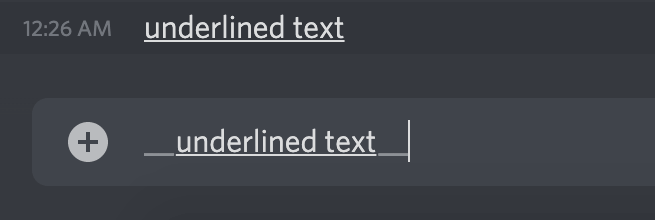
To underline text in Discord, you’ll need to use two underscores (_) at the beginning and end of your message.
Example: __underlined text__.
How to Combine Different Text Formatting Options
You can also combine some of the text formatting options described above.
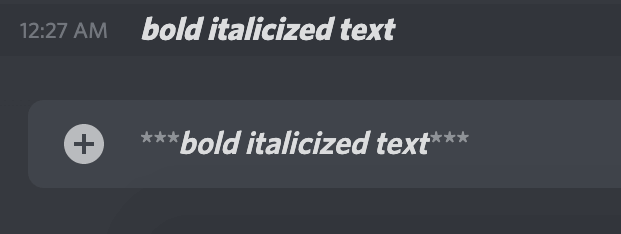
To create bold italicized text, use three asterisks (*) before and after your text.
Example: ***bold italicized text***.
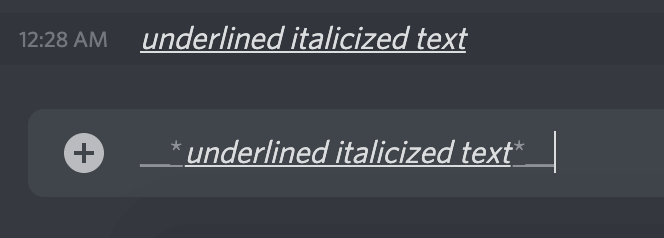
To underline and italicize text, use two underscores with one asterisk in the beginning and one asterisk and two underscores at the end of your message.
Example: __*underlined italicized text*__.
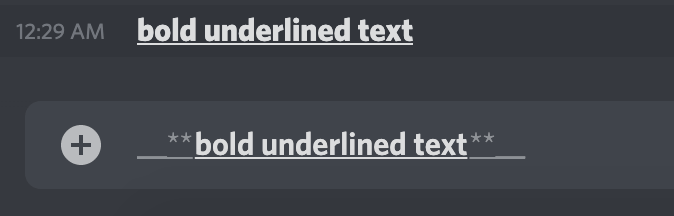
To create bold underlined text, combine two underscores and two asterisks before and two asterisks with two underscores after your message.
Example: __**bold underlined text**__.
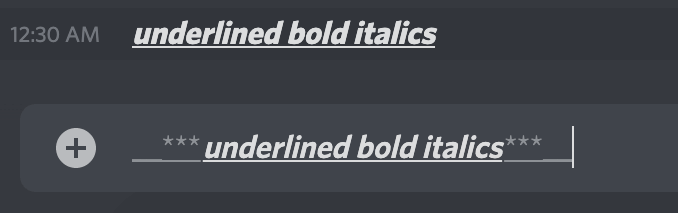
To underline bold italicize your text, start your message with two underscores and three asterisks and end it with three asterisks and two underscores.
Example: __***underlined bold italics***__.
How to Create Strikethrough Text in Discord
If you want to type crossed-out text in your message, you can use strikethrough text in Discord.
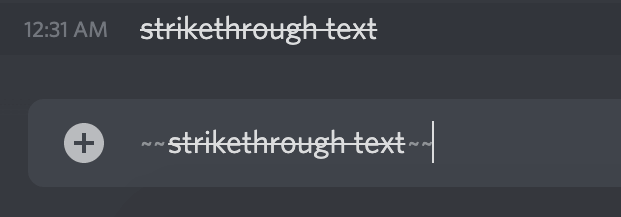
To create strikethrough text, use two tildes (~) at the beginning and end of your message. To type tilde, use the Shift + ~ keyboard shortcut.
Example: ~~strikethrough text~~
How to Make All Symbols Visible in Discord
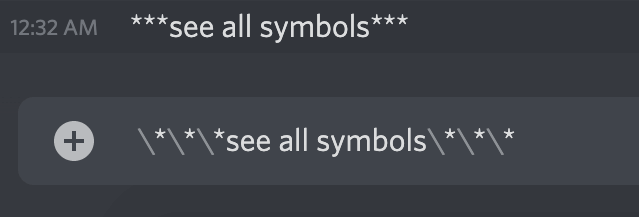
If you want other users to see all of the tildes, asterisks, and underscores that you’re using (like if you’re making an emoji), use the backslash () at the beginning of each symbol to cancel Markdown’s formatting and show the symbols as part of the text.
Example: ***see all symbols***
How to Write Code Blocks in Discord
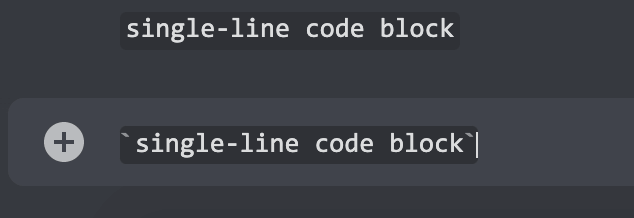
You can create single-line code blocks if you surround your text with backticks (`).
This adds a dark background to white text, making it easier for users to view and exchange brief code snippets in a readable format.
Example: `single-line code block`.
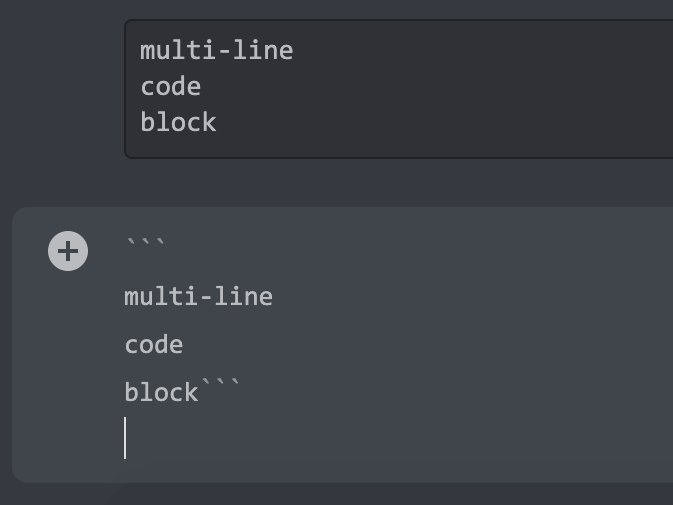
To create multi-line code blocks that allow for sharing more complex code, use three backticks (`) in the beginning and end of your message.
Example:
```
multi-line
code
block```
How to Color Text in Discord
Thanks to a feature called syntax highlighting, you can use colored text in your Discord chats. This feature is widely used in coding and allows you to define the programming language and colorize essential parts of the code for easier reading and understanding.
Use multi-line code blocks and syntax highlighting to create colored text. You’ll need to use the triple backticks at the beginning and at the end of your message, but you’ll also need a keyword that defines a specific color.
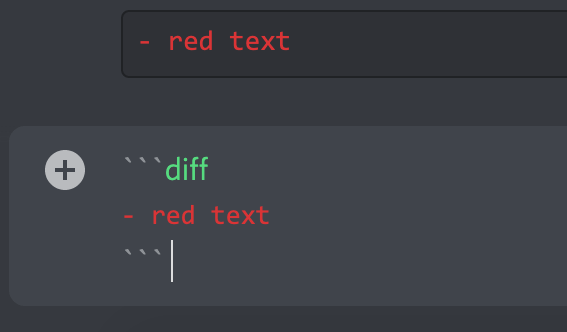
- To color text in Red, the keyword to use is diff. Note the use of a hyphen (-) before your text with diff.
Example:
```diff
- red text
```
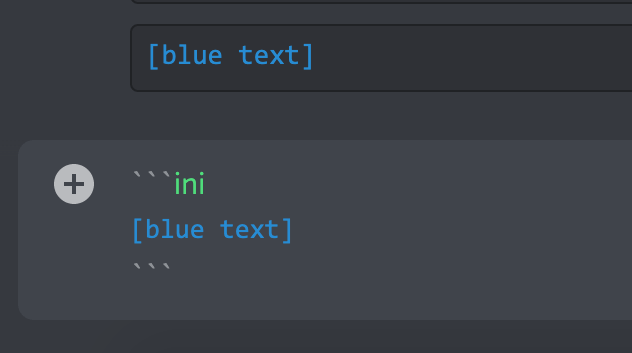
- To color text in Blue, use the keyword ini and surround your text with square brackets.
Example:
```ini
[blue text]
```
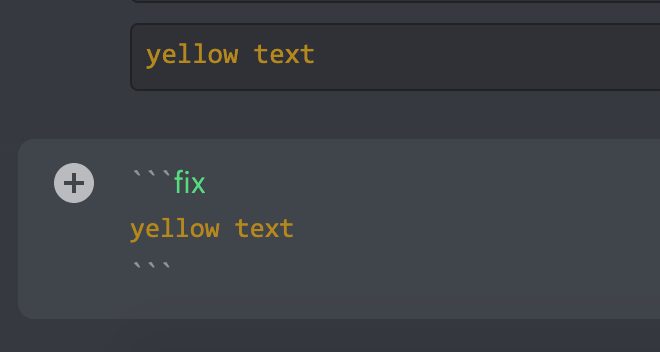
- To color text in Yellow, use the keyword fix.
Example:
```fix
yellow text
```
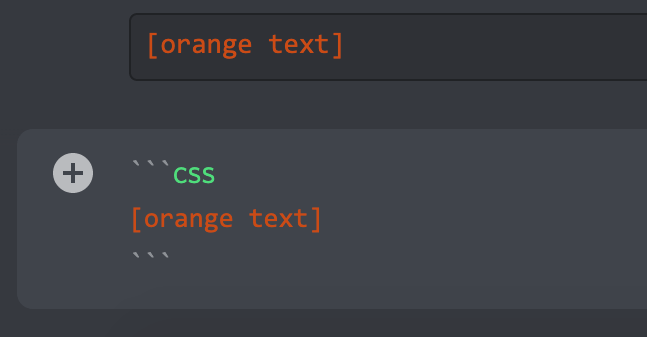
- To color your text in Orange, use the keyword css along with square brackets on each side of your text.
Example:
```css
[orange text]
```
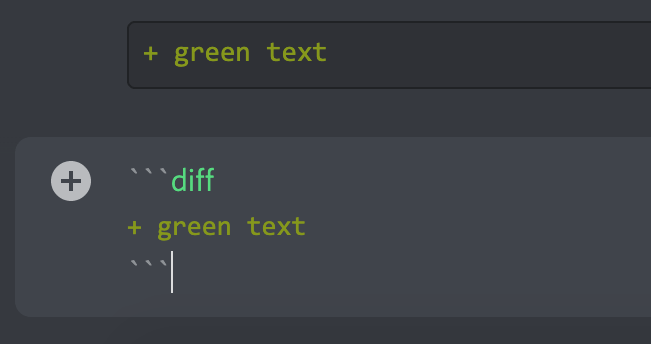
- To color your text in Green, you can use the keyword diff. However, you need to add a + sign at the beginning of the text line.
Example:
```diff
+ green text
```
There are certain limitations when it comes to colored text in Discord.
- You have to remember which syntax highlighting to use for each color
- Other users will only see the colors if they’re using Discord on their desktop or laptop.
- On mobile, colored text will always show as default black.
How to Hide Text in Discord
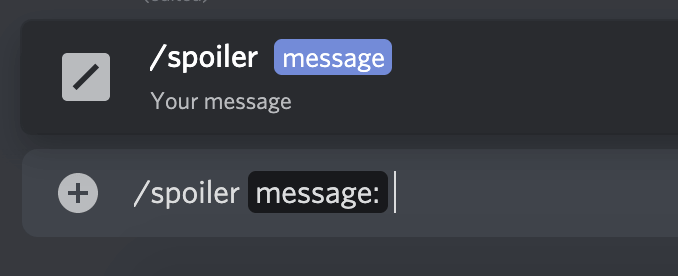
Discord offers an option to add spoiler alerts and hide text in your chats.
- To give other users the ability to choose whether they want to read a spoiler or not, you can type /spoiler at the beginning of your text.
- If it’s only a part of your message that you want to hide, add /spoiler at the end of the text you want to hide.
- The text will then display as a spoiler, and users will have to click on it before they can see the contents of the message.
How to Change Font in Discord
The default font used across all the Discord apps is Uni Sans, from thin to heavy. This font inspired the original Discord logo in 2009.
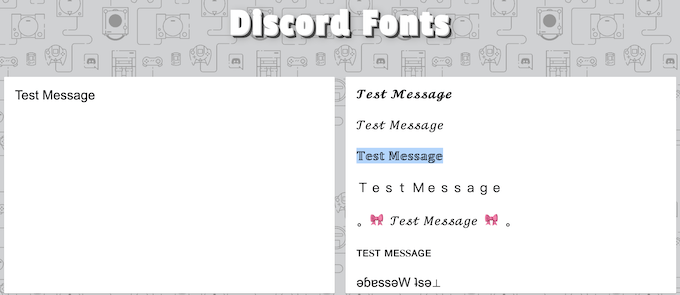
While it’s impossible to change the font from directly within the Discord app, you can use an online Discord font generator like LingoJam.
- Open LingoJam and type your text into the box on the left.
- You’ll see several fonts that you can choose from the box on the right.
- Select the font that you like and copy the text into your Discord chat.
How to Create a Blockquote in Discord
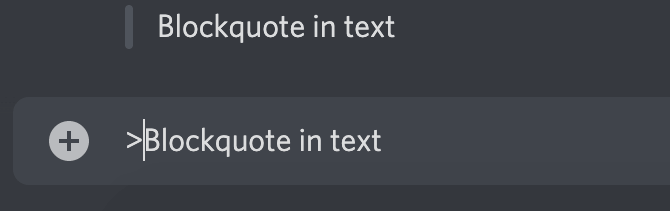
Blockquotes are great for underlining a part of your message, inserting quoted text, or emulating reply text in emails. To add a blockquote into your Discord message simply add a greater than sign (>) before your text.
Example: > Blockquote in text.
Are Other Text Manipulations Possible in Discord?
The good news is, Discord has much more to offer aside from the basics listed above. You can use this extensive Markdown cheatsheet from GitHub and learn how to add tables, links, images, headers, and lists in Discord.
Have you used text formatting in Discord before? Is there something we forgot to include in our list? Share your Discord text formatting tips and tricks in the comments section below.