
YouTube is the most visited site and the most popular search engine after Google. With over 500 hours of video uploaded every minute and more than 1 billion hours of video content watched, it’s easy to see why.
The sheer amount of content is enough to overwhelm you when you’re searching for videos in your topic of interest. YouTube helps you with this by displaying recommendations to help you discover channels or videos you might otherwise miss.
However, it can get annoying if there’s a channel you’re not interested in and it keeps showing up.
For content creators who upload videos on YouTube every day, the challenge lies in preventing trolls from interacting with their channel.
Whether you’re on YouTube to watch other people’s videos or upload your own, you can resolve such challenges by blocking YouTube channels for good.
How to Block a YouTube Channel
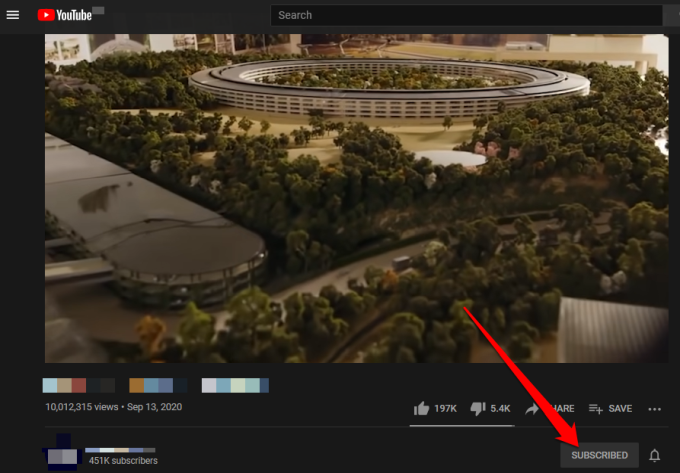
You may have subscribed to a channel knowingly or accidentally, and you no longer want to see any video content from it. In such cases, you can block the YouTube channel by unsubscribing from it.
- To unsubscribe from a YouTube channel, go to the channel’s home page and select or tap Subscribed.
- Select or tap Unsubscribe to confirm your action.
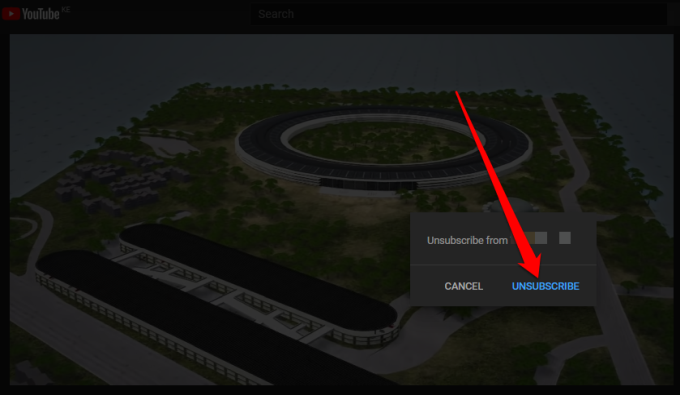
Note: Once you unsubscribe from a YouTube channel, your subscription will end and you won’t get any notifications for the channel in your feed. However, you may continue to receive video recommendations from the channel from time to time, but you can block them using the steps in the next section.
To block videos from a particular channel that YouTube still suggests to you, get rid of them for good using these steps.
Note: The steps below are similar whether you’re using a computer or mobile device.
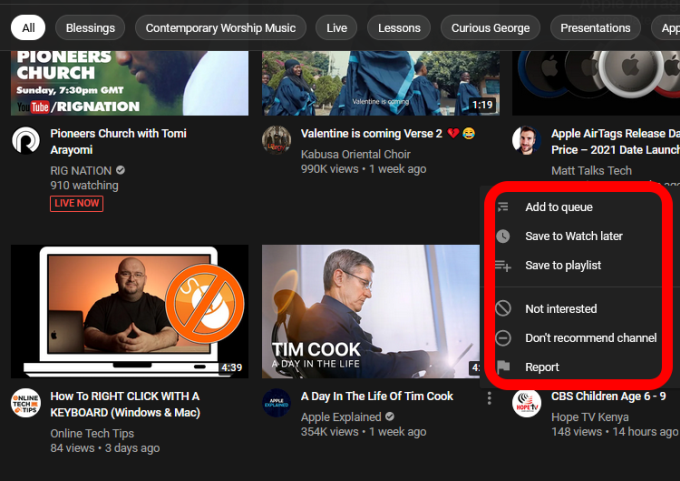
- To do this, go to YouTube and tap on the ellipsis next to the video title.
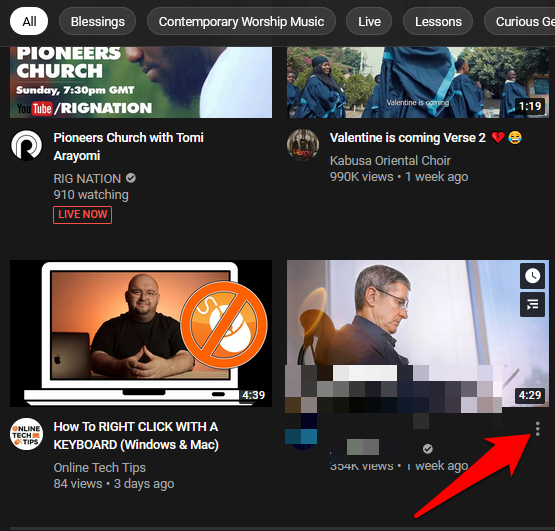
- Next, select Not interested, Don’t recommend channel or Report.
- If you select Not interested, you’re telling YouTube to stop recommending the video and similar videos to you regardless of which channel the videos are from.
- If you select the Don’t recommend channel option, YouTube won’t show you videos of any topic from that channel. This option is ideal when you want to exclude videos from a specific account around your area of interest.
- The Report option comes handy when you find a video dangerous, offensive or misleading and you want YouTube to know about it. If you choose this option, YouTube will no longer show you the video, and it tells them they need to investigate and possibly delete it from the platform.
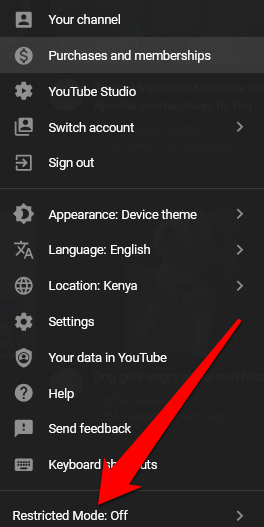
If you’re a parent and want to protect your kids from receiving or viewing inappropriate content, you can block a YouTube channel or use Restricted Mode.
Restricted Mode allows you to screen out potentially mature and/or inappropriate content that you prefer not to see or others using your device to see. You can enable Restricted Mode by selecting or tapping your profile picture, selecting Restricted Mode and then toggle it to On.
There are other YouTube alternatives for kids including YouTube Kids, ABCMouse and SproutOnline, all of which offer curated kid-friendly, free-to-watch videos. YouTube Kids in particular filters all the content and only allows safe content while preventing any kind of cyber bullying-related issues or commenting on the platform.
How to Block a Channel on YouTube Kids
YouTube Kids is a dedicated video service with all the content curated and designed for kids. The platform offers family-friendly, education and fun videos with colorful large images and icons from different channels surrounding kids’ liking.
Plus, YouTube Kids filters all content and provides parental control features so you can monitor what your child is watching and prevent commenting or issues related to cyber bullying.
If you’re not sure about a particular channel and the kind of content it serves your child, you can block YouTube channels or videos and your child will no longer see it when you sign in to YouTube Kids.
How to Block a Channel on YouTube Kids
You can block a channel on YouTube Kids from the channel’s watch page.
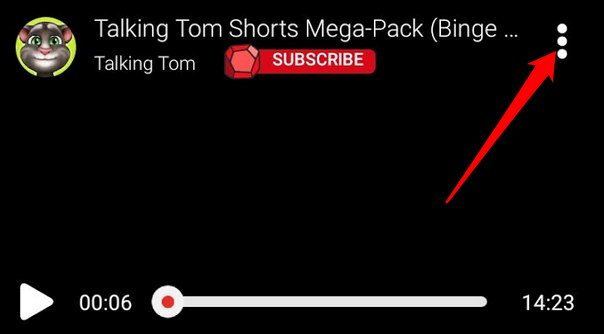
- To do this, go to the watch page and tap More (three dots) at the top right side of the video.
- Next, tap Block.
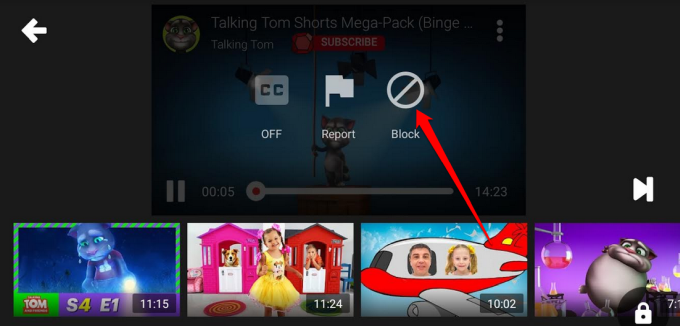
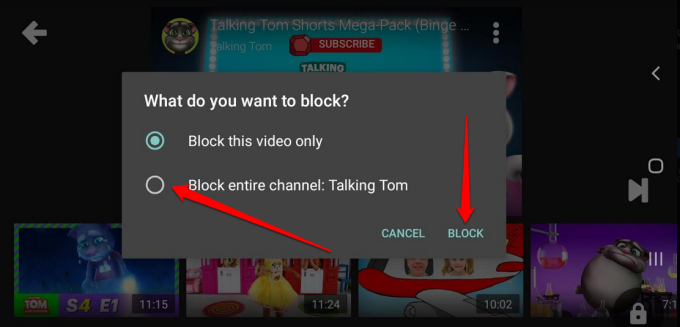
- Select Block entire channel in the dialog box that appears to block the channel associated with the video and then tap Block.
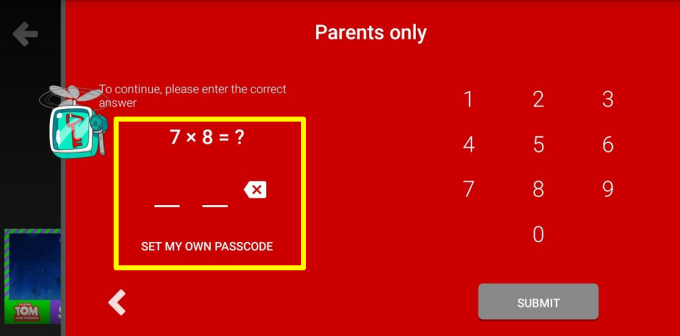
- Enter your custom passcode or complete the sum on your screen.
Note: If you want to unblock the YouTube channel you’ve just blocked, sign in to the app again, go to Settings (gear icon) and tap Unblock videos > Yes, unblock. If you’re using the app with Family Link, go to the Family Link settings and unblock the videos.
If you don’t want to block a whole channel on YouTube Kids, you can block a particular video from the channel instead.
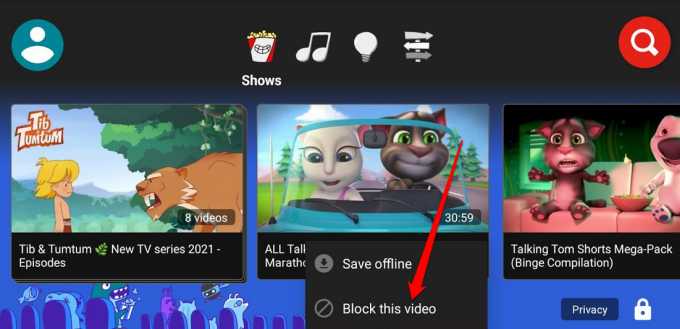
- To do this, sign in to the app, tap More next to the video whose channel you want to block and select Block this video.
- Enter your custom passcode or complete the sum on your screen.
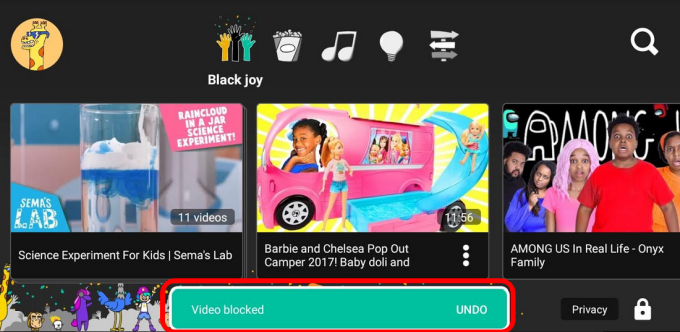
- You’ll get a notification in a green bar at the bottom of your screen confirming that the channel has been blocked, along with the option to undo if you want to unblock it immediately after.
How to Block a YouTube Channel from Search Results
There’s no direct YouTube method that you can use to block a YouTube channel from search results. Instead, you can use a Chrome extension like Channel Blocker to do this for you.
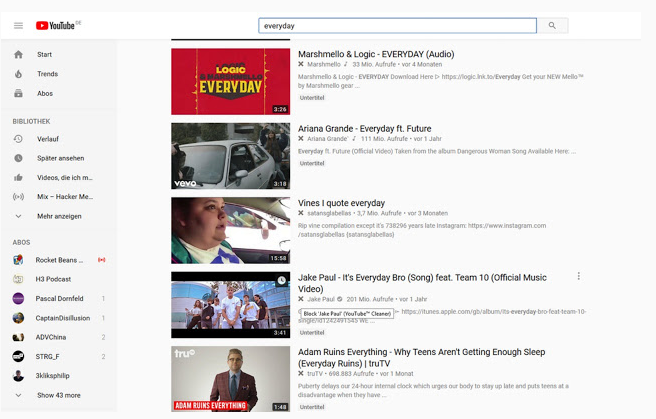
The extension allows you to block YouTube comments and videos by using regular expressions and/or blacklisting users. You can use it to block users, separate videos or whole channels from search results and it won’t collect your user data.
Put the YouTube Block Button to Good Use
We hope this guide helped you block a YouTube channel or video on your device or browser. Go ahead and enjoy your YouTube experience without the annoying video recommendations that pop up every so often while you’re browsing the platform.
What tricks do you use to block YouTube channels? Share with us in a comment.