
Staring at the same desktop background every single day gets old fast. Windows 10 and 11 both let you shuffle through a local folder of images automatically, but what if you want something better: a constant stream of fresh photos pulled directly from the web? Think NASA’s daily space image, a street photography blog, or a wildlife feed. There’s no built-in way to do that in Windows, but there is a promising third-party fix that’s been quietly doing this job for over 20 years.
John’s Background Switcher (JBS) is a free Windows app that automatically rotates your desktop wallpaper using image RSS feeds, local folders, and popular photo services like Unsplash and Flickr. The developer, John Conners, a software developer and photographer from Scotland, first built it back in 2004 and has kept it going (and improving) ever since. The current version is 6.1, released in April 2026, and it works on both Windows 10 and Windows 11. This guide will walk you through the full setup.
What Is John’s Background Switcher?
John’s Background Switcher is a free Windows desktop app that changes your wallpaper automatically at a schedule you set, pulling images from sources you choose, including RSS photo feeds.
Key Features:
- RSS feed support: Plug in the URL of any image-based RSS feed and JBS rotates through the photos automatically
- Multiple image sources: Also connects to local folders, Flickr, Google Photos, Unsplash, Dropbox, OneDrive, and more
- Flexible rotation schedule: Swap wallpapers anywhere from every minute to once every seven days
- Creative display modes: Standard fill/fit/stretch options, plus fun layouts like photo collage, polaroid pile, postcard pile, and thumbnail mosaic
- Multi-monitor support: Show the same image on all screens or put a different one on each
- Notification area integration: Runs quietly in the background and turns its icon green when actively working, so you always know it’s doing its thing
JBS is completely free. If you end up loving it, the developer accepts donations via PayPal, and for software that’s been actively maintained since 2004, it’s genuinely worth a few bucks.
Before You Begin
- A PC running Windows 10 or Windows 11
- An active internet connection
- The URL of an image-based RSS feed you want to use (we’ve listed some solid options below if you need a starting point)
How to Set Up John’s Background Switcher with an RSS Feed
Step 1: Download and Install JBS
Head to the JBS download page and grab the latest installer (version 6.1 as of April 2026). Run the downloaded file and follow the installation wizard. It’s a clean, straightforward setup with no surprise software bundled in. At the final screen, check the box to launch JBS immediately after installation.
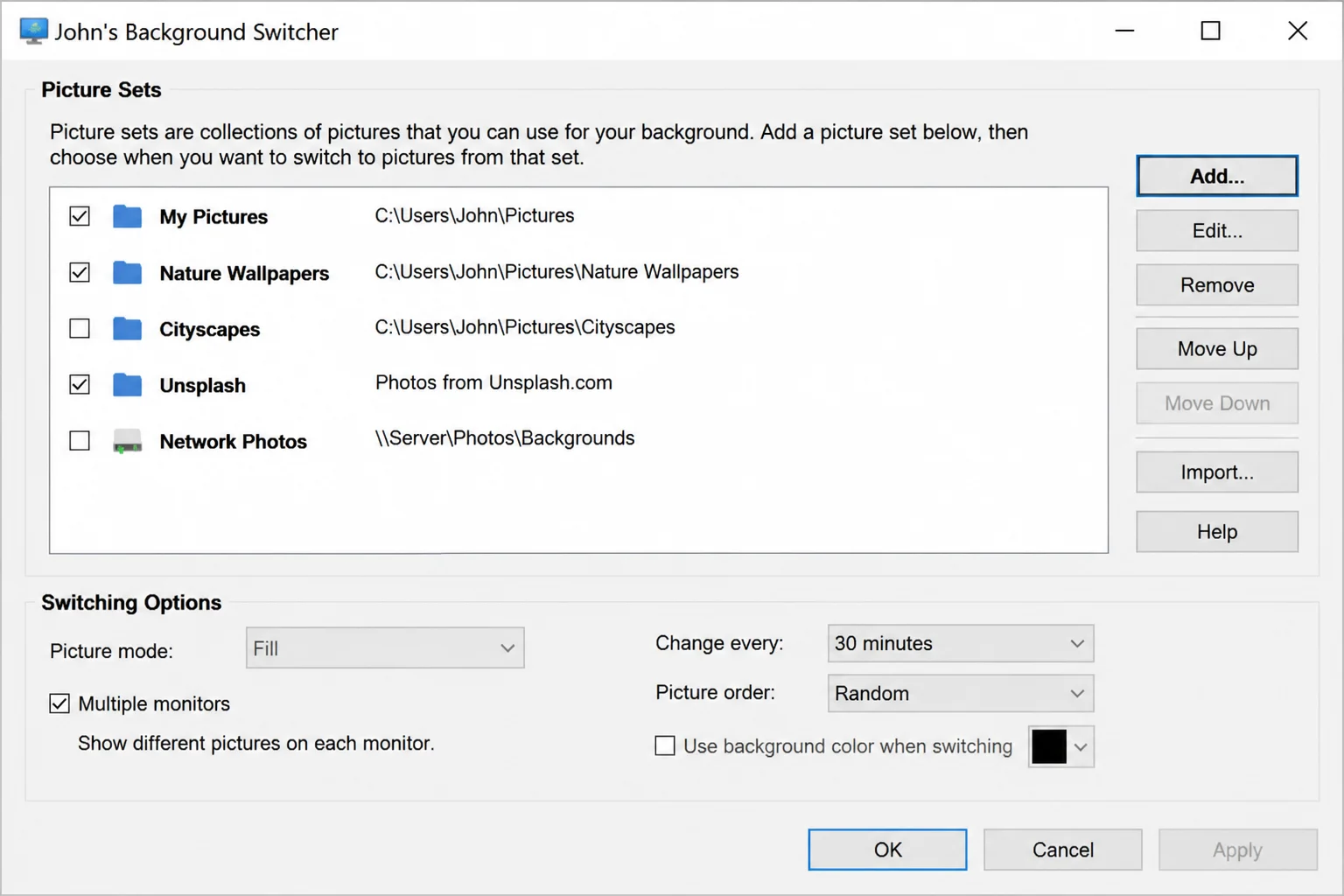
Step 2: Open the JBS Settings Window
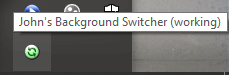
JBS opens its main settings window automatically after installation. If you ever close it and need it back, look for the JBS icon in your notification area, that cluster of small icons near the clock in the bottom-right corner of your taskbar. When the icon glows green, JBS is actively running and cycling through your images.
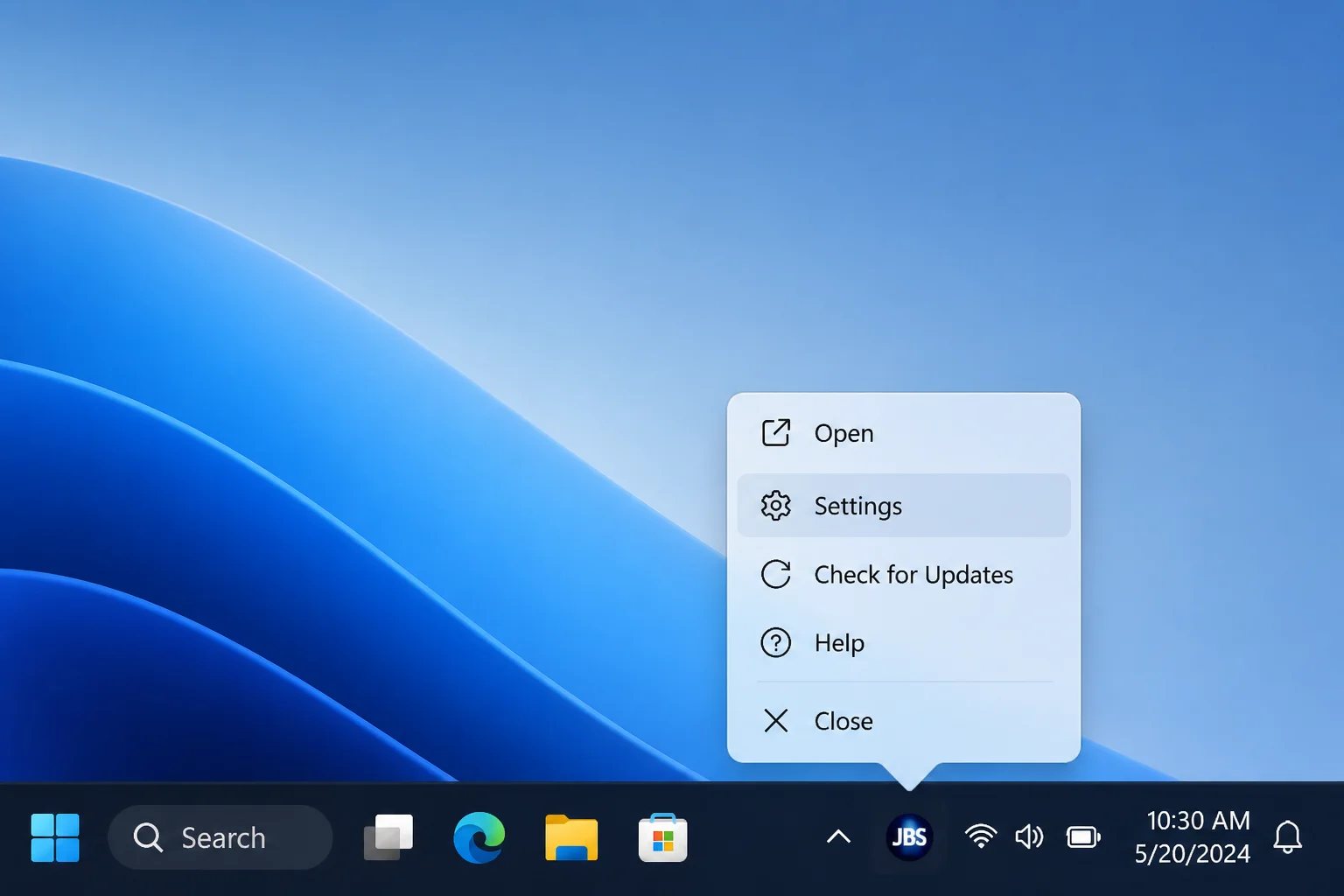
To reopen the settings window any time, right-click the notification area icon and select Settings…
Step 3: Add a New Image Source
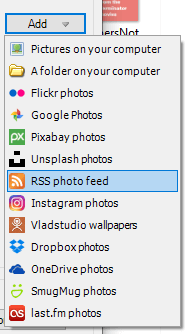
In the main JBS window, click the Add button. This opens a menu where you pick where JBS should pull images from. So far so good. It’s pretty intuitive.
Step 4: Choose RSS Photo Feed
From the source type list that appears, select RSS photo feed.
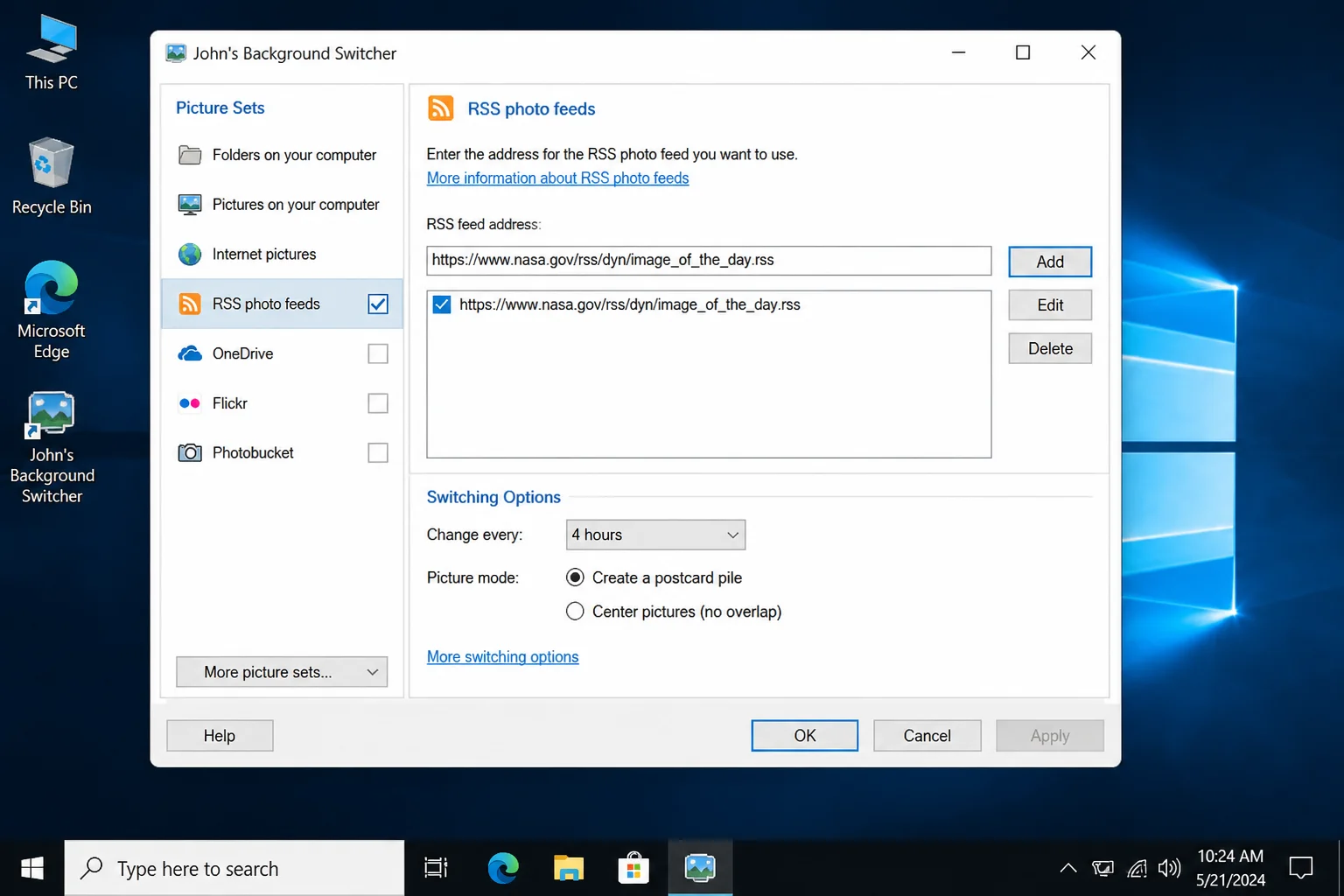
Step 5: Enter Your Feed URL
Paste the URL of your chosen RSS photo feed into the field. Not sure which feed to use? Jump ahead to the Where to Find Image RSS Feeds section, and we’ve got a ready-made list.
Step 6: Test the Feed
Click the Test button. JBS checks the URL and confirms whether it can connect and find images. If you see a success message, you’re working as expected and ready to move on.
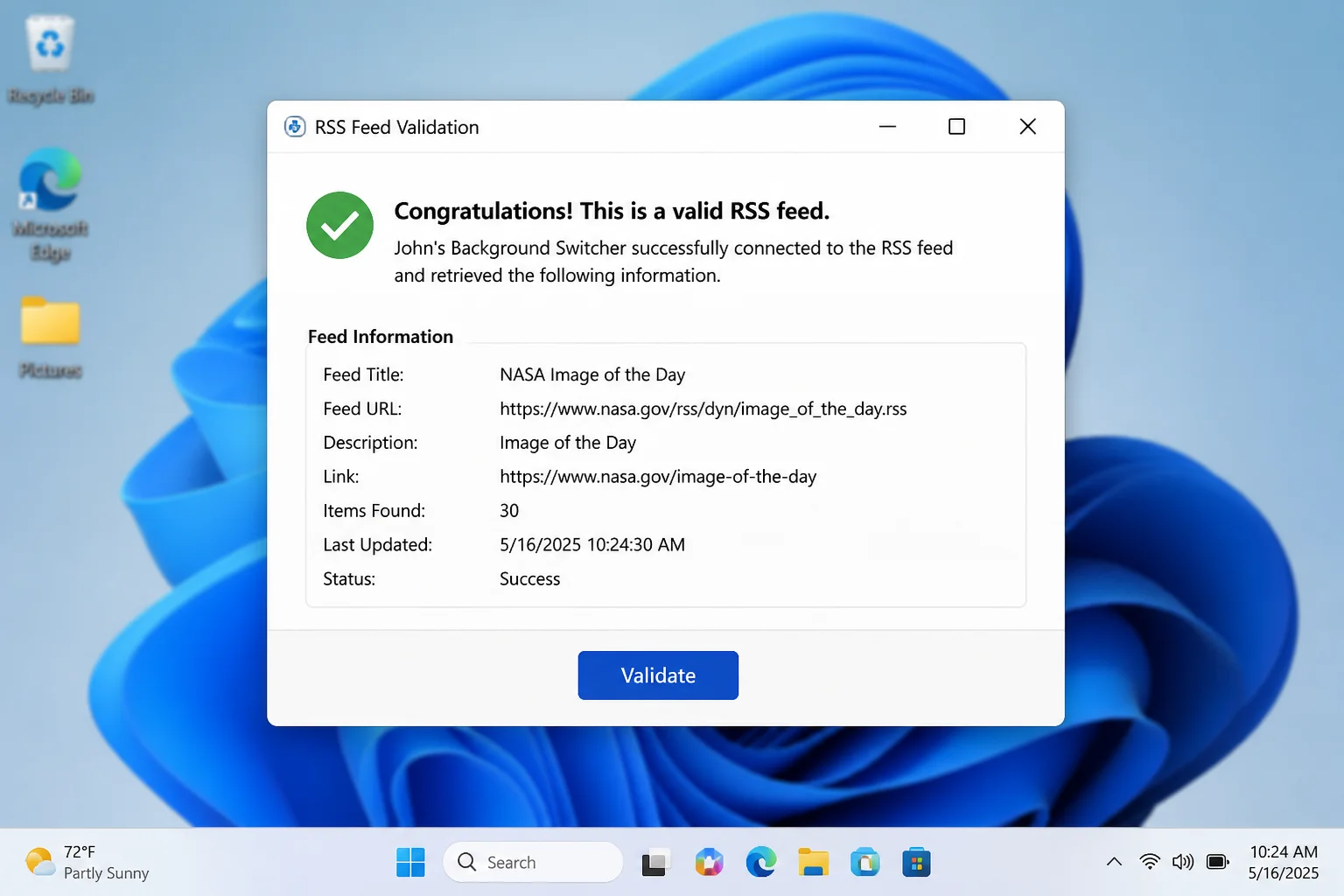
If the test fails, double-check your URL. It should be the direct RSS feed link, often ending in /feed/ or .rss, not the homepage of the website. If you copied a URL from a browser’s address bar, you may have grabbed the wrong link.
Step 7: Save and Close
Click OK to save your new feed, then click OK again on the main JBS window to close it. That’s genuinely all there is to it. JBS will start pulling images from the feed and rotating your wallpaper automatically. Add multiple feeds and JBS will pull from all of them, which is a great way to mix nature photography with space images or street photography.
Customizing Your Wallpaper Rotation
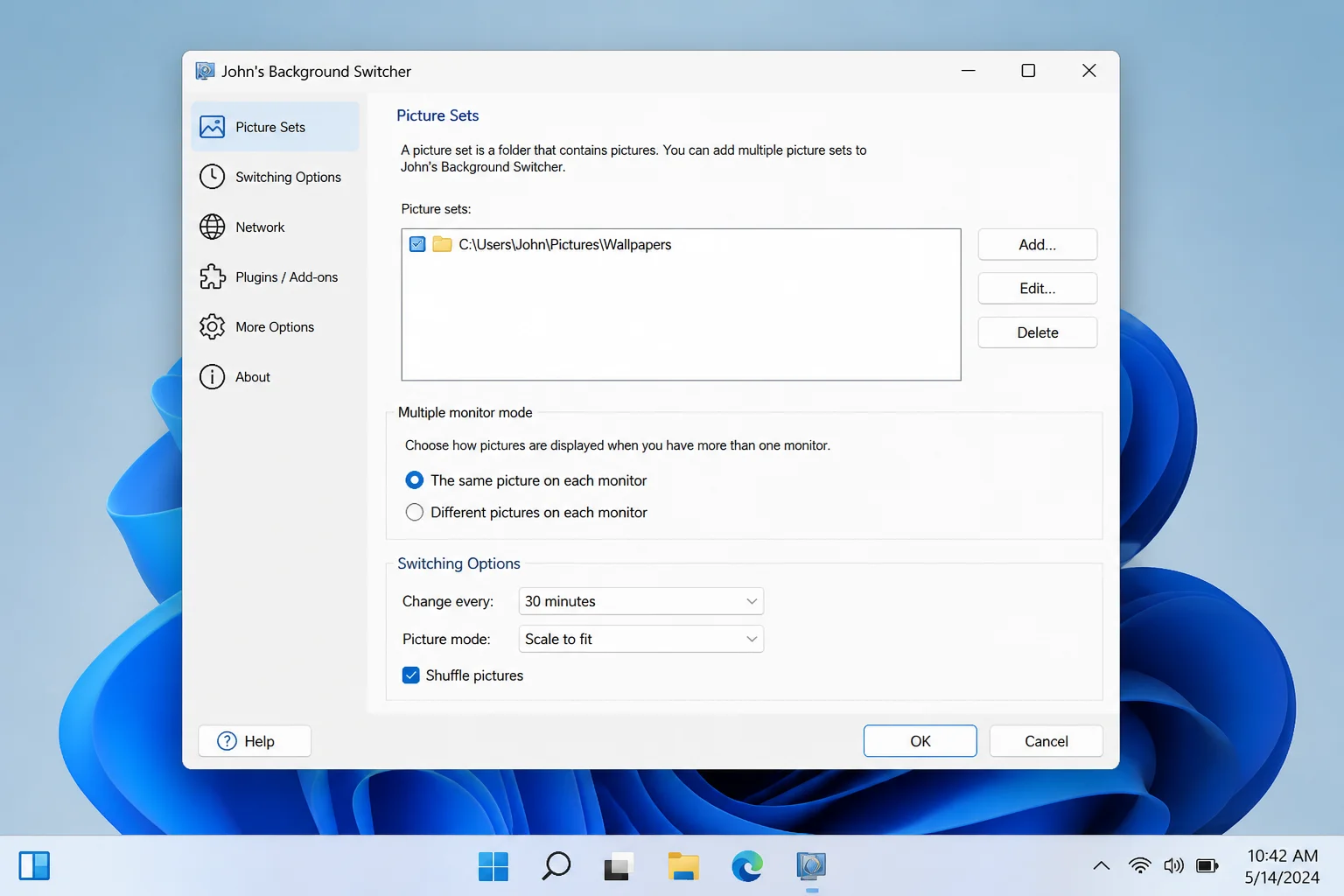
JBS has more settings than most people will ever dig into, but a handful are worth knowing about up front. In the main JBS window, look for the Switching Options area.
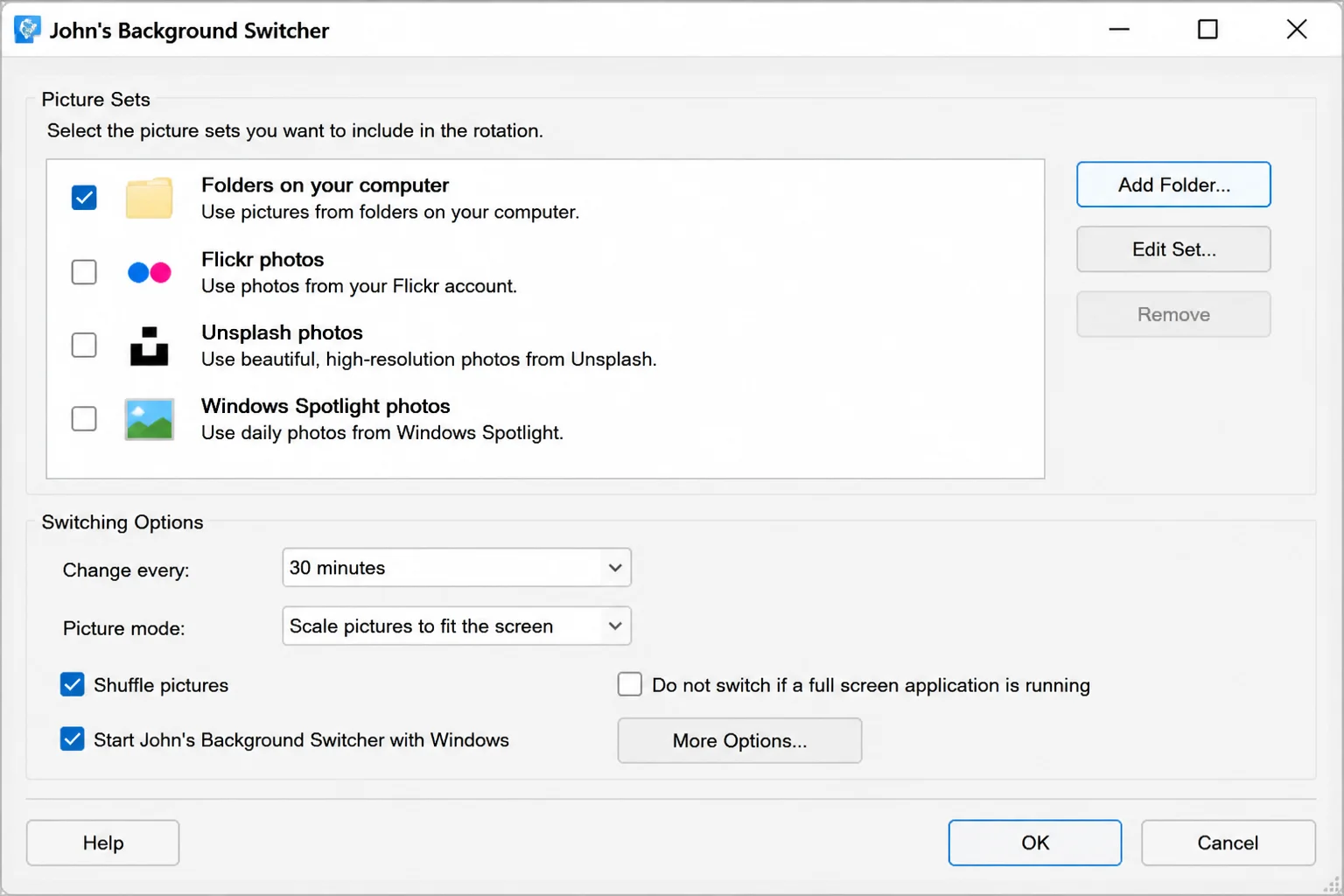
Change Every
Under Change every, set how often the wallpaper rotates. Options range from every minute up to once every seven days. Daily works well for most people; you get a fresh image every morning without it feeling hectic.
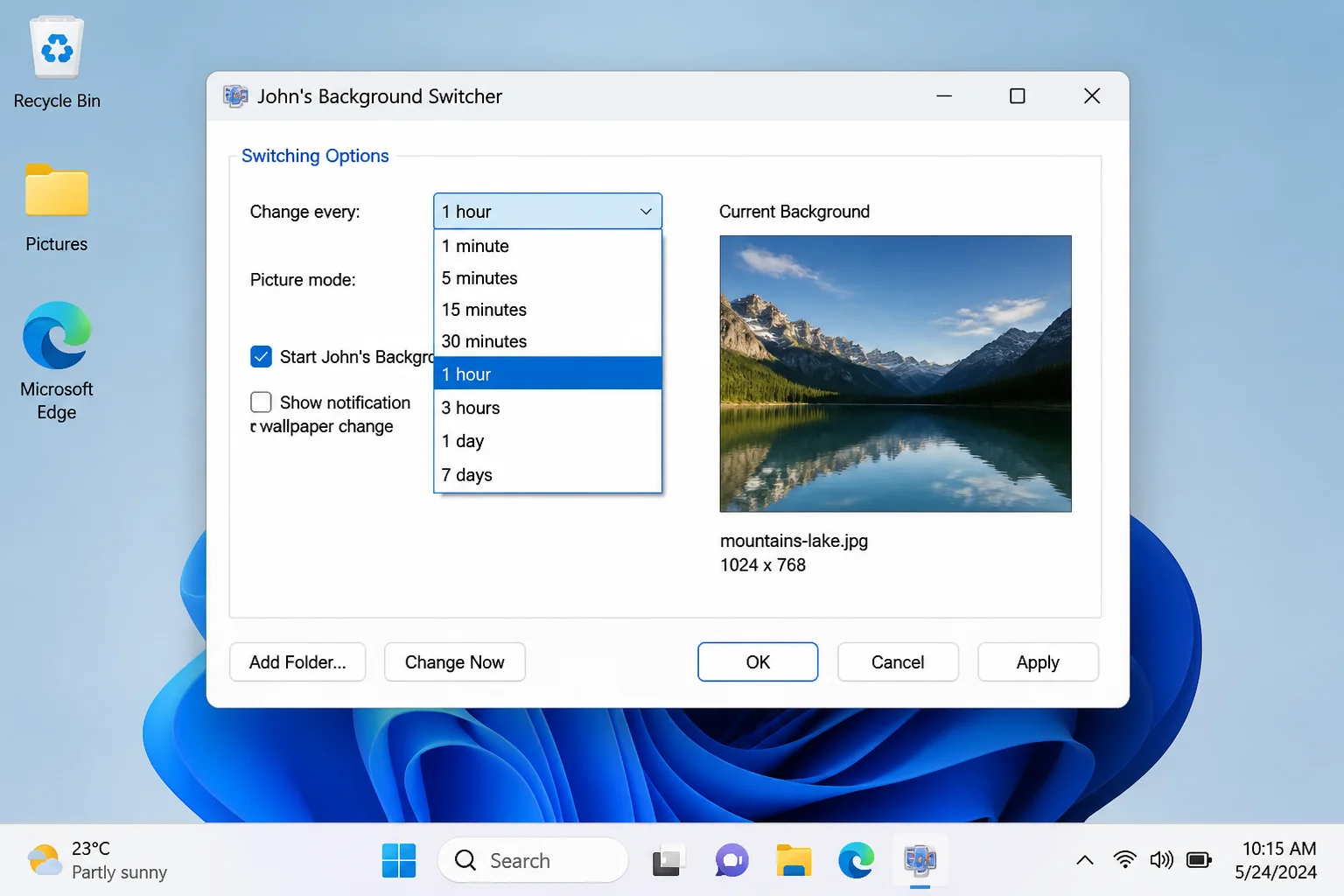
Picture Mode
Under Picture mode, choose how images appear on your desktop. Beyond the standard fill/fit/stretch options, JBS has some genuinely fun layouts:
- Thumbnail mosaic: Covers your desktop in a grid of smaller photos
- Four-picture montage: Shows four images tiled side by side
- Collage: Overlaps multiple photos in an artistic layout
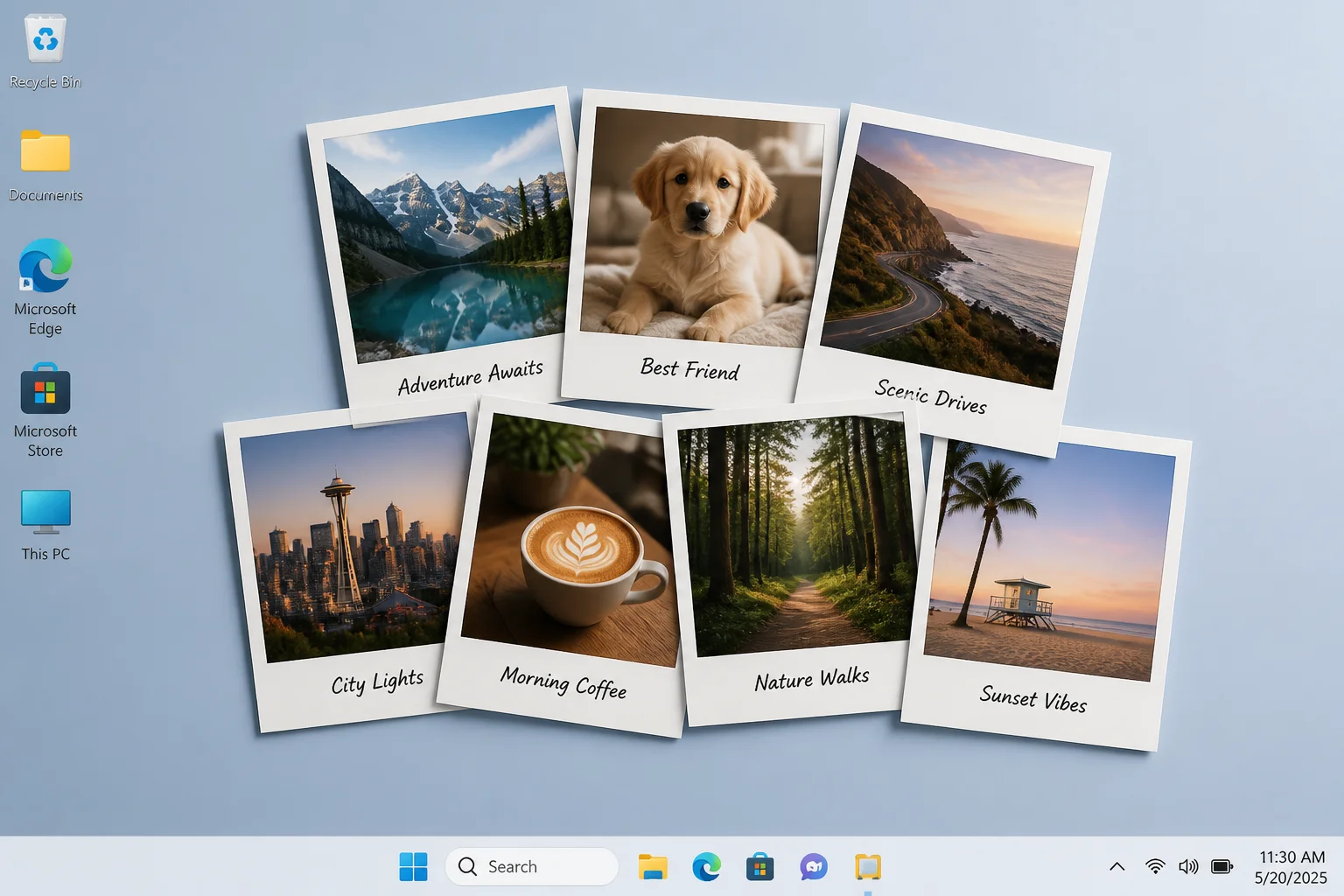
- Polaroid pile: Stacks photos like polaroids, with optional captions
- Postcard pile: Similar look to polaroids, with a postcard aesthetic
- Randomize: Lets JBS surprise you by mixing up the display style each time it changes
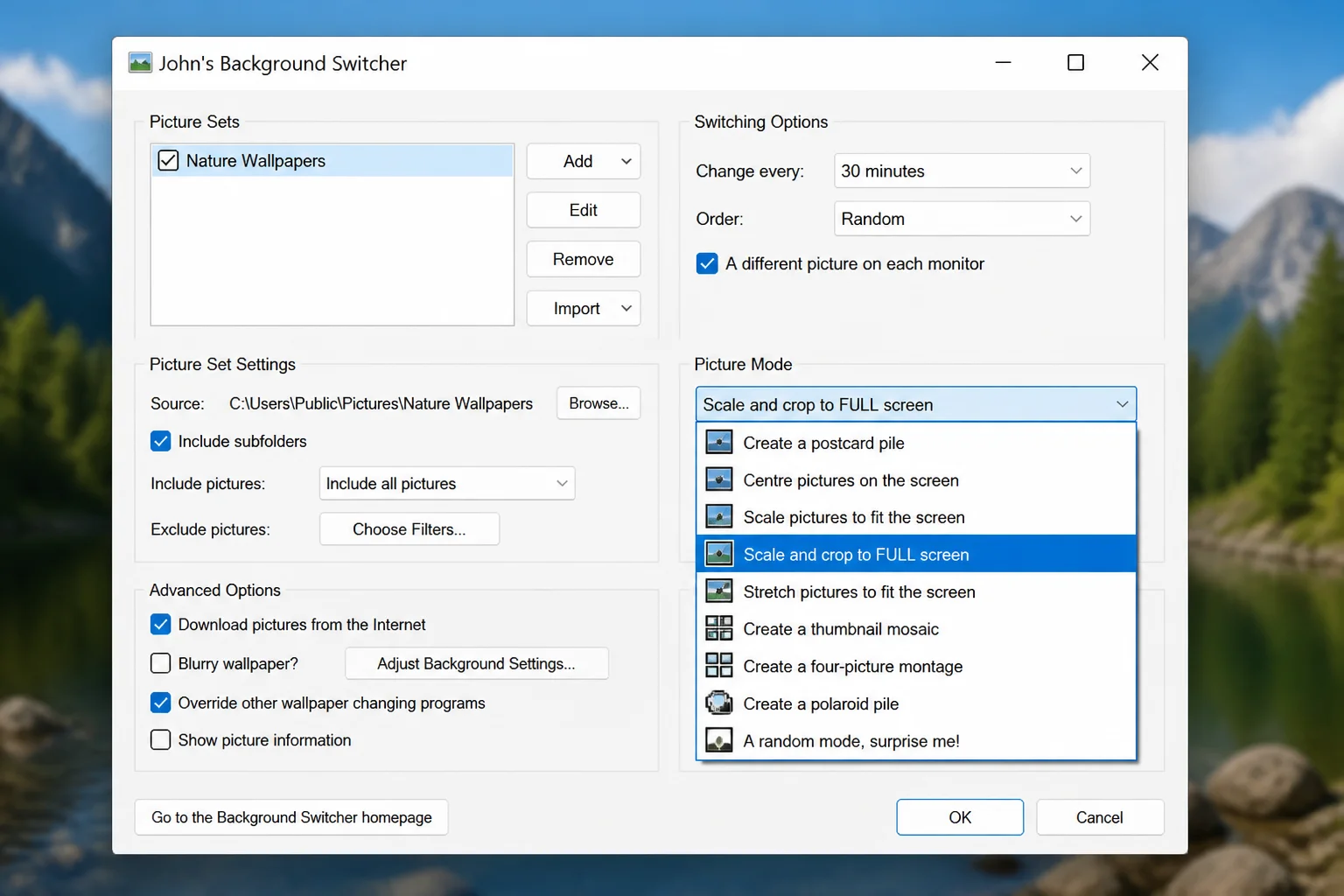
Multiple Monitors
Running more than one monitor? The Multiple monitors section lets you decide whether all screens get the same image or each one gets its own. Working as expected on a multi-monitor setup is one of the nicer things about JBS; it doesn’t just mirror whatever’s on your main screen.
More Settings
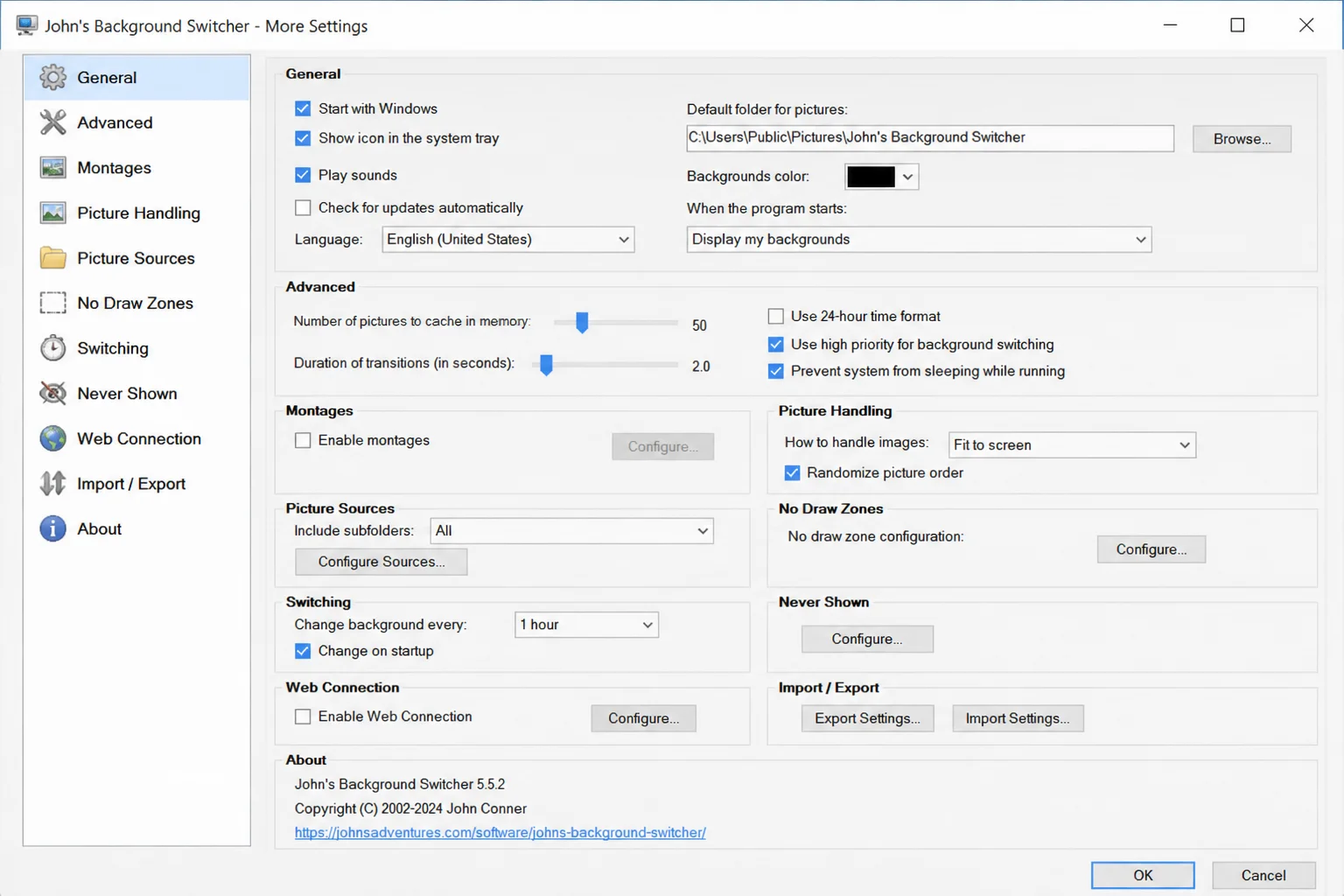
Click the More button in the main JBS window to open a deeper settings panel. Here’s what’s worth paying attention to:
- Start automatically when starting Windows: turn this on, otherwise JBS won’t run after a reboot and you’ll wonder why your wallpaper stopped changing
- Show picture information: displays details like the photo’s date or source right on the desktop
- Draw a calendar on the desktop: a handy at-a-glance calendar without needing a separate widget
- Enable keyboard shortcuts: skip to the next image or go back without ever touching the JBS window
- Stop switching when running over Remote Desktop: useful if you remote into this machine from another computer
- Apply a background effect: add grayscale, sepia, or other filters to every image
- Enable no-draw zones: block the wallpaper from rendering over specific areas of the screen (handy if desktop icons or widgets live in a particular spot)
And don’t forget the notification area icon itself: right-clicking it gives you quick controls without ever opening the full settings window.
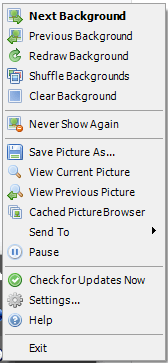
From here you can skip to the next image, go back to the previous one, tell JBS to never show a specific image again, or check for app updates, all without touching the main settings window.
Where to Find Image RSS Feeds
Need some feed ideas? Here are a few image-focused RSS feeds to get you started:
- NASA’s Image of the Day: jaw-dropping space photos, updated daily
- Street Hunters: gritty, candid street photography from around the world
- The Wandering Lens: travel and landscape photography
- Carl Bovis Nature Photography: stunning UK wildlife and nature shots
- Monochromia: gorgeous black-and-white photography
- Underwater Photography Guide: ocean and underwater imagery
- Time Lapse Network: time-lapse and long-exposure photography
Quick heads-up: not every RSS feed includes full-size embedded images. If a feed validates in JBS but your wallpaper never actually changes, that feed probably contains only thumbnails or links to web pages rather than direct image files. When in doubt, stick to photography blogs and dedicated photo feeds; they’re far more reliable for this use case.
Tips and Troubleshooting
Common Issues
Problem: The feed validates but the wallpaper never changes
The feed likely doesn’t include direct links to full-size images, JBS needs actual image URLs embedded in the feed entries to work. Try a different feed, or open it in an RSS reader like Feedly first to confirm photos are actually attached to the posts.
Problem: JBS isn’t starting with Windows
Open the main JBS window (right-click the notification area icon > Settings…), click More, and check the box next to Start automatically when starting Windows.
Problem: The notification area icon has disappeared
JBS may have closed or crashed. Relaunch it from the Start menu and make sure the startup setting (above) is enabled so it comes back automatically after every reboot.
Problem: Images look stretched or distorted
Head back to Picture mode under Switching Options and switch to Fill or Fit. Fit preserves the original aspect ratio (with black bars if necessary); Fill crops the image to cover the full screen without distortion. Either one is a better choice than Stretch for photos with unusual dimensions.
Pro Tips
- Skip images you don’t like: Right-click the notification area icon and choose Next picture to move on, or Never show this picture again to permanently blacklist it
- Mix your sources: Add a local folder of your own photos alongside an RSS feed. JBS will pull from both, so your personal favorites stay in rotation alongside fresh online content
- Stay updated: JBS 6.1 is the latest as of April 2026, but John Conners keeps pushing updates. Right-click the notification area icon and select Check for updates every few months to stay current
Wrapping Up
If you’ve been looking for a way to wake up to a fresh, beautiful desktop image every morning without lifting a finger, John’s Background Switcher is a solid choice and a good option for anyone who wants more than Windows’ built-in local folder slideshow. It’s free, actively maintained (version 6.1 is no-issues-yet in our experience), and once you’ve pointed it at a feed or two, it just runs quietly without you ever having to think about it again. The NASA Image of the Day feed alone makes setup worth it.
One thing worth setting up right away: enable Start automatically when starting Windows in More Settings. It’s easy to forget that JBS needs to be running for the wallpaper rotation to work, and you don’t want to spend ten minutes wondering why your desktop hasn’t changed before you realize JBS never launched after your last reboot. Beyond that, this is one of those recommend-with-confidence utilities that does exactly what it promises.