
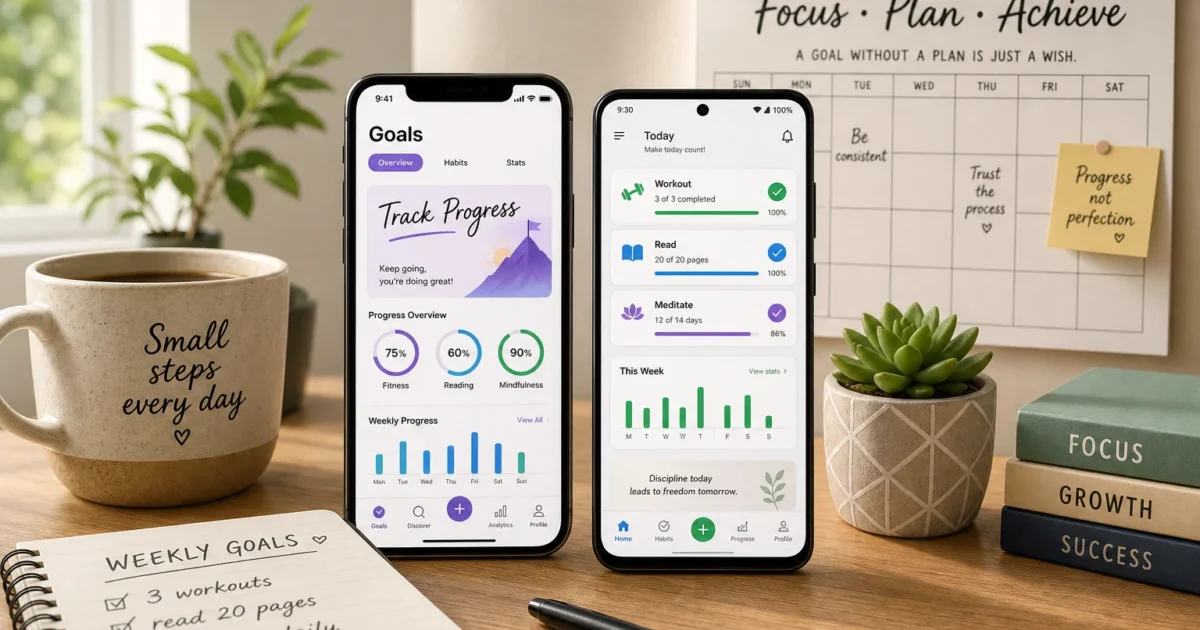
What’s more frustrating than setting a promising goal, feeling motivated for three days, and then completely forgetting about it? A goal tracking app keeps your plans visible and gives you a gentle nudge when your enthusiasm wanders off.
The best app depends on what you’re trying to accomplish. A habit tracker works well for exercise or language practice, while a task manager makes more sense for a goal with several steps. These six apps cover both styles, plus calendar planning and game-like motivation.
What Is a Goal Tracking App?
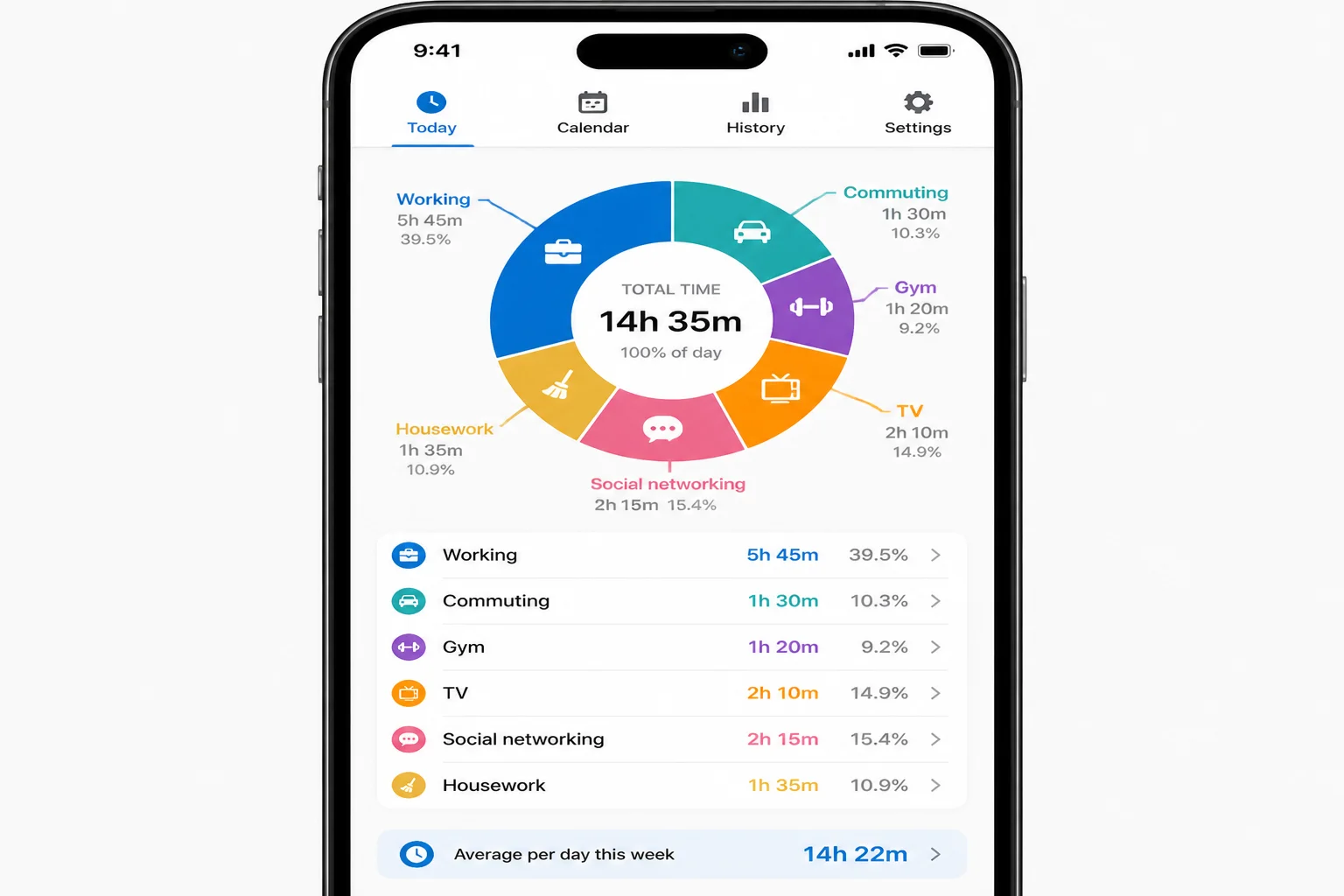
A goal tracking app helps you turn a broad intention into actions you can complete and measure. Instead of writing “get healthier” and hoping for the best, you could track three weekly workouts, seven hours of sleep, or a daily walk.
Common features include:
- Reminders for habits and scheduled tasks
- Streaks, charts, and progress reports
- Daily, weekly, or monthly targets
- Calendar and health-app connections
- Syncing between phones, computers, and the web
Habit trackers suit routines such as reading, stretching, or practicing Spanish. Task managers are better for projects like moving house or planning a trip. Work teams may need an OKR app, which tracks a large objective through measurable results.
The Best Goal Tracking Apps at a Glance
| App | Best For | Platforms |
|---|---|---|
| Habi | Calendar-based personal planning | iPhone, iPad, Mac, Vision Pro |
| TickTick | Goals, tasks, and habits in one app | iPhone, Android, Windows, macOS, Linux, web |
| Strides | Detailed personal goal tracking | iPhone and iPad |
| Productive | Building daily routines | iPhone and Android |
| Habitica | Game-like motivation | iPhone, Android, and web |
| Notion | Custom goal systems and projects | iPhone, Android, Windows, macOS, and web |
1. Habi: Best for Calendar-Based Goals
Habi is a good fit when a goal keeps losing the fight for space on your calendar. It combines habits, projects, goal planning, and focus sessions around a calendar view.
Create a goal, decide how often you’ll work on it, and give it time on your schedule. Those calendar blocks make a vague plan feel more concrete. You can also move a session when Tuesday gets messy (Tuesday usually does).
Habi is limited to Apple’s ecosystem, so Android users should skip to TickTick. It’s especially appealing if you plan your week on an iPhone, iPad, or Mac and want those plans in one place.
How to Set Up a Goal in Habi
The exact button wording and placement can vary by app version, but the setup follows this pattern:
- Install Habi and give it access to the calendar you want to use. Your existing events should appear in its calendar view.
- Create a new goal or habit from the calendar screen. A setup form should open.
- Enter the goal’s name, frequency, and preferred time. Habi can then place working sessions on your calendar.
- Move any scheduled block that clashes with another event. The goal remains scheduled at its new time.
- Mark the session complete after doing the work. Your progress should update inside the app.
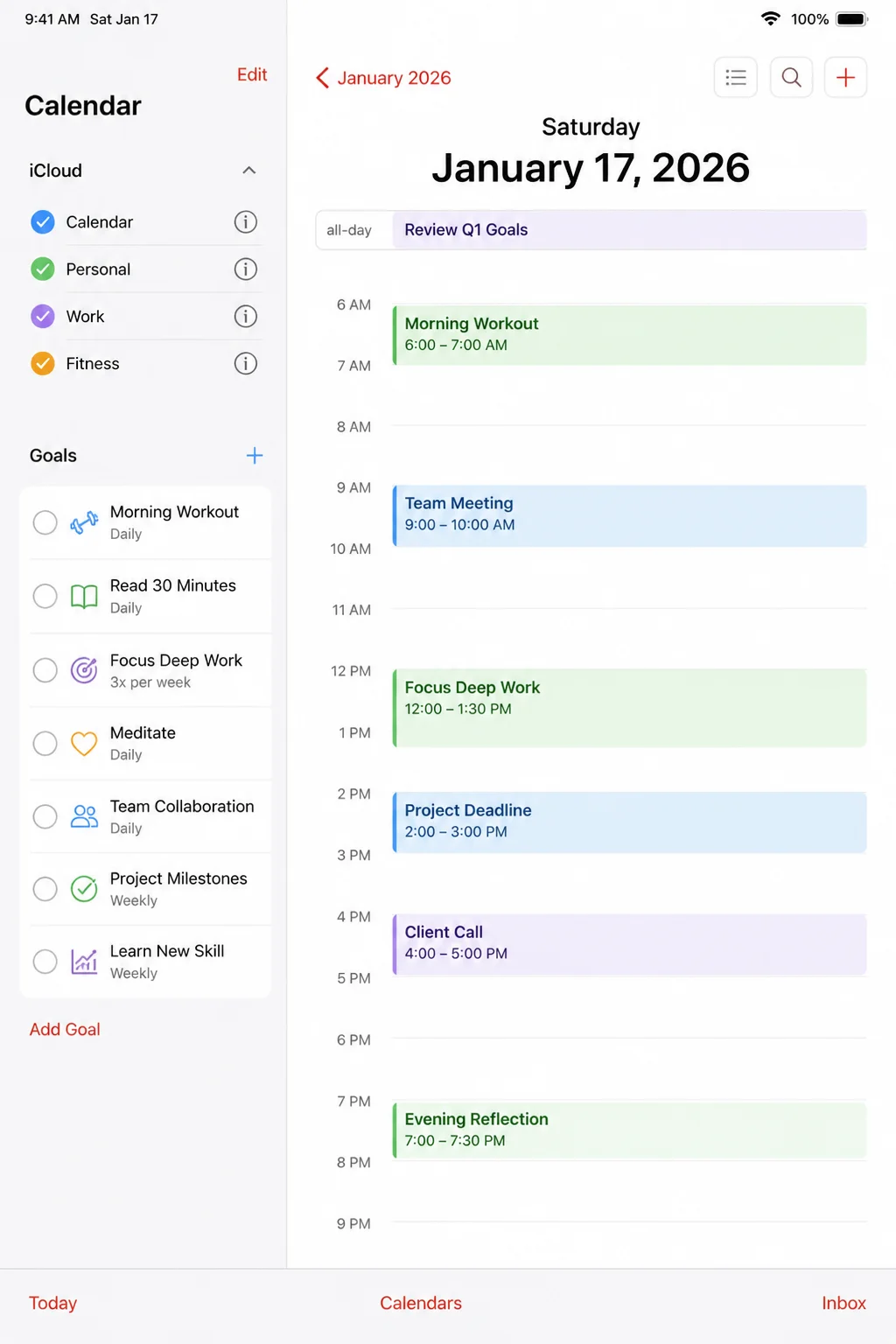
My take: Habi looks promising for people who trust calendars more than to-do lists. The Apple-only support is a real limitation, but its calendar-first approach makes goals harder to ignore.
2. TickTick: Best All-in-One Goal Tracker
TickTick for Android and TickTick for iPhone combine tasks, habits, reminders, calendar planning, and a focus timer. It’s the strongest choice here if you want one system on nearly every device.
Use its Habit area for repeating actions such as studying every weekday. Larger goals can become task lists with deadlines, priorities, and smaller steps. That distinction matters: “Run three times this week” is a habit, while “Prepare for a 10K” is a project.
The number of tools can feel busy at first. I’d start with one list and one habit, then ignore the extra settings until you need them.
How to Create a Habit in TickTick
- Install TickTick on your iPhone or Android phone and create an account. Your account will handle syncing between devices.
- Open the app’s Habit area. The tab or menu position may vary by version.
- Add a habit and enter an action such as “Practice Spanish for 15 minutes.” The habit should appear in your daily view.
- Choose its frequency and add one useful reminder. TickTick will notify you at the chosen time.
- Check in after completing the habit. Its streak and completion rate should update.
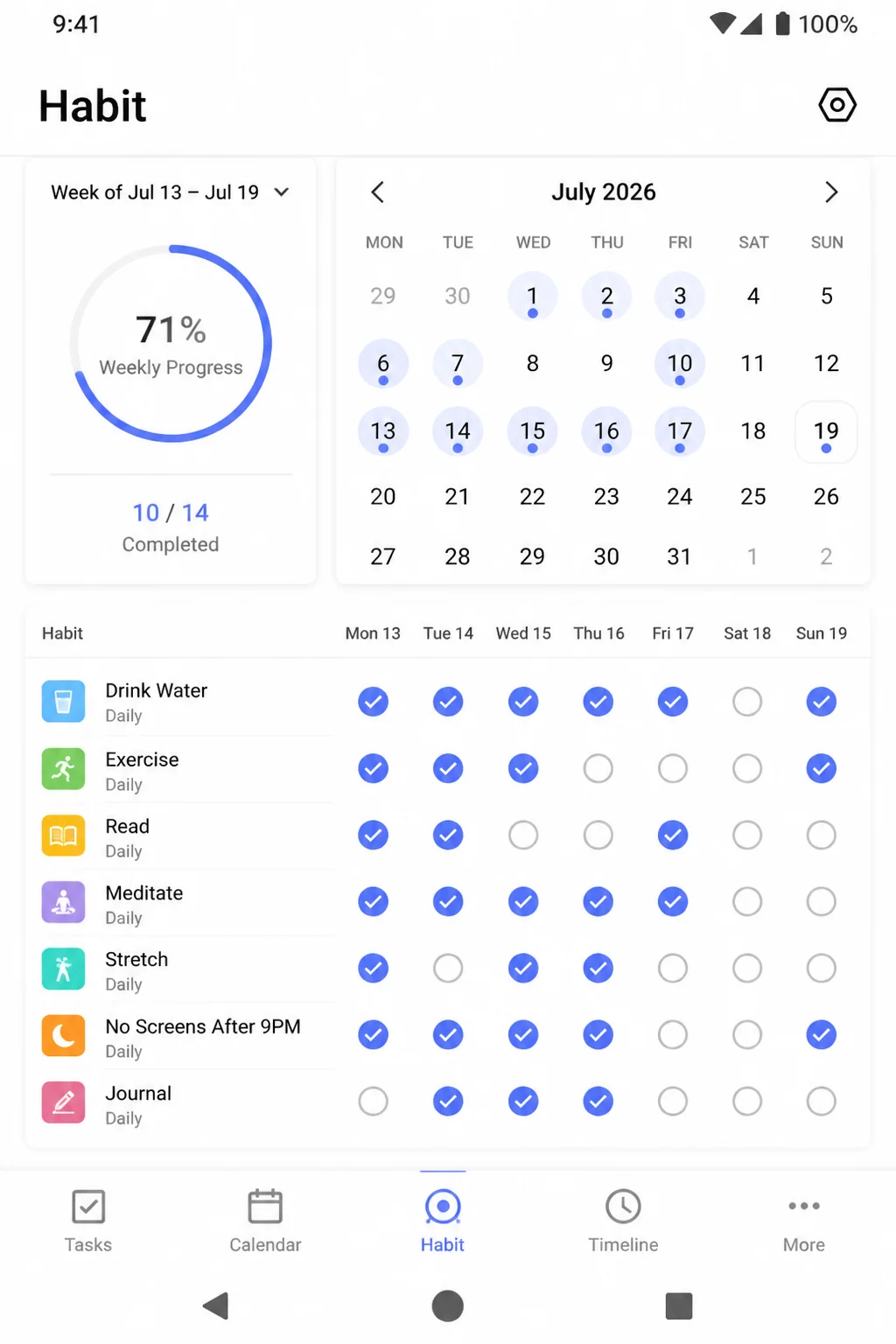
My take: TickTick is the safest recommendation for a mixed collection of habits and projects. So far, so good if you keep the initial setup small; filling every menu with lists and tags can turn productivity into its own hobby.
3. Strides: Best for Tracking Different Types of Goals
Strides gives iPhone and iPad users several ways to measure progress. Its tracker types include Habit, Target, Average, and Milestones.
That flexibility solves a common problem. Drinking water daily needs a simple checkmark, but saving $1,000 needs a running number. A multi-step project needs milestones. Strides lets each goal use a measurement that actually fits.
The app presents your trackers as cards and includes charts, reminders, and projected results. Apple Health support can also reduce manual check-ins for compatible health goals.
How to Create a Tracker in Strides
- Install Strides on your iPhone or iPad and open the app. The tracker dashboard should appear.
- Tap the add button and choose Habit, Target, Average, or Milestones. A setup screen for that tracker type will open.
- Name the goal and enter its target or frequency. Strides should show how progress will be measured.
- Add a reminder if the goal needs one. You’ll receive a notification on the selected schedule.
- Record your progress from the dashboard. The tracker card and related chart should update.
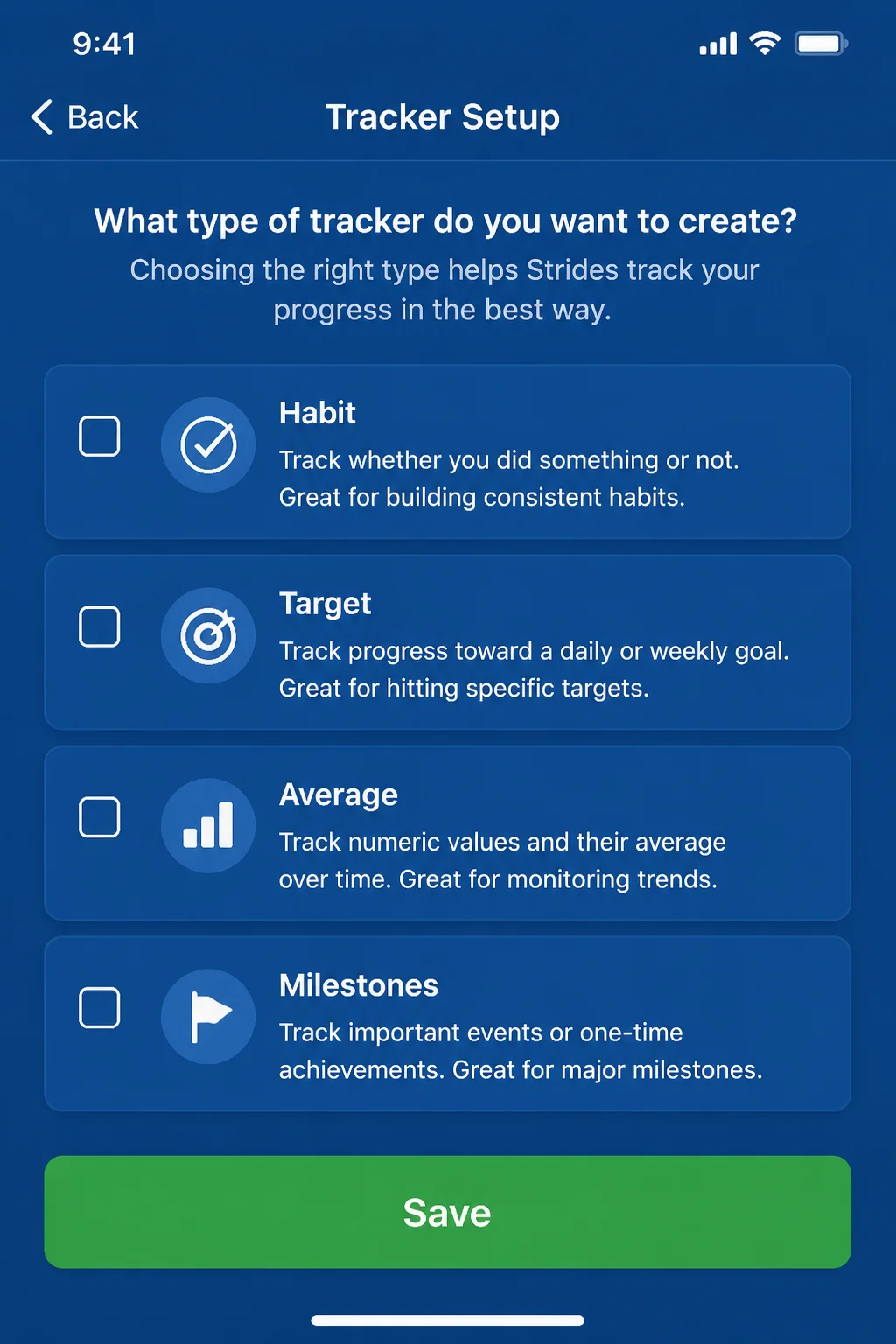
My take: Strides is a solid choice for anyone who finds basic streak apps too restrictive. Android support would make it easier to recommend broadly, but its measurement options are excellent for Apple users.
4. Productive: Best for Building Daily Routines
Productive focuses on repeatable habits and routines. You can group actions into parts of the day, track completion, set reminders, and review statistics.
This setup works well when several small habits belong together. A morning routine could include drinking water, taking medication, and stretching. An evening routine might cover reading and preparing for bed.
Productive is available on iPhone and Android, which makes it a practical option for households using both platforms. Its motivational tools may also appeal if an empty checkbox isn’t quite enough to get you moving.
How to Build a Routine in Productive
- Install Productive from your phone’s app store and complete the opening setup. You should arrive at the main habit screen.
- Add your first habit and give it a specific name. “Walk for 20 minutes” works better than “Exercise.”
- Choose the days and time when you plan to do it. The habit should appear in the matching part of your schedule.
- Add a reminder at a time when you can actually act. Productive will send a notification based on that schedule.
- Mark the habit complete and review its statistics after several check-ins. You’ll see how consistently you’ve followed the routine.
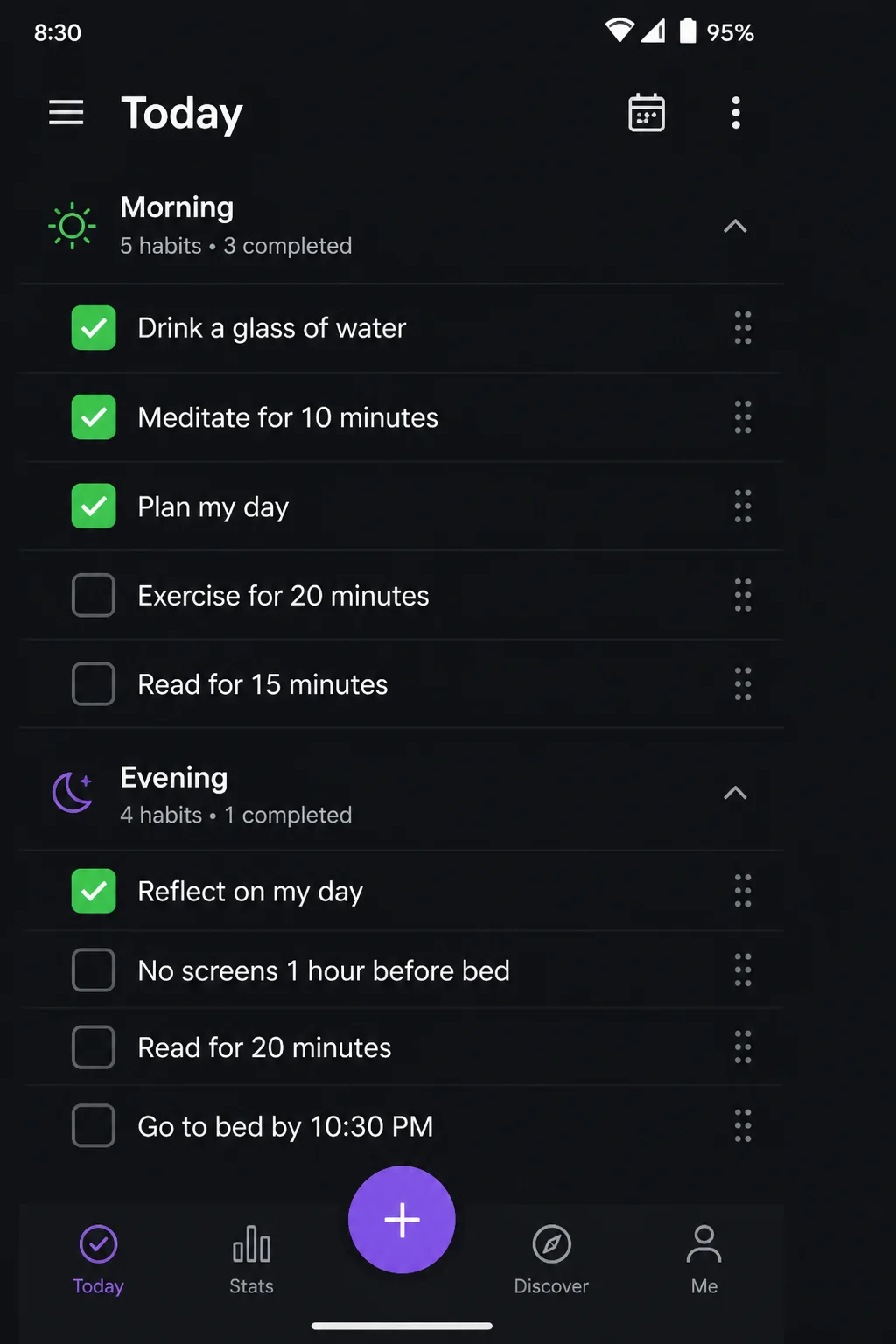
My take: Productive is worth trying if your goal depends on a predictable routine. Keep its notifications under control, though. Five cheerful reminders can become background noise surprisingly fast.
5. Habitica: Best for Game-Like Motivation
Habitica turns daily responsibilities into an RPG, or role-playing game. Completing Habits, Dailies, and To-Dos earns experience, gold, and equipment for your character.
The categories have different jobs:
- Habits: Actions you may repeat several times, such as drinking water
- Dailies: Tasks due on a repeating schedule
- To-Dos: One-time jobs with a clear finish
- Rewards: Treats or in-game items you buy with earned gold
Habitica also includes groups and shared challenges for accountability. It works on iPhone, Android, and the web, so your character and tasks can follow you between devices.
How to Create Tasks in Habitica
- Install Habitica or open its web app and create your character. Your task dashboard should appear after setup.
- Add a repeating behavior under Habits. It will appear with controls for recording positive or negative actions.
- Add scheduled responsibilities under Dailies. Habitica will place them on the days you select.
- Put one-time actions under To-Dos. Completed tasks will leave your active list and award progress.
- Check off work as you finish it. Your character should gain experience and gold.
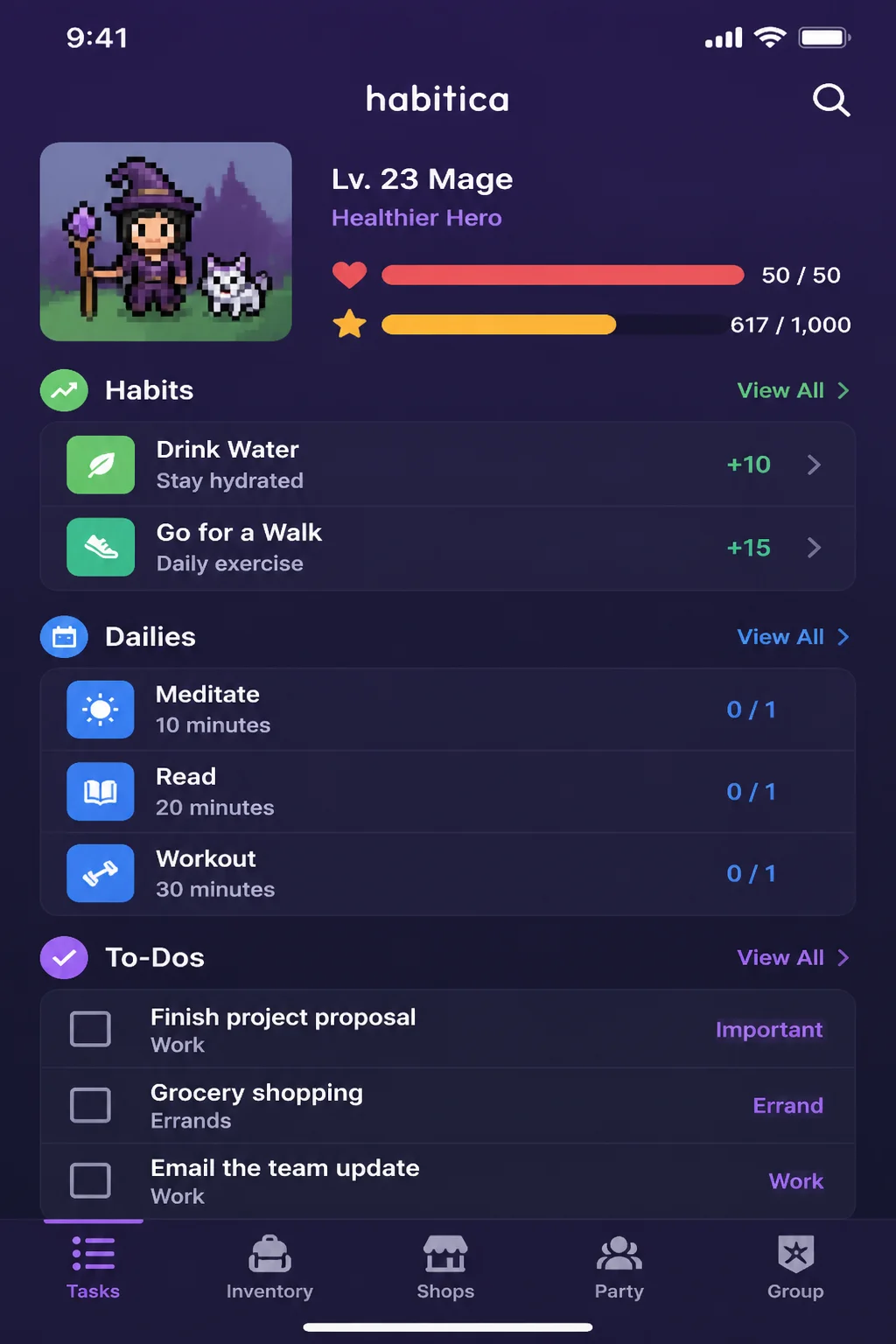
My take: Habitica can make boring chores more interesting, especially with friends. Its game systems add extra clutter, so it’s a poor match if you want a quiet screen with three checkboxes.
6. Notion: Best for Complex Goals and Projects
Notion gives you building blocks for creating a personal goal system. You can track goals in tables, connect them to projects, add target dates, and display the same information as a board or calendar.
For example, a “Learn photography” goal could connect to tasks for finishing a course, practicing each weekend, and assembling a portfolio. That relationship between the big goal and today’s work is where Notion earns its place.
The tradeoff is setup. A blank Notion page can feel like being handed an empty box of building bricks with no picture on the lid. Start with a goal template or a small table containing only the goal, status, and target date.
How to Create a Simple Goal Tracker in Notion
- Install Notion on your iPhone or Android phone and create a new page. A blank page should open.
- Add a database using a table layout, or choose a goal-tracking template. You’ll get a list where each row can hold one goal.
- Create fields for status, target date, and category. Those details should appear beside each goal.
- Add a goal and list its next actions inside the page. You’ll have one place for the outcome and its supporting tasks.
- Switch to a board or calendar view when you want a different perspective. The same goals should appear in the selected layout.
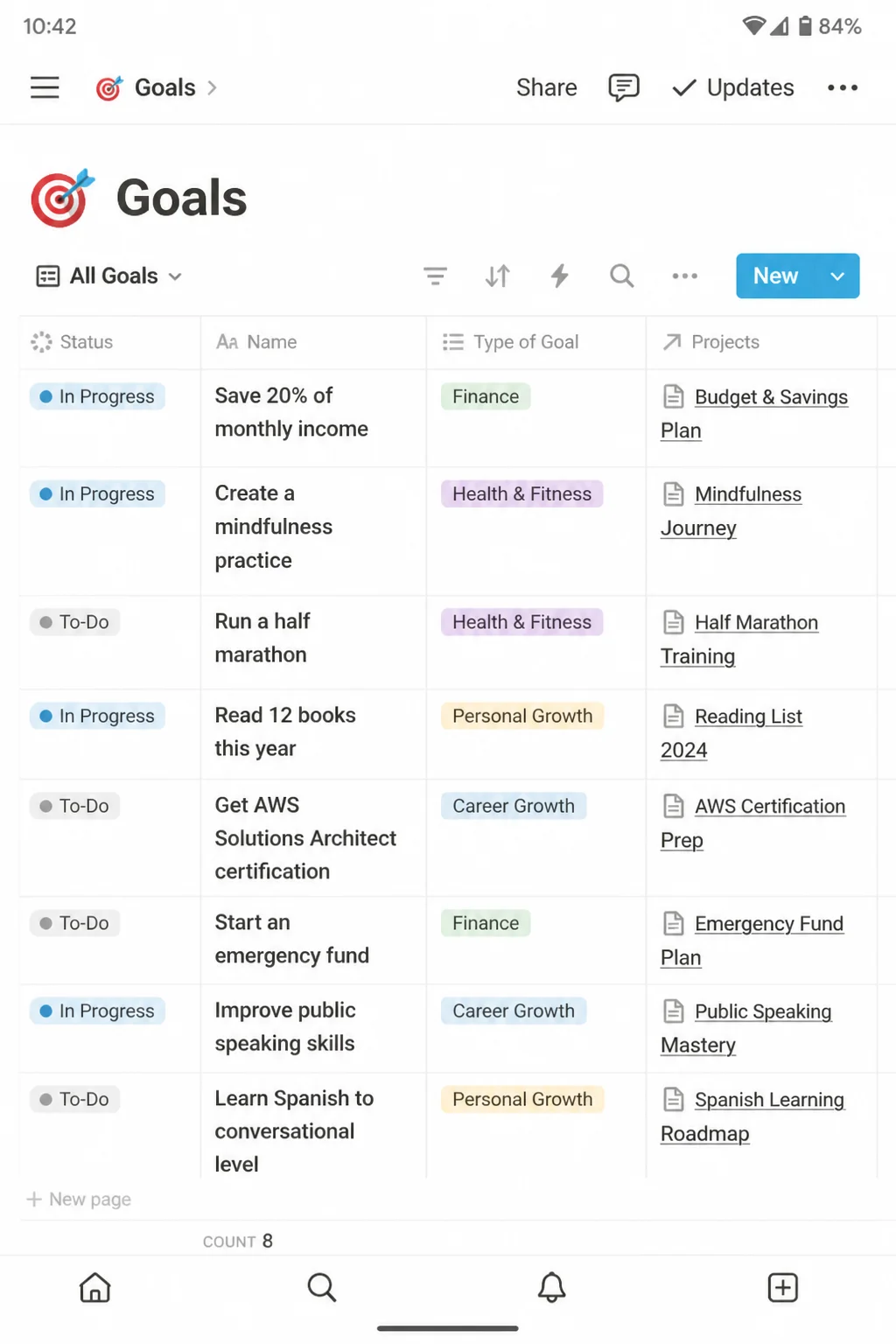
My take: Notion is a good option for complicated personal or work goals, provided you enjoy arranging your own system. I’d skip it for a single daily habit; a simpler tracker gets you moving faster.
How to Choose the Right Goal Tracking App
The prettiest dashboard won’t matter if opening it feels like homework. Match the app to the way you already plan.
- For calendar planning: Choose Habi if you use Apple devices and want protected time for each goal.
- For tasks and habits together: Pick TickTick when you need one app across your phone and computer.
- For detailed measurements: Try Strides when goals require targets, averages, or milestones.
- For morning and evening routines: Productive keeps related habits grouped by time of day.
- For extra motivation: Habitica adds rewards, character progress, and group accountability.
- For large projects: Notion connects long-term goals with tasks, dates, notes, and different views.
Start with one to three goals. Adding 18 habits on the first day creates a lovely dashboard and a terrible Tuesday.
A Simple Setup That Works in Any App
You don’t need an elaborate system to begin. Use the same basic process on iPhone or Android:
- Install your chosen app from the App Store or Google Play. Its icon should appear on your phone.
- Create one clearly named goal. You should be able to tell exactly what “done” means.
- Set a realistic frequency or target. The app will place the goal on the appropriate days.
- Add one reminder at a useful time. Your phone should alert you when you can act.
- Record progress after each session. Your streak, chart, or total should update.
- Review the goal after one week. Adjust its target if the schedule isn’t working.
“Read more” is hard to measure. “Read 10 pages after dinner on weekdays” gives you an action, an amount, and a time. Much better.
Tips and Troubleshooting
The App Feels Overwhelming
Delete or hide everything except your top three goals. Tags, color systems, and elaborate templates can wait until the basic routine is working as expected.
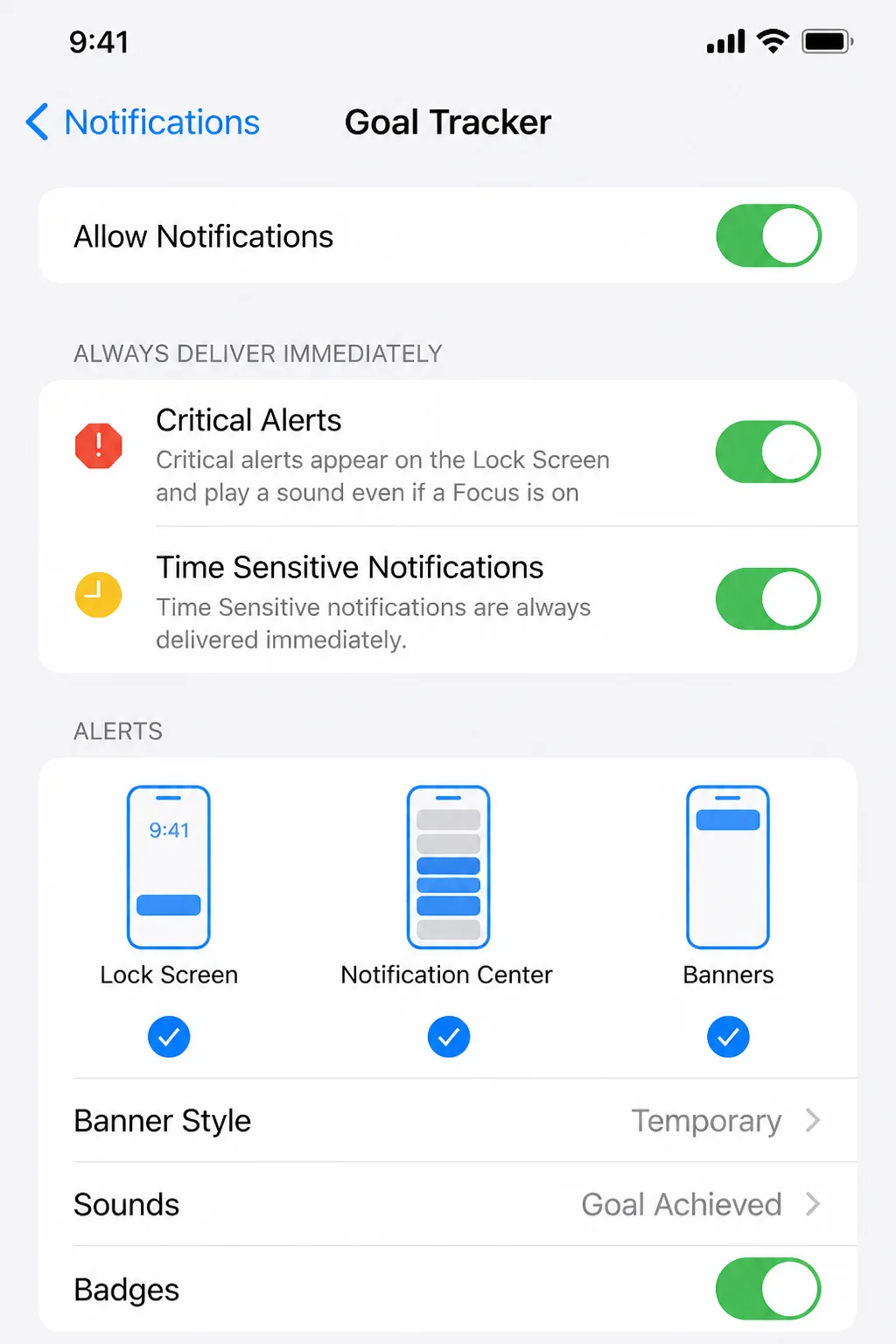
Reminders Aren’t Appearing on iPhone
- Open Settings > Notifications.
- Select the goal tracking app.
- Turn on Allow Notifications.
- Check that alerts are enabled for the Lock Screen or Notification Center.
Your iPhone should now allow the app to display reminders.
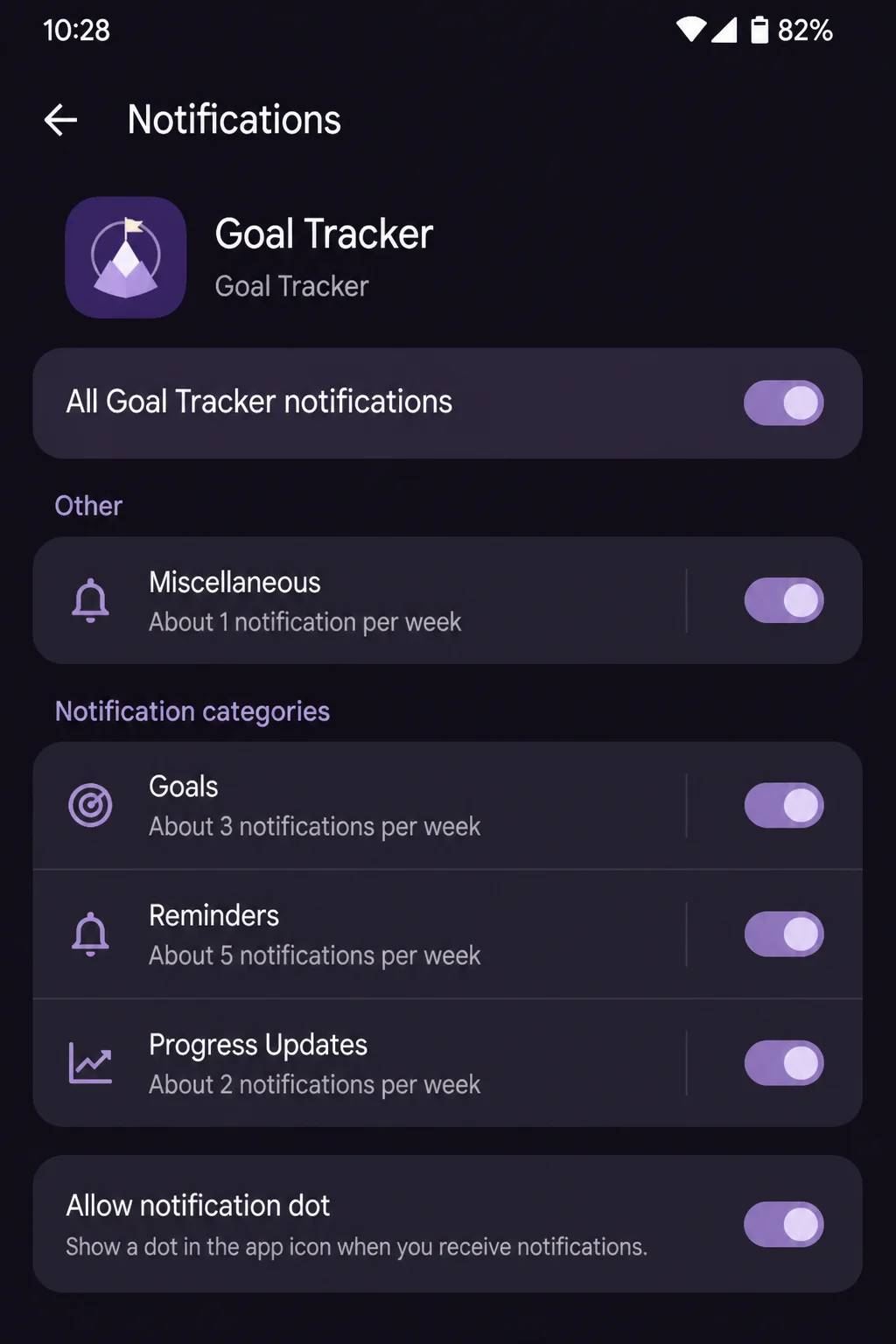
Reminders Aren’t Appearing on Android
- Open Settings > Notifications > App notifications.
- Select the goal tracking app.
- Turn on its notification permission.
- Check the app’s battery settings if reminders remain unreliable, since aggressive battery saving can delay background activity.
Menu names can vary between Android phone brands. The app should be allowed to send alerts and run when needed.
Goals Aren’t Syncing Between Devices
Confirm that you’re signed into the same account on every device. Then open the app on a reliable internet connection and refresh its main screen.
Apple-only apps such as Habi and Strides won’t sync to an Android phone. TickTick, Habitica, Notion, and other cross-platform choices are safer if you regularly switch devices.
Your Streak Broke
Treat the streak as a progress display, not a verdict on your character. Adjust the schedule if you’re missing the same day every week. A goal that survives real life beats an impressive plan you abandon after four days.
Check Data Export Before Committing
Look through the app’s account or data settings for an export option, especially if you plan to track years of information. Some apps support CSV files, which are simple spreadsheets you can open elsewhere. Others keep your records inside their own system.
Start Small and Keep the Goal Visible
A goal tracking app can turn a hopeful plan into something you see and act on every day. TickTick is my best general recommendation for iPhone and Android, while Strides offers better measurement choices for Apple users and Habitica makes repetitive tasks more fun.
Any of these apps is worth trying, but give your choice a week with one or two goals before paying for extras. The right tracker should reduce the effort of remembering what matters, not become another project waiting for your attention.