
Planning to burn some files to disc for long-term storage? I get it! There’s something reassuring about having a physical backup sitting in your safe deposit box. But wow, the number of disc formats out there is genuinely confusing. BD-R, BD-RE, DVD-R, DVD+R… it’s like alphabet soup, but with more acronyms.
I stumbled upon this topic recently when helping a friend figure out the best way to archive family photos, and honestly, it caught my eye how much the landscape has changed since 2012. While optical discs still work, there are some compelling alternatives worth considering. Let’s break down what each format actually does and whether they’re still worth your time in 2026.
What Are Optical Disc Formats?
Optical disc formats are different types of CDs, DVDs, and Blu-ray discs that determine how much data you can store and whether you can rewrite them. Think of them like different sizes of storage containers: some hold more, some you can only use once, and others you can empty and refill.
Key Features:
- Write-once formats (R): Burn data permanently, can’t be erased or changed
- Rewritable formats (RE/RW): Can be erased and reused hundreds of times
- Capacity ranges: From 4.7GB (DVD) to 100GB+ (Blu-ray)
- Compatibility: Older formats work on more players, newer ones offer better reliability
DVD Formats: The Reliable Workhorses
DVDs have been around forever and that’s actually their biggest advantage because they work with pretty much everything. Here’s what you need to know about each format:
DVD-R vs DVD+R: The Format Wars Are Over
Back in the early 2000s, there was this whole format war between DVD-R (with a minus) and DVD+R (with a plus). DVD-R came first in 1997, followed by DVD+R in 2002. The plus format was technically better with improved error checking and faster writing speeds, but the minus format had wider compatibility.
Here’s the thing though, unless you’re using a DVD player from 2003, this doesn’t matter anymore. Modern devices read both formats just fine.
Current specs for both:
- Single layer: 4.7GB capacity
- Dual layer (DL): 8.5GB capacity
- Write speeds up to 16x
- Cost: About $0.20-$1 per disc in 2026
DVD-RW and DVD+RW: When You Need Do-Overs
The “RW” stands for rewritable, meaning you can erase and reuse these discs up to 1,000 times. DVD+RW is slightly more reliable due to better error correction, but again, most modern drives handle both formats without issues.
Skip DVD-RAM: This format from 1996 is basically extinct. Don’t bother looking for it.
Blu-ray Formats: More Space, More Complexity
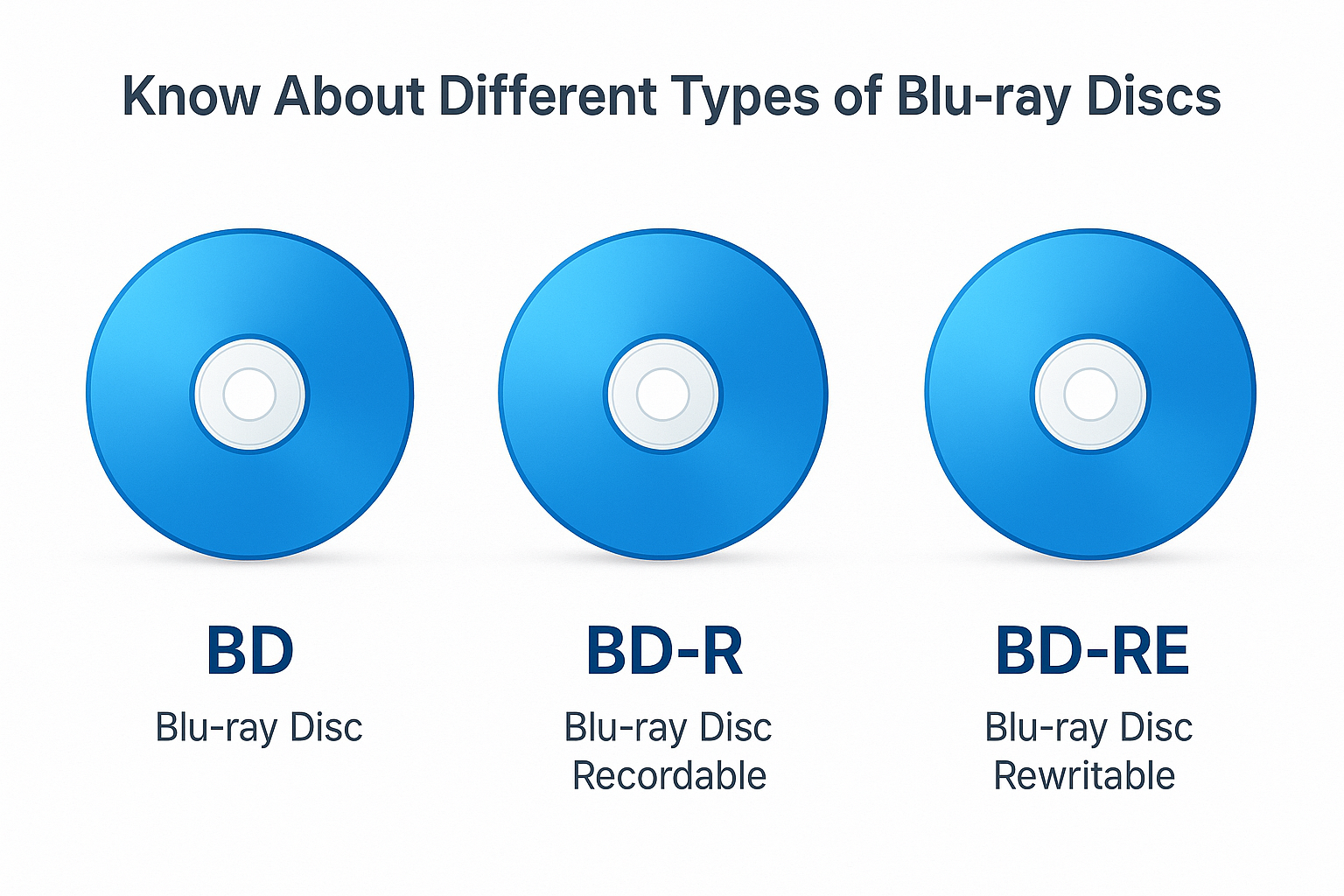
Blu-ray discs can store way more data than DVDs, but they’re also more expensive and finicky. Here’s what’s actually worth considering:
BD-R: Write Once, Store Forever (Maybe)
BD-R discs are write-once, just like DVD-R. You can get them in:
- Single layer: 25GB capacity
- Dual layer: 50GB capacity
- Triple/Quad layer (BDXL): 100GB or 128GB capacity
The catch? BDXL discs only work with newer Blu-ray drives that specifically support them. Most standard Blu-ray players can’t read them.
BD-RE: The Rewritable Option
BD-RE discs can be erased and rewritten about 1,000 times, same as DVD-RW. They come in the same capacities as BD-R discs but cost about twice as much.
Reality check: BD-RE discs cost $2-10 each in 2026. That’s expensive for storage that might fail in 10-20 years due to disc rot.
How to Actually Burn These Discs
The burning process is pretty straightforward, though you’ll need an external USB drive since most computers don’t come with optical drives anymore.
On Windows
- Connect your external Blu-ray/DVD drive via USB
- Insert your blank disc (BD-R, DVD-R, etc.)
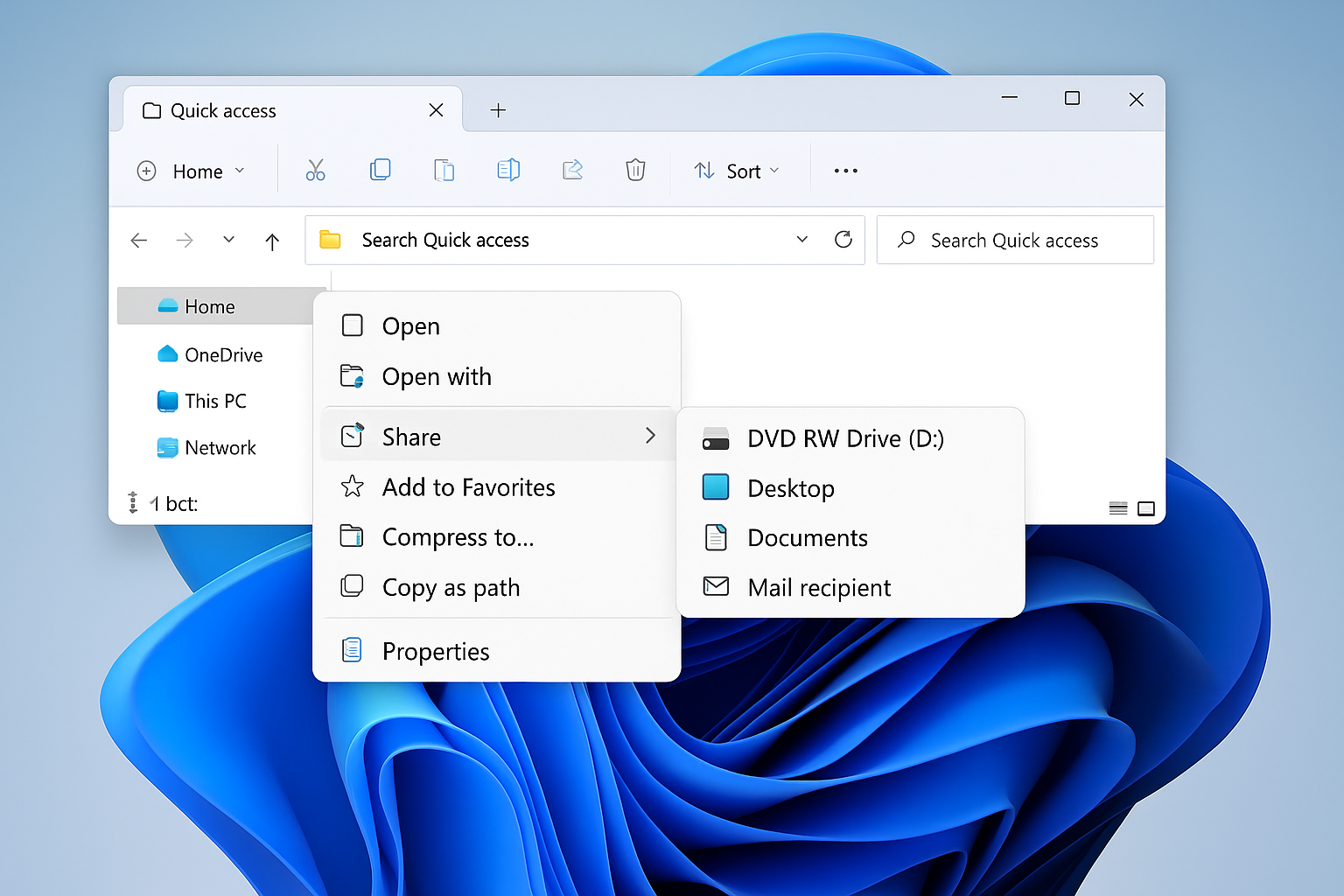
- Open File Explorer and select the files you want to burn
- Right-click and choose Send to > DVD RW Drive
- Click Burn to disc and follow the prompts
For more control, try CDBurnerXP (free) or ImgBurn (also free). Both support all the formats we’ve discussed.
On macOS
- Connect your external optical drive
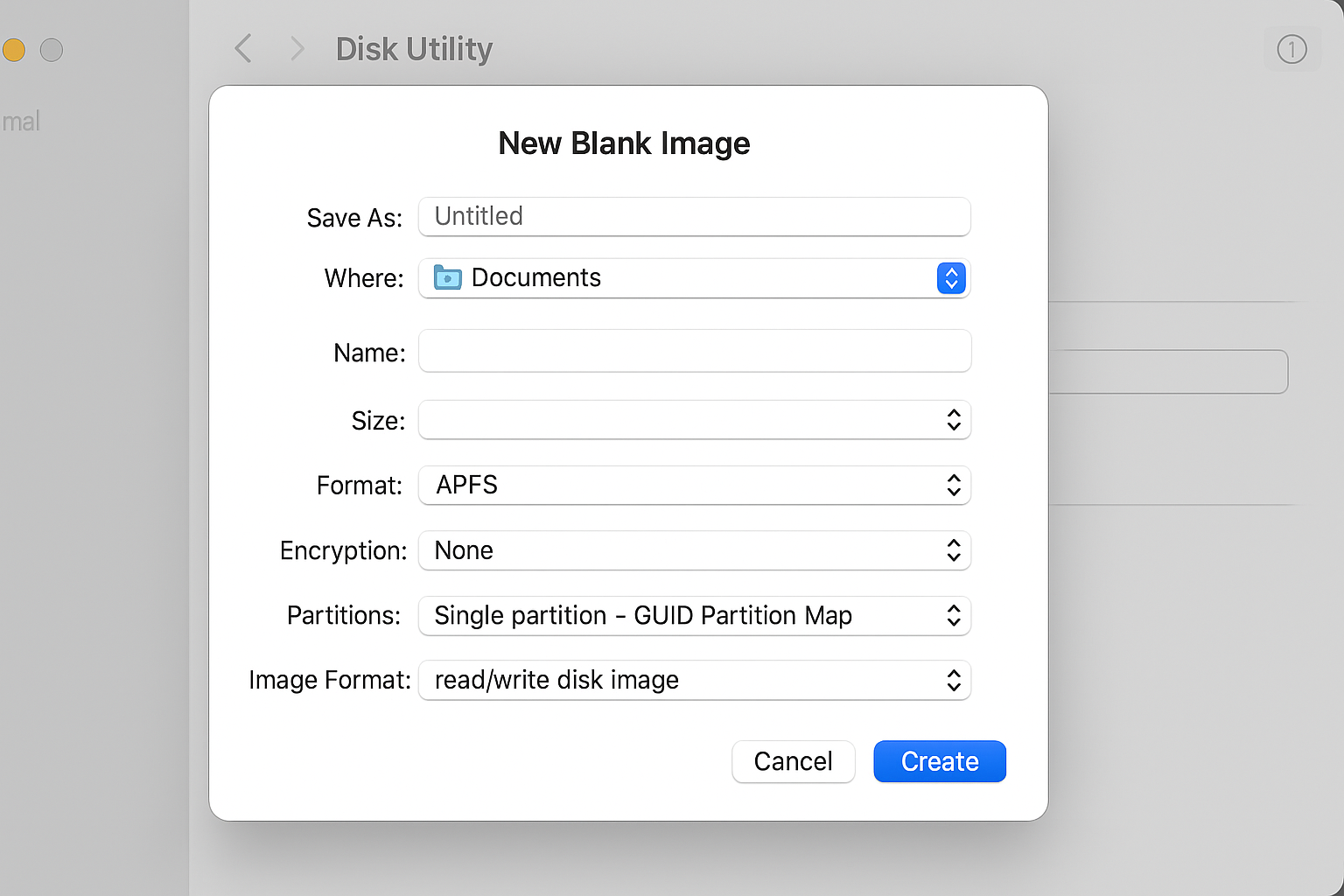
- Open Disk Utility (Applications > Utilities)
- Click File > New Image > Blank Image
- Choose your format and capacity, then click Save
- Drag files to the mounted disc image, then burn when ready
Better Alternatives That Actually Make Sense
Here’s where things get interesting. While researching disc formats, I discovered that optical media isn’t really the best choice for long-term storage anymore. The alternatives are actually pretty compelling:
Cloud Storage: Set It and Forget It
Why it’s better: Automatic backups, no physical degradation, accessible from anywhere
- Google Drive: 2TB for $10/month
- Backblaze B2: $6/TB/month for archival storage
- IDrive: 10TB for $7/month with versioning
The math is simple: A 50GB BD-R disc costs $3-5 and might last 30 years. Cloud storage for the same amount costs about $0.30/month and includes automatic versioning.
Portable SSDs: Fast and Reliable
Why they’re better: No moving parts, 500+ MB/s transfer speeds, 10+ year lifespan
- Samsung T7: 2TB for ~$309
- SanDisk Extreme Pro: 2TB for ~$370
A 2TB SSD holds the equivalent of 80 BD-R discs and transfers data 20x faster.
When Optical Discs Still Make Sense
Don’t get me wrong – there are still valid reasons to use optical discs:
- Air-gapped backups: Completely offline storage for sensitive data
- Legal requirements: Some industries require physical media
- Gift giving: Burning a photo slideshow for grandparents
- Archival projects: Long-term storage where you don’t need frequent access
Tips and Troubleshooting
Common Issues
Problem: “Insert blank disc” error on Windows with a disc already inserted
This usually happens with rewritable discs that have data on them. To fix it:
- Open File Explorer and navigate to your optical drive
- Right-click the drive and select Erase this disc
- Choose Quick erase and wait for it to complete
Problem: Burned discs won’t play on standalone players
Make sure to “finalize” or “close” the disc after burning. This step makes it compatible with regular DVD/Blu-ray players, not just computer drives.
Pro Tips
- Buy quality media: Stick with Verbatim or Taiyo Yuden discs. Cheap discs from unknown brands have high failure rates
- Burn at moderate speeds: Use 4-8x speed instead of maximum speed to reduce errors
- Test your burns: Always verify the disc after burning to make sure it’s readable
- Store properly: Keep discs in cases, away from heat and humidity
The Bottom Line
Optical disc formats haven’t really changed since 2012, and honestly, that’s part of the problem. BD-R and DVD-R are still solid for write-once archival storage, while BD-RE and DVD-RW work fine if you need rewritable media. But unless you have a specific need for physical discs, cloud storage or portable SSDs are usually better choices in modern times.
That said, there’s still something satisfying about having a physical backup you can hold in your hand. If you’re going the optical route, stick with BD-R for large files (25-50GB capacity) or DVD-R for smaller archives (4.7GB). Skip the exotic formats like BDXL unless you have a very specific use case and a compatible drive.
The real gem here? Discovering how much better the alternatives have gotten. I’m spreading the word to anyone still burning discs: sometimes the old way isn’t the best way anymore.