
There’s something genuinely satisfying about opening your browser in the morning and having everything you need already waiting for you. Your email, a news site, maybe your calendar, all loaded up in their own tabs before you’ve even had your first sip of coffee. The good news is that most major browsers make this pretty easy to set up. The bad news? The steps are a little different depending on which browser you use.
In this guide, I’ll walk you through how to open multiple pages automatically at startup in Chrome, Microsoft Edge, Firefox, and Safari. I’ll also clear up a common point of confusion: the difference between startup pages (what opens when you launch the browser) and your Home button (which only ever loads one page at a time). They’re not the same thing, and mixing them up is where most people get tripped up.
A Quick Note Before You Start
Most browsers separate three different concepts that are easy to confuse:
- Startup pages, the sites that open in tabs when you first launch the browser
- Home button, the little house icon in the toolbar that takes you to a single homepage (only one URL, not multiple)
- New tab page, what appears when you open a new tab (usually a built-in search/shortcuts page, not your custom sites)
This guide focuses on startup pages, the set of sites that open automatically every time you launch your browser. If you were hoping to get multiple sites loading on every new tab too, I’ll mention some options for that at the end.
How to Set Multiple Startup Pages in Google Chrome
Chrome makes this pretty straightforward. You can either type in your URLs manually or use a handy shortcut that grabs whatever tabs you have open right now.
Step 1: Open Chrome Settings
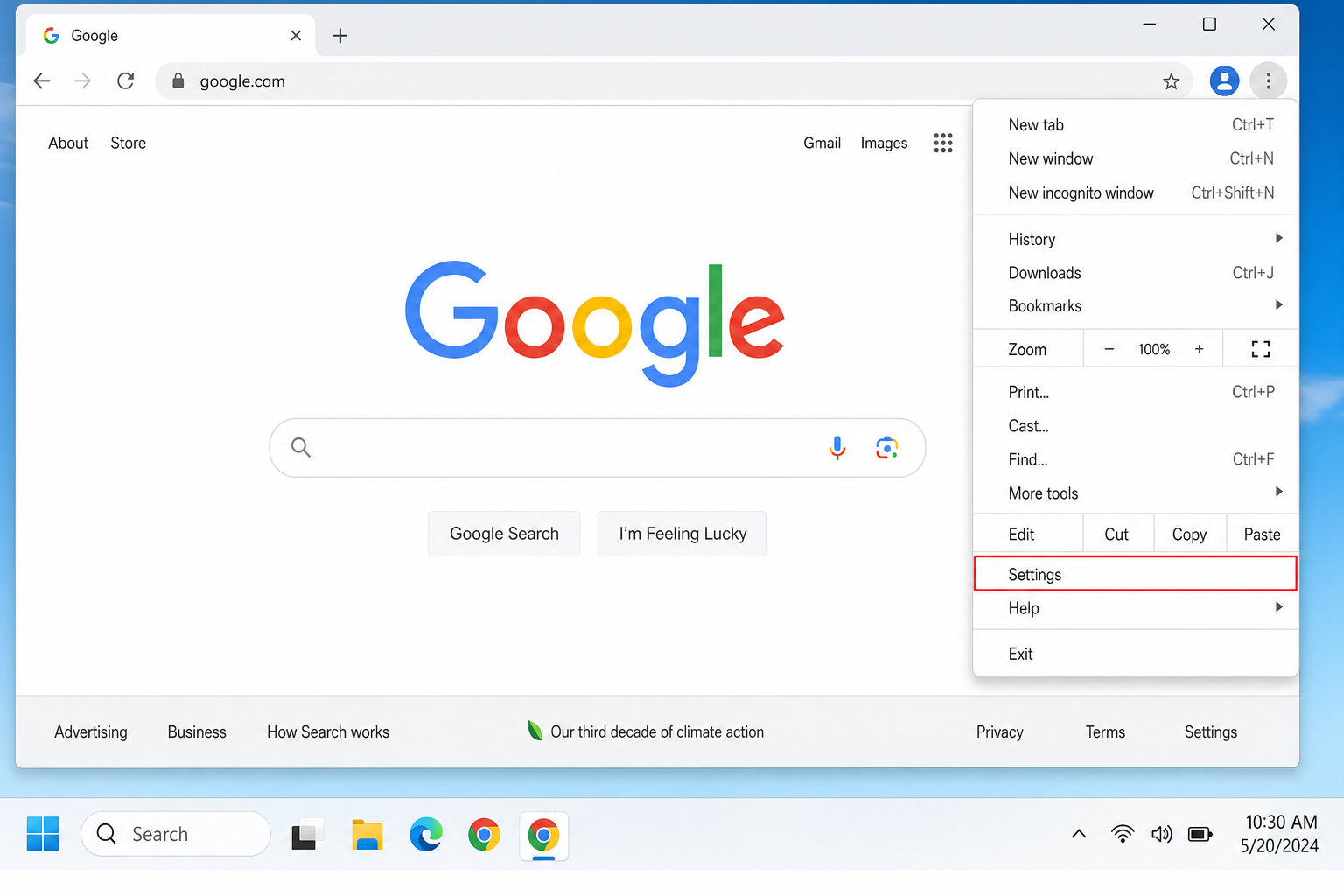
Click the ⋮ (three-dot menu) in the top-right corner of Chrome, then select Settings.
Step 2: Go to the “On Startup” Section
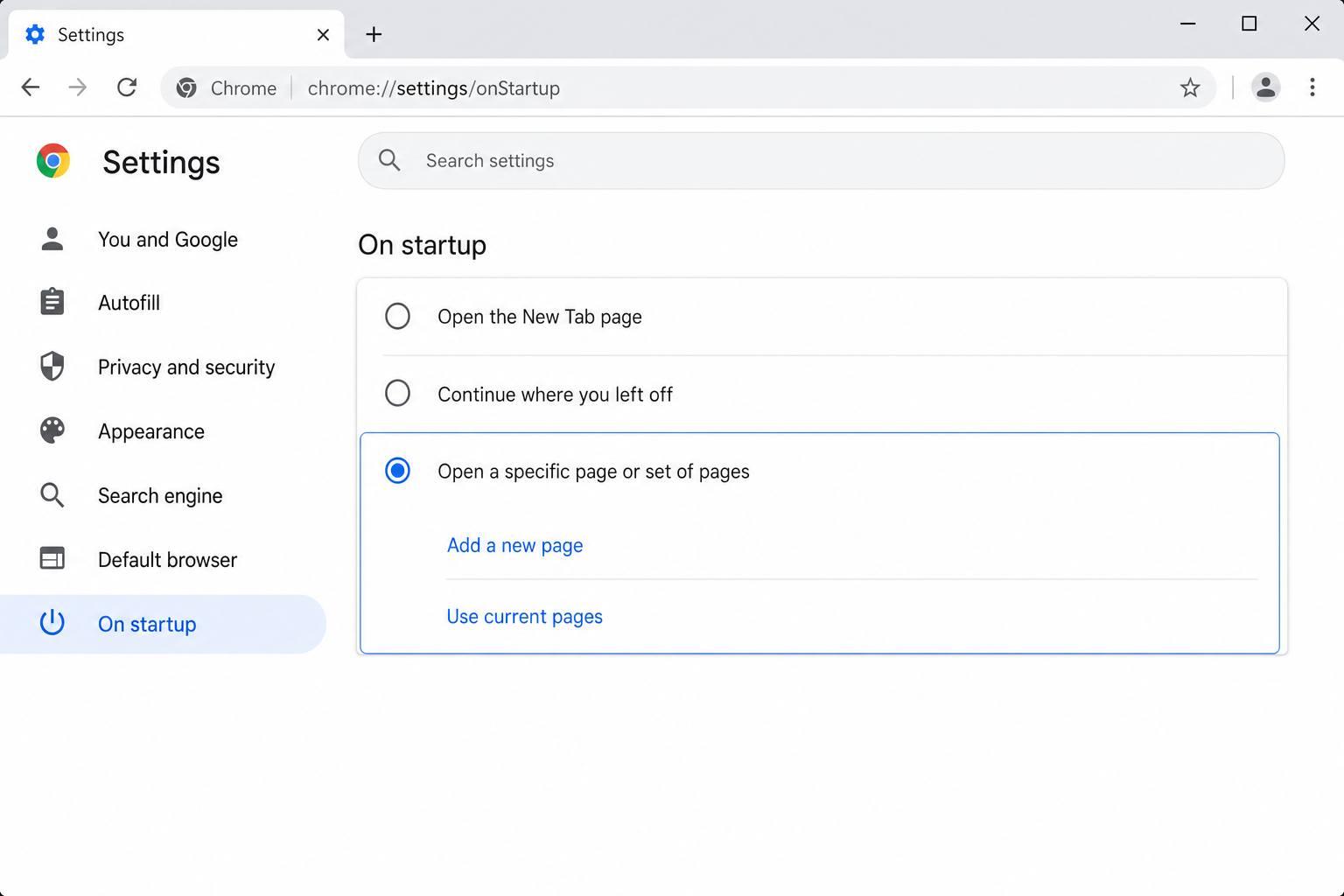
In the left sidebar, click On startup. You’ll see three options. You want the third one: Open a specific page or set of pages. Click that radio button to select it.
Step 3: Add Your Pages
Click Add a new page and type in the full URL of the first site you want (for example, https://mail.google.com). Click Add, then repeat for each additional site.
Pro tip: If you already have your preferred sites open in tabs, you can click Use current pages instead and Chrome will fill in all the URLs automatically. Much faster!
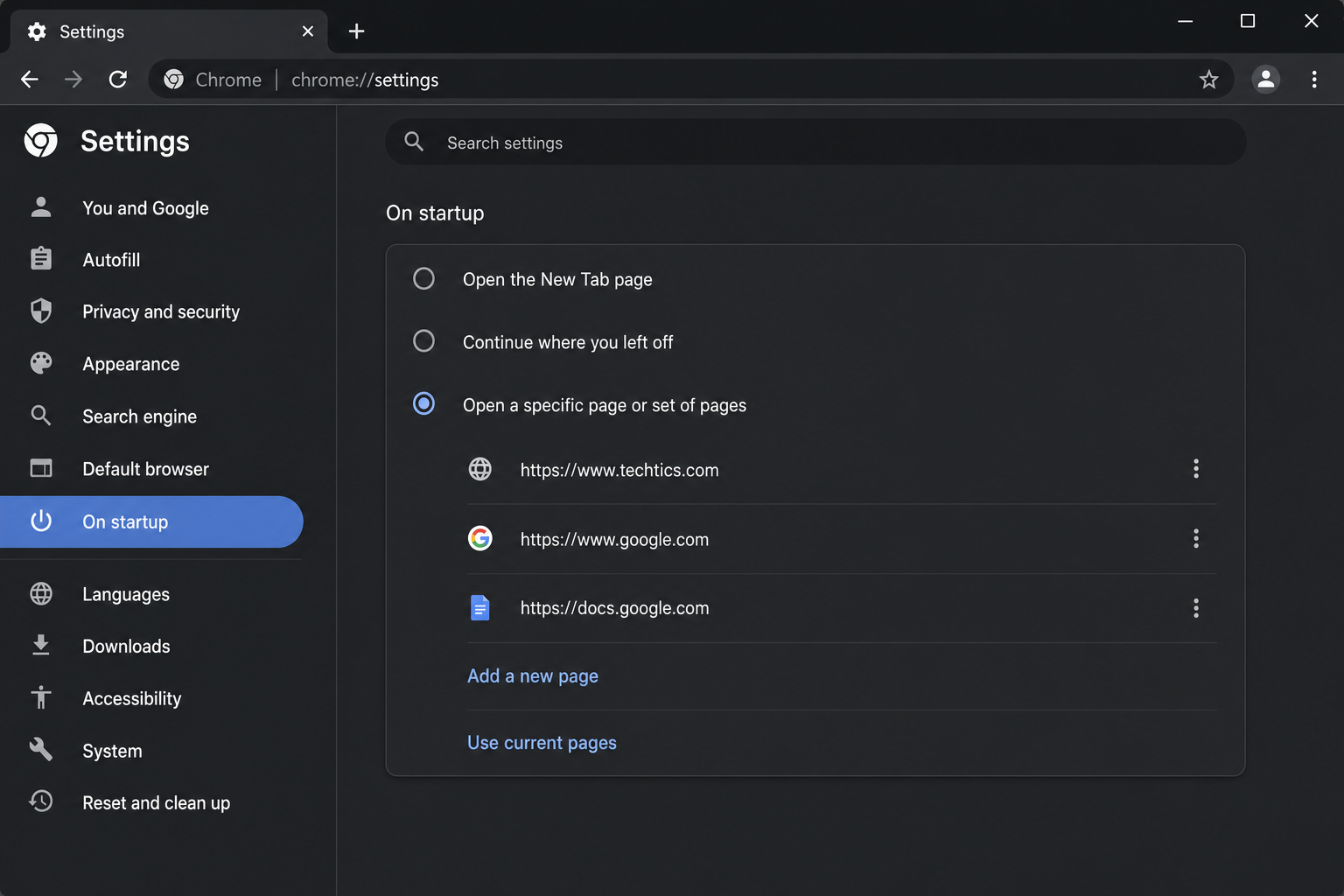
The pages will open in the order they’re listed, so put your most important site first. You can use the ⋮ next to any entry to edit or remove it.
Note: The Home button (the house icon in the toolbar) is a separate setting and only supports a single URL, not multiple pages. You can enable it under Settings > Appearance > Show Home button, but it won’t replace your startup pages.
How to Set Multiple Startup Pages in Microsoft Edge
Modern Microsoft Edge is built on the same Chromium foundation as Chrome, so the process is almost identical. (And yes, if you’re still somehow using Internet Explorer, it’s been retired. Edge is your browser now.)
Step 1: Open Edge Settings
Click the ⋯ (three-dot menu) in the top-right corner of Edge, then select Settings.
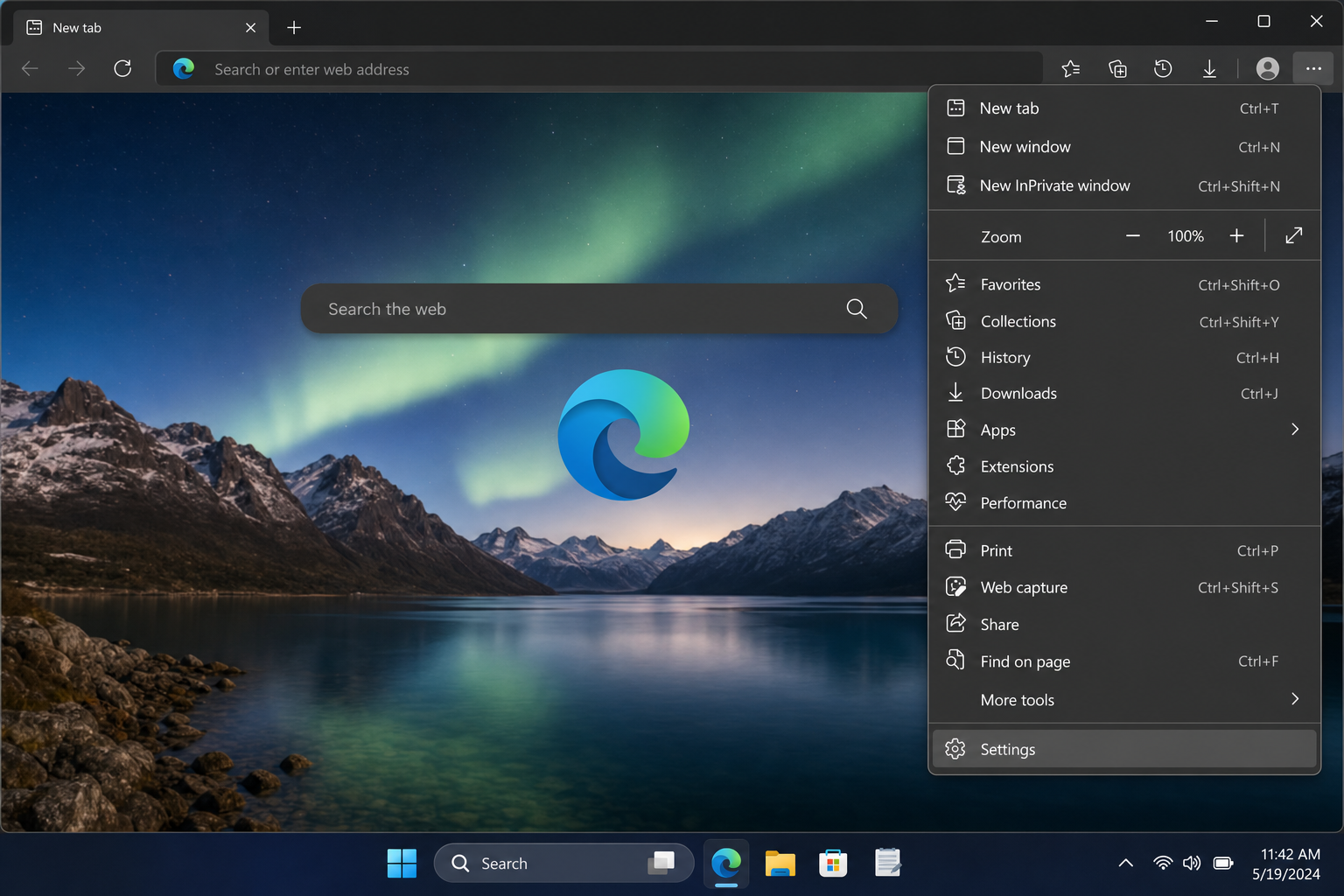
Step 2: Go to “Start, Home, and New Tabs”
In the left sidebar, click Start, home, and new tabs. Under the When Edge starts section, select Open these pages.
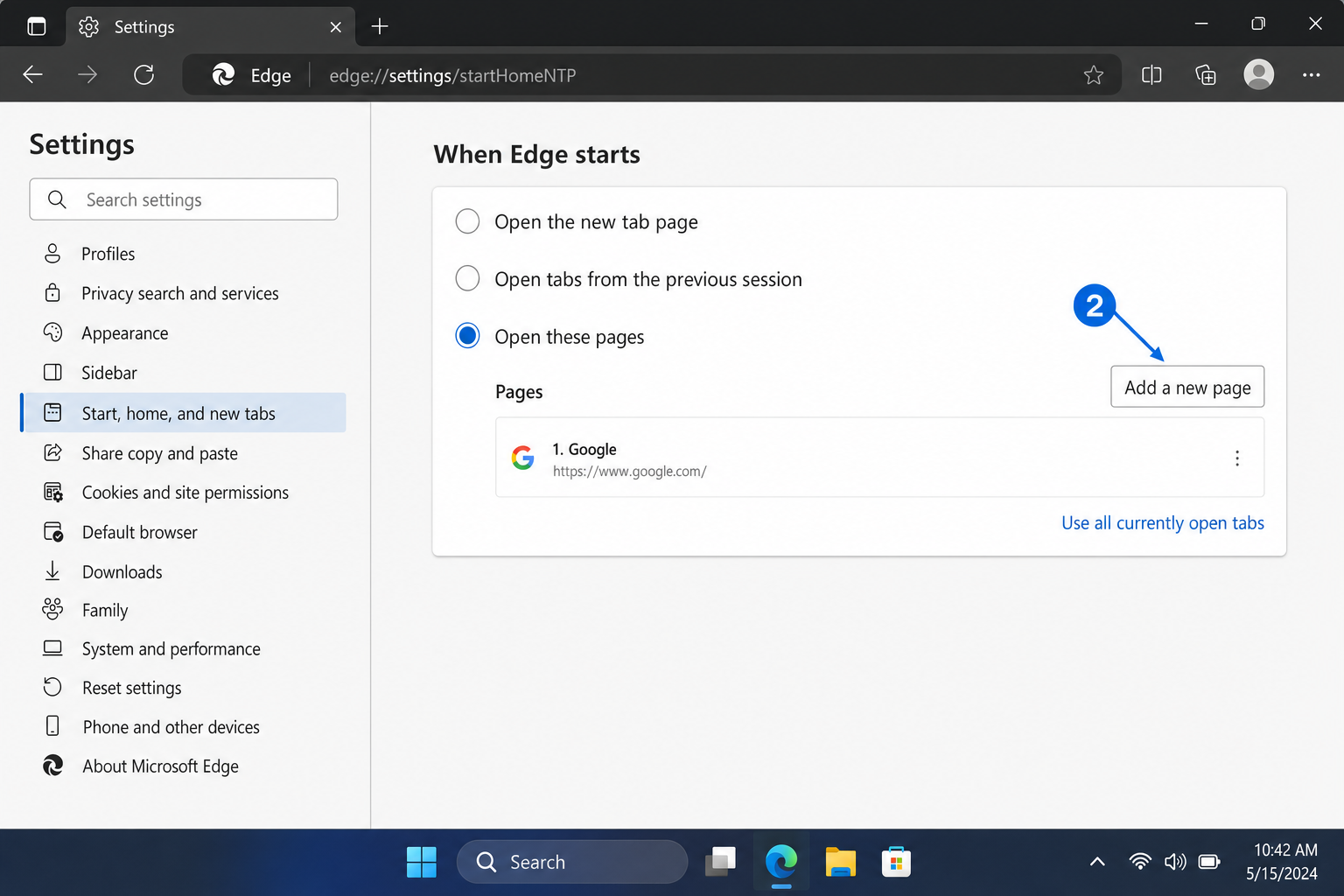
Step 3: Add Your Pages
Click Add a new page, enter the URL of the site you want, and click Add. Repeat for each additional site you want to open at startup.
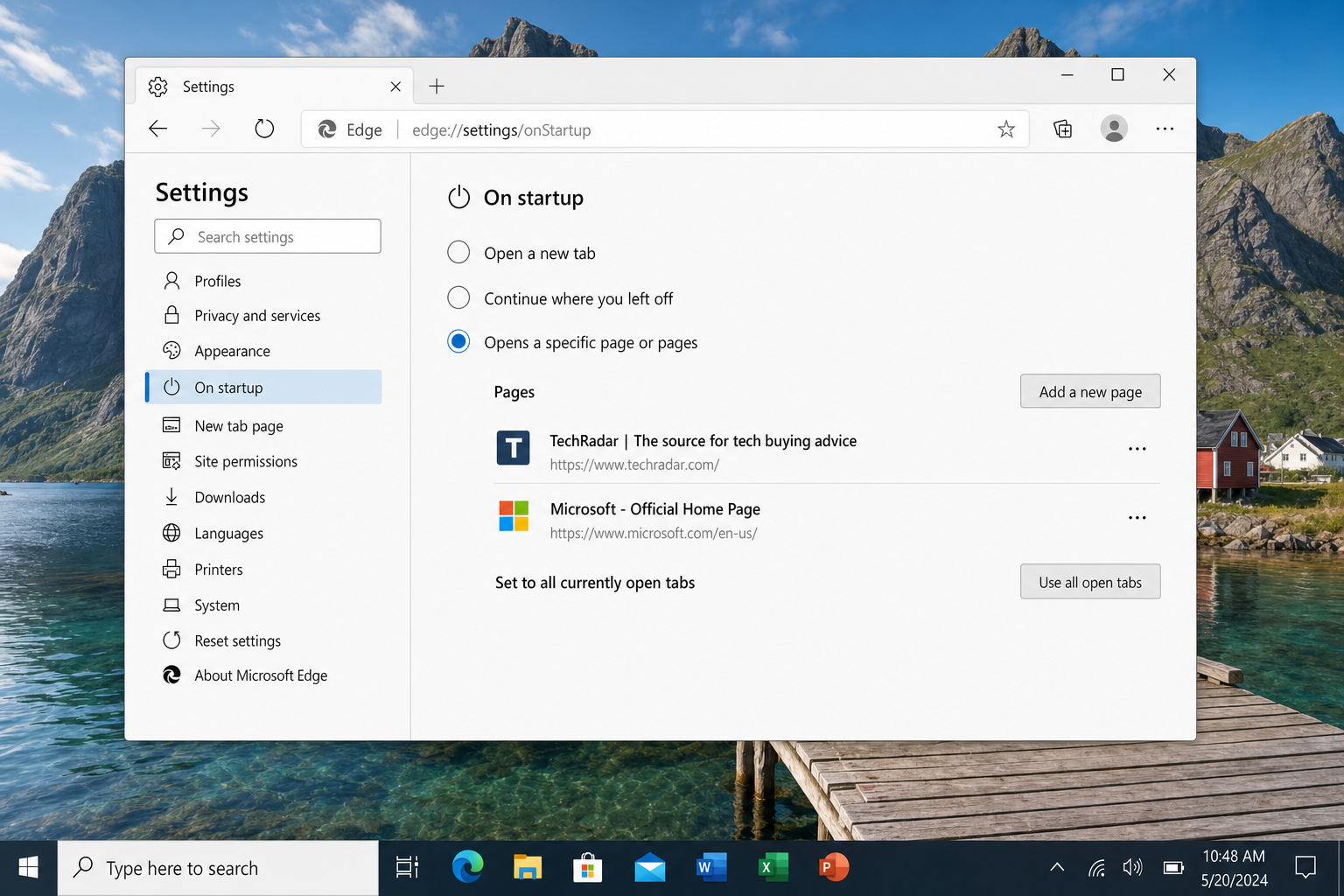
Just like Chrome, Edge will open each URL in its own tab every time you launch the browser.
How to Set Multiple Home Pages in Firefox
Firefox handles this a little differently. Instead of adding each URL as a separate entry, you put them all into a single field separated by a pipe character (|). It sounds weird but it works great once you know the trick.
Step 1: Open Firefox Settings
Click the ≡ (three-line menu) in the top-right corner and select Settings.
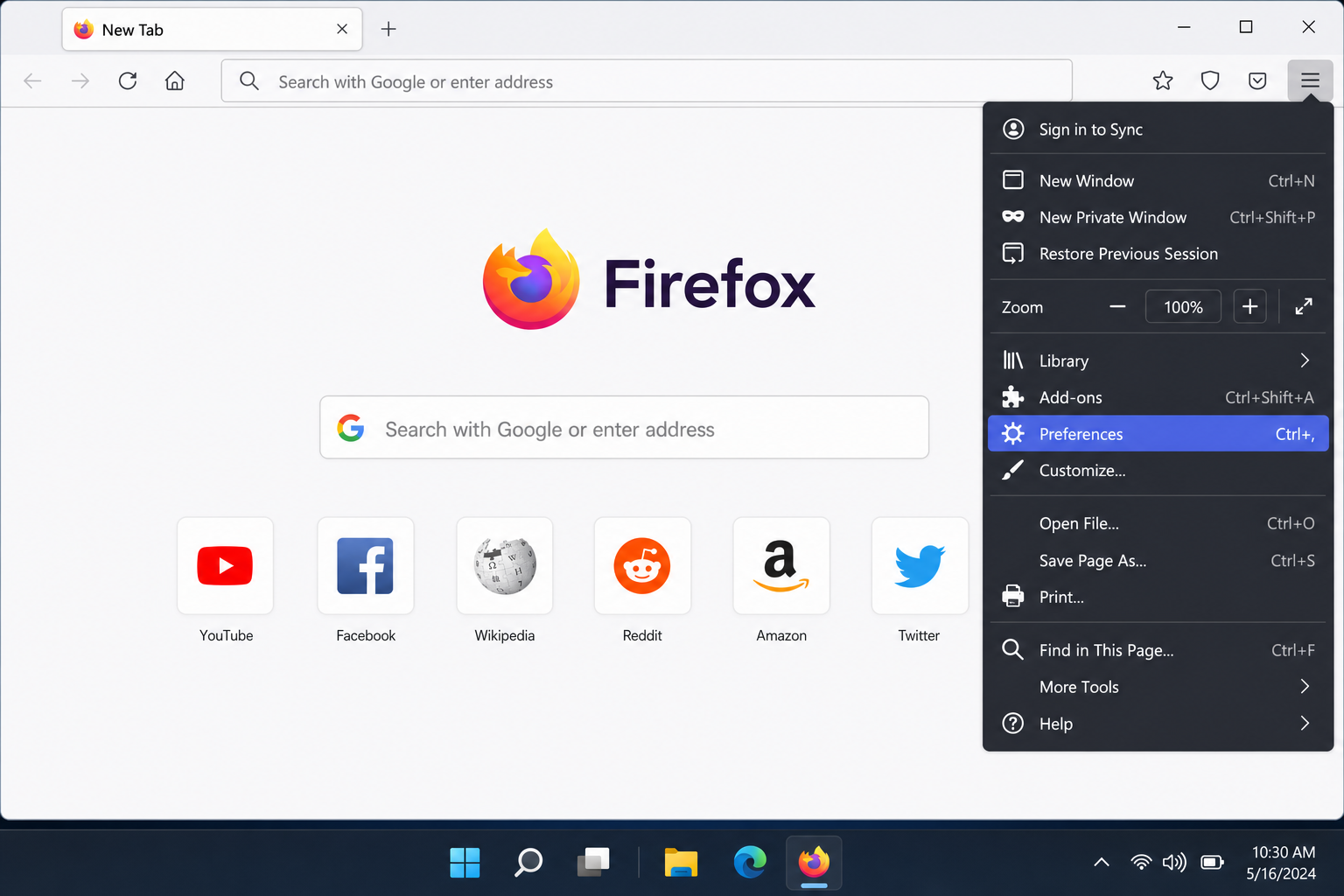
Step 2: Go to the Home Section
In the left sidebar, click Home. Under New Windows and Tabs, find the Homepage and new windows dropdown and change it to Custom URLs…
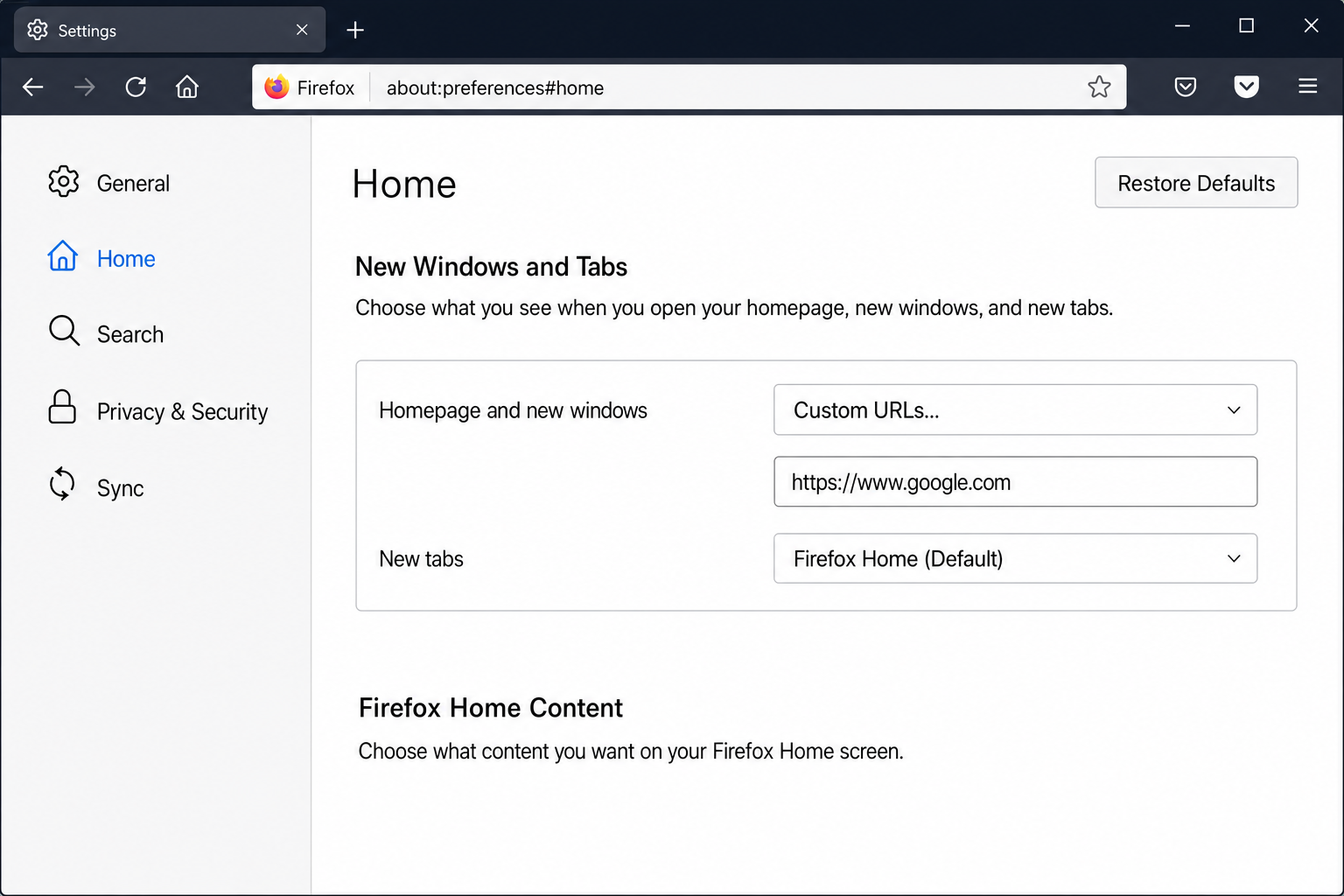
Step 3: Enter Your URLs
In the text field that appears, type each URL separated by a pipe character (|). For example:
https://mail.google.com|https://www.bbc.com/news|https://calendar.google.comAlternatively, open all the sites you want in tabs first, then click Use Current Pages, Firefox will fill in the URLs automatically, just like Chrome.
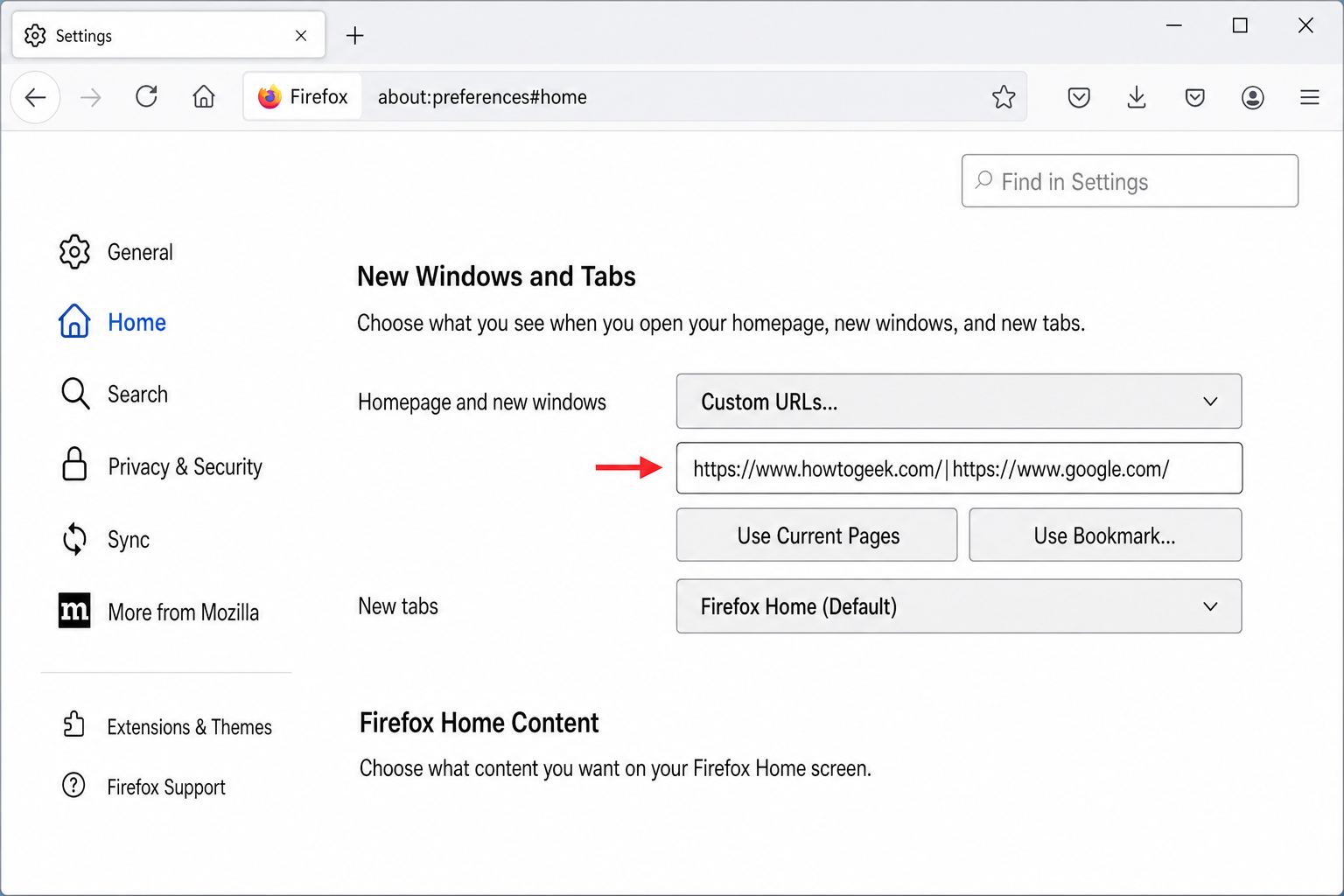
Step 4: Make Sure Firefox Opens These on Launch
Head over to Settings > General. Under Startup, if you see a Restore previous session checkbox, make sure it’s unchecked. Otherwise Firefox will restore your old tabs instead of opening your custom home pages. With that off, Firefox will load your custom URLs fresh every time you launch it.
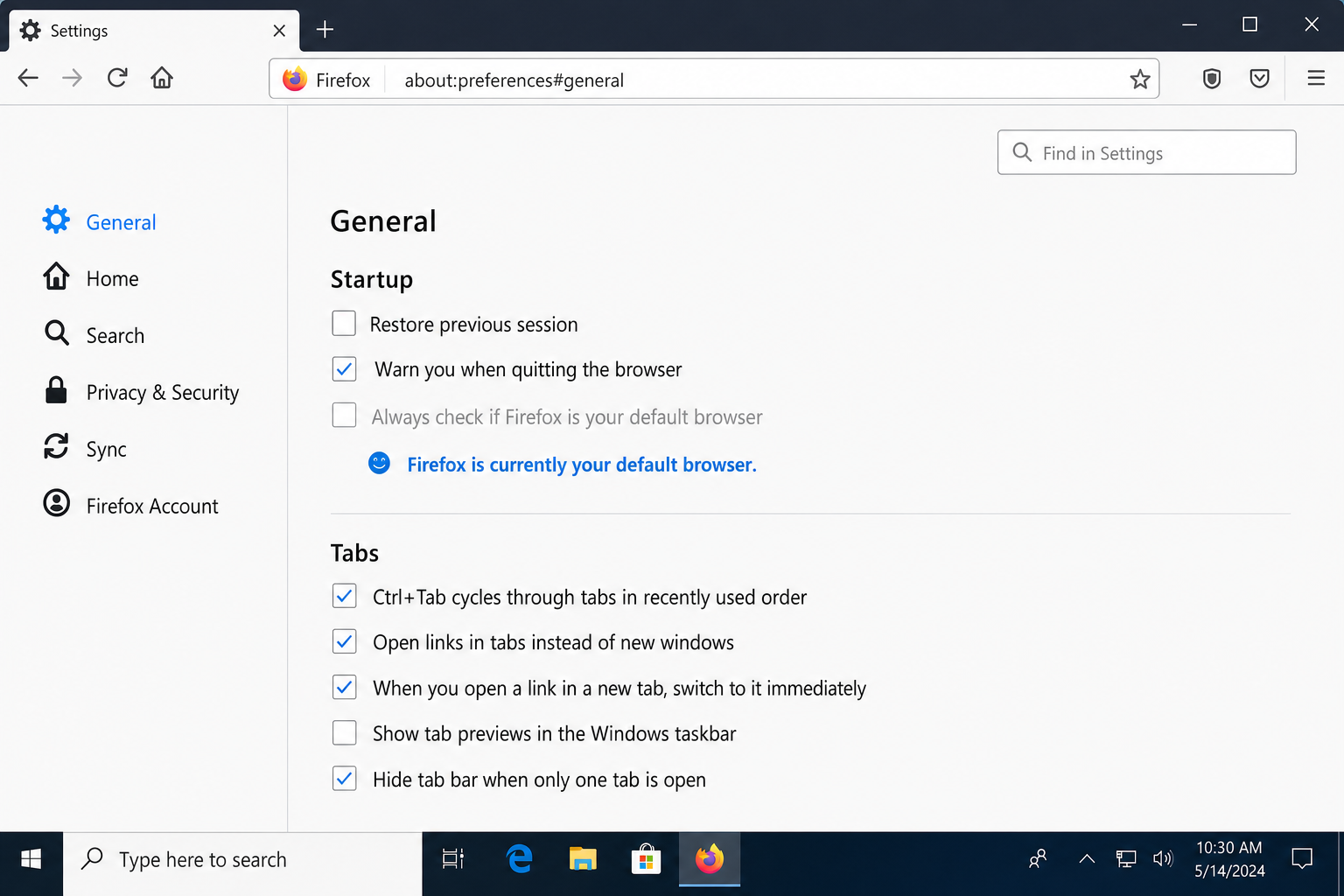
Heads up: With multiple home pages set, clicking the Home button in Firefox may open all of them as new tabs, even if you already have tabs open. This can get cluttered fast if you click it repeatedly. If that’s annoying, consider setting a single home page and relying on the startup behavior instead.
How to Open Multiple Pages at Startup in Safari (macOS)
Here’s where things get a bit less clean. Safari on macOS doesn’t have a built-in “open these specific URLs at startup” feature the way Chrome and Firefox do. You only get one homepage URL. But there are two solid workarounds depending on what you actually need.
Option 1: Use “All Windows from Last Session” (Easiest)
This is the simplest approach. You set up your tabs once, and Safari remembers them every time you reopen it.
- Open Safari and load all the sites you want in separate tabs.
- From the menu bar, go to Safari > Settings (on older macOS versions this may say Preferences).
- Click the General tab.
- Set Safari opens with to All windows from last session.
Now whenever you quit and reopen Safari, it’ll restore exactly the tabs you had open. It’s not quite the same as a fixed startup list, but for most people it does the job perfectly well.
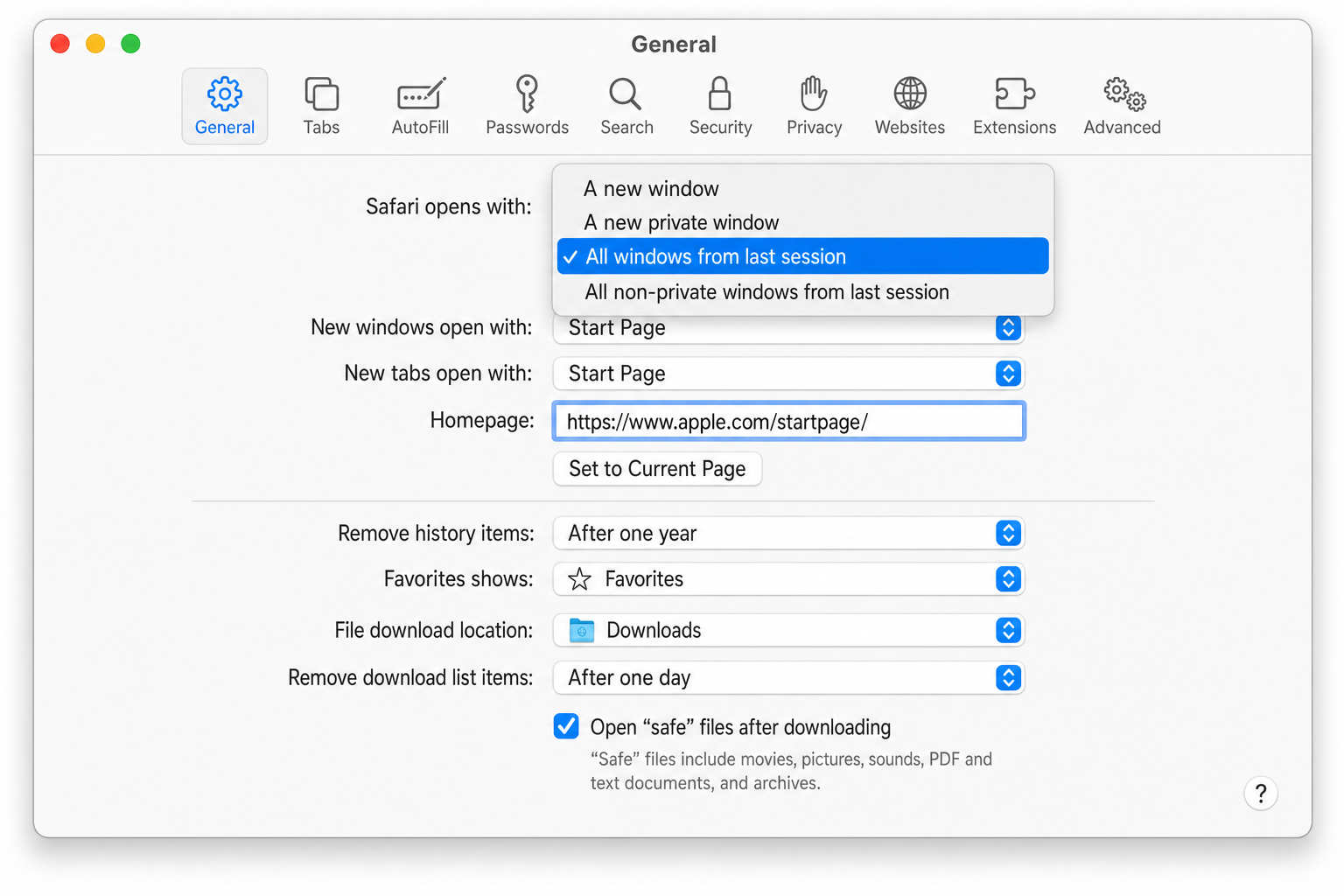
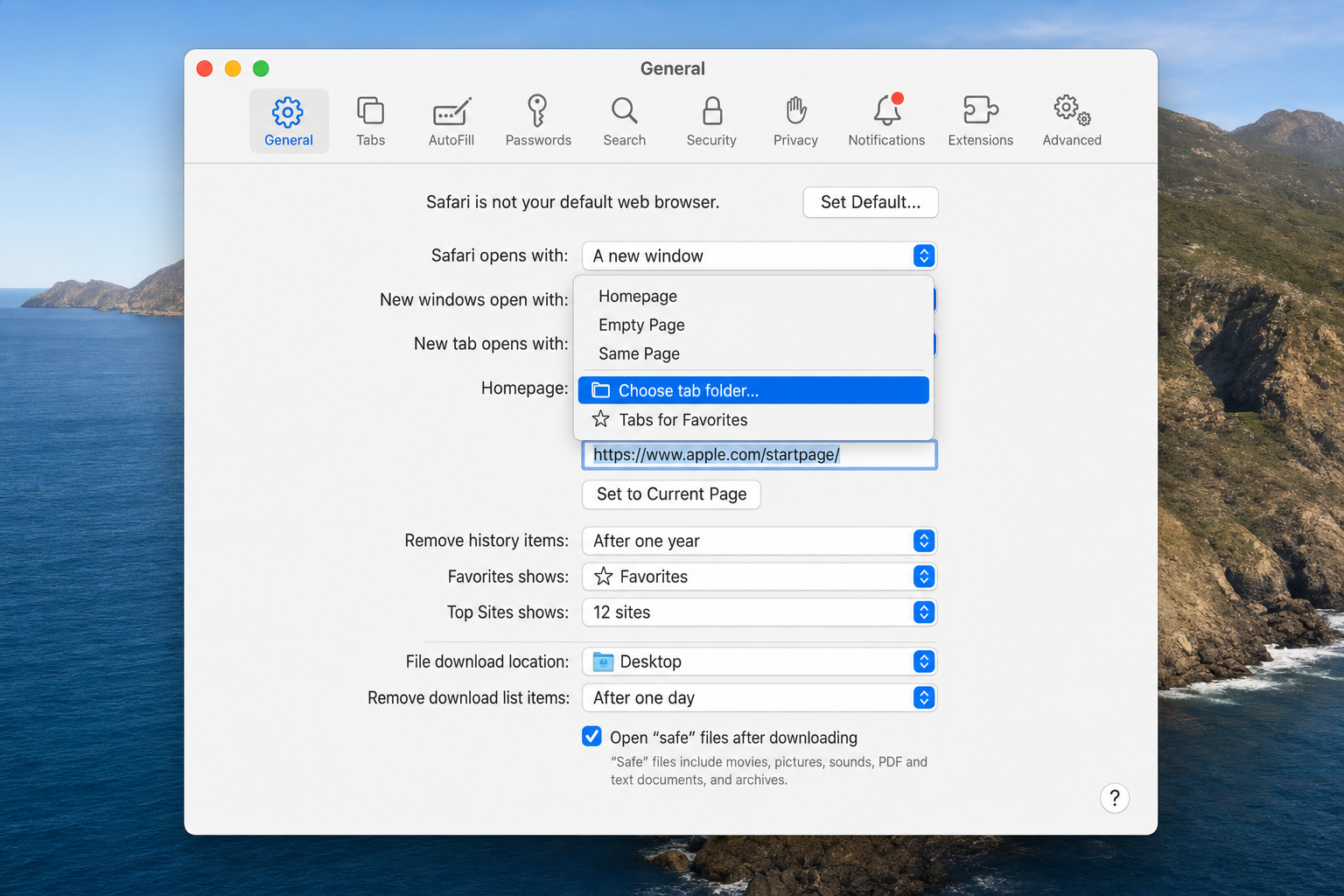
Option 2: Use a Bookmarks Folder as Your Startup Tabs
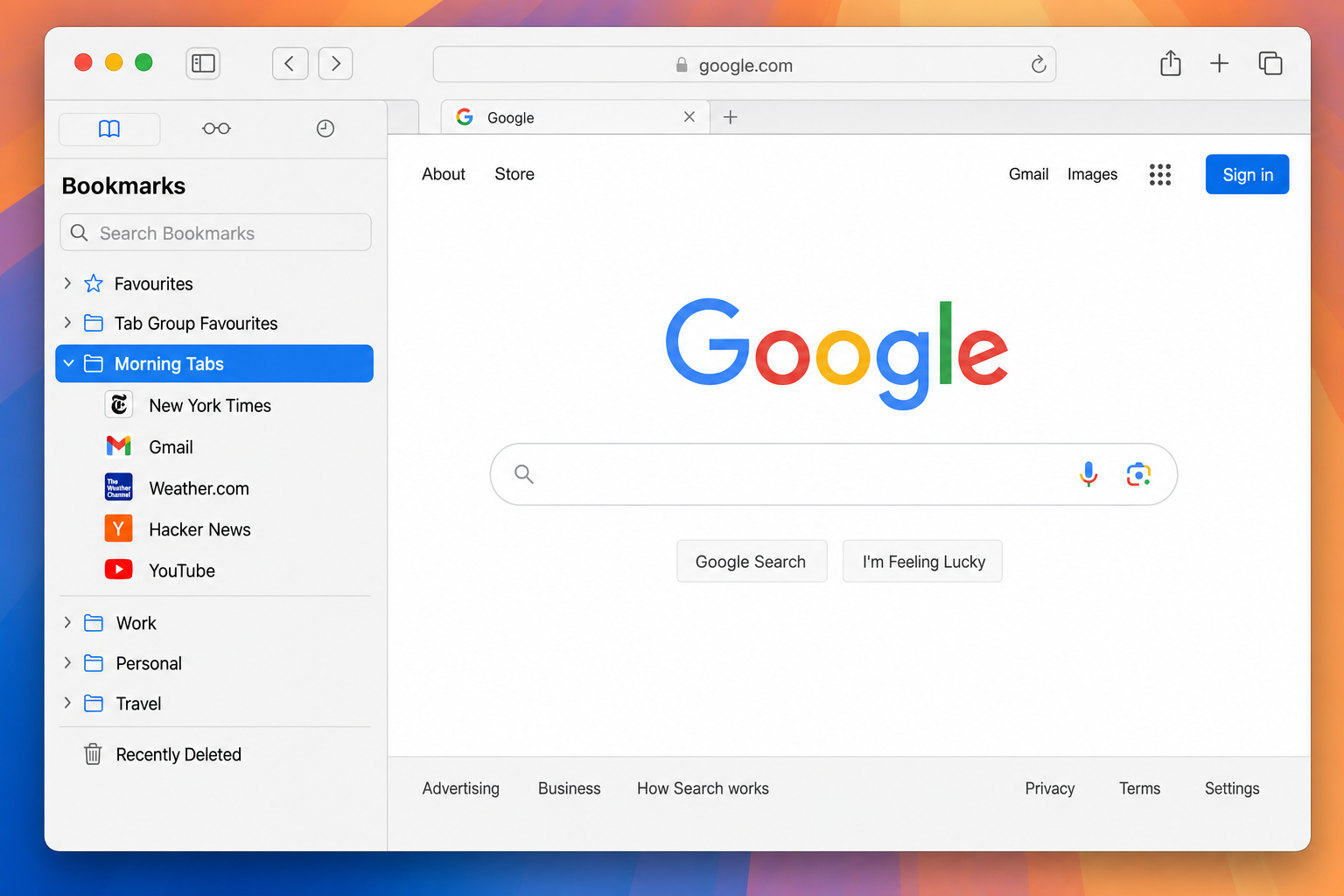
If you want a fixed set of tabs that opens every time (not just whatever you had open last), you can use a bookmarks folder as your startup source.
- Visit each site you want and bookmark it (
Cmd + D), saving each one to a dedicated folder (e.g., “Morning Tabs”). - Go to Safari > Settings > General.
- Set New windows open with to Choose tabs folder…
- Select your “Morning Tabs” folder from the list and click Choose.
Now every time you open a new Safari window, it’ll load all the bookmarks in that folder as tabs.
What About New Tabs?
A lot of people set up startup pages and then wonder why opening a new tab doesn’t load their custom sites. That’s because new tabs are a completely separate setting from startup pages, and in Chrome, Edge, and Firefox, new tabs default to the browser’s built-in page (with search and shortcuts).
If you want a custom experience on new tabs too, the most popular approach is to install a Speed Dial or new tab override extension from the Chrome Web Store, Microsoft Edge Add-ons, or Firefox Add-ons. These replace the default new tab page with a customizable grid of your favorite sites. Search for “speed dial” or “new tab page” in your browser’s extension store and you’ll find plenty of options. Just check the reviews before installing, since extension quality varies a lot.
Tips and Troubleshooting
Common Issues
Problem: Chrome or Edge only opens one of my startup pages
Make sure you’ve added each site as a separate entry under On startup > Open a specific page or set of pages. If you only typed one URL, only one page will open. Go back and use Add a new page for each additional site.
Problem: Firefox opens my old tabs instead of my home pages
This is almost always because Restore previous session is turned on under Settings > General > Startup. Turn that off and Firefox will open your custom URLs instead.
Problem: Some startup pages don’t load properly when the browser first opens
This can happen if your internet connection isn’t fully up yet when the browser launches, especially right after your computer boots. It can also be caused by extensions like VPNs, ad blockers, or privacy tools interfering with certain sites. Try disabling your extensions temporarily to see if that’s the culprit.
Problem: My browser is slow because it opens too many tabs at startup
Keep your startup list short. Three to five sites is usually plenty. If you also have “Restore previous session” enabled at the same time, you could end up with dozens of tabs loading at once, which will absolutely tank your browser’s performance. Pick one approach: either a fixed startup list or session restore, not both.
Pro Tips
- Use “Use Current Pages” to save time: In Chrome, Edge, and Firefox, you can open all your desired sites in tabs first, then use the “Use current pages” button in settings to populate your startup list automatically, no typing required.
- Consider a session manager extension: If you want different sets of tabs for different situations (work tabs vs. personal tabs, for example), a session manager extension is more flexible than a fixed startup list. Search for “Tab Session Manager” in your browser’s extension store.
- Browser profiles are great for this: Chrome and Edge both support multiple browser profiles. You could set up a “Work” profile with work-related startup pages and a “Personal” profile with your own set, completely separate.
- Order matters: In Chrome and Edge, pages open in the order they’re listed. In Firefox, they open in the order the URLs appear in the field (left to right). Put your most-used site first.
Quick Reference: Multiple Startup Pages by Browser
| Browser | Where to Set It | How to Add Multiple Pages |
|---|---|---|
| Chrome | Settings > On startup | Add each URL as a separate entry |
| Microsoft Edge | Settings > Start, home, and new tabs | Add each URL as a separate entry |
| Firefox | Settings > Home > Custom URLs | Separate URLs with a pipe character | |
| Safari (macOS) | Safari > Settings > General | Use session restore or a bookmarks folder |
Wrapping Up
Setting up multiple startup pages is a small change that makes your daily browser routine a lot smoother, and once it’s set up, you’ll wonder why you didn’t do it sooner. Chrome and Edge are the most straightforward, Firefox requires that pipe-character trick, and Safari needs a workaround, but all four get the job done well enough. If you run into any trouble or your browser isn’t listed here, drop a question in the comments and we’ll help you sort it out.