
Nothing’s more frustrating than trying to print an important document only to discover your printer has completely vanished from Windows. One minute everything’s working fine, the next minute your Printers & scanners page is empty and you’re staring at the dreaded Print Spooler Service Terminated Unexpectedly error message.
This annoying issue happens when Windows’ print spooler service crashes, usually because of stuck print jobs, corrupted drivers, or configuration problems. The good news? You can fix it yourself in about 15 minutes using the steps below. We’ll walk you through everything from restarting the service to clearing out problematic files, no tech degree required!
What is the Print Spooler Service?
The Print Spooler is a Windows background service that manages all your printing. Think of it as a traffic controller for print jobs: it takes documents from your apps, queues them up, and sends them to your printer in the right order.
Key functions:
- Job management: Queues and prioritizes print jobs from different apps
- Driver communication: Talks to your printer drivers to format documents correctly
- Error handling: Manages failed jobs and printer offline situations
- Sharing support: Enables network printer sharing between computers
When this service crashes, Windows can’t communicate with any printers — which is why they all disappear from your system.
How to Fix the Print Spooler Service Error
Follow these steps in order. Test printing after each step to see if the problem’s fixed before moving to the next one.
Step 1: Restart the Print Spooler Service
The quickest fix is often just restarting the crashed service. Here’s how:
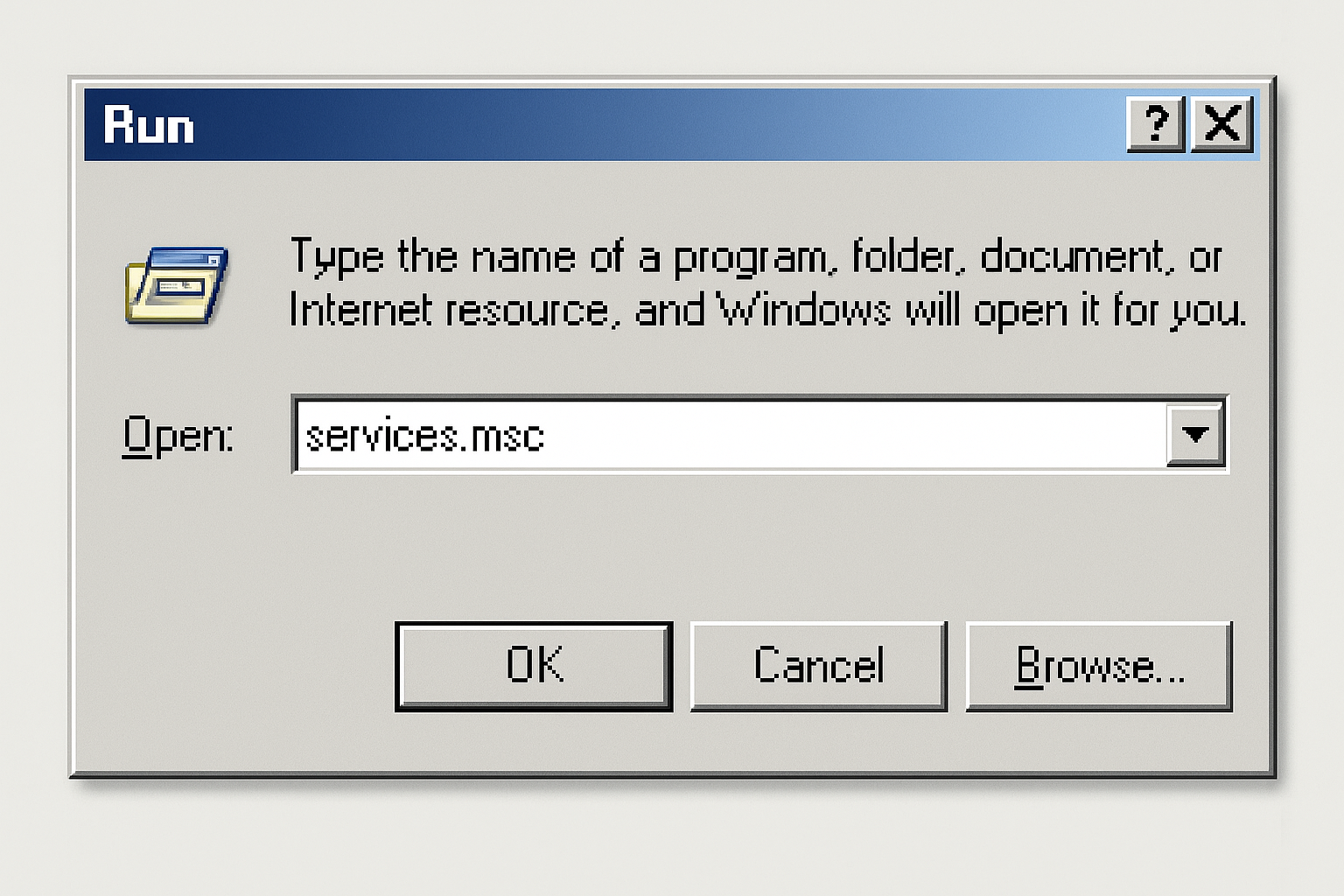
Press Windows + R to open Run, type services.msc, and press Enter.
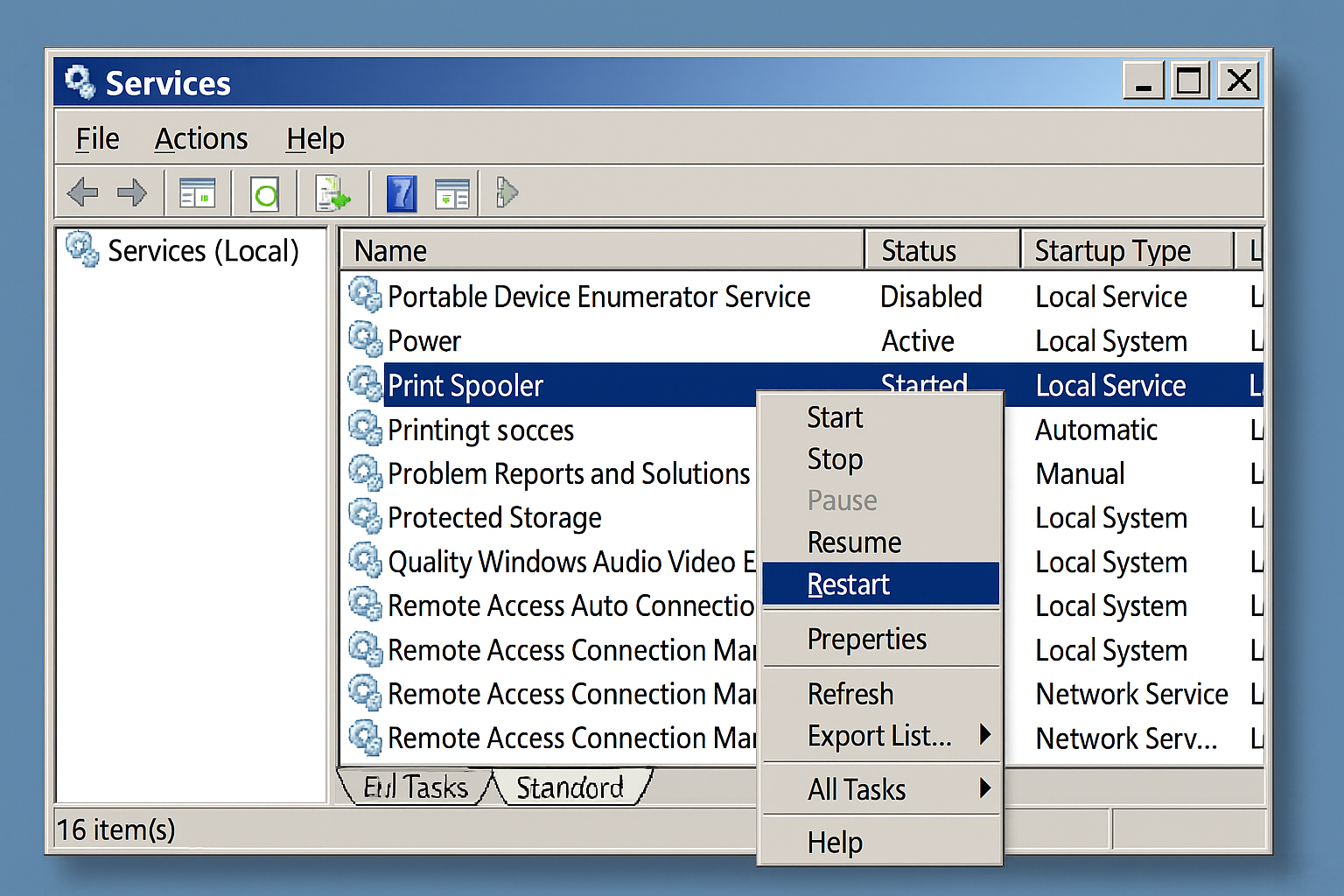
Scroll down to find Print Spooler in the list, right-click it, and select Restart. If it shows as “Stopped,” click Start instead.
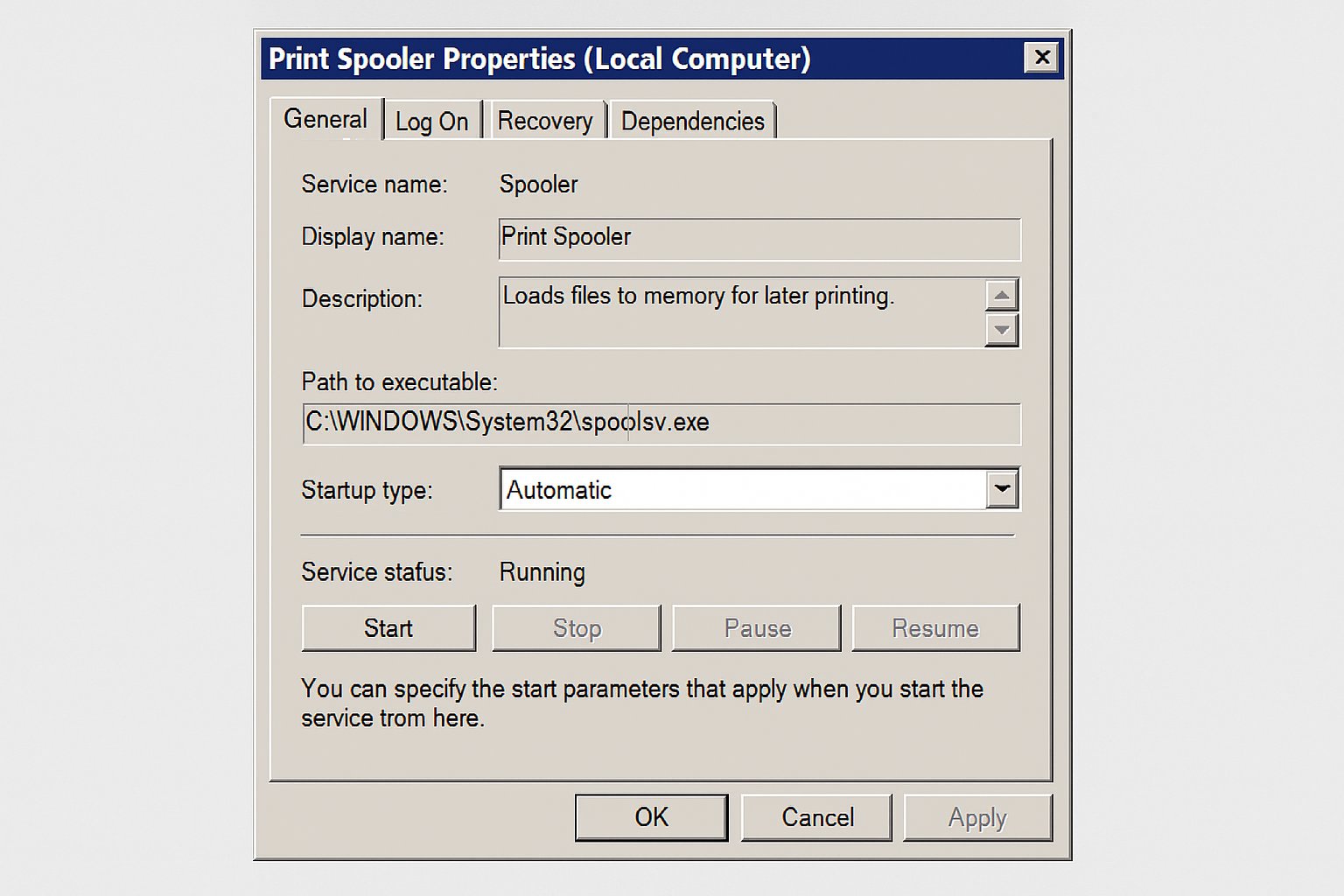
While you’re here, double-click Print Spooler to open its properties. Make sure Startup type is set to Automatic, then click OK.
Try printing something now. If it works, you’re done! If not, continue to the next step.
Step 2: Clear Stuck Print Jobs
Sometimes corrupted or stuck print jobs prevent the spooler from starting properly. Let’s clear them out:
First, stop the Print Spooler service if it’s running. In the Services window, right-click Print Spooler and select Stop.
Open File Explorer and navigate to C:\Windows\System32\spool\PRINTERS. Delete all files in this folder, these are the stuck print jobs causing the problem.
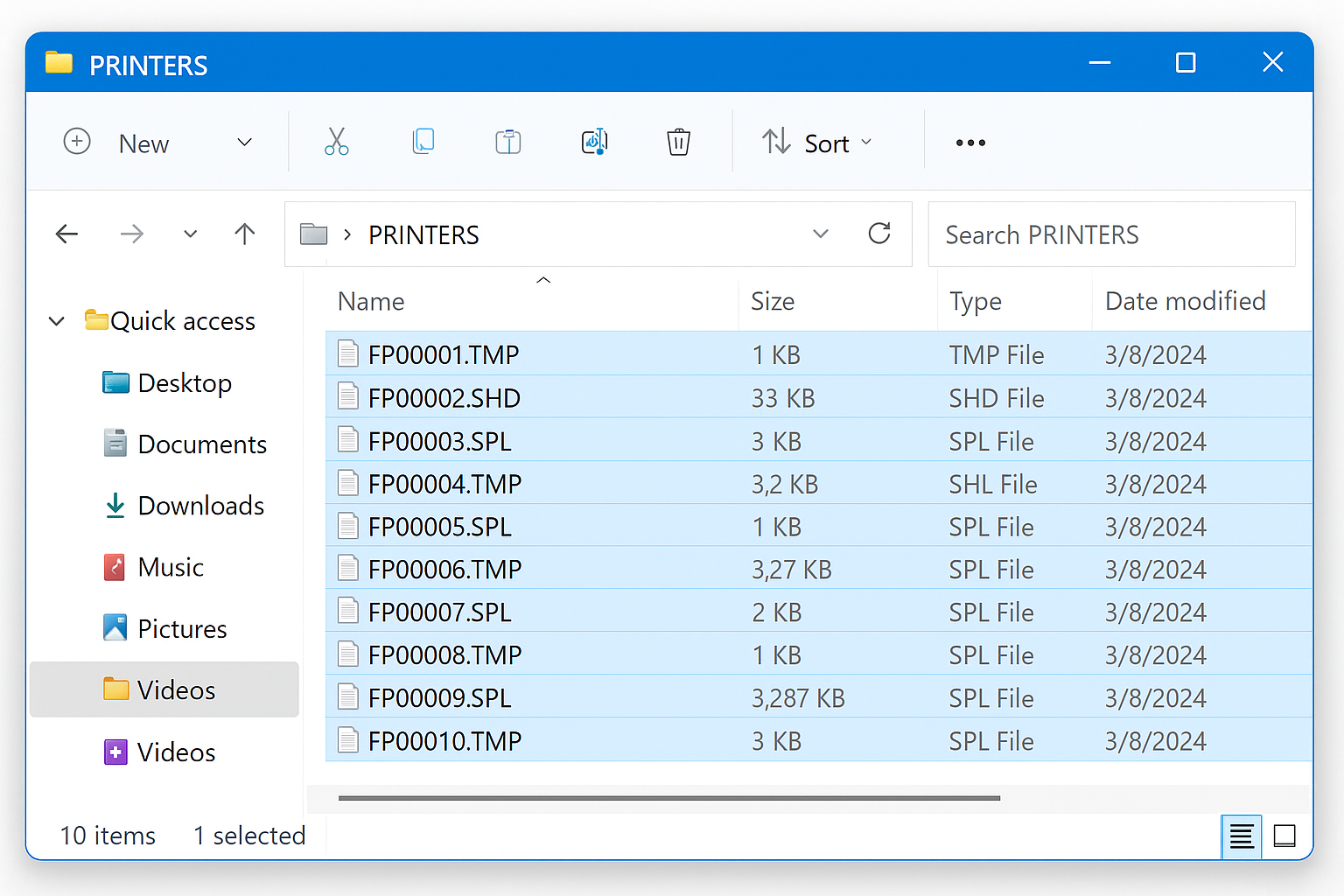
Note: If Windows says you need permission to delete these files, you might need to take ownership first. Right-click the folder, choose Properties > Security > Advanced, then click Change next to the owner and add your username.
Go back to Services and start the Print Spooler service again. Test printing to see if this fixed the issue.
Step 3: Check Your Print Queue
If the service is running but printers still aren’t showing up, check for stuck jobs in the modern way:
Open Settings by pressing Windows + I, then go to Bluetooth & devices > Printers & scanners.
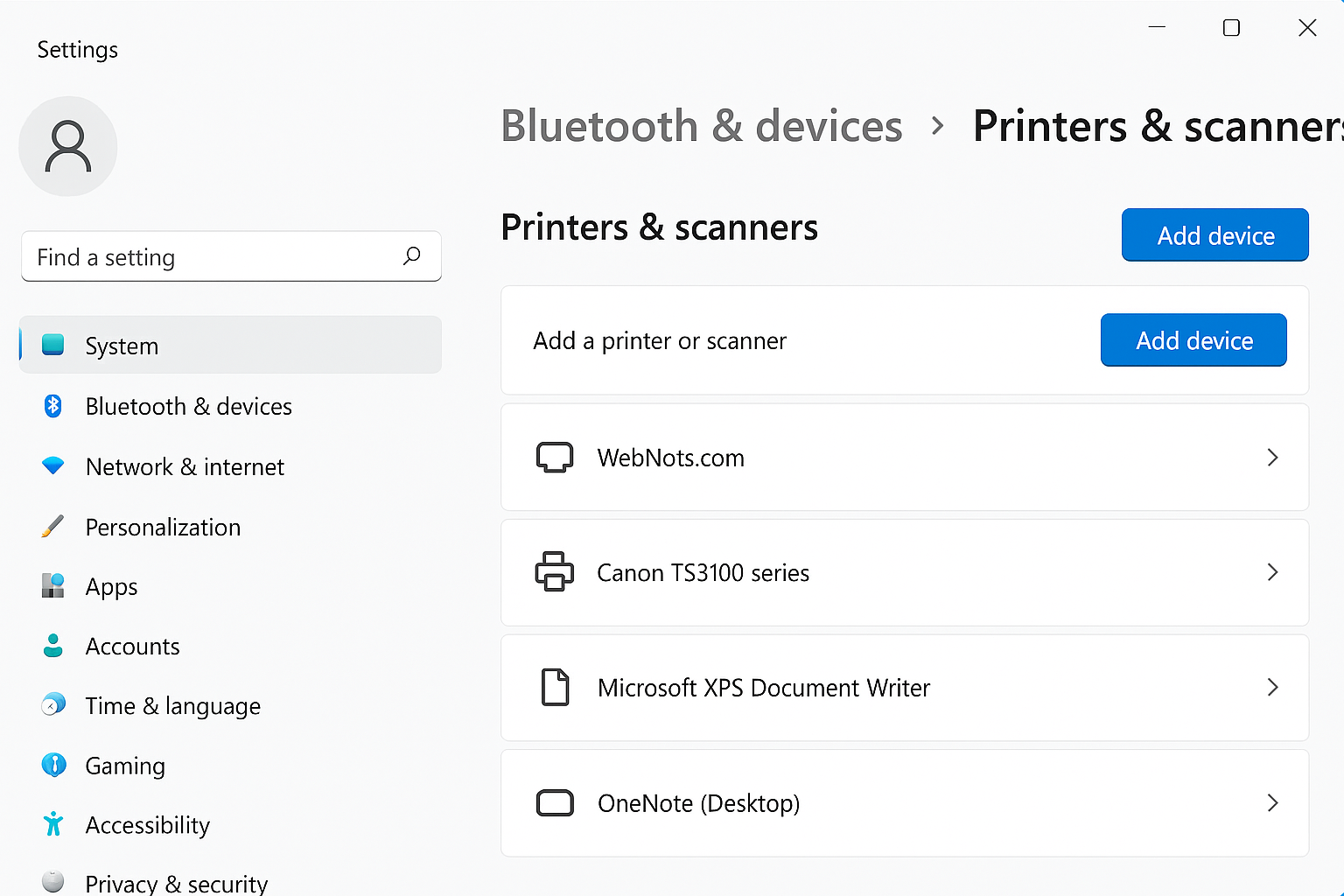
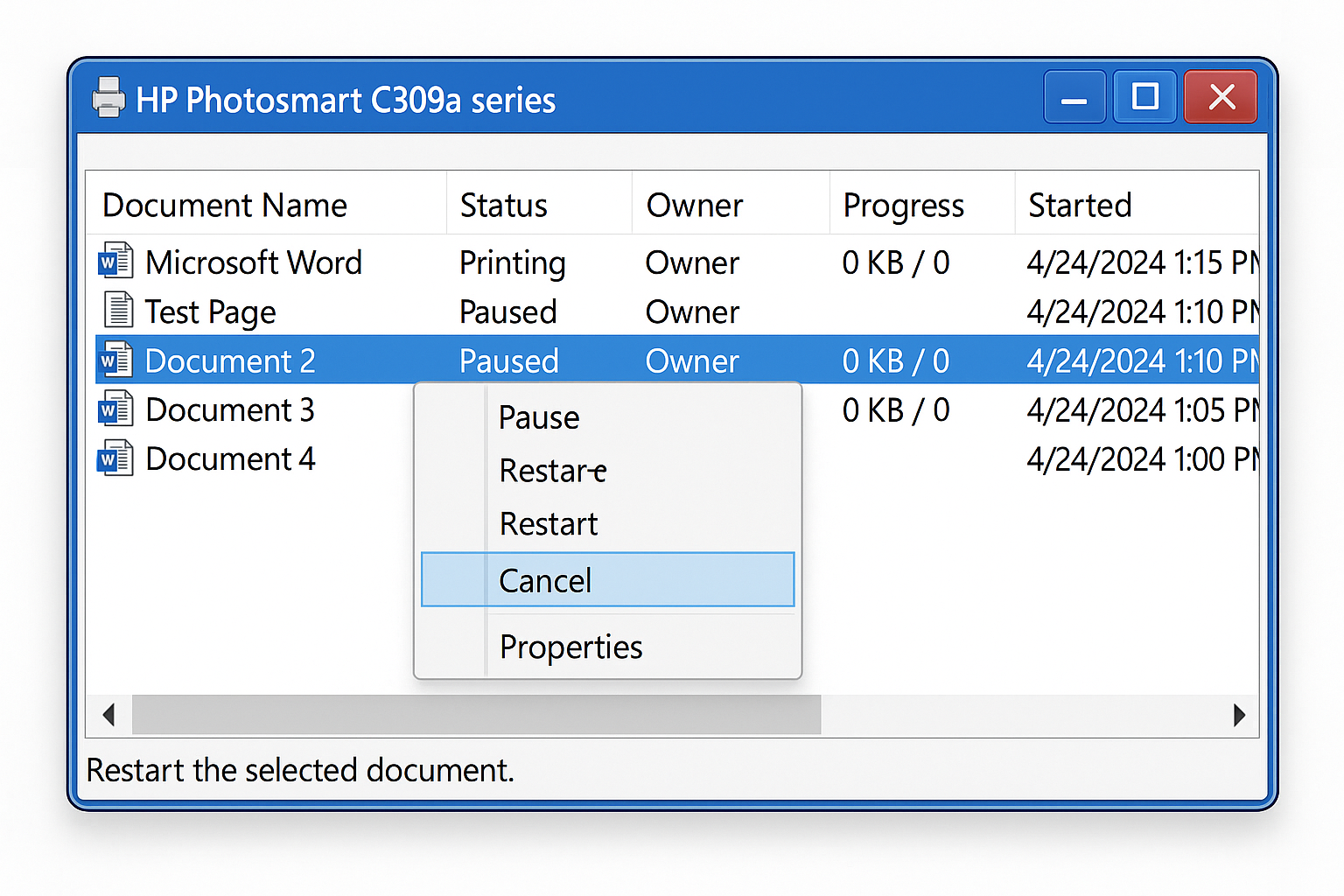
If you see your printer listed, click it and select Open print queue. Cancel any stuck jobs by right-clicking them and choosing Cancel.
Step 4: Update or Reinstall Printer Drivers
Corrupted or outdated drivers are often the real culprit behind spooler crashes. Here’s how to fix them:
Right-click the Start button and select Device Manager. Expand Print queues to see your installed printers.
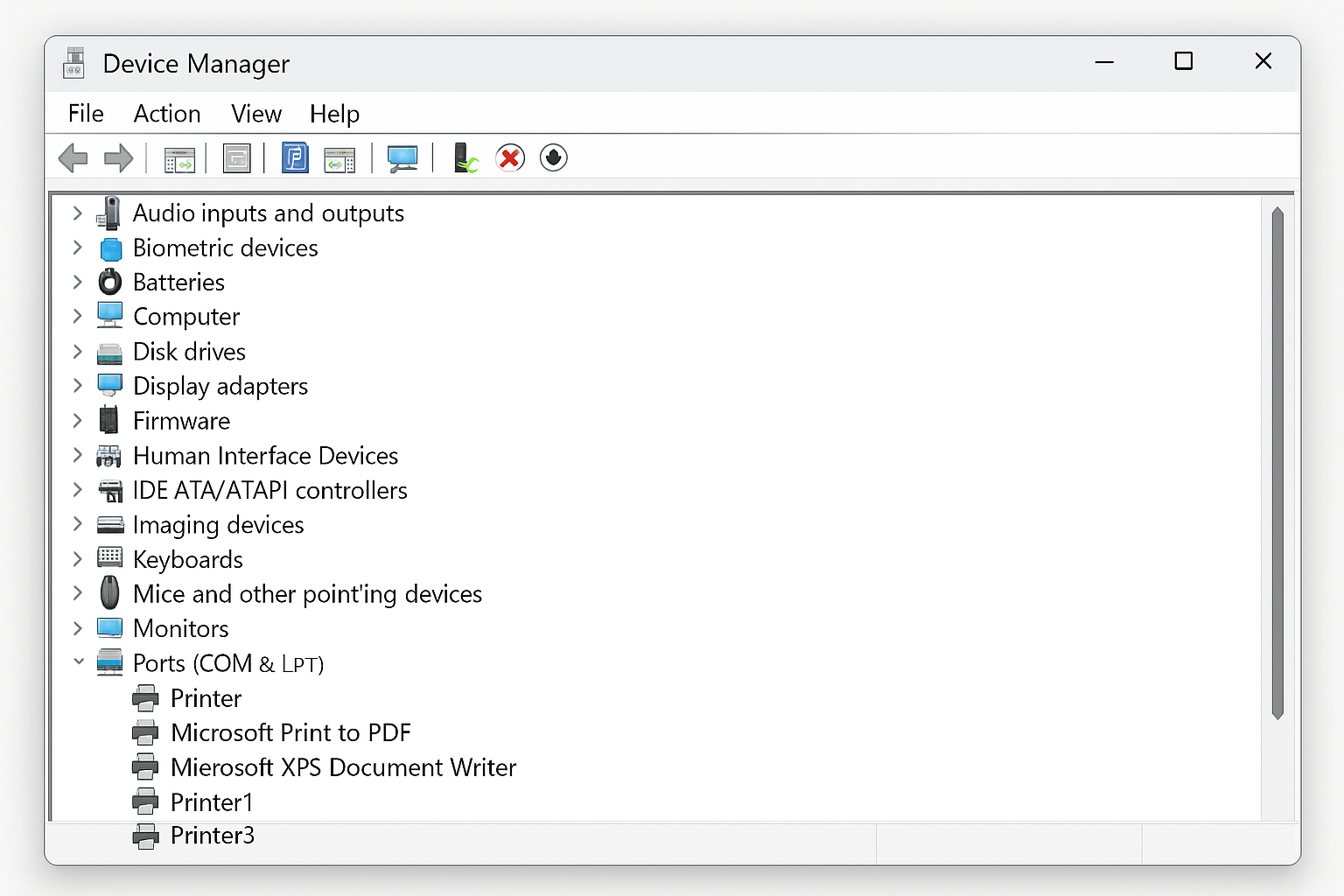
Right-click any problematic printers and select Uninstall device. Don’t worry, we’ll reinstall them with fresh drivers.
Now visit your printer manufacturer’s website and download the latest drivers for your specific model and Windows version. Install these fresh drivers and test printing.
Pro tip: If you’re not sure which driver is causing problems, uninstall all printers from Device Manager, restart your computer, then reinstall them one by one to identify the troublemaker.
Step 5: Use Command Line for Stubborn Cases
If the spooler keeps crashing, try this more aggressive approach using Command Prompt:
Press Windows + X and select Terminal (Admin) or Command Prompt (Admin).
Type these commands one at a time, pressing Enter after each:
net stop spooler
del /Q /F /S "%systemroot%\System32\Spool\Printers\."
net start spooler
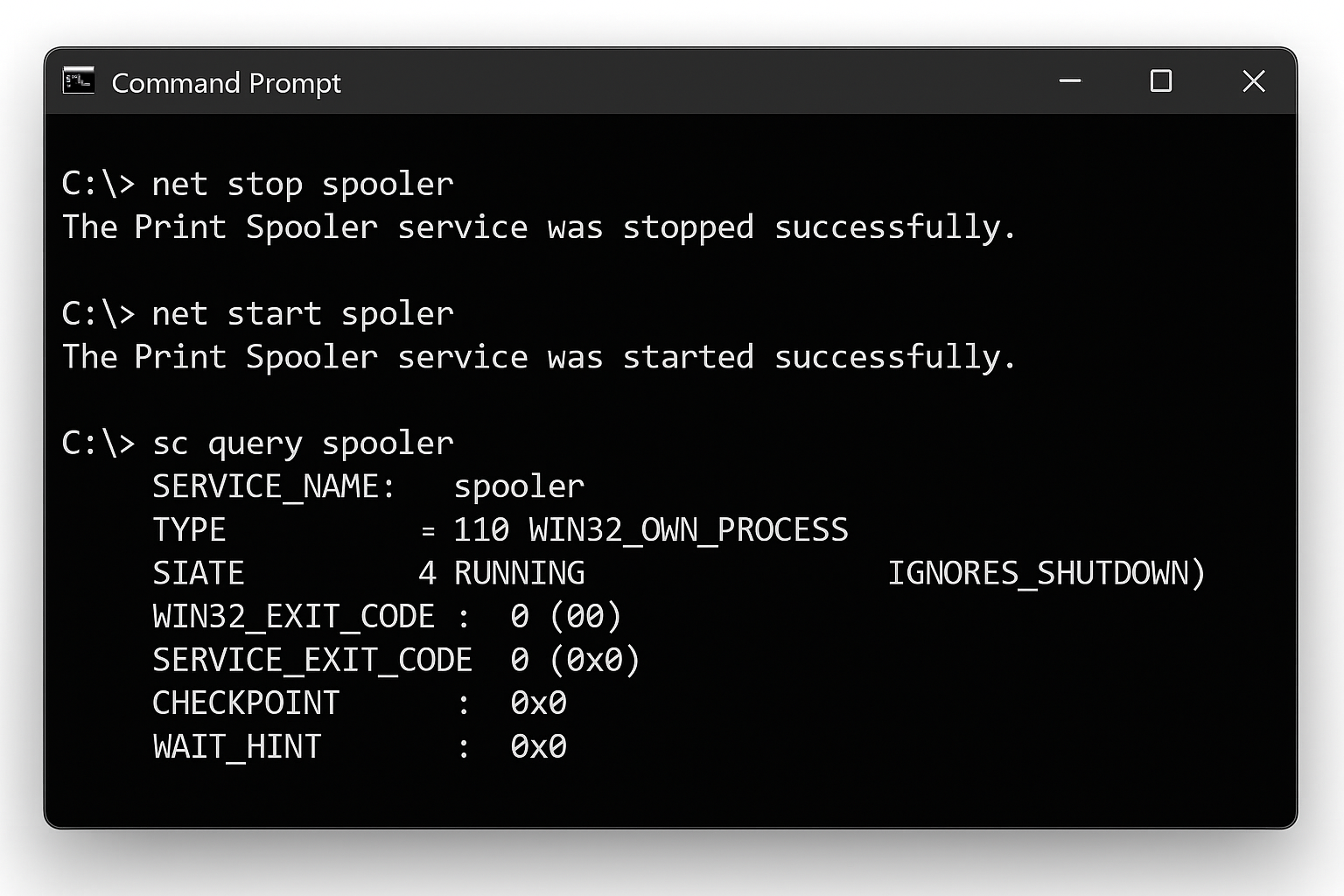
This forcibly stops the service, deletes all spooler files, and restarts it fresh.
Step 6: Check Event Viewer for Clues
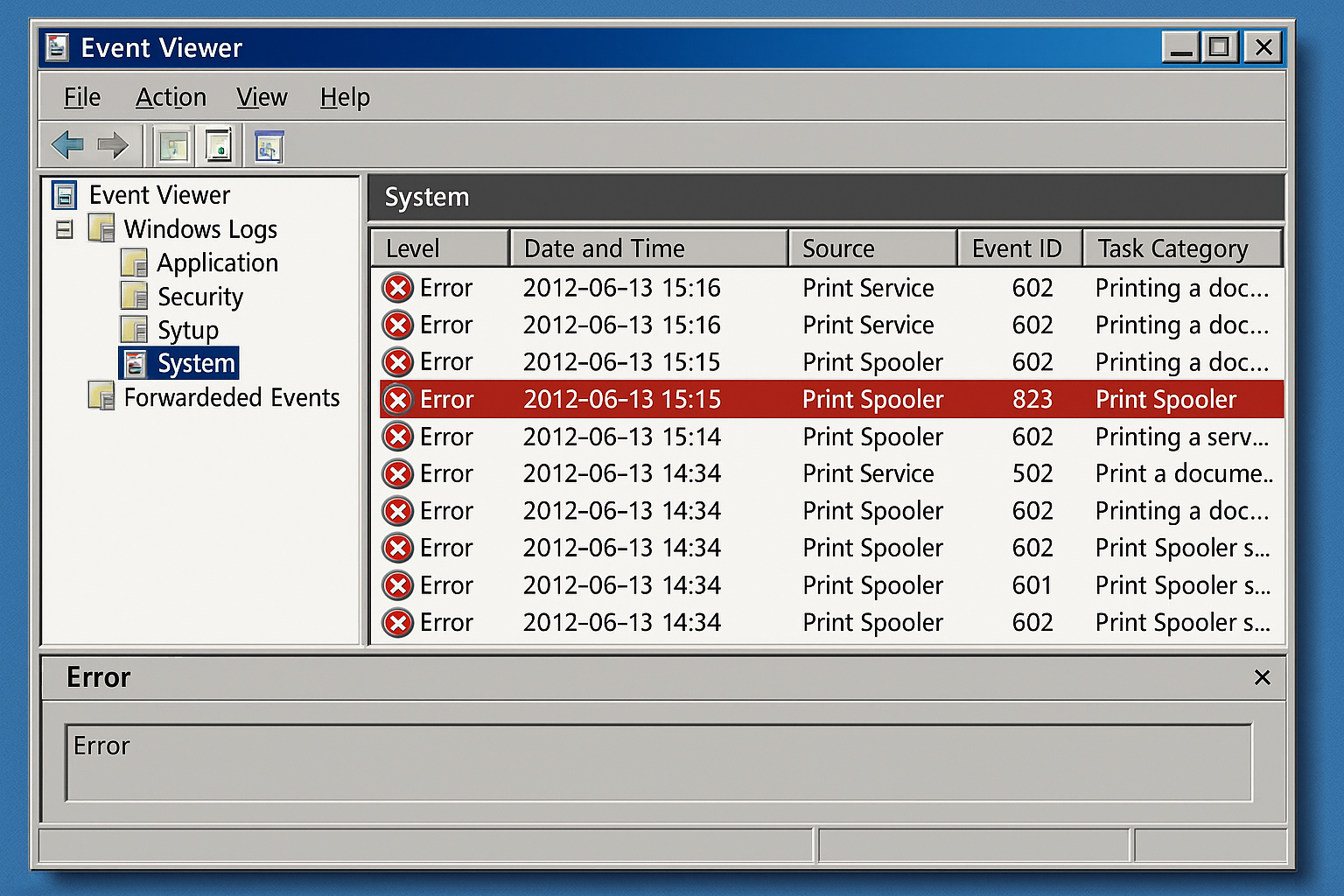
If you’re still having trouble, Windows’ Event Viewer can tell you exactly why the spooler is crashing:
Press Windows + X and select Event Viewer. Navigate to Windows Logs > System.
Look for recent errors with Event ID 7031 or 7034, these indicate spooler crashes. The error details will often mention which driver or component is causing the problem.
Alternative Solutions and Workarounds
If the spooler keeps acting up, here are some modern alternatives:
- Use manufacturer apps: Many printer makers like HP, Canon, and Epson offer their own printing apps that bypass Windows’ spooler entirely
- Try PowerShell automation: Create a script to automatically restart the spooler when it crashes
- Disable SNMP: For network printers, go to printer properties and turn off SNMP status — this fixes crashes with some business printers
- Print to PDF first: Use Microsoft Print to PDF as a temporary workaround, then print the PDF file
Tips and Troubleshooting
Common Issues
Problem: The spooler keeps crashing every few hours
This usually indicates a driver conflict or network printer issue. Try disabling bidirectional support in your printer properties, or switch to a different driver version.
Problem: Can’t delete files from the PRINTERS folder
Windows is protecting these files because the spooler service is still running. Make sure you’ve completely stopped the Print Spooler service first, then try deleting again.
Problem: Printers disappear again after restarting Windows
Check if the Print Spooler service is set to start automatically. In Services, double-click Print Spooler and set Startup type to “Automatic.”
Pro Tips
- Speed things up: Press
Windows + Rand typeservices.mscto jump straight to the Services window - Keyboard shortcut: Use
Ctrl + Shift + Escto open Task Manager, then click the Services tab for a quicker view - Prevention: Keep your printer drivers updated through Windows Update or your manufacturer’s website to avoid future crashes
Wrapping Up
The “Print Spooler Service Terminated Unexpectedly” error is definitely annoying, but it’s usually fixable with a service restart and some cleanup. Most of the time, you’ll be back to printing after clearing out stuck jobs or updating a problematic driver.
If you’re still having trouble after trying all these steps, the issue might be hardware-related or you could have a deeper Windows problem. In that case, it might be worth contacting your printer manufacturer’s support or considering a fresh Windows installation.