
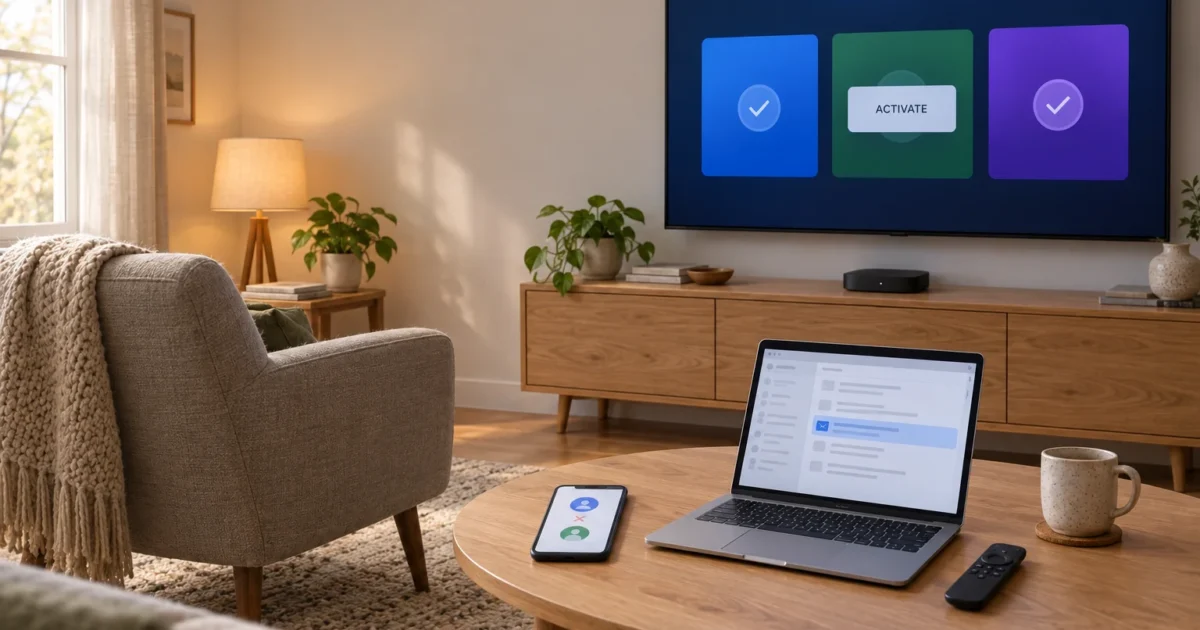
Start with the account that bills your bundle. Confirm the plan is active, follow its activation links for any unlinked service, and check that each app uses the intended account. For Disney-billed bundles, use the official Disney bundle activation guidance. Check account access in a browser before changing TV app settings or buying another subscription.
You paid for three streaming services in one tidy bundle. Now HBO Max wants you to subscribe again, Hulu shows the wrong account, and your TV has decided it doesn’t know who you are. If your Disney+ Hulu Max bundle is not working, you’re in good company. Start by separating account access from a problem with one device or app.
Below, you’ll learn how to find out who actually bills your bundle, how to activate a service that never got linked, and how to sort out mismatched emails, duplicate subscriptions, and TV sign-in headaches. Use the account checks before trying device-level repairs; the time needed depends on the cause.
What the Bundle Includes (and Where It Usually Breaks)
The bundle gives you Disney+, Hulu, and HBO Max (called “Max” for a while) for one monthly price. It offers With Ads and No Ads tiers. Check the seller’s current price and tax terms before changing plans. Check the official bundle page for current pricing.
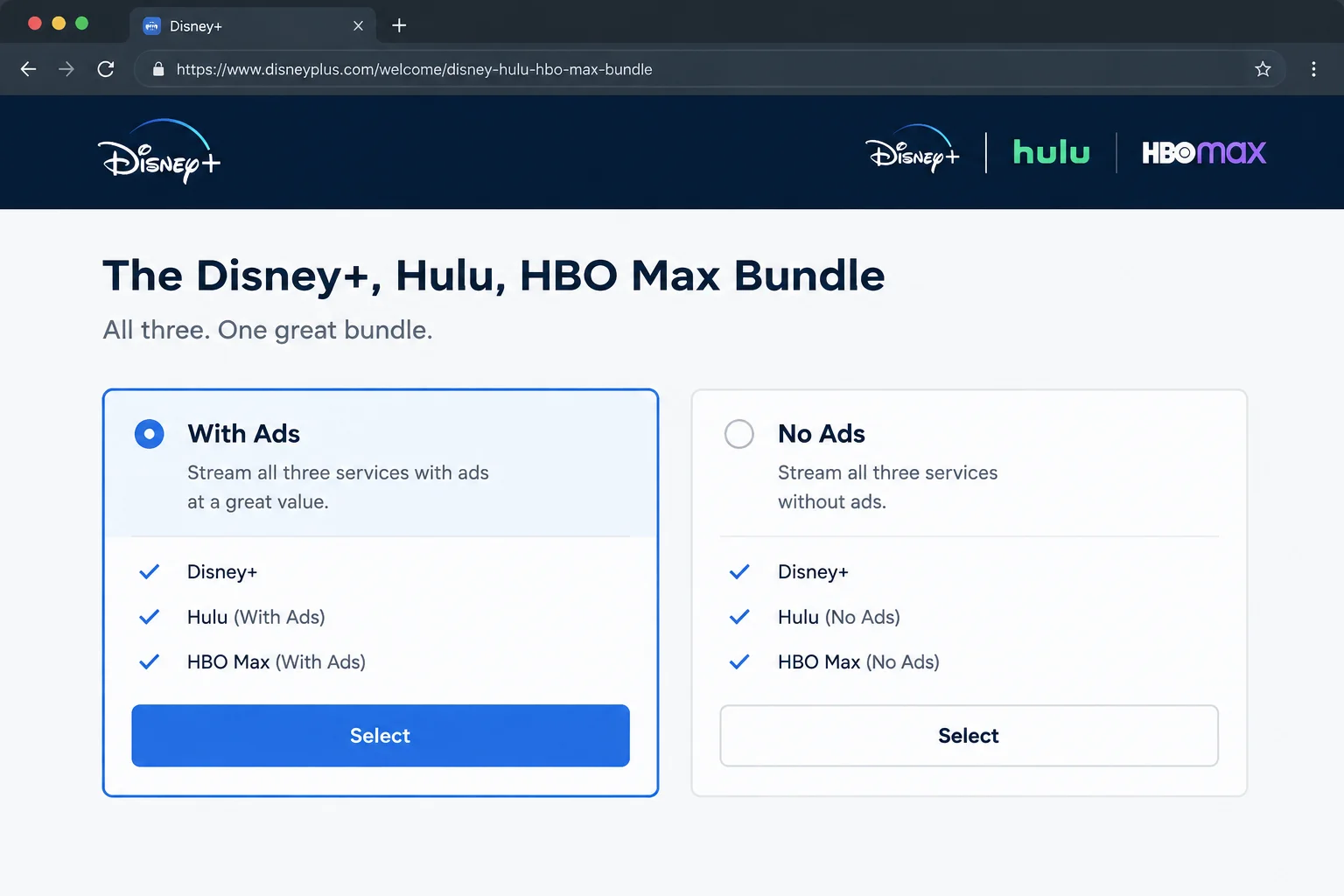
You have three apps. Disney+ and Hulu share a MyDisney login; HBO Max uses its own account. Start by checking activation, the account in the affected app, and the specific plan you bought:
- A service was never activated. Paying for the bundle and activating all three services are separate steps.
- You’re signed in with a different email on one of the apps.
- The bill you found belongs to a separate subscription. An old app-store plan is not proof that the three-service bundle is active.
Quick Fixes to Try First
Before you dig in, run through these basics:
- Find your confirmation email: Search your inbox for “bundle” or “HBO Max.” That email tells you where you bought the bundle and which email address it’s tied to.
- Check the account: Use the account activated for the affected service; the HBO Max email may differ from the purchase email.
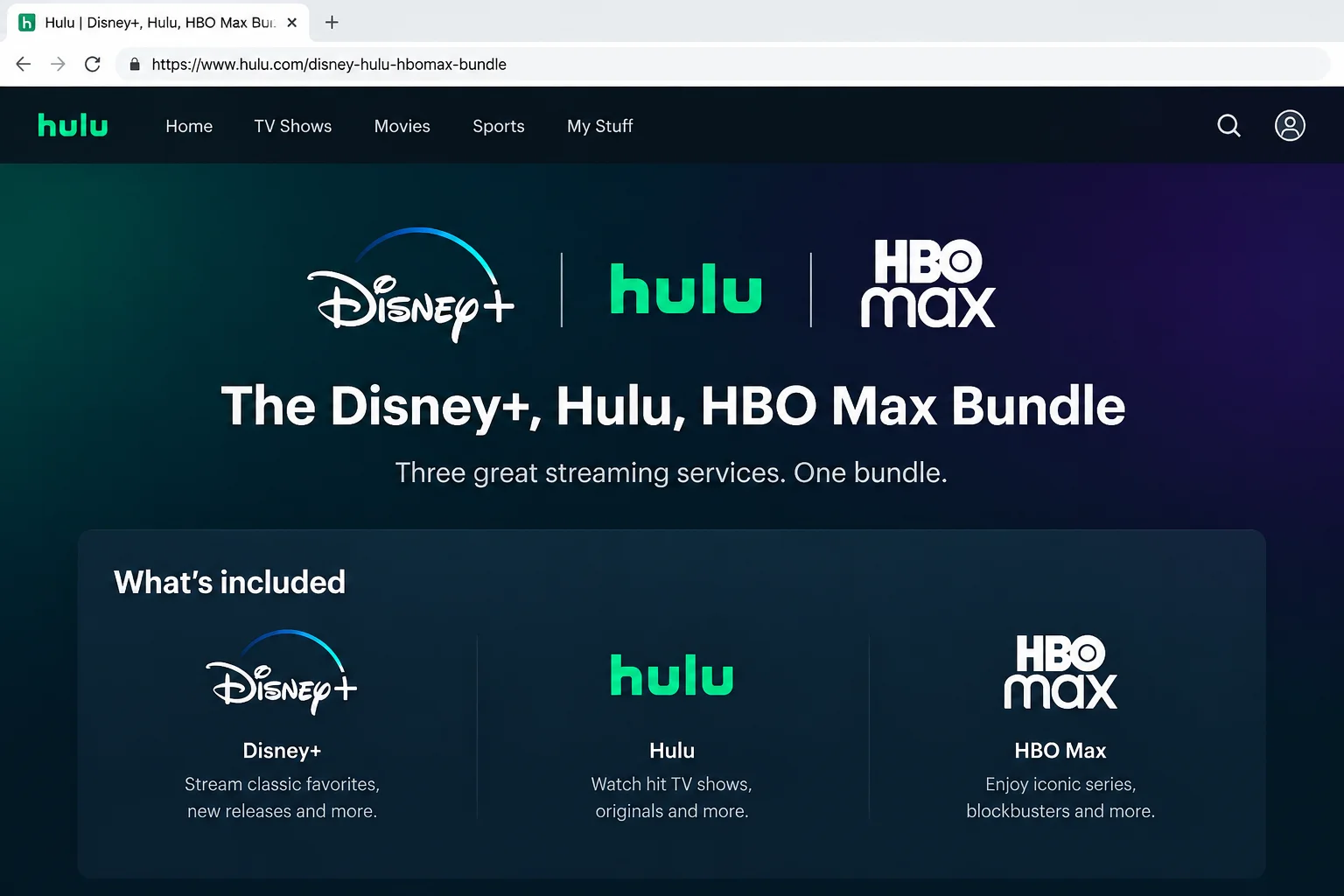
- Try a web browser: Go to DisneyPlus.com, Hulu.com, or HBOMax.com on your computer. If the same service works there with the same account, focus next on the TV app or device.
- Restart your streaming device: Unplug it, count to 30, and plug it back in (it works way more often than it should!).
Step 0: Find Out Who Bills Your Bundle
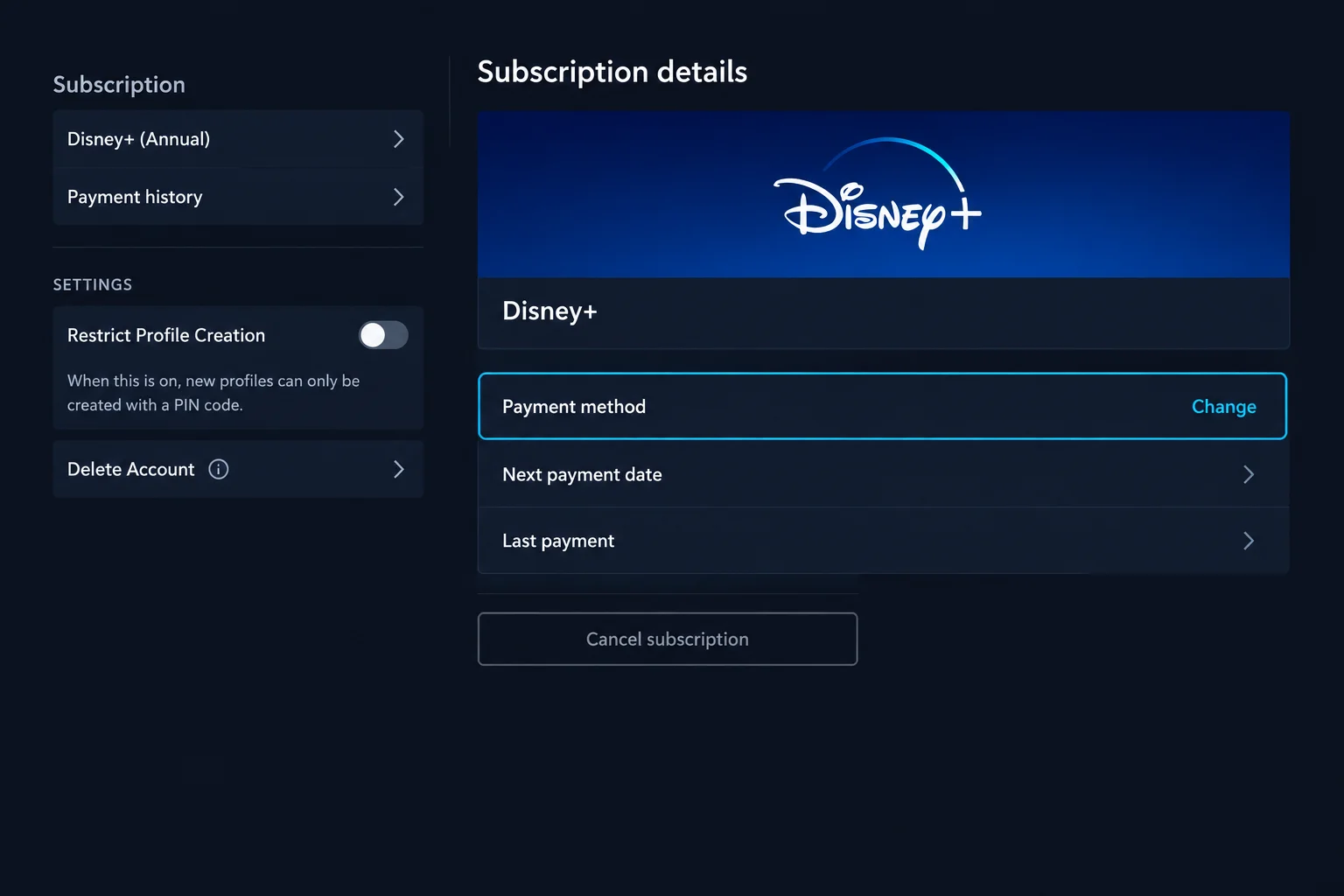
This is the single most useful step, so don’t skip it. The company that bills you is the only one that can change your plan, fix a payment, or cancel. Contacting the wrong support team is like calling your landlord about your car insurance.
- Read the bundle purchase receipt and note the seller and account email.
- Check Subscription at
disneyplus.com/account, Account athulu.com/account, or HBO Max Subscription. - If payment controls are absent, identify the biller from the receipt or bank statement and use its support page. HBO Max’s billing guide separates direct billing, app stores and other providers.
Check the specific three-service plan before changing anything. An Apple-, Amazon-, Google- or carrier-billed standalone service is not automatically this bundle. The bundle signup guide also documents purchase through the HBO Max app on Roku.
Common Disney+ Hulu Max Bundle Problems and Fixes
Problem: HBO Max (or Hulu or Disney+) Asks You to Subscribe
Symptoms:
- One app shows a “Subscribe” or “Choose a plan” screen
- The other two services work fine
- You never got a welcome email from the missing service
Why it happens: The service was never activated. Buying the bundle doesn’t automatically switch on all three services. Activation is its own step.
Fix:
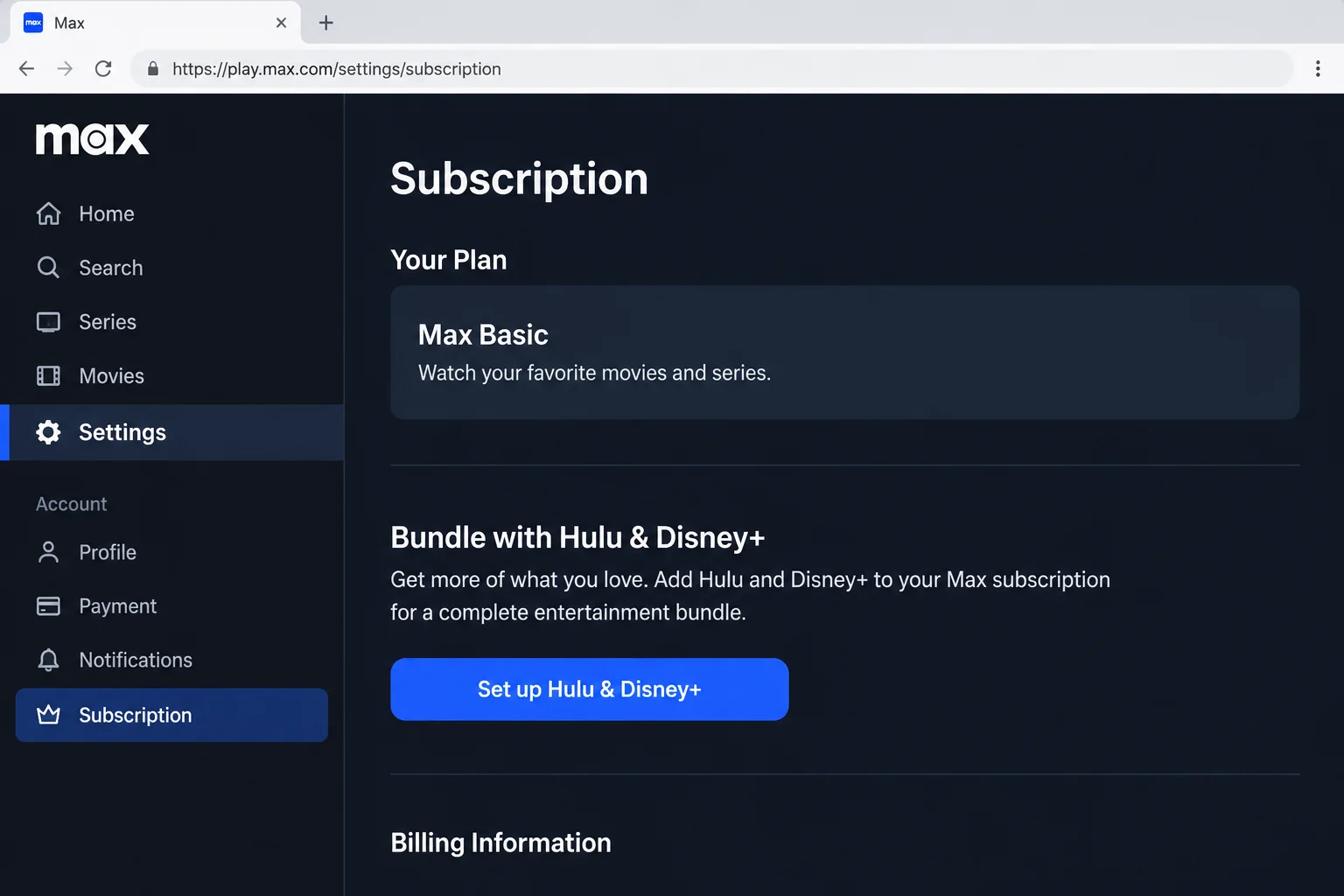
If you bought the bundle through HBO Max:
- Go to HBO Max in your browser and sign in.
- Switch to an Adult profile (kid profiles can’t see account settings).
- Select your profile icon, then Subscription.
- Click Set up Hulu & Disney+ and follow the prompts.
If you bought the bundle through Disney+ or Hulu:
- Sign in to your Disney+ or Hulu account page.
- Look for an HBO Max activation link or logo.
- Enter the email you want to use for HBO Max. You can use an existing HBO Max account or create a new one.
- Enter the newest emailed code. If it fails, select Get New Code and use the latest email. New subscribers then create a password. If the activation link is missing, ask the bundle seller to check eligibility before buying again.
The official HBO Max help article walks through the latest version of this flow.
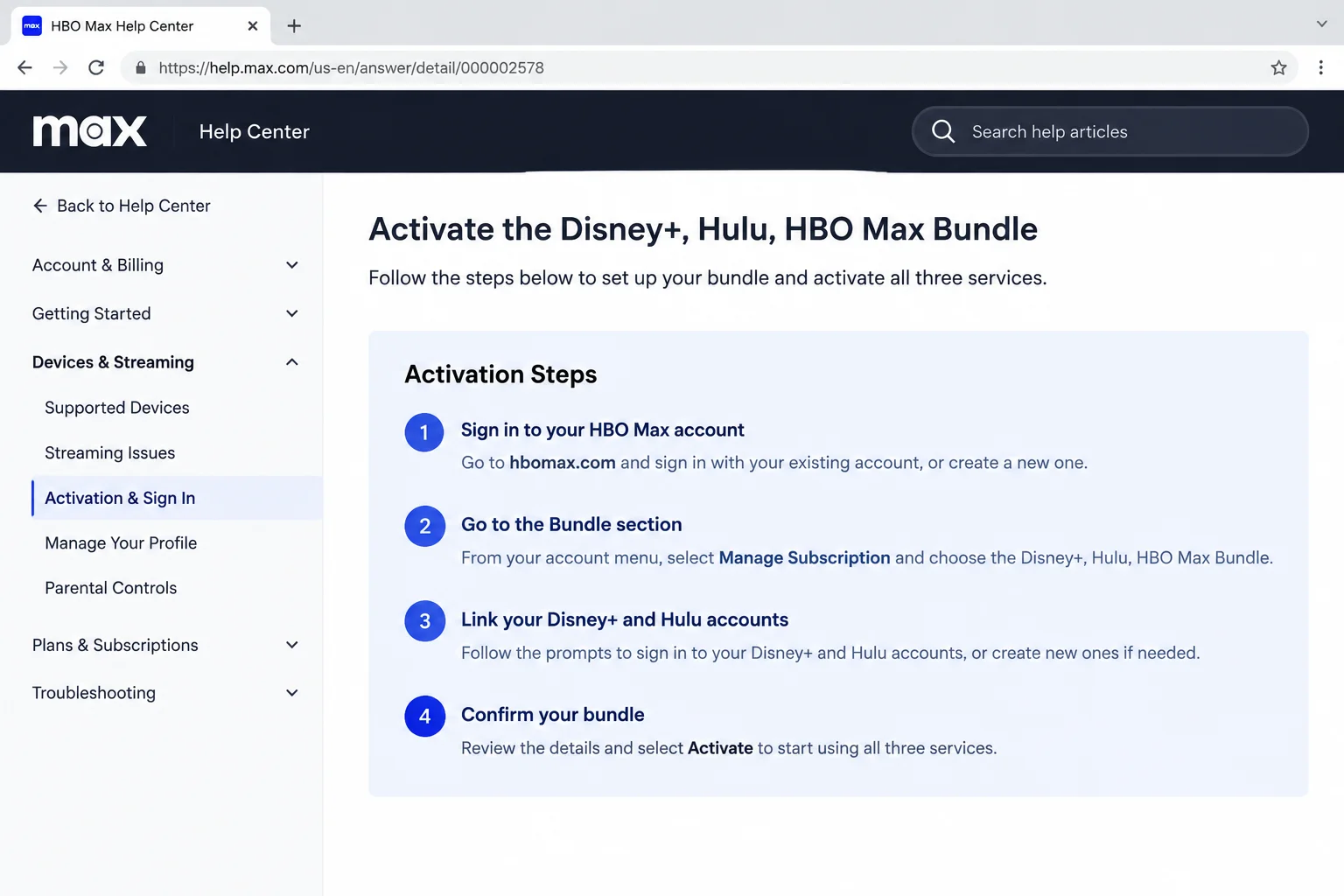
Verify it worked: Sign in to the newly activated service. You should land on the profile picker, not a payment screen.
Problem: Signed In With the Wrong Email
Symptoms:
- One app shows different account details or no subscription
- Your profiles or watch history seem to have vanished
- Support says they “can’t find a bundle” on your account
Why it happens: Disney+ and Hulu use your MyDisney login, while HBO Max uses its own account. It’s easy to use your work email on one and your personal email on another (we’ve all done it).
Fix:
- Open each service’s account page and write down the email shown.
- Match the Disney+ and Hulu MyDisney email. For HBO Max, use the email chosen during its activation; it may differ from the bundle purchase email.
- On any app showing the wrong email, sign out.
- Sign back in with that service’s activated account.
Verify it worked: Each service plays with the activated account, without asking you to buy another plan. Confirm the bundle in the billing account; labels can differ between apps.
Problem: You’re Being Charged Twice
Symptoms:
- HBO Max or Hulu asks you to pay separately
- Your bank statement shows a bundle charge and a standalone charge
Why it happens: You had a standalone subscription before the bundle, and it never ended. Or someone in the house signed up again by accident.
Fix:
- Compare the separate charge’s receipt with the bundle receipt.
- Check whether the old plan is active, replaced or paused. HBO Max says an existing direct subscription may be paused after joining through Disney+ or Hulu; check its bundle guidance.
- Ask the biller to confirm a genuine duplicate before canceling. Read which plan and access the cancellation screen affects. Do not cancel the bundle as a test.
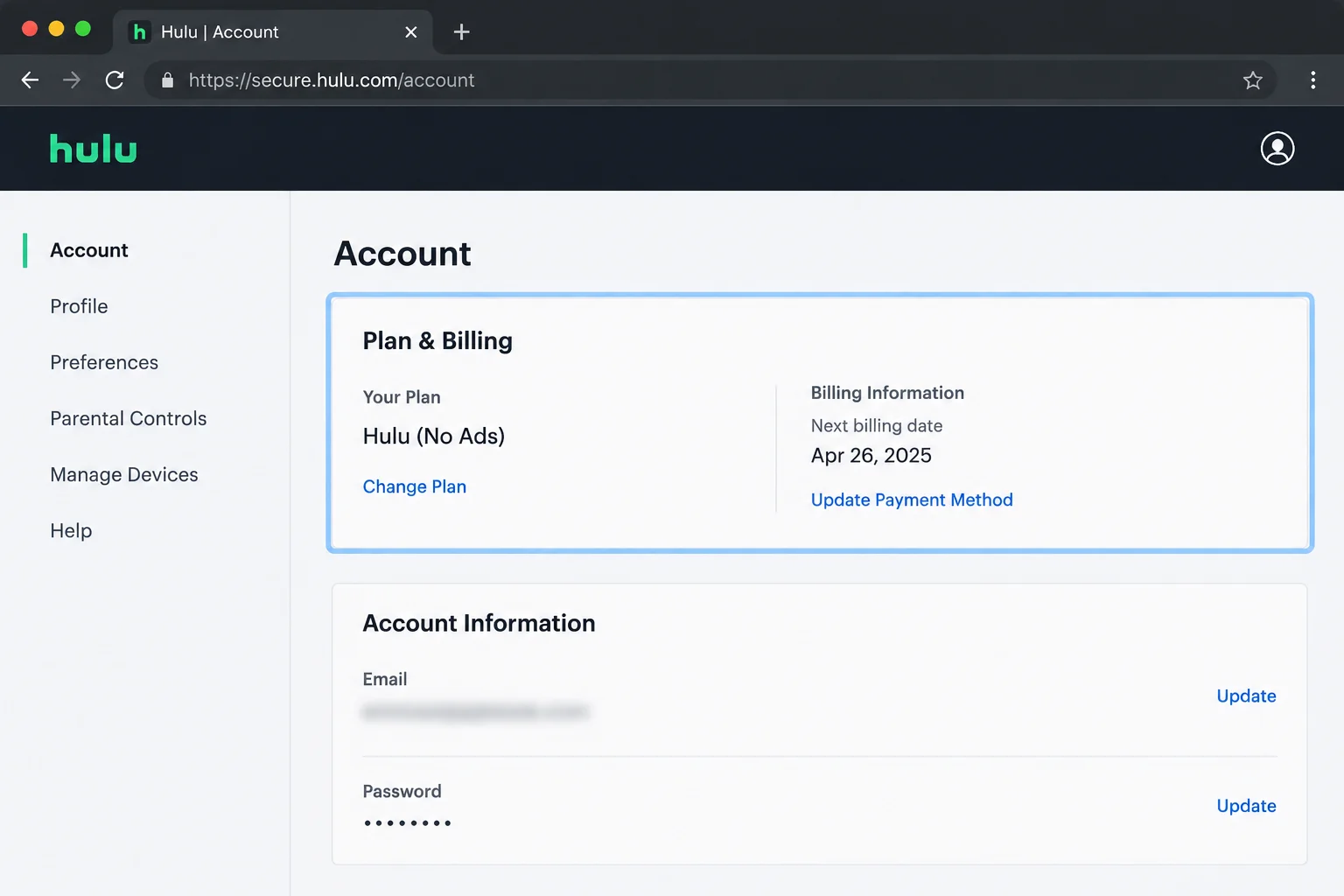
Tip: If the duplicate is billed through Apple, Roku, or Amazon, you have to cancel it there, not in the Hulu or HBO Max app.
Problem: Ads on the No Ads Plan (or Missing Premium Features)
Symptoms:
- Ads play even though you pay for No Ads
- Features you expected, like 4K on some titles, aren’t showing up
Why it happens: The account may really be on the With Ads tier, or the wrong tier got activated during signup. If the billing account and the app disagree, give support both plan names.
Fix:
- Check the exact plan name on each service’s own account page.
- Compare the bundle tier on the billing account with the service entitlement. Ask the biller to check a mismatch before changing plans (see Step 0).
- Wait a few minutes, then sign out and back in on your TV.
Tip: HBO Max can still show some ads during certain live programming, even on No Ads. That’s normal and not a billing problem.
Problem: Hulu Content Isn’t Showing Up in the Disney+ App
Symptoms:
- No Hulu tile or Hulu shows inside Disney+
- Some Hulu titles only open in the Hulu app
Why it happens: Your Hulu access hasn’t been linked inside Disney+ yet. Also, not every Hulu title is available inside the Disney+ app.
Fix:
- Open Disney+ and sign in with the same MyDisney email you use for Hulu. Check activation, billing holds and profile content ratings using Disney’s Hulu access guidance.
- Look for the Hulu tile or a prompt to link your Hulu access, and follow it.
- If a specific show still won’t appear, open the standalone Hulu app. It’s still the most complete way to watch everything on Hulu.
Verify it worked: The Hulu tile shows up on your Disney+ home screen.
Problem: Your TV or Streaming Device Won’t Sign In
Symptoms:
- A Roku, Fire TV, Google TV, Apple TV, or smart TV loops back to the sign-in screen
- The activation code on your TV expires or gets rejected
Why it happens: An expired sign-in session, an outdated app, or a device signed in to a different account.
Fix:
- Sign out of the affected TV app, then reopen it. Check that the device and app are supported before reinstalling; account-wide sign-out is not a required first step.
- On your TV, update the app. If that doesn’t help, uninstall and reinstall it.
- Open the app and choose to sign in. If it shows a code, visit the web address on screen from your computer.
- Use the displayed code and the activated account for that service. If the screen says the code expired, request a new one; expiration varies by service.
Verify it worked: Your profiles appear on the TV with no “Subscribe” prompt.
Tip: If Wi-Fi is weak where your TV sits, sign-ins can time out. A short Cat6 Ethernet cable or a mesh Wi-Fi system often fixes streaming hiccups too.
Problem: Disney+ or HBO Max Support Says They Can’t Help
Why it happens: The charge may belong to a separately billed subscription. Account and device support are different from control of that charge.
Fix: Identify the specific charge first, using HBO Max’s biller lookup. For a separately billed plan, these are common management entry points:
- Roku: Sign in at
my.roku.comand open Manage your subscriptions. - Apple: Open your Apple account’s Subscriptions list (see the macOS steps below).
- Amazon: Go to Your Memberships & Subscriptions on Amazon.
- Google Play: Open the Play Store, tap your profile, then Payments & subscriptions.
- Phone carrier: Sign in to your carrier’s account portal or app.
Error Messages Quick Reference
| Message or Symptom | Likely Cause | Quick Fix |
|---|---|---|
| “Subscribe” or “Choose a plan” | Service never activated | Run the bundle activation flow |
| “We couldn’t find your subscription” | Wrong email on that app | Sign in with your bundle email |
| Code expired or invalid on TV | Waited too long | Request a new code and enter it quickly |
| Disney+ Error Code 83 | Possible device compatibility or connection issue | Check Disney+ device support and your connection, then restart the affected app/device |
| Too many devices streaming | That service’s concurrent-stream limit may be reached | Stop another active stream and check that service’s plan limit |
| “Something went wrong” | Temporary glitch or stale login | Sign out, clear browser data, try again |
Platform-Specific Fixes
On the Web
Most account fixes happen in the browser, so bookmark the three account pages: disneyplus.com/account, secure.hulu.com/account, and HBO Max’s Subscription page. If sign-in keeps failing, clear the site’s cookies or try a private window.
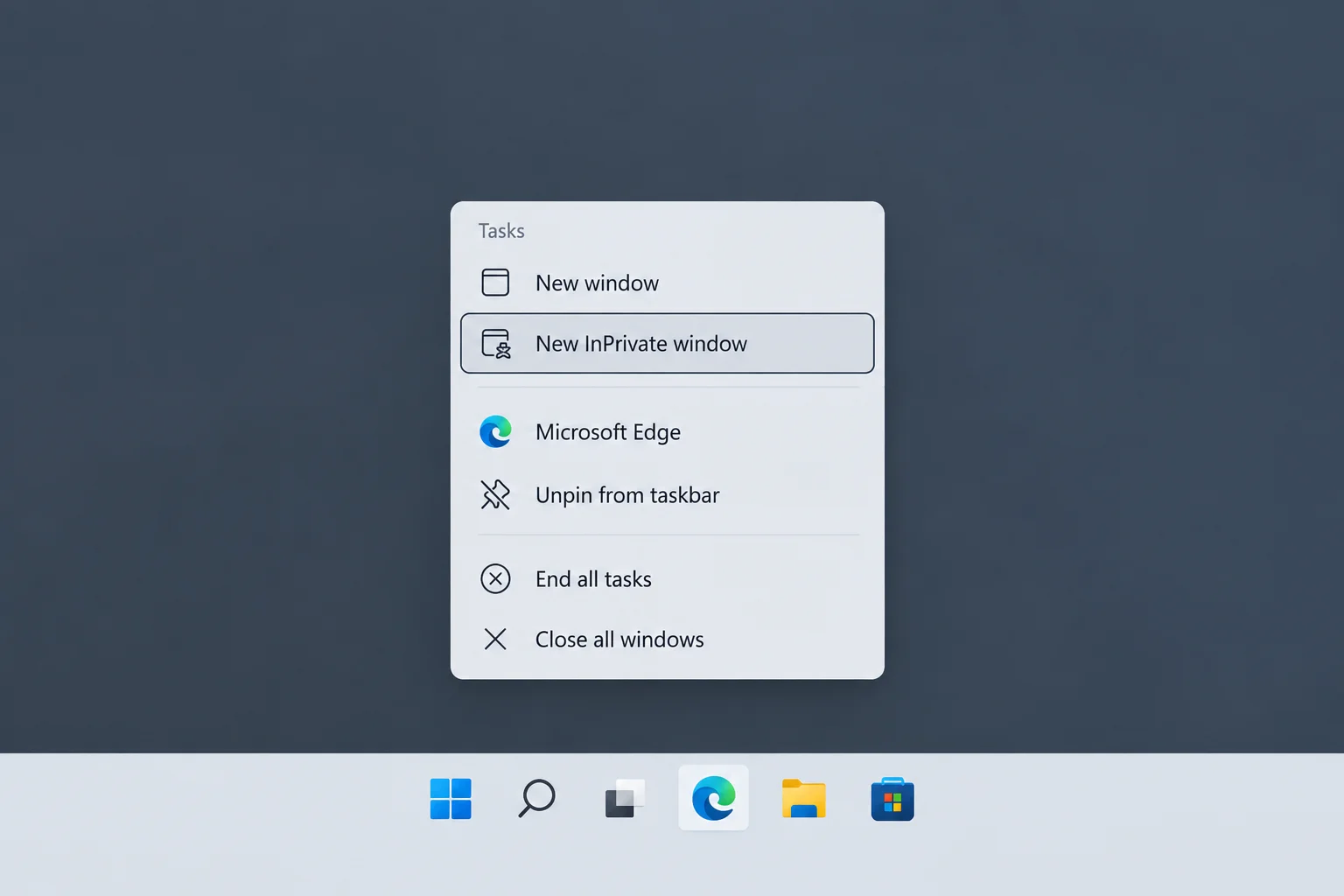
On Windows
- Right-click the Microsoft Edge icon on your taskbar and choose New InPrivate window (or press
Ctrl + Shift + N). - Sign in to the account page that’s giving you trouble.
- If it works in InPrivate, clear your normal browser’s cookies for that site.
On macOS
For a separate subscription billed by Apple, use the current App Store subscription instructions. Open the App Store, select your name, then the subscription controls on your account page. Check the exact plan before canceling; an Apple receipt does not establish bundle eligibility.
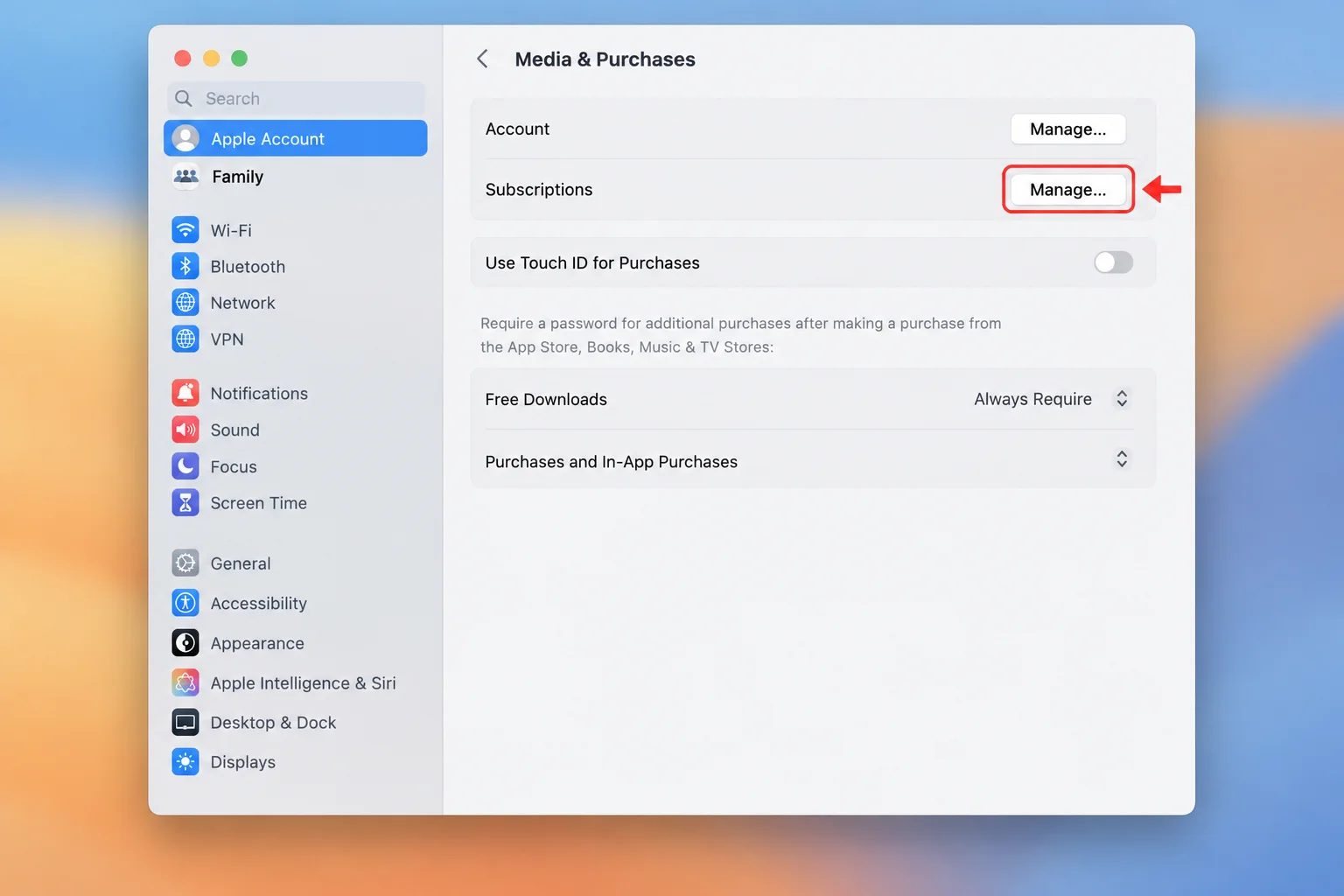
For sign-in problems, open a private window in Safari with Cmd + Shift + N.
Settings to Check
- Billing source: Each account’s Subscription page shows who charges you. This decides where you make changes.
- Account email: Disney+ and Hulu share MyDisney; HBO Max uses the account selected during activation.
- Plan tier: Confirm the bundle tier with its biller, then check access in each app; entitlement labels can differ.
- Hulu in Disney+: Found on the Disney+ home screen as a Hulu tile once linked.
Which Company to Contact
- Billing, charges, or plan changes: Whoever bills you (Disney+, HBO Max, or the third party).
- HBO Max activation or HBO Max sign-in: HBO Max Help.
- Disney+ or Hulu login (MyDisney): Disney+ or Hulu help centers.
- App crashes on one TV: The app’s help center first, then your device maker.
Before you contact anyone, have your bundle email, confirmation email, and billing company ready. It’ll save you a lot of hold music.
Prevention Tips
- Use One Email Everywhere: Pick one address for all three services and stick with it.
- Save Your Confirmation Email: Star it or move it to a folder. It’s your receipt and your map.
- Activate All Three Right Away: Don’t wait until movie night to find out HBO Max never got linked.
- Audit Subscriptions Twice a Year: Check your bank statement for sneaky duplicate charges.
Frequently Asked Questions
Can I use the bundle with an existing HBO Max account?
Yes. During activation, enter the email for your existing HBO Max account. Check the old plan’s billing status before taking any cancellation action.
Can I switch from the With Ads plan to the No Ads plan?
Yes, through whoever bills you. If Disney+ or HBO Max bills you directly, change it on the Subscription page. For a partner-billed plan, confirm that the partner supports this specific bundle and the desired change first.
What happens to my profiles and watch history?
Use your existing service accounts when activating. Do not assume profile or watch-history transfers between services; ask support before creating a replacement account.
Why does one app say “HBO Max” and another says “Max”?
This guide uses the current name, HBO Max. Older messages may say Max. Follow the current HBO Max Help Center rather than treating the older name as a different subscription.
Why do I need a one-time code?
The code proves you own the email you’re linking. It stops someone from attaching your bundle to their account (or vice versa).
How do I know if Roku, Apple, Amazon, or a carrier bills my bundle?
Check the Subscription section of your Disney+ or HBO Max account. It usually names the billing partner. Your bank statement is a good backup clue.
Wrapping Up
When your bundle acts up, start with the boring question: who bills you? Answer that, activate any missing service, and match your emails. Then test the affected service in a browser and on the device. If billing is correct but activation still fails, give the seller the account details and exact error.
| Step | Action | Applies To |
|---|---|---|
| 1 | Find who bills your bundle | All subscribers |
| 2 | Activate any missing service | New bundle subscribers |
| 3 | Check the activated account for each service | Anyone seeing the wrong account |
| 4 | Confirm a duplicate with its biller before canceling | Anyone charged twice |
| 5 | Confirm your plan tier | Ads on No Ads plans |
| 6 | Sign out of the affected app and retry | TV and streaming devices |
Source review: October 2, 2026 | U.S. Disney+, Hulu, HBO Max Bundle; steps depend on seller and device. This guide does not report firsthand account testing.