
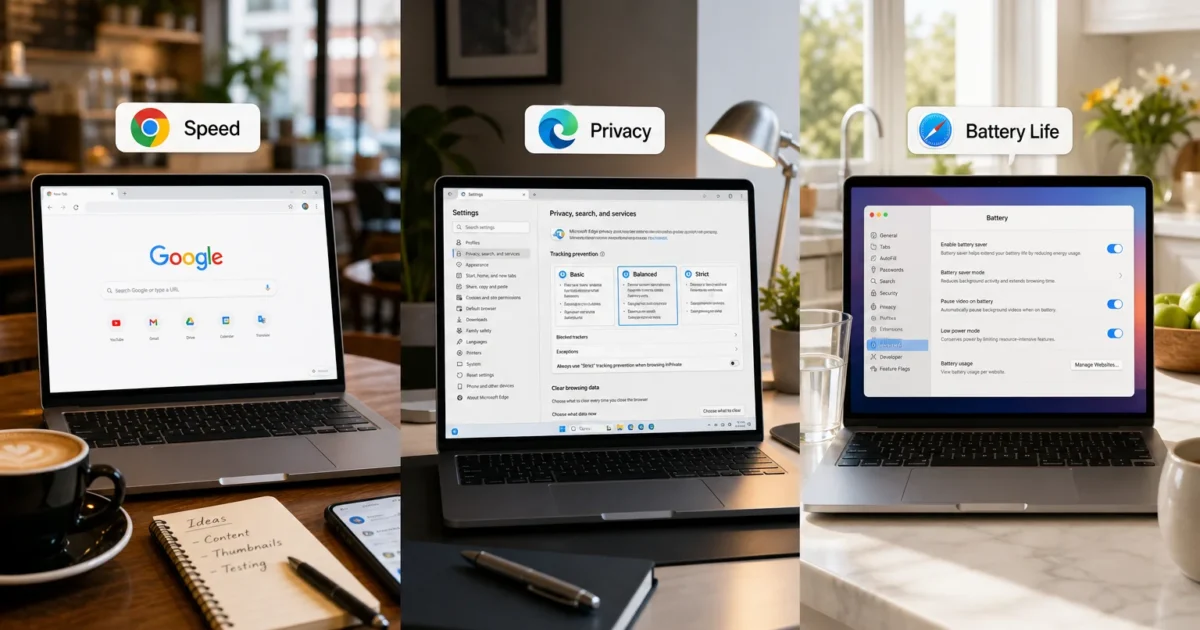
What’s more annoying than a browser that drains your battery, hogs memory, or freezes at checkout? Chrome, Edge, and Safari can all handle daily browsing. Still, each has its own habits (and a few quirks that may get on your nerves).
We’ll compare speed, privacy, memory use, battery life, and device support. Firefox and Brave join the comparison, too. Quick verdict: Choose Chrome for easy use across devices, Edge for a Windows laptop, and Safari for MacBook battery life. Pick Firefox for a non-Chromium browser or Brave for strong tracker blocking by default.
Overview
Chrome and Edge share the Chromium engine, which turns website code into the pages you see. Think of them as two cars built on the same frame. They usually load sites in much the same way, though their controls and extras feel different.
Safari uses Apple’s WebKit engine, which works closely with macOS and Apple hardware. Firefox runs on its own Gecko engine. Brave uses Chromium but comes with tougher privacy settings.
| Browser | Engine | Best For | Platforms | Price |
|---|---|---|---|---|
| Google Chrome | Chromium | Cross-platform users and Google services | Windows, macOS, Linux, ChromeOS, Android, iOS | Free |
| Microsoft Edge | Chromium | Windows laptops and heavy tab users | Windows, macOS, Linux, Android, iOS | Free |
| Apple Safari | WebKit | MacBook battery life and Apple devices | macOS, iOS, iPadOS | Free with an Apple device |
| Mozilla Firefox | Gecko | A non-Chromium browser with good privacy tools | Windows, macOS, Linux, Android, iOS | Free |
| Brave | Chromium | Strong default blocking with little setup | Windows, macOS, Linux, Android, iOS | Free |
Safari is available only for macOS and iOS/iPadOS. Skip old Safari-for-Windows downloads you may find tucked away online. They’re unsupported and unsafe for regular browsing.
Feature Comparison
At a Glance
| Feature | Chrome | Edge | Safari | Firefox | Brave |
|---|---|---|---|---|---|
| Website compatibility | Excellent | Excellent | Very good | Very good | Excellent |
| Cross-platform syncing | Excellent | Very good | Apple devices only | Very good | Good |
| Built-in tracker protection | Moderate; review settings | Balanced by default | Strong cross-site protection | Strong | Very strong |
| Tab-saving tools | Memory Saver | Sleeping tabs and Efficiency mode | Automatic tab management | Tab unloading | Memory Saver |
| Laptop battery strength | Workload-dependent | Strong on Windows | Excellent on MacBooks | Good | Good |
| Extension selection | Excellent | Excellent | Smaller | Very good | Excellent |
| Best ecosystem | Microsoft/Windows | Apple | Platform-neutral | Privacy-focused |
Chrome vs Edge vs Safari 2026: What’s Under the Hood?
Chrome and Edge are close cousins. Both use Chromium, so pages that work in Chrome usually work in Edge. Nearly all Chrome extensions work there, too.
They can still feel quite different. Microsoft and Google add their own tab controls, background services, sync tools, privacy options, and extras. Edge packs in more Windows tools, while Chrome keeps Google services close at hand.
Safari uses WebKit. Apple can tune it for macOS, iOS, and Apple silicon, which helps save power. The tradeoff is occasional trouble with sites built mainly for Chromium. Nobody enjoys switching browsers just to finish a payment. Keeping a backup takes the sting out of it.
Firefox keeps a major non-Chromium engine in the browser market. Brave uses Chromium, but removes or replaces several Google-connected parts. It also blocks more ad technology by default.
Winner: Chrome and Edge. They’re the safest choices for broad website support. Safari gets the nod for working closely with Apple hardware.
Which Browser Feels Fastest?
There’s no honest winner for every computer and website. Browser speed changes with your hardware, extensions, open tabs, video quality, and background tasks. Loading a small news page and running a huge design app are very different jobs. It’s like riding a bike versus hauling a sofa upstairs.
Chrome and Edge often feel similar because they share Chromium. Edge may run more smoothly on a Windows laptop when sleeping tabs and Efficiency mode start working. Safari usually feels quick on modern Macs, especially those with Apple silicon.
Firefox performs well during normal browsing, though a few Chromium-first sites may act differently. Brave can also feel quick because it stops many ads and trackers before they load.
| Everyday Situation | Likely Best Choice |
|---|---|
| Broad website compatibility | Chrome or Edge |
| Windows laptop browsing | Edge |
| Mac browsing and video | Safari |
| Ad-heavy websites | Brave |
| Avoiding Chromium | Firefox |
| Same browser across many operating systems | Chrome |
Winner: Tie. Chrome and Edge are strong general picks. Safari often feels most at home on Apple hardware. Brave also deserves credit on cluttered, ad-heavy pages.
Memory Use and Lots of Tabs
Does Safari always use less memory than Chrome or Edge? Nope. Memory use changes with your open pages, installed extensions, and each browser’s background tasks.
Chrome can chew through plenty of memory when you have lots of tabs or extensions. Memory Saver turns off tabs you haven’t used recently. It reloads them when you return. That frees resources, but you may notice a short delay.
Edge uses sleeping tabs and Efficiency mode to reduce activity from background pages. These tools help when your tab bar resembles a row of tiny postage stamps. You know the kind: 40 tabs open, and somehow every one feels “important.”
Safari manages idle tabs on its own and benefits from its close macOS ties. Still, a demanding website can use lots of memory in any browser.
Firefox can unload idle tabs when resources run low. Brave uses Chromium-style memory-saving tools. Its ad and tracker blocking may also reduce how much content loads.
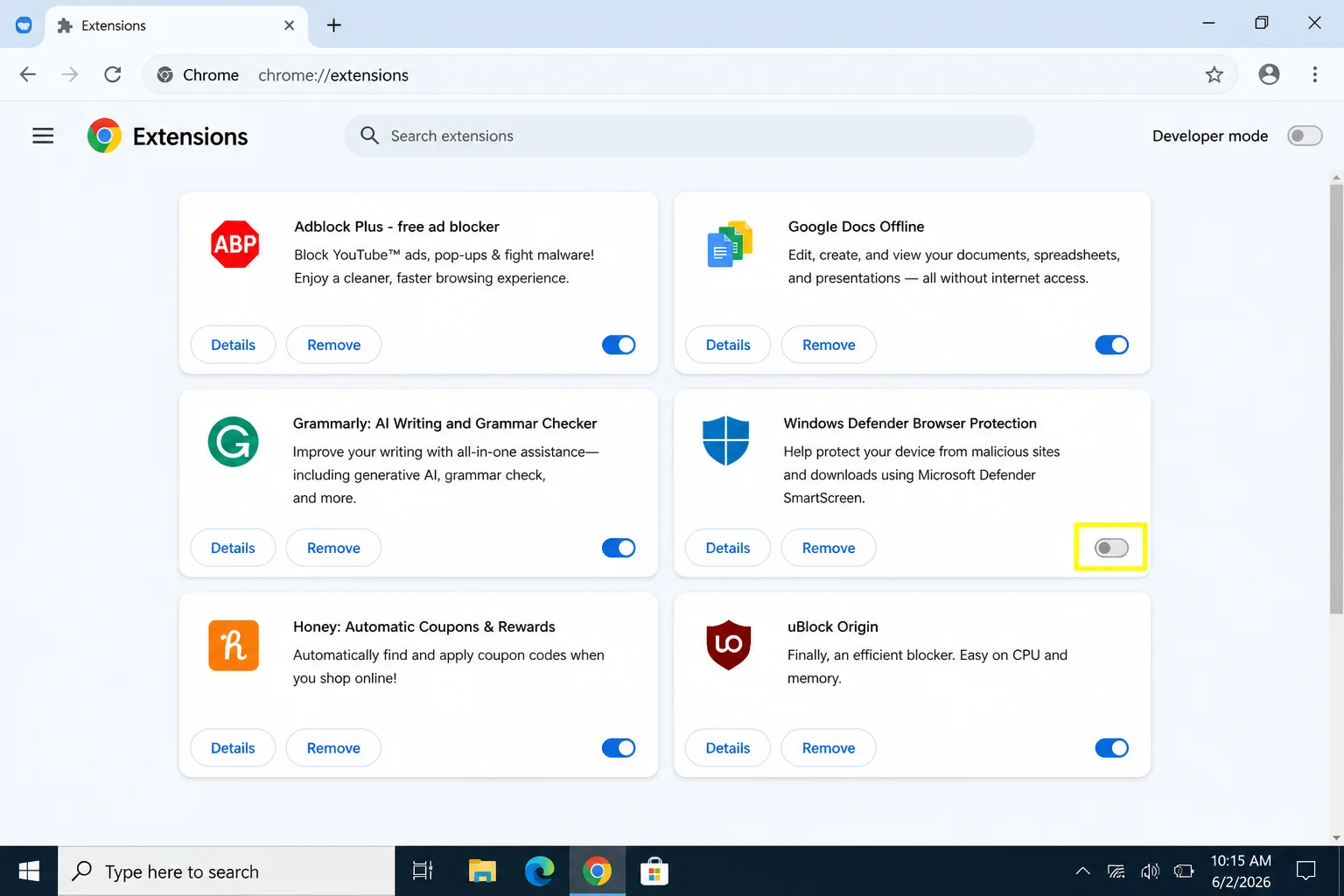
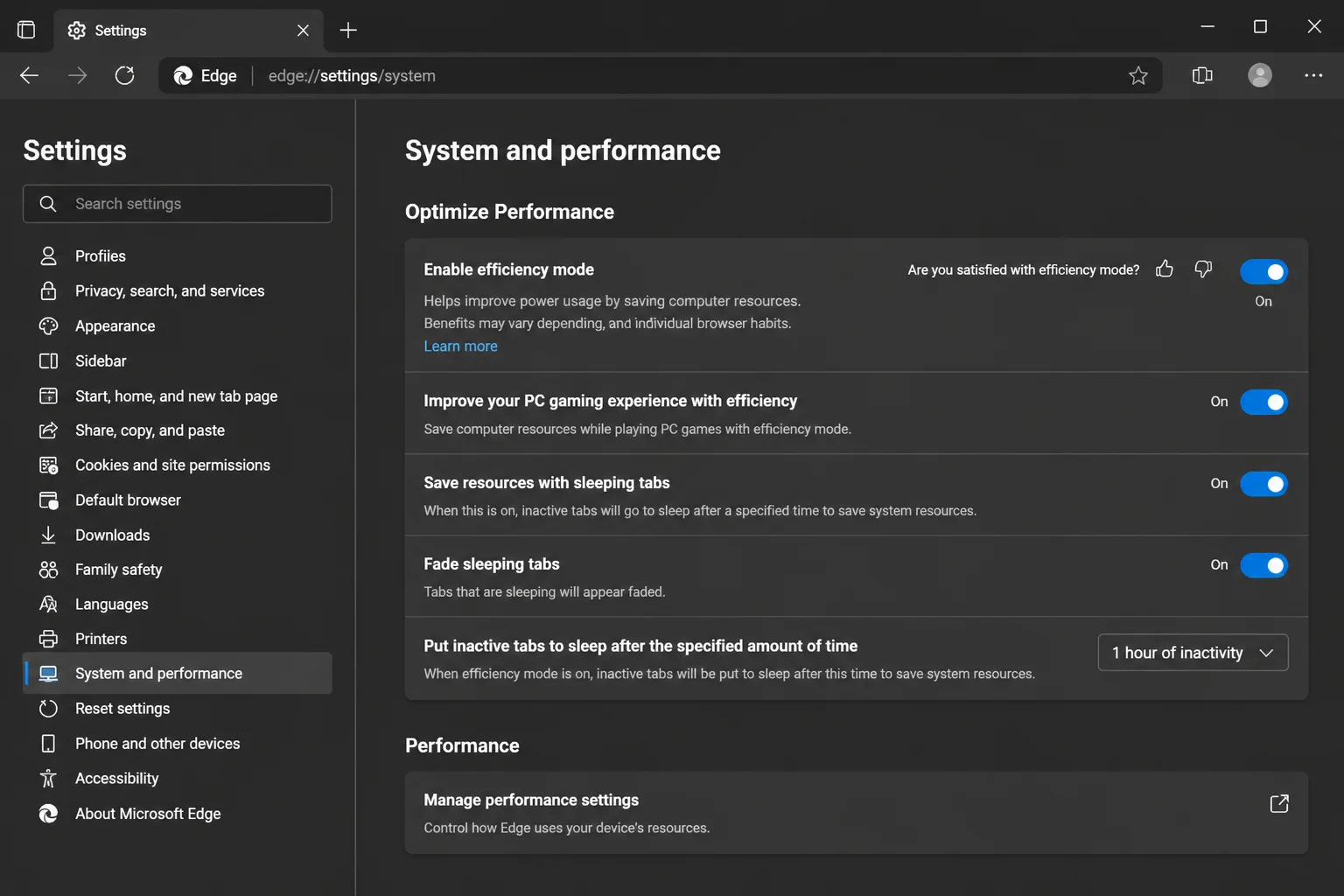
Winner: Edge on Windows. Sleeping tabs and Efficiency mode make a crowded browsing session easier to manage. Safari remains a strong choice on Macs.
Battery Life
Safari is the best place to start if MacBook battery life matters. Apple controls the browser, operating system, and hardware. Those parts can work closely together. You’ll notice the benefit most during light browsing and video playback away from a charger.
Edge is usually the sensible battery-saving choice on a Windows laptop. Efficiency mode can cut resource use, and the browser reacts to Windows power settings. It’s like asking the browser to ease off the gas when the battery gets low.
Chrome’s power use depends heavily on what you’re doing. Lots of extensions, active tabs, videos, and background pages can drain the battery faster. Chrome has energy-saving tools, but results vary between laptops.
Firefox and Brave can both offer decent battery life. Neither works as closely with Windows as Edge or macOS as Safari. Also, treat battery claims from browser makers as a guide, not a promise carved in stone. Their tests probably don’t include your 27 forgotten shopping tabs.
Winner: Safari on Mac; Edge on Windows. Your operating system matters more than browser brand loyalty here.
Privacy and Tracking Protection
Tracker blocking limits companies that follow your activity between websites. Private browsing has a different job. It mainly stops the browser from saving normal history, cookies, and form data after you close the private session.
Private mode doesn’t hide you from websites, your employer, your internet provider, or every advertiser. That little incognito icon carries less magic than its outfit suggests.
Google Chrome
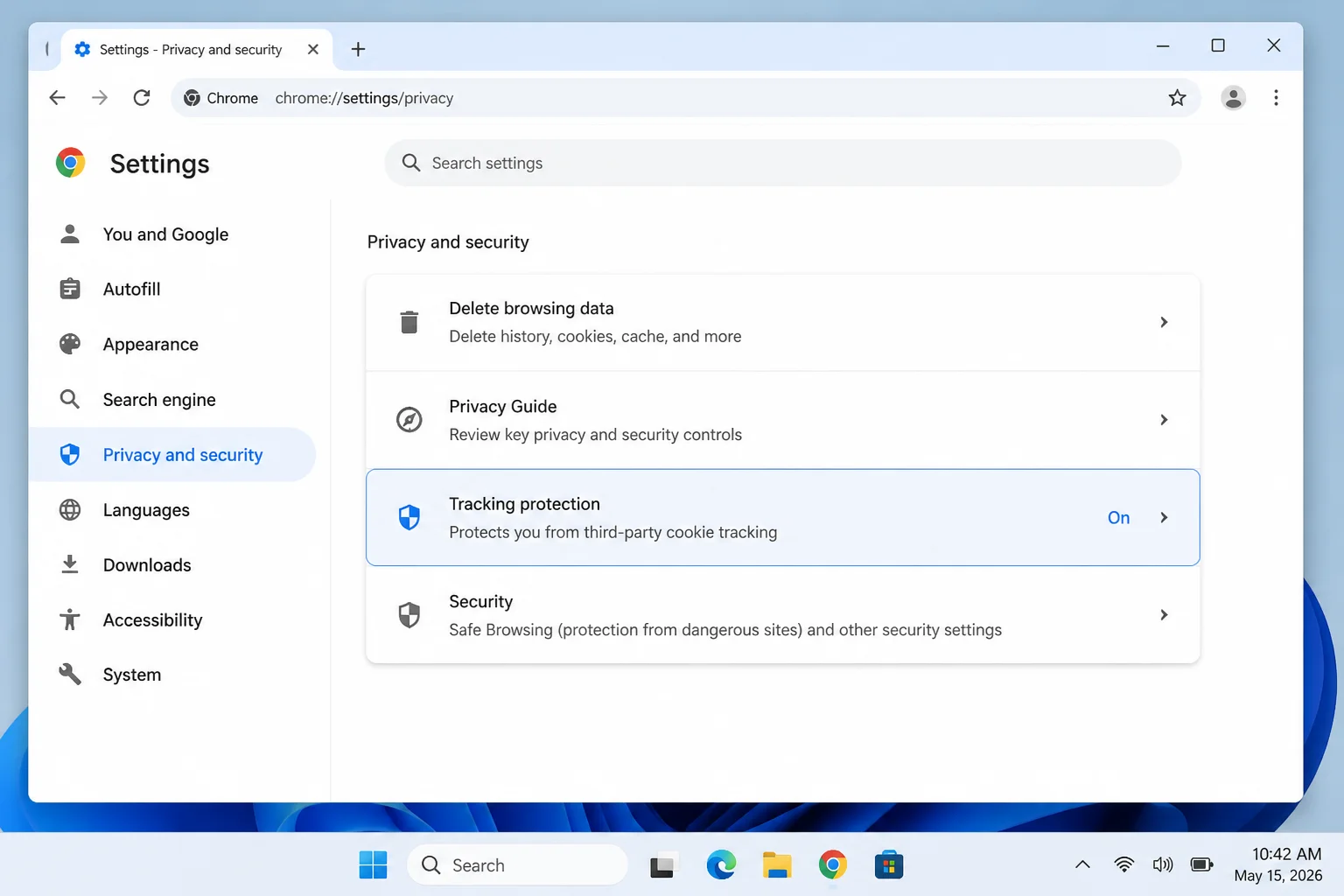
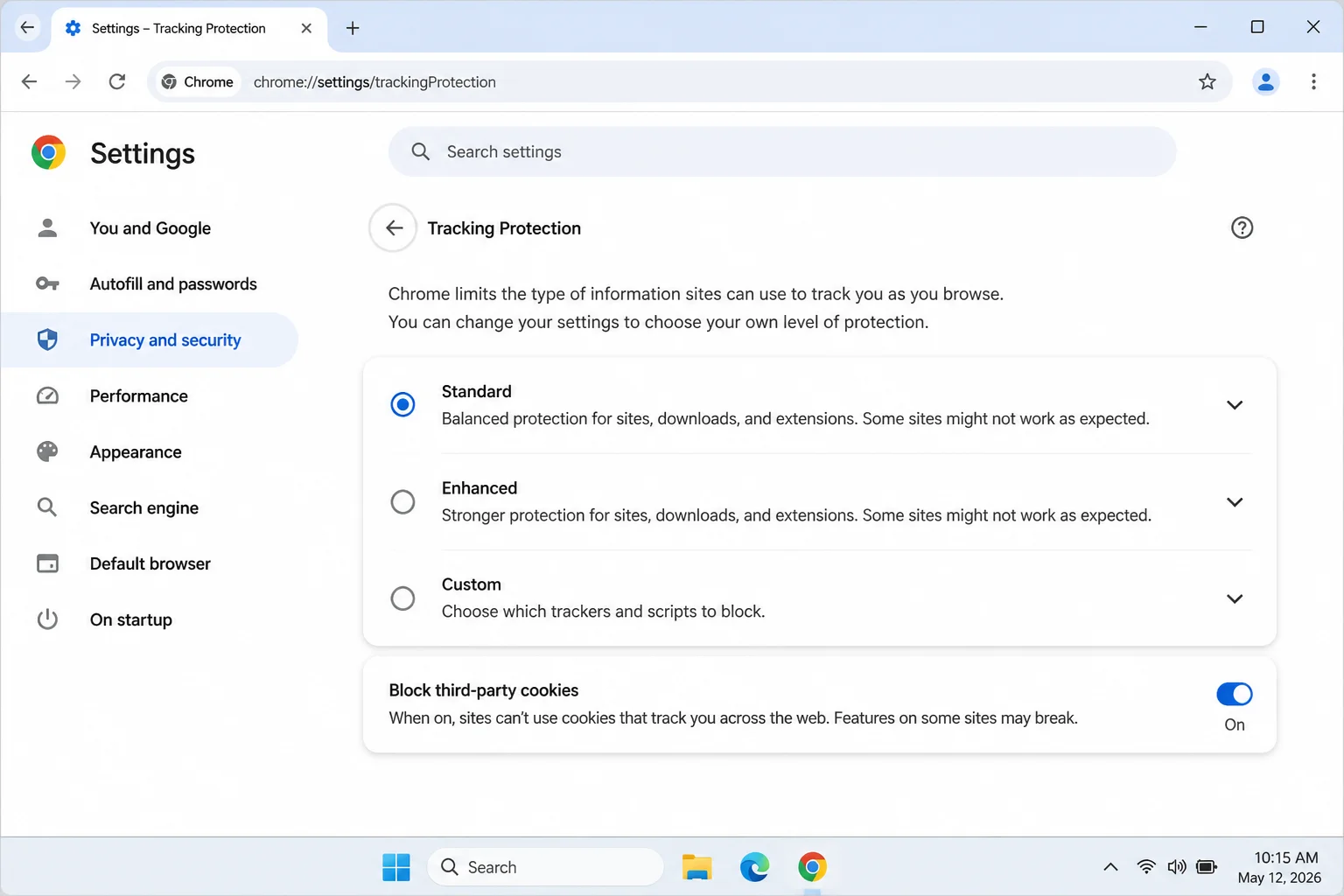
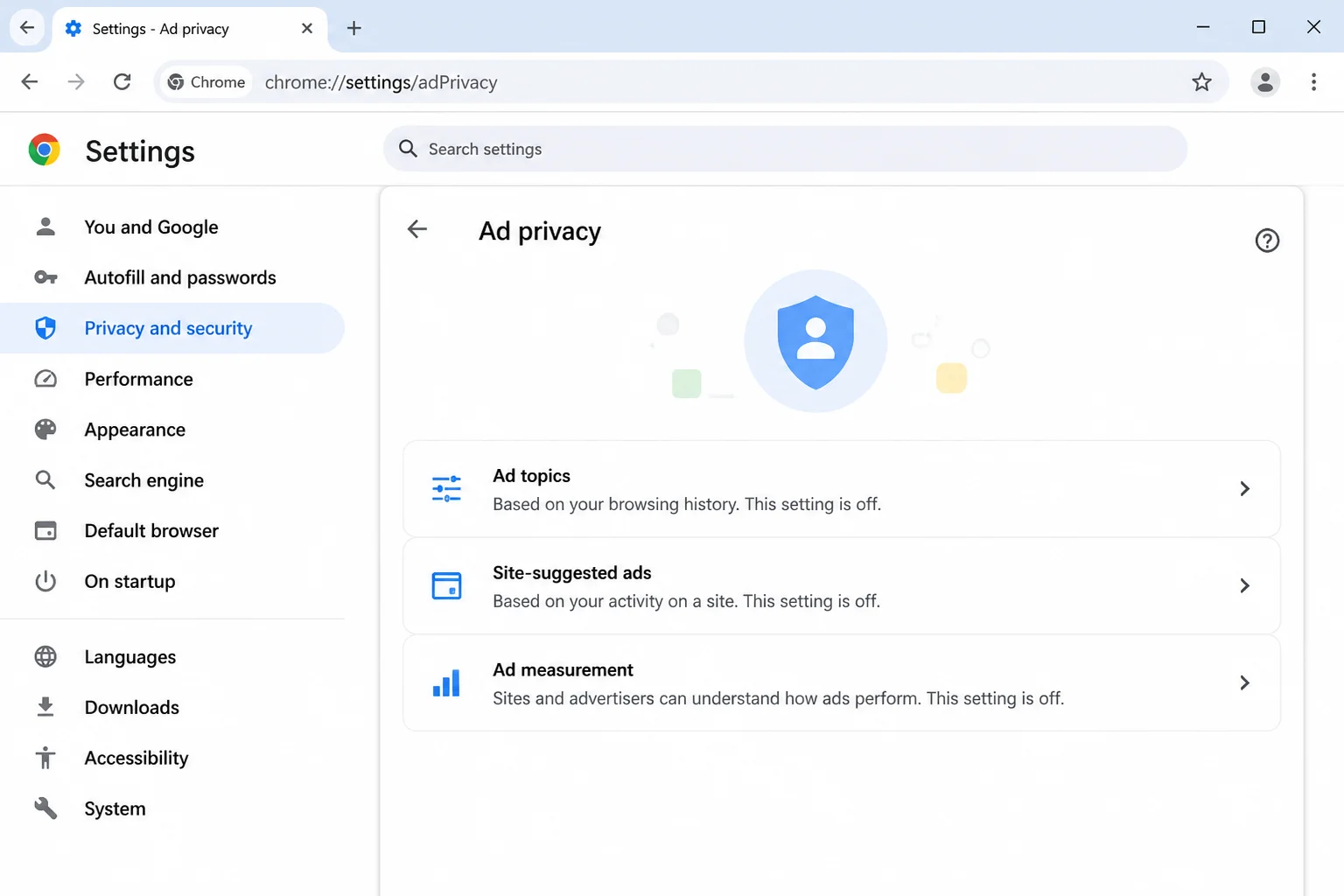
Chrome has controls for third-party cookies, site permissions, Google account sync, browsing-data deletion, and ad privacy. Its Ad privacy area separates Ad topics, Site-suggested ads, and Ad measurement.
Check what Chrome will sync before turning on every option. Syncing history and open tabs is handy. Still, you may not want all that data tied to your Google account. Convenience always brings a bill somewhere, even when the browser costs $0.
Microsoft Edge
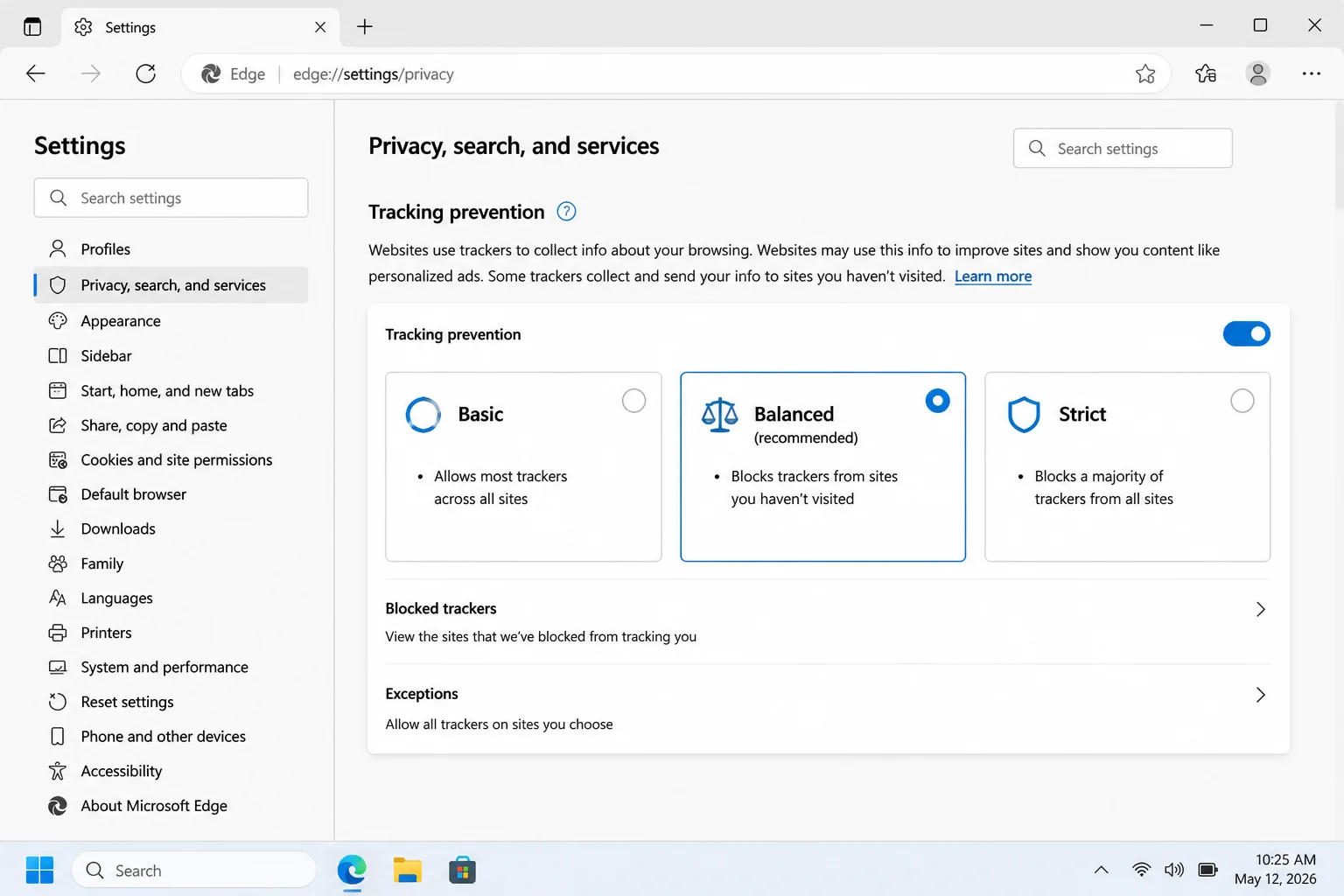
Edge offers Basic, Balanced, and Strict tracking prevention. Balanced is the default and makes sense for daily browsing. Strict blocks more trackers, but it’s more likely to break videos, sign-ins, or payment tools.
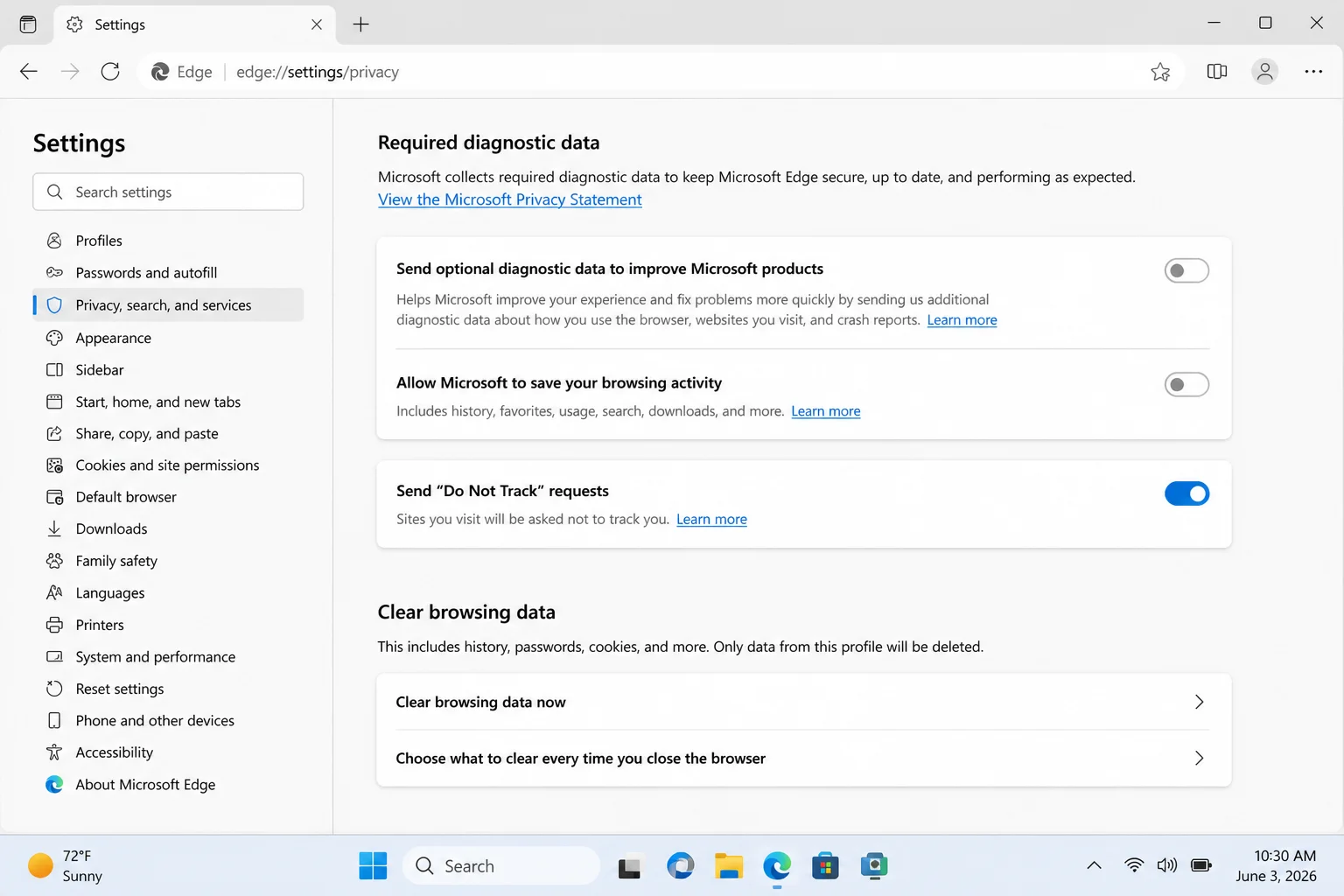
Tracking prevention is separate from Microsoft’s optional diagnostic and personalization controls. Check both areas. They’re separate drawers in the same privacy cabinet.
The Do Not Track switch only sends websites a request. Sites don’t have to follow it, which makes the setting less powerful than its name suggests.
Apple Safari
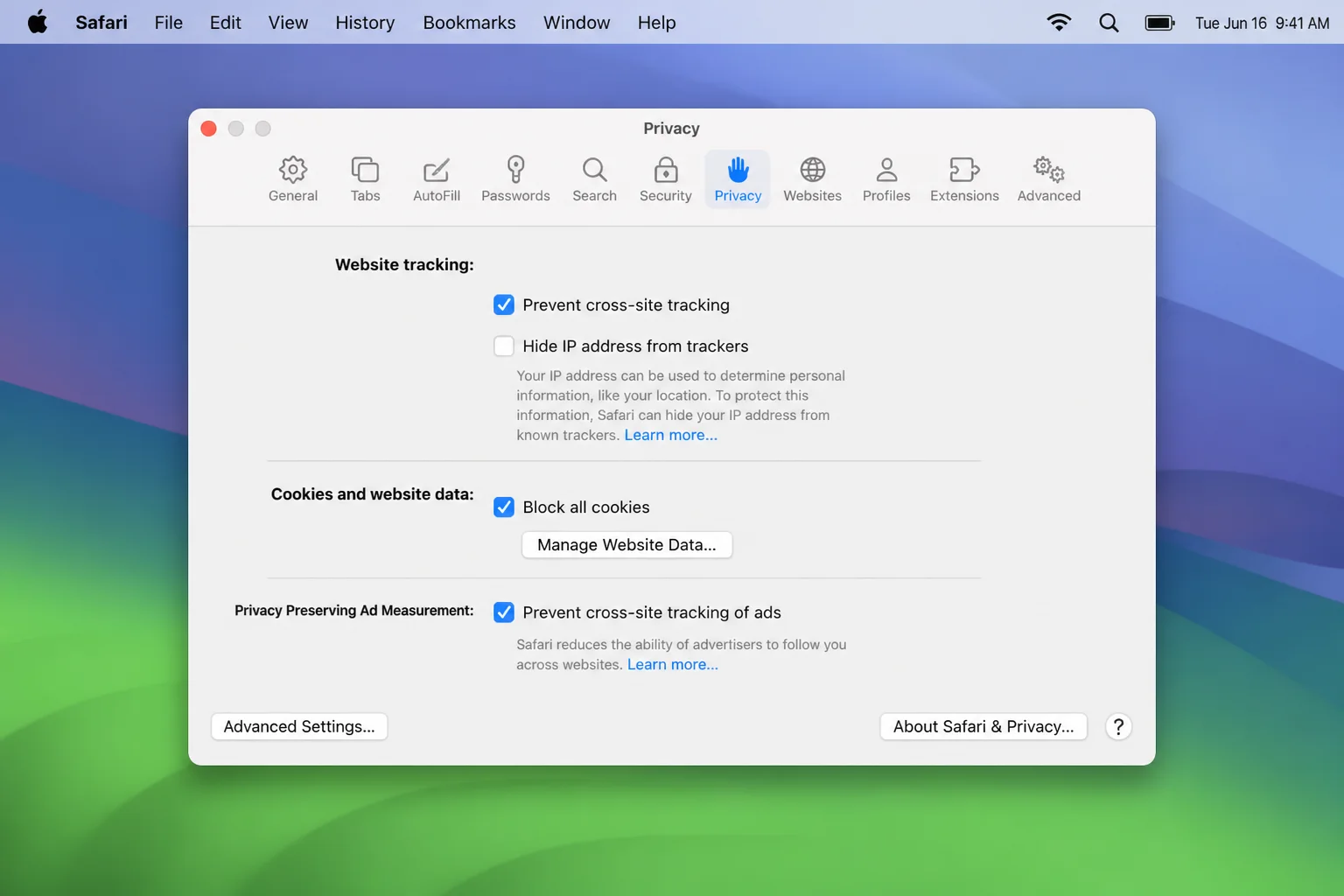
Safari’s Intelligent Tracking Prevention limits cross-site tracking by default. Safari also supports locked Private Browsing on compatible Apple devices. That lock stops someone holding your unlocked device from casually opening your private tabs.
Safari talks to Apple services for syncing, fraud warnings, and other tasks. Every browser makes you balance useful cloud tools against data sent to an account provider. There’s no single right balance, so choose settings that suit your comfort level.
Firefox and Brave
Firefox has Enhanced Tracking Protection and blocks many common trackers by default. Its controls offer a nice balance for people who want solid protection without babysitting every website.
Brave takes the toughest approach in this group. Brave Shields blocks many trackers and ads without an extension. Pages can look cleaner and load faster, but stronger blocking sometimes breaks sign-ins, videos, or other site tools. When that happens, lower Shields for that site instead of turning them off everywhere.
Winner: Brave. It blocks the most by default. Safari and Firefox offer strong privacy with little fuss. Edge gives daily users clear protection levels.
Privacy Settings Worth Reviewing
Nobody likes digging through privacy menus, but these five checks are worth a few minutes:
- Third-party cookies: Block them to reduce cross-site tracking. Embedded logins and payment forms may need an exception.
- Site permissions: Remove camera, microphone, location, notification, and pop-up access from sites that don’t need it. These permissions pile up like receipts in a junk drawer.
- Account synchronization: Choose which passwords, addresses, payment details, tabs, and browsing history get stored with your browser account.
- Ad personalization: In Chrome, review all three Ad privacy categories. Cookie blocking doesn’t cover every ad setting.
- Diagnostics and personalization: In Edge, these controls are separate from tracking prevention. Check them on their own.
Stricter settings can break websites. If you want stronger protection, keep it on and add a narrow exception for a trusted site. Turning everything off because one checkout page misbehaves gives every other site a free pass.
Platform Recommendations
On Windows
Choose Edge for great site support, sleeping tabs, Efficiency mode, and close Windows links. Pick Chrome if Google sync matters more to you. Firefox and Brave are good alternatives, while Safari isn’t supported.
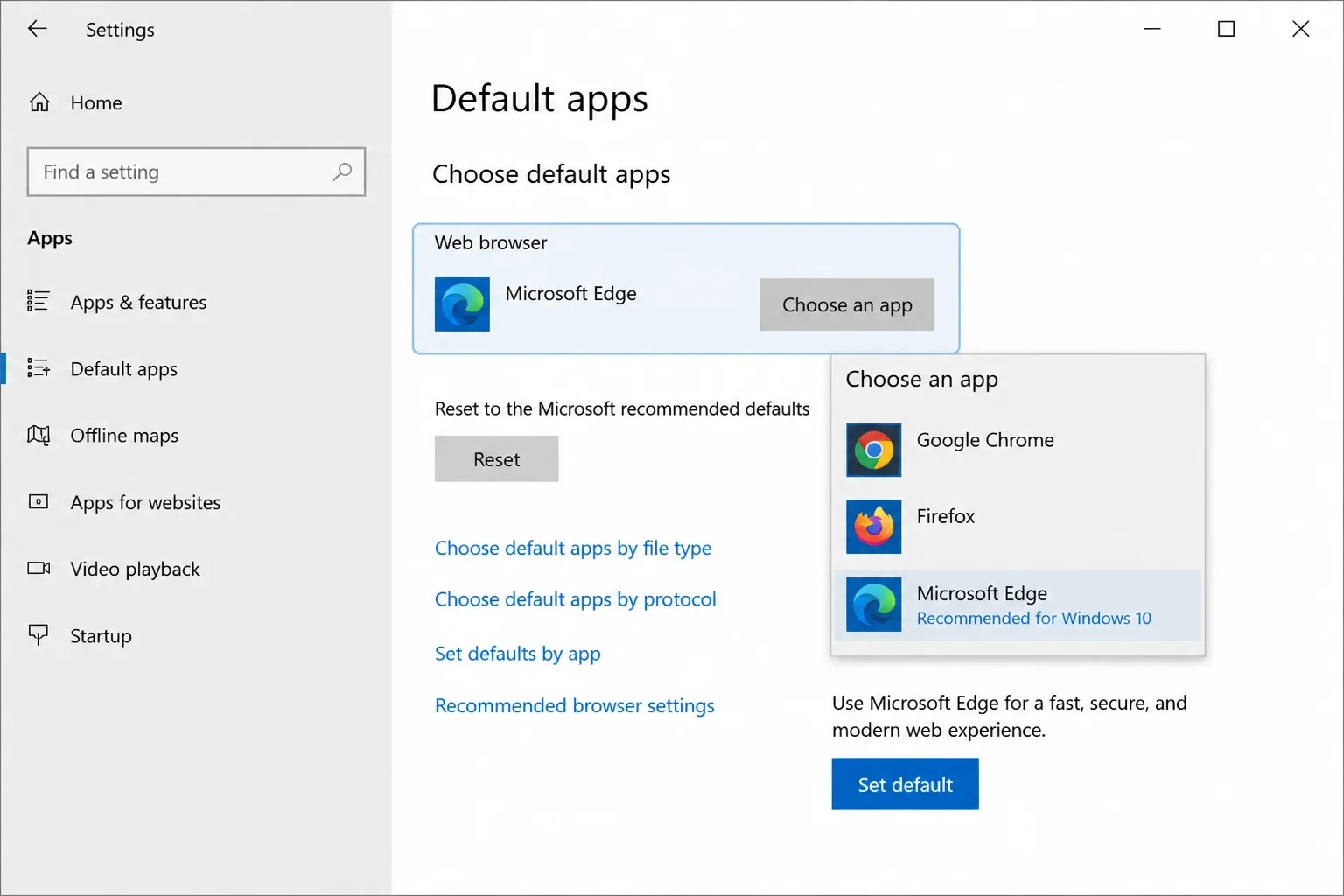
To change the default, open Settings > Apps > Default apps, select your browser, and use Set default where available. Windows may ask more than once about browser choices (because apparently one answer isn’t always enough).
On macOS
Choose Safari for battery life and Apple integration. I’d still keep Chrome or Edge installed for those stubborn Chromium-first websites that appear at the worst time.
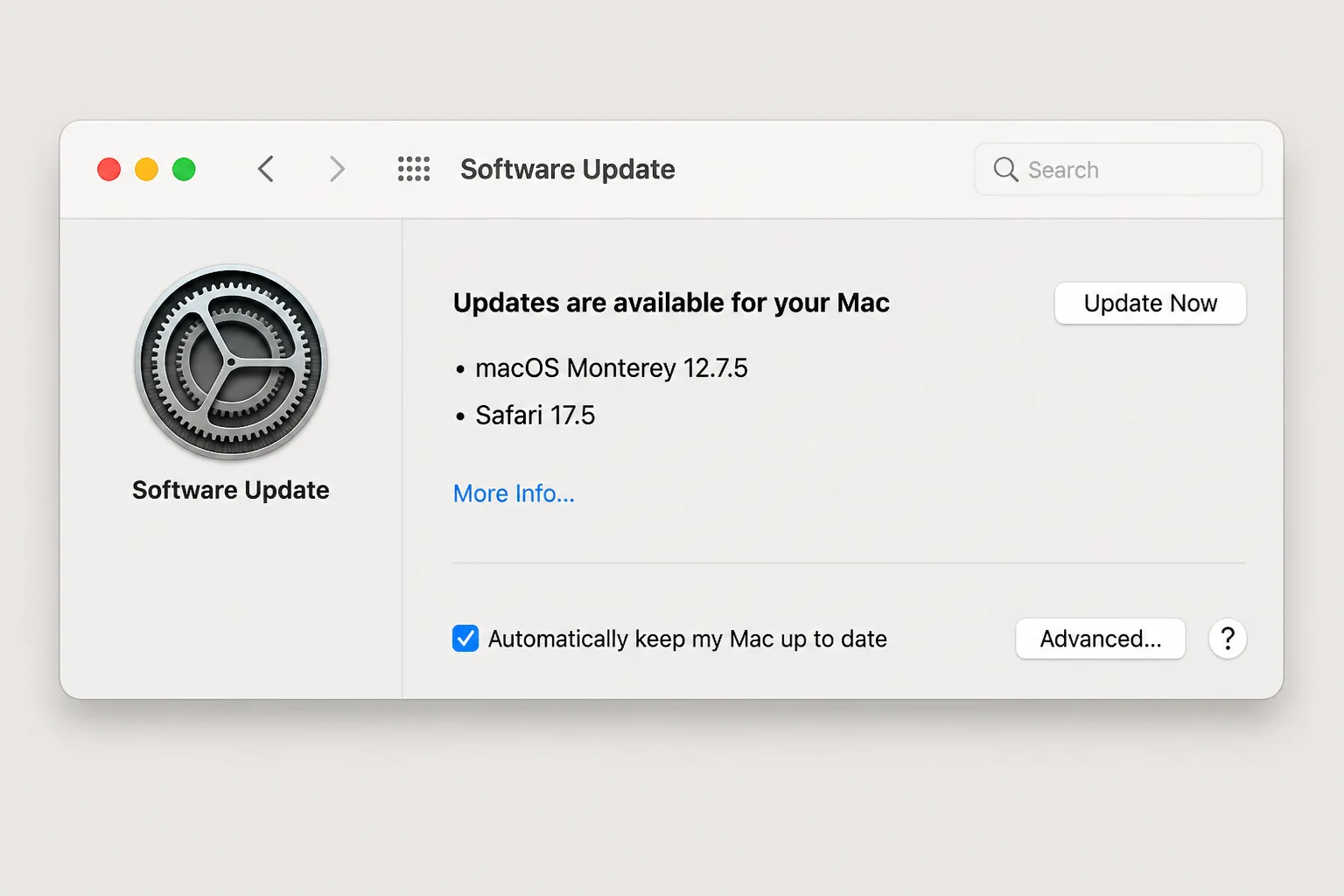
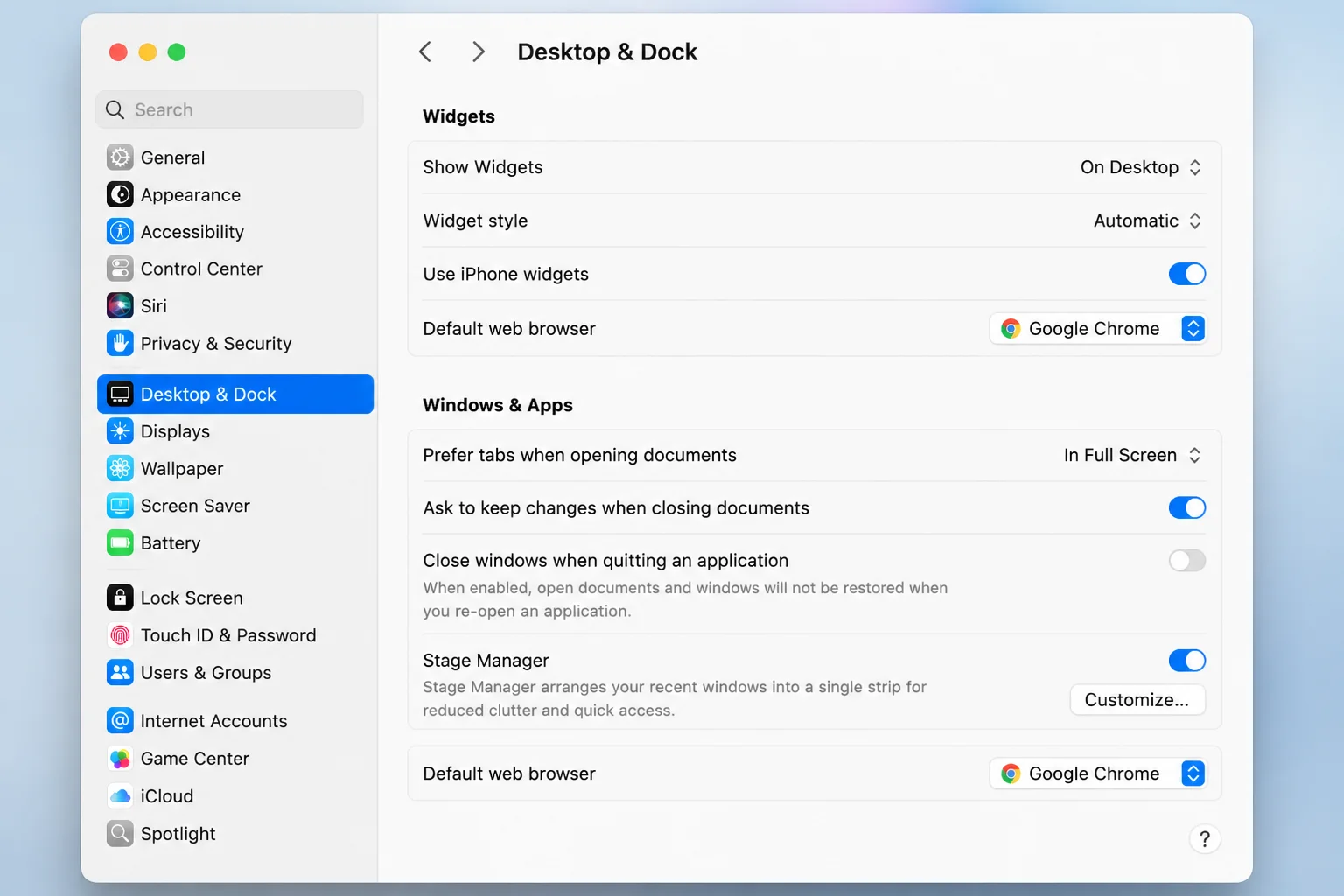
Update Safari through Apple menu > System Settings > General > Software Update. To change your default browser, open System Settings > Desktop & Dock. Then find Default web browser.
On iOS
Under Apple’s standard platform rules, every browser on iPhone and iPad must use Apple’s browser engine. Their menus, sync tools, privacy settings, and account options can still differ.
Safari gives you the most natural Apple experience. Chrome makes sense if you also use it on a Windows PC or Android phone. Your bookmarks stay close by.
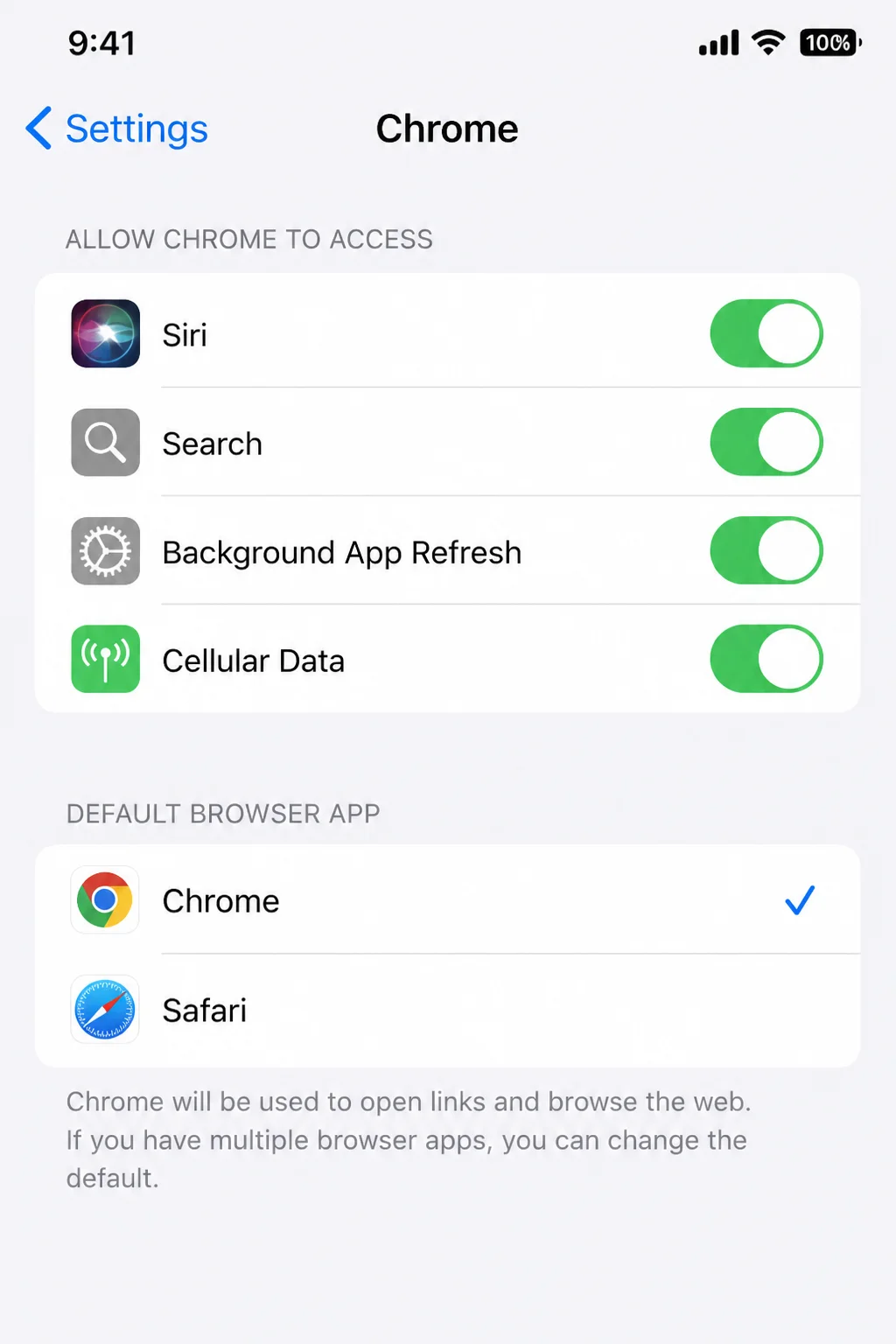
Open Settings > Apps, select the browser, and choose Default Browser App. Labels can vary by iOS release.
On Android
Safari is unavailable on Android. Chrome is usually the easiest choice, especially if you use Google services. Edge works well for Microsoft account users. Brave offers stronger blocking, while Firefox gives you a non-Chromium option.
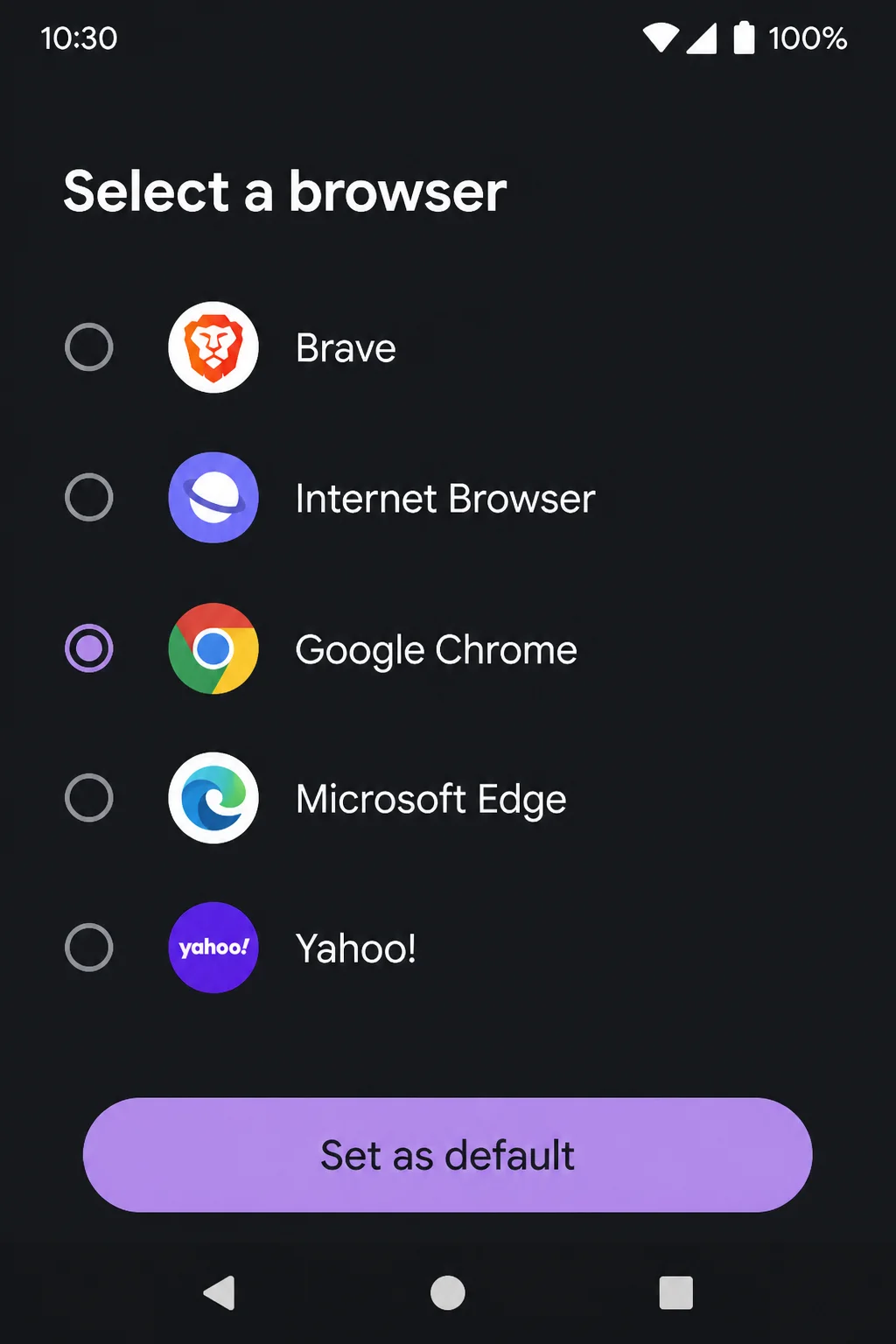
Open Settings > Apps > Default apps > Browser app, then choose your browser. The exact path may vary slightly between phone brands. Android makers do enjoy moving settings around like furniture.
Pricing Comparison
| Browser | Price | Paid Browser Tier | Account Required |
|---|---|---|---|
| Chrome | $0 | None | No; optional for sync |
| Edge | $0 | None | No; optional for sync |
| Safari | $0 with an Apple device | None | No; optional Apple Account features |
| Firefox | $0 | None | No; optional for sync |
| Brave | $0 | None | None for normal use |
All five browsers are free. The hidden “price” comes from ecosystem lock-in, data sharing, battery use, and time spent fixing a broken site. Sometimes the cheapest browser is the one that causes fewer headaches on your main device.
Which Browser Should You Choose?
Choose Chrome if:
- You switch among Windows, macOS, Android, and iOS.
- You depend on Google services and Chrome sync.
- You want broad extension support and website compatibility.
Chrome is the easy pick for a mixed-device home. Your bookmarks and tabs can follow you around like a well-packed travel bag.
Choose Edge if:
- You mainly use a Windows laptop.
- You keep lots of tabs open.
- You want clear Basic, Balanced, and Strict tracking choices.
Edge makes the strongest case on Windows. Sleeping tabs are handy if closing one feels like throwing away something you may need next Thursday.
Choose Safari if:
- You use a MacBook away from a charger.
- Nearly all your devices come from Apple.
- You want strong cross-site tracking protection with little setup.
Safari fits neatly with Apple’s hardware and software. Its smaller extension library may matter if you depend on special add-ons, though.
Choose Firefox if:
- You want a capable browser that doesn’t use Chromium.
- You prefer a platform-neutral account and sync system.
- You want solid privacy controls without Brave’s tougher approach.
Firefox is a good middle-ground choice. It has strong privacy settings and works across major platforms. It also keeps another browser engine in active use.
Choose Brave if:
- You want the strongest default tracker and ad blocking.
- You like Chrome-style compatibility but dislike Chrome’s standard privacy setup.
- You don’t mind adjusting Shields when a site breaks.
Brave cleans up ad-heavy pages with little setup. I’d skip it if you hate fixing the odd broken site, since strong blocking can require some tinkering.
Google Chrome
- Excellent compatibility and extension support
- Consistent experience across platforms
- Strong Google account syncing
- Can use lots of memory and battery with many extensions
- Privacy settings need a careful review
- Relies heavily on Google services
Microsoft Edge
- Excellent fit for Windows
- Useful sleeping-tab and efficiency controls
- Clear tracking-prevention levels
- Microsoft tools and prompts can make the browser feel busy
- Telemetry and personalization use separate controls
- Makes less sense than Safari on a MacBook
Apple Safari
- Excellent MacBook battery efficiency
- Strong Apple integration
- Intelligent Tracking Prevention
- Limited to Apple devices
- Smaller extension library
- Occasional trouble with Chromium-first websites
Mozilla Firefox
- Independent, non-Chromium engine
- Strong default tracking protection
- Available on major platforms
- Some sites get less Firefox-specific testing
- Smaller extension catalog than Chromium browsers
- Has fewer operating-system ties than Edge or Safari
Brave
- Strong tracker and ad blocking by default
- Chromium compatibility
- Often feels quick on ad-heavy pages
- Strong blocking can break website tools
- Extra privacy and rewards options can feel cluttered
- Sync feels less familiar than Google or Apple syncing
Final Verdict
Chrome is the best all-around choice. Edge fits Windows laptops best, while Safari is my pick for MacBook battery life. Brave wins for default blocking, and Firefox is the strongest choice for avoiding Chromium. Keep a backup browser for stubborn sites.
| Category | Chrome | Edge | Safari | Firefox | Brave |
|---|---|---|---|---|---|
| Features | 9/10 | 9/10 | 8/10 | 8/10 | 8/10 |
| Performance | 9/10 | 9/10 | 9/10 | 8/10 | 9/10 |
| Battery life | 7/10 | 9/10 | 10/10 | 8/10 | 8/10 |
| Privacy defaults | 6/10 | 8/10 | 9/10 | 9/10 | 10/10 |
| Cross-platform support | 10/10 | 9/10 | 5/10 | 9/10 | 9/10 |
| Overall | 8.5/10 | 8.8/10 | 8.6/10 | 8.4/10 | 8.8/10 |
Frequently Asked Questions
Do Chrome and Edge perform similarly because both use Chromium?
Usually, yes. Their shared engine gives them similar site support and basic performance. Extensions, sleeping tabs, background tools, and operating-system links can still make one feel faster on your computer.
Which browser is best for MacBook battery life?
Safari is the best starting choice. Its close link with macOS and Apple hardware usually makes it more efficient. Screen brightness, video playback, extensions, and open tabs still affect the result. Don’t expect miracles from a browser alone.
Which browser blocks the most tracking by default?
Brave is usually the most aggressive. Safari and Firefox also offer strong built-in protection. Edge uses Balanced protection by default. Chrome users should check cookie and ad privacy controls themselves.
Does private browsing make me anonymous?
No. Private browsing mainly keeps the session out of your normal local browser history. Websites, network admins, internet providers, and account services may still identify or track your activity.
Private mode is useful on a shared computer, but it isn’t an invisibility cloak. That difference clears up plenty of confusion.
How do I check for browser updates?
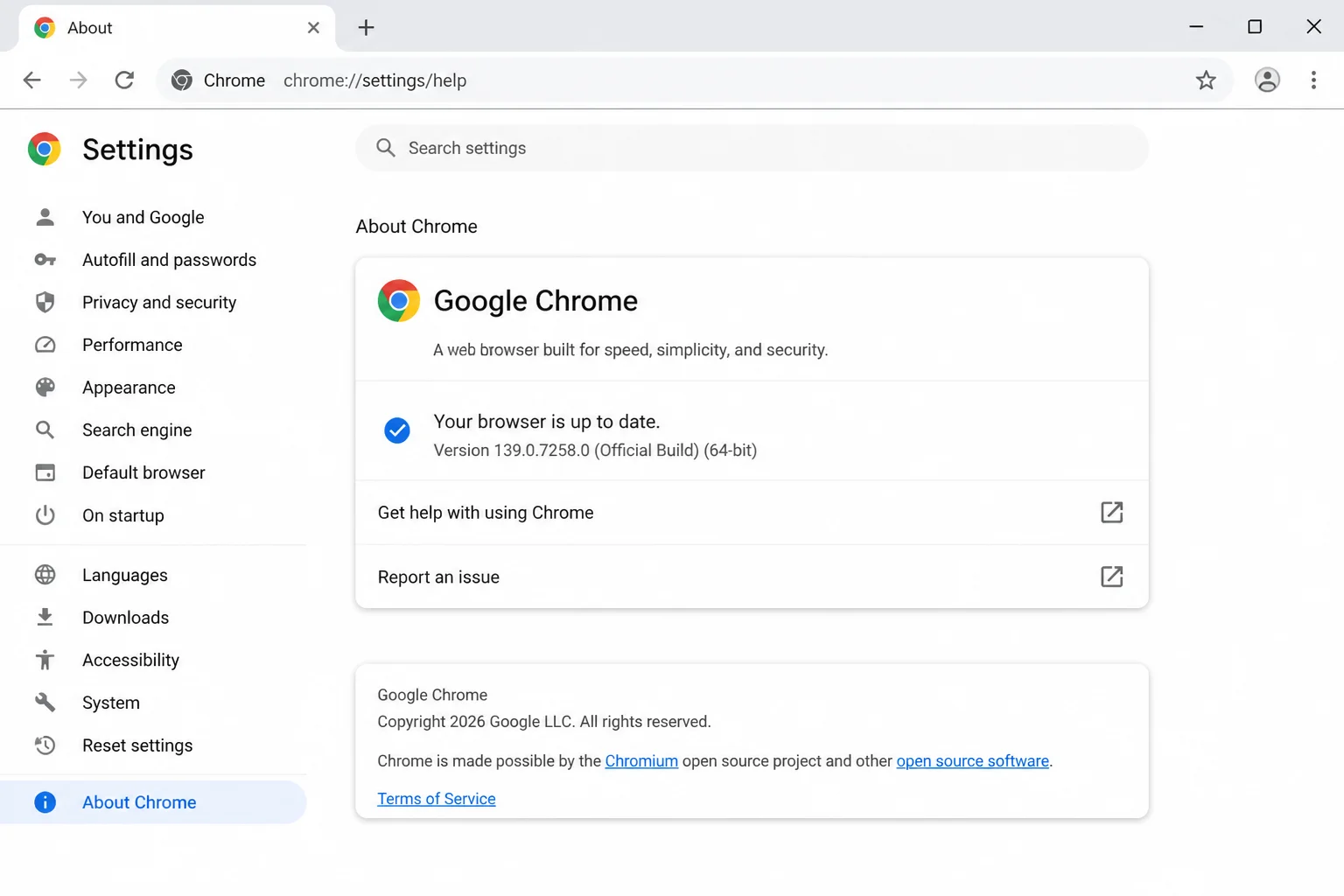
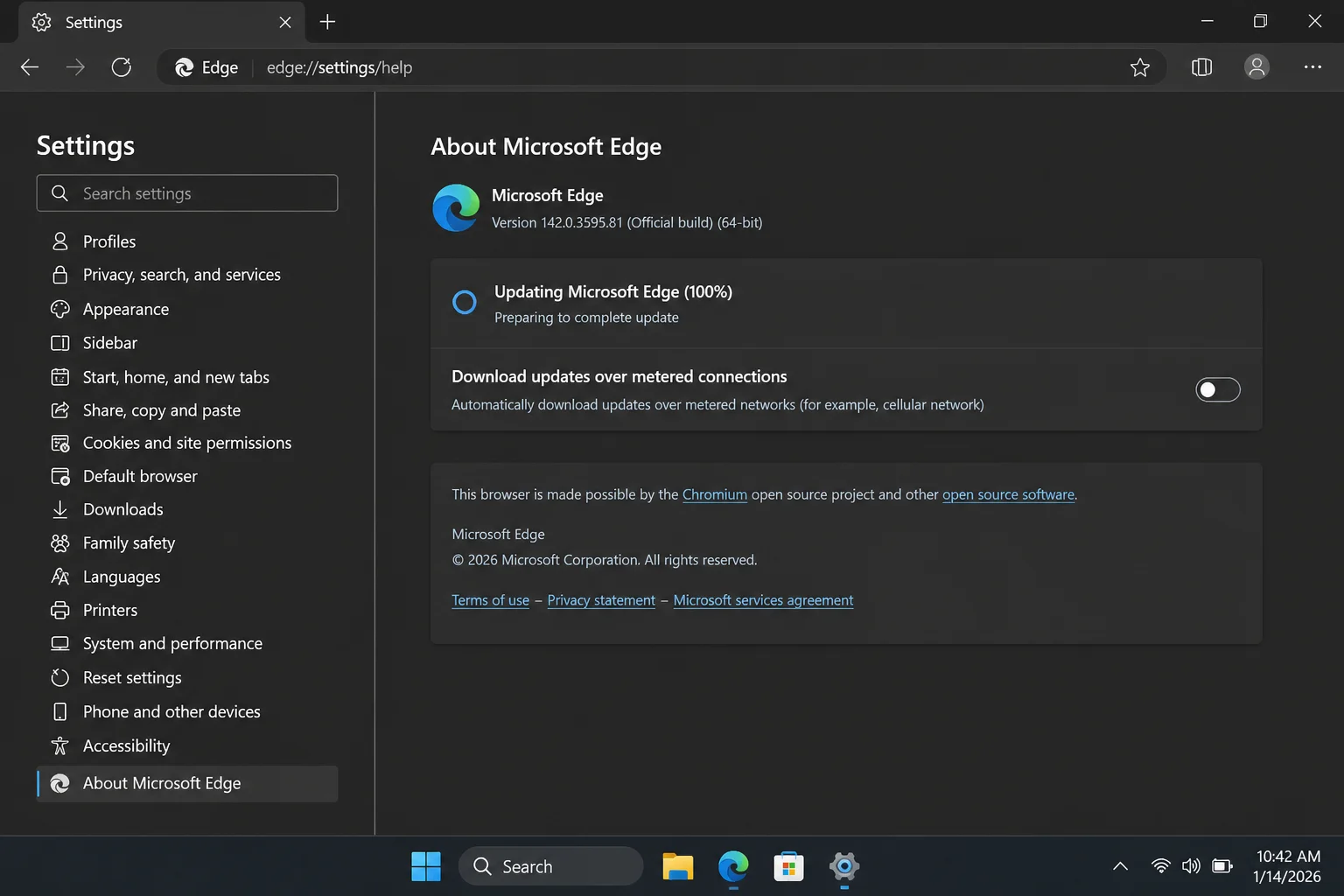
In Chrome, open Menu > Help > About Google Chrome. In Edge, open Menu > Help and feedback > About Microsoft Edge. Update Safari through macOS Software Update.
Chrome and Edge usually check for an update when you open their About pages. Restart the browser if asked (and save that half-written form first).
Wrapping Up
Pick Edge for Windows, Safari for a MacBook, or Chrome for a mix of devices. I keep two browsers installed: one for daily use and one as a backup. Stubborn websites have a special talent for appearing five minutes before a deadline.
| Step | Action | Applies To |
|---|---|---|
| 1 | Pick the browser that fits your main device | Everyone |
| 2 | Review tracking, sync, and site permissions | Everyone |
| 3 | Remove unused extensions and close stale tabs | Heavy browser users |
| 4 | Keep a second browser for troublesome websites | Windows and macOS users |
This comparison reflects established browser features and documentation available on August 16, 2026. Features, labels, and default settings can vary by browser release, device, region, and account.