
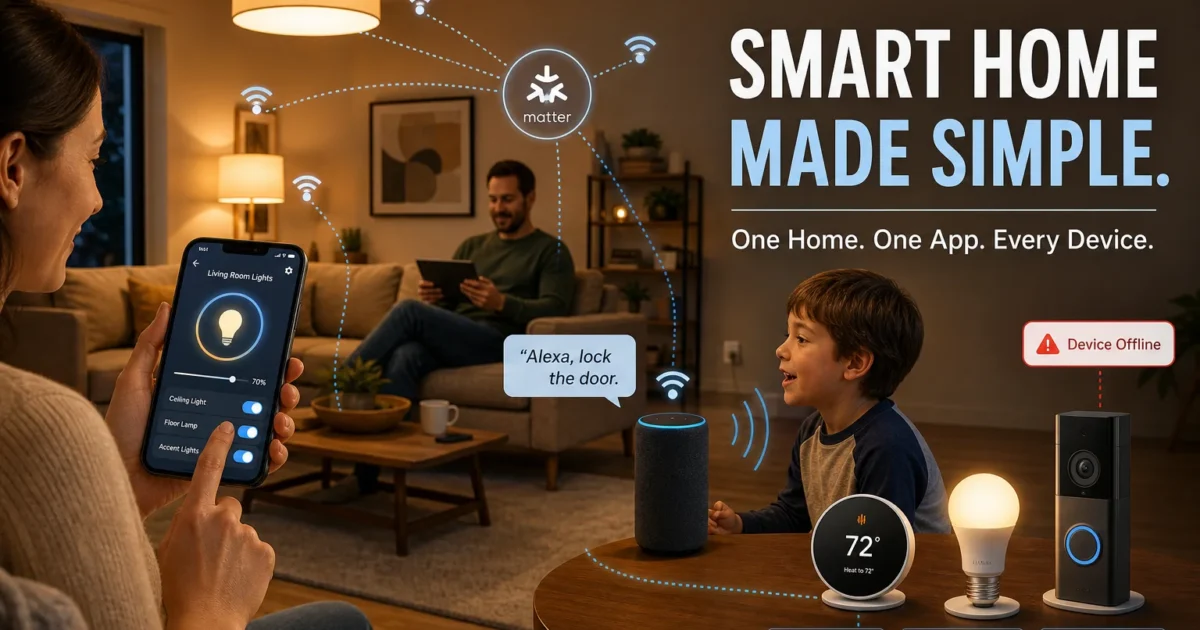
Smart home gear should make life easier. Then one bulb needs its own app, your lock speaks another tech language, and turning off the lights feels like sorting a junk drawer. What’s more annoying than needing three apps for one room?
Amazon Alexa can bring many of those products together. You’ll learn what works with Alexa, how Matter and other connections differ, and what to check before buying another gadget.
What Is Amazon Alexa?
Amazon Alexa is a voice assistant and smart home system. You can use it through Echo speakers and displays, the Amazon Alexa mobile app, and a web browser with limited access.
Alexa puts compatible products from different brands on one screen. You can control them through the app or ask an Echo to perform supported actions. You can also create routines that handle several jobs at once.
Its main smart home tools include:
- Voice control: Ask Alexa to switch on a light, adjust a thermostat, or check whether a compatible door is locked.
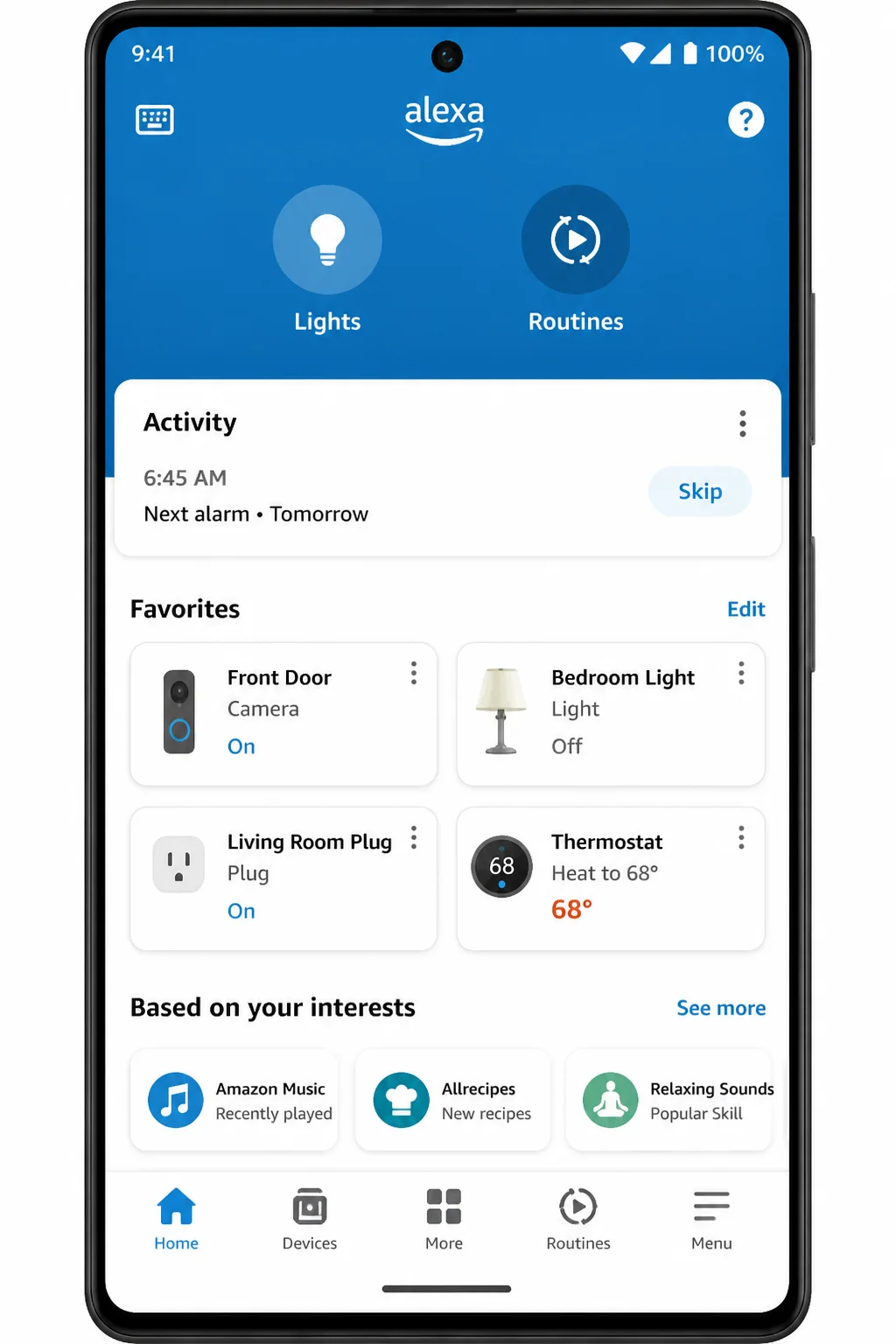
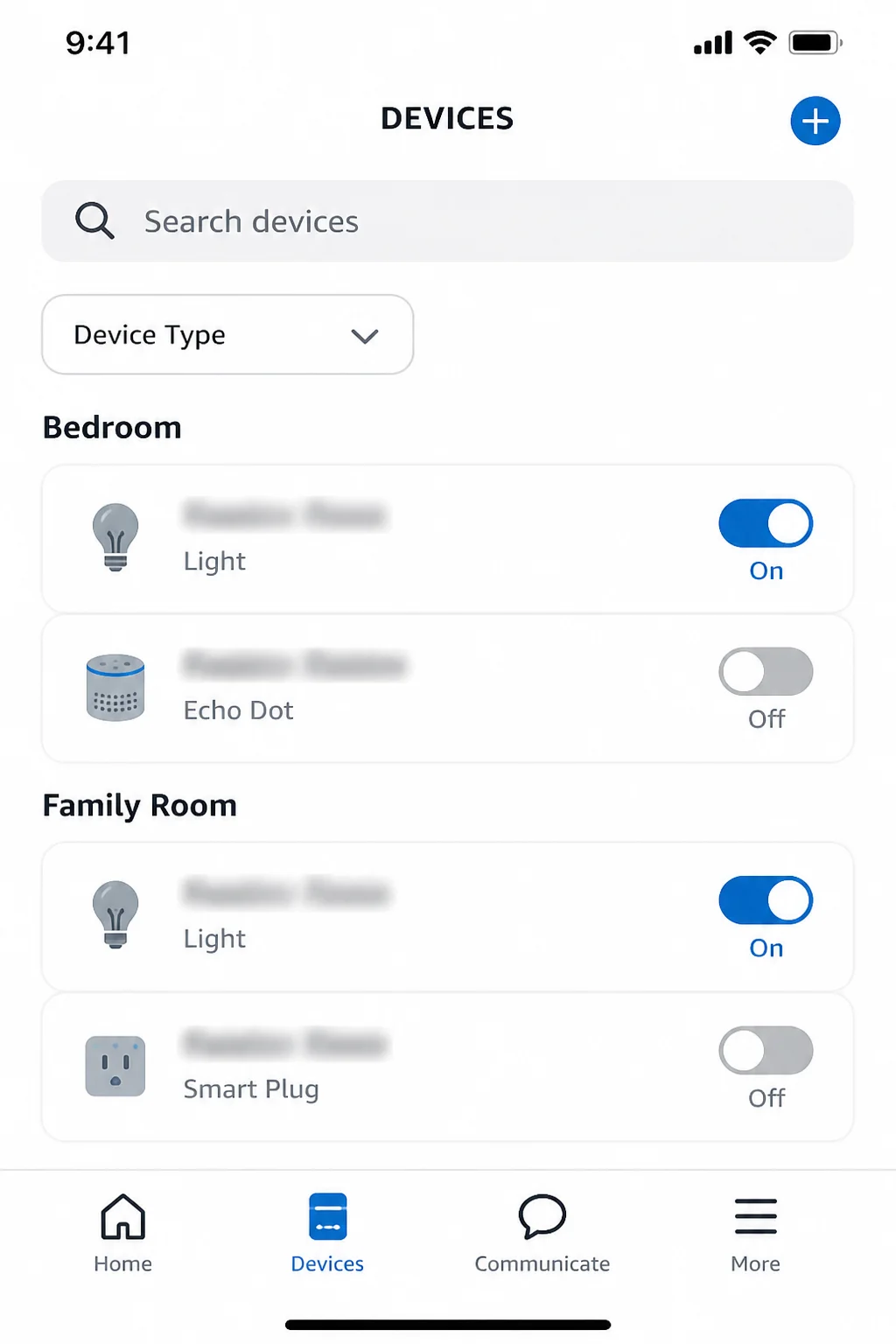
- App controls: Manage products from the Home, Favorites, and Devices areas of the Alexa app.
- Room groups: Put devices into rooms so “Alexa, turn off the lights” affects your current room.
- Routines: Combine several actions under a schedule, event, or voice phrase.
- Multi-brand support: Connect compatible products through Matter, Zigbee, Wi-Fi, or a brand’s Alexa connection.
Alexa works well for beginners, Echo owners, and homes with several brands. Think of it as a universal remote for your house, though some buttons from the original remotes won’t carry over.
The Problem Alexa Solves
Without a shared system, you might open one app for your lights, another for the thermostat, and a third for the camera. Alexa puts supported products together and gives them common commands.
You’ll still need some brand apps. They may handle updates, camera settings, vacuum maps, appliance modes, and other special options. Alexa handles daily jobs while the original app keeps the fiddly controls (a pretty fair trade).
Key Features
Voice and App Control
An Echo lets you control supported devices without hunting for your phone. Depending on the product, you can turn it on or off, adjust a level, check its status, or start an action.
The Alexa app has three main control areas:
- Home: Shows shortcuts and recent smart home activity.
- Favorites: Keeps products you use often within easy reach.
- Devices: Shows the full list, plus search and device-type filters.
If your home has lots of connected gear, use Devices, groups, and search. Home-screen shortcuts may show limited live status, especially when you have more than 20 devices. That screen gets crowded quickly.
Matter Compatibility
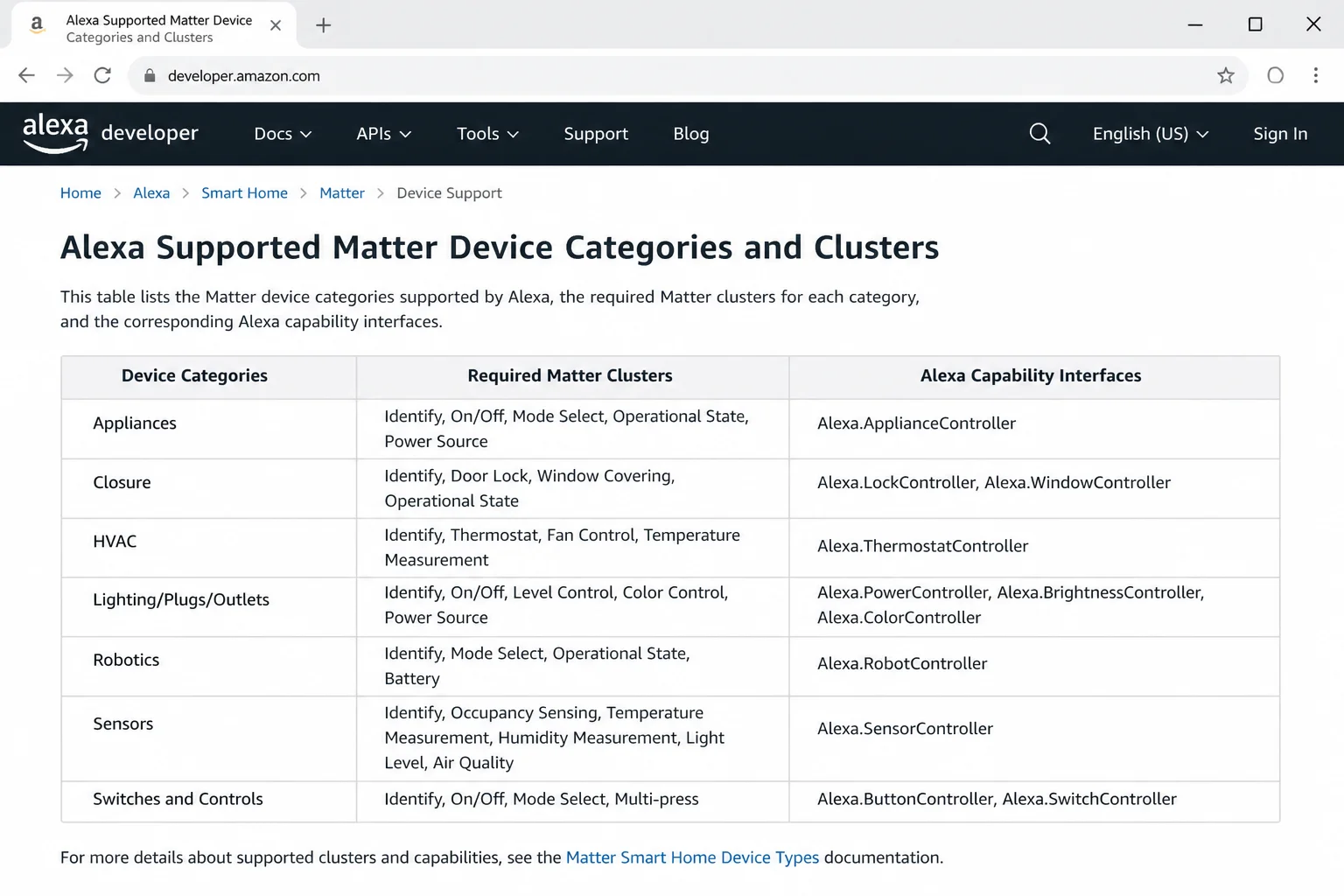
Matter is a shared smart home standard backed by major brands. It’s like agreeing that appliances should use the same plug shape. Companies can still make different products, but setup takes less fuss.
You can usually add a supported Matter accessory to Alexa by scanning its Matter QR code. You can also enter its number code. It normally doesn’t need a separate Alexa skill.
Matter may let the same accessory work with Alexa, Apple Home, Google Home, or SmartThings. Each system needs the right Matter controller hardware. You must also share or add the device by following the brand’s steps.
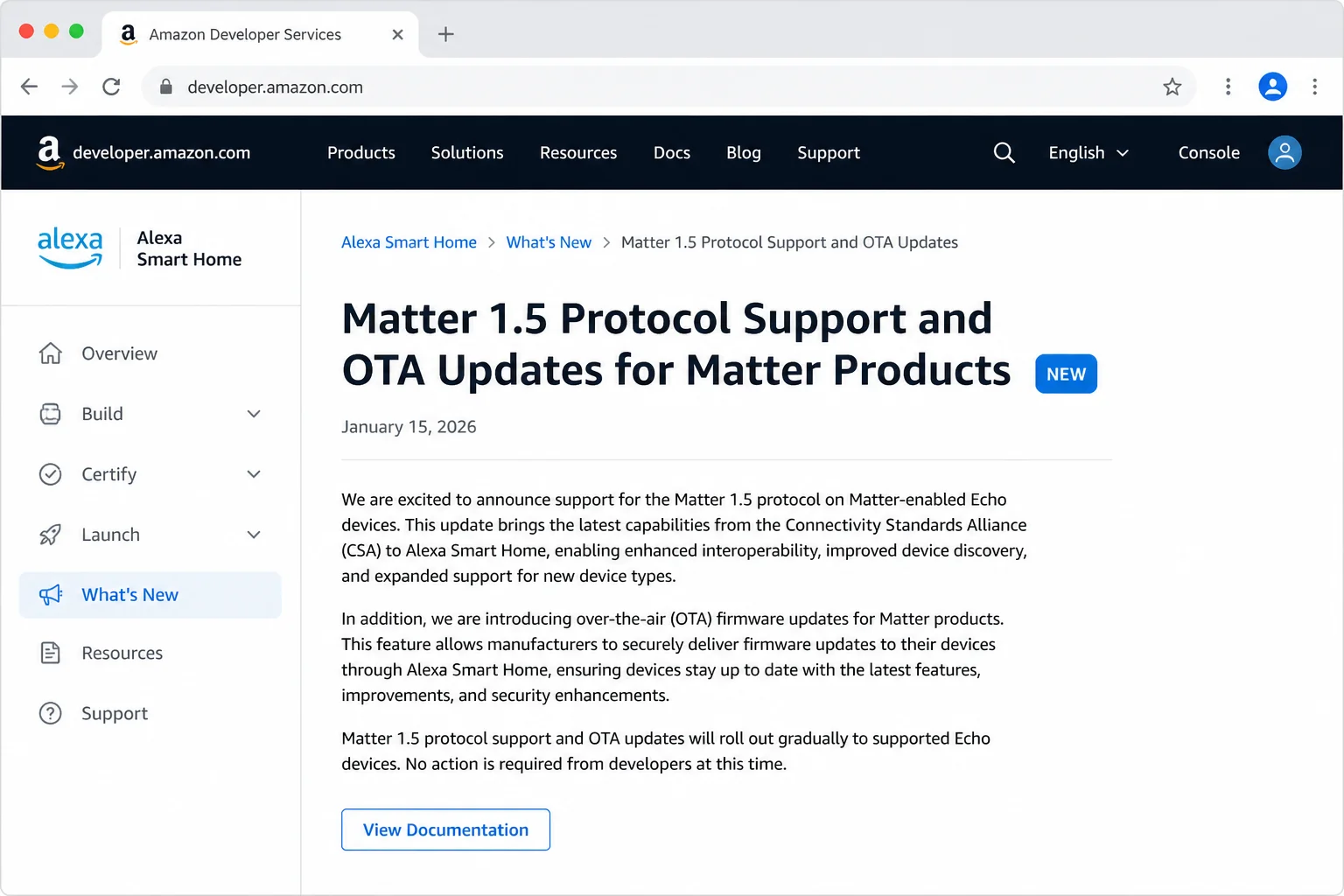
Amazon added Matter 1.5 support to Matter-enabled Echo devices in March 2026. It also added wireless firmware updates for compatible Matter products. That doesn’t put every new product type on store shelves overnight, though. Standards often race ahead while the actual gadgets stroll behind.
Wi-Fi, Thread, Zigbee, and Manufacturer Integrations
These names describe the different paths a device can use to reach Alexa:
- Wi-Fi: The product connects to your home router. Wi-Fi is common in cameras, plugs, and appliances. Too many products can slow an older network.
- Thread: This low-power mesh network is made for smart home products. Nearby Thread devices pass messages along like runners in a relay race.
- Zigbee: This is another low-power mesh system used by many bulbs, plugs, and sensors. An Echo with Zigbee hardware can connect straight to some Zigbee accessories.
- Manufacturer integration: Alexa connects to the brand’s online account. Amazon may call this an Alexa skill or smart home add-on.
- Matter: This is the shared language used by Alexa and the accessory. Matter can run over Wi-Fi, Thread, or Ethernet, depending on the product.
A Thread border router links a Thread network to your regular home network. You’ll need one when a Matter accessory uses Thread. Selected Echo and eero models can do this job. However, a Matter controller isn’t always a Thread border router. Similar names, different jobs (smart home labels love making things harder than necessary).
Groups and Routines
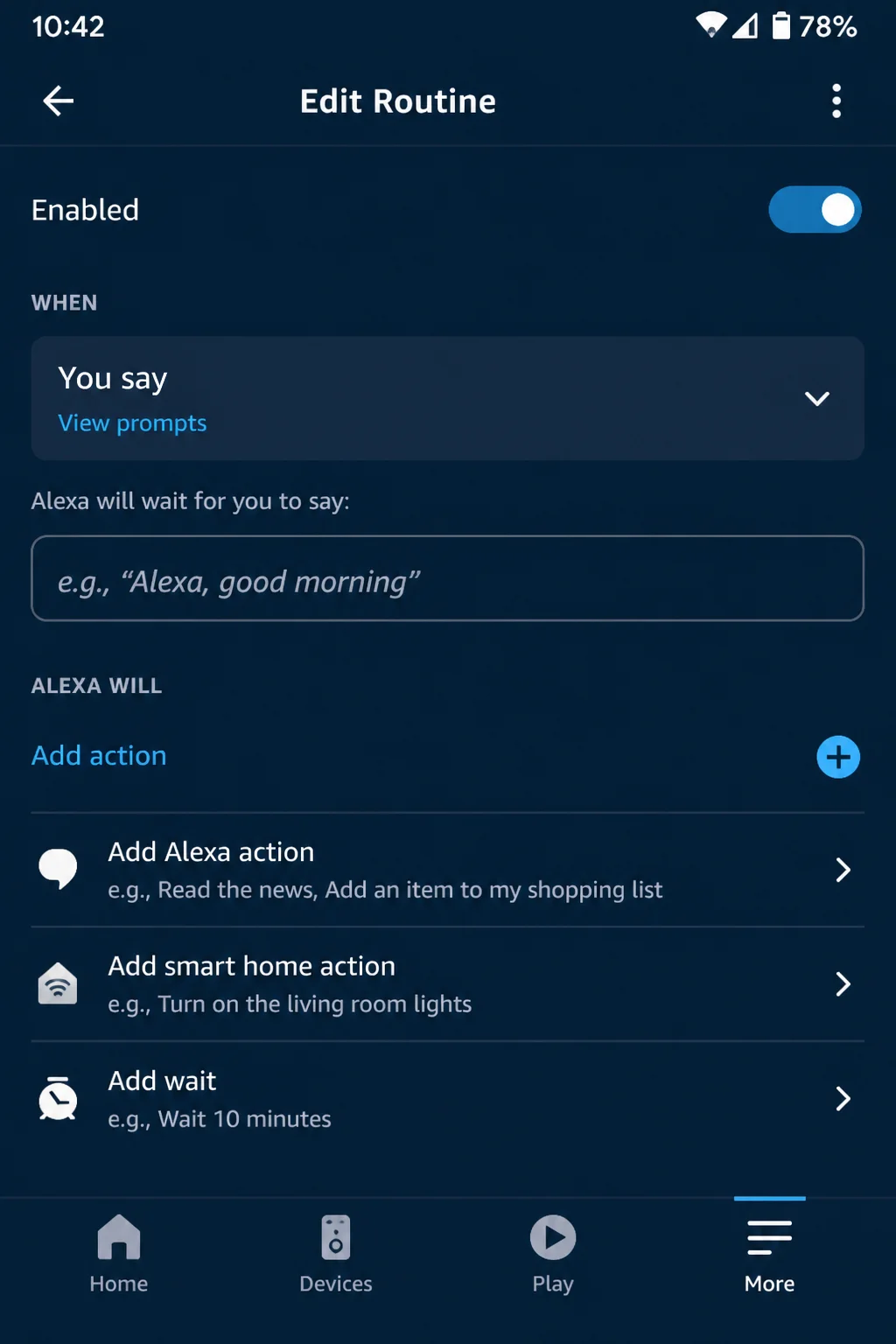
Groups sort products by room. Put an Echo and several lights in the same room group. You can often say, “Alexa, turn off the lights,” without naming every bulb.
Routines combine supported actions. A bedtime routine might turn off the downstairs lights, lower the thermostat, and lock a compatible door. You can start routines with a voice phrase, schedule, or supported trigger.
Cross-Brand Smart Homes
Alexa can combine compatible products from different brands. Your lights don’t need to match your thermostat. Your lock can also come from a different company than your plugs.
Matter makes that mix easier. Brand connections also support plenty of older and more advanced products. Many homes use both methods, and that’s perfectly normal.
Alexa+ Commands
Alexa+ adds AI tools, more natural requests, and commands with several steps. You can make a looser request instead of learning one exact phrase.
Alexa+ is optional. You don’t need it to switch compatible devices, use normal app controls, or run standard Alexa routines.
Which Smart Home Devices Work With Alexa in 2026?
Support depends on the exact model. A brand may sell one Alexa-ready camera and another that doesn’t work at all. Look for a clear Matter or Works with Alexa label before you buy.
| Product type | Typical Alexa controls | Important limitations |
|---|---|---|
| Lights | Power, brightness, color, color temperature, groups | Available controls depend on the bulb and connection method |
| Smart plugs and switches | Power, routines, schedules | Energy monitoring may remain in the manufacturer’s app |
| Thermostats | Temperature, mode, status, routines | Detailed schedules and energy reports may be brand-specific |
| Security cameras and doorbells | Live view, announcements, basic controls | Recording, detection zones, and advanced alerts often require the brand’s app or plan |
| Door locks | Locking, status checks, routines | Unlocking may require extra security and may not work with every connection |
| Sensors | Motion, contact, temperature, routine triggers | Sensor details and trigger support vary |
| Blinds and shades | Open, close, position, routines | Native Matter support depends on the exact product |
| Robot vacuums | Start, stop, dock, room cleaning on some models | Maps, zones, and cleaning modes are often brand-dependent |
| Appliances | Basic power, status, or supported modes | Alexa rarely exposes every oven, washer, or coffee-maker feature |
| Bridges and hubs | Connect groups of compatible accessories | The bridge and its linked products must clearly support Alexa |
Take extra care with cameras, vacuums, and appliances. Matter defines or is adding support for these complex product types. However, old devices don’t suddenly gain Matter support. Many still need a brand account connection.
Alexa doesn’t directly support Z-Wave. A Z-Wave product needs a compatible bridge or system that can show the device to Alexa. Examples include a supported SmartThings hub or Home Assistant setup.
Matter, Thread, and Zigbee Hardware Requirements
Echo models don’t all have the same smart home radios. Amazon has released many versions. Two speakers that look almost alike may have very different parts inside. Sneaky, isn’t it?
- For Matter: You need an Alexa controller that supports Matter. Some older Echo models don’t.
- For Matter over Thread: You need a Matter controller and a Thread border router. Selected Echo and eero models include Thread border-router support.
- For Matter over Wi-Fi: You don’t need a Thread border router. You still need compatible Alexa hardware and a working home network.
- For direct Zigbee pairing: You need an Echo with a built-in Zigbee smart home hub.
Amazon has put Zigbee hubs in selected Echo Plus, Echo Studio, full-size Echo, and Echo Show models. The version matters. Check the specs for your exact device instead of trusting the broad product name.
The safest shopping rule is simple: check Amazon’s latest support details for the exact Echo or eero model. Then make sure the accessory’s box shows the needed certification.
Who Should Use Alexa?
Alexa is a good fit for:
- Echo owners: Your current speaker or display can become the voice control point for compatible products.
- Smart home beginners: The app gathers common controls without making you build a complex custom system.
- Mixed-brand households: Matter and brand connections put many products in one app.
- Families and roommates: Room groups and simple voice phrases make shared devices easier to use.
- Renters: Smart bulbs, plugs, sensors, and some retrofit locks add automation without major work.
- People who like routines: Alexa can bundle supported actions into bedtime, morning, or leaving-home routines.
Alexa may feel too limited if you want a fully local smart home, dislike cloud voice services, or need deep control over rare connection types. Home Assistant gives you more choices, but you’ll do more setup work yourself. I’d choose it only if that extra control matters to you.
How Alexa Smart Home Device Compatibility Works
Alexa takes several steps to carry out a command. Say, “Alexa, turn on the desk lamp.” An Echo records the request and sends it to Amazon’s cloud. Alexa finds the lamp and sends the command through an available connection.
That path might be:
- Alexa to a Matter device on your home network.
- Alexa through a Thread border router to a Matter-over-Thread accessory.
- A Zigbee-equipped Echo straight to a Zigbee bulb or plug.
- Alexa’s cloud to the brand’s cloud, which then contacts the product.
This is why a Zigbee or Thread device may stop responding to Alexa during an internet outage. The radio connection inside your home can still work. However, Alexa’s voice request usually needs Amazon’s cloud. Physical buttons and local controls from the brand may keep working.
Matter or the Manufacturer Integration?
Use Matter when the accessory clearly supports it and Alexa offers the controls you need. Setup is often cleaner, and you usually won’t need a separate skill. You may also be able to share the device with other Matter systems.
Use the manufacturer integration when:
- The product doesn’t support Matter.
- Alexa’s Matter connection gives you only basic controls.
- You need special camera, vacuum, lock, or appliance functions.
- The product depends on the brand’s bridge or cloud service.
Some products support both paths. I’d avoid adding the same accessory twice unless the brand recommends it. Alexa may otherwise show two devices with the same name. That’s about as useful as labeling two kitchen drawers “stuff.”
Getting Started With Alexa
You’ll need:
- An Amazon account.
- The Amazon Alexa app on a supported iPhone, iPad (iOS 17.0 or later), or Android device (Android 10.0 or later).
- Home Wi-Fi and an internet connection.
- A compatible Alexa, Works with Alexa, or Matter product.
- The Matter QR or numeric setup code for a Matter accessory.
- Brand account details when using its Alexa connection.
- Suitable Echo or eero hardware for Matter, Thread, or direct Zigbee connections.
The basic setup doesn’t take many steps:
- Install the Alexa mobile app and sign in with the Amazon account that will manage the home.
- Set up your Echo or another compatible Alexa controller.
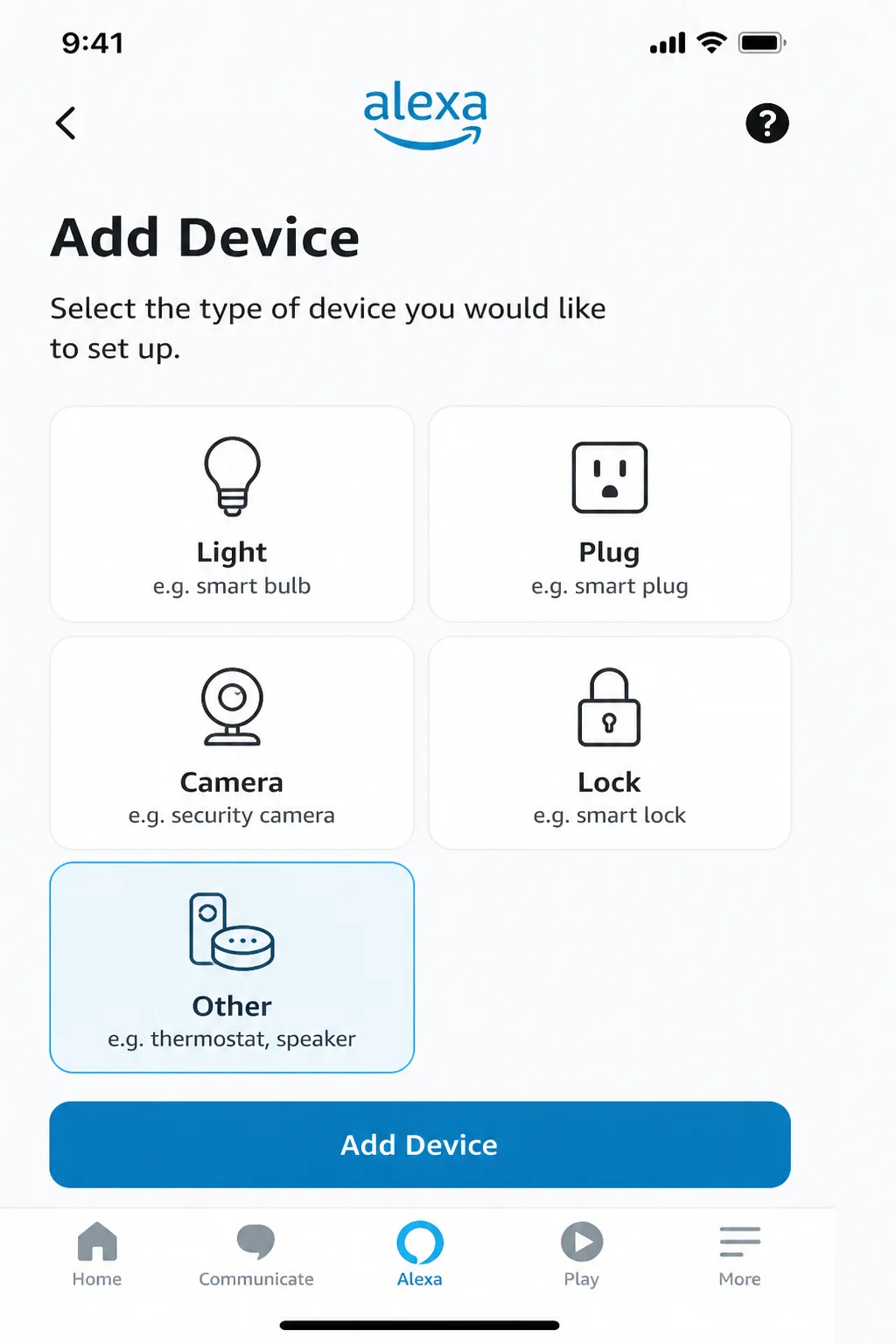
- Open More > Add Device in the Alexa app.
- Choose the product category, Matter option, or brand.
- Finish the requested setup and wait for Alexa to find the device.
- Give the product a short, clear name and add it to a room or group.
On iOS
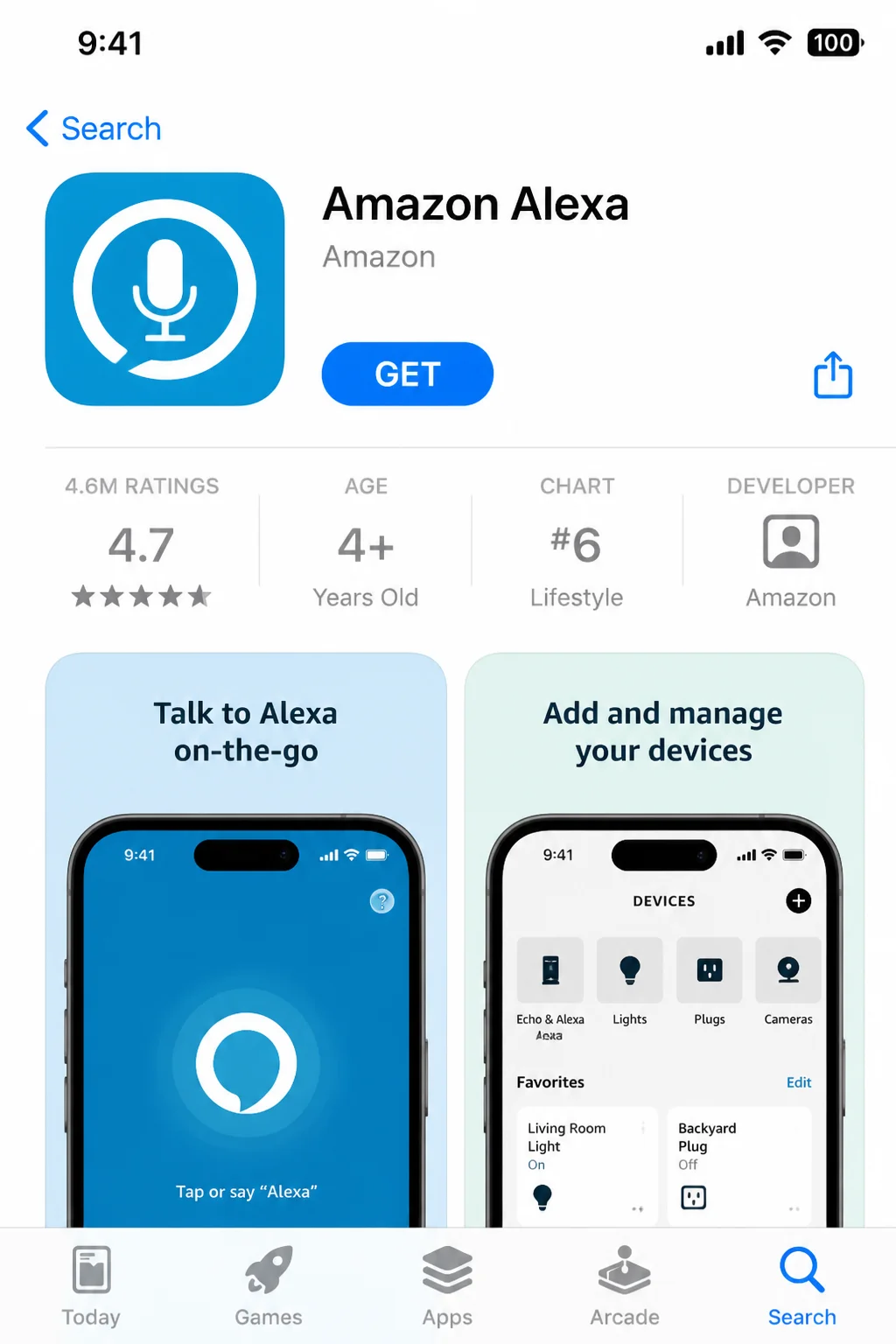
Download Amazon Alexa from Apple’s App Store. The iPhone or iPad app is the main setup tool for adding products, sorting rooms, and making routines.
The paths below use labels such as More, Add Device, and Devices. Amazon sometimes moves items around its app. The label may appear somewhere else but keep roughly the same name.
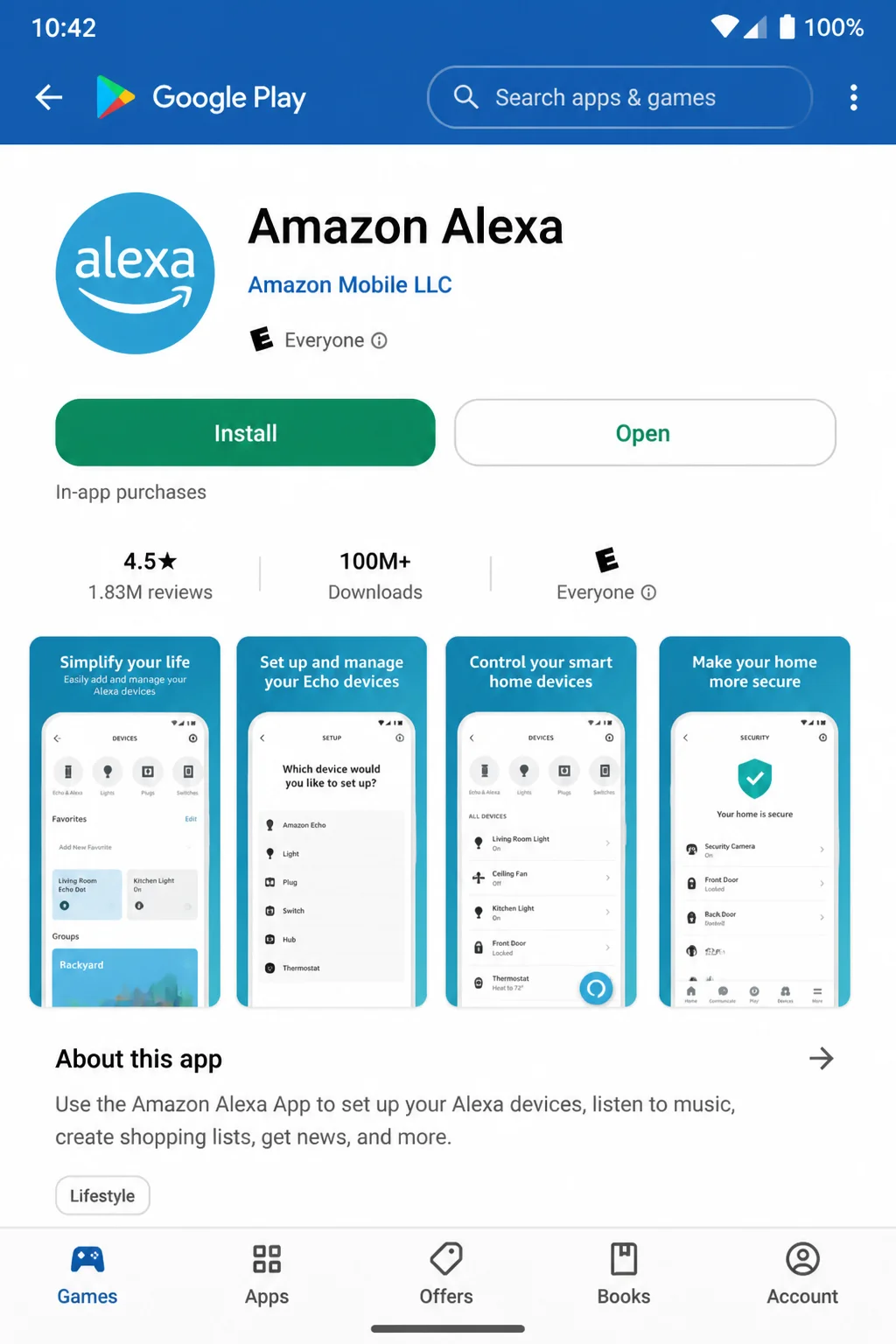
On Android
Download the official Amazon Alexa app from Google Play. Setup works much like it does on iOS. Sign in, open More > Add Device, and pick the right connection.
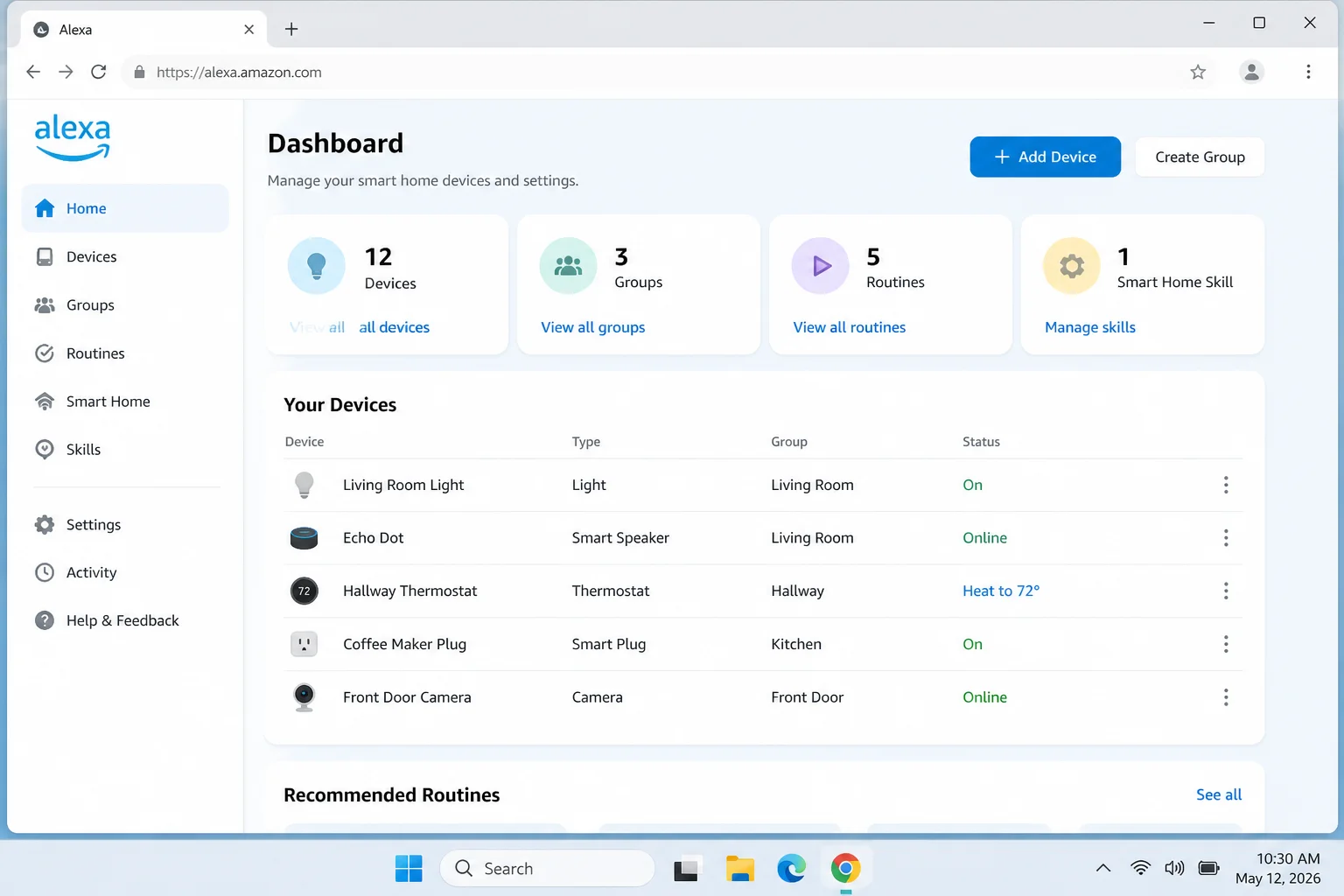
On Windows
Windows users can open Alexa on the web in a current browser. The website can’t replace the full Alexa mobile app. Keep an iPhone, iPad, or Android device nearby for adding Matter products, linking brands, and managing smart home gear.
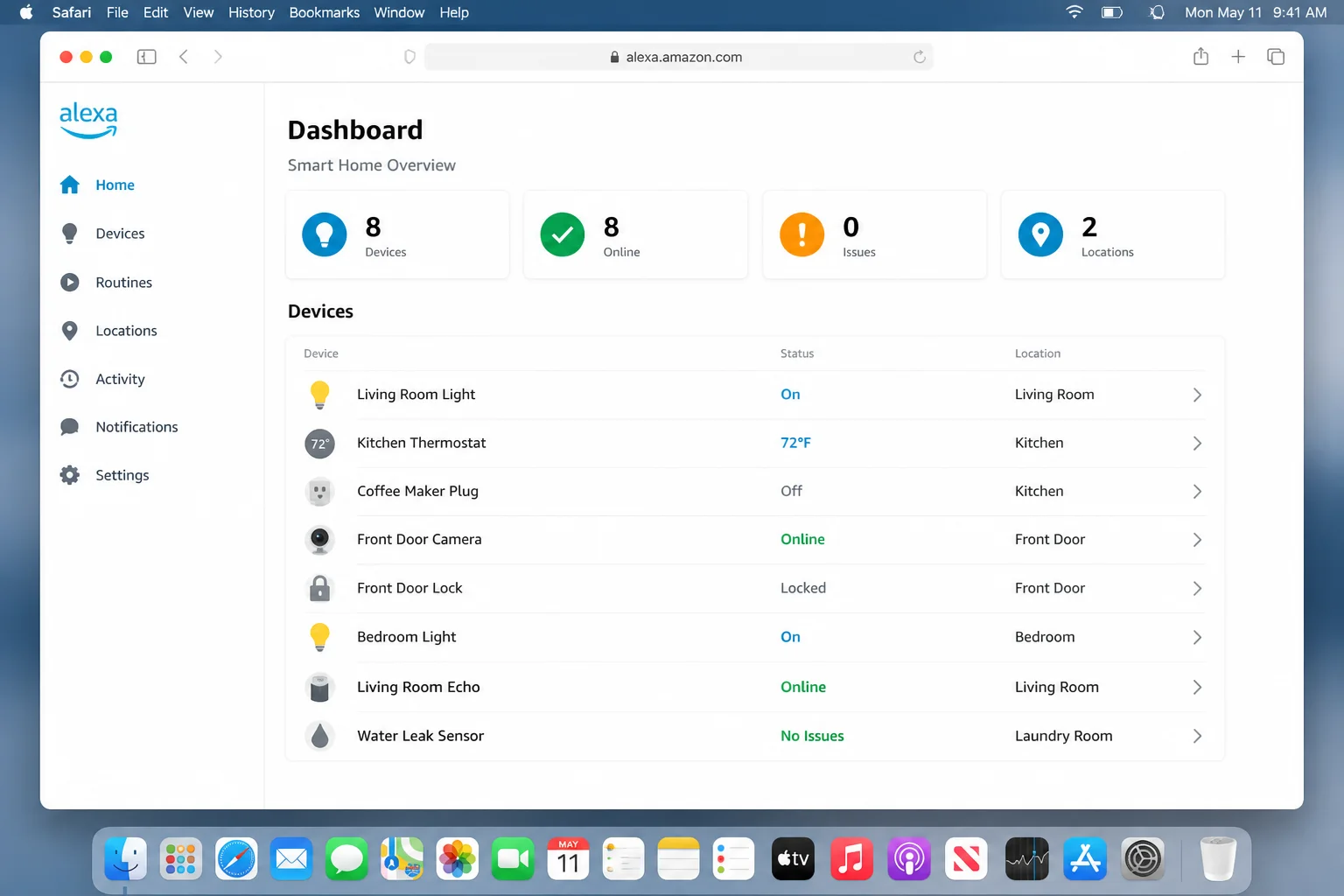
On macOS
On a Mac, open Alexa on the web in a current browser for the available web tools. Use the Alexa app on iOS or Android for the full setup and management process.
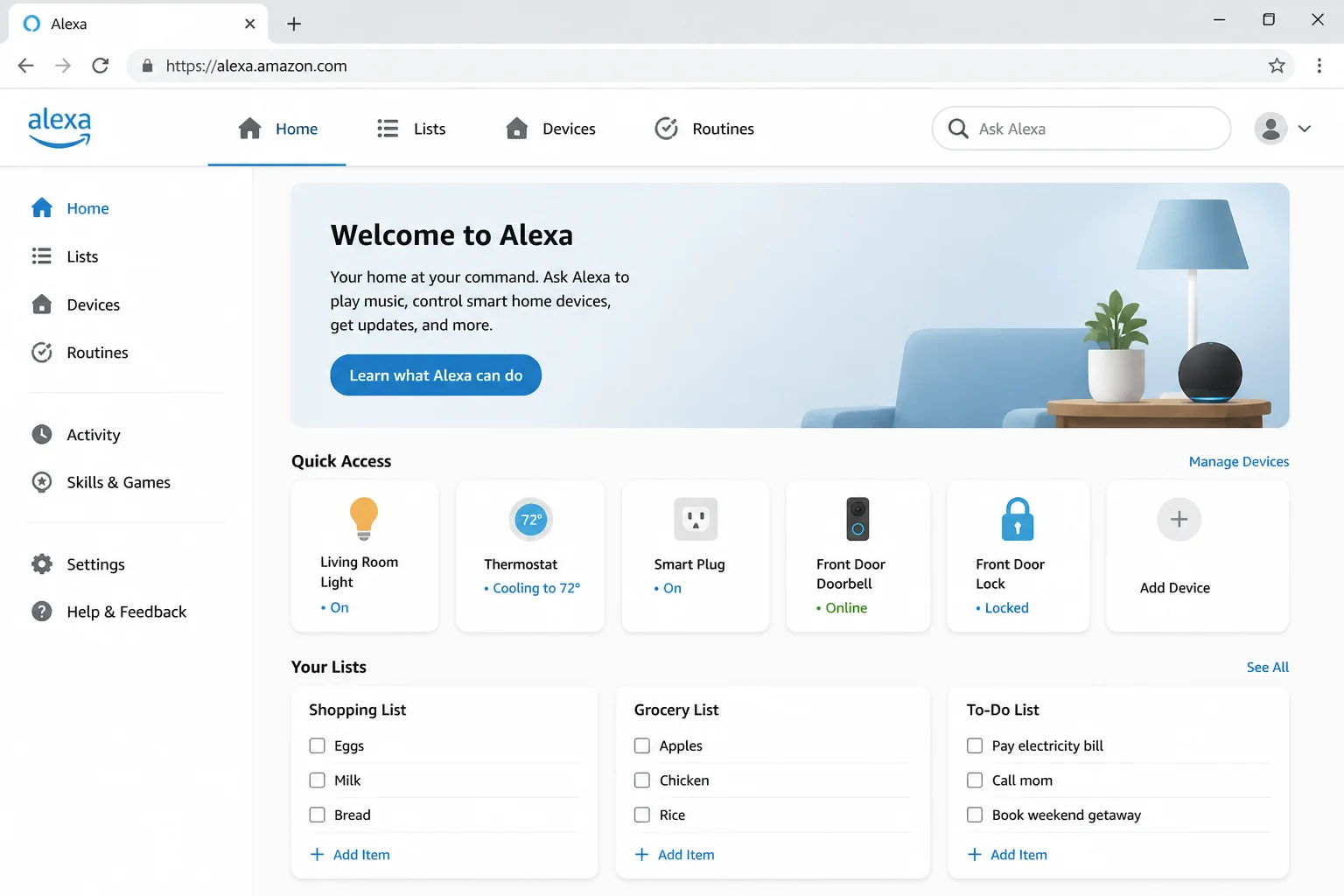
On the Web
Alexa’s website gives you limited access when you’re already at a computer. The mobile app remains the best place to set up and manage your smart home.
Adding a Matter Device
Matter setup is much easier when you follow the steps in order. Skipping around can turn a five-minute job into an afternoon of scanning the same tiny square.
- Put the accessory in setup mode and keep its Matter QR or numeric code nearby.
- In the Alexa app, open More > Add Device.
- Select Other > Matter.
- Choose the option to scan the QR code or enter the numeric code.
- Keep your phone, accessory, and Alexa controller near one another while setup finishes.
- Name the product and add it to the right room or group.
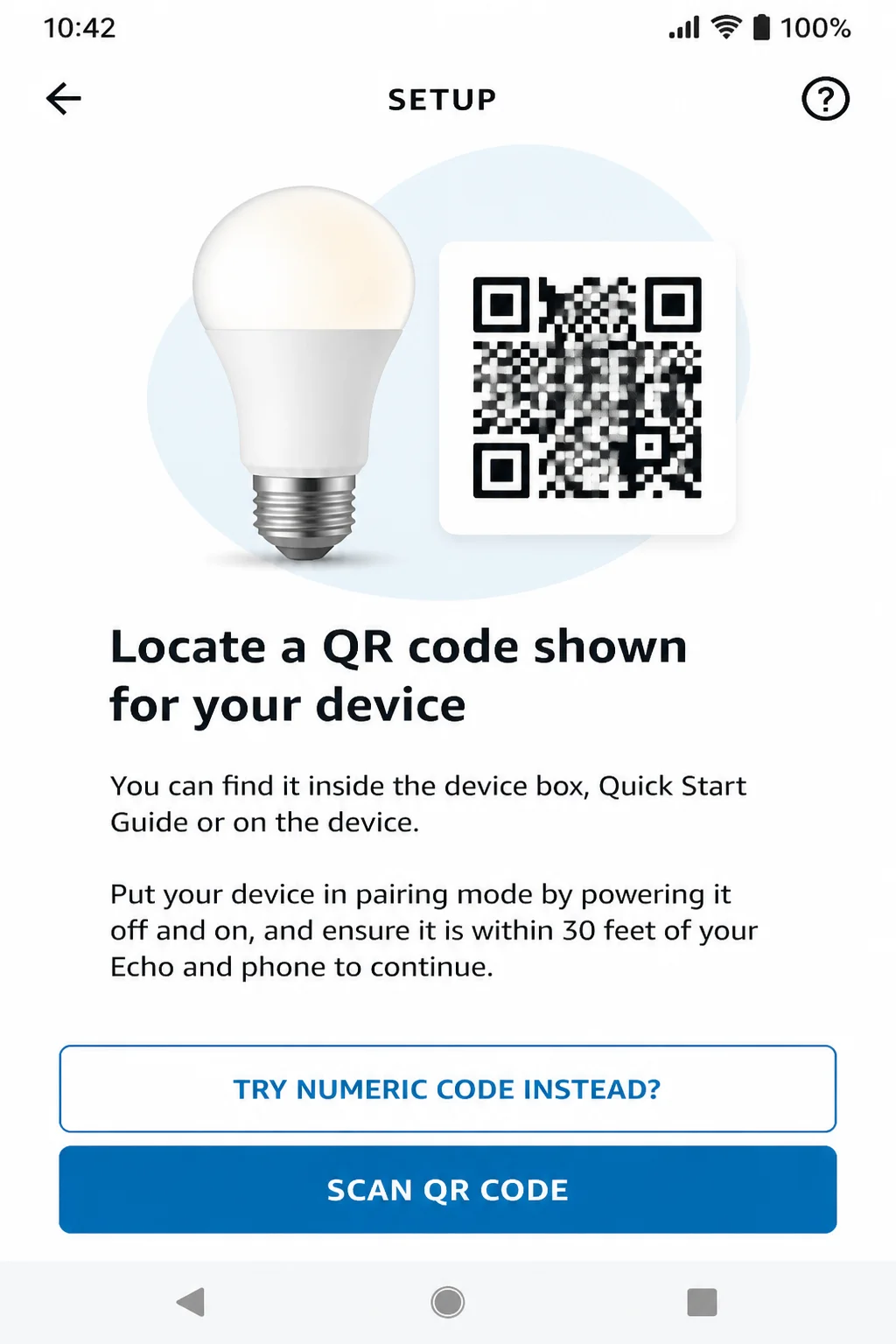
A Matter device usually doesn’t need an Alexa skill. However, a Matter-over-Thread device still needs a compatible Thread border router.
Linking a Manufacturer Account
Use this method for a Works with Alexa product or a device without Matter. It’s also useful when advanced controls depend on the brand:
- Check that the product works in its manufacturer’s app.
- In Alexa, open More > Add Device.
- Choose the device category and manufacturer.
- Select the option to enable or connect the brand’s Alexa connection.
- Sign in to the account that owns the product and approve access.
- Let Alexa find the devices, then name and sort them.
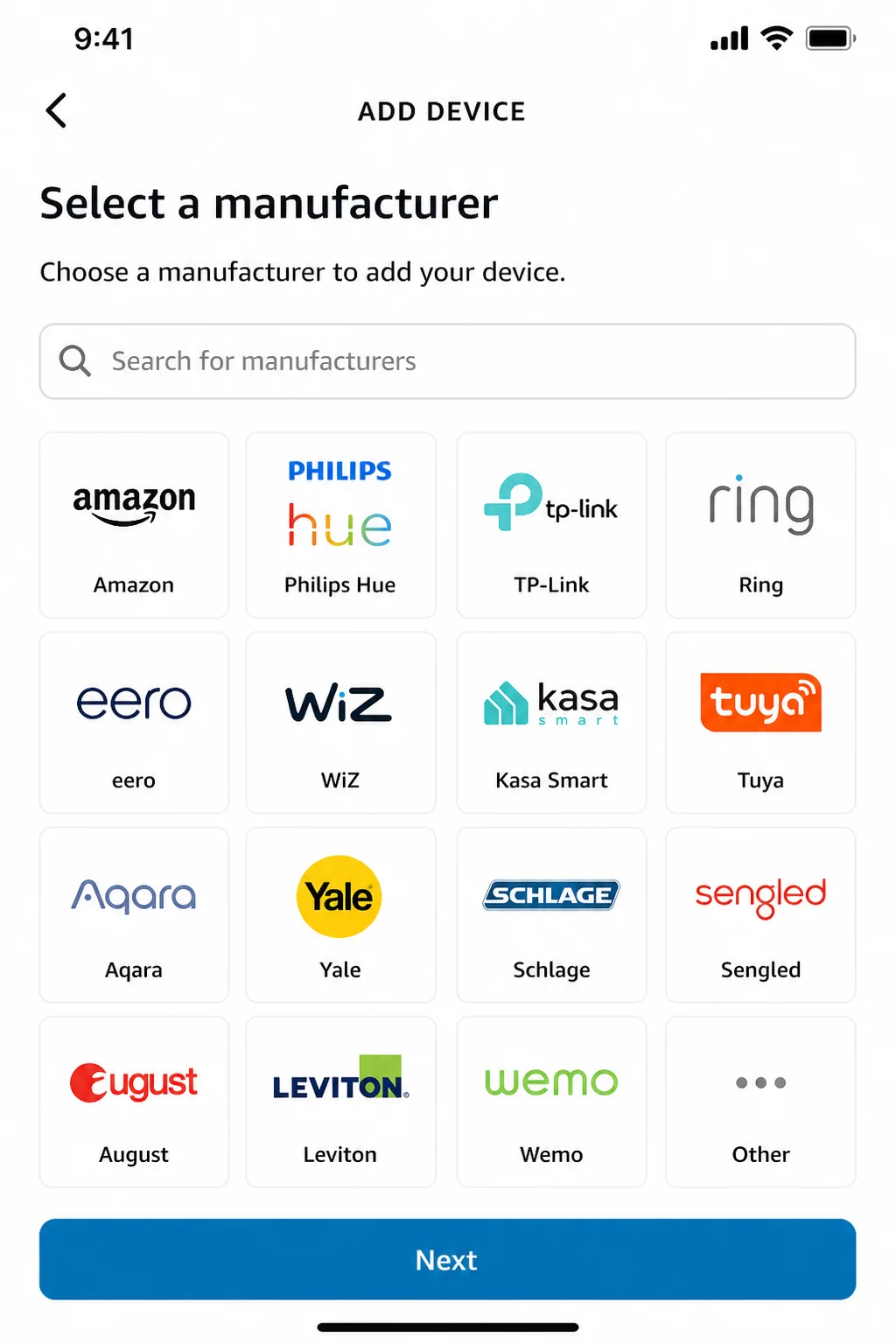
You may see the terms skill, smart home skill, or smart home add-on. During setup, they all describe the bridge between Alexa and the brand’s service.
Discovering a Direct Zigbee Device
This method works only when your Echo has a built-in Zigbee hub:
- Check that your exact Echo model includes Zigbee hardware.
- Reset the Zigbee accessory if it was paired with another hub.
- Put the accessory near the Echo and place it in pairing mode.
- Say, “Alexa, discover devices,” or start discovery from Add Device in the app.
- Wait for Alexa to find it, then assign a clear name and room.
A direct Zigbee connection can save you from buying another hub. The catch is that it may show fewer settings than the brand’s bridge.
Organizing and Controlling Products
After Alexa finds a product, open Devices and select it. Its control panel will depend on the device type and connection method.
Start with these settings:
- Device name: Choose something short and easy to say, such as “Desk Lamp.”
- Room or group: Place the product in the room where it lives.
- Favorites: Add devices you use often to the Home screen.
- Routines: Combine the product with other supported actions.
- Manufacturer app: Keep it installed for updates and advanced settings.
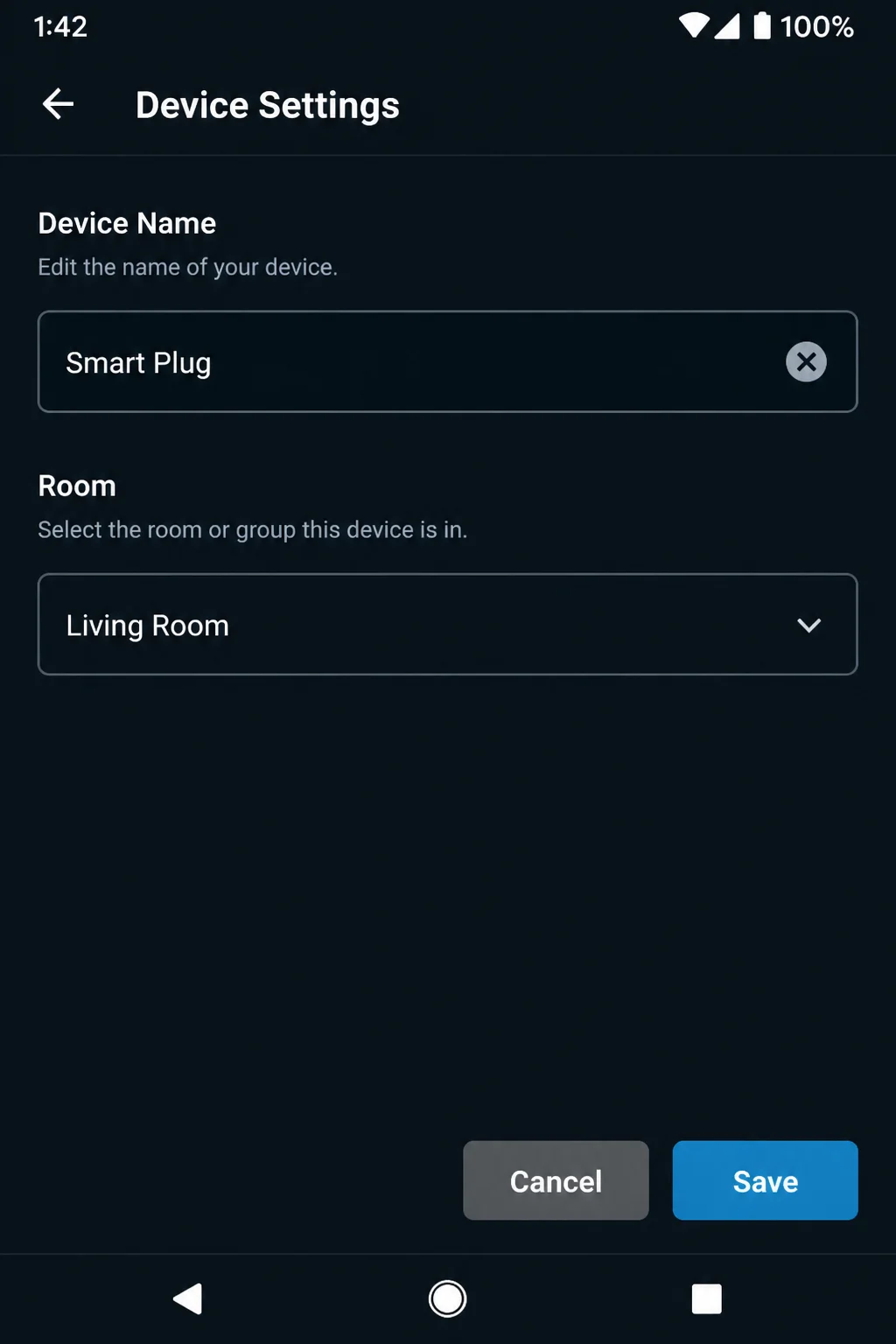
Avoid duplicate or very similar names. “Bedroom,” “Bedroom Light,” and “Bedroom Lights” can leave Alexa guessing. People get confused by that naming scheme too, so the poor speaker never had much of a chance.
Common Problems and Easy Fixes
Alexa Cannot Discover a Device
Problem: A brand-specific product does not appear.
- Check that the product works in its manufacturer’s app.
- Make sure Alexa is linked to the right brand account.
- Check that the product, bridge, and internet connection are online.
- Run device discovery again.
Reboot the Device or Bridge: Unplug it, count to 30, and reconnect it. This fix sounds almost too basic. Still, smart home products enjoy a restart just as much as Windows PCs do.
A Matter Device Will Not Connect
Problem: Scanning the Matter code does not finish setup.
- Check that your Alexa hardware supports Matter.
- Find out whether the accessory uses Wi-Fi or Thread.
- For Thread, check that a compatible Echo or eero is acting as a Thread border router.
- Keep the accessory near the controller and return it to pairing mode.
- Retry More > Add Device > Other > Matter with the original code.
If the product was added to another system, follow its sharing steps or reset it before trying again. Don’t post or photograph its reusable setup code. Treat that code like a spare house key.
A Thread Product Refuses to Join
A Matter controller and a Thread border router have different jobs. An older Echo may control Matter-over-Wi-Fi products but lack the radio needed for a Thread accessory.
Check the exact specs for your Echo or eero model. Update its software, move the accessory nearby, and try setup again.
Alexa Says the Device Is Unresponsive
“Device is unresponsive” usually means one connection in the chain has gone offline.
- Test the product in its manufacturer’s app.
- Check its power, Wi-Fi connection, bridge, and internet service.
- Restart the product or bridge.
- If the brand app works but Alexa doesn’t, reconnect the brand’s Alexa connection.
- Run discovery again.
For cloud-linked products, an outage at the brand can also stop Alexa control. Sadly, yelling louder at the Echo won’t repair somebody else’s server.
Alexa Controls the Wrong Product
Duplicate names are usually the cause. Open Devices, select each affected product, and give it a clear name.
Use Plain Names: “Sofa Lamp” works better than “John’s New Wi-Fi RGB Bulb.” Alexa has enough to think about already.
Don’t use the same word for both a device and a room. Naming a device “Kitchen” inside a group called “Kitchen” is asking for trouble.
Only Some Features Are Available
Alexa may show power and status controls while leaving advanced options in the brand’s app. This often happens with cameras, door locks, vacuums, blinds, and appliances.
Try the brand’s Alexa connection if Matter gives you too few controls. Alexa still may not support maps, detection zones, video history, washing programs, or every security option. That’s a support limit and doesn’t always mean setup failed.
Commands Stop During an Internet Outage
Alexa voice requests usually depend on Amazon’s cloud. Voice commands may stop even while a Zigbee or Thread connection inside your home stays active.
Use physical switches, lock controls, or any local option from the brand until your internet returns. If offline use matters to you, choose products and systems that clearly support local control.
Pricing
Core Alexa smart home controls are free. You’ll still need to buy the Echo and smart home products. Brands may also charge for camera recordings, advanced monitoring, or other services.
| Plan | What you get | Price |
|---|---|---|
| Alexa | Basic compatible-device controls, Alexa app management, routines, timers, lists, and manufacturer integrations | $0 for the core Alexa service |
| Alexa+ with eligible U.S. Prime membership | More conversational requests, multi-step commands, and generative AI features | Included at no additional charge |
| Alexa+ without Prime in the U.S. | Alexa+ conversational and generative AI features | $19.99 per month |
You don’t need Alexa+ for regular smart home control. That’s worth repeating because subscription pages have a funny habit of making free tools sound expensive.
Alexa+ access, prices, and terms can differ by country and account. Check Amazon’s current offer before you subscribe.
How to Choose Compatible Products
Look for Certification: Buy products with a clear Matter or Works with Alexa label. A fuzzy claim like “works with smart homes” tells you almost nothing.
Check the Exact Model: Support may change between versions of the same product. Match the full model number instead of trusting the family name.
Confirm the Connection Type: A Matter-over-Thread product needs a Thread border router. A direct Zigbee accessory needs an Echo with Zigbee hardware.
Read the Supported-Features List: “Works with Alexa” doesn’t promise that Alexa can use every option in the brand’s app.
Keep the Original App: You’ll probably need it for updates, account controls, camera settings, vacuum maps, or repairs.
Prefer Matter for Common Controls: Matter works well for certified lights, plugs, locks, thermostats, sensors, and blinds. It’s also handy when you want to use more than one smart home system.
Prefer the Brand Integration for Complex Products: Cameras, doorbells, vacuums, and appliances often give you more controls through the brand’s Alexa connection.
Alternatives to Alexa
| Alternative | Best for | Key difference |
|---|---|---|
| Google Home | Homes centered on Google services and Nest products | Competing voice assistant and Matter ecosystem |
| Apple Home | Households that mainly use iPhones, iPads, Macs, and Siri | Strong Apple support through the Home app |
| Samsung SmartThings | People with a broad mix of devices and protocols | A compatible hub can bridge technologies Alexa does not support directly |
| Home Assistant | Users who want deep customization and more local control | More flexible, but generally more technical to set up |
Matter products can often join more than one of these systems. Alexa, Apple Home, Google Home, and SmartThings each need the right controller hardware. You’ll also need to follow the accessory’s sharing steps.
The Bottom Line
Alexa makes it easy to control lights, plugs, thermostats, locks, sensors, and plenty of other smart home gear. Matter helps different brands work together. Zigbee and brand connections fill many of the gaps.
My take: use Matter for simple devices and brand connections for more complex ones. Check the exact certification and hardware before spending money, though. Logos beat assumptions every time.
- Broad support for popular smart home brands
- Voice, app, group, and routine controls
- Matter support without a separate skill in most cases
- Selected Echo and eero hardware supports Thread
- Selected Echo models can pair directly with Zigbee products
- Basic smart home control remains free
- Not every Echo supports Matter, Thread, or Zigbee
- Voice commands normally require internet access
- Advanced product features may stay in the manufacturer’s app
- No direct Z-Wave support
- Duplicate devices can appear when multiple setup methods are used
- Camera, vacuum, and appliance support varies widely
Wrapping Up
| Step | Action | Applies To |
|---|---|---|
| 1 | Check for Matter or Works with Alexa certification | All new purchases |
| 2 | Confirm your Echo or eero has the required capability | Matter, Thread, and Zigbee devices |
| 3 | Use Matter setup or link the manufacturer account | Most compatible products |
| 4 | Give every product a short, unique name | All Alexa devices |
| 5 | Add products to rooms, Favorites, and routines | Daily Alexa control |
| 6 | Test power, internet, bridges, and account connections when something fails | Unresponsive devices |
You can now tell whether a product should connect through Matter, Thread, Zigbee, Wi-Fi, or the brand’s service. Keep setup simple and buy gear with clear labels. Alexa can then become a useful universal remote for your home (with far fewer mystery buttons).