
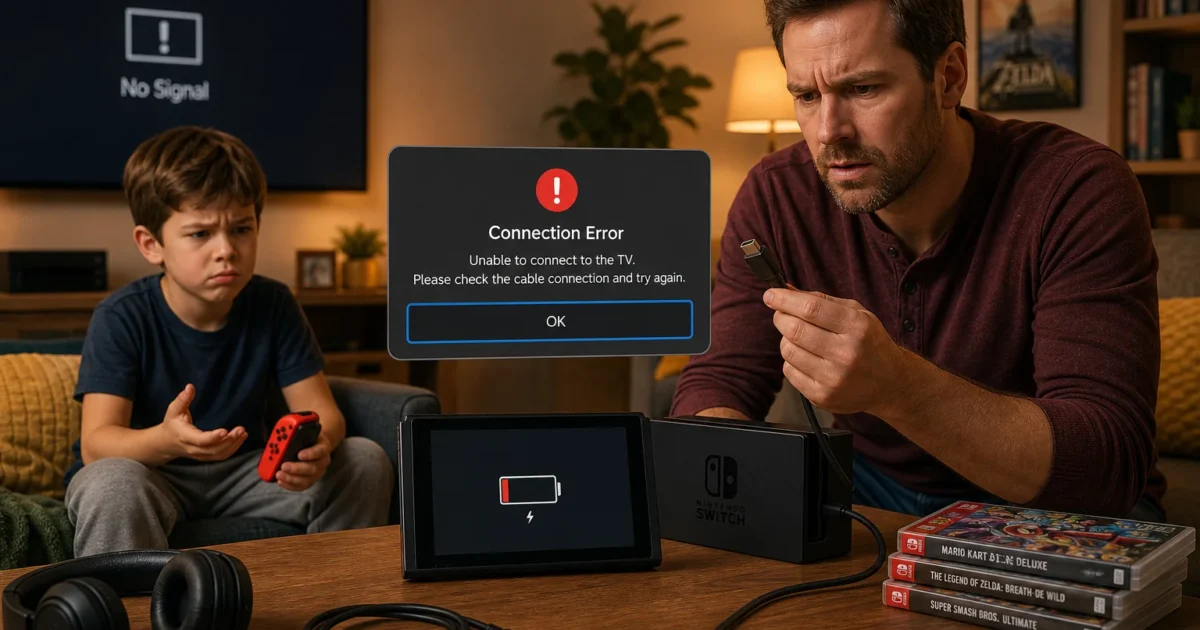
What’s more annoying than grabbing your Switch and finding a dead screen? Getting it to charge, only to have your TV stare back with “No Signal.” Thankfully, you can often fix both problems without opening the console or buying a drawer full of replacement parts.
We’ll start with the safest checks, then work through the charger, console, dock, HDMI connection, TV input, USB ports, and accessories. These steps cover the original Nintendo Switch, OLED model, Switch Lite, and Switch 2. Model differences matter here, so don’t skip those labels.
Quick Fixes to Try First
Try these basics before chasing one specific symptom. They fix a surprising number of Switch problems (and take only a few minutes).
- Identify Your Switch Model: Check whether you have an original Switch, OLED model, Switch Lite, or Switch 2. Their power and TV-mode hardware aren’t all interchangeable.
- Disconnect Extra Accessories: Remove USB devices, controllers, adapters, capture cards, HDMI switches, and third-party docks. Start with the simplest setup possible.
- Reset the AC Adapter: Unplug it from both the wall and the console or dock. Wait at least 20 seconds, then plug it directly into a wall outlet.
- Charge the Console Directly: Skip the dock and connect the correct AC adapter to the console. Look for the battery charging symbol in the upper-right corner.
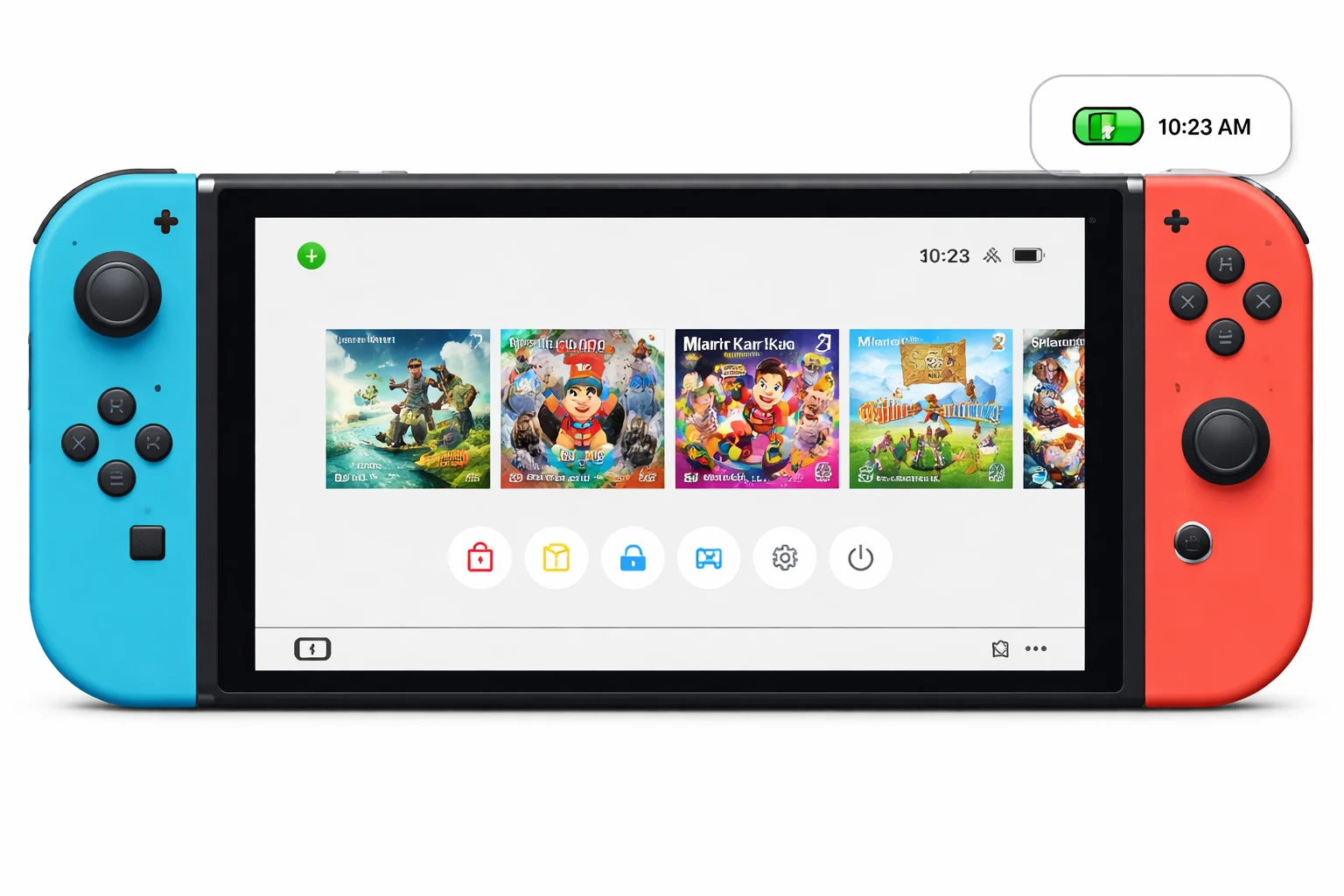
- Force a Shutdown: Hold the POWER Button for at least 12 seconds. Release it, then press it once to restart the console.
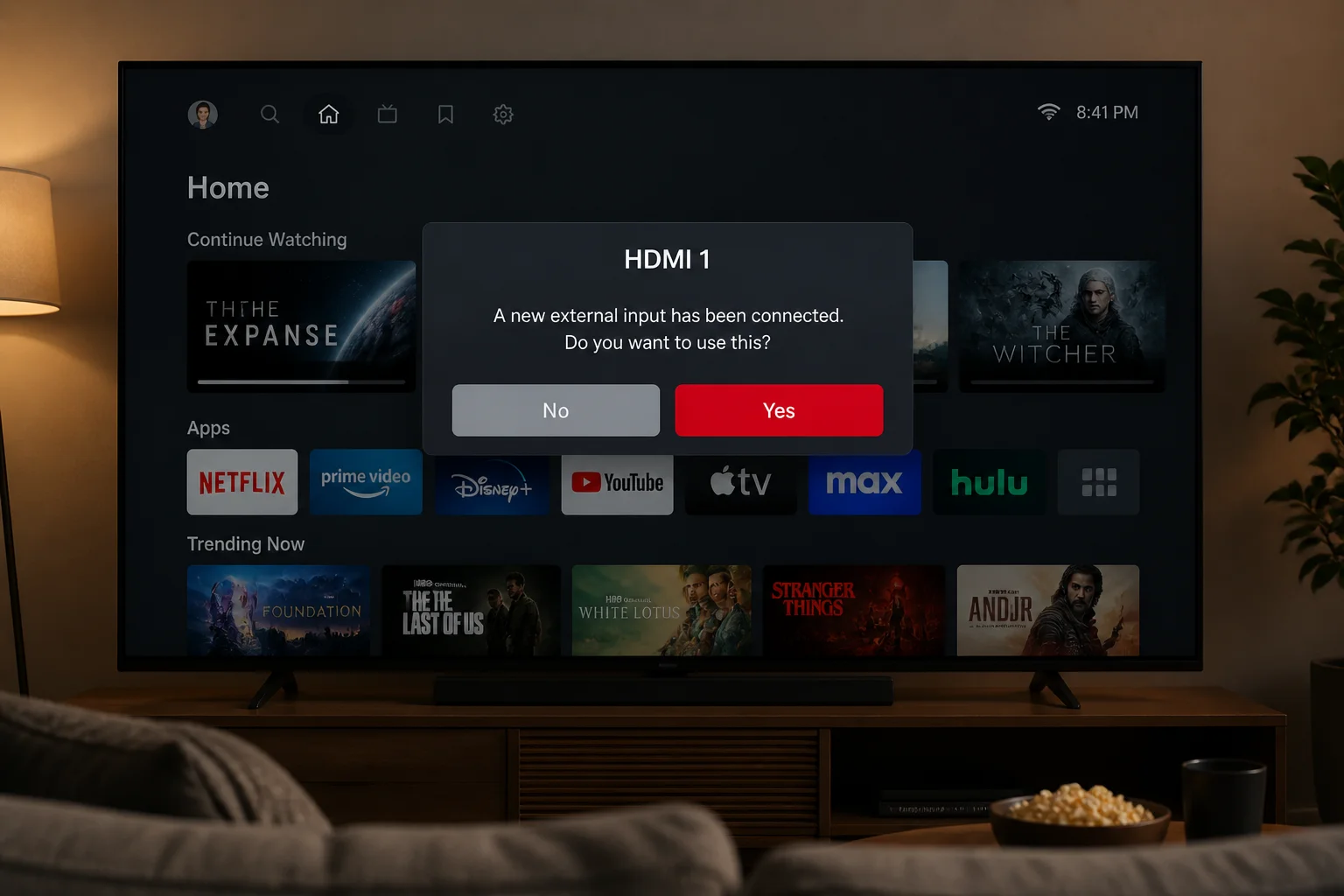
- Check the TV Input: Make sure the TV is using the numbered HDMI input connected to the dock. HDMI 1 and HDMI 2 look awfully similar when you’re crawling behind a television.
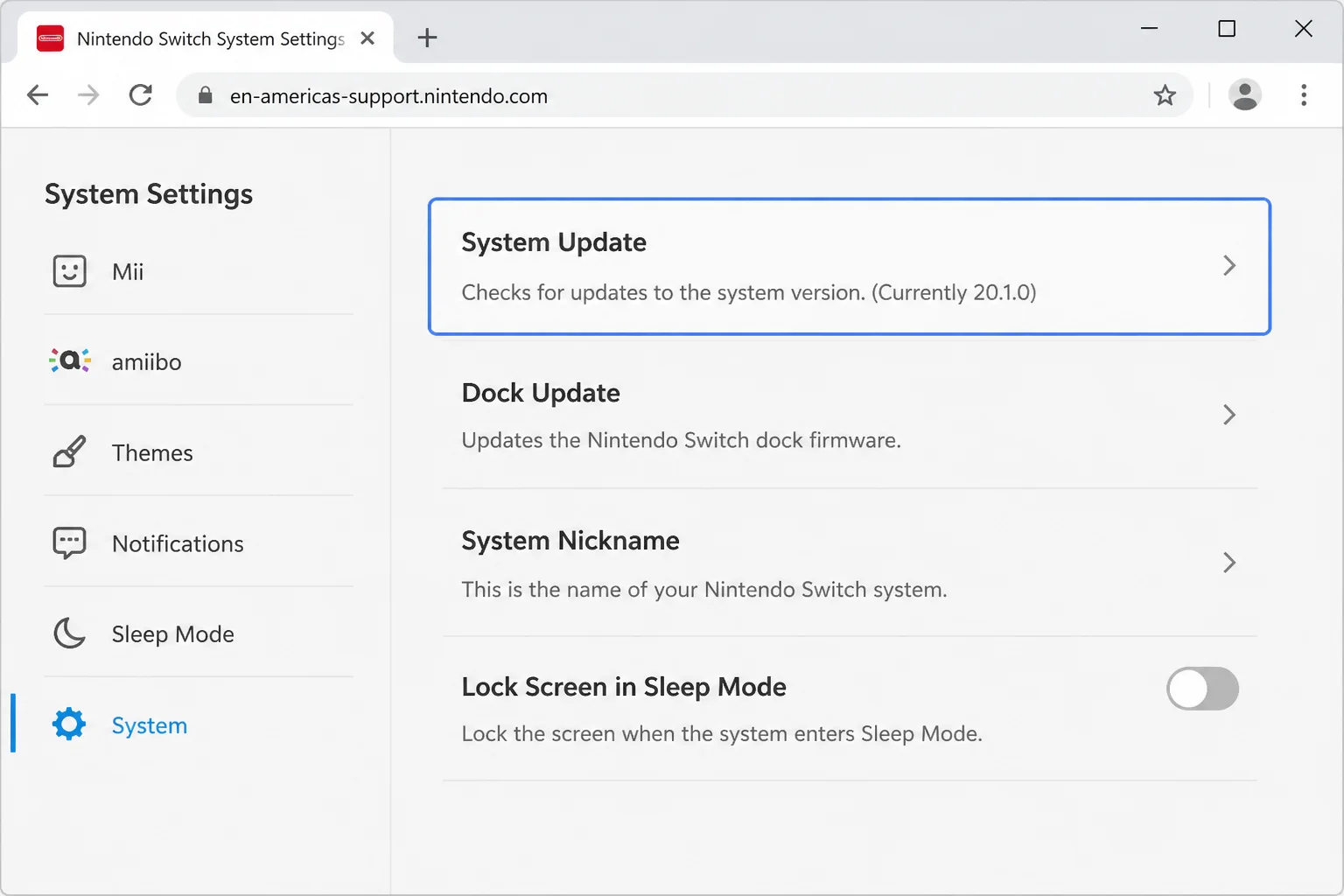
- Update the System: Open System Settings > System > System Update and install any available update.
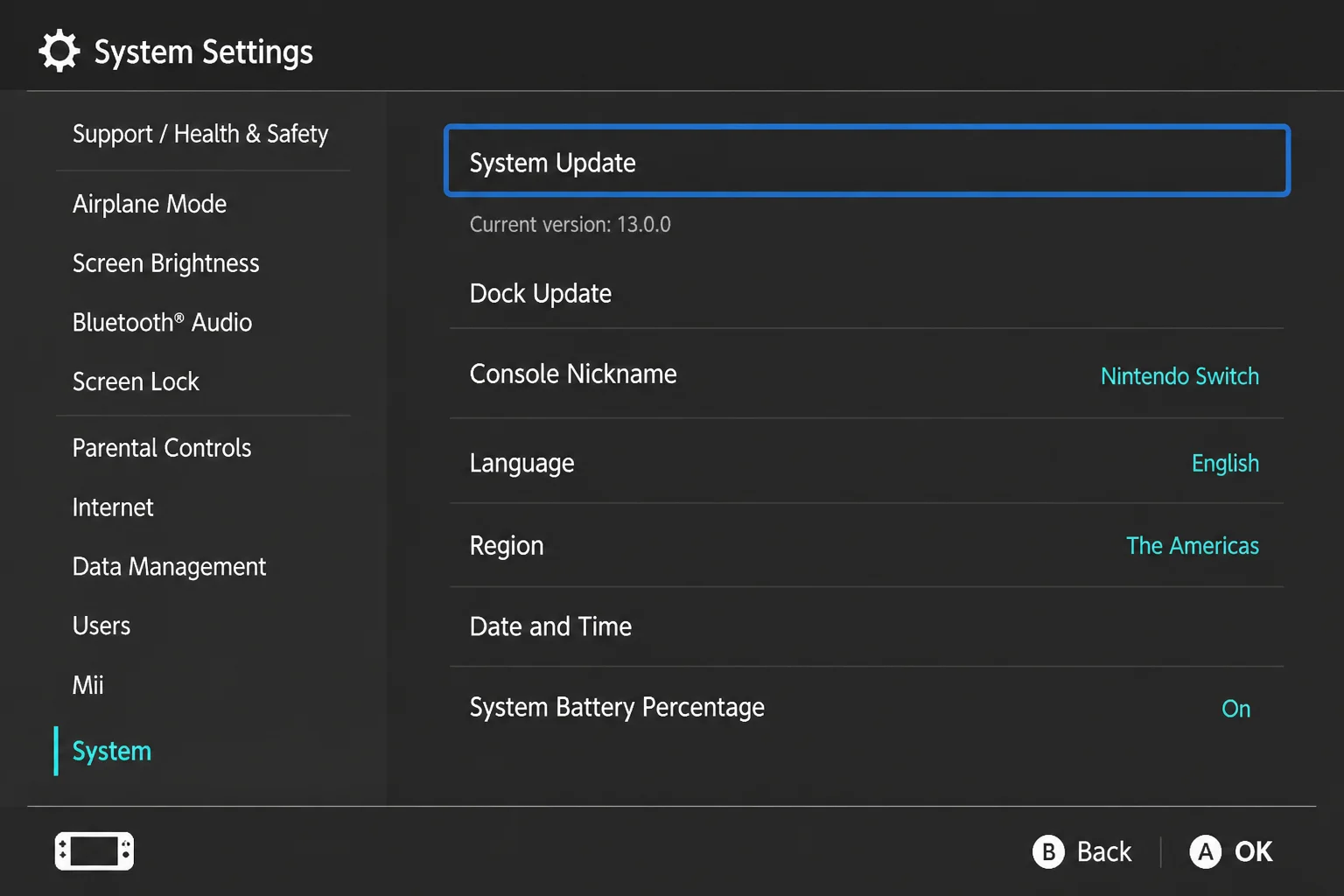
Nintendo lists current changes on its official Nintendo Switch System Update Information page. Skip version numbers from old forum posts. Nintendo changes the software over time, while those posts sit around collecting dust.
Quick Diagnosis: Find the Failing Part
Use this table to narrow down the problem before replacing anything.
| Test | Result | Likely Problem |
|---|---|---|
| Charge directly from the wall | No charging icon | Adapter, wall outlet, charging port, battery, or console |
| Charge directly from the wall | Console charges normally | Dock, dock power connection, or dock compatibility |
| Dock charges the console | TV says “No Signal” | HDMI cable, TV input, dock video connection, or software |
| Another HDMI device works on the same input | Switch still has no picture | Dock, Switch, adapter, or HDMI cable |
| One dock USB port fails | Other ports work | Specific USB port or plug fit |
| Every dock USB port fails | Accessories work elsewhere | Dock power, firmware, or dock hardware |
| Official setup works after removing accessories | Problem returns with an accessory | Third-party dock, cable, adapter, hub, or accessory |
Change one item, test again, and write down what happened. Think of it like finding one bad bulb in a string of lights. Swapping everything at once makes the mystery bigger and usually wastes an evening.
Common Issues and Solutions
Problem: The Nintendo Switch Is Plugged In but Not Charging
Symptoms:
- No charging symbol appears.
- The battery percentage doesn’t rise.
- The screen stays black after connecting power.
- Charging starts and stops when the cable moves.
Why it happens: The plug may be loose, the outlet may have failed, or the AC adapter’s protection circuit may need a reset. A deeply drained battery can also stay dark for a while. An unsuitable USB-C charger is another common cause. A plug that fits doesn’t guarantee the right power.
Fix:
- Remove the console from its dock.
- Check the AC adapter and cable for cuts, bent parts, or a loose connector. Don’t use damaged power equipment.
- Unplug the adapter from the wall and the console.
- Leave both ends disconnected for at least 20 seconds. This resets the adapter.
- Plug the adapter directly into a wall outlet that you know works. Skip power strips and extension cords for this test.
- Connect it directly to the console.
- Check the top-right corner of the screen for the charging symbol.
- If the console is completely dead, leave it connected for at least 30 minutes before pressing POWER.
Nintendo identifies HAC-002 as the AC adapter for the original Nintendo Switch family. Switch 2 uses different power hardware, so read the label. Don’t assume every Nintendo-branded USB-C adapter will do the job.
Verification: Leave the console charging for another 15 minutes. Wake it and check that the battery percentage has gone up.
Tip: If another appliance also fails in that outlet, your Switch is probably innocent for once.
Problem: The Console Charges but Will Not Turn On
Symptoms:
- A charging symbol appears, but the system won’t start.
- The display is frozen.
- The console ignores a normal press of the POWER Button.
- The screen stays black even after charging.
Why it happens: The battery may still be deeply depleted, or the operating system may have frozen. A forced shutdown clears that stuck state without opening or resetting the console (basically the Switch version of turning it off and on again).
Fix:
- Connect the correct AC adapter directly to the console.
- Leave a fully depleted console charging for at least 30 minutes.
- Hold the POWER Button continuously for at least 12 seconds.
- Release the button.
- Press the POWER Button once to start the system normally.
- If it starts, open System Settings > System > System Update.
Verification: Put the console to sleep, wake it again, and check that it responds normally.
If it still shows no sign of life after a direct charge, adapter reset, and forced restart, stop repeating the same steps. The console or adapter may need service, and no amount of angry button pressing will change that.
Problem: The Dock Charges the Switch but Shows No TV Picture
Symptoms:
- The console charges inside the dock.
- The dock light reacts, but the television says “No Signal.”
- The picture flashes and disappears.
- Handheld mode works normally.
Why it happens: Charging confirms that some power reaches the console. It doesn’t confirm that the dock’s video path works. The wrong TV input, a loose HDMI cable, poor dock power, old software, or incompatible hardware can all block the picture.
Fix:
- Update the console through System Settings > System > System Update.
- Turn off the TV and remove the console from the dock.
- Disconnect the AC adapter and HDMI cable from the dock.
- Unplug the AC adapter from the wall for at least 30 seconds.
- Connect the correct AC adapter directly to a wall outlet and then to the dock’s power port.
- Connect one HDMI cable directly between the dock and the TV. Temporarily remove soundbars, receivers, capture cards, splitters, and HDMI switches.
- Select the exact HDMI input used by that cable.
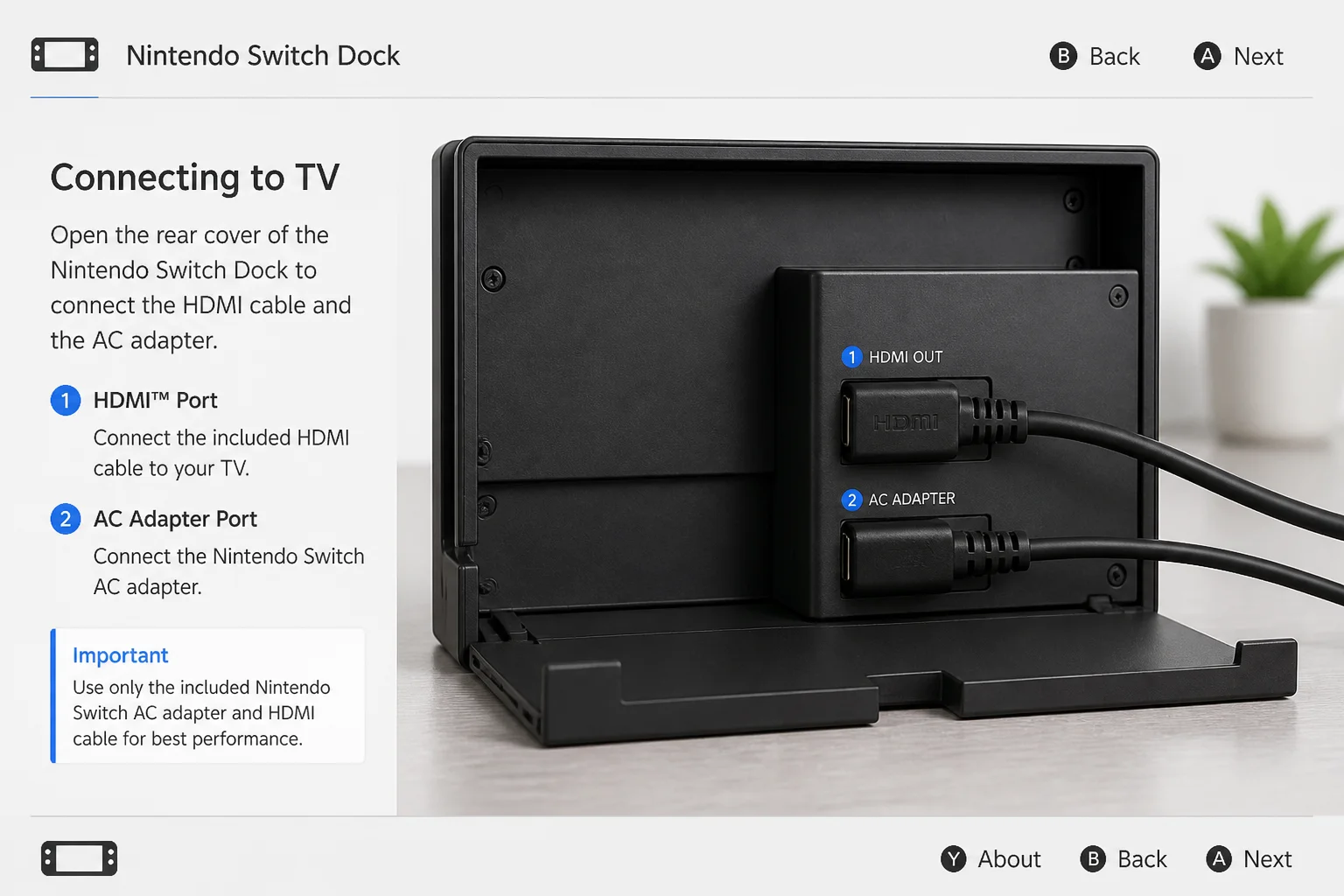
- Insert the console into the dock with its screen facing the front panel.
- If there’s still no picture, try another HDMI cable and another HDMI port on the TV.
Verification: The console screen should turn off after docking. The HOME Menu should then appear on the television.
Problem: Switch 2 Requests the Supplied AC Adapter
Symptoms:
- Switch 2 reports: “Could not connect to the TV. Please use the AC adapter supplied with this system.”
- The console charges but won’t enter TV mode.
- TV output stopped after changing a dock or charger.
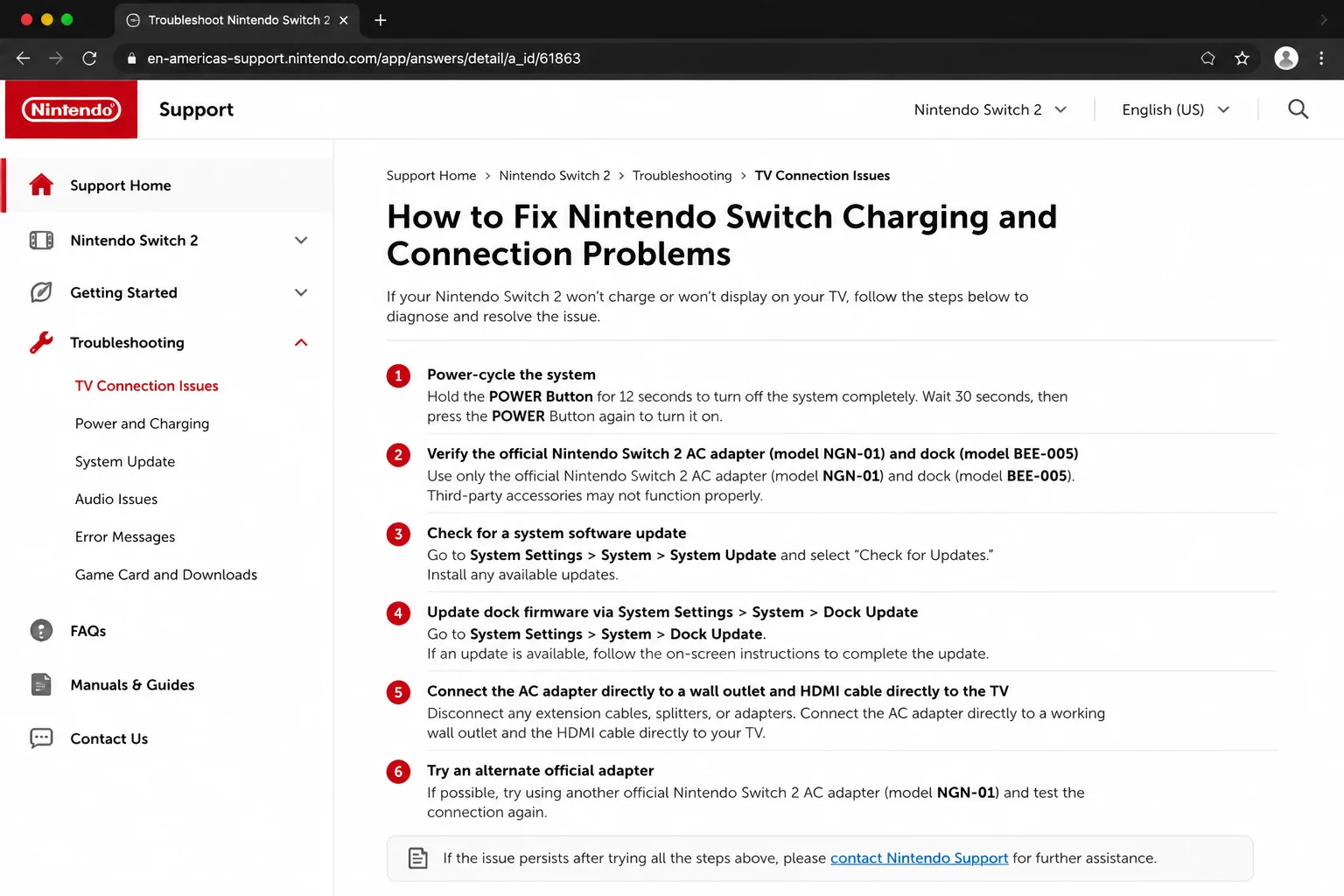
Why it happens: Switch 2 needs compatible power and dock hardware for TV mode. Nintendo’s guidance for this error names the NGN-01 AC adapter and BEE-005 Switch 2 dock. The message can appear with the wrong adapter, damaged hardware, a poor connection, or old dock firmware.
Fix:
- Remove Switch 2 from the dock.
- Disconnect every cable from the dock and unplug the adapter from the wall.
- Wait at least 30 seconds.
- Check the adapter label for model NGN-01.
- Check that you’re using the Switch 2 dock, model BEE-005.
- Update the console through System Settings > System > System Update.
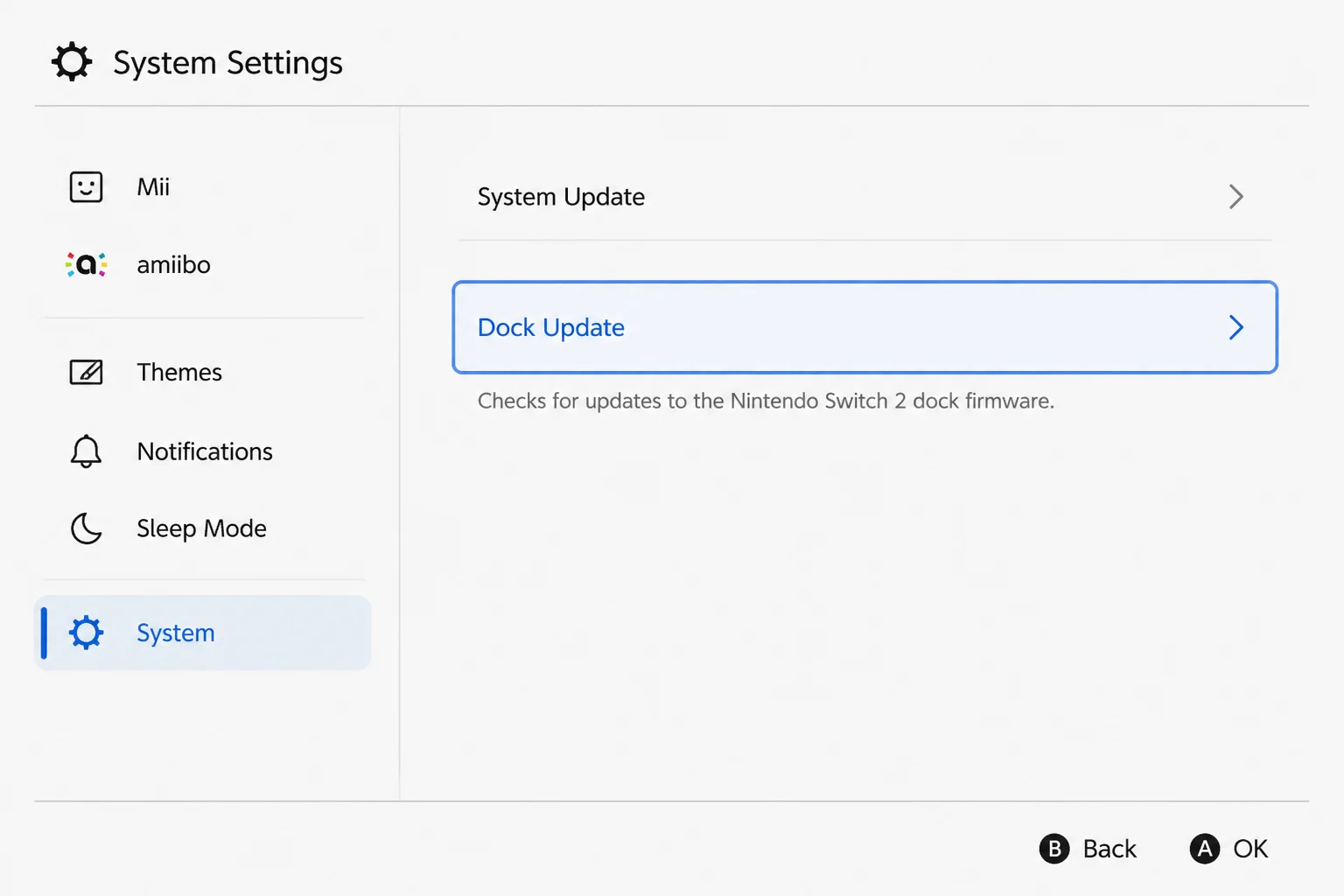
- Open System Settings > System > Dock Update and install any available dock update.
- Reconnect the adapter directly to the wall and dock.
- Connect HDMI directly between the dock and TV, then select that input.
- If you have one, test another known-working, compatible Switch 2 AC adapter.
Verification: Dock the console and check that the error disappears. The TV should display the HOME Menu.
Problem: The Dock USB Ports Do Not Work
Symptoms:
- A controller or charging grip doesn’t charge.
- A wired accessory isn’t detected.
- One or every USB port appears dead.
Why it happens: The dock may need a power reset, or the system or dock may need an update. The USB cable could also be damaged or only partly inserted. An incompatible accessory can make a perfectly good port look dead, too.
Fix:
- Update the console from System Settings > System > System Update.
- On Switch 2, also choose System Settings > System > Dock Update.
- Disconnect all accessories and cables from the dock.
- Unplug the AC adapter at both ends for at least 30 seconds.
- Reconnect dock power directly to a wall outlet.
- Check the USB plug and cable for visible damage.
- Push the plug firmly into one dock USB port.
- Test the accessory in each available USB port.
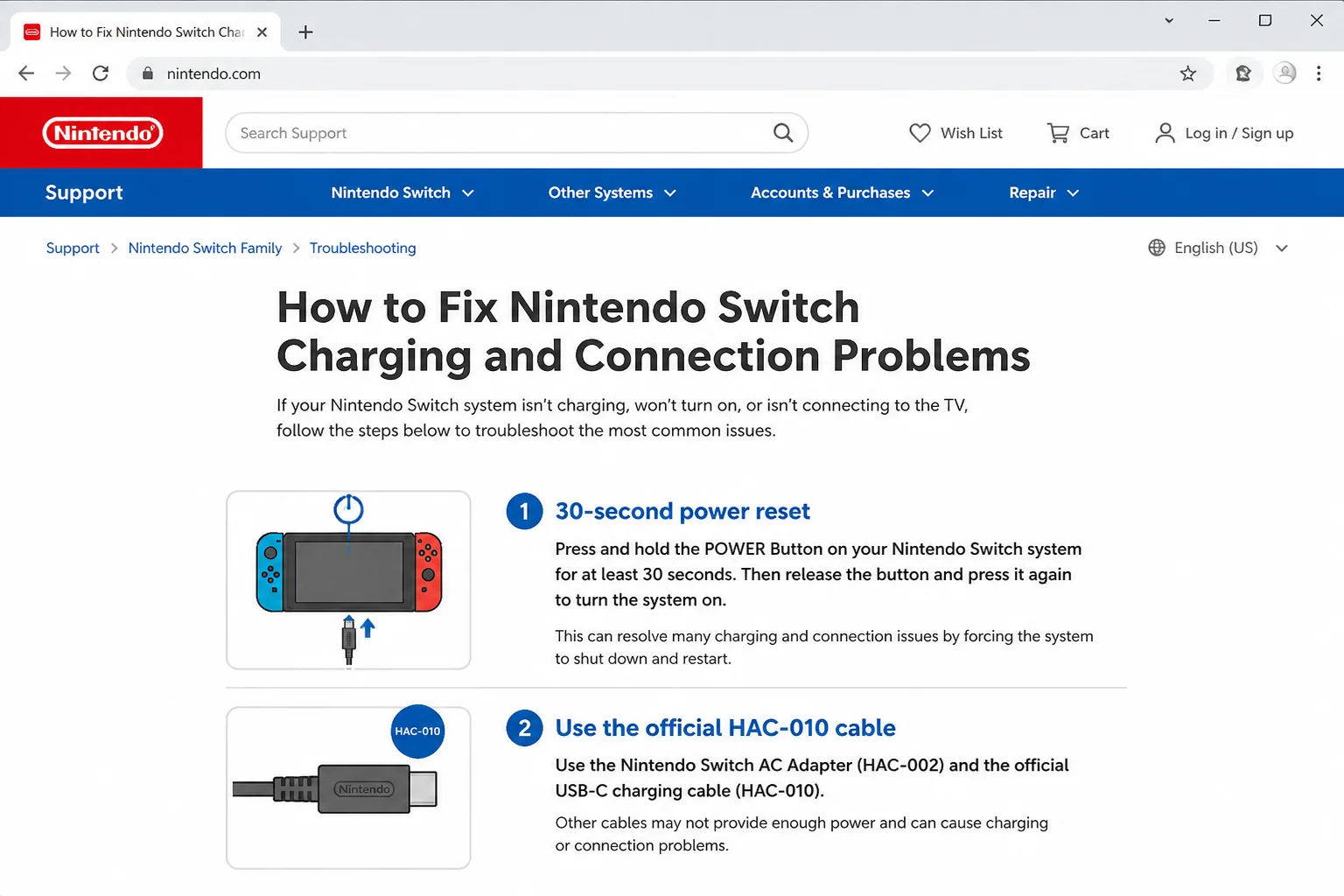
- Try a second compatible cable or accessory if you have one. Nintendo identifies HAC-010 as the official USB charging cable supplied with supported controllers and charging grips.
Verification: Check that the controller shows a charging indicator or that the accessory appears in the correct console menu.
If one port fails with several working cables and accessories, the dock likely needs service. If one accessory fails in every port, suspect that accessory or its cable first. That’s much cheaper news.
Problem: A USB-C-to-HDMI Cable Produces No Picture
Symptoms:
- A passive USB-C-to-HDMI cable gives no signal.
- Handheld charging works, but direct TV output doesn’t.
- The TV briefly detects something and then returns to “No Signal.”
Why it happens: A normal passive cable can’t replace the powered video hardware the Switch requires. USB-C describes the connector shape, but it doesn’t promise every possible function behind that connector (probably USB-C’s most annoying trick).
Fix:
- Disconnect the passive cable.
- Use the correct powered Nintendo dock and compatible AC adapter for your model.
- Connect power to the dock.
- Connect a standard HDMI cable directly from the dock to the TV.
- Select the matching HDMI input.
- Update the console and, for Switch 2, update the dock.
Verification: Dock the system and check that its screen turns off while the picture appears on the TV.
Problem: Charging Stopped After Using a Third-Party Dock or Charger
Symptoms:
- Charging is slow or keeps stopping.
- TV mode stopped working after changing accessories.
- The console became unresponsive.
- An accessory works with one setup but not another.
Why it happens: Some USB-C chargers, docks, hubs, and video adapters don’t supply the power or functions a Switch expects. The connector can fit perfectly while the electronics behind it are completely wrong. USB-C really does enjoy making simple things complicated.
Fix:
- Disconnect the third-party accessory.
- Unplug the official adapter at both ends for 20 to 30 seconds.
- Connect the official adapter directly to a wall outlet.
- Charge the console directly for at least 30 minutes.
- Force a restart by holding POWER for at least 12 seconds, releasing it, and pressing it once.
- Check that direct handheld charging works.
- Test the console with its correct official dock and HDMI setup.
Verification: Check that the battery percentage rises during direct charging. Then confirm that the official dock works without the third-party device connected.
Problem: Nintendo Switch Lite Will Not Connect to a TV
Symptoms:
- A Switch Lite produces no picture through a dock or adapter.
- The console charges, but TV mode never starts.
Why it happens: Nintendo Switch Lite doesn’t support TV mode and can’t send video through the Nintendo Switch dock. This hardware limitation can’t be changed through a menu, cable, or clever adapter.
Fix:
- Disconnect the dock or video adapter.
- Use the Switch Lite in handheld mode.
- Use a dock-compatible original Switch, OLED model, or Switch 2 when you need TV play.
Verification: There’s no TV-output test for Switch Lite. Check that it charges and works normally in handheld mode.
Error Messages and Screen Indicators
| Message or Indicator | What It Means | What to Do |
|---|---|---|
| “Could not connect to the TV. Please use the AC adapter supplied with this system.” | Switch 2 cannot confirm compatible dock power for TV mode | Use NGN-01 with dock BEE-005, reset connections, update the system and dock |
| “No Signal” on the TV | The TV isn’t receiving video on the selected input | Check the HDMI input, direct cable connection, dock power, and dock compatibility |
| Battery icon without a charging symbol | The console is on but doesn’t detect charging power | Reset the adapter, use a wall outlet, and test direct charging |
| Charging symbol appears briefly, then vanishes | Power delivery is unstable | Reseat the plug, inspect the cable, bypass the dock, and test the proper adapter |
| Blank screen with no icons | Battery may be deeply empty, or the system may be frozen | Charge for at least 30 minutes, then hold POWER for at least 12 seconds |
| Dock Update unavailable or fails | Console software, internet access, dock connection, or compatibility may be involved | Update the console first, confirm the dock is connected, then retry |
A numbered error code may point to an internet or account problem instead of the physical dock. Record the whole code before restarting. Nintendo Support will need the complete number to look it up.
Model-Specific Hardware Issues
Original Switch and Switch OLED
Use a compatible Nintendo Switch dock and the correct original Switch family adapter. Nintendo identifies that adapter as HAC-002. Both models support handheld and TV mode, though the docks included with them aren’t identical.
Nintendo Switch 2
Switch 2 uses newer power and dock hardware. For Nintendo’s supplied-adapter TV error, confirm NGN-01 on the AC adapter and BEE-005 on the dock. Switch 2 also has a separate Dock Update option under System Settings > System.
Nintendo keeps separate pages for Switch 2 system update information and the Switch 2 update history.
Nintendo Switch Lite
Switch Lite supports handheld play only. It can’t send video to a television through a Switch dock, passive USB-C-to-HDMI cable, or hidden menu setting. If TV play matters to you, you’ll need a dock-compatible Switch model.
Configuration Mistakes to Check
These little setup mistakes can waste an entire evening. Nobody enjoys discovering that two hours of troubleshooting came down to HDMI 2.
- Wrong TV Input: If the dock cable enters HDMI 2, choose HDMI 2 on the TV, not HDMI 1 or “TV.”
- Dock Connected Through Extra Equipment: Connect the dock straight to the TV while testing. Receivers, soundbars, capture cards, and HDMI switches add more places where the signal can fail.
- Adapter Connected Through a Power Strip: Plug it directly into a wall outlet while diagnosing the problem.
- Mixed Switch Generations: Don’t assume original Switch and Switch 2 adapters and docks are interchangeable. Match the model numbers printed on their labels.
- System Updated but Dock Ignored: On Switch 2, run System Update first and then Dock Update. These are separate actions.
- Loose Rear Dock Connections: Open the rear cover and firmly push the power and HDMI plugs into their labeled ports.
- Passive Video Cable Used as a Dock: Replace it with a compatible powered dock and HDMI cable.
Getting Help and Knowing When to Request Service
Nintendo Switch doesn’t have a normal diagnostic log folder you can open and send to support. Gather information a support agent can use instead:
- Your exact console model.
- The AC adapter and dock model numbers.
- The full error message or numeric error code.
- Whether direct charging shows the charging icon.
- Whether the dock charges the console.
- Which HDMI cables, TV ports, and USB accessories you tested.
- Whether system and dock updates completed.
- Photos of damaged connectors or cables, without visible serial numbers.
Visit the Nintendo Support website for current contact and repair options in your region. Nintendo also provides official steps on its charging troubleshooting page.
Nintendo generally recommends repair or service when:
- The console won’t charge after resetting and testing the correct adapter.
- The adapter or connector has visible damage.
- A fully charged console stays unresponsive after a forced restart.
- The official console, dock, and adapter still can’t produce TV output after updates and direct connections.
- A dock USB port fails with several known-working cables and accessories.
- The Switch 2 TV error remains after using NGN-01, BEE-005, and current system and dock software.
If Nintendo asks you to send hardware for service, include the console, dock, and adapter when instructed. The repair team can then test the whole chain and find the bad link. Don’t open the console, dock, or power adapter yourself; that’s a job for Nintendo’s repair bench.
Prevention Tips
- Use Model-Correct Power Hardware: Keep each adapter with the console generation it belongs to. A small label can prevent a future guessing game.
- Avoid Cable Strain: Don’t sharply bend the cable near its plug or yank it out by the cord.
- Update Regularly: Install system updates and Switch 2 dock updates before a problem catches you on game night.
- Keep Dock Connections Simple: Direct wall power and a direct HDMI connection usually cause the fewest headaches.
- Disconnect Questionable Accessories: If a third-party dock, hub, or charger causes strange behavior, stop using it until you’ve confirmed compatibility.
- Keep Ports Clear: Put the dock somewhere protected from dust, spills, and pet hair. Don’t poke metal tools or pour liquids into a port.
- Test One Change at a Time: You’ll have a much easier time identifying the failed cable, port, accessory, or device.
Frequently Asked Questions
Why is my Nintendo Switch plugged in but not charging?
The outlet or connection may be bad, the adapter may need a reset, or the battery may be deeply discharged. Unplug the adapter at both ends for at least 20 seconds. Then connect it directly to a wall outlet and charge the console directly.
How long should I charge a completely dead Switch before turning it on?
Give it at least 30 minutes with the correct adapter before trying to start it. A deeply depleted battery may keep the screen dark at first, so don’t assume the console has died after five minutes.
How do I reset a Nintendo Switch AC adapter?
Disconnect it from both the wall and the console or dock. Wait at least 20 seconds, or 30 seconds while troubleshooting a dock. Then reconnect it directly to a wall outlet.
How do I force-restart an unresponsive Switch?
Hold the POWER Button for at least 12 seconds to force the console off. Release it, then press POWER once to start it normally.
Why does my dock charge the Switch but show no picture?
Charging and video use different parts of the setup. Check the selected TV input, dock power, HDMI cable, and direct TV connection. Also update the console and run Dock Update on Switch 2.
How do I update Switch 2 dock firmware?
Update the console first. Then open System Settings > System > Dock Update and follow the instructions on the screen.
Can Nintendo Switch Lite connect to a TV?
No. Switch Lite doesn’t support TV mode, even with a dock or USB-C-to-HDMI cable.
Can I use a passive USB-C-to-HDMI cable?
No, not for normal Switch TV output. Use a compatible powered dock, the correct AC adapter, and a standard HDMI cable.
Wrapping Up
Work through the setup in a sensible order: test direct charging, reset the adapter, force-restart the console, and rebuild the dock connections one at a time. Model mismatches and wrong HDMI inputs cause far more grief than they deserve, but they’re also among the easiest problems to fix.
If known-good official hardware still fails, you’ve done the useful home checks. Gather your model numbers and test results, then contact Nintendo rather than repeating the same reset all night.
| Step | Action | Applies To |
|---|---|---|
| 1 | Reset the adapter and test direct charging | All Switch models |
| 2 | Charge for at least 30 minutes and force-restart | Unresponsive consoles |
| 3 | Update the console | All Switch models |
| 4 | Reconnect dock power and HDMI directly | Dock-compatible models |
| 5 | Run Dock Update | Switch 2 |
| 6 | Request Nintendo service if known-good official hardware still fails | Console, dock, or adapter |
Last updated: August 20, 2026 | Applies to Nintendo Switch, Nintendo Switch OLED, Nintendo Switch Lite, and Nintendo Switch 2