
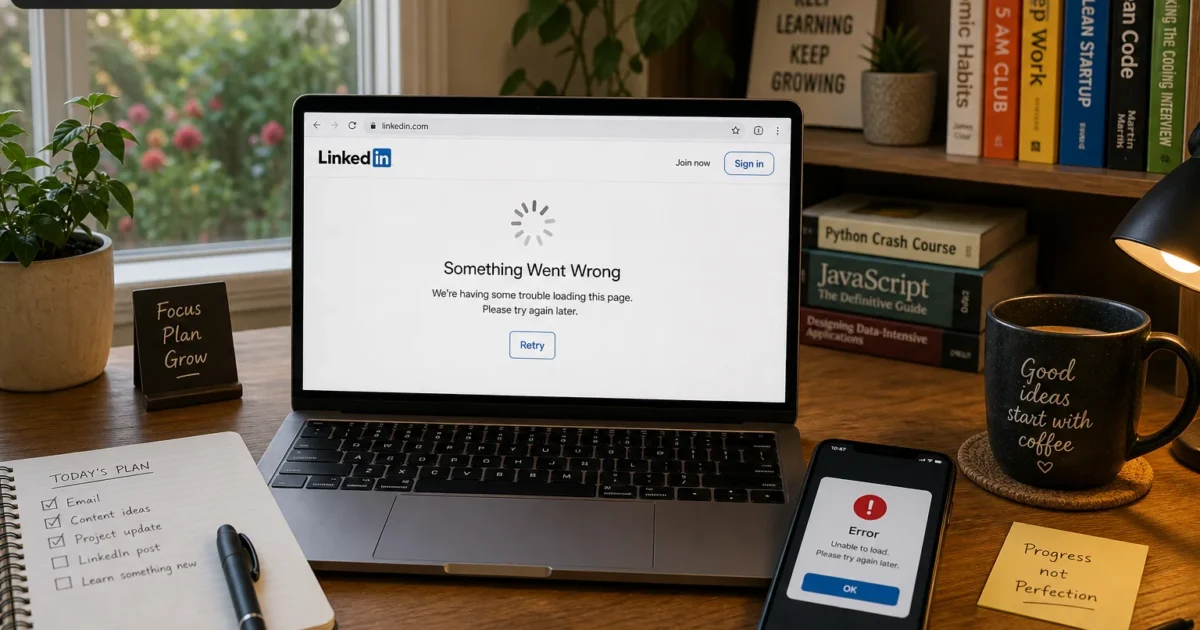
You go to check your notifications, catch up on your feed, or message a recruiter, and LinkedIn just… won’t cooperate. Maybe the page spins forever, maybe you get a cheerful-but-useless “Something went wrong” message, or maybe the whole site just refuses to load. Annoying, right? Especially when you need to be on LinkedIn right now.
The good news: when LinkedIn breaks specifically in Chrome (and works fine elsewhere, or worked fine yesterday), the problem is almost never your LinkedIn account. It’s usually something local: cached data gone stale, a browser extension getting in the way, an outdated version of Chrome, or even flaky Wi-Fi. This guide walks you through the troubleshooting ladder, starting with the easy stuff and working down to the more stubborn fixes. By the end, you’ll either have LinkedIn back up or know exactly who to blame (looking at you, corporate IT).
Quick Diagnosis
Before you start clearing caches and disabling extensions, run through these two checks. They take about 60 seconds combined and can save you a lot of time.
Check if LinkedIn is down for everyone. Sites like Downdetector track outage reports in real time. If you see a spike in reports, LinkedIn is probably having a bad day, and no amount of cache-clearing on your end will fix that. Just wait it out. You can also peek at LinkedIn’s own Help Center troubleshooting page for any posted service alerts.
If both of those come back clean, other browsers work and no outage is reported, then it’s time to work through Chrome itself. Let’s fix it, one step at a time.
Common Issues
Problem: LinkedIn Pages Won’t Load or Spin Endlessly
Symptoms:
- The LinkedIn logo or loading spinner never stops
- The page eventually times out with a generic error
- Other tabs and websites load just fine in Chrome
Why it happens: This is almost always caused by corrupted or outdated cache and cookie data Chrome has stored for linkedin.com. Think of your browser cache as a junk drawer. It’s supposed to speed things up by storing bits of the page locally, but when that stored data gets corrupted or outdated, it jams the whole works instead of helping.
Fix: Clear Chrome’s Cache and Cookies for LinkedIn Only
You don’t need to nuke your entire browsing history to fix this. You can target just linkedin.com and leave the rest of your saved logins and settings alone.
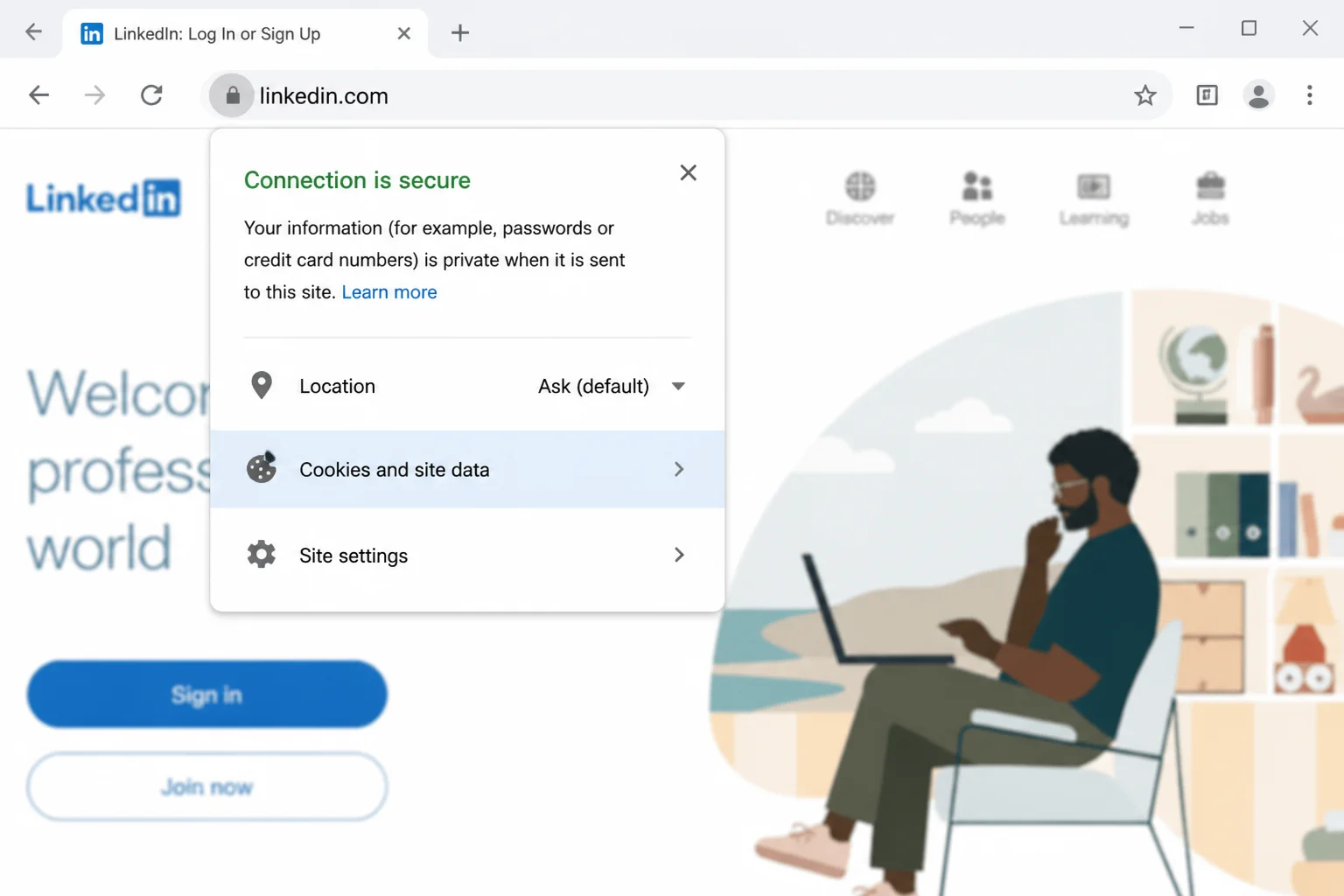
- Go to LinkedIn in Chrome, then click the lock icon (or the “tune” icon, depending on your Chrome version) to the left of the address bar.
- Click Cookies and site data, then Manage on-device site data (or See all cookies and site data on older versions).
- Search for
linkedin.comin the list. - Click the trash icon next to each linkedin.com entry to delete it.
- Reload LinkedIn and sign back in.
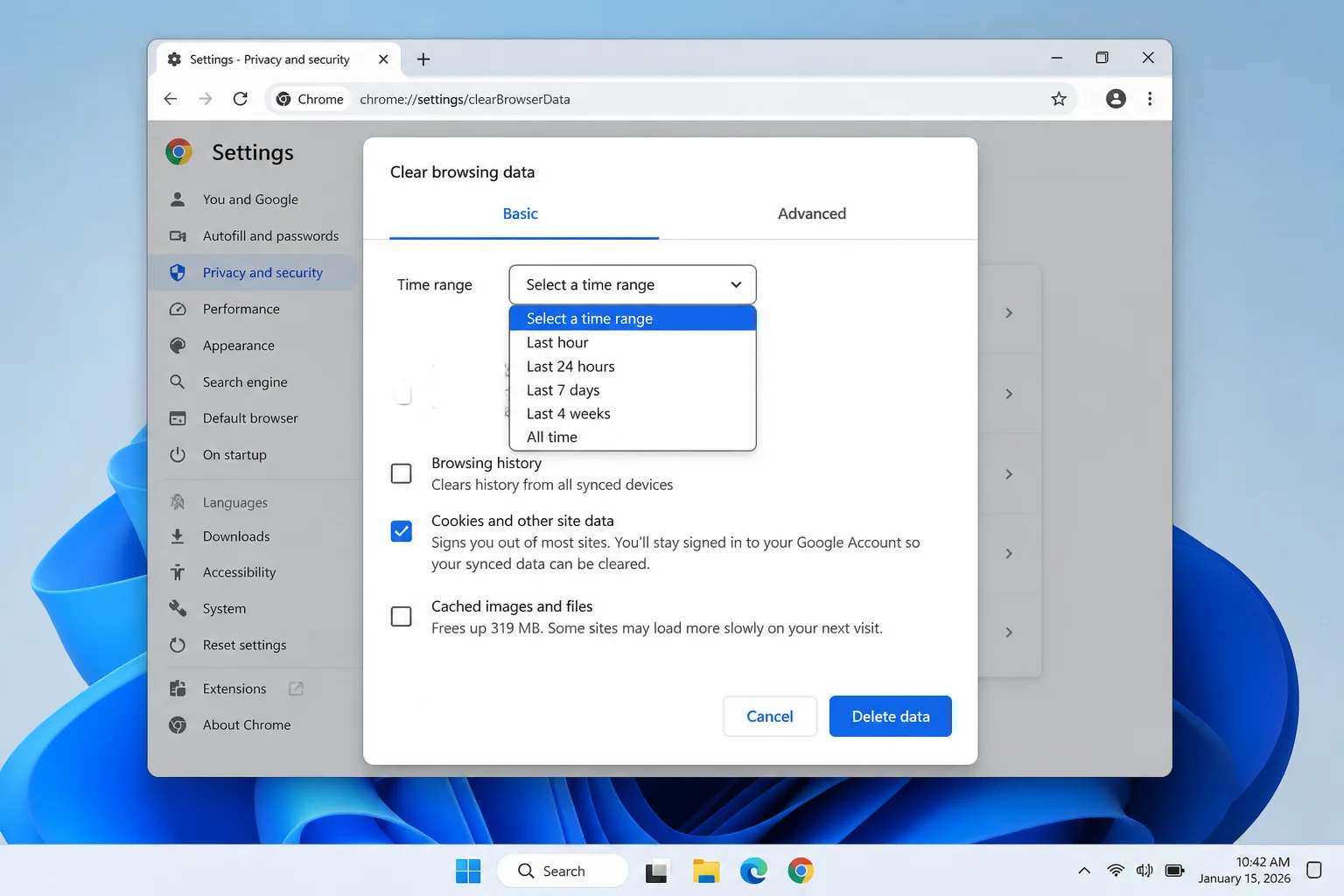
If you’d rather do a broader clear (and don’t mind logging back into a few sites), use Chrome’s full Clear browsing data tool instead:
- Click the three dots in the top-right corner of Chrome, then Settings.
- Go to Privacy and security > Clear browsing data.
- Set the Time range to “All time.”
- Check Cookies and other site data and Cached images and files.
- Click Clear data.
Verify it worked: Close all Chrome windows, reopen Chrome, and go to linkedin.com. You should be prompted to log in fresh (a good sign the old, possibly corrupted session data is gone), and the feed should load normally.
Problem: LinkedIn Feed Shows “Something Went Wrong” or Stays Blank
Symptoms:
- The page frame loads (header, sidebar) but the main feed area is empty
- A generic “Something went wrong” or “We’re having trouble” message appears
- Refreshing the page doesn’t help
Why it happens: This usually points to one of two culprits: stale cookies specific to linkedin.com (same fix as above), or an ad blocker or privacy extension quietly blocking the scripts LinkedIn needs to render your feed.
Fix: Clear Site Data, Then Test for Extension Conflicts
Start with the cookie clear-out from the fix above. If the blank feed persists, move on to disabling your extensions, which brings us to the next, and honestly most common, culprit.
Tip: If LinkedIn works fine in Incognito mode but breaks in your normal window, you can basically skip straight to the extensions fix below. That’s a strong sign one of your installed extensions is the problem.
Problem: LinkedIn Works in Incognito But Not in a Normal Window
Symptoms:
- LinkedIn loads and works perfectly in an Incognito window
- The same site is broken, slow, or missing content in your regular Chrome window
Why it happens: Extensions don’t run in Incognito mode by default, so if the problem disappears there, one of your extensions is almost certainly the cause. Ad blockers and privacy or script-blocking tools are the usual suspects. They’re designed to stop trackers and scripts from loading, and sometimes they can’t tell the difference between an ad and a piece of LinkedIn’s actual page.
Fix: Disable Extensions One by One
- Type
chrome://extensionsinto your address bar and hit Enter. - Flip the toggle off for every extension on the list.
- Reload LinkedIn. It should now work (since you already tested this in Incognito, it will).
- Turn extensions back on one at a time, reloading LinkedIn after each one, until the site breaks again. That’s your culprit.
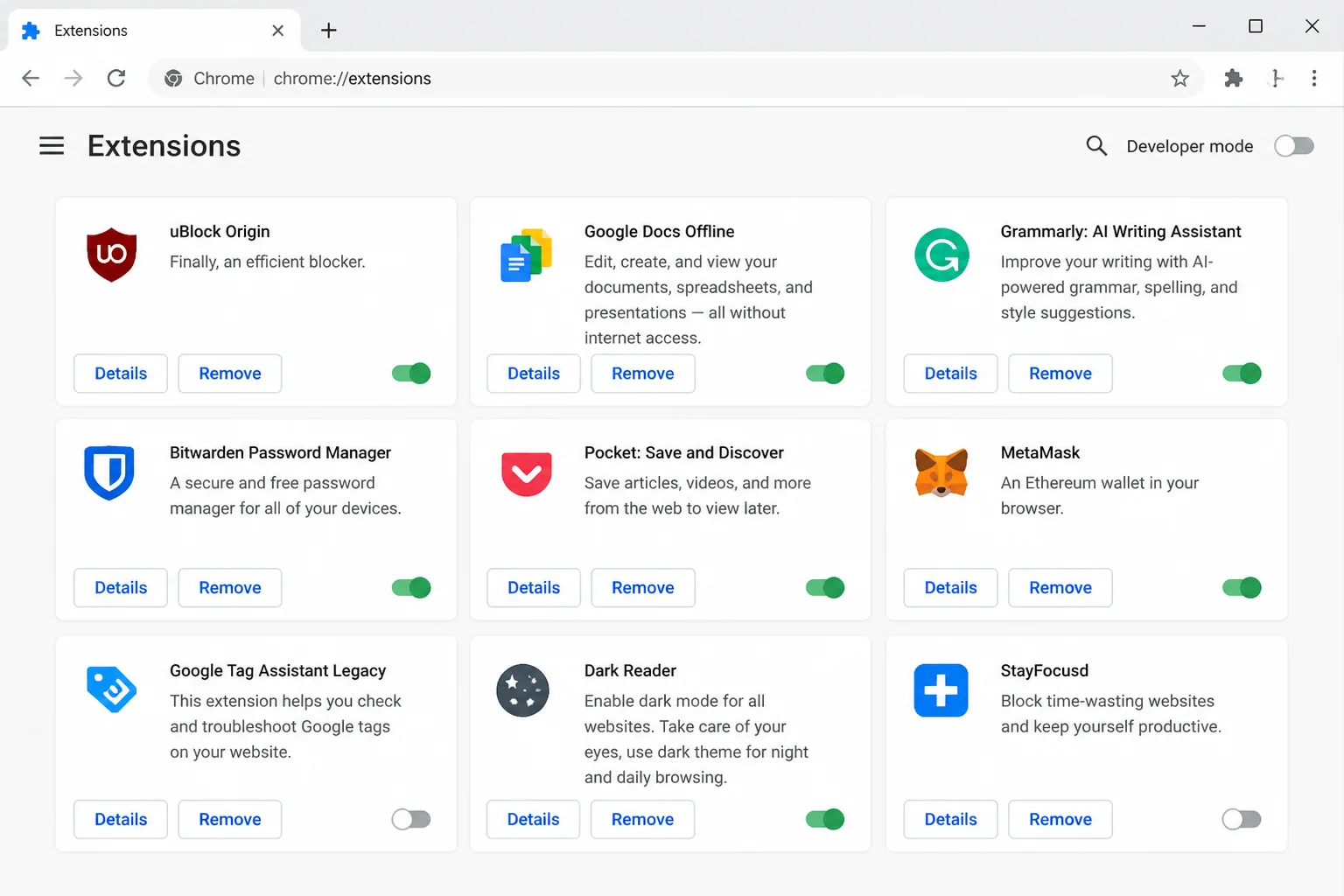
Common offenders worth checking first:
- Ad blockers (uBlock Origin, AdBlock Plus, etc.): These sometimes block LinkedIn’s ad-serving scripts, which can accidentally take parts of the page down with them.
- Privacy/tracker blockers (Privacy Badger, Ghostery, and similar): These can block the analytics and session scripts LinkedIn relies on to keep you logged in and load your feed.
- VPN or proxy extensions: These can route your traffic in ways that confuse LinkedIn’s login system, sometimes triggering security checks or blank pages.
- Script blockers (NoScript-style tools): LinkedIn is a script-heavy site, so blocking JavaScript by default will break it fast.
Once you’ve found the troublesome extension, you can remove it, disable it permanently, or, better, set it to not run on linkedin.com specifically. Most ad blockers let you whitelist individual sites from their toolbar icon.
Problem: LinkedIn Displays a “Site Maintenance” Message, Freezes, or Shows an IP Address in the URL Bar
Symptoms:
- The address bar shows a string of numbers instead of “linkedin.com”
- A “Site Maintenance” message appears even though LinkedIn is up for everyone else
- The page freezes partway through loading
Why it happens: This one’s a classic sign of a stale DNS cache. Think of DNS as your computer’s contacts list for the internet; it translates “linkedin.com” into the numeric address your browser actually connects to. If that entry is outdated, your computer tries to reach LinkedIn at the wrong address and things go sideways. LinkedIn’s own help center actually calls this out as a known fix for freezing and maintenance-page errors.
Fix: Flush Your DNS Cache
On Windows
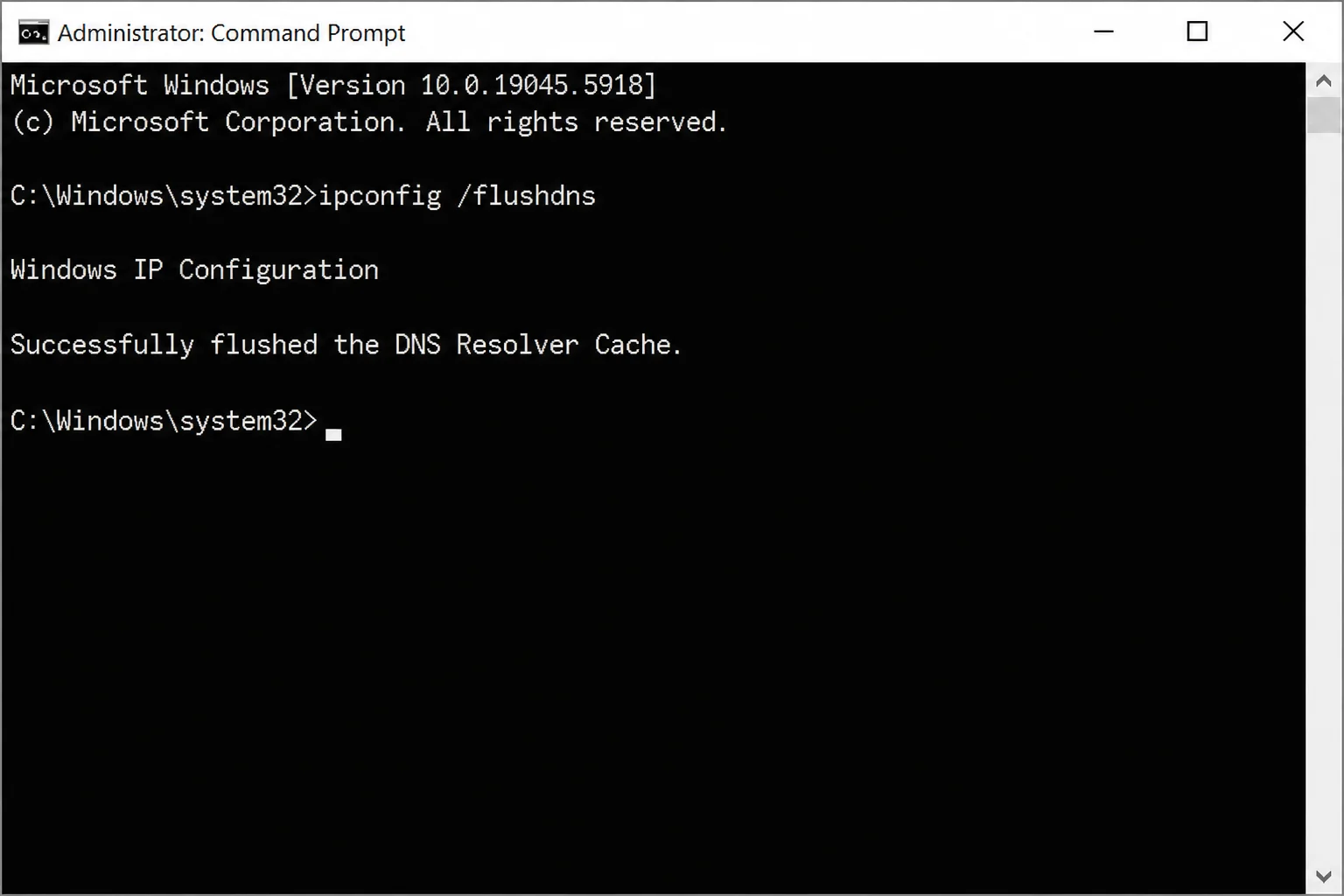
- Click Start, type
cmd, and open Command Prompt. - Type the following command and press Enter:
ipconfig /flushdns- You should see a confirmation message that the DNS Resolver Cache was successfully flushed.
- Close all Chrome windows completely, then reopen Chrome and try LinkedIn again.
On macOS
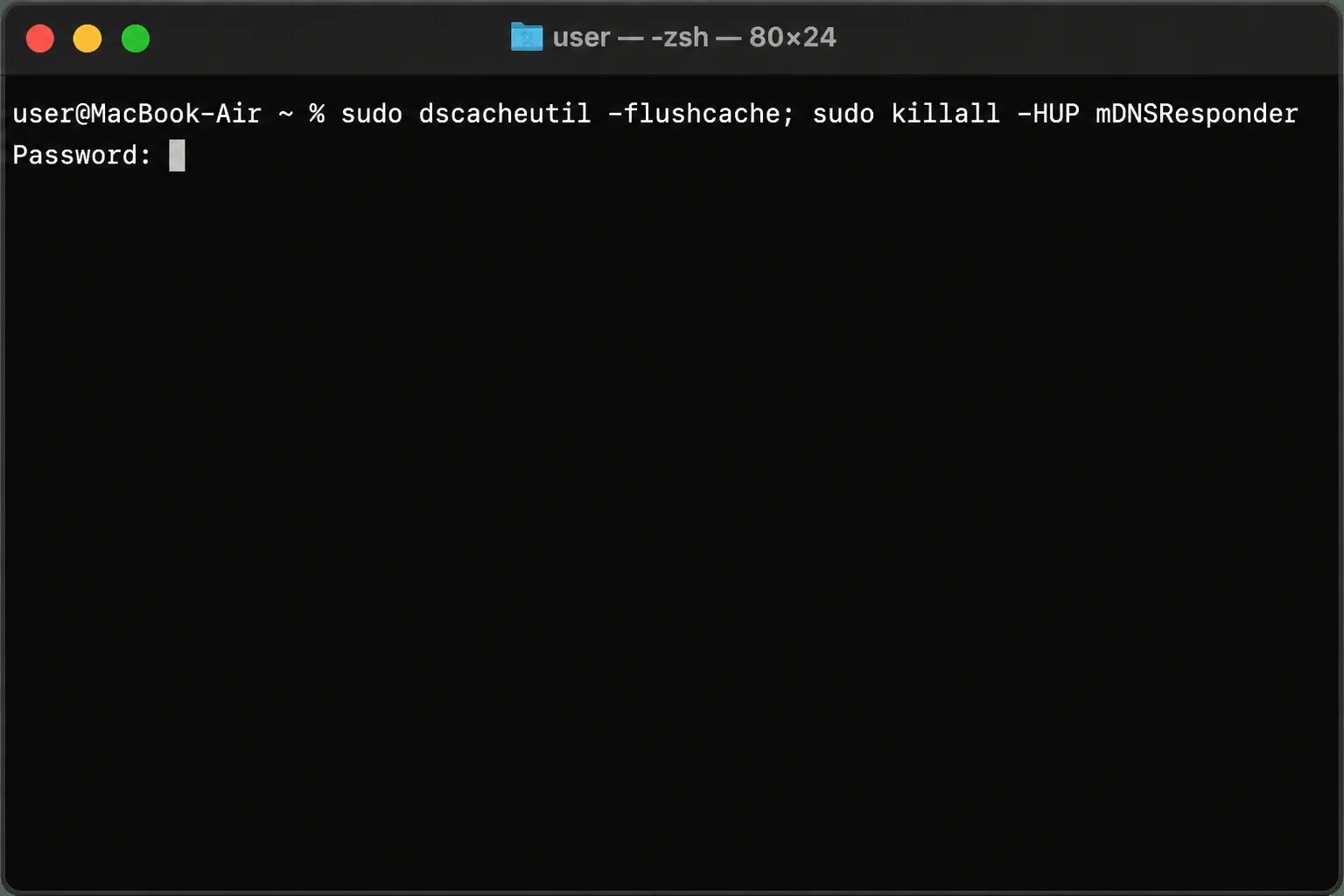
- Open Terminal (find it via Spotlight search, press
Cmd+Spaceand type “Terminal”). - Type the following and press Enter (macOS may ask for your login password):
sudo dscacheutil -flushcache; sudo killall -HUP mDNSResponder- Close and reopen Chrome, then try LinkedIn again.
Verify it worked: Load linkedin.com again and check that the address bar shows the actual domain name, not a raw IP address, and that the page loads without the maintenance message.
Problem: LinkedIn Won’t Load After a Chrome Update, or Feels Broken Across Many Sites
Symptoms:
- LinkedIn (and possibly other sites) started acting up right after Chrome updated itself
- Pages render oddly, flicker, or fail to display images and buttons correctly
- The problem persists even after clearing cache and disabling extensions
Why it happens: Occasionally, a Chrome setting like hardware acceleration (which offloads page rendering to your graphics card) or preloading (which tries to load pages before you click them) can cause rendering hiccups on certain sites. It’s not common, but it’s an easy thing to rule out.
Fix: Adjust Chrome’s System and Performance Settings
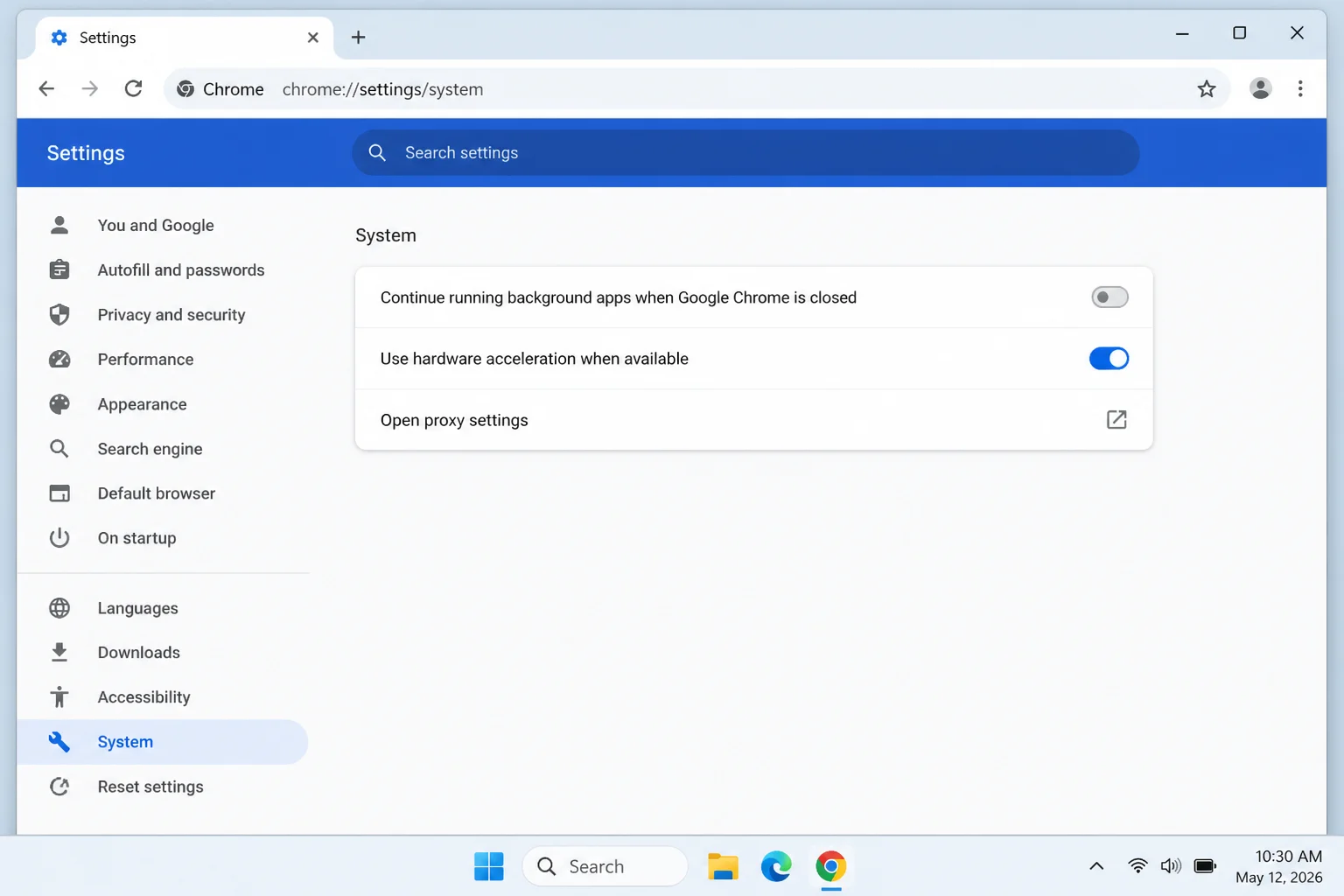
- Go to
chrome://settings/system. - Toggle Use graphics acceleration when available off, then relaunch Chrome.
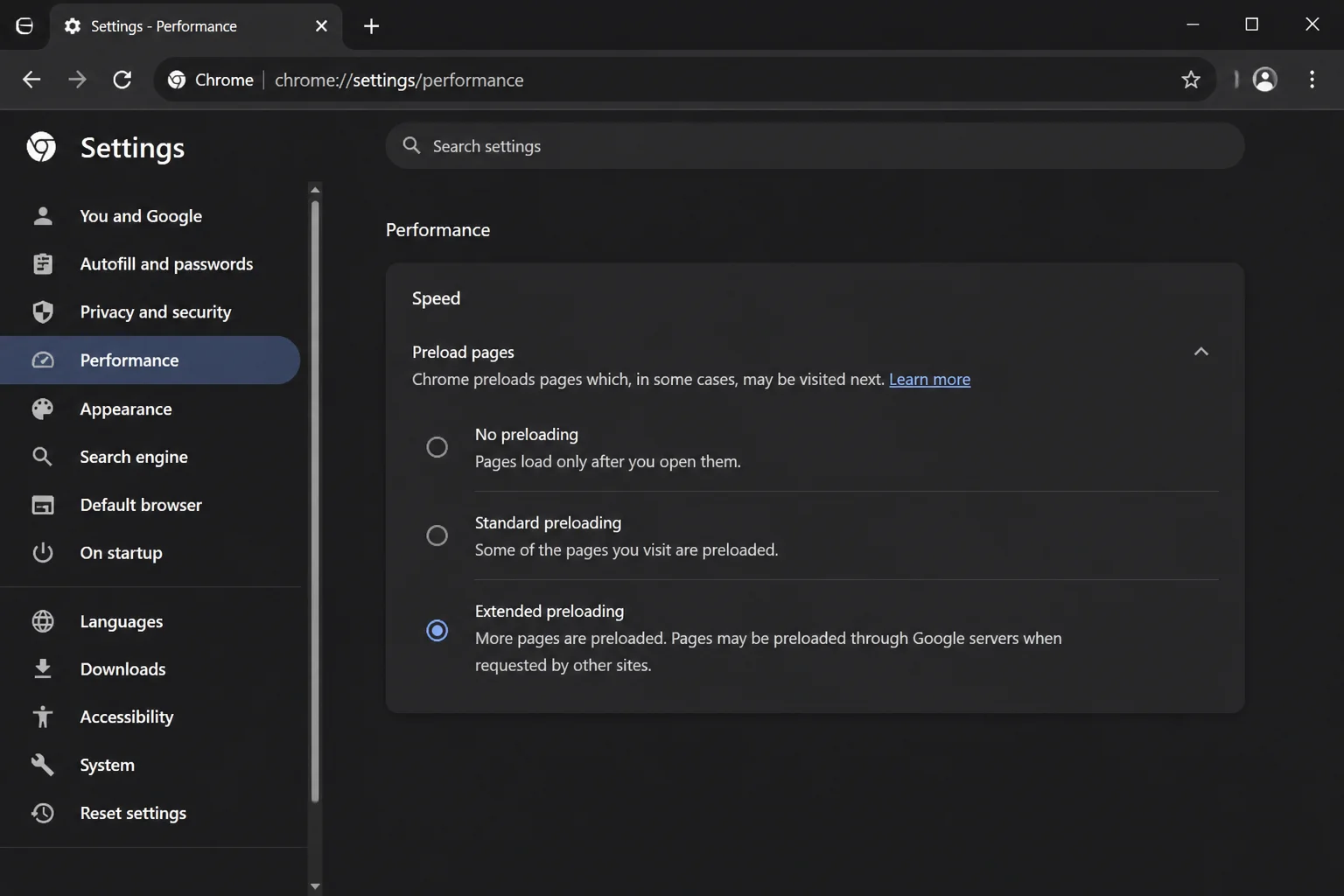
- Go to
chrome://settings/performance. - Under the Preloading section, switch to No preloading or Standard preloading.
If neither of those helps, it’s time for the nuclear-but-not-too-nuclear option: resetting Chrome to its default settings. This clears out misconfigured settings, disables extensions, and resets your homepage/search engine, but it does not delete your bookmarks, saved passwords, or browsing history.
- Go to
chrome://settings/resetProfileSettings. - Click Reset settings.
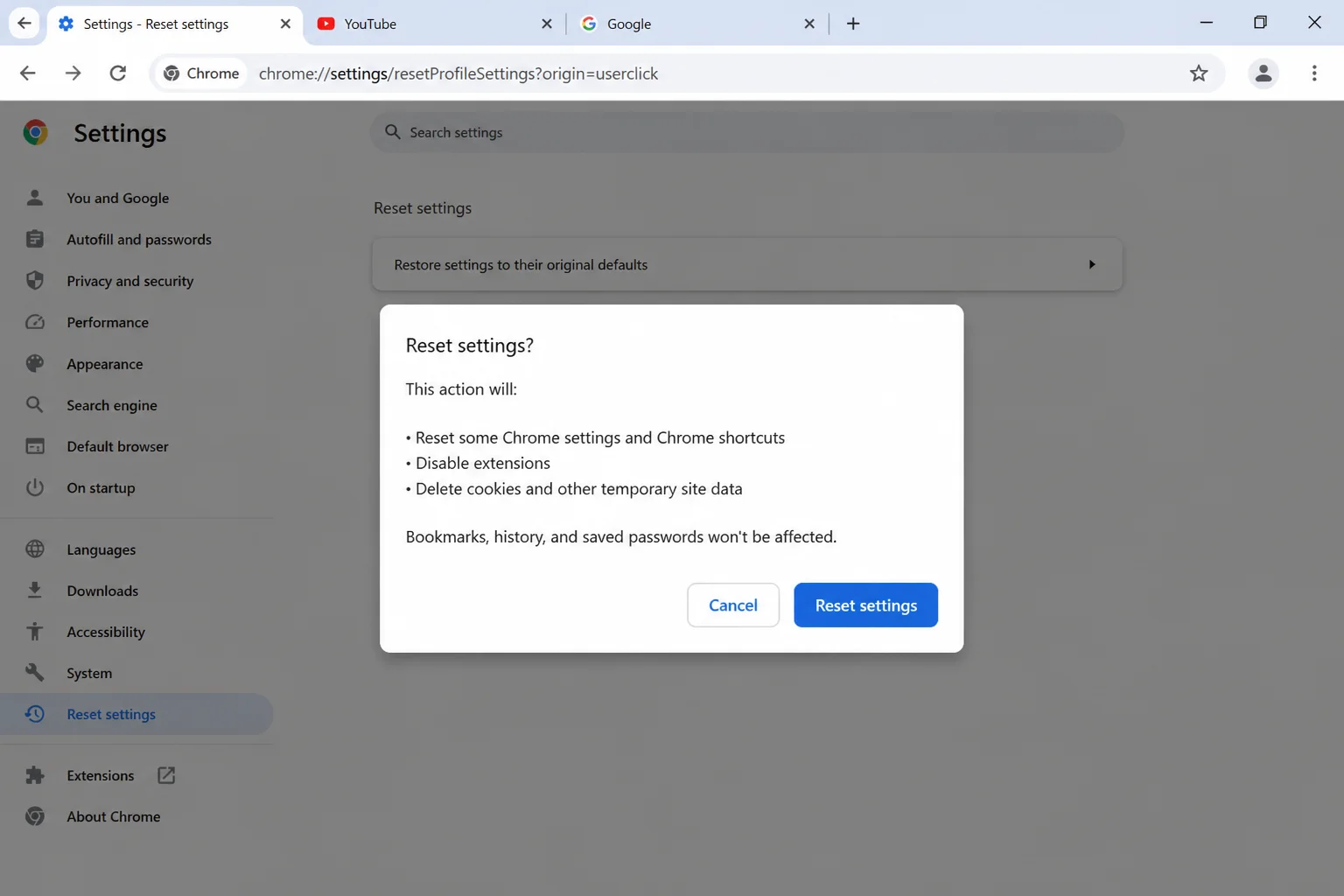
Verify it worked: Reload LinkedIn after each change and confirm the feed renders normally with no flickering or missing elements.
Problem: LinkedIn Won’t Load Only on a Work, School, or Public Network
Symptoms:
- LinkedIn works fine on your home Wi-Fi or mobile data
- The site times out, gets blocked, or shows a network error only on your office, school, or coffee-shop network
Why it happens: Some organizations intentionally block social and networking sites, LinkedIn included, using a firewall or proxy: a kind of digital bouncer that decides which sites employees or students can reach. This has nothing to do with Chrome or your LinkedIn account. It’s a deliberate network policy.
Fix: Confirm the Network Is the Problem, Then Check with IT
- Switch to a different network; your phone’s mobile hotspot works great for this test.
- If LinkedIn loads fine there, the issue is your work/school network, not Chrome.
- Contact your IT department to ask whether LinkedIn is restricted intentionally. There’s usually not much you can do to get around this yourself (and honestly, you probably shouldn’t try; that’s a fast way to end up on IT’s radar for the wrong reasons).
Tip: Public Wi-Fi at cafes, airports, and libraries can also throttle or block certain sites for bandwidth or security reasons. If LinkedIn only misbehaves on public Wi-Fi, that’s your answer: Public Wi-Fi Sucks, and this is one more reason why.
Problem: LinkedIn Is Slow, Freezes, or Crashes While Your Computer Feels Sluggish Overall
Symptoms:
- LinkedIn stalls, and so does everything else you have open
- Chrome tabs take forever to switch
- Fans are spinning loudly, or the whole system feels laggy
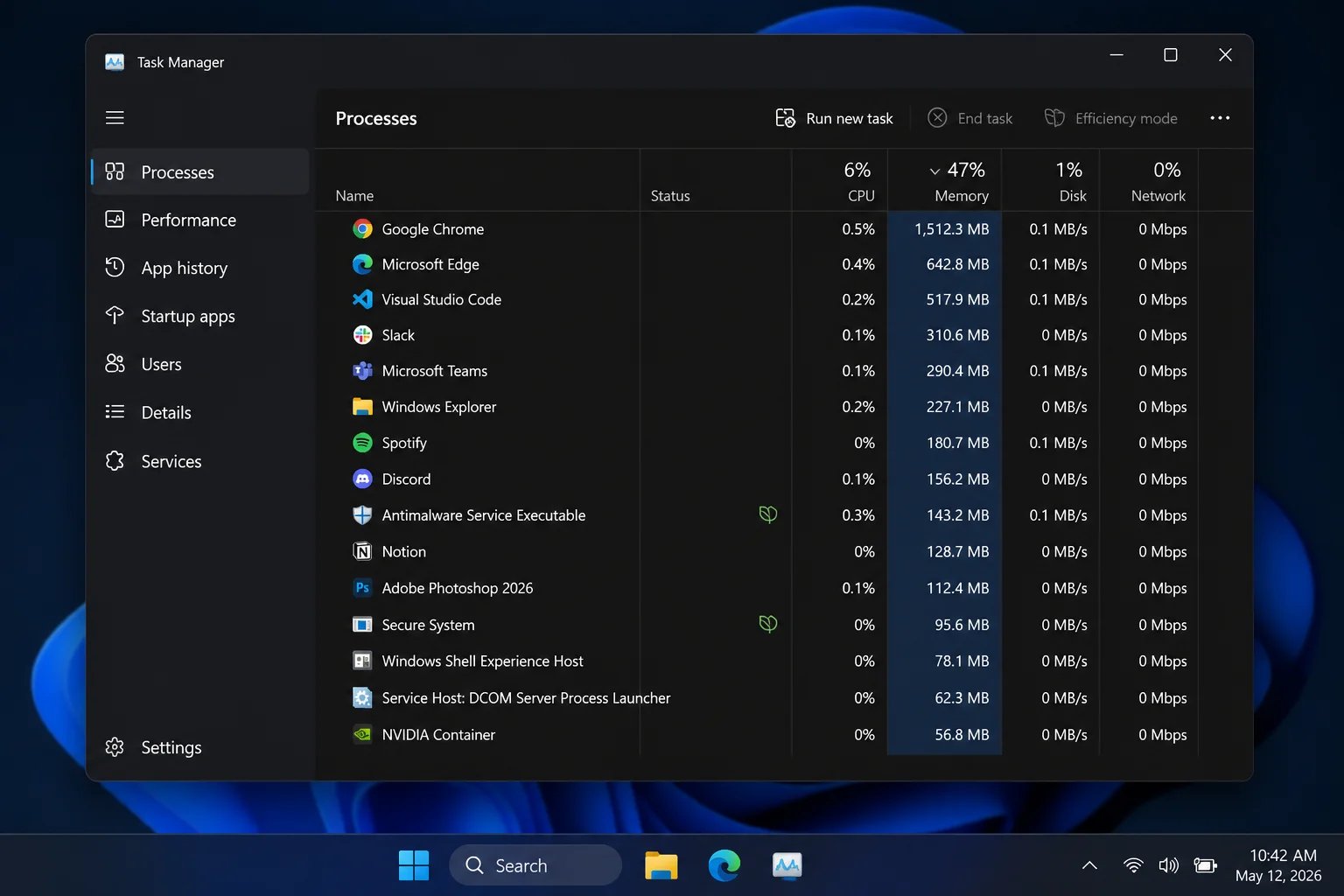
Why it happens: If your computer is low on available memory (RAM), Chrome, which is famously memory-hungry with lots of tabs open, can struggle to render pages properly. LinkedIn included.
Fix: Check and Free Up Memory
On Windows
- Press
Ctrl+Shift+Escto open Task Manager. - Click the Memory column to sort by usage.
- If memory usage is near 100%, close unnecessary apps and browser tabs.
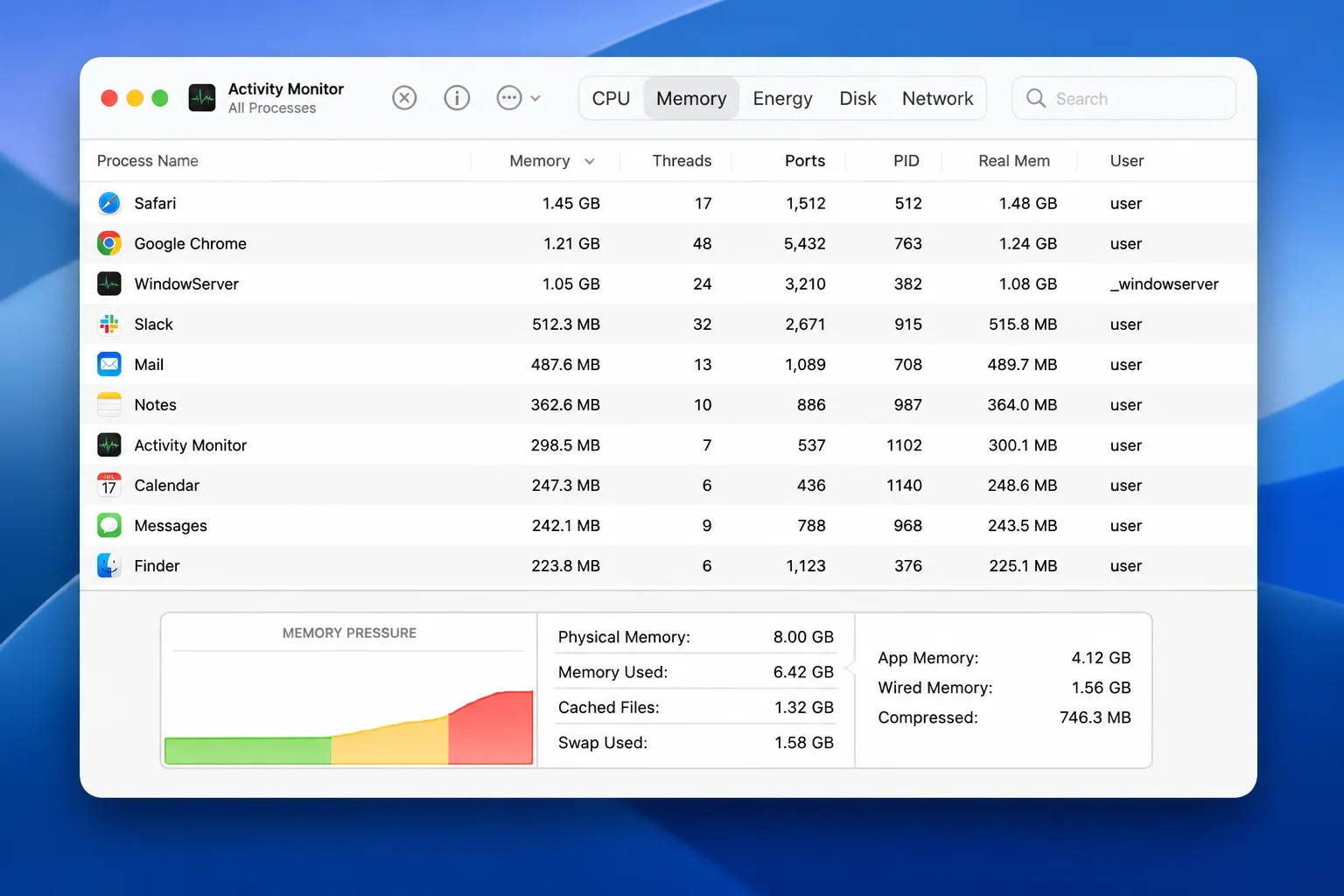
On macOS
- Open Activity Monitor (search for it via Spotlight with
Cmd+Space). - Click the Memory tab and check Memory Pressure.
- If it’s in the red or yellow, close unused apps and tabs.
Verify it worked: Reload LinkedIn once memory usage drops. It should load noticeably faster and stop freezing.
Error Messages Table
| Error / Symptom | Likely Cause | Fastest Fix |
|---|---|---|
| Endless spinning/loading | Corrupted cache or cookies | Clear cache/cookies for linkedin.com |
| “Something went wrong” / blank feed | Stale cookies or blocking extension | Clear site data; disable extensions |
| “Site Maintenance” message or IP address in URL bar | Stale DNS cache | Flush DNS cache |
| Works in Incognito, not normal window | Conflicting extension | Disable extensions one by one |
| Broken after Chrome update | Hardware acceleration/preload glitch | Toggle System/Performance settings, or reset Chrome |
| Only fails on work/school Wi-Fi | Firewall/network block | Test on mobile data, then contact IT |
| Slow, freezing, sluggish PC | Low system memory | Close tabs/apps, check Task Manager or Activity Monitor |
Platform-Specific Issues
On Windows
Chrome’s DNS flush command (ipconfig /flushdns) is Windows-specific and requires Command Prompt. If you’re seeing “Site Maintenance” errors or IP addresses in the URL bar, this is your go-to fix; see the DNS section above for the full walkthrough.
On macOS
macOS uses a different DNS flush command (dscacheutil and killall) run through Terminal instead of Command Prompt. The steps are otherwise identical; see the DNS section above.
On the Web (Chrome Settings)
Most of the actual fixes below, clearing cache, managing extensions, updating Chrome, adjusting System/Performance settings, live inside Chrome itself and work identically whether you’re on Windows or macOS. That’s the nice part (and occasional headache) of a browser-based problem: the fix travels with the browser, not the operating system.
Configuration Issues
A few settings-related mistakes trip people up more than you’d expect:
- Blocking all third-party cookies globally: If you’ve cranked Chrome’s cookie settings to “Block third-party cookies” (Settings > Privacy and security > Third-party cookies), it can sometimes interfere with LinkedIn’s login and session handling. Try setting it to allow cookies for linkedin.com specifically instead of blocking everything site-wide.
- Leaving old, unused extensions installed “just in case”: Extensions you installed once and forgot about can still run in the background and cause conflicts. If you don’t remember why you installed it, it’s probably safe to remove.
- Assuming a reset will wipe your data: Using Reset settings (
chrome://settings/resetProfileSettings) does not delete your bookmarks, saved passwords, or history. It only resets settings like your homepage, new tab page, and disables extensions. Don’t avoid this fix out of fear of losing your data.
Getting Help
If you’ve worked through every fix above and LinkedIn is still misbehaving in Chrome, here’s where to dig deeper or ask for backup:
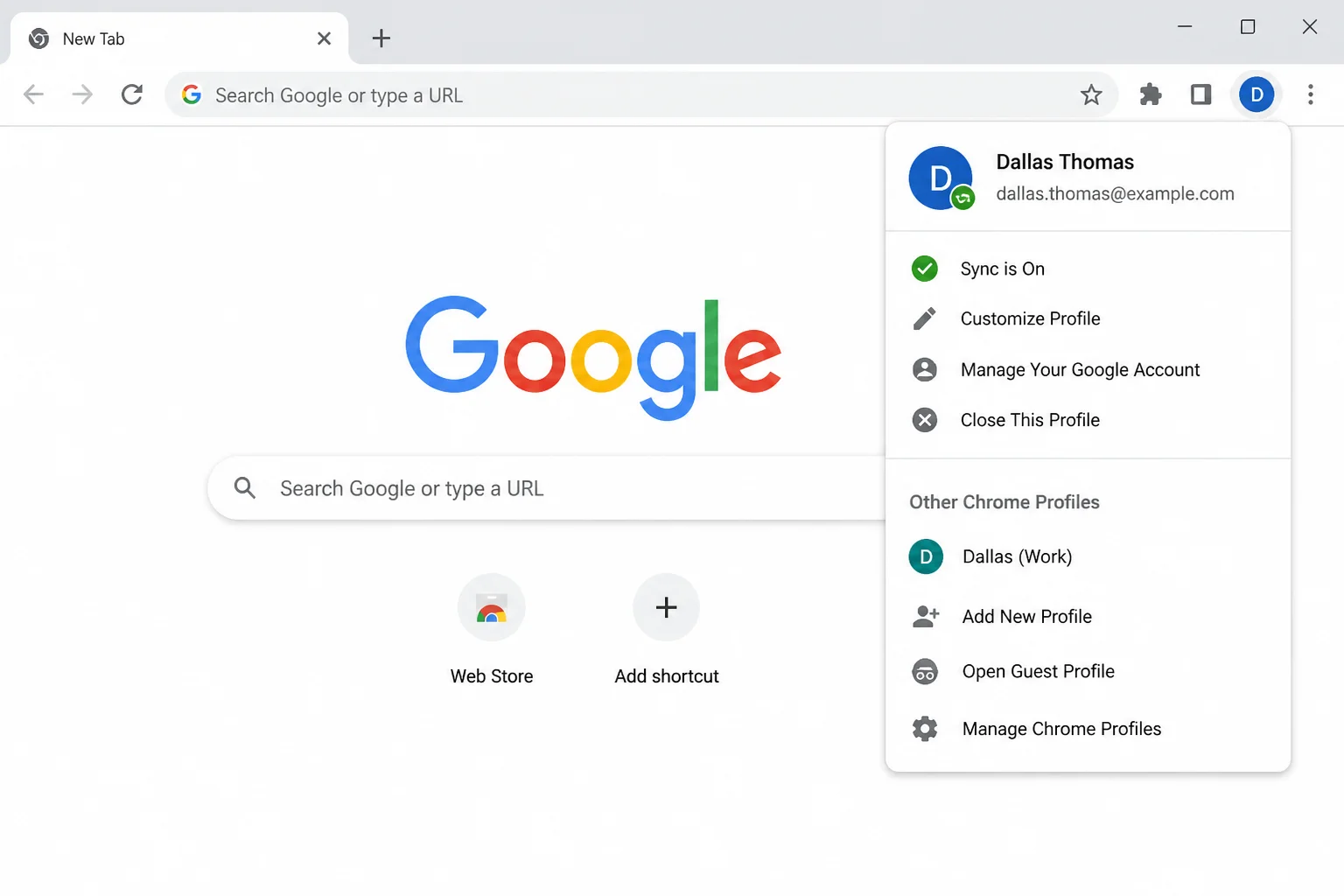
- Test with a brand-new Chrome profile. Click your profile icon in the top-right corner of Chrome, then Add to create a fresh profile with no extensions, cookies, or settings carried over. If LinkedIn works perfectly there, something in your main profile is still corrupted, and it may be time to consider rebuilding that profile from scratch.
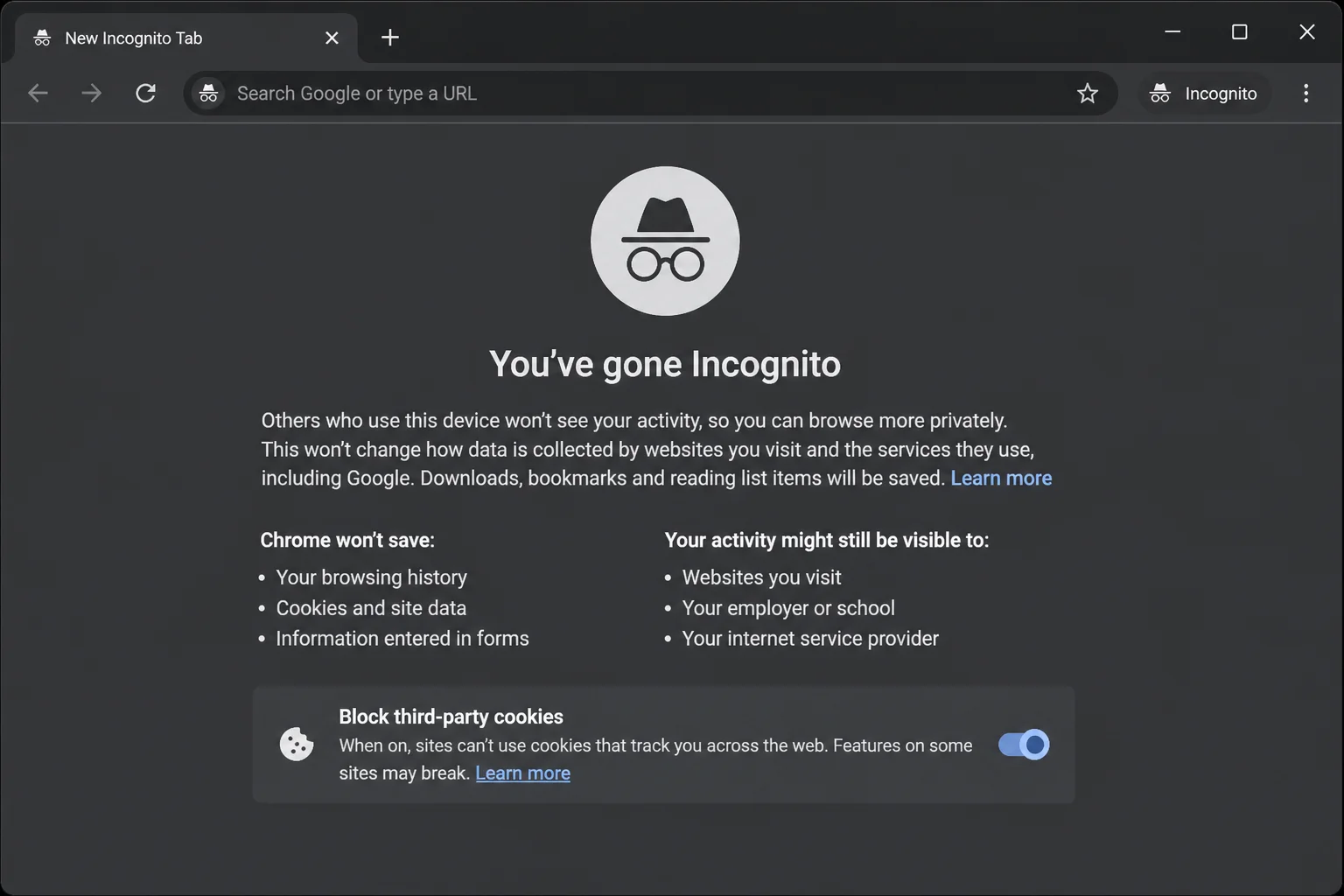
- Confirm you’re actually testing Incognito correctly. Open a new Incognito window with
Ctrl+Shift+Non Windows orCmd+Shift+Non macOS, and make sure the little spy-glasses icon appears in the corner before you test.
- Check LinkedIn’s official troubleshooting resources: LinkedIn maintains a general troubleshooting help page and a page specifically for being unable to access or navigate LinkedIn.com. There’s also a dedicated unsupported browser notice if Chrome itself has fallen too far out of date.
- Remember what this guide doesn’t cover: If Chrome is loading LinkedIn just fine but something on your actual profile is broken (like a missing photo, a dead Connect button, or messages not sending), that’s an account or UI issue, not a browser problem, and needs a different fix entirely.
Prevention Tips
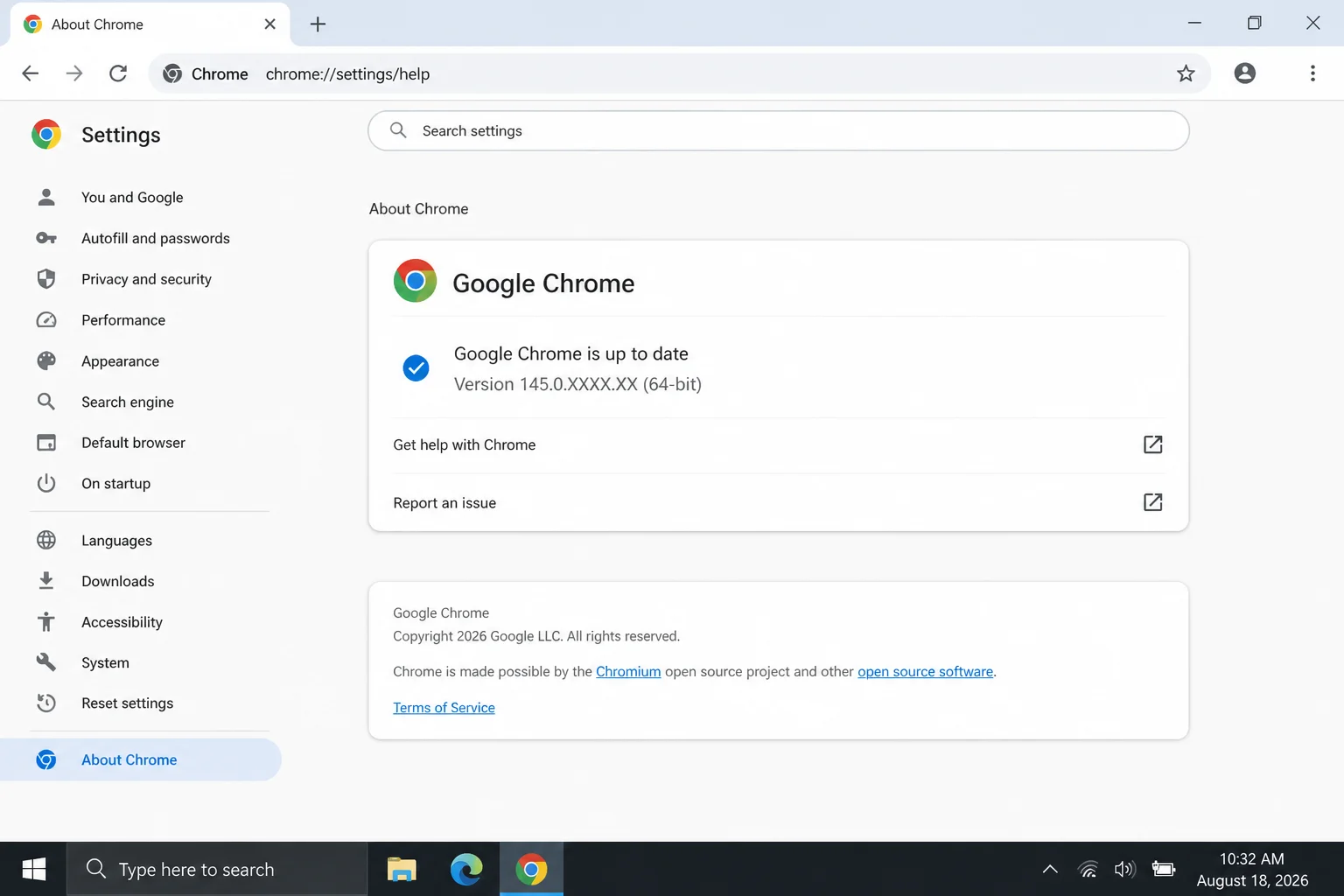
- Keep Chrome updated automatically: Chrome usually updates itself in the background, but it never hurts to check
chrome://settings/helpevery so often and relaunch when prompted.
- Clear cache and cookies periodically: You don’t need to do this daily, but a monthly clean-out for frequently visited sites like LinkedIn keeps that junk drawer from overflowing.
- Audit your extensions every few months: Remove anything you no longer use, and keep your ad blocker’s LinkedIn exceptions list updated if you’ve whitelisted it before.
- Don’t ignore small glitches: A page that’s occasionally slow to load is often an early warning sign of the same cache or extension issues that eventually cause a full breakdown.
Wrapping Up
Most of the time, LinkedIn acting up in Chrome comes down to something small and fixable: stale cookies, an overzealous ad blocker, or a DNS cache that needs a refresh. Work through the ladder in order (cache, extensions, updates, DNS, network) and you’ll almost always land on the culprit before you hit the bottom.
My honest take: the cache/cookie clear-out and the Incognito test solve most of these headaches on their own. Start there before you go poking at deeper settings.
| Step | Action | Applies To |
|---|---|---|
| 1 | Test another browser + check for outages | Windows, macOS, Web |
| 2 | Clear cache/cookies for linkedin.com | Windows, macOS, Web |
| 3 | Disable extensions one by one | Windows, macOS, Web |
| 4 | Update Chrome | Windows, macOS, Web |
| 5 | Flush DNS cache | Windows, macOS |
| 6 | Restart router/check connection | Windows, macOS, Web |
| 7 | Test in Incognito or new profile | Windows, macOS, Web |
| 8 | Check for corporate/school network block | Windows, macOS, Web |
Last updated: August 15, 2026 | Applies to Google Chrome on Windows, macOS, and web