
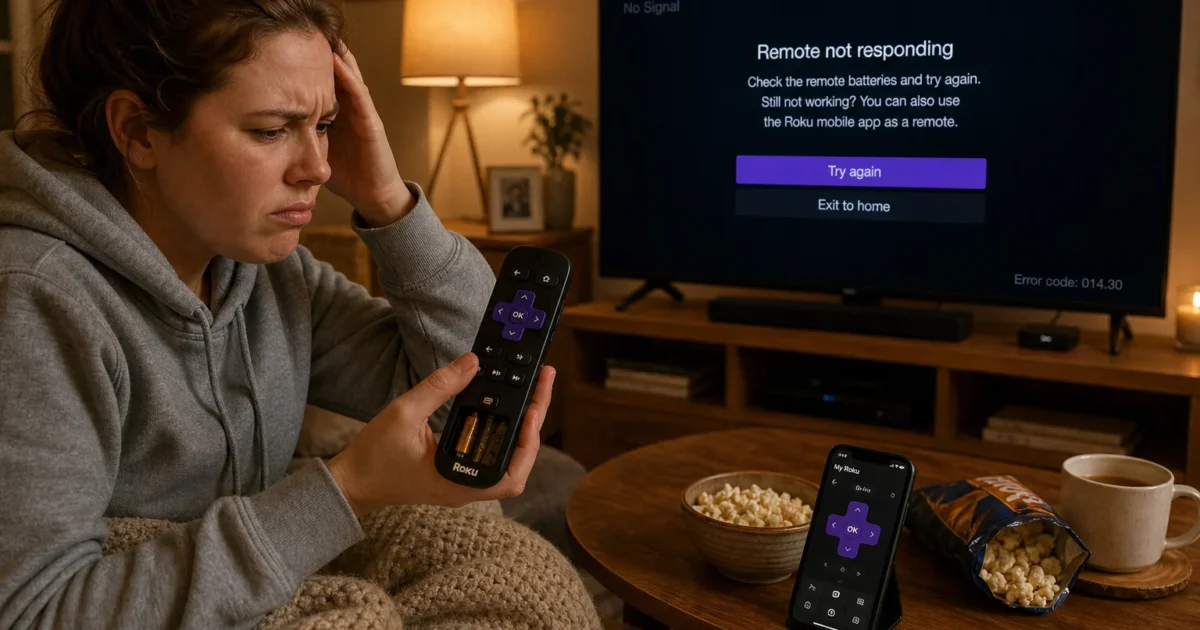
What’s more annoying than getting comfortable, picking a show, and finding that your Roku remote has clocked out? Thankfully, the usual causes are pretty ordinary: dead batteries, a blocked signal, a frozen Roku, or a lost wireless connection.
Start with the quick checks below before resetting anything. You may save yourself several minutes of button holding and muttering at the TV.
Quick Fixes to Try First
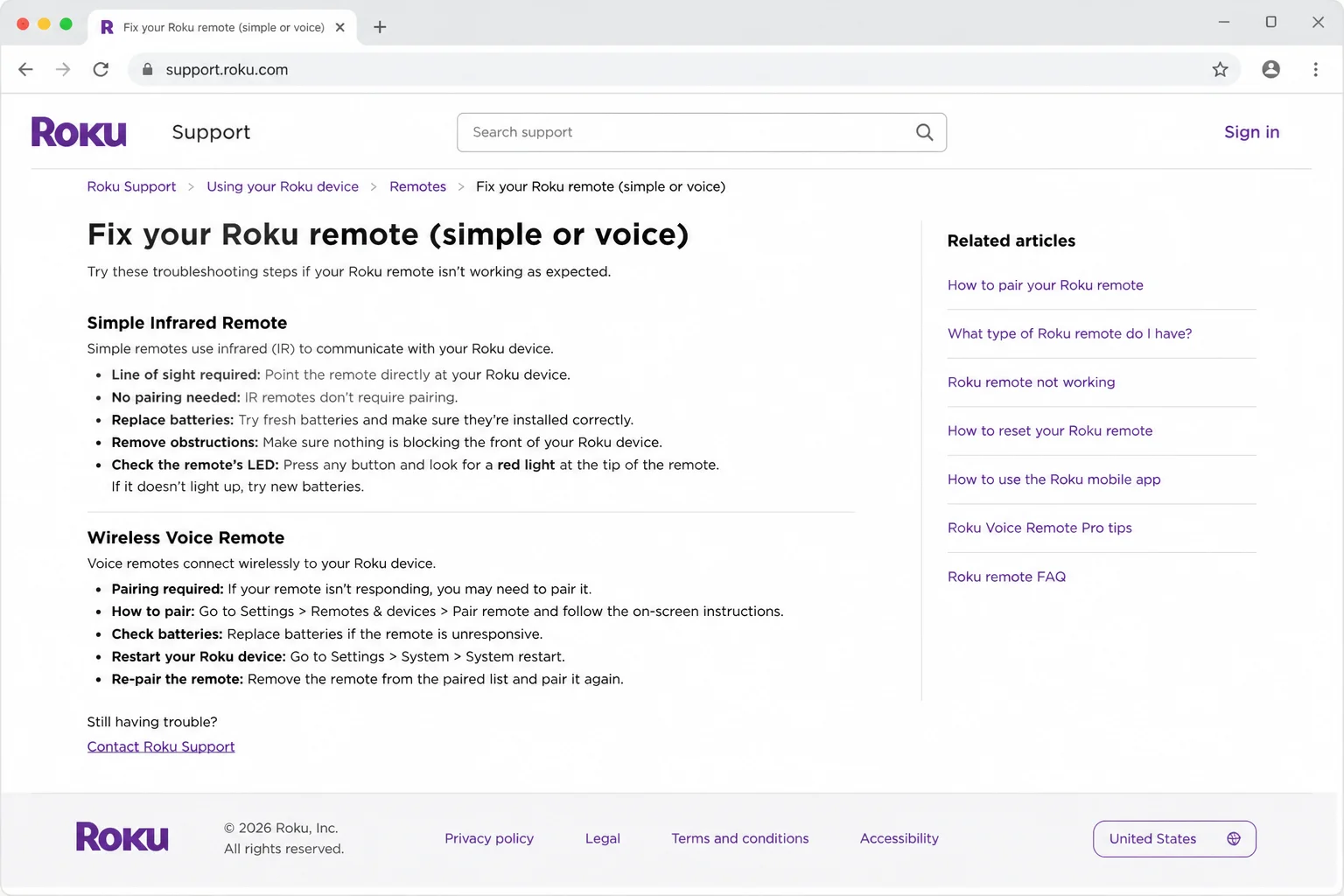
- Identify Your Remote: A simple remote uses infrared light, so you must point it at the Roku. A voice remote connects wirelessly and may need pairing.
- Check Its Power: Install fresh batteries with the positive and negative ends matching the markings. Charge a rechargeable remote for at least five hours.
- Move Closer: Stand within a few feet of the Roku and remove anything blocking it. Think of it like clearing the road between the remote and the player.
- Restart the Roku: Unplug the Roku player or TV for at least 10 seconds. Reconnect it, then wait for the Home screen.
- Move Nearby Electronics: Temporarily move wireless devices and other electronics away from the Roku. A crowded TV cabinet can behave like a junk drawer for wireless interference.
- Try the Mobile App: If your phone and Roku use the same network, the official Roku mobile app can act as a temporary remote.
Symptoms and Fixes
| Symptom | Likely Cause | Quick Fix |
|---|---|---|
| No buttons respond | Dead batteries, low charge, or frozen Roku | Replace or charge the battery, then restart Roku |
| Works only at certain angles | Blocked infrared signal | Clear the path to the Roku sensor |
| Voice remote will not connect | Lost pairing | Hold Pairing, or Back and Home, for five seconds |
| Streaming Stick responds intermittently | HDMI or electronic interference | Move the stick with an HDMI extender |
| Navigation works, but volume does not | TV control is not configured | Run Set up remote for TV control |
| Mobile app cannot find Roku | Devices are on different networks | Connect both devices to the same network |
| Remote becomes hot | Battery or electrical fault | Stop using it and let it cool safely |
Common Issues and Solutions
Problem: The Remote Does Nothing
Symptoms:
- No buttons respond.
- The status light stays off.
- A rechargeable remote will not wake up.
Why it happens: The batteries may be dead, loose, or installed backward. A rechargeable remote may simply be empty. It happens more often than anyone wants to admit.
Fix:
- Remove both replaceable batteries.
- Press any two remote buttons to clear leftover power.
- Insert fresh batteries according to the polarity markings. Put the negative end in first.
- If the remote has a built-in battery, connect its USB charging cable.
- Charge a rechargeable remote for at least five hours.
- Test the directional pad and Home button.
Verify the fix: The Roku should respond right away, or the remote’s status light should turn on.
Safety warning: If the remote feels unusually hot, stop using it immediately. Place it on tile or another hard, non-flammable surface. Do not remove the batteries while it is hot. Let it cool before handling it, then contact Roku Support.
Problem: A Simple Remote Works Only at Certain Angles
Symptoms:
- The remote works only when aimed directly at the Roku.
- Moving left or right makes it stop responding.
- It works better when held above the television.
Why it happens: A simple Roku remote uses infrared light, much like an old TV remote. Furniture, cabinet doors, decorations, and even the TV can block that invisible beam like nobody’s business.
Fix:
- Look for a microphone or voice-search button on the remote. If it has neither and works only when aimed at the Roku, it’s probably a simple infrared remote.
- Make sure the front of the Roku player is visible.
- Open any cabinet door between you and the Roku.
- Aim the remote directly at the front of the player.
- Move the Roku forward or reposition it if the response improves from another angle.
- Clean the front of the remote and the Roku’s sensor area with a dry, soft cloth.
Verify the fix: Test the remote from your normal seat. It should respond without strange arm gymnastics.
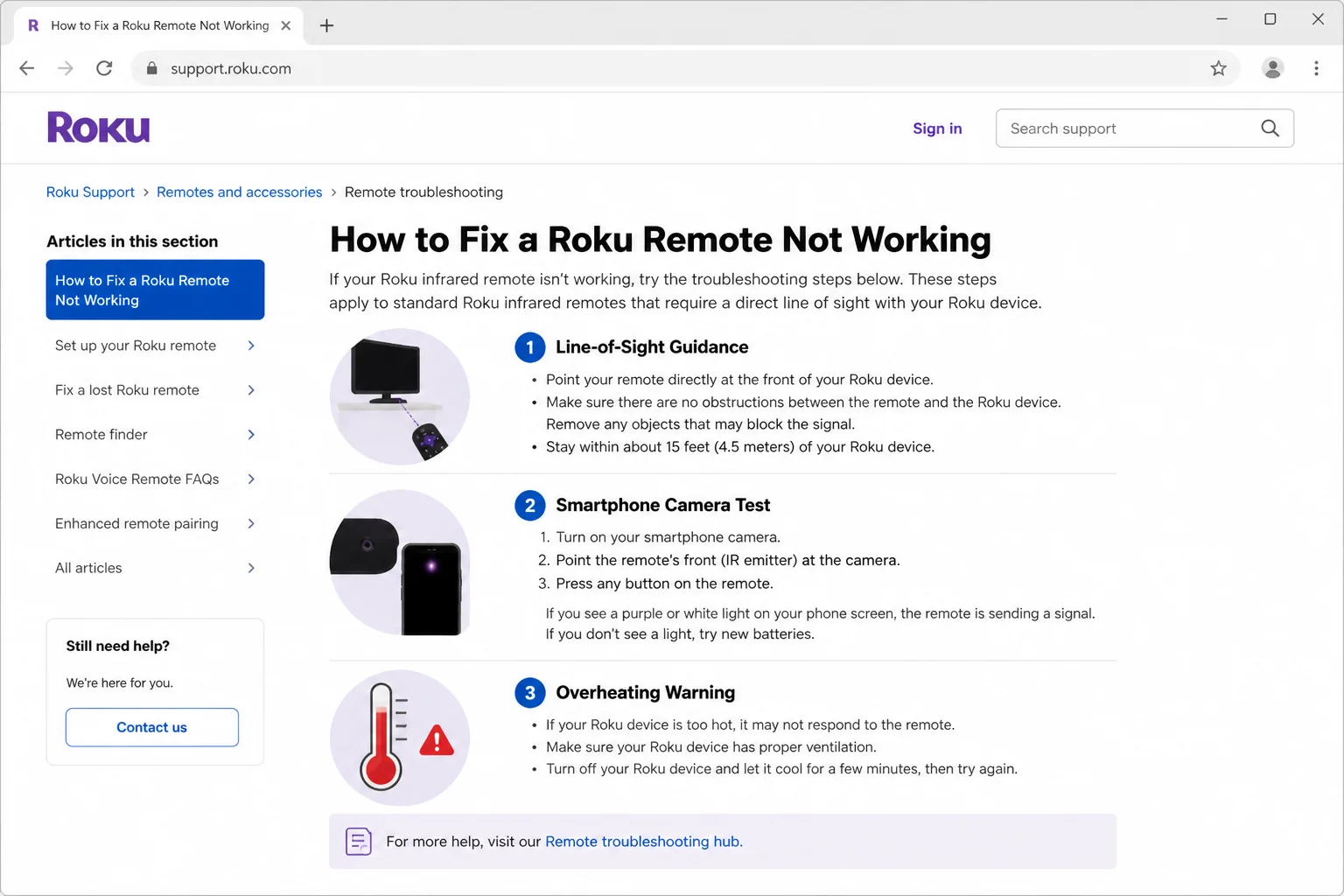
A simple infrared remote doesn’t pair. If fresh batteries and a clear signal path don’t fix it, you can test the transmitter with a phone camera:
- Open your phone’s camera.
- Point the front of the remote at the camera.
- Press several remote buttons.
- Look for a flashing light on the phone screen.
No flash with fresh batteries can mean the remote needs replacing. Some phone cameras filter infrared light, though, so try another camera before declaring the remote dead.
Problem: The Roku Is Frozen
Symptoms:
- The remote stopped working while an app was open.
- Neither the physical remote nor the mobile app gets a response.
- The picture is stuck or the menus will not move.
Why it happens: The remote may be working fine while the Roku itself is frozen. It’s the digital version of staring blankly into space.
Fix:
- Unplug the Roku player or Roku TV from power.
- Wait at least 10 seconds.
- Reconnect the power.
- Wait until the Roku Home screen fully appears.
- Test the remote again.
Verify the fix: The selection box should move when you press a directional button. If it does, the remote was an innocent bystander.
Problem: A Voice Remote Is Not Paired
Symptoms:
- Voice search and navigation do not work.
- The remote’s light flashes, but Roku does not respond.
- The problem began after changing batteries or restarting Roku.
Why it happens: A wireless voice remote must connect to the Roku. That connection can get lost after a battery change, restart, or random bit of electronic grumpiness.
Fix:
- Restart the Roku and wait for the Home screen.
- Keep the remote close to the Roku.
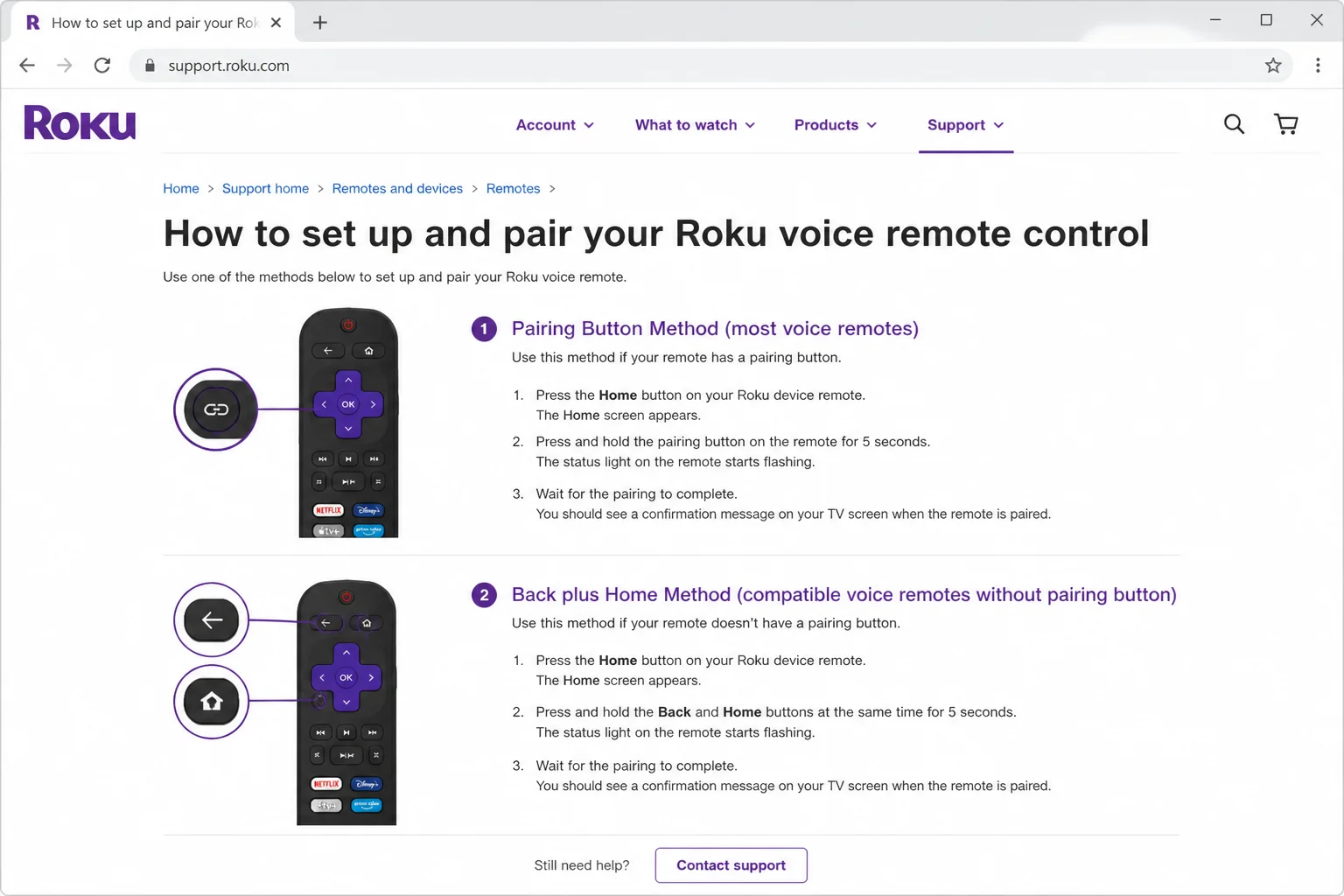
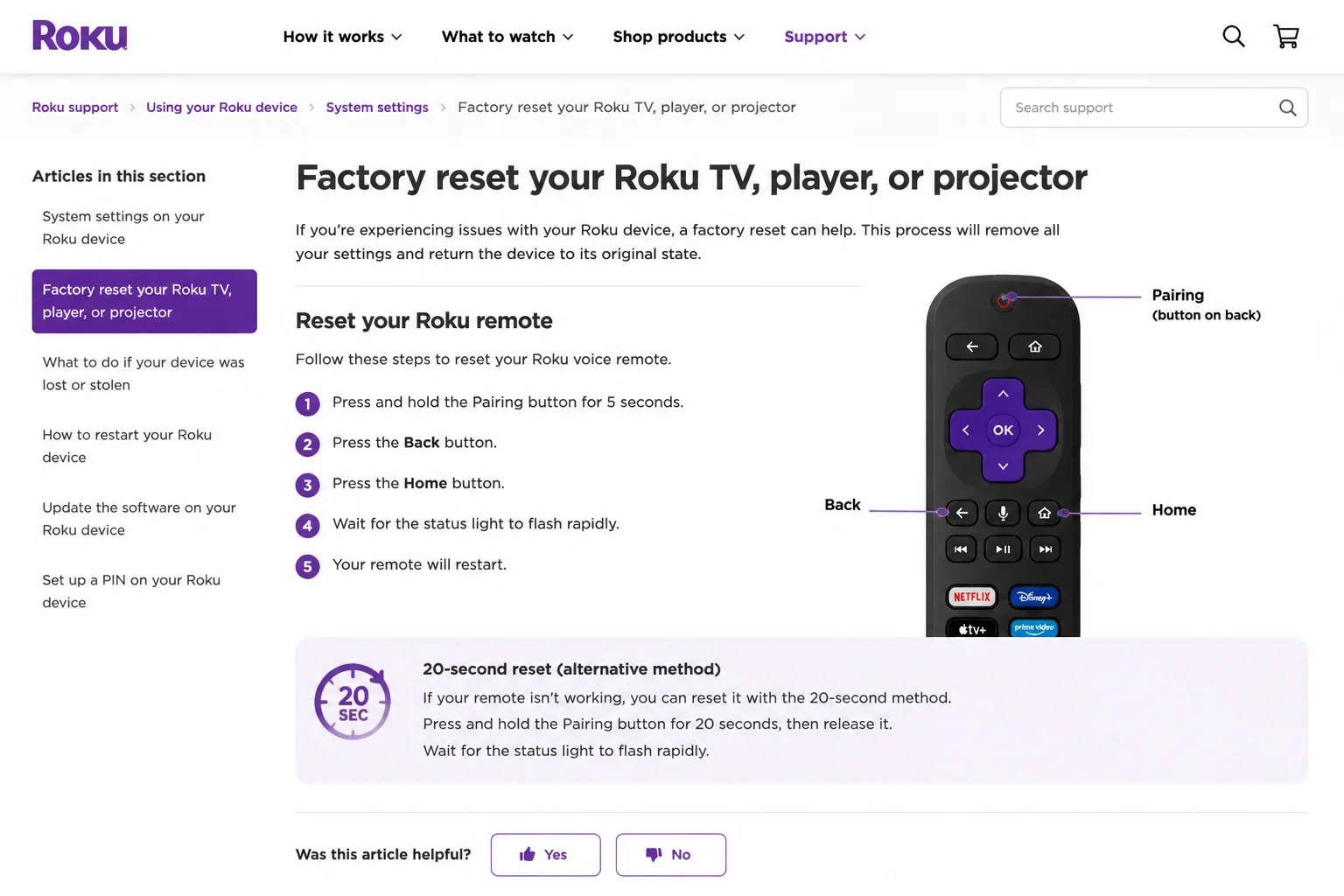
- Find the Pairing button inside the battery compartment or on the back of the remote.
- Hold Pairing for five seconds, until the status light flashes.
- If your compatible voice remote has no Pairing button, hold Back and Home together for five seconds.
- Wait up to 30 seconds for pairing to finish.
Verify the fix: Press Home or a directional button. The Roku should respond even when you aren’t aiming the remote directly at it.
Problem: Ordinary Pairing Keeps Failing
Symptoms:
- The status light flashes, but pairing never completes.
- The remote reconnects and drops out again.
- Repeating the five-second pairing process does nothing.
Why it happens: The voice remote may need a full reset before it can create a fresh connection. Nobody enjoys repeating the same pairing trick, so use the longer reset when five seconds gets you nowhere.
Fix for a battery-powered voice remote:
- Remove the batteries.
- Unplug the Roku for at least five seconds.
- Reconnect the Roku and wait for the Home screen.
- Reinstall the batteries.
- Hold Pairing for 20 seconds. If the compatible voice remote has no Pairing button, hold Back and Home for 20 seconds.
- Wait for the status light to finish flashing.
- Repeat the regular five-second pairing process.
For a rechargeable voice remote, hold Pairing for 20 seconds. On a compatible model without that button, hold Back and Home for 20 seconds. Let the light finish flashing, charge the remote for at least five hours, and pair it again.
Verify the fix: Walk several feet away and test navigation without pointing at the Roku.
Problem: A Streaming Stick Remote Works Intermittently
Symptoms:
- Button presses are delayed or missed.
- The remote works better near the television.
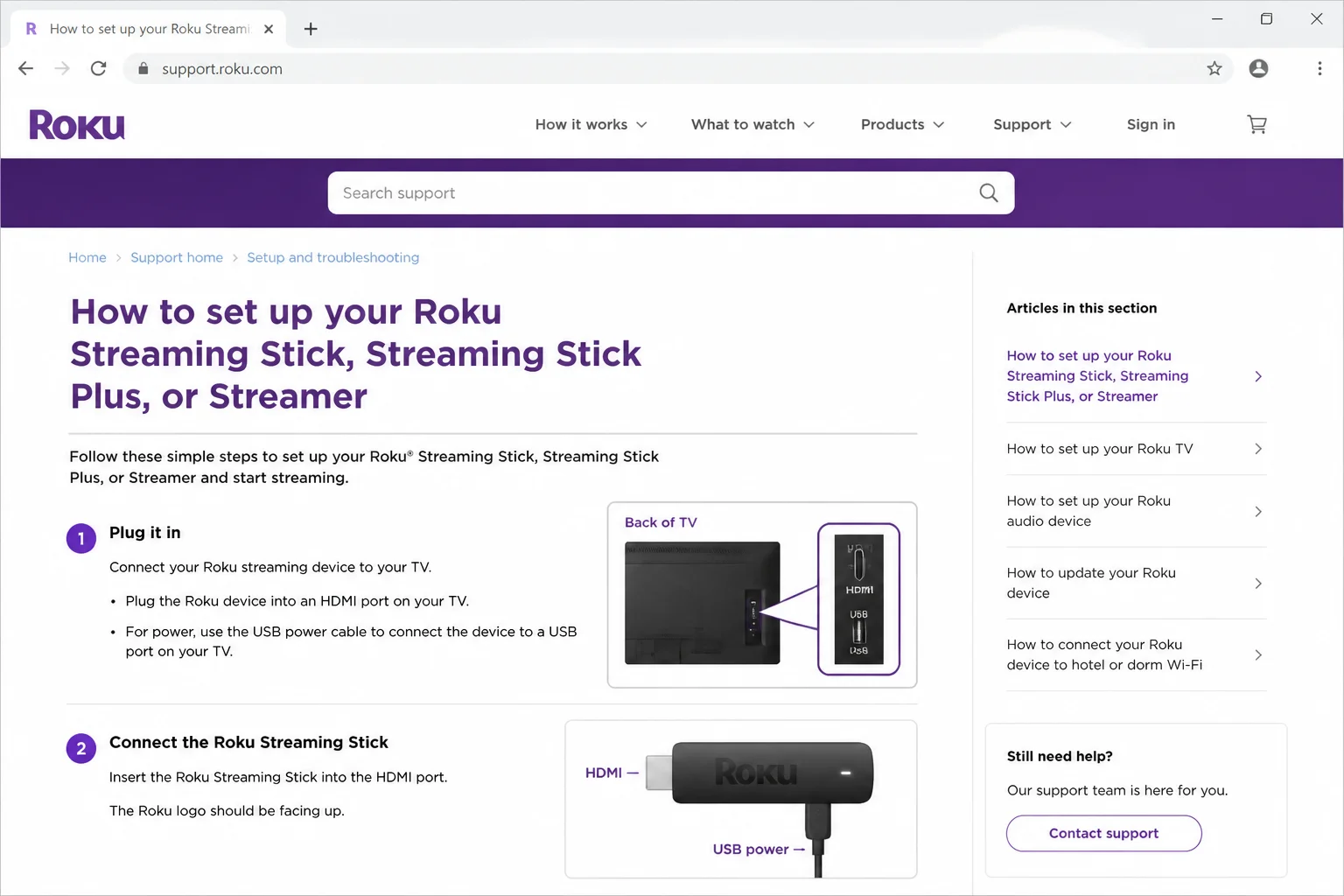
- The issue affects a Roku Streaming Stick connected directly to HDMI.
Why it happens: The TV’s HDMI port or nearby electronics can interfere with the remote’s wireless signal. Yes, the port handling your streaming can also bother the controller. Technology has a sense of humor.
Fix:
- Move routers, game consoles, USB hubs, and other electronics farther from the Roku where practical.
- Disconnect unnecessary USB accessories near the Streaming Stick.
- Use an HDMI extender to move the stick away from the back of the television.
- Check Roku’s official guidance to see if your Streaming Stick qualifies for an extender requested with its serial number.
Verify the fix: Test several buttons from your usual seat for a few minutes. The responses should stay consistent, since one successful click doesn’t prove much.
Problem: Roku Buttons Work, but TV Power and Volume Do Not
Symptoms:
- Roku menus work normally.
- Power, Mute, or volume buttons do nothing.
- TV controls stopped working after changing televisions or updating Roku.
Why it happens: Roku navigation and TV control use separate settings. Your remote can still control Roku while forgetting how to talk to the TV.
Fix:
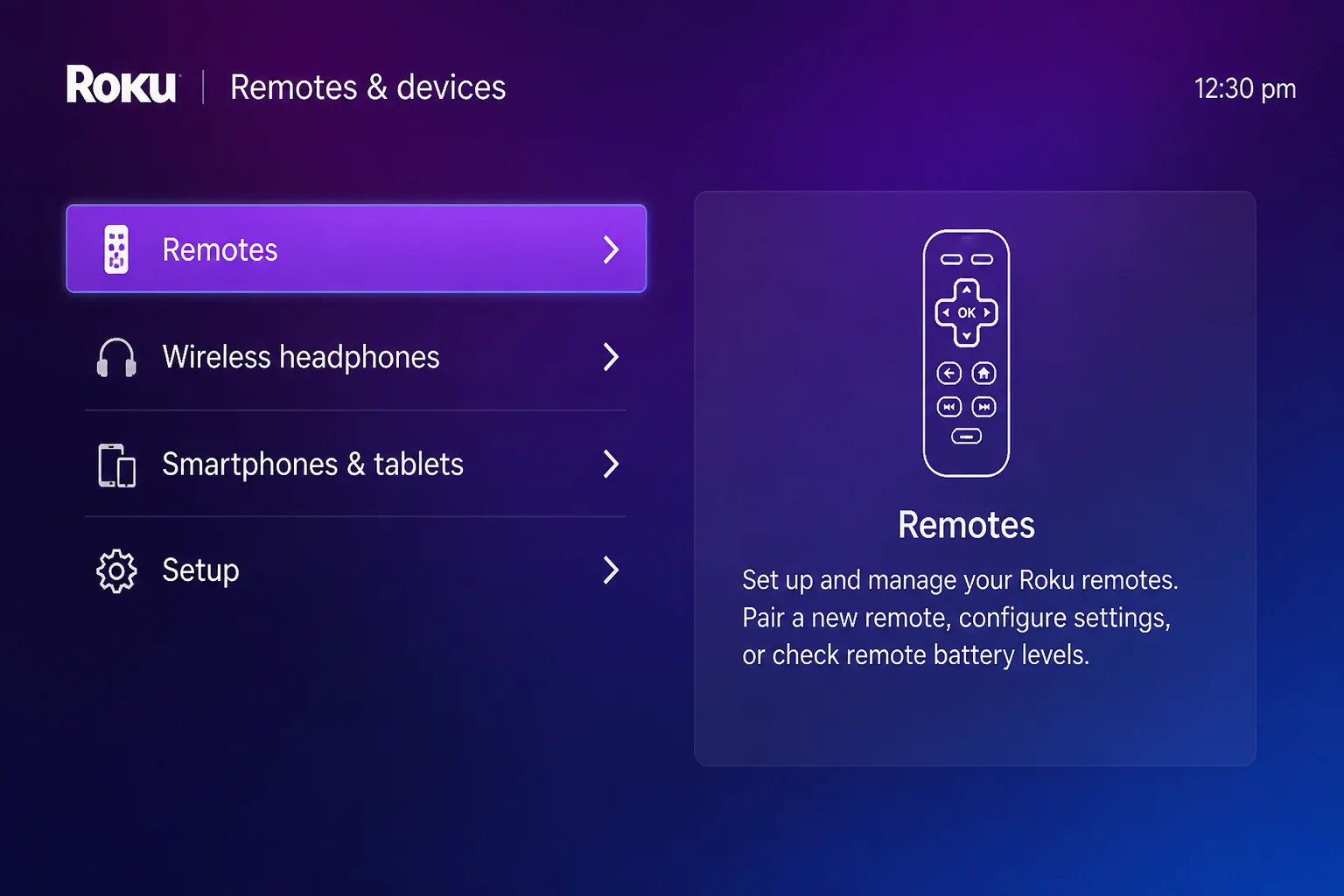
- Open Settings > Remotes & Devices > Remotes.
- Select the current remote.
- Choose Set up remote for TV control.
- Follow the sound and TV-brand prompts.
- If you use HDMI-CEC, enable CEC in the television’s settings. TV makers use different names for CEC, so check the manual if you can’t spot it.
Verify the fix: Test Power, Mute, and both volume buttons. Check each one, because volume working doesn’t guarantee that power will behave.
Problem: The Remote Misbehaves After an Update
Symptoms:
- Pairing or TV controls stopped working after Roku updated.
- Buttons respond inconsistently despite good batteries.
Why it happens: Pairing or TV-control settings sometimes need a refresh after software changes. It’s annoying, but checking for another update can clear up a half-finished change.
Fix:
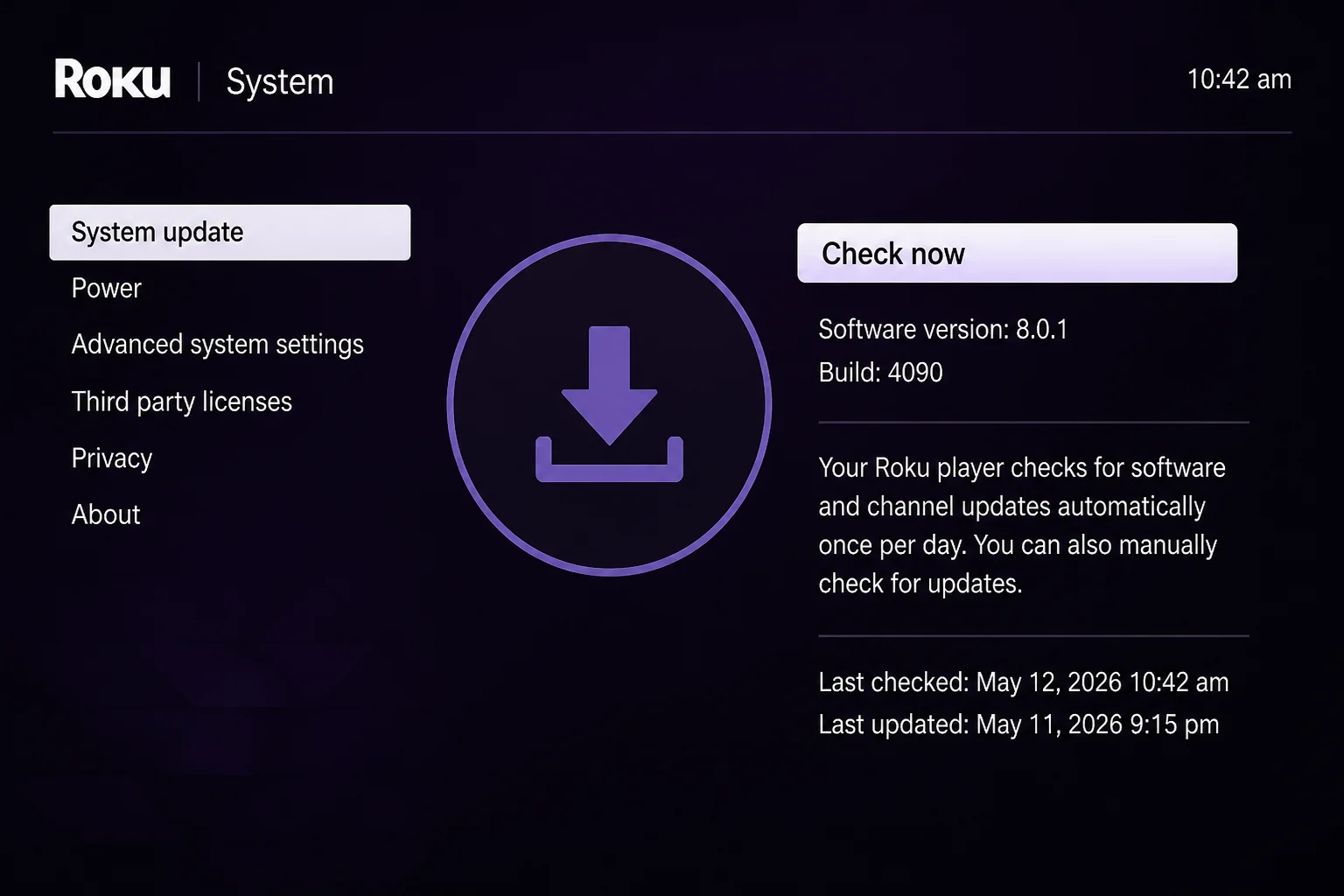
- Use any working controller to open Settings > System > System update.
- Select Check now.
- Install any available update.
- Restart the Roku.
- Pair the voice remote again.
- Run Set up remote for TV control if volume or power still fails.
Verify the fix: Check navigation, voice search, power, and volume separately.
Error Messages and Status Lights
| Message or Signal | What It Means | What to Do |
|---|---|---|
| “Pairing remote…” | Roku detected a voice remote and is connecting | Keep the remote close and wait up to 30 seconds |
| “Unable to pair remote” | Roku could not complete the wireless connection | Restart Roku, then retry pairing; use the 20-second reset if needed |
| “No devices found” in the mobile app | The phone cannot discover Roku on the network | Put both devices on the same local network |
| Repeating flashing status light | The voice remote is pairing or resetting | Wait for flashing to stop before testing |
| No light during pairing | The remote lacks power or is not entering pairing mode | Replace batteries or charge it |
| Low-battery notice | The remote’s remaining power is low | Replace the batteries or recharge it |
| Temperature warning or hot remote | A battery or internal fault may be present | Stop use, place it on a non-flammable surface, and let it cool |
The exact wording can vary by Roku model and software version. Focus on what the light or message is doing, then match it to the action above.
Platform-Specific Fixes
The physical remote doesn’t need Windows or macOS software. For a fallback controller, use the official Roku mobile app on iOS or Android.
On iOS
- Open the App Store on your iPhone or iPad.
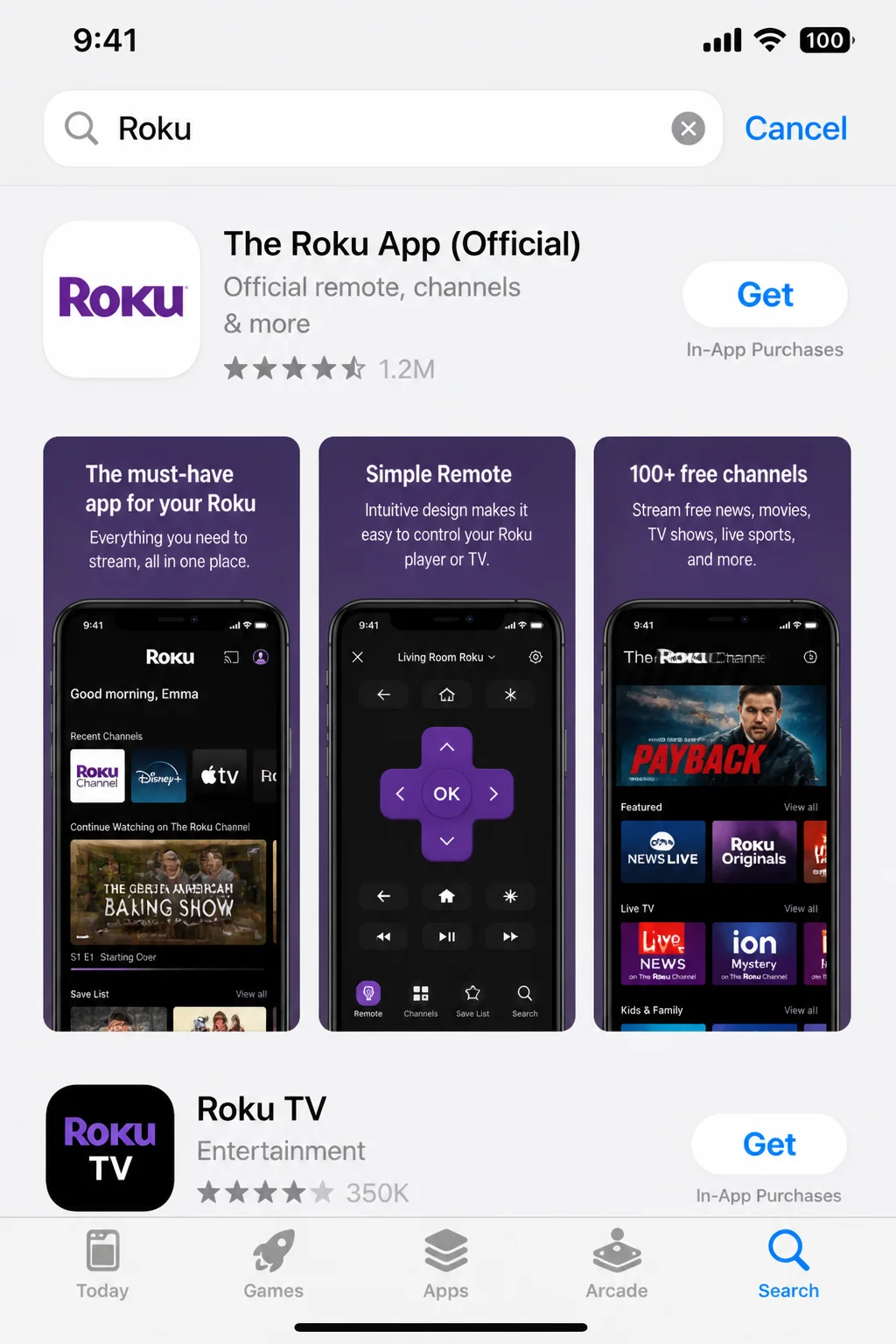
- Install the official Roku mobile app.
- Open Settings > Wi-Fi and join the same network used by the Roku.
- Open the Roku app and select your Roku device.
- Open its remote-control interface.
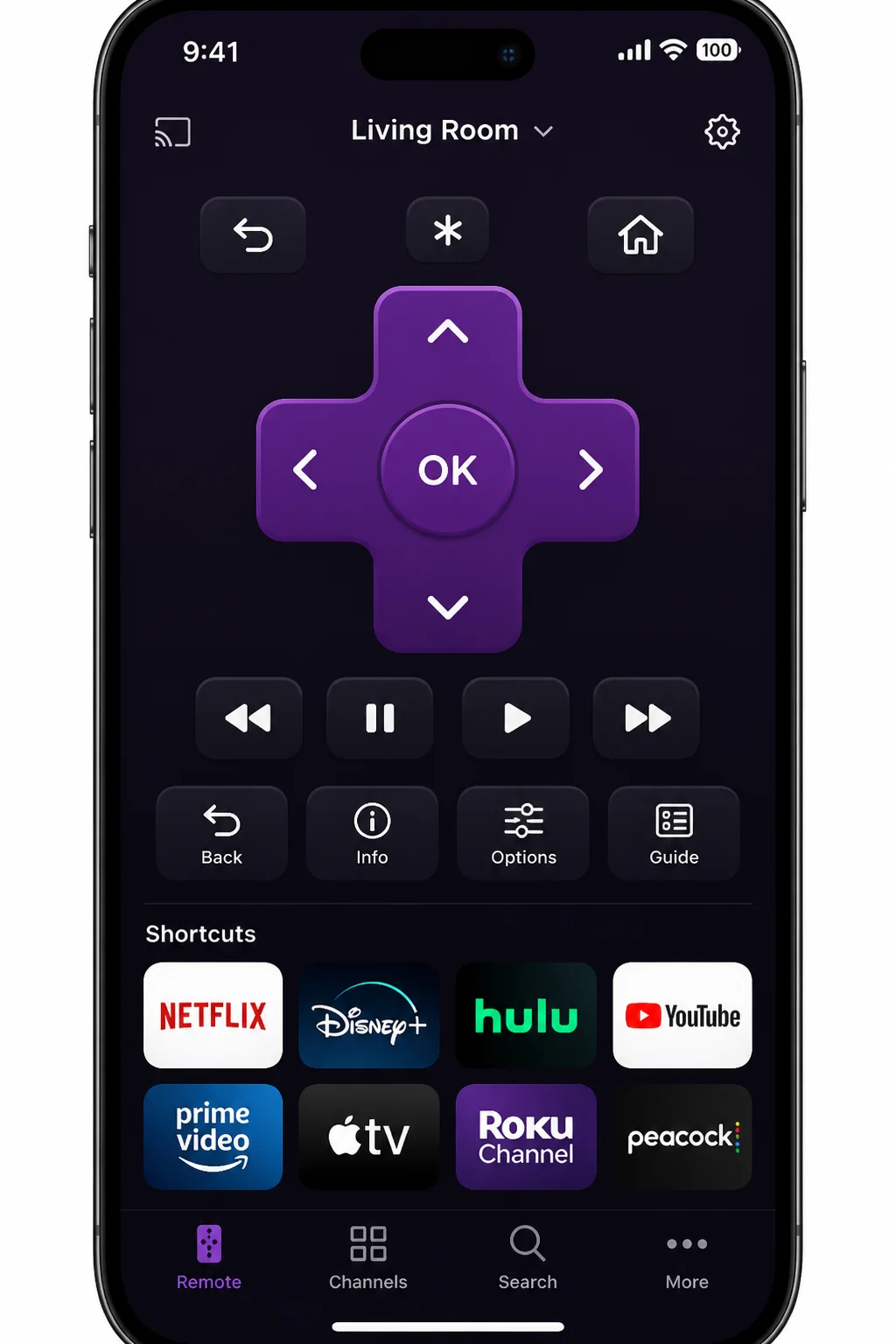
Verify the fix: Tap a direction in the app and check that the selection moves on the TV.
On Android
- Open the Google Play Store on your phone or tablet.
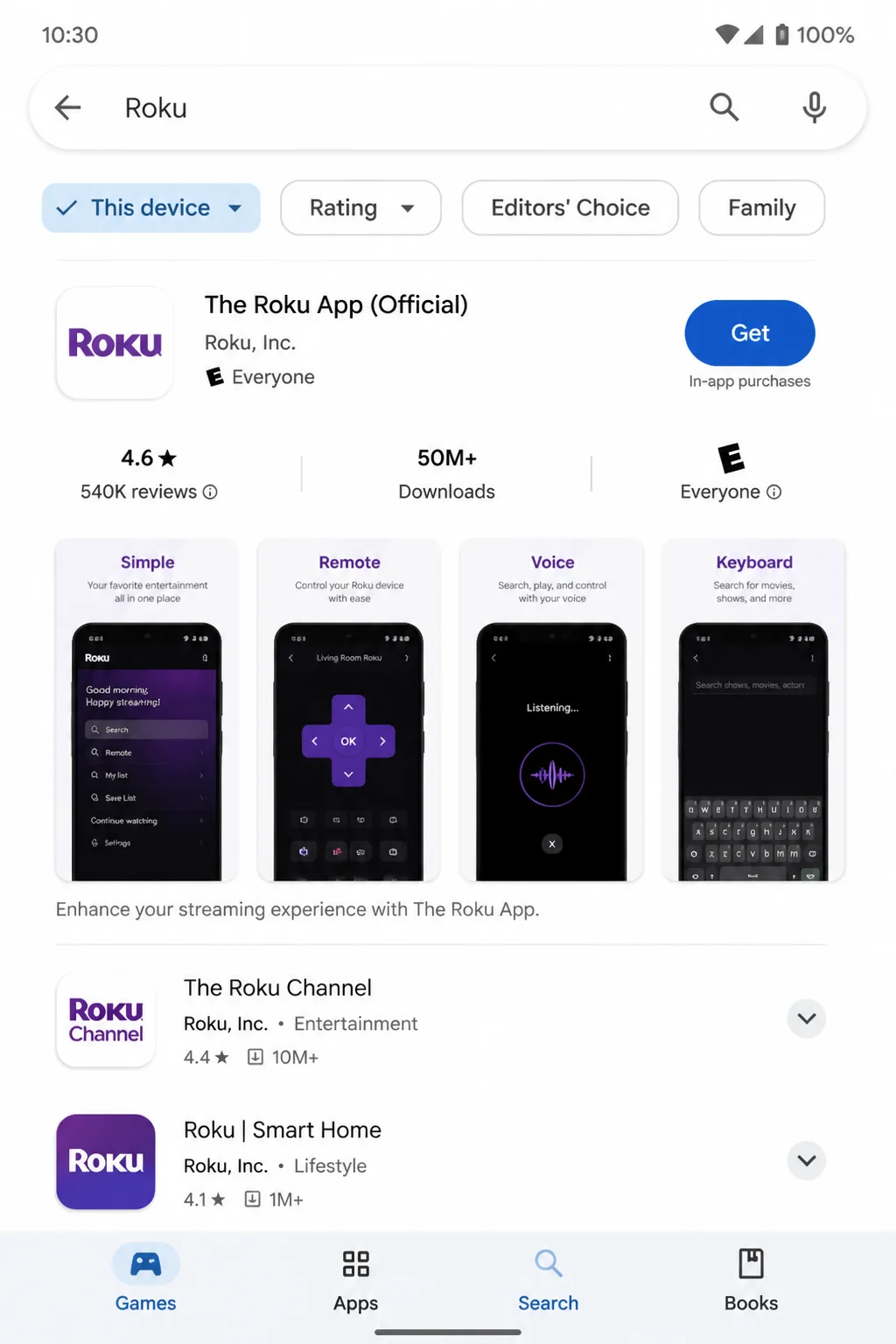
- Install the official Roku mobile app.
- Open Settings > Network & internet > Internet and join the Roku’s network. The labels may vary slightly by phone.
- Open the Roku app and select your Roku device.
- Open its remote-control interface.
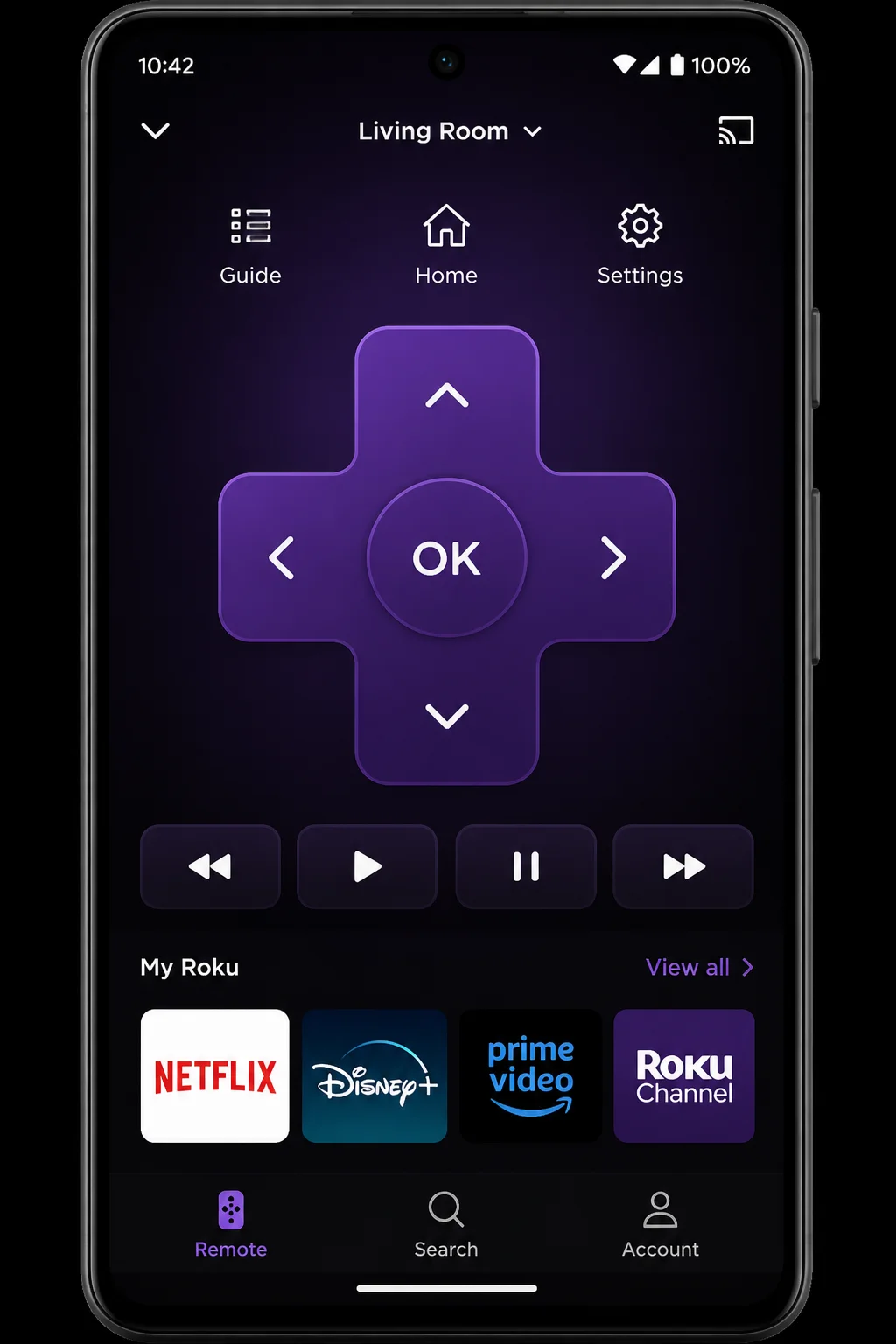
Verify the fix: Tap Home and check that Roku returns to its Home screen.
If the app can’t find Roku, check whether your phone is using a guest network or mobile data instead of Wi-Fi. The app only works when the phone and Roku can reach each other. If Roku has lost its network connection, you’ll need another compatible remote, a TV control method, or a network setup change first.
Configuration Issues to Check
- Wrong Remote Type: Don’t try to pair a simple infrared remote. It needs batteries and a clear line of sight, much like the TV remotes many of us grew up with.
- Incorrect Battery Orientation: Match the
+and-markings inside the compartment. A battery can look properly seated while facing backward.
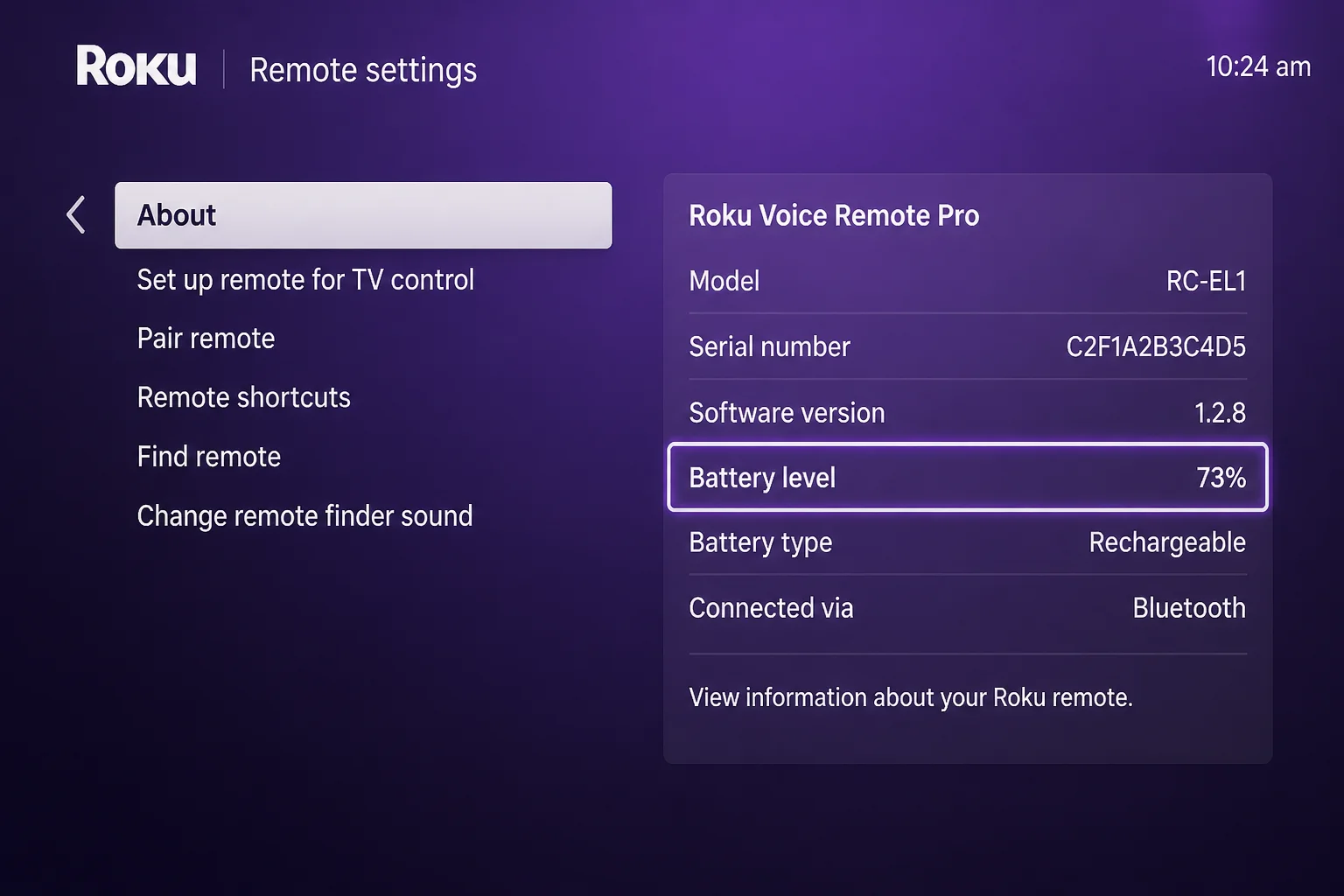
- Remote Battery Information: Open Settings > Remotes & Devices > Remotes, select the remote, and choose About. Check the available battery and remote details.
- Wrong Pairing Shortcut: Use Back and Home only with a compatible voice remote that has no physical Pairing button.
- Multiple Active Remotes: Remove the batteries from an unused remote if it’s causing unwanted input. Supported remotes can also be disabled by holding Back, Home, and Mute together for five seconds.
- Touch or Tabletop Remote Problems: After a network change, restore the Roku’s network connection and check or charge the remote battery as needed. These remotes vary. Use Roku’s instructions for your model instead of forcing a battery-removal or pairing process designed for another remote.
Getting Help
Contact Roku Support when:
- The remote repeatedly becomes hot.
- A voice remote still fails after charging, restarting, resetting, and pairing.
- A simple remote shows no infrared flash with fresh batteries after testing with more than one camera.
- The battery compartment is damaged, corroded, or swollen.
- You need model-specific help for a touch or tabletop remote.
- You need to confirm replacement-remote compatibility.
Before contacting support, find the Roku model and serial number under Settings > System > About. Write down the remote type, battery level, status-light behavior, and fixes you’ve tried. Roku devices don’t give everyday users a useful remote log file, so those notes are your best “debug report.”
A replacement makes sense if the infrared transmitter has failed, buttons are damaged, or the battery won’t hold a charge. You may also need one when a compatible voice remote still can’t pair after a full reset. Check compatibility with your Roku TV, stick, or player before buying, since Roku remotes can look almost identical.
For official instructions, see Roku’s simple and voice remote troubleshooting guide and infrared remote troubleshooting page.
Prevention Tips
- Keep Spare Batteries Nearby: A fresh pair is the fastest diagnostic tool you can own. It also saves the classic search through every kitchen drawer.
- Keep the Signal Path Clear: Don’t hide an infrared-controlled Roku behind the TV or inside a closed cabinet.
- Charge Before It Is Empty: Recharge a voice remote when Roku shows a low-battery warning. Waiting for total silence usually happens right before movie night.
- Avoid HDMI Crowding: Give a Streaming Stick some room around nearby electronics. Use an extender if interference returns.
- Check for Updates: Occasionally open Settings > System > System update > Check now.
- Keep the Mobile App Ready: Install it before the physical remote fails. Keep your phone and Roku on the same trusted network.
- Watch for Heat or Damage: Stop using a remote that overheats, swells, leaks, or has a damaged battery compartment.
Frequently Asked Questions
Does My Roku Remote Need to Be Paired?
Only wireless voice remotes need pairing. A simple infrared remote doesn’t pair and must be aimed at the Roku.
Where Is the Pairing Button?
Look inside the battery compartment or on the back of the remote. If a compatible voice remote has no Pairing button, hold Back and Home for five seconds to pair it.
How Long Should I Hold the Pairing Button?
Hold it for five seconds during normal pairing. Use 20 seconds only for the deeper remote reset. Holding it longer every time won’t make regular pairing work better.
Can I Control Roku Without the Physical Remote?
Yes. The official Roku mobile app can work as a temporary remote when your phone and Roku communicate over the same network. Some TV remotes may also offer basic control through HDMI-CEC, depending on your equipment.
What Should I Do About Unexpected Roku Charges?
Remote troubleshooting won’t fix account charges or subscriptions. Review the subscriptions linked to your Roku account and contact Roku’s billing support if you don’t recognize a charge.
Wrapping Up
Roku remote trouble usually has a pleasantly boring fix: fresh power, a clear signal path, a restart, or another pairing attempt. Identifying whether you have a simple or voice remote is the most useful first step. It prevents a lot of pointless pairing attempts (and a fair amount of couch-side frustration).
| Step | Action | Applies To |
|---|---|---|
| 1 | Replace batteries or charge for five hours | All remotes |
| 2 | Clear the infrared path | Simple remotes |
| 3 | Unplug Roku for at least 10 seconds | All Roku devices |
| 4 | Pair for five seconds | Voice remotes |
| 5 | Reset for 20 seconds | Unresponsive voice remotes |
| 6 | Reduce HDMI interference | Streaming Stick models |
| 7 | Use the official mobile app | iOS and Android on the same network |
Last updated: 2026-08-15 | Applies to Roku remotes and the Roku mobile app on iOS and Android