
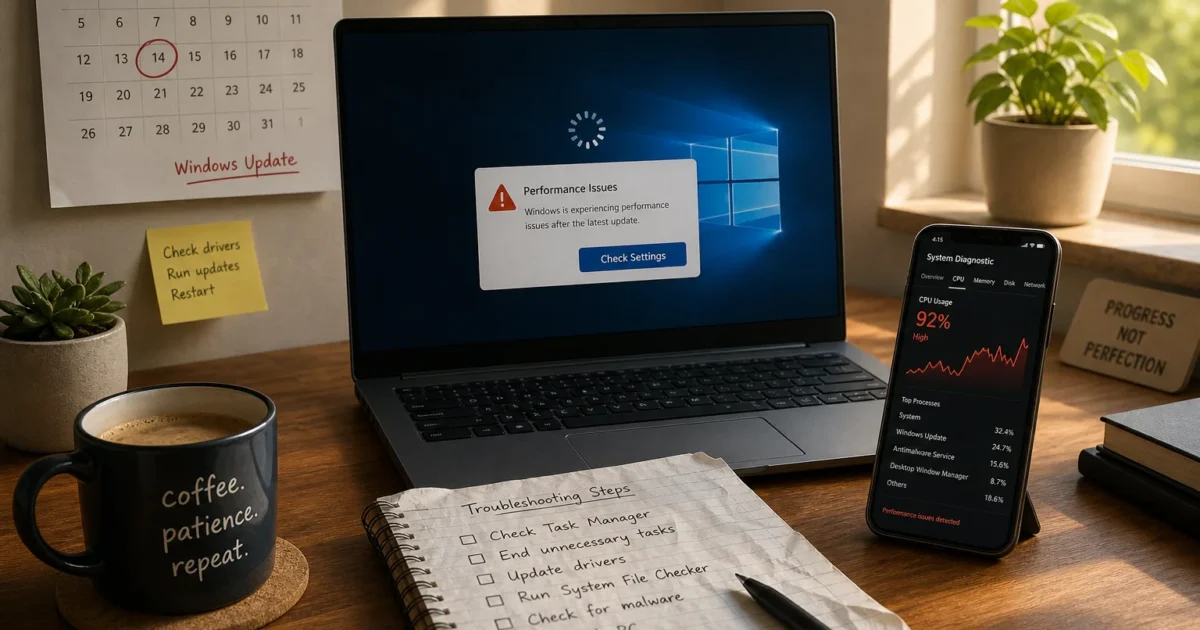
Your PC installs an update, restarts, and suddenly everything feels slow. Clicks lag. The fan won’t stop. Take a breath. This is one of the most common complaints after an update. It’s rarely a sign your machine is dying.
This guide helps you find what’s really slowing things down. It might be leftover background indexing, a Delivery Optimization service hogging memory, a swapped graphics driver, or hardware that’s hitting its limit. You’ll get exact steps to fix each one.
Quick Diagnosis
Before you chase individual fixes, spend two minutes on this triage:
- Note when the slowdown started. Did it begin right after Windows installed an update and restarted? That’s a strong clue you’re dealing with a post-update issue, not a random hardware failure.
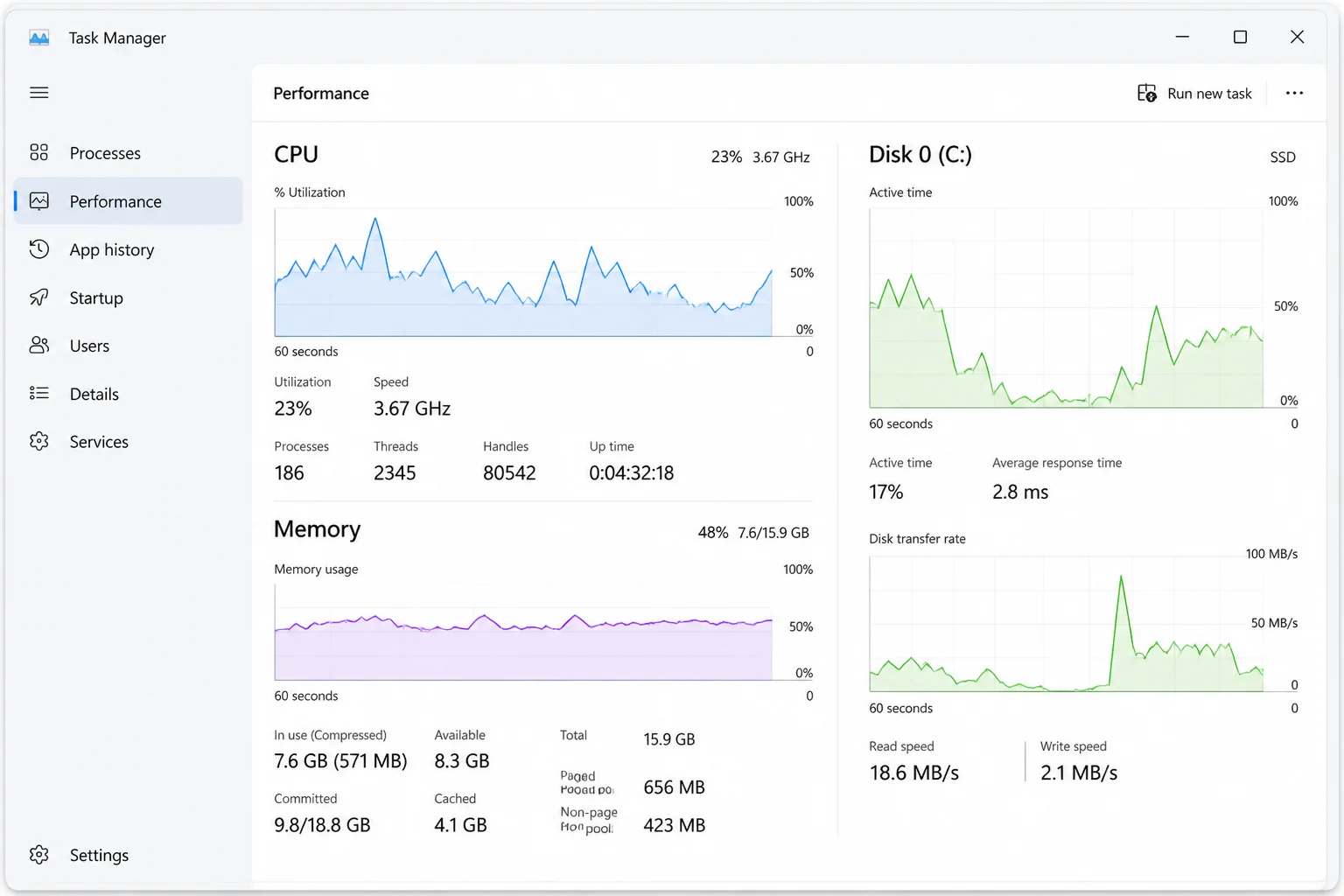
- Open Task Manager (press
Ctrl+Shift+Esc) and click the Performance tab. Watch CPU, Memory, and Disk usage for a minute. If one of them is pinned near 100% with nothing obviously open, that’s your lead. - Check the Processes tab. Sort by Memory or CPU to see what’s actually using resources.
- Restart your PC once (not just sign out) if you haven’t already. It’s a small step, but it clears up a surprising number of post-update slowdowns, as you’ll see below.
Once you know roughly what’s spiking (CPU, memory, disk, or “everything feels slow but nothing shows up”), jump to the matching section below.
Common Issues and Solutions
Problem: PC Feels Sluggish for Hours Right After an Update
Symptoms:
- Everything feels slow right after Windows finishes installing an update
- Disk activity light stays on constantly, even with no apps open
- Fans spin up for no obvious reason
- The issue seems to fade on its own after some time
Why it happens: Right after a feature or cumulative update, Windows quietly finishes a batch of background chores. It rebuilds the search index. It lets Microsoft Defender re-scan files and update definitions. It also re-registers drivers. All of that competes with you for CPU and disk. It can look exactly like “my computer got slower.”
Fix:
- Go to Start > Power and choose Restart, not Shut down. A proper restart clears out lingering update processes that a shutdown or cold boot can leave half-finished.
- Leave the PC plugged in and mostly idle for 15-30 minutes afterward. This gives indexing and Defender’s scan time to finish.
- Open Task Manager and check the Search Indexer (
SearchIndexer.exe) and Antimalware Service Executable processes. If they’re using a lot of CPU or disk, that confirms background work is still running, not a permanent problem.
Verify it worked: Reopen Task Manager’s Performance tab 20-30 minutes later. CPU and disk usage should settle back down to idle levels once indexing and scanning finish.
Tip: This is the single most common cause of “my PC got slow after the update.” Give it time before you assume something’s broken.
Problem: Not Sure If Microsoft Already Fixed Your Slowdown
Symptoms:
- The slowdown matches a pattern other people are reporting online
- You want to know if a newer patch already fixes it before you troubleshoot further
Why it happens: Microsoft regularly ships follow-up patches to fix performance problems from an earlier update. If you’re on an older cumulative update, you might be missing a fix that’s already out.
Fix:
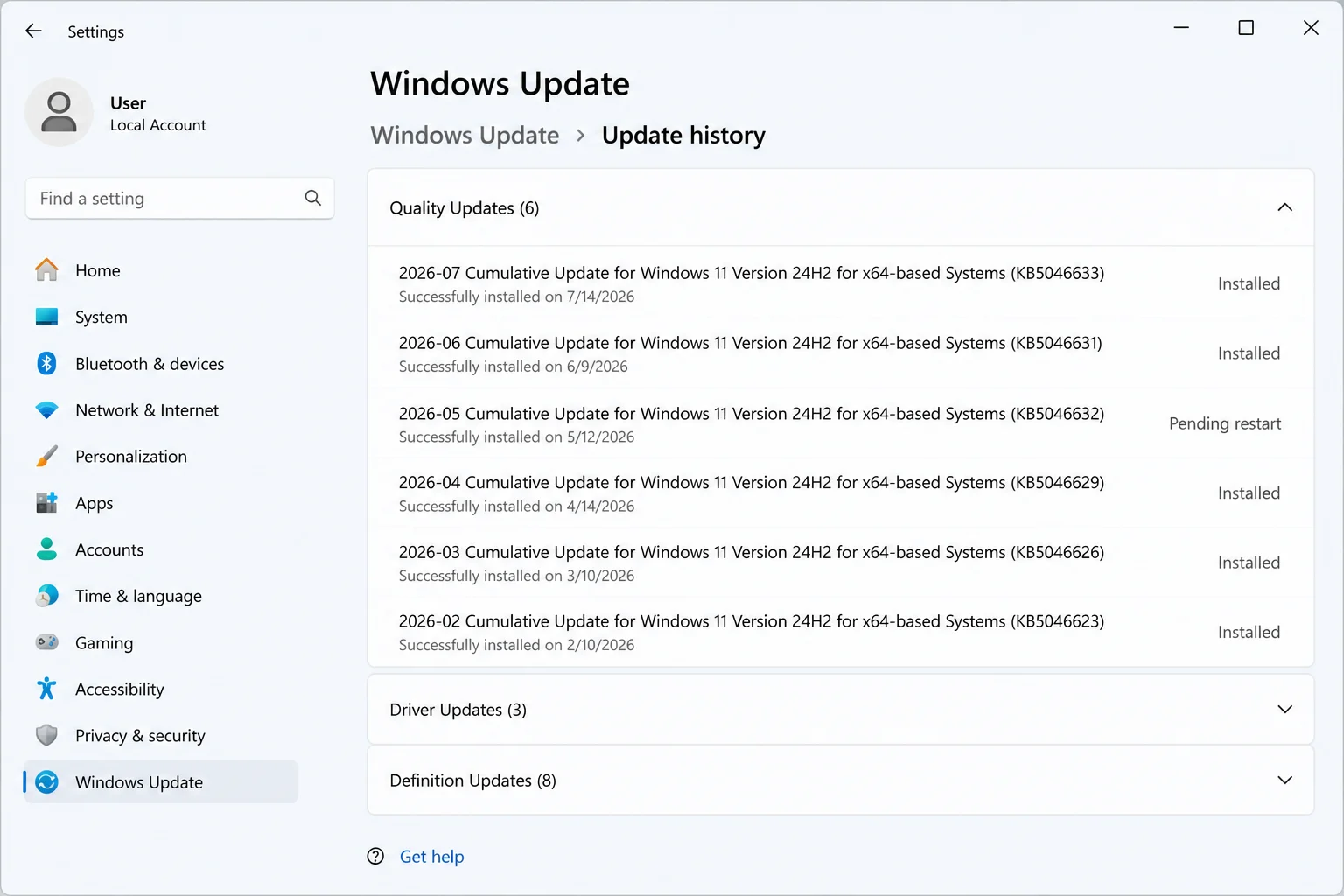
- Open Settings > Windows Update and click Check for updates. Install anything pending, including optional updates.
- Click Update history to see every update installed on your PC, along with its install date.
- Compare the date of the update that lined up with your slowdown against any updates released after it. Patches for performance or memory issues often arrive within a few weeks.
- For the full picture of known issues and fixes for your Windows 11 version, check the Windows release health dashboard on Microsoft Learn. Microsoft posts known issues and fix status there, often before it reaches consumer update notes.
Verify it worked: Install any newer update, restart, and re-run your Quick Diagnosis check. If resource usage that was pinned high has settled down, the patch likely fixed it.
Problem: Too Many Apps Launching at Startup
Symptoms:
- Sign-in takes a long time
- The first few minutes after logging in feel especially slow
- Task Manager shows several apps running that you never opened yourself
Why it happens: Installed apps love to register themselves to launch automatically when you sign in. Cloud storage clients, chat apps, update checkers, and printer software all do this. Each one grabs a slice of CPU, memory, and disk right at boot. It adds up fast, especially on modest hardware.
Fix:
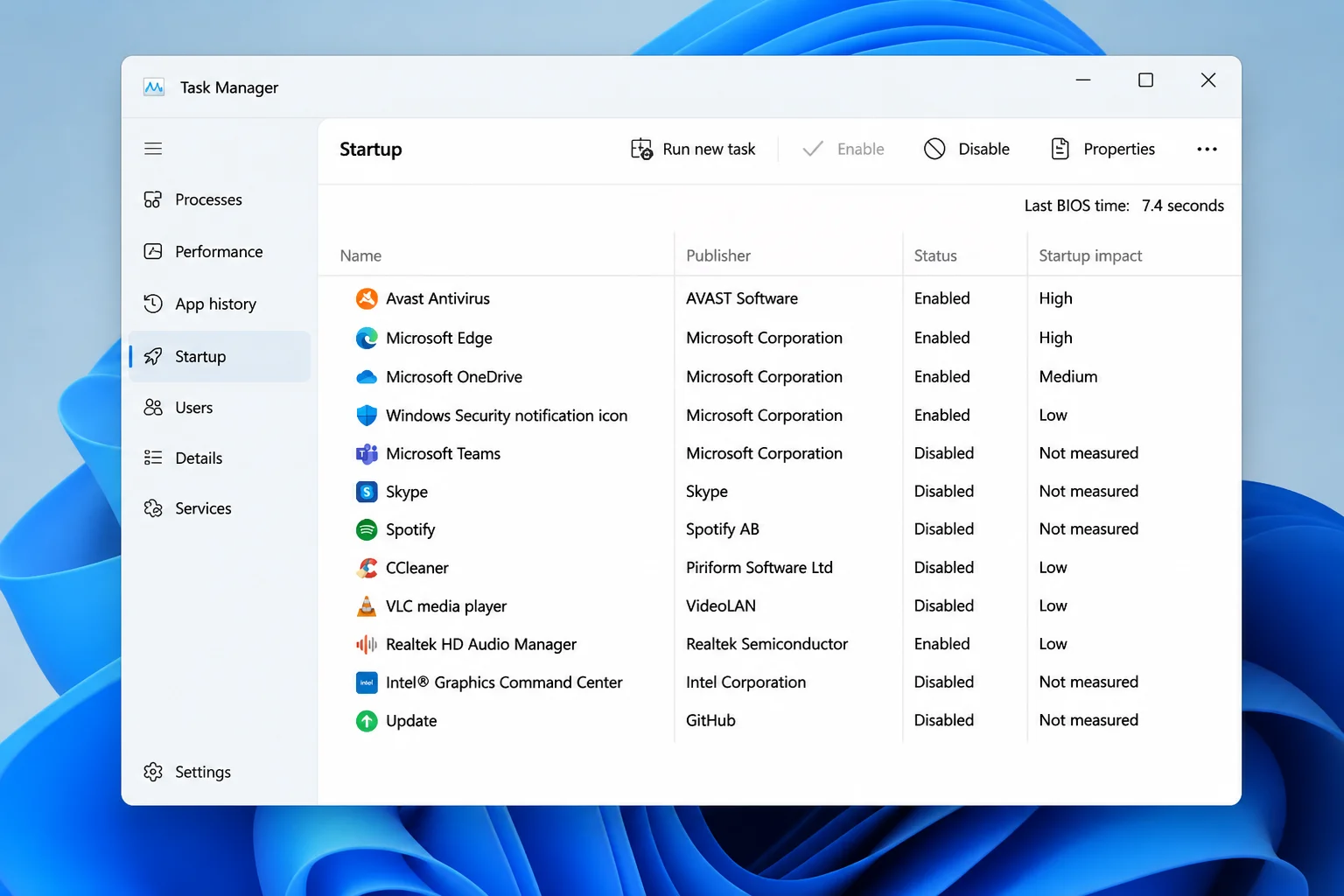
- Press
Ctrl+Shift+Escto open Task Manager. - Click the Startup apps tab.
- Look at the Startup impact column. Anything marked High is worth reviewing.
- Right-click any app you don’t need running the moment you sign in and select Disable. This doesn’t uninstall the app. It just stops it from auto-launching.
Verify it worked: Restart your PC and time how long it takes to feel responsive after sign-in. You should also notice fewer background processes in Task Manager right after logging in.
Problem: Memory Usage Stays High With Almost Nothing Open
Symptoms:
- Task Manager shows unusually high memory use with only a browser or two open
- The PC feels sluggish hours after boot, not just right after an update
- Fans ramp up now and then for no clear reason
Why it happens: Delivery Optimization is the background Windows service that manages downloading and sharing update and app files. In some setups, it shares pieces of those files with other PCs over your network or the internet, similar to how torrents work. On certain builds, this service has been known to hang onto memory well beyond what it should, especially if it gets stuck trying to share data with peers.
Fix:
- Open Task Manager > Details tab and look for processes related to Delivery Optimization or Windows Update. If one is using an outsized share of memory, that’s your clue.
- Check Update history (as above) for a follow-up patch describing a Delivery Optimization or memory-usage fix, and install it if you find one.
- Go to Settings > Windows Update > Advanced options > Delivery Optimization.
- Under How do you want to download updates, switch from “PCs on my local network, and PCs on the Internet” to PCs on my local network only. Or turn the toggle off entirely if you don’t need peer sharing.
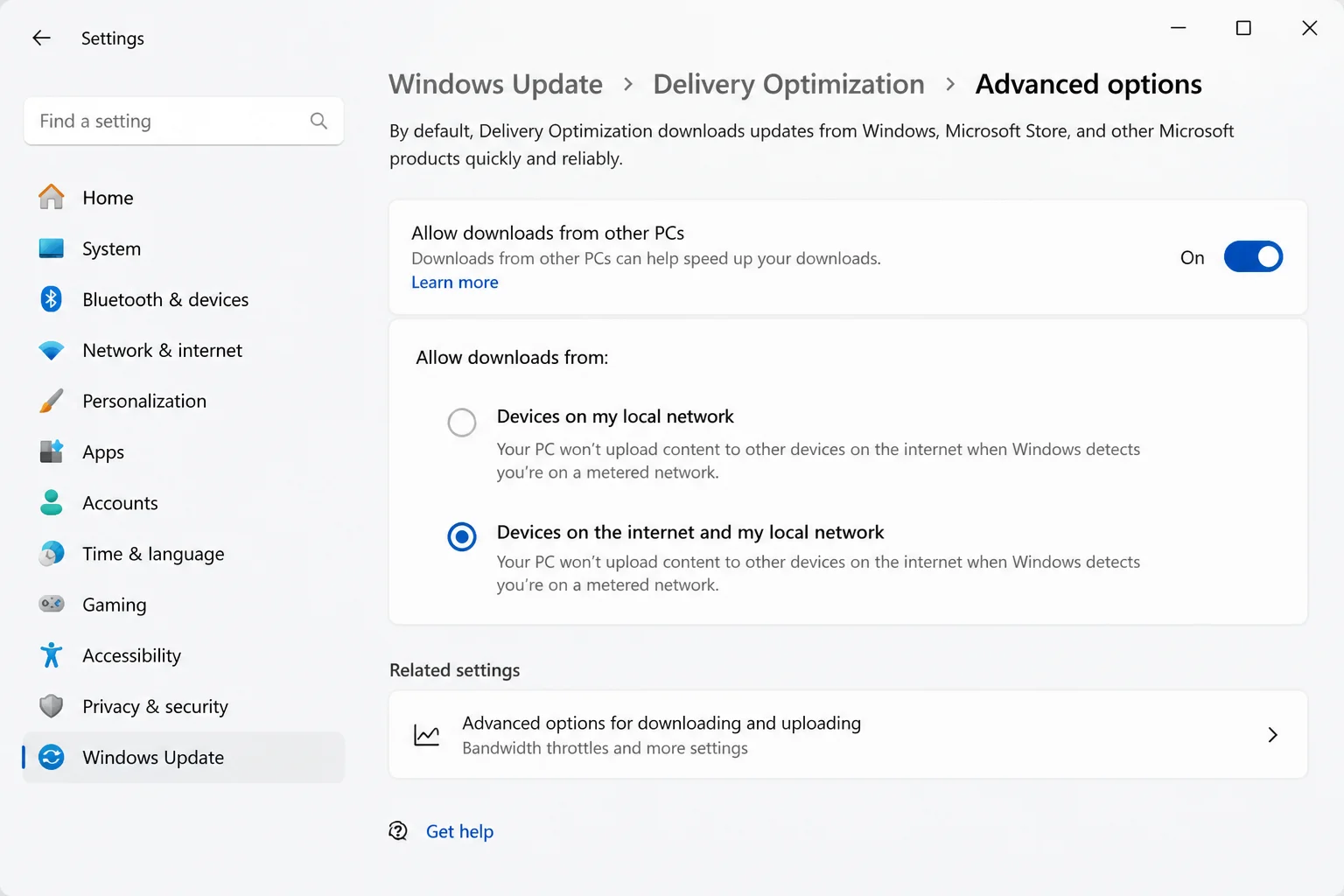
Verify it worked: Restart the PC and let it sit idle for 20 minutes. Then check memory usage in Task Manager again. It should stabilize instead of climbing steadily.
Problem: Games or Video Stutter, or Graphics Look Wrong
Symptoms:
- Video playback drops frames or looks glitchy
- Games that ran fine before now stutter or crash
- The screen flickers or resolution/refresh rate resets unexpectedly
Why it happens: Windows updates sometimes reinstall, reset, or swap out the graphics driver. Sometimes this replaces a vendor driver (NVIDIA, AMD, Intel) with a generic one. Other times it installs a mismatched version that conflicts with what was already there.
Fix:
- Right-click Start and choose Device Manager.
- Expand Display adapters and right-click your GPU.
- Choose Properties > Driver tab to see the current driver version and date.
- If the driver date matches your update date and problems started right after, click Roll Back Driver. This only works if Windows kept the previous driver package.
- If rollback isn’t available, click Update driver. Or better, download the latest driver directly from NVIDIA, AMD, or Intel’s website. This tends to install more cleanly than what Windows Update offers.
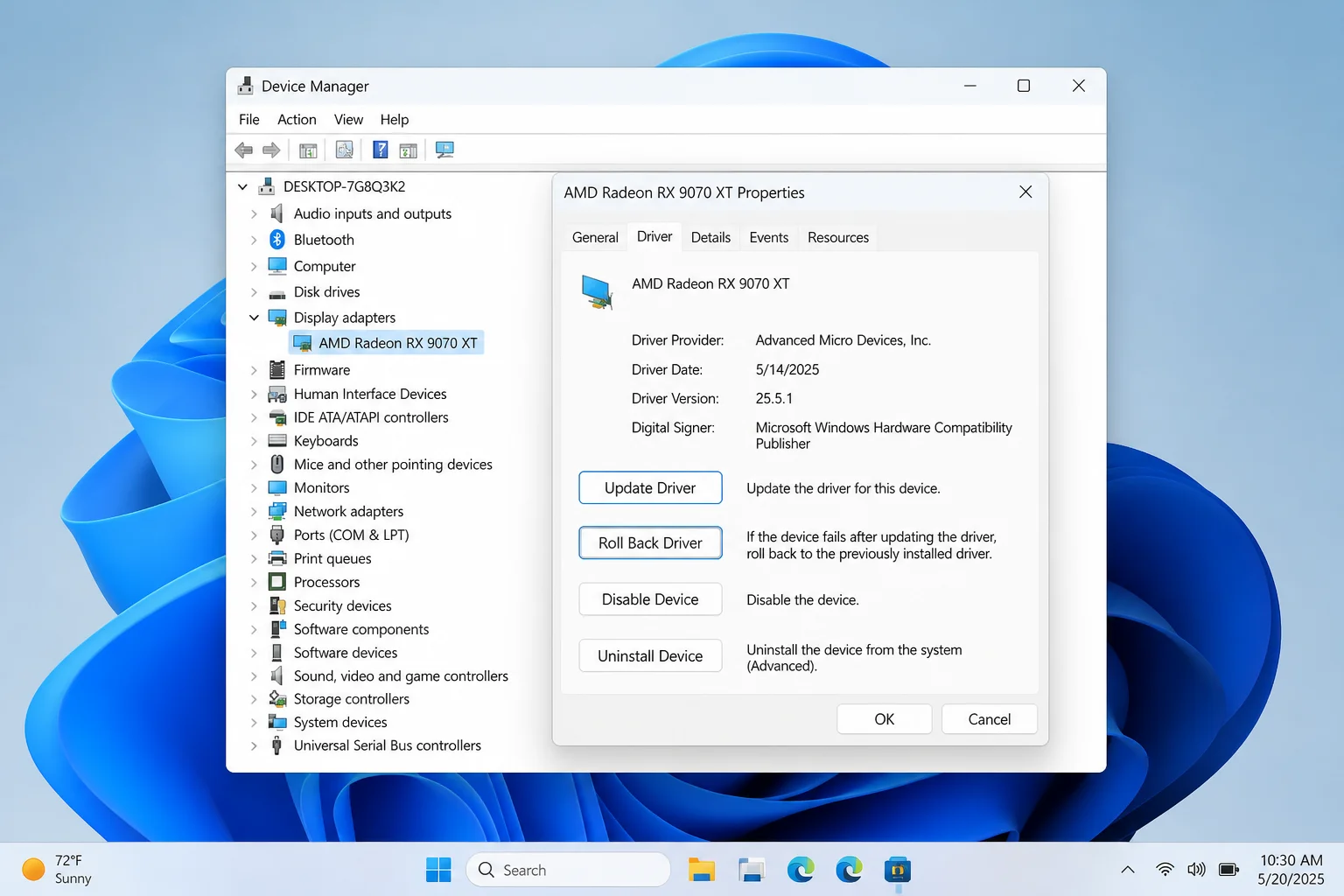
Verify it worked: Restart the PC and reopen the app or game that was stuttering. Smooth playback or stable frame rates confirm the driver conflict is fixed.
Problem: General Sluggishness With No Obvious Cause
Symptoms:
- The PC feels slow across the board, not tied to one app
- Random crashes, freezes, or error messages referencing missing or corrupt files
- None of the fixes above made a noticeable difference
Why it happens: An interrupted update, a bad shutdown, or ordinary wear can corrupt system files that Windows relies on. These aren’t always the files causing an obvious error message. That’s why this issue looks unexplained.
Fix:
- Click Start, type
cmd, right-click Command Prompt, and choose Run as administrator. - Run the System File Checker:
sfc /scannow
- Let it finish; this can take 10-15 minutes. Read the result message carefully (see the error table below for what each one means).
- If SFC reports it couldn’t fix everything, run DISM to repair the underlying Windows image, then run SFC again:
DISM /Online /Cleanup-Image /RestoreHealth
sfc /scannow
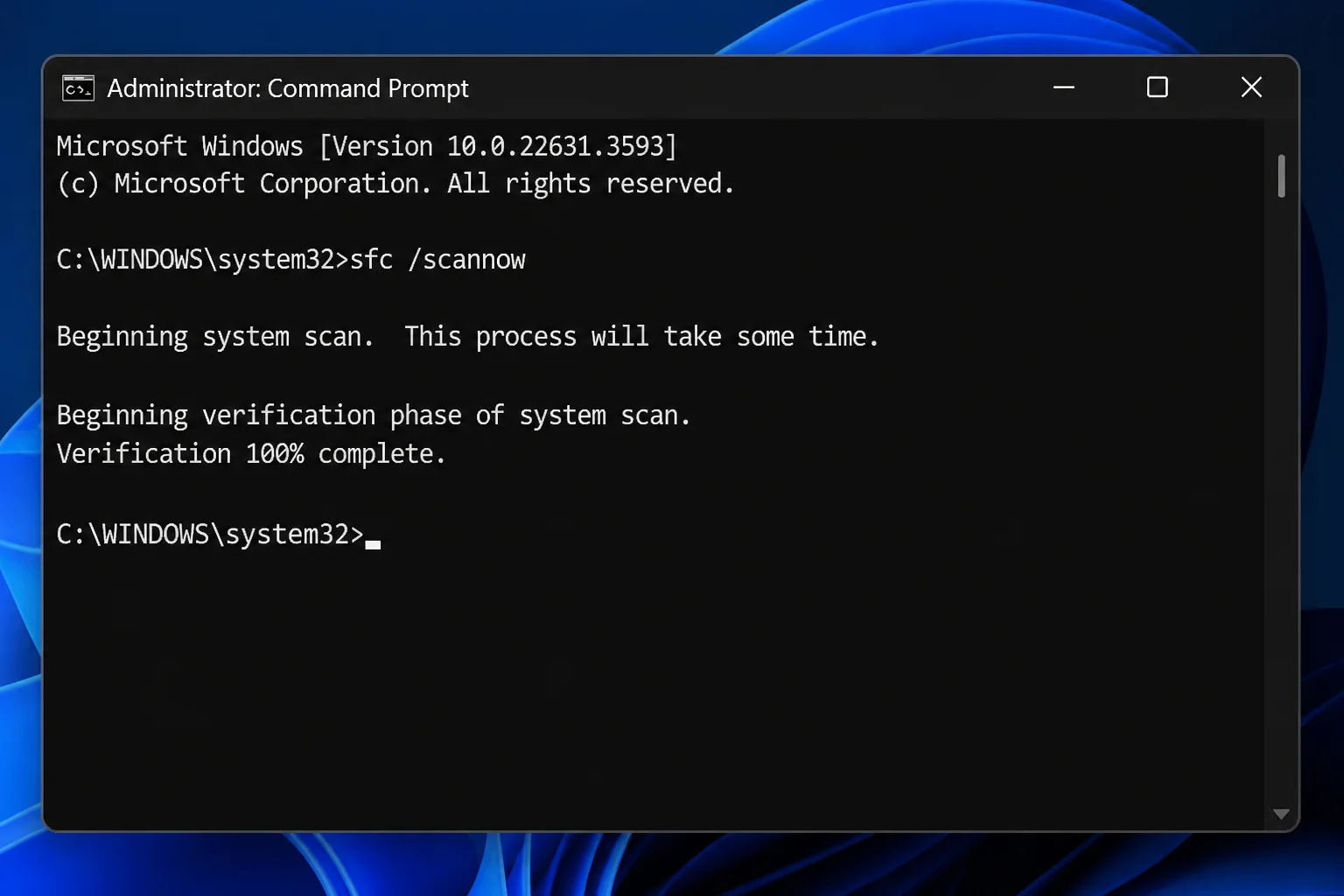
Verify it worked: A second sfc /scannow run should report “Windows Resource Protection did not find any integrity violations.” That’s your all-clear.
Tip: Run SFC before DISM. DISM repairs the Windows image files that SFC pulls from, so running SFC again afterward gives it clean files to work with.
Problem: Laptop Is Slow and Battery Drains Fast
Symptoms:
- Everything feels sluggish, especially on battery
- Fans run more than they used to
- Battery life has dropped noticeably since the update
Why it happens: Windows 11’s Power mode setting can default to (or get reset to) a mode that favors battery life over speed. That throttles background CPU performance.
Fix:
- Open Settings > System > Power & battery.
- Find the Power mode dropdown.
- While plugged into AC power, set it to Best performance.
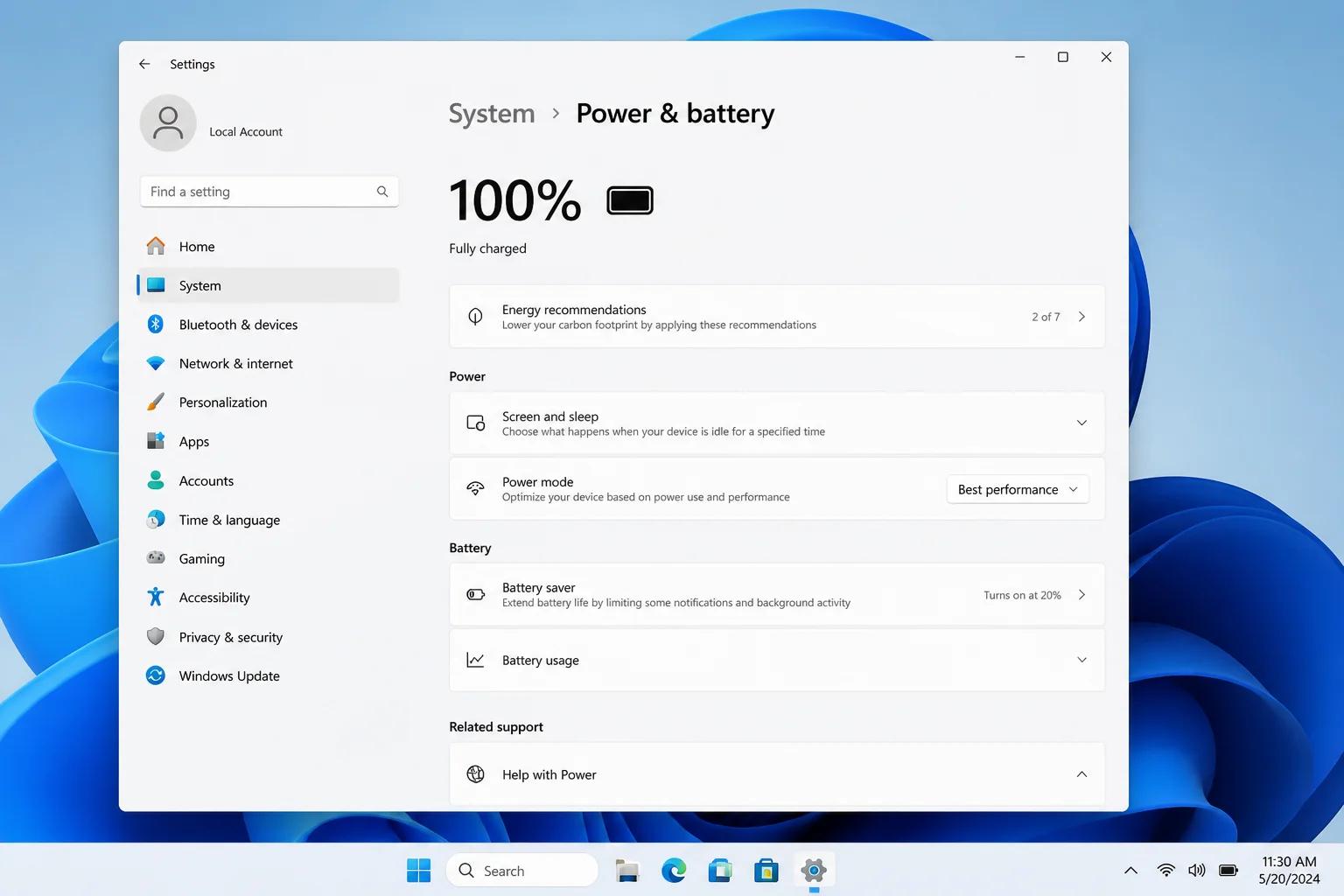
Verify it worked: Reopen apps that felt sluggish. If Best performance helps but battery life on the go matters more to you, switch back to Balanced when unplugged.
Problem: The PC Is Just Old or Underpowered: 8GB RAM Is the Real Bottleneck
Symptoms:
- You’ve tried every fix above and things are still slow
- Memory usage sits near the maximum with just a browser and a couple of apps open
- The PC feels fine with one thing open, but chokes as soon as you multitask
Why it happens: 8GB of RAM was already a modest amount for Windows 11. Modern browsers, especially with a dozen open tabs, and apps have gotten memory-hungry too. 8GB systems now run close to their ceiling doing everyday tasks. No software tweak fixes a real memory shortage. This one’s honest hardware math, not a bug.
Fix:
- Go to Settings > System > About and check Installed RAM under Device specifications.
- If you’re at 8GB and memory usage regularly sits above 80-90% during normal use (check Task Manager’s Performance > Memory tab), that’s your bottleneck.
- As a stopgap, close unused browser tabs and background apps.
- For the real fix, upgrade to 16GB if your PC’s RAM is user-upgradeable (check your manufacturer’s specs). Plan for a new PC if it isn’t. 16GB is a much more comfortable baseline for multitasking on Windows 11 today.
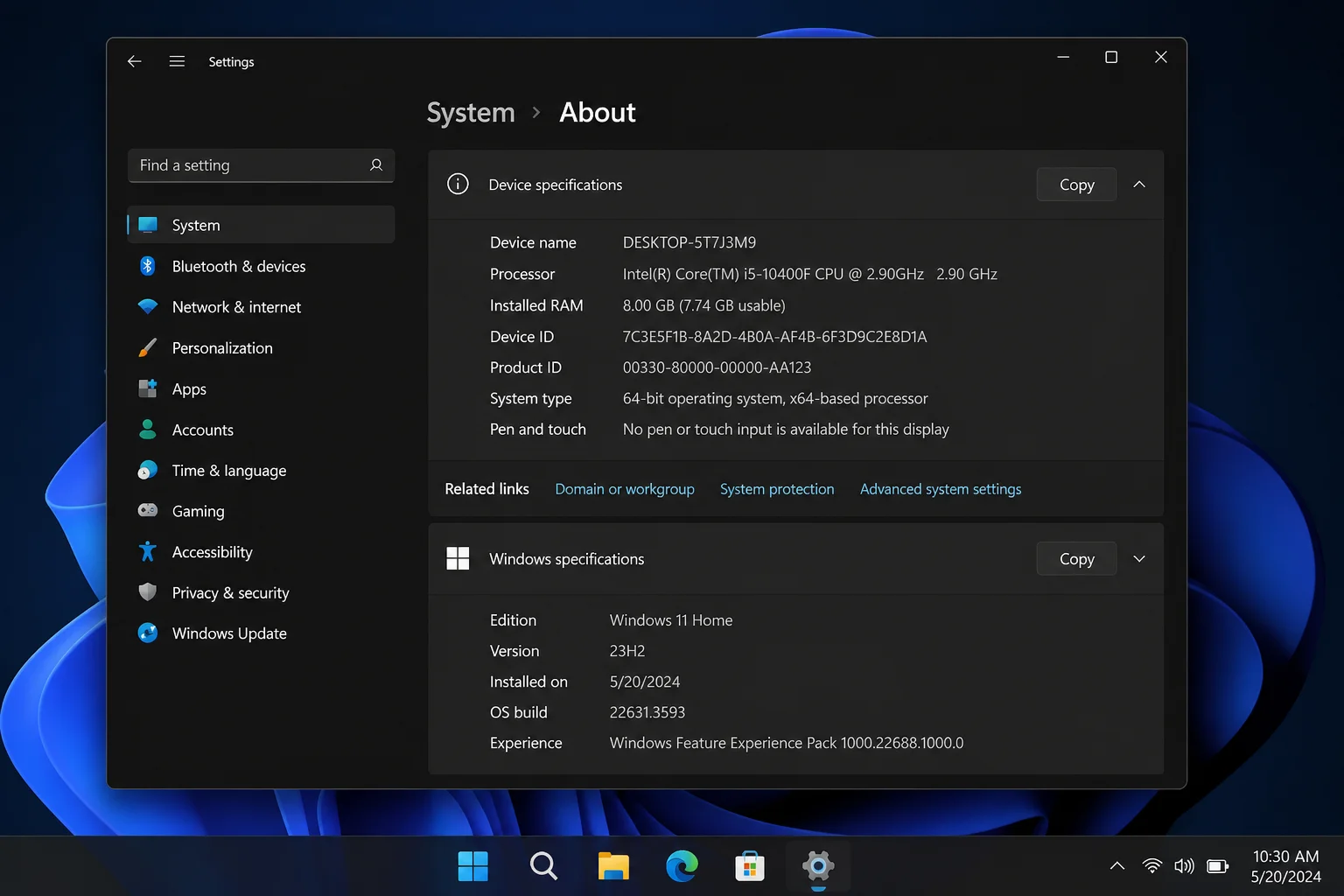
Verify it worked: After a RAM upgrade, check Task Manager’s Memory graph during normal multitasking. Usage should have noticeably more headroom instead of pegging near 100%.
Error Messages Table
| Message / Code | What It Means | What To Do |
|---|---|---|
| Windows Resource Protection did not find any integrity violations | SFC scanned your system files and found no corruption | No action needed; your system files are healthy |
| Windows Resource Protection found corrupt files and successfully repaired them | SFC found and fixed damaged system files | Restart the PC to apply the repairs |
| Windows Resource Protection found corrupt files but was unable to fix some of them | SFC couldn’t repair everything on its own | Run DISM /Online /Cleanup-Image /RestoreHealth, then run sfc /scannow again |
| 0x80070002 / 0x80070003 | Windows Update can’t find required files, often due to a paused or corrupted download | Retry Check for updates; run Disk Cleanup to free space and try again |
| 0x800f081f | DISM can’t find the source files it needs to repair the image | Ensure you’re connected to the internet and rerun the DISM command |
| 0x8007000e | Windows ran out of memory or disk space mid-update or mid-repair | Free up disk space, close other apps, and retry |
| 0x80070422 | The Windows Update service is disabled or not running | Open Services, set Windows Update to Automatic, and start it, then retry |
Platform-Specific Issues
Windows 11 itself only runs on PCs. It isn’t something you install on macOS. But plenty of readers manage or check on a Windows 11 PC from a Mac, or look things up via a browser. Here’s how that fits in.
On macOS
If you use a Mac alongside a Windows 11 desktop (common in mixed households or home offices), you can still triage a slow PC remotely using Microsoft Remote Desktop, available free from the Mac App Store.
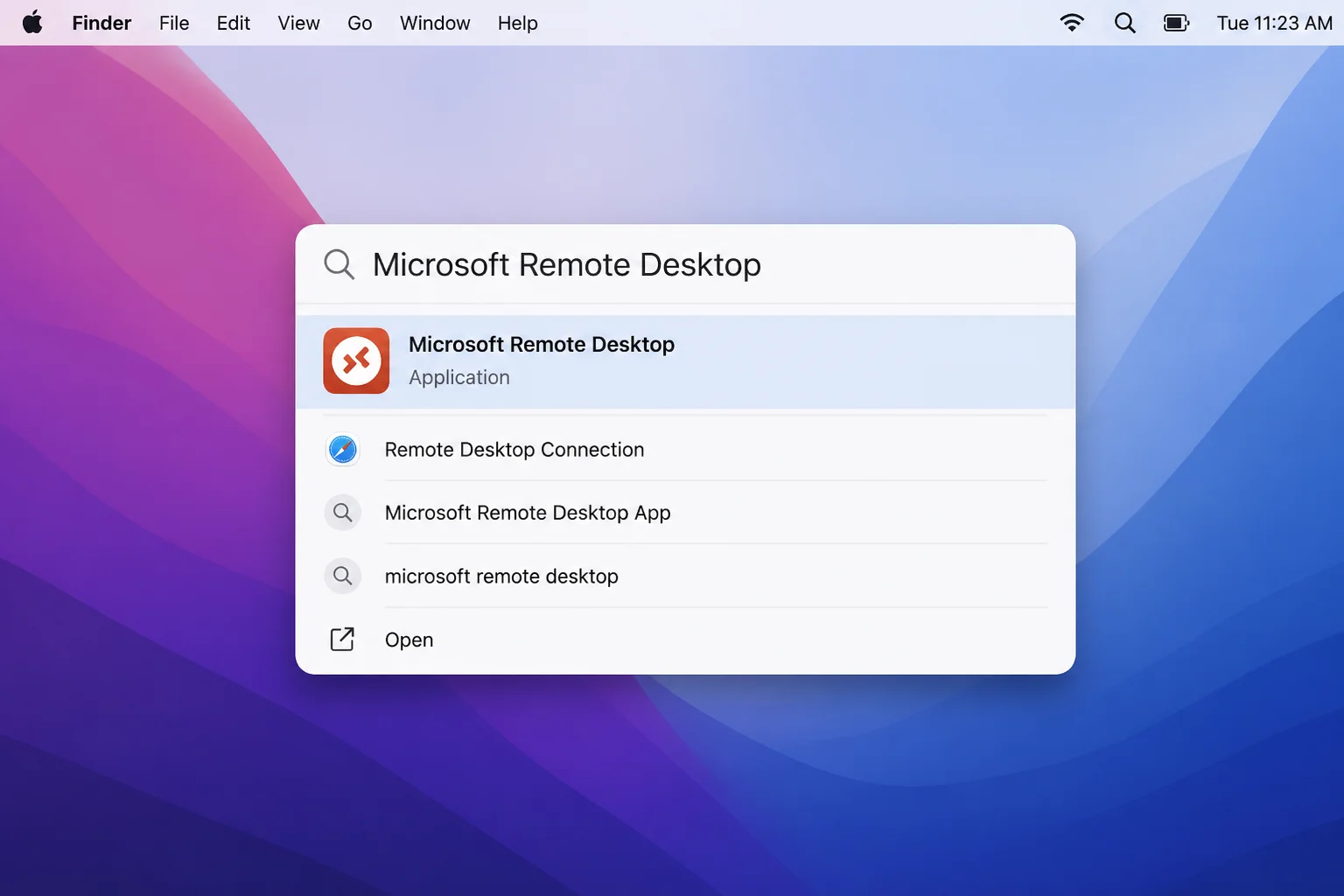
- Open Spotlight (
Command+Space) and search for Microsoft Remote Desktop. - Add your Windows 11 PC’s name or IP address as a new connection (Remote Desktop must be enabled on the Windows PC under Settings > System > Remote Desktop).
- Connect, then run the same Task Manager checks (Performance tab, Startup apps tab) described above. The interface behaves the same over a remote session.
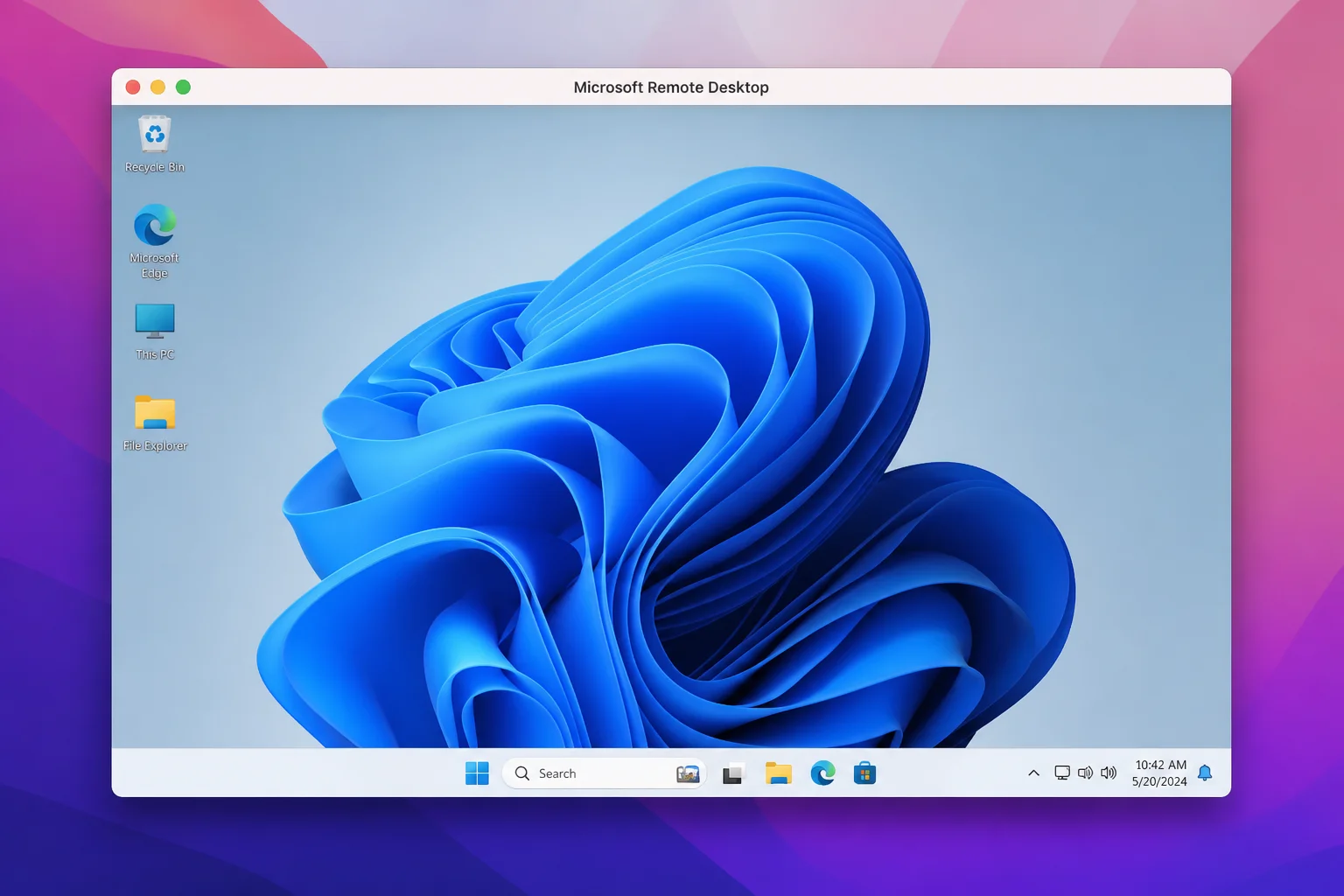
Keep in mind that a laggy remote session can also just mean a slow network connection between the Mac and the PC. Rule that out before you blame Windows itself.
On the Web
Some of the best diagnostic information here lives on the web rather than on your PC. From any browser, on any device, you can check:
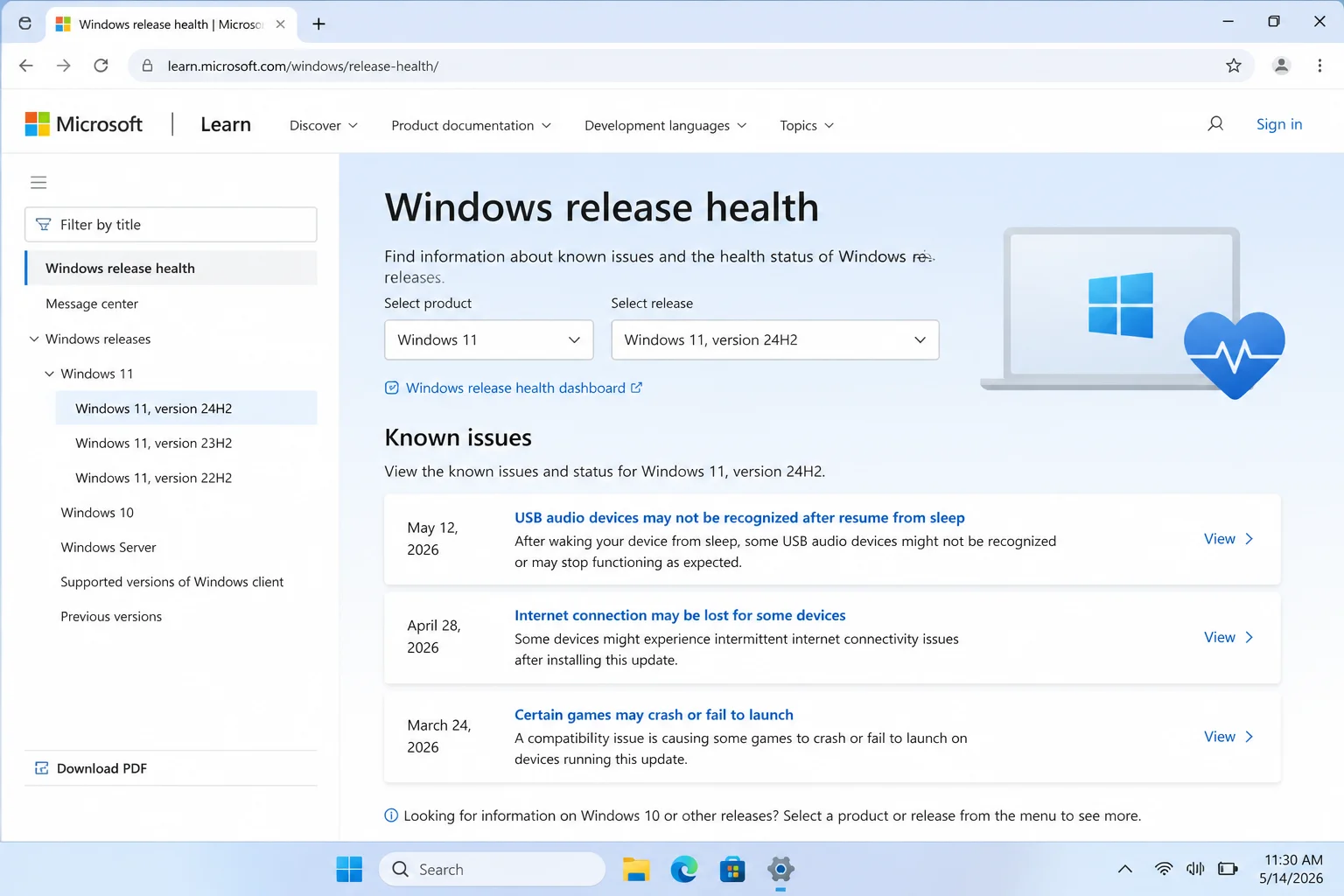
- The Windows release health dashboard for known issues and their current fix status on your Windows 11 version.
- Microsoft’s support site for official troubleshooting articles.
- Your GPU manufacturer’s driver download page (NVIDIA, AMD, or Intel) to grab the latest driver directly. It’s often more current than what Windows Update offers.
Configuration Issues
A few settings mistakes cause more slowdowns than people realize:
- Wrong Delivery Optimization scope: Leaving it set to share with “PCs on the Internet” when you don’t need to. Correct setting for most home users: PCs on my local network (or off entirely if you’re the only Windows 11 device on your network).
- Power mode left on Best power efficiency on a desktop: Desktops don’t need battery savings. Correct setting: Best performance, since desktops are always on AC power anyway.
- Ignoring optional updates: Some performance fixes ship as optional updates rather than automatic ones. Correct approach: check Settings > Windows Update > Advanced options > Optional updates now and then, not just the main Check for updates button.
- Judging performance right after an update: Assuming the update itself broke something when Windows is still finishing indexing or Defender work. Correct approach: wait 20-30 minutes idle after a restart before you troubleshoot further.
Getting Help
If you’ve worked through everything above and things still aren’t right, here’s where to dig deeper or get more help:
- Reliability Monitor: Type
perfmon /relinto the Start menu search box to see a timeline of crashes, freezes, and installed updates correlated together. - Event Viewer: Search for Event Viewer in Start, then check Windows Logs > System for errors around the time of your slowdown.
- Windows release health dashboard: learn.microsoft.com/windows/release-health/ for known issues specific to your build.
- Official SFC documentation: Use the System File Checker tool from Microsoft Support.
- Delivery Optimization reference: Delivery Optimization for Windows updates on Microsoft Learn.
- Microsoft Community forums: Search or post at answers.microsoft.com if your issue matches a pattern others are reporting.
Prevention Tips
- Restart after every update, don’t just shut down: This clears temporary update processes properly and lets background maintenance finish cleanly.
- Review startup apps now and then: New app installs quietly add themselves to startup, so check Task Manager’s Startup apps tab every few months.
- Keep GPU drivers current from the vendor, not just Windows Update: Vendor driver packages tend to be more stable and up to date.
- Check Windows Update’s Update history after any slowdown: A quick glance tells you whether a fix already exists before you spend time troubleshooting manually.
- Don’t ignore memory pressure on 8GB machines: If you’re constantly near your RAM ceiling, treat it as a hardware limit, not something more software tweaking will solve.
Wrapping Up
Most “Windows 11 is slow after an update” complaints trace back to one of a few causes: background indexing that needs time, a Delivery Optimization setting worth dialing back, a graphics driver that needs updating or rolling back, or corrupted system files that SFC and DISM can patch up. Work through them in order rather than jumping straight to a reinstall or a new PC purchase. You’ll usually find the real culprit fast.
The Delivery Optimization and GPU driver issues trip people up most, since they don’t look like “update problems” on the surface. They just look like your PC got worse for no reason, until you know exactly where to check.
| Step | Action | Applies To |
|---|---|---|
| 1 | Restart (not shut down) and wait 20-30 min | All post-update slowdowns |
| 2 | Check Windows Update history for a follow-up patch | All post-update slowdowns |
| 3 | Disable unnecessary startup apps in Task Manager | Slow sign-in / background lag |
| 4 | Limit Delivery Optimization to local network | High memory use, few apps open |
| 5 | Update or roll back GPU driver | Stutter, glitches, crashes after update |
| 6 | Run sfc /scannow then DISM if needed | Unexplained general sluggishness |
| 7 | Set Power mode to Best performance | Laptops and desktops feeling throttled |
| 8 | Upgrade RAM (or plan a new PC) | 8GB systems maxed out during normal use |
Frequently Asked Questions
Why does my Windows 11 PC feel slower after an update?
Usually because Windows is still finishing background work: search indexing, a Defender scan, driver re-registration. It typically settles within 20-30 minutes of idle time after a restart.
Is there a known Delivery Optimization memory leak, and has Microsoft fixed it?
Delivery Optimization has been known to use too much memory on some builds. Check your Update history and the Windows release health dashboard for a follow-up patch. In the meantime, limit Delivery Optimization to your local network.
How do I check if my Windows Update installed a fix for performance problems?
Go to Settings > Windows Update > Update history and compare dates against the release health dashboard for your Windows 11 version.
How do I disable startup apps in Windows 11?
Open Task Manager (Ctrl+Shift+Esc) > Startup apps tab, right-click an app, and choose Disable.
How do I turn off or limit Delivery Optimization?
Settings > Windows Update > Advanced options > Delivery Optimization, then switch the download source to PCs on your local network only, or turn it off.
How do I update or roll back a graphics driver in Windows 11?
Device Manager > Display adapters > right-click your GPU > Properties > Driver tab, then choose Update driver or Roll Back Driver.
What do SFC and DISM do, and how do I run them?
SFC (sfc /scannow) checks and repairs corrupted Windows system files. DISM (DISM /Online /Cleanup-Image /RestoreHealth) repairs the underlying Windows image that SFC draws from. Run both from an administrator Command Prompt.
How do I change my power plan to Best Performance?
Settings > System > Power & battery > Power mode, then select Best performance.
How do I know if I need more RAM?
Check installed RAM in Settings > System > About, then watch Task Manager’s Memory usage during normal multitasking. If it regularly sits near the maximum with 8GB installed, an upgrade to 16GB is the real fix.