

Chrome has a well-earned reputation for devouring RAM. If your fans are spinning, your machine is crawling, and “Aw, Snap!” has become a familiar sight, the browser’s architecture is largely to blame.
A handful of built-in settings and some basic tab hygiene will get things under control.
Quick Fixes to Try First
Before diving into specific issues, run through these basics. They fix most problems:
- Restart Chrome: Close and reopen the browser to clear temporary memory buildup.
- Update Chrome: Go to the three-dot menu ⋮ > Help > About Google Chrome and install any pending updates. Memory Saver and Energy Saver require Chrome 108 or later.
- Close unused tabs: Every open tab uses RAM. Close anything you’re not actively reading.
- Disable extensions temporarily: Go to
chrome://extensionsand toggle everything off to see if performance improves immediately. - Clear your cache: Go to Settings > Privacy and security > Clear browsing data, check Cached images and files, and hit Clear data.
Why Does Chrome Use So Much RAM?
Chrome runs each tab, extension, and plugin as its own separate process. Think of it like opening a new app for every tab, each one gets its own slice of memory. This makes Chrome stable (one crashing tab won’t take down the whole browser), but RAM adds up fast.
If you have 20 tabs open and 8 extensions running, Chrome might manage 30 or more background processes at once. On a machine with 8 GB of RAM or less, especially one also running Slack, Zoom, or Office, that pushes the system to its limits.
The fixes below target each layer of this problem one at a time.
Symptoms and Fixes
| Symptom | Likely Cause | Quick Fix |
|---|---|---|
| Whole computer feels slow | Too many open tabs and extensions | Enable Memory Saver; close idle tabs |
| “Aw, Snap!” error page | Often a tab running out of memory, but can also be a bad extension, corrupted profile, or page crash | Reload, close other tabs, enable Memory Saver |
| Chrome slow with few tabs | Rogue extension consuming RAM | Use Chrome Task Manager to identify it |
| Chrome slow after closing | Background apps still running | Turn off background running in Settings > System |
| Crashes or visual glitches | Hardware acceleration conflict | Toggle off hardware acceleration |
| Battery drains fast | Chrome’s background activity | Enable Energy Saver |
Common Issues and Solutions
Issue 1: Chrome Is Using Gigabytes of RAM
Symptoms:
- Your whole computer feels sluggish whenever Chrome is open
- The Mac spinning beach ball appears constantly
- Other apps take forever to respond
- Activity Monitor shows Chrome consuming most of your available memory
Why it happens: Multiple open tabs and active extensions each run as separate processes. The total adds up quickly, especially on machines with 8 GB of RAM or less.
Fix, Step 1: Find the culprit with Chrome Task Manager
On Mac, click the three-dot menu ⋮ in the top-right corner of Chrome, hover over More Tools, then click Task Manager.
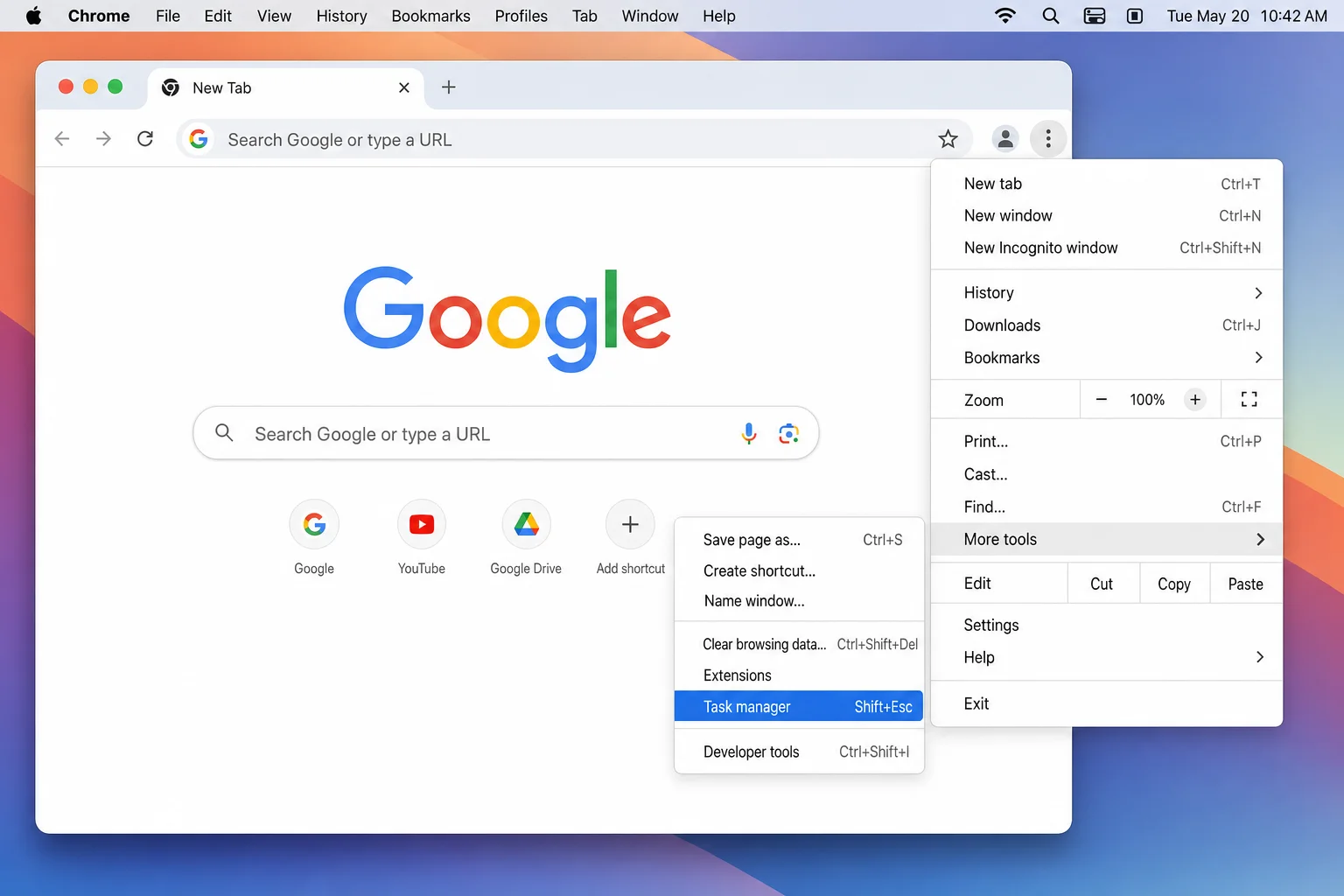
The Task Manager lists every tab, extension, and background process with its current memory footprint. Click the Memory footprint column header to sort from highest to lowest.
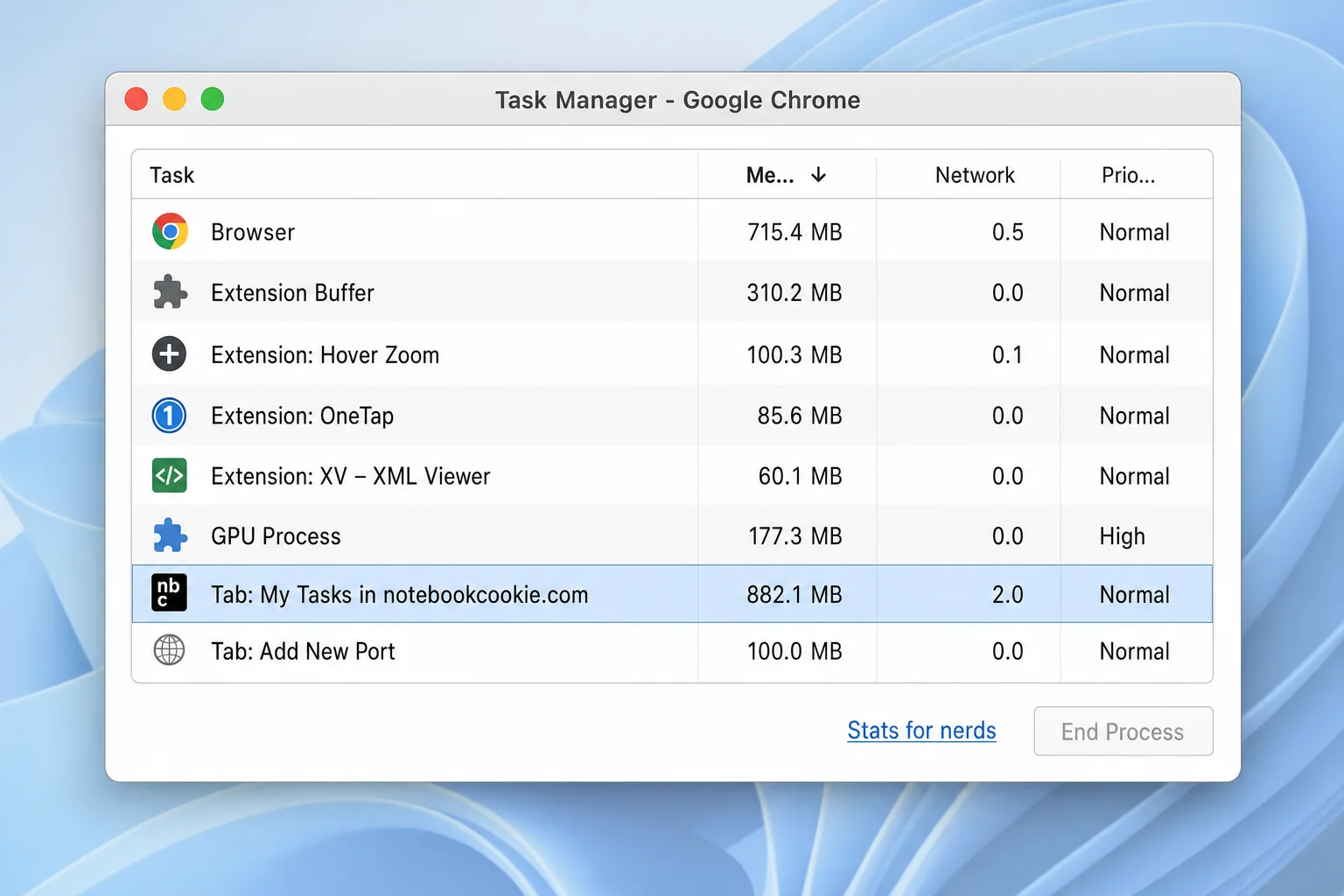
Anything using an unusually large amount of memory is your first target. Select it and click End process to kill it, or note the name and close that tab or disable that extension.
Tip: On Windows, open Chrome Task Manager directly with the keyboard shortcut
Shift+Esc.
Fix, Step 2: Enable Memory Saver
Memory Saver automatically puts idle tabs to sleep. A sleeping tab still appears in your tab bar but uses almost no RAM. It reloads when you click it.
Go to chrome://settings/performance or navigate to Settings > Performance.
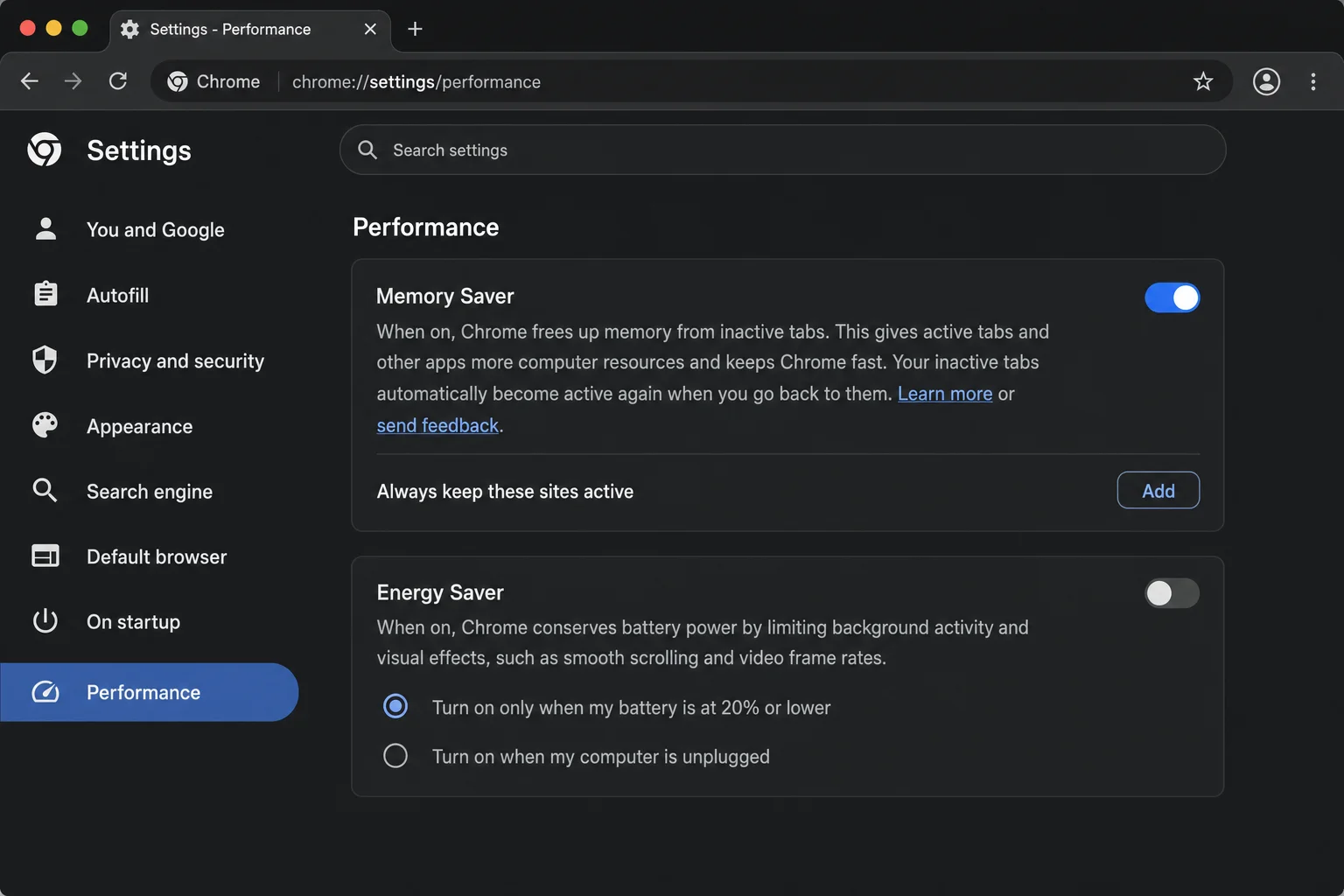
Toggle Memory Saver on. You can also add specific sites to an exceptions list if you want certain tabs, like a web app or music player, to always stay active.
Verification: Open Chrome Task Manager after enabling Memory Saver. Leave a few tabs idle for a few minutes. You should see their memory footprint drop as they sleep.
Issue 2: “Aw, Snap!” Error or Blank White Pages
Symptoms:
- A tab shows a sad face with the message “Aw, Snap!”
- Pages go white and unresponsive
- Chrome shows “Out of memory” in the error details
Why it happens: “Aw, Snap!” is Chrome’s generic page-crash message and is most commonly caused by a tab running out of memory — but it can also be triggered by a problematic extension, a corrupted Chrome profile, hardware issues, or a page crash unrelated to RAM. When you see the specific ERR_OUT_OF_MEMORY error code in the details, that does indicate true memory exhaustion. Either way, Chrome killed the tab’s process to protect you from a full browser crash.
Fix:
- Click Reload on the error page. If your system has recovered some memory, the page will load.
- Close several other tabs first, then reload the failing one.
- Enable Memory Saver (see Issue 1 above) to prevent this from recurring.
- If one specific site always triggers this error, try clearing its data: click the lock icon in the address bar > Site settings > Clear data.
- If the error appears on many sites regardless of tab count, disable your extensions one at a time to rule out a rogue extension, or try a fresh Chrome profile (Settings > You and Google > Add) to rule out a corrupted profile.
Verification: After enabling Memory Saver and closing excess tabs, revisit the site that was crashing. It should load without the error.
Issue 3: Chrome Is Slow Even With Only a Few Tabs Open
Symptoms:
- Chrome feels sluggish with just two or three tabs
- Pages take a long time to scroll or respond
- Your Mac fans spin up the moment Chrome opens
Why it happens: A single poorly coded extension can consume as much RAM as a dozen tabs. A bloated cache can also slow down page rendering. One bad actor drags everything down.
Fix, Step 1: Audit your extensions
Go to chrome://extensions to see everything installed.
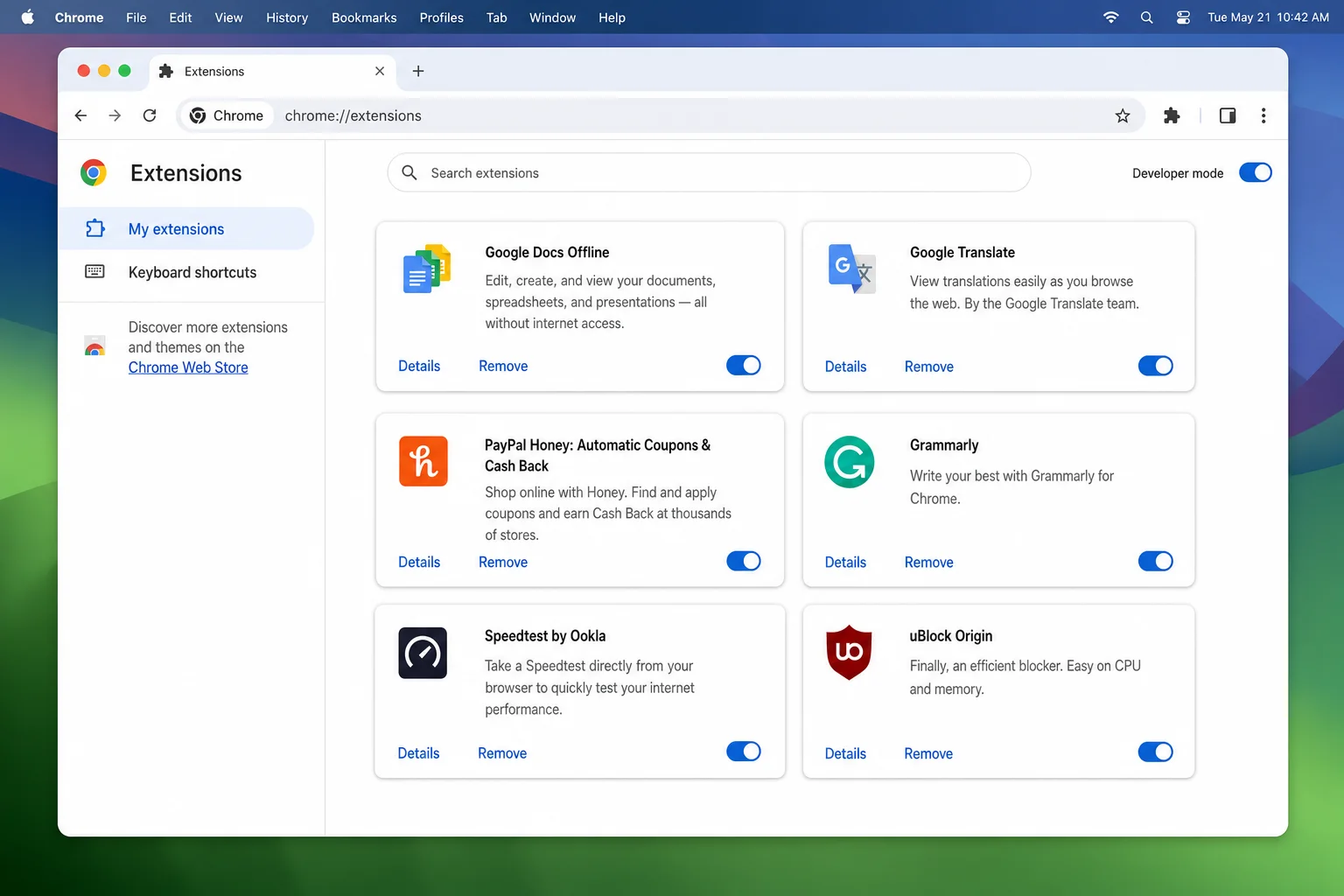
Toggle extensions off one at a time. Check Chrome Task Manager after each to see if memory drops. When you find the culprit, click Remove to uninstall it.
Tip: If you haven’t used an extension in the last month, remove it. You can always reinstall from the Chrome Web Store later.
Fix, Step 2: Clear the cache
Go to chrome://settings/clearBrowserData or navigate to Settings > Privacy and security > Clear browsing data.
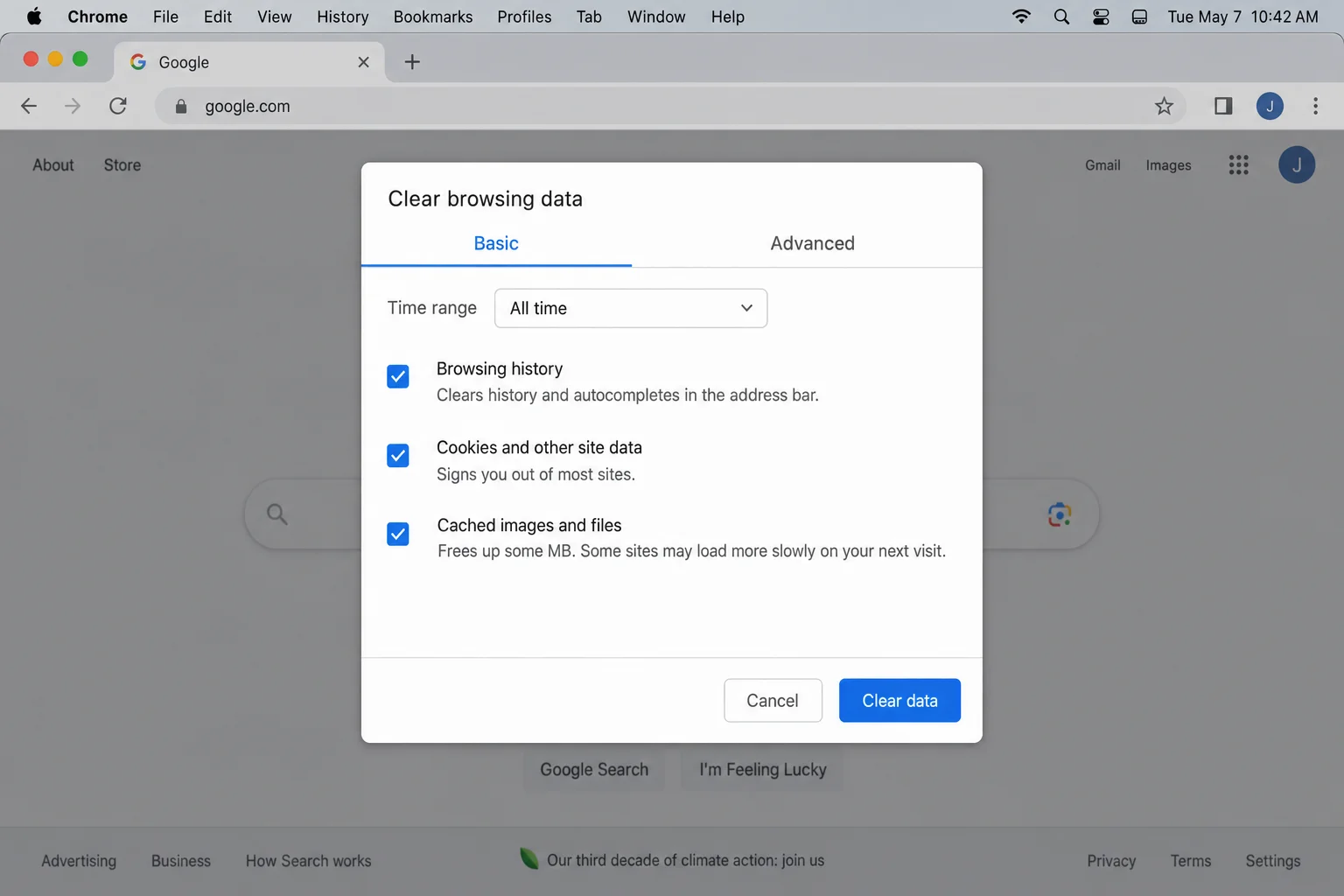
Select All time from the time range dropdown. Check Cached images and files (and optionally Cookies and other site data). Click Clear data.
Verification: Restart Chrome and open the same few tabs. If an extension was the cause, performance should improve noticeably. If the cache was the issue, pages may load faster too.
Issue 4: Chrome Still Uses RAM After You Close It (Windows)
Symptoms:
- Task Manager on Windows shows Chrome processes running after you’ve closed the browser
- Your computer stays slow even when Chrome isn’t visibly open
Why it happens: A setting called Continue running background apps when Google Chrome is closed keeps Chrome extensions and apps alive, consuming RAM and CPU even when you think Chrome is shut down. It’s on by default.
Fix:
Go to chrome://settings/system or navigate to Settings > System.
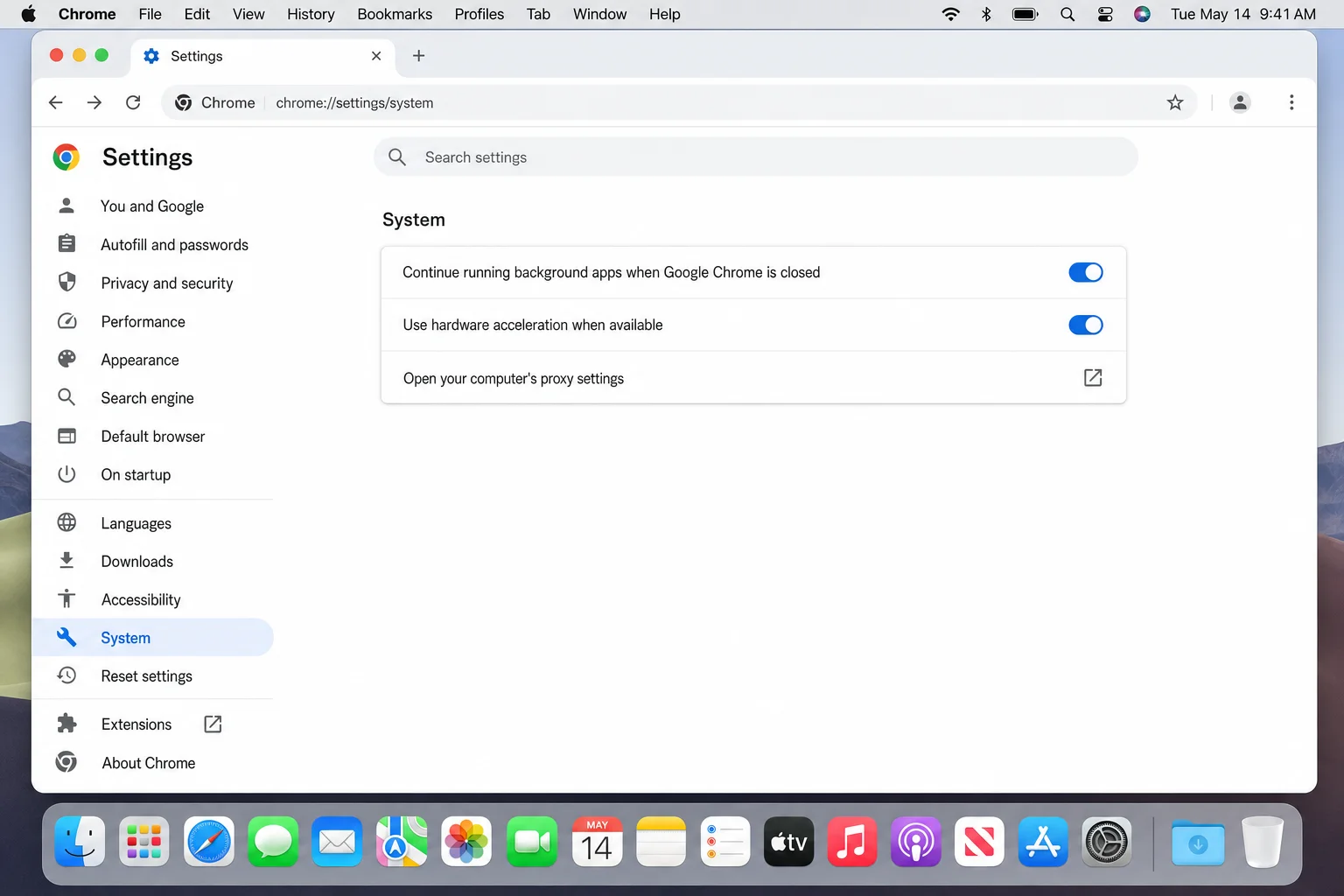
Turn off Continue running background apps when Google Chrome is closed.
Note: This setting appears on Windows. On Mac, Chrome processes typically stop when you quit the app using
Cmd+Qclosing the window alone (Cmd+W) does not fully quit Chrome on macOS.
Verification: After changing this setting, close Chrome on Windows and open Task Manager (Ctrl+Shift+Esc). You should see no chrome.exe processes running.
Issue 5: Chrome Crashes or Shows Visual Glitches
Symptoms:
- Chrome crashes randomly, especially on graphics-heavy pages
- You see flickering, black boxes, or rendering artifacts
- Video playback causes Chrome to freeze
Why it happens: Hardware acceleration tells Chrome to use your GPU for visual tasks. On most modern computers this helps, but older or incompatible graphics drivers can cause instability.
Fix:
Go to chrome://settings/system and toggle off Use hardware acceleration when available, then click Relaunch.
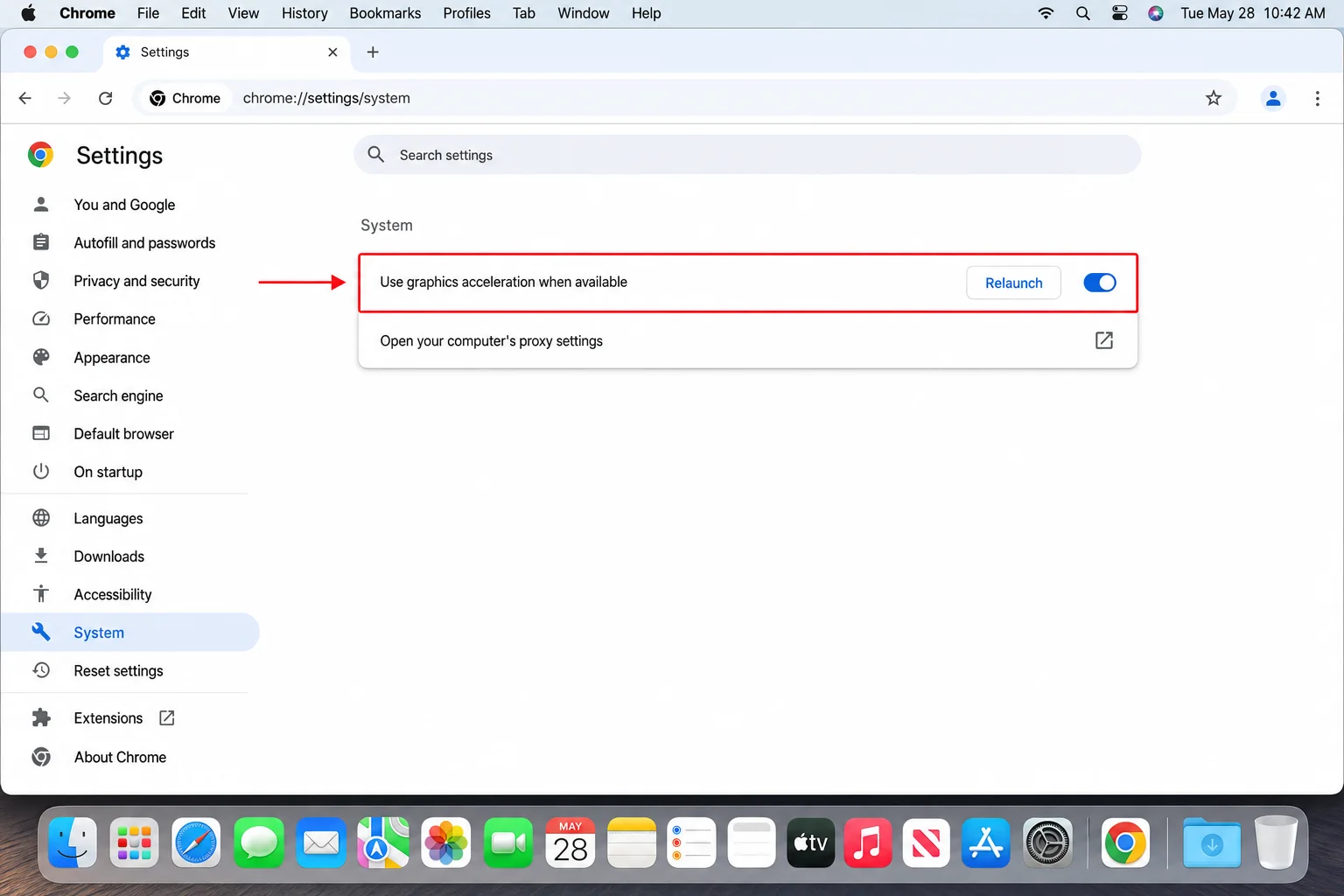
If crashes stop, the GPU was the issue. You can try re-enabling it after updating your graphics drivers.
When to leave it on: Hardware acceleration can improve performance on most modern Macs with Apple Silicon. Turn it off only if you’re seeing actual crashes or visual problems, not just as a precaution.
Verification: Browse normally for a day after turning off hardware acceleration. If crashes disappear, you’ve found the cause.
Issue 6: Battery Drains Fast While Browsing
Symptoms:
- Your laptop battery drops noticeably faster when Chrome is open
- Chrome can appear near the top of macOS’s battery usage list when heavily loaded
Why it happens: Chrome’s background processes, refreshing tabs, running extension scripts, preloading pages, consume CPU cycles even when you’re idle. It adds up.
Fix:
Go to chrome://settings/performance and turn on Energy Saver. You can set it to activate when your battery falls below 20%, or turn it on all the time.
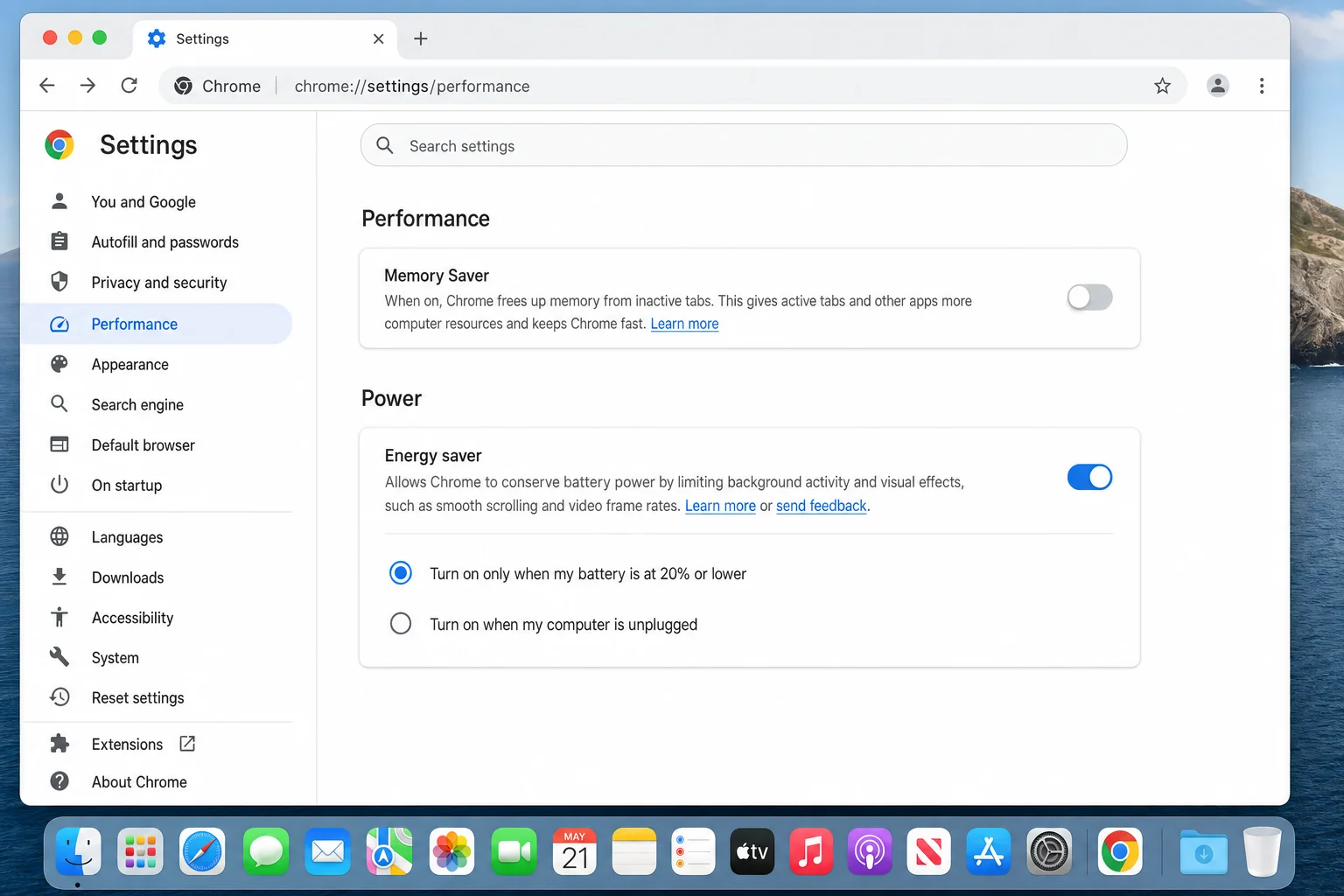
Energy Saver reduces background activity and limits some visual effects, which meaningfully extends battery life on laptops.
Verification: Check System Settings > Battery on your Mac after a day of use. Chrome should appear lower in the battery usage list.
Platform-Specific Fixes
On macOS
Chrome Slows Down After a macOS Update
Sometimes a macOS update changes how Chrome manages memory, or Chrome needs its own update to stay compatible with the new OS.
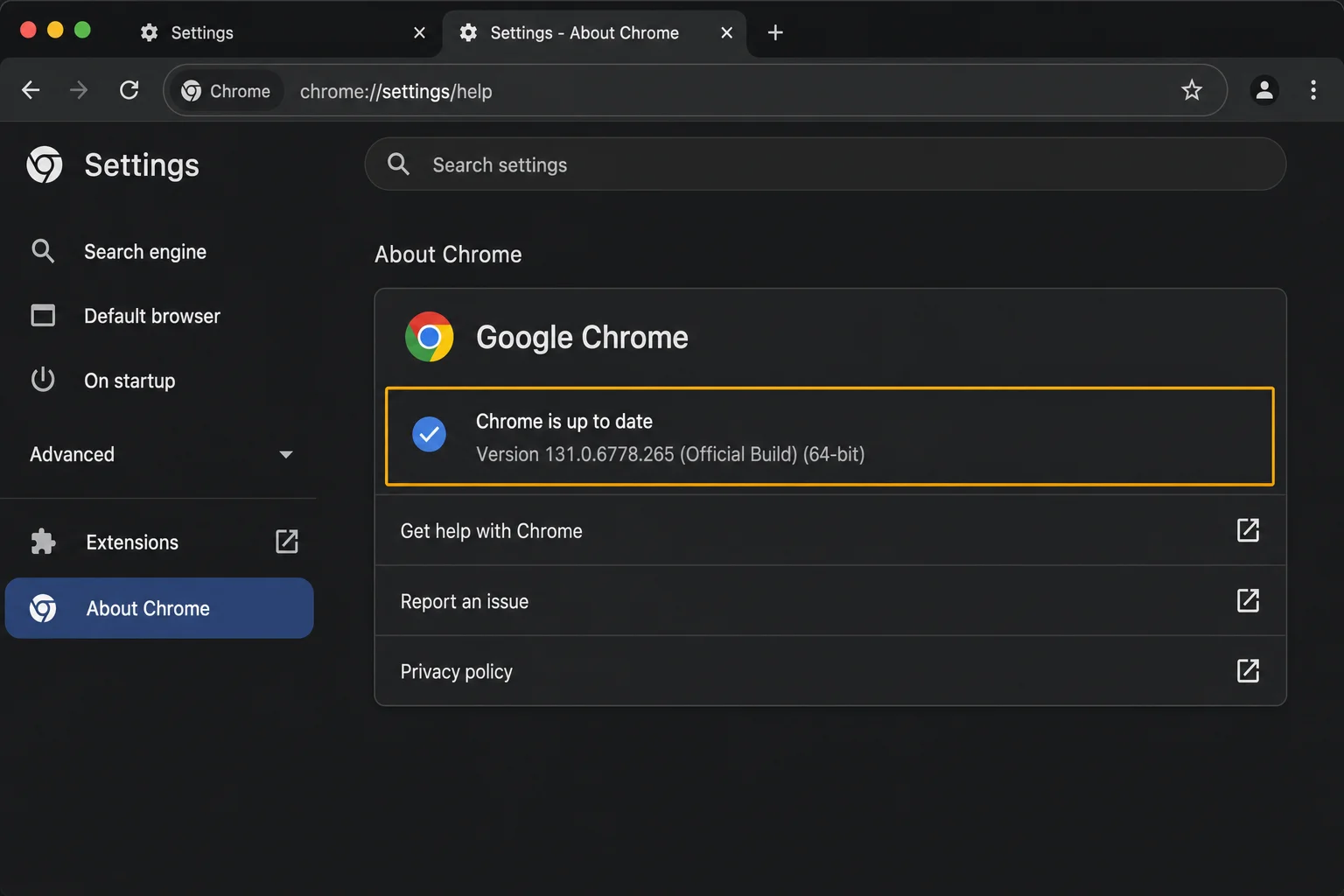
- Update Chrome first: go to ⋮ > Help > About Google Chrome.
- Restart your Mac after updating.
- Open Activity Monitor (Applications > Utilities > Activity Monitor), click the Memory tab, and confirm Chrome is the top consumer before trying other fixes.
- If the issue persists, reset Chrome settings: go to Settings > Reset settings > Restore settings to their original defaults. This won’t delete your bookmarks or passwords.
Fully Quitting Chrome on Mac
On macOS, pressing Cmd+W closes the Chrome window but doesn’t quit the app. Chrome keeps running in the background. To fully quit, press Cmd+Q or right-click the Chrome icon in the Dock and choose Quit. Many people think they’ve closed Chrome when they haven’t.
Chrome vs. Firefox, Edge, and Safari: Honest RAM Comparison
If Chrome still feels too heavy after the fixes above, it’s worth knowing how the alternatives stack up.
| Browser | Engine | Memory Efficiency | Best For |
|---|---|---|---|
| Google Chrome | Chromium | Moderate–High usage; Memory Saver helps significantly | Users deep in the Google ecosystem |
| Microsoft Edge | Chromium | Can use less memory than Chrome in some workloads; Sleeping Tabs and Efficiency Mode help, but results vary by tab count and usage | Windows users who want Chrome compatibility with potentially less RAM |
| Mozilla Firefox | Gecko | Tends to be leaner on memory than Chrome in many workloads; strong privacy defaults | Privacy-focused users; those with older hardware |
| Apple Safari | WebKit | Often more memory- and battery-efficient on Macs in many tests; tightly optimized for Apple Silicon | Mac-only users who primarily use Apple services |
| Brave | Chromium | Similar to Chrome but ad/tracker blocking reduces page load overhead | Users who want Chrome extensions with built-in ad blocking |
Safari tends to be the most memory- and battery-efficient choice on Mac in many tests. If you’re on Apple hardware and don’t rely on Chrome-specific extensions, it’s worth trying. Edge is worth considering if you need Chrome’s extension library and want to take advantage of its memory-saving features (Sleeping Tabs, Efficiency Mode, and Resource Controls in Edge 125 or later via Settings > System and performance) — though whether it uses less RAM than Chrome depends on your workload, tab count, and browser version. Firefox is strong for privacy-focused users and tends to be lighter on RAM than Chrome in many common browsing scenarios. Brave is Chrome-compatible but lighter on ad-heavy sites.
The right choice depends on which services you use, which extensions you rely on, and how much RAM your machine has. If you’re considering a switch, check out our roundup of the best lightweight browsers for Windows and Mac.
Error Messages Quick Reference
| Error Message | What It Means | First Fix to Try |
|---|---|---|
| “Aw, Snap!” | Chrome’s generic page-crash error; often caused by running out of RAM, but can also stem from a bad extension, corrupted profile, or hardware issue | Close other tabs, disable extensions, and reload |
| “ERR_OUT_OF_MEMORY” | Specific indicator of memory exhaustion in Chrome or the page context | Enable Memory Saver; restart Chrome |
| “He’s dead, Jim” | A page or plugin crashed unexpectedly | Reload the page; disable hardware acceleration |
| “ERR_CONNECTION_TIMED_OUT” | Network issue, not a RAM problem | Check your internet connection |
| “STATUS_BREAKPOINT” | Chrome process crashed at OS level | Update Chrome and graphics drivers |
| “Shucks” | A Chrome app crashed | Restart Chrome; check extensions |
Settings to Check
These settings are most commonly involved in Chrome memory issues:
- Memory Saver: Go to
chrome://settings/performancetoggle on to sleep idle tabs automatically. - Energy Saver: Same page, toggle on to reduce background activity and extend battery life.
- Hardware Acceleration: Go to
chrome://settings/systemturn off if you’re experiencing crashes or visual glitches. - Background Apps (Windows only): Go to
chrome://settings/systemturn off Continue running background apps when Google Chrome is closed. - Extensions: Go to
chrome://extensionsdisable or remove anything you don’t actively use. - Preload pages: Go to Settings > Privacy and security > Cookies and other site data > Preload pages for faster browsing, set to No preloading to reduce RAM use at the cost of slightly slower navigation.
Tab Management Best Practices
The single most effective way to reduce Chrome’s RAM usage is to have fewer active tabs. A few habits that help:
- Use tab groups: Right-click any tab and choose Add tab to new group to organize related tabs. Groups make it easier to see how many tabs you actually have open.
- Bookmark instead of tabbing: If you’re keeping a tab open “to read later,” bookmark it instead. Chrome’s Reading List (click the bookmark icon > Add to Reading list) is built for exactly this.
- Use Memory Saver exceptions wisely: Add only your most critical web apps (like Gmail or a project management tool) to the Memory Saver exceptions list. Let everything else sleep.
- Close tabs you’ve finished with: Most people accumulate tabs passively. Make closing finished tabs a habit rather than an afterthought.
When to Escalate
If the steps above haven’t resolved the issue, contact official support when:
- Chrome crashes immediately on launch every time, even after reinstalling
- You see consistent crashes across multiple browsers (this points to a hardware or OS issue, not Chrome)
- Chrome shows errors that reference corrupted profile data
- Memory usage is extreme even in a fresh Chrome profile with no extensions
How to get help:
- Google Chrome Help Center, official troubleshooting for crashes and opening issues
- Google Chrome Community Forum, search for your specific error message; many issues have documented solutions
- On Mac, check Console (Applications > Utilities > Console) and filter by “Chrome” to find crash logs you can share with support
Prevention Tips
- Keep Chrome updated: New versions regularly include memory efficiency improvements. Check ⋮ > Help > About Google Chrome periodically.
- Audit extensions every few months: Extensions accumulate quietly. Set a reminder to visit
chrome://extensionsand remove anything you haven’t used recently. If you run into trouble after an update, see our guide on how to fix Chrome extensions not working after update. - Don’t install “RAM cleaner” extensions: These often consume more RAM than they save and can introduce security risks. Chrome’s built-in Memory Saver does the job without the overhead.
- Restart Chrome regularly: If you leave Chrome running for days at a time, memory can fragment and accumulate. A weekly restart keeps things clean.
- Match Chrome to your hardware: If your computer has 4 GB of RAM, limit yourself to 5–8 tabs and keep extensions to a minimum. Chrome’s tools help, but they can’t fully compensate for a hardware mismatch.
Frequently Asked Questions
Is there a Chrome extension that reduces memory usage?
Chrome’s built-in Memory Saver (Settings > Performance) does this job well without adding another extension. Third-party “tab suspender” or “RAM booster” extensions were popular before Memory Saver existed, but most add more overhead than they remove. Stick with the native option.
Does Chrome use more RAM than Firefox or Edge?
It depends. Chrome can be a significant RAM user, especially when heavily loaded with many tabs and extensions, and tends to use more memory than Firefox in many common browsing scenarios — though the gap has narrowed as all browsers have added memory optimization features. Edge is Chromium-based like Chrome and can use less memory in some workloads — particularly when features like Sleeping Tabs, Efficiency Mode, or Resource Controls (Edge 125 or later, via Settings > System and performance) are enabled — but results vary by tab count, browser version, and the sites you visit. Safari is often more memory- and battery-efficient on Macs in many tests. With Memory Saver enabled, Chrome’s real-world impact is much closer to its competitors than the raw numbers suggest.
How do I stop Chrome from crashing?
The most common causes are too many open tabs, a conflicting extension, and hardware acceleration issues. Work through the fixes in order: enable Memory Saver, audit extensions via Chrome Task Manager, then toggle off hardware acceleration in Settings > System if crashes persist.
Is it worth switching to a different browser to save RAM?
If you’ve enabled Memory Saver, removed unnecessary extensions, and Chrome still makes your computer unusable, switching is worth considering. Safari tends to be the most memory- and battery-efficient option on Mac in many tests. Edge is worth trying if you need Chrome extension compatibility and want to use its built-in memory-saving tools, though whether it uses meaningfully less RAM than Chrome will depend on your specific usage. Firefox tends to be lighter on RAM than Chrome in many workloads and is a strong choice for privacy-focused users. For most people, the fixes in this guide will make Chrome manageable without switching.
Wrapping Up
Most Chrome memory problems come down to three things: too many active tabs, too many extensions, and a couple of settings that are off by default. Turn on Memory Saver, run an extension audit, and clear your cache. Those three steps resolve the majority of slowdowns and crashes.
If Chrome still feels too heavy, the browser comparison table gives you an honest starting point for evaluating alternatives.
Last updated: June 2026 | Applies to Google Chrome on macOS and Windows