
Getting interrupted by ads while binge-watching your favorite show is probably one of the most frustrating things about modern streaming. Amazon slapped ads onto Prime Video in 2024, and honestly, many subscribers felt completely blindsided by the change.
The good news? You’ve got legitimate options to ditch those annoying interruptions. I’ll walk you through upgrading to the ad-free tier, help you figure out if it’s actually worth the extra cash, and show you some solid alternatives if Prime Video just isn’t cutting it anymore.
What is Amazon Prime Video?
Amazon Prime Video is a streaming service that offers thousands of movies, TV shows, and original content. Since 2024, the standard Prime Video experience includes ads during shows and movies unless you pay extra for the ad-free upgrade.
Key Features:
- Ad-supported streaming: Watch content with occasional commercial breaks on the standard plan
- Prime Video Ultra upgrade: Pay an additional $4.99/month to remove ads and get enhanced features
- Multiple device support: Stream on TVs, phones, tablets, computers, and streaming devices
- Offline downloads: Download content to watch without internet connection (up to 100 downloads with Ultra)
- X-Ray features: Get cast information, trivia, and bonus content while watching
- Multiple user profiles: Create separate profiles for family members with personalized recommendations
Prerequisites
Before you start removing ads, make sure you have:
- ☐ An active Amazon Prime membership or standalone Prime Video subscription
- ☐ Access to your Amazon account login credentials
- ☐ A web browser, Prime Video app, or smart TV with Prime Video
- ☐ A payment method on file for subscription upgrades (if choosing that route)
Step-by-Step Guide to Removing Prime Video Ads
Method 1: Upgrade to Prime Video Ultra Plan
Step 1: Access Your Amazon Account Settings
The web browser route is your best bet here, regardless of which device you normally use to watch.
On Windows 10/11:
- Open your web browser (Chrome, Edge, or Firefox) and go to
amazon.com - Click Sign In in the top-right corner and enter your credentials
- Once signed in, hover over Account & Lists and select Your Account
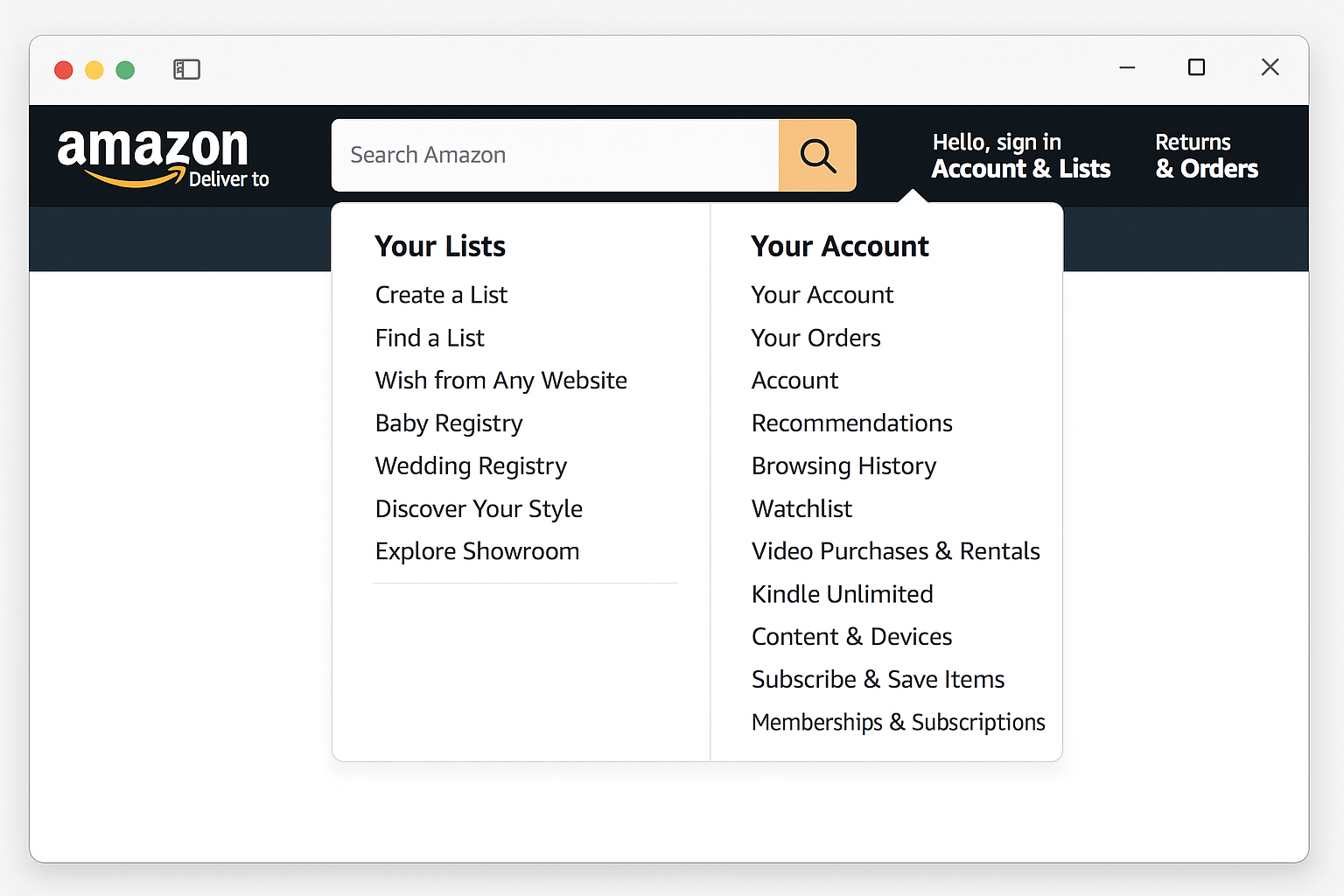
On macOS Monterey/Ventura/Sonoma:
- Open Safari, Chrome, or your preferred browser and navigate to
amazon.com - Click Sign In and enter your Amazon credentials
- Click Account & Lists and select Your Account from the dropdown
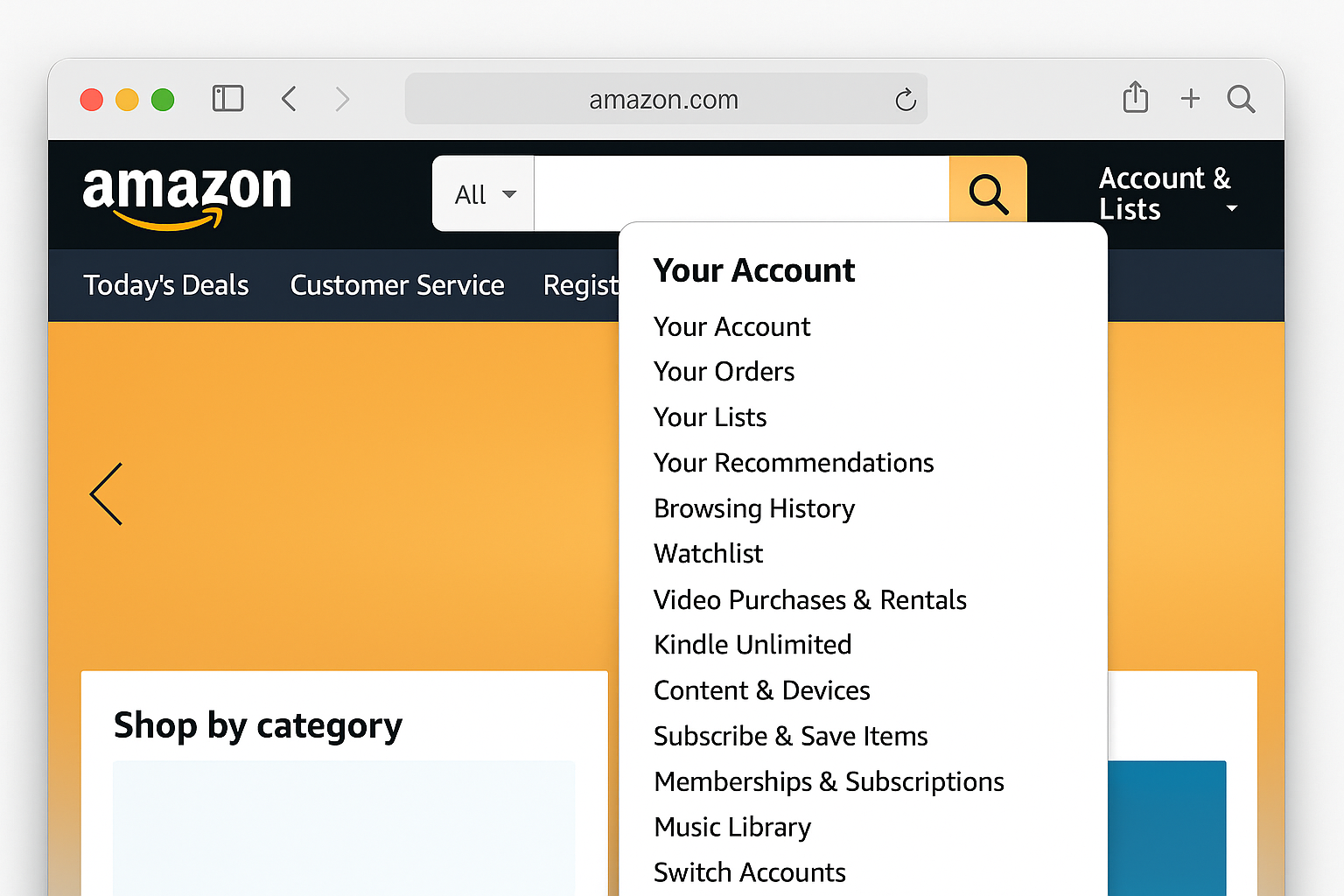
On Web (any platform):
- Visit
amazon.comin any web browser - Sign in to your account
- Click Account & Lists > Your Account
Step 2: Navigate to Prime Video Settings
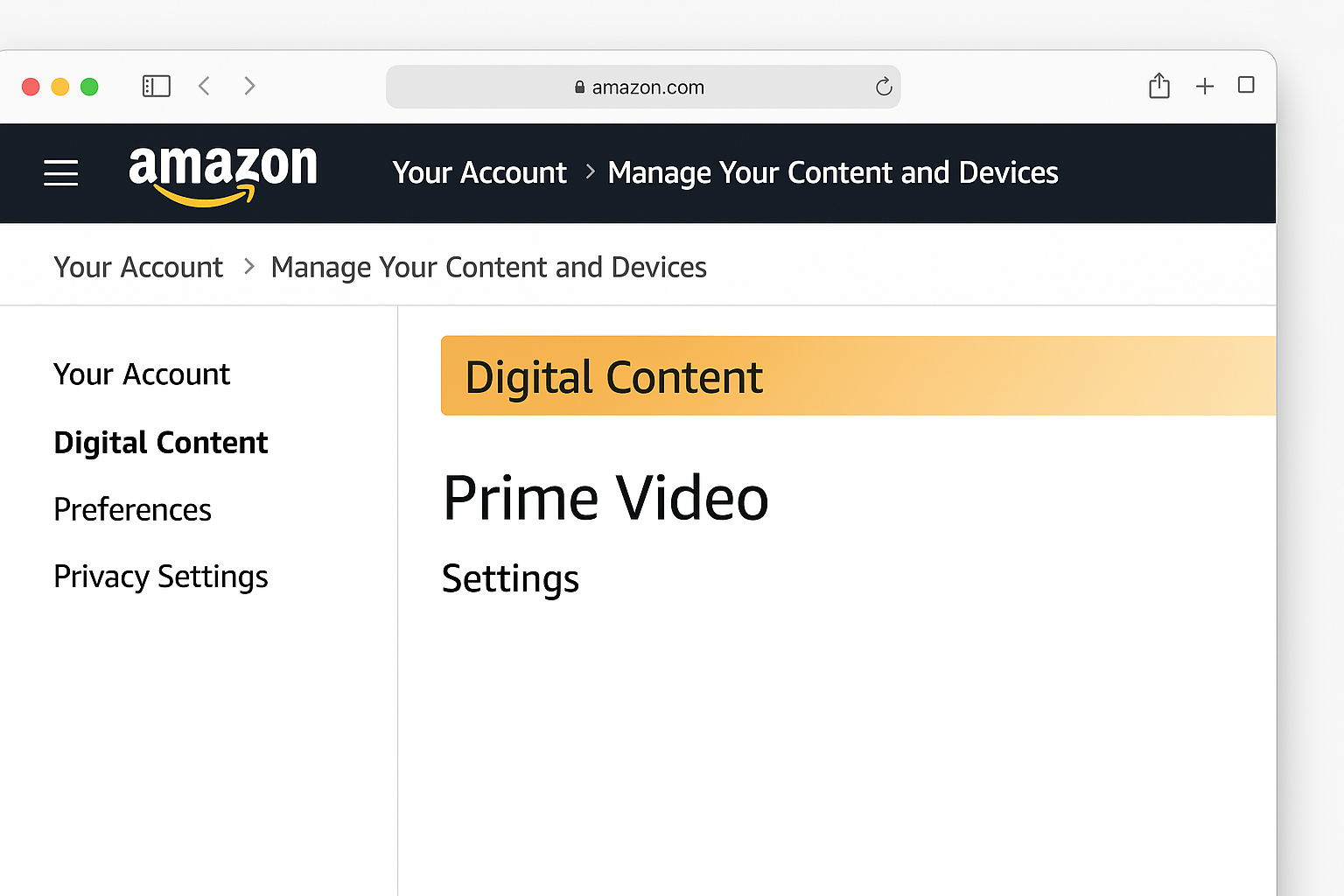
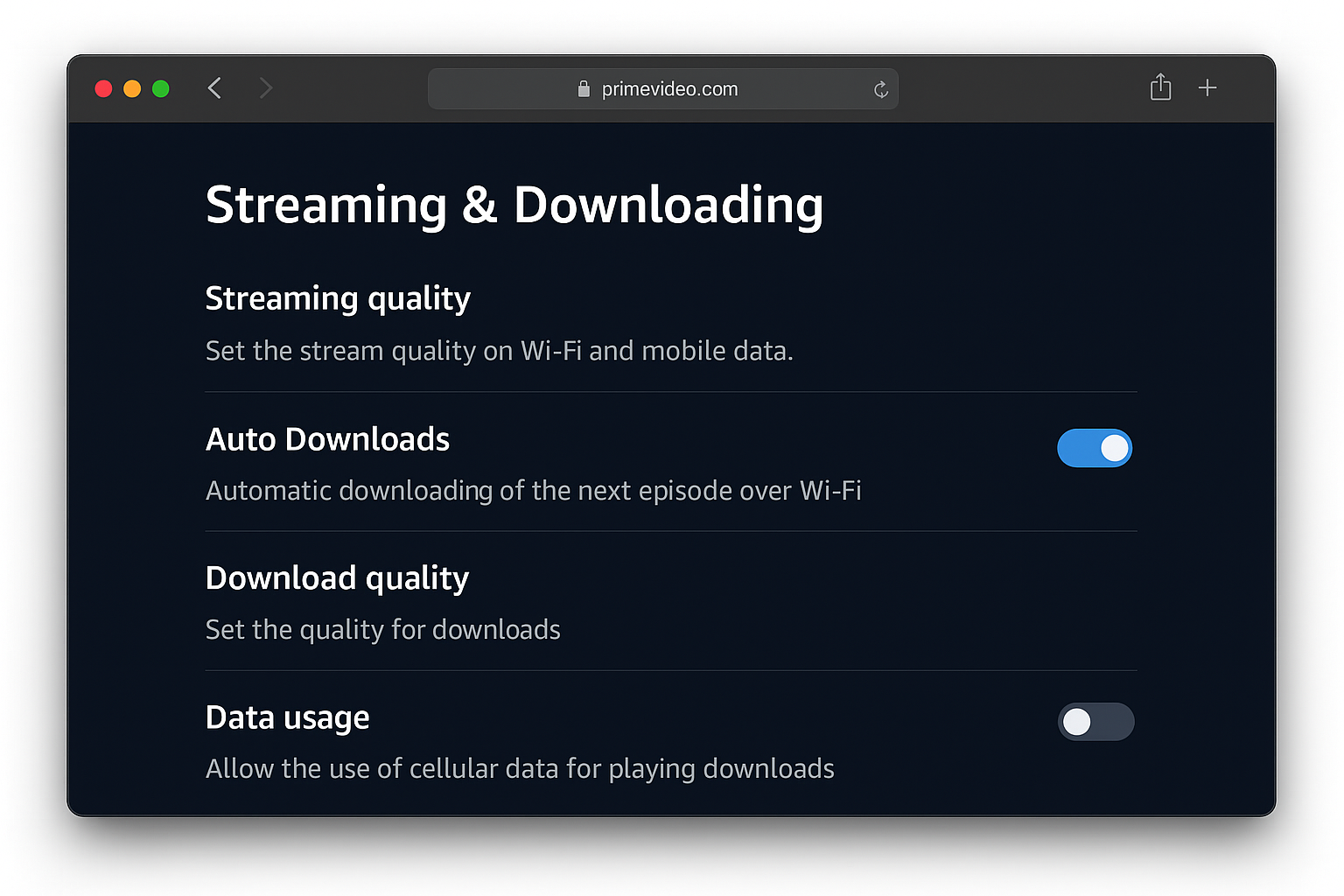
- On your Account page, scroll down to the Digital content and devices section
- Click Prime Video settings
- Alternatively, you can go directly to
amazon.com/gp/video/settings
Step 3: Find Your Subscription Management
- On the Prime Video settings page, look for Account & Settings
- Click Subscription or Manage subscription
- You’ll see your current plan details here
Step 4: Upgrade to Prime Video Ultra
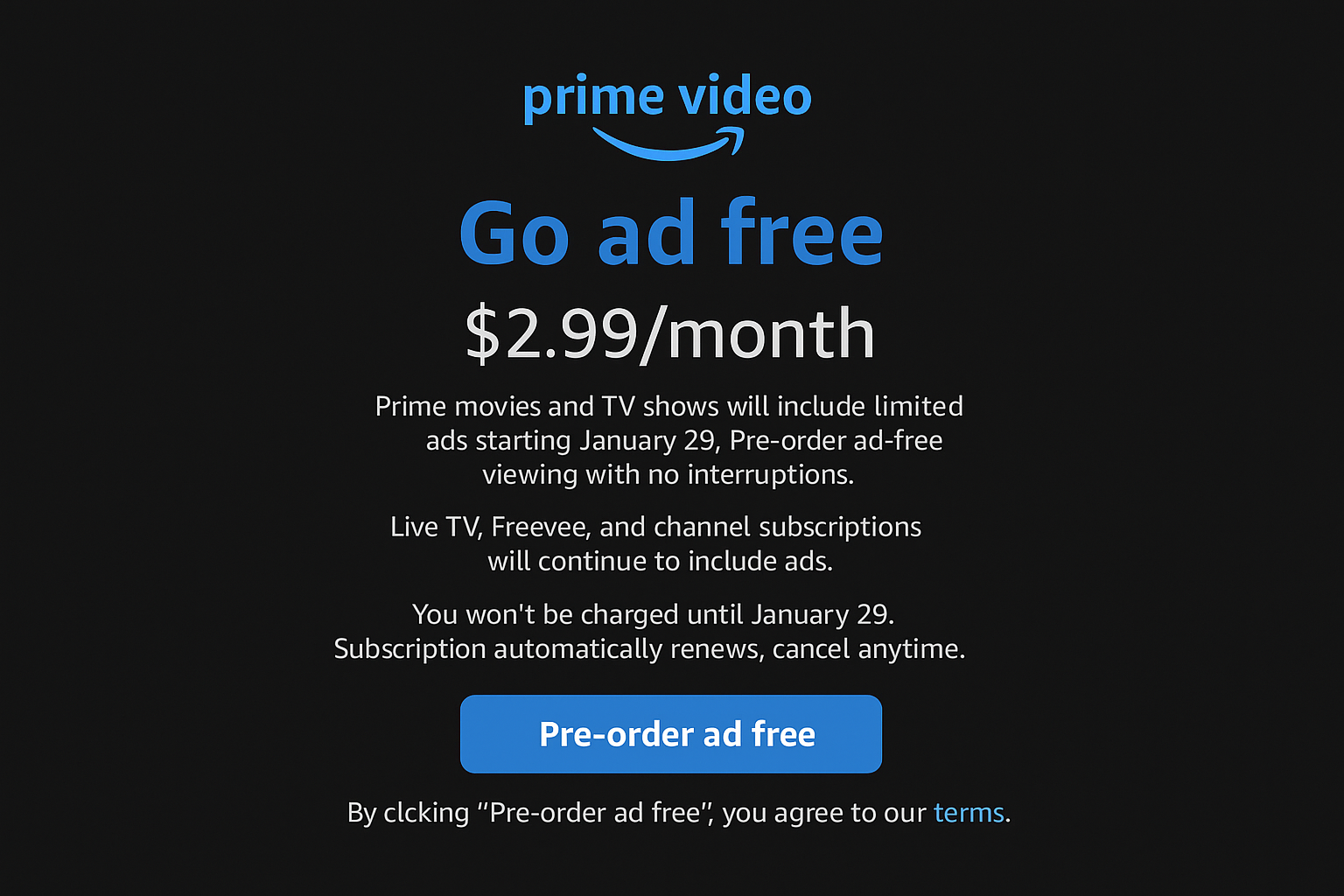
This is where Amazon wants that extra $4.99 from you each month.
- Look for the Prime Video section showing your current plan
- Click Change or Upgrade next to your subscription
- Select Prime Video Ultra from the available options
- Review the pricing: it’s an additional $4.99/month on top of your current Prime membership
Step 5: Confirm Your Upgrade
- Review the billing details and new monthly cost
- Click Confirm upgrade or Save changes
- You’ll receive a confirmation email about the subscription change
Expected result: Your account will immediately switch to ad-free viewing with enhanced features. Any content you start watching after this point won’t have ads and you’ll get access to 4K/UHD streaming, Dolby Atmos audio, up to 100 downloads, and 5 concurrent streams.
Method 2: Upgrade Through Mobile Apps
On iOS (iPhone/iPad):
- Open the Prime Video app
- Tap your profile icon in the bottom-right corner
- Select Account & Settings
- Tap Subscription and follow the upgrade prompts
On Android:
- Launch the Prime Video app
- Tap the My Stuff tab
- Tap the gear icon for settings
- Select Subscription and choose the Ultra upgrade
The mobile app upgrade paths can be pretty clunky, so I’d recommend sticking with the web browser method for the smoothest experience.
Cost-Benefit Analysis: Is Upgrading Worth It?
Most guides skip this part, but let’s actually crunch some numbers to see if paying extra makes sense for your viewing habits.
Current Pricing (2026)
- Prime membership: $14.99/month (or $139/year)
- Prime Video Ultra upgrade: Additional $4.99/month ($59.88/year)
- Total with Ultra: $19.98/month ($198.88/year)
What You Get with Prime Video Ultra
- No ads: Completely ad-free viewing experience
- 4K/UHD streaming: Enhanced video quality on supported content
- Dolby Atmos audio: Immersive surround sound experience
- 100 downloads: Up from 25 on the standard plan
- 5 concurrent streams: Up from 3 on the standard plan
Note: Some live TV, sports, or select content may still contain ads even with Ultra.
Calculate Your Viewing Value
Track your Prime Video usage for a week, then multiply by 4 for monthly hours:
Light viewer (under 10 hours/month):
- Cost per hour with ads: ~$1.50
- Cost per hour with Ultra: ~$2.00
- Recommendation: Probably not worth upgrading unless ads really drive you crazy
Moderate viewer (10-30 hours/month):
- Cost per hour with ads: $0.50-$1.50
- Cost per hour with Ultra: $0.67-$2.00
- Recommendation: Consider your tolerance for interruptions vs. $60/year
Heavy viewer (30+ hours/month):
- Cost per hour with ads: Under $0.50
- Cost per hour with Ultra: Under $0.67
- Recommendation: Upgrade is probably worth it for uninterrupted binge sessions and enhanced features
Streaming Service Comparison
| Service | Monthly Cost | Ads? | Content Strengths |
|---|---|---|---|
| Prime Video (with ads) | $14.99* | Yes | Amazon originals, included with Prime shipping |
| Prime Video Ultra | $19.98* | No | Same content, no ads, 4K, enhanced features |
| Netflix Premium | $26.99 | No | Huge library, excellent originals, 4K |
| Disney+ & Hulu (ad-free) | $19.99 to $99.99 | No | Disney, Marvel, Star Wars content, Live TV |
| HBO Max | $18.49 to $22.99 | No | Premium content, same-day movie releases |
| Apple TV+ | $12.99 | No | High-quality originals, smaller library |
*Includes full Prime membership benefits
Alternative Streaming Services
If you’re questioning whether Prime Video is worth it at all, here are some solid alternatives:
Netflix
- Pros: Massive content library, excellent original series, no ads on standard plans
- Cons: Higher cost, removes content regularly, no longer includes latest movies
- Best for: Binge-watchers who want the biggest selection
Disney+
- Pros: All Disney content, Marvel, Star Wars, competitive pricing
- Cons: Limited adult content, smaller overall library
- Best for: Families with kids, Marvel/Star Wars fans
Apple TV+
- Pros: High production value originals, clean interface, relatively cheap
- Cons: Small content library, limited catalog outside originals
- Best for: Quality over quantity viewers
Hulu
- Pros: Next-day TV episodes, strong current content, bundle options
- Cons: Ad-free version is expensive, limited movie selection
- Best for: People who want current TV shows
Troubleshooting Common Ad-Related Issues
Ads Causing Buffering or Freezing
Problem: Video stops loading during or after ad breaks
Solution:
- Clear your browser cache and cookies
- Restart the Prime Video app
- Check your internet speed (ads sometimes require different bandwidth)
- Try switching to a different device to see if it’s device-specific
Repetitive Ads That Won’t Progress
Problem: Same ad plays repeatedly or gets stuck in a loop
Solution:
- Refresh the page or restart the episode from the beginning
- Clear browser data and try again
- Report the issue to Amazon support through their help center
Ad Volume Louder Than Content
Problem: Commercials blast at higher volume than shows
Solution:
- Unfortunately, this is common across streaming services (just like traditional TV)
- Keep your remote handy to adjust volume during ad breaks
- Report persistent issues to Amazon support
- Consider this as a factor in your upgrade decision
This volume thing is legitimately annoying and there’s not much you can do about it except upgrade or keep that remote within arm’s reach.
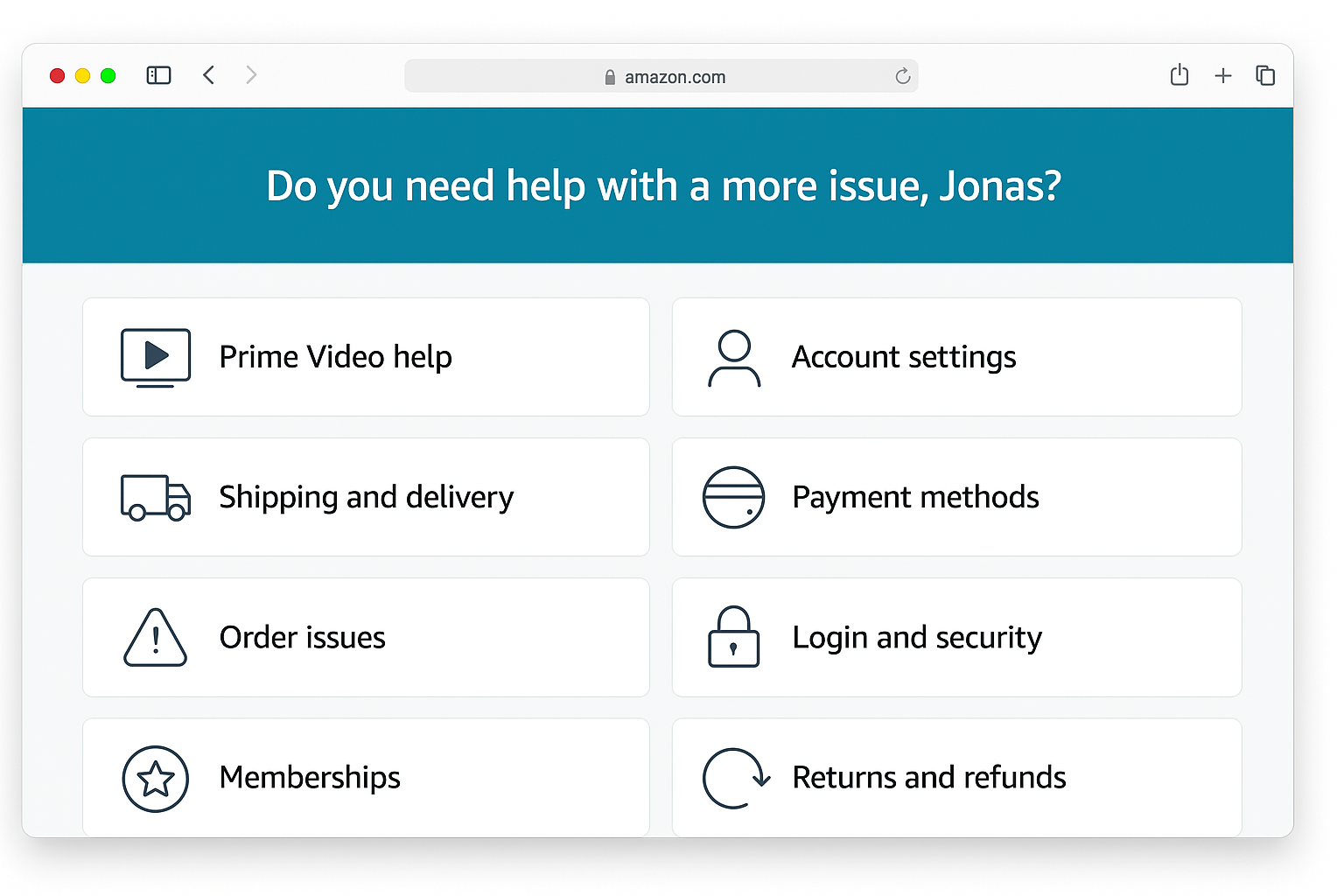
Can’t Find Upgrade Option
Problem: Subscription management isn’t where it should be
Solution:
- Make sure you’re signed into the correct Amazon account
- Try accessing settings through a web browser instead of mobile apps
- Clear browser cache and try again
- Contact Amazon support if the option still doesn’t appear
Configuration Tips for Better Prime Video Experience
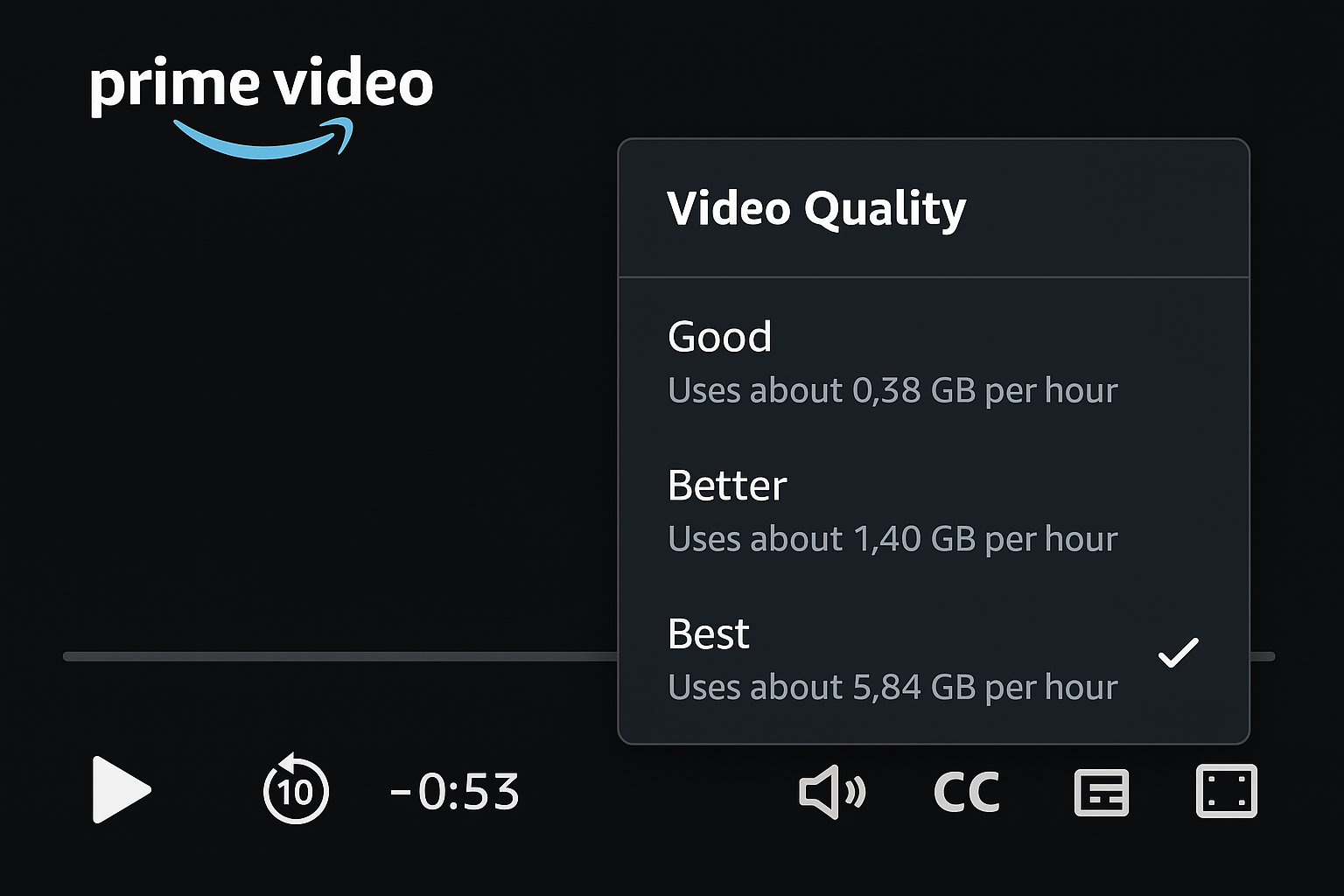
Optimize Video Quality Settings
- In Prime Video settings, click Playback
- Set Video Quality to Best if you have fast internet
- Enable Data Saver only if you’re on a limited connection
Set Up Family Profiles
- Go to Account & Settings > Profiles
- Click Add new profile
- Set age restrictions and content preferences for each family member
- This helps avoid inappropriate ads and improves recommendations
Setting up separate profiles is actually pretty smart — nobody wants their 8-year-old seeing beer commercials during cartoons.
Enable Subtitles and Audio Preferences
- While watching content, click the CC button
- Choose your preferred subtitle language and style
- Set audio language preferences in your account settings
Making the Smart Financial Decision
When Upgrading Makes Sense:
- You watch more than 20 hours of Prime Video per month
- Ad interruptions genuinely ruin your viewing experience
- You frequently watch with others (ads are more annoying in groups)
- You value the enhanced features like 4K streaming and Dolby Atmos
- You need more downloads or concurrent streams
When You Should Consider Alternatives:
- You mainly use Prime for shipping and rarely watch videos
- Your viewing is sporadic (less than 10 hours/month)
- You’re already subscribed to multiple streaming services
- The $60/year feels like too much for your budget
Timing Your Decision:
- Amazon bills the upgrade immediately, so time it with your regular billing cycle if possible
- You can downgrade anytime, but you won’t get a prorated refund
- Consider doing a one-month trial during a heavy viewing period (like holiday breaks)
The Bottom Line
Dealing with ads on a service you’re already paying for is legitimately annoying, but at least now you can make a smart decision about it. The $60/year upgrade to Prime Video Ultra isn’t terrible if you’re watching regularly and want the enhanced features, especially since you keep all the other Prime benefits.
But if you’re only firing up Prime Video occasionally, that money might work better toward a month or two of Netflix when there’s something specific you want to binge. Do the math based on your actual viewing habits, not what you think they should be.
| Decision | Best For | Annual Cost Impact |
|---|---|---|
| Upgrade to Ultra | Regular viewers (20+ hours/month) | +$60/year |
| Switch to Netflix | Want biggest content library | ~$60-100/year more |
| Switch to Disney+ | Families, Marvel/Star Wars fans | Same or higher |
| Keep ads | Light viewers, budget-conscious | No change |