

Instagram Reels have taken the social media world by storm, quickly becoming one of the platform’s most engaging features. These short, captivating videos allow you to explore diverse content, from creative challenges to informative tutorials. But what if you want to revisit a favorite clip after scrolling through or refreshing a page?
This step-by-step guide will walk you through viewing your Instagram watch history. We’ll show you different ways to locate your viewed Reels, organize them, and save your favorite Reels for future access.
Can You See a History of Watched Reels on Instagram?
Instagram, as of now, doesn’t provide a dedicated feature to view the Instagram Reels watch history. Unlike platforms like YouTube, which offers a clear and accessible watch history, Instagram’s stance is more restrictive. Right now, you cannot see a specific list that shows all the Reels they have viewed.
There are several methods for seeing your Watched Reels. However, neither of them is perfect. One requires you to interact with the Reel (like it or comment on it), one only works if you save the Reel, and the third one will have you wait for the results for 14-30 days.
Instagram frequently updates its app with new features and improvements. Although a comprehensive watch history for Reels is not yet available, several updates indirectly assist in managing and revisiting Reels.
- Saved Reels: You can save Reels to your profile by tapping the save icon on any Reel. This feature allows you to access Reels you want to revisit quickly.
- Explore Page Personalization: The Explore page continuously updates based on your activity, showing more Reels similar to what you have previously watched and interacted with.
- Activity Tab Insights: While it doesn’t show a complete history, the Activity tab provides insights into your interactions, including likes and comments on Reels, giving a partial view of your recent engagements.
Instagram’s approach to watch history may evolve with future updates. For now, you have to rely on saving your favorite Reels, using the Explore page, and downloading your Instagram data to rediscover your favorite content. Keep an eye on Instagram’s update logs and announcements for any changes in this area.
How to View Your Instagram Reels History
There are three different ways to see your watch history on Instagram. Each has its limitations, but it’s better than nothing.
Find Your Instagram Reels History in the Saved Tab
Limitations of this method: You must have saved the Reel beforehand to track it using this method. Without saving, you cannot retrieve a specific post from your Reel watch history.
If you frequently use the Save feature to store your favorite Reels for later access, you’ll find all that content in the Saved tab on Instagram.
To access your Saved tab, open the Instagram app, tap your profile icon, select the hamburger icon to open the menu, and choose Saved > All posts. You’ll see all of your previously saved Reels there.

View Reels You’re Engaged With on the Activity Tab
Limitations of this method: To see a Reel in this section, you must have previously interacted with it by liking, commenting, or sharing. Simply watching a Reel without interaction will not make it appear in this history. Also, this method is only for Instagram web users, so you must use a PC.
Another way to access your Instagram watch history is to use the Your Activity tab. Here’s how.
- Open Instagram on your desktop. This method is not available on mobile devices.
- Navigate to the Hamburger menu in the bottom left corner of your screen.
- From the menu, select Your Activity.
- Within the Interactions tab on the left-hand menu, you can view all the content you’ve previously interacted with. You can filter this content by newest to oldest, oldest to newest, likes, comments, Story replies, and reviews.

In this section, not all content will be Reels. You can identify Reels by the icon in the upper-right corner of the thumbnails of each post.
Download Your Instagram Account Data to Access Reels History
Limitations of this method: Downloading your data can take up to 14 days, although many users find it available within hours. Additionally, the data provided only includes the account name and the time you watched the video without direct links to the videos. This method is also only available to Instagram web users.
Downloading your Instagram account data is the most comprehensive method to access your Reels history, though it’s also the most time-consuming. This process can take up to 14 or even 30 days to complete, so we recommend exploring other options if you’re in a hurry.
- Open the Instagram desktop app; you cannot use this method on mobile.
- Open the Hamburger menu in the bottom left corner of your screen.
- Select Your Activity.
- Navigate to Download Your Information and select Continue. This will take you to the Meta account center download page.

- Select your Instagram account and how much information you want: All available information or Some of your information. Then, follow the on-screen steps to request your data. You’ll be able to choose the date range, an email address where you’ll receive the file, the format for your information (HTML or JSON), and the media quality.

- Select Create files to confirm.
- You’ll see a confirmation screen indicating that your download has been requested. Note that it can take up to 14 days, and you can only request your data once every 30 days.

After some time, you’ll receive an email from Instagram. It’ll have an option to Download Information. This will take you back to Instagram’s desktop site, where you’ll be prompted to log in and download your information.
When you download your file, open it and find the folder titled ads_and_topics. In this folder, open the file titled videos_watched.html.
You’ll have a list of links to every video you’ve watched, including Reels. This file includes the name of the account and the time you watched the video. Use this information to search through Instagram accounts for Reels published around the time you watched them.
Tips for Finding Your Favorite Instagram Reels
While Instagram doesn’t offer a straightforward way to access your Reels watch history, several tips and tricks can help you find those favorite videos again.
Remember Key Details
Take advantage of Instagram’s improved search capabilities by remembering keywords, audio features, or account names from the video. Enter these details into the search bar to locate the Reels you’re looking for.
Use Google for Advanced Searches
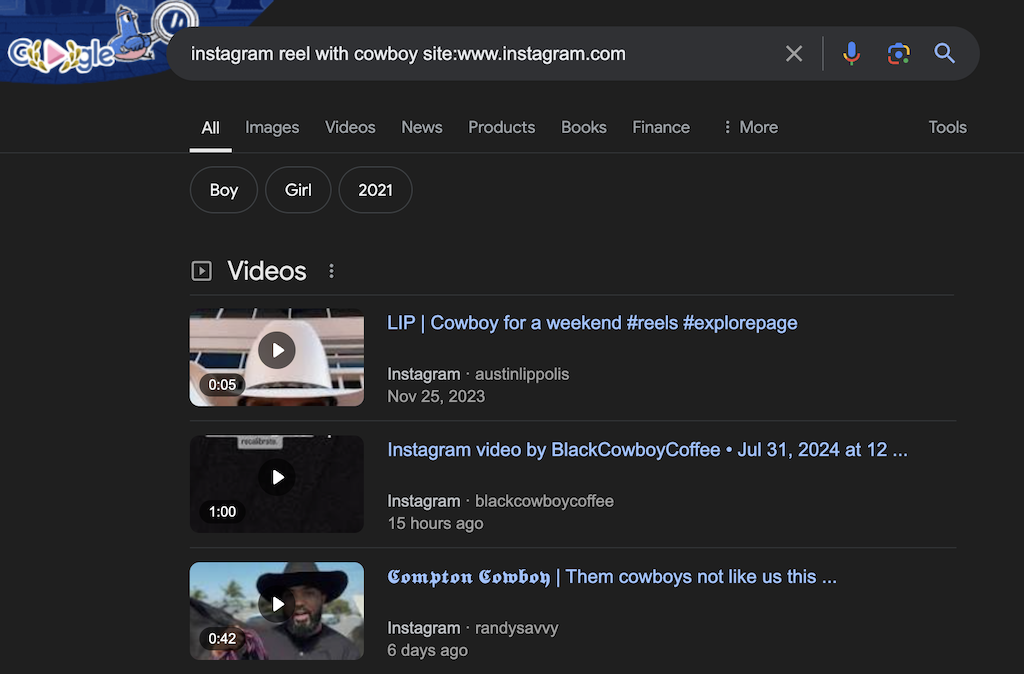
If Instagram’s search bar doesn’t give you the right results, try using Google. Start your search with the text “site:www.instagram.com instagram reel” to limit results to Instagram and to specify that you’re looking for reels. Follow that text with the keywords you remember, as shown in the search box in the screenshot below. This method helps you avoid unrelated content and focuses your search on Instagram videos.
Save Reels for Easy Access
Make it a habit to save Reels you enjoy. Tap the save button anytime you watch a Reel for more than a few seconds. Later, you can organize and remove unwanted videos from your Saved folder.
Like or Comment on Reels
Engaging with Reels by liking or commenting helps you track your favorite videos and supports content creators by boosting their engagement rates.
Download Your Favorite Reels to Your Device
If saving or liking Reels isn’t enough, consider downloading your top favorites to have a hard copy on your desktop. This method ensures you never lose track of the content you love.
How to Clear Your Reel History on Instagram
Currently, Instagram doesn’t offer a direct way to delete your watch history for Reels. Like many social media platforms, Instagram maintains a record of your activities to fine-tune its algorithm and suggest content you might enjoy. However, this information is accessible only to you as the account holder.
While you can’t delete your watch history, you can manage your interactions with Reels by deleting saved or liked Reels. Here’s how.
- Open your Instagram profile and go to the Hamburger menu in the top right corner of the screen.
- Select Saved > All posts to access all your saved Reels and posts.
- Browse through your saved Reels and tap the save icon again to remove any Reels you no longer want in your saved collection. Alternatively, you can select several Reels at the same time, then use the option to Unsave them from your collection.

How to Change Your Reel View Preferences on Instagram?
Instagram’s algorithm tailors the Reels you see based on your interactions. To see more content that aligns with your interests, engage actively with the Reels you enjoy.
The Explore tab is a powerful tool for discovering new and relevant content. To refine your preferences further and reduce unwanted content, you can do the following.
- Mark Content as Not Interested: If you encounter a Reel you dislike, click the three dots in the bottom right corner and select Not Interested.

This feedback helps Instagram avoid showing you similar content in the future.
- Adjust Suggested Content Settings: Go to your profile and tap the Hamburger menu in the top right corner. Scroll down through the settings menu and select Suggested content.

You can manage your preferences by adjusting the Interested, Not Interested, Specific words and phrases, Sensitive content, and Political content to tailor your feed.

Now, you can effectively control the type of Reels in your feed, ensuring that you see more content that resonates with your interests and less of what doesn’t.
How to Save and Find Favorite Reels on Instagram
Saving content on Instagram has streamlined the process of revisiting favorite Reels, sparing you the hassle of endless searching. If you’re unfamiliar with the Saved tab, here’s a quick guide on how to save Reels and access them later.
- Open Instagram, find the Reel you want to save, and click the three dots in the bottom right-hand corner.
- Select the bookmark icon to save the Reel.

- You can also choose a Collection to save it to or create a new collection. If you skip this step, the Reel will save to All Posts.
- Return to your profile page and click the Hamburger icon (the three horizontal lines).
- Go to Saved > All posts.
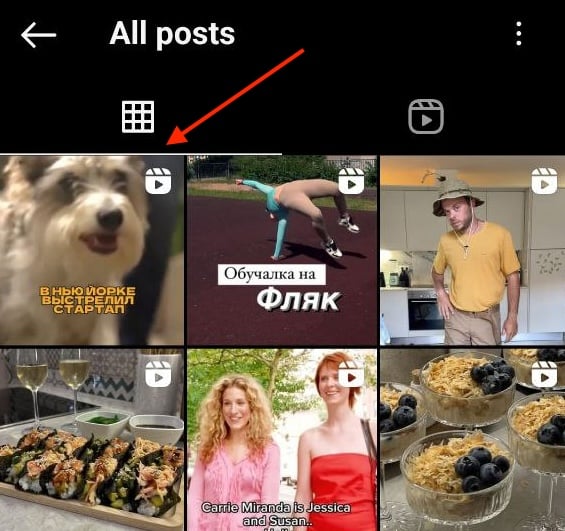
- Locate your Reel in the collection you saved it in.
Following these steps, you can easily save and revisit Reels, ensuring that your favorite content is always just a few taps away.
Conclusion
Now you know how to check your Instagram Reels watch history on Instagram. By saving, liking, and engaging with Reels, you can tailor your feed to your interests.
Plus, using the Explore tab and adjusting your preferences helps discover new, relevant content. Use these tips to improve your Instagram Reels experience and enjoy a more personalized feed.