
Don’t let your Discord profile changes disappear into the void. Discord may sometimes struggle to save your profile changes. This is especially frustrating if you spent hours crafting your profile section.
In this guide, we’ll explore what can be causing this issue and provide solutions for troubleshooting it in Discord.
Why Discord Fails Saving Profile Changes
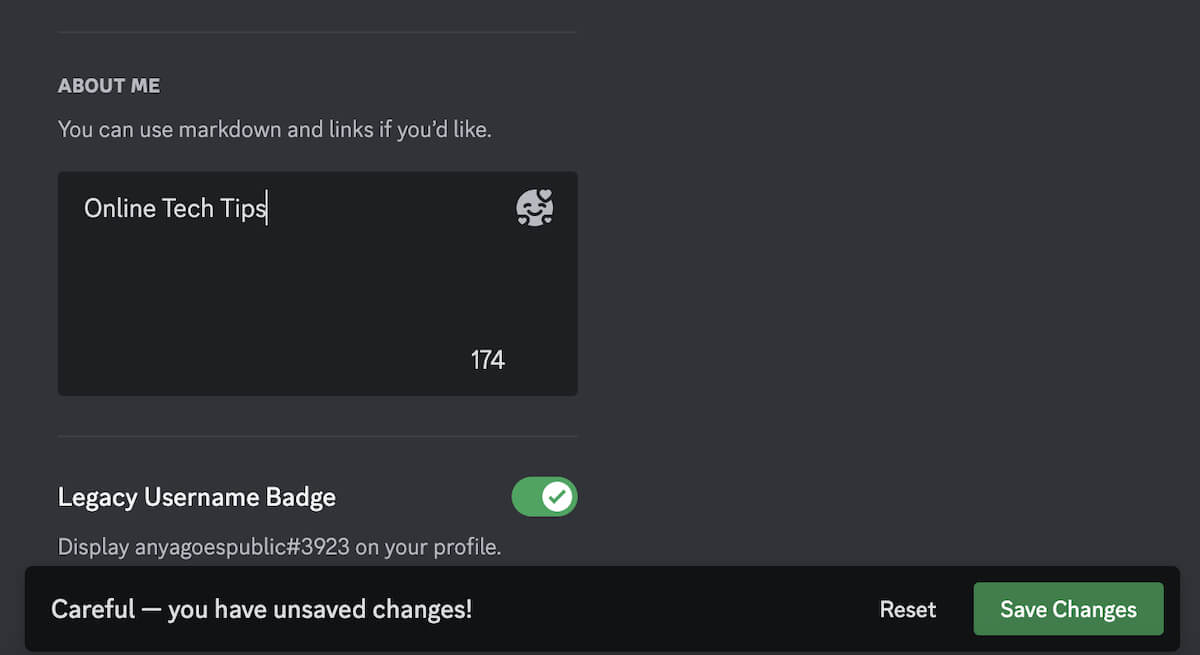
While the problem with Discord not saving changes is often related to a buggy server, several factors could contribute to this problem. Here are some of the most common of them.
- Server Overload: Discord servers may sometimes experience heavy traffic or overload, resulting in delays or failures in processing profile changes.
- Network Issues: Poor internet connectivity or intermittent network disruptions can interfere with the communication between your device and Discord servers, preventing profile changes from being saved.
- Software Bugs: Like any software, Discord isn’t immune to bugs or glitches. An underlying software issue could be causing profile changes to fail to save properly.
- Cache and Cookies: Accumulated cache and cookies in your browser or Discord app may sometimes interfere with the saving process, preventing profile changes from being applied.
- Permissions: In some cases, restricted permissions or account settings may prevent you from saving certain profile changes, especially if they involve sensitive information.
How to Fix Discord Not Saving Profile Changes
Now that you understand potential reasons for Discord failing to save your profile changes, you can troubleshoot them more effectively. We recommend trying every method outlined below one by one, checking whether each of them solves the Discord issue.
1. Restart Discord
When Discord fails to save profile changes, a quick fix might be as simple as restarting the application. When you do it, you can establish a fresh connection to the Discord servers, potentially resolving any glitches or synchronization issues.
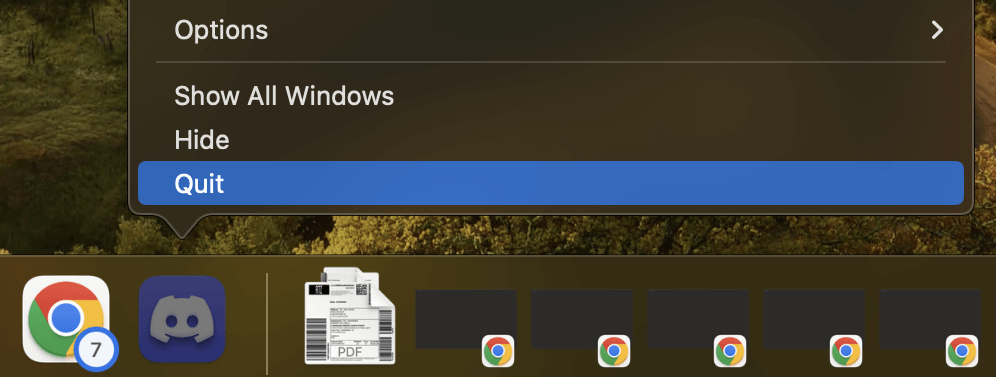
Here’s how to restart Discord on different devices:
- Windows: In the Windows taskbar, select the Show hidden icons button, then right-click on Discord, and choose Quit Discord.
- macOS: Go to the Discord menu and select Quit, or press Command + Q on your keyboard to quit.
- Android: Launch the Recent Items window and slide Discord from the edges of the screen to completely close it.
- iPhone: Swipe up from the bottom of the screen, locate the Discord app, and swipe up to remove it and close the application.
After closing Discord, restart the app and check if the profile changes are saving correctly.
2. Update the Discord App
Keeping your Discord app updated is crucial for resolving errors like Discord not being able to save your profile changes, among others. Discord frequently releases updates to address bugs and glitches, including issues with account management.
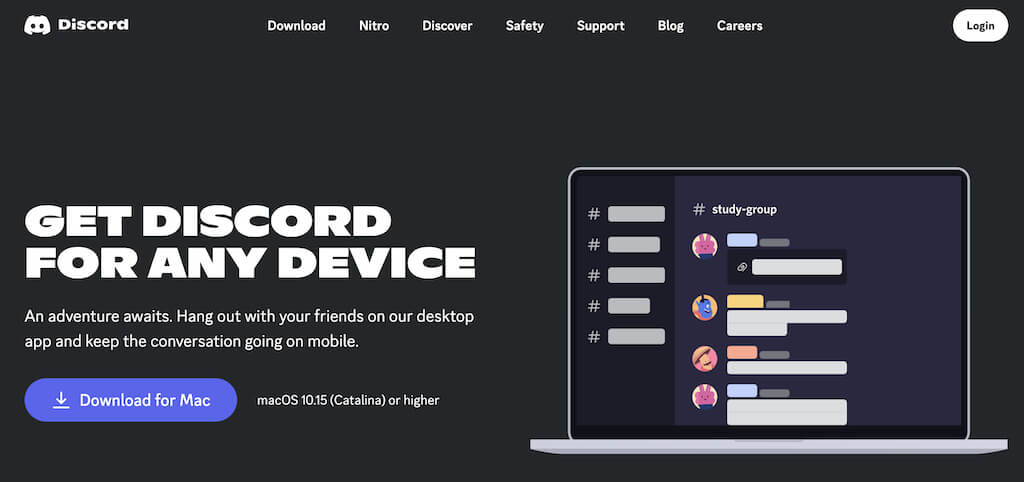
Usually, Discord updates automatically each time you start the app. However, if you’re still encountering the error, manual intervention might be necessary.
If automatic updates fail to resolve the issue, you can manually download and install the latest version from the Discord website. This ensures you have the most recent fixes and improvements.
3. Switch to Another Device
If you’re encountering issues with Discord not saving profile changes, consider switching to another device as a potential solution. Sometimes, variations between the app and web versions can cause syncing problems, and using a different device can trigger a system refresh, resolving the issue.
Experiment with changing your profile theme or other settings on your mobile and desktop apps. That way, you can determine if one version of the app allows you to successfully save the changes.
4. Clear Discord’s Cache
Clearing Discord’s cache can often resolve issues like Discord not saving profile changes. The Discord app stores a significant amount of data, including messages, images, and links, in its cache folder. When this cache folder becomes too large, it can lead to performance issues.
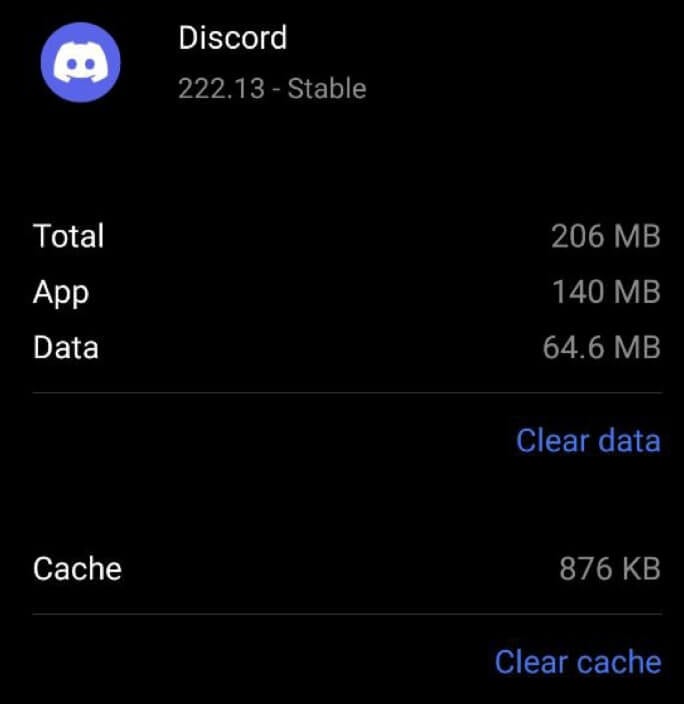
Here’s how you can clear Discord’s cache on different devices.
On Mac or PC
On your computer, navigate to the dedicated Discord’s Cache folder and delete the contents of this folder.
On Android
- Open the Settings app on your device.
- Scroll down and select Apps or Applications.
- Find and select Discord from the list of installed apps.
- Select Storage or Storage & cache.
- Select Clear cache to clear Discord’s cache.
On iPhone or iPad
Unfortunately, there isn’t a direct option to clear Discord’s cache on iOS devices. Your best option is to offload or delete the Discord app and reinstall it. Keep in mind that this will also remove any saved login credentials and app settings.
By clearing Discord’s cache, you can potentially resolve issues related to profile changes not being saved and ensure smoother performance of the app.
5. Disable Community Mode
Disabling Community Mode can be an effective solution if you’re encountering issues with Discord server settings. Despite being a longstanding feature, Community Mode may still interfere with server settings, causing users inconvenience.
If you find yourself unable to modify server settings, temporarily disabling Community Mode can provide a workaround. To disable Community Mode, follow the steps below. The instructions are the same for both mobile and desktop users.
- Open the Discord app on your device.
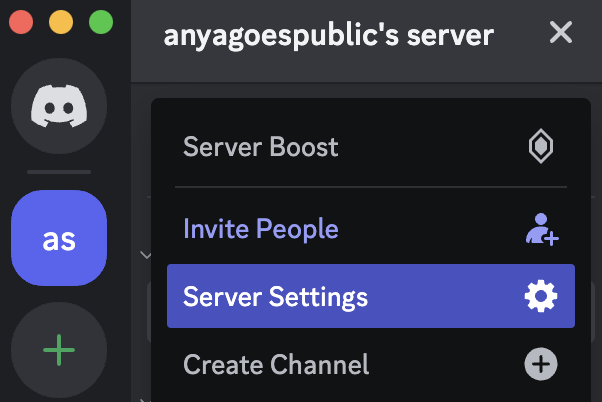
- From the list of server options, select your server and open Server Settings.
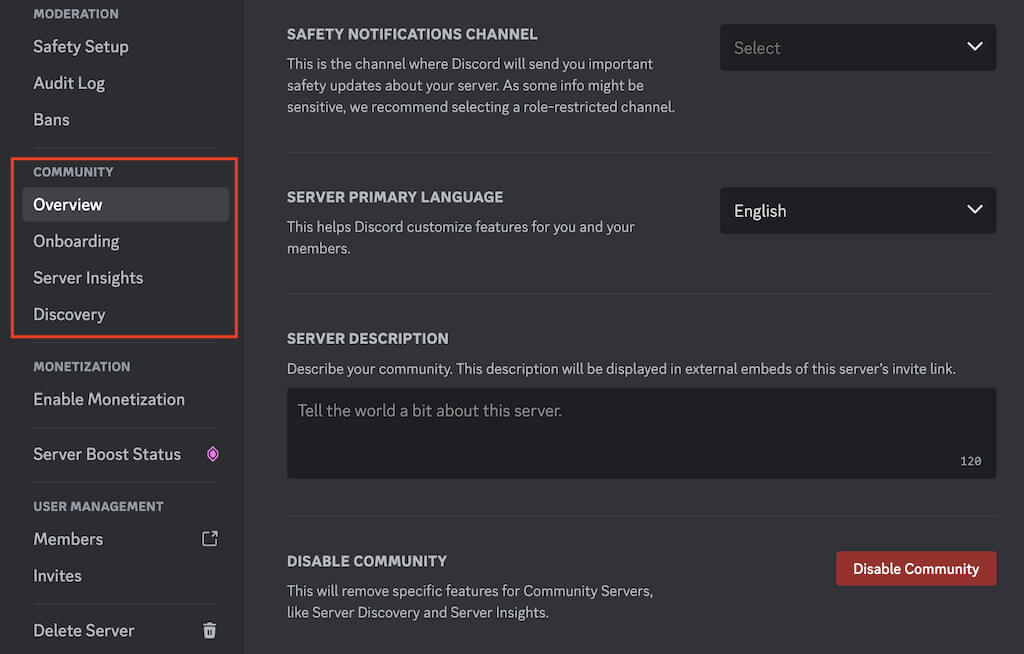
- In the sidebar menu on the left side of the screen, find the Community section.
- In the Overview tab, scroll down and select Disable Community.
- Confirm the change by selecting the Save Changes button.
Once you’ve made the necessary adjustments to your profile, you can choose to re-enable Community Mode. However, if you frequently encounter issues with server settings, leaving Community Mode disabled permanently may offer a smoother Discord experience.
6. Try Enabling or Disabling VPN
Network issues can sometimes disrupt Discord’s ability to save changes effectively. If your server is unresponsive despite other troubleshooting methods, try using a VPN to see if it resolves the issue.
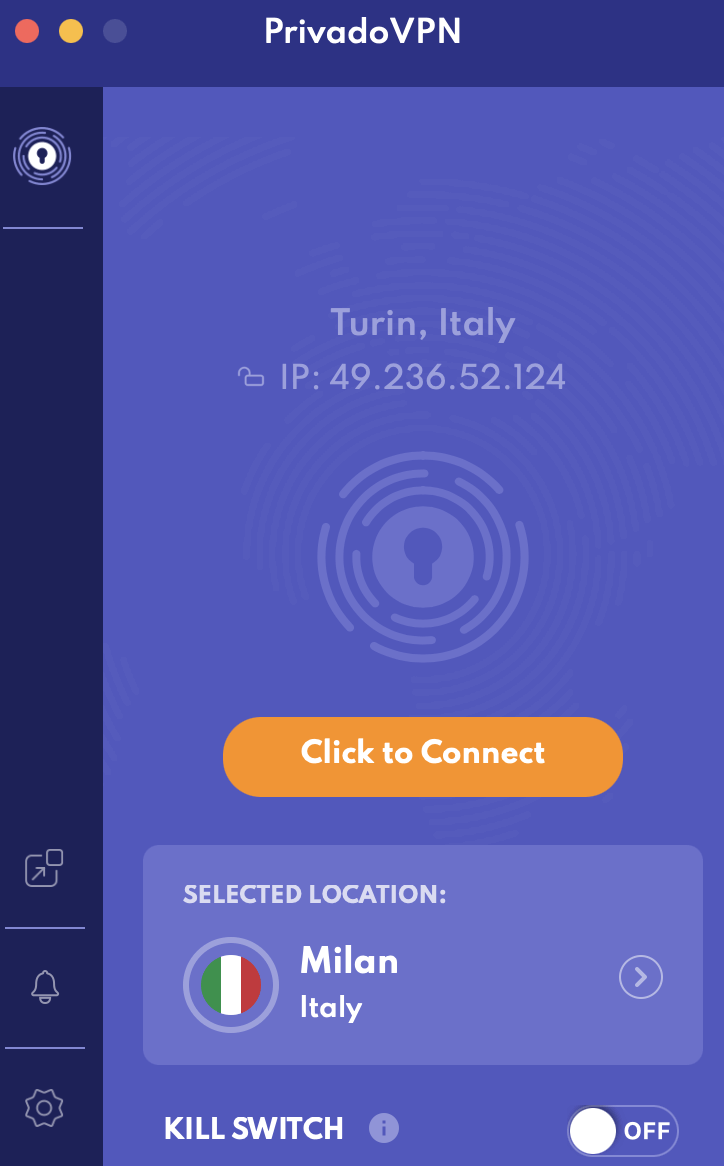
Enabling a VPN can provide a more stable network connection, potentially resolving any connectivity issues that may be hindering Discord’s functionality. At the same time, if you’re already using a VPN, try disabling it temporarily to see if it makes a difference.
Switching to cellular networks can also improve your chances of successfully implementing server changes. By changing your network environment, you may bypass any network-related issues that could be affecting Discord’s performance.
7. Check for Timeout
Frequent changes to server settings, such as altering the server icon or profile theme, can trigger a timeout mechanism within Discord. If you’re unable to save changes despite multiple attempts, it’s possible that your server has entered a timeout state.
If you’ve encountered a timeout, it’s best to wait for approximately 20 minutes before attempting to make further changes. This waiting period allows Discord to reset and mitigate any issues related to excessive modification attempts.
To avoid triggering a timeout in the future, avoid making multiple modification attempts in quick succession.
8. Contact Support and Submit a Bug Report
If you’ve exhausted all troubleshooting options and continue to experience issues with Discord not saving profile changes, submitting a bug report can help resolve the underlying problem.
Here’s how you can submit a bug report to the Discord support team.
- Open a web browser and navigate to the Discord Support website.
- In the upper-right corner, select the Submit a request option.
- Under What can we help you with, open the dropdown menu and select Bug Reporting to report the issue.
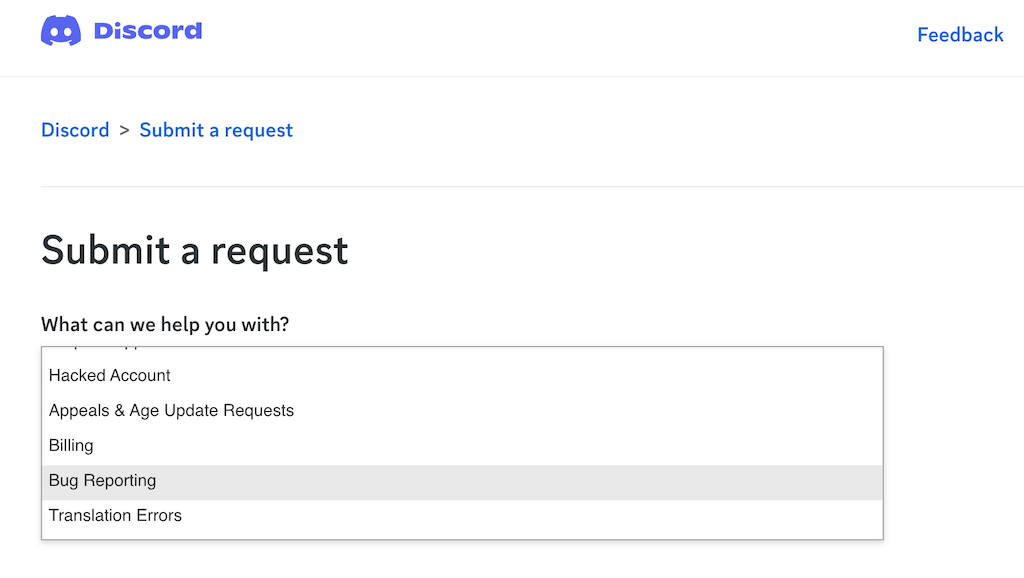
- Fill in the required details, including a detailed description of the problem you’re experiencing, any relevant error messages, and steps to reproduce the issue.
- Once you’ve provided all the necessary information, select the Submit button to send your bug report to Discord support.
By submitting a detailed bug report, you’re helping Discord’s support team identify and address the issue more effectively, ultimately contributing to a smoother user experience for all Discord users, not just yourself.
Learn How to Fix Any Discord Issue
Encountering issues with Discord not saving profile changes can be frustrating, but with the right troubleshooting steps, you can resolve the issue and get back to customizing your Discord experience.
Remember to stay patient and thorough in your troubleshooting efforts, and don’t hesitate to contact Discord support if necessary.