

Discord’s crash issues aren’t uncommon, which means you may find the app crashing for no apparent reason from time to time. If your app continues to close unexpectedly and a simple reboot hasn’t resolved the issue, you may want to try a few advanced solutions.
These advanced fixes include turning off Discord’s hardware acceleration feature, clearing the app data, and potentially bringing the app back to a stable condition.
Disable Hardware Acceleration in Discord
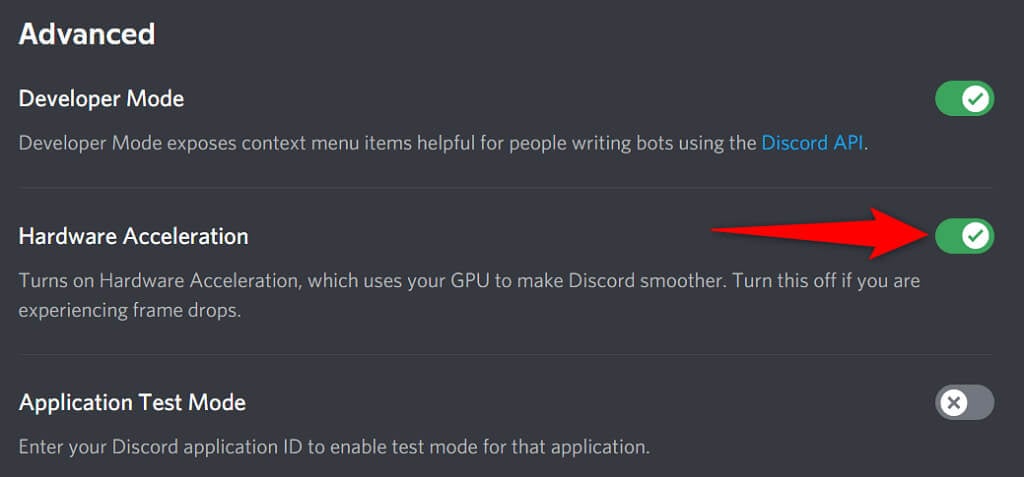
Discord’s Hardware Acceleration feature uses your computer’s GPU to enhance your app experience. This feature doesn’t always work well, and you should turn it off to see if it prevents Discord from crashing.
Your Discord app experience shouldn’t change for the most part, and you can always re-enable Hardware Acceleration from the settings menu.
- Launch Discord on your computer.
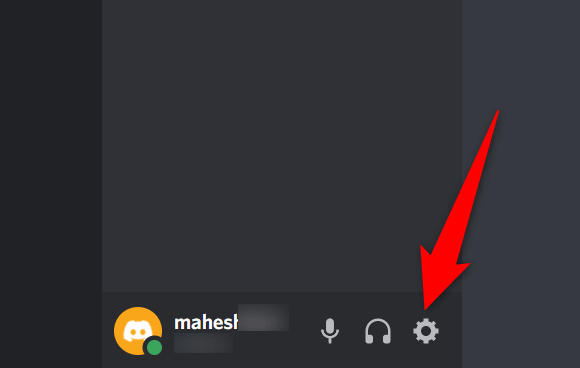
- Select User Settings (a gear icon) at the bottom-left corner.
- Choose Advanced from the sidebar on the left.
- Turn off the Hardware Acceleration option in the panel on the right.
- Relaunch Discord.
Fix Discord Keeps Crashing by Deleting the AppData
Discord’s cache files help the app be more efficient. However, these cache files sometimes go corrupt and cause various issues with the app, including causing the app to close unexpectedly.
Luckily, you can remove these cache files without deleting your data or any of Discord’s features. Discord will rebuild these files as you use the app.
- Right-click the Windows taskbar and select Task Manager.
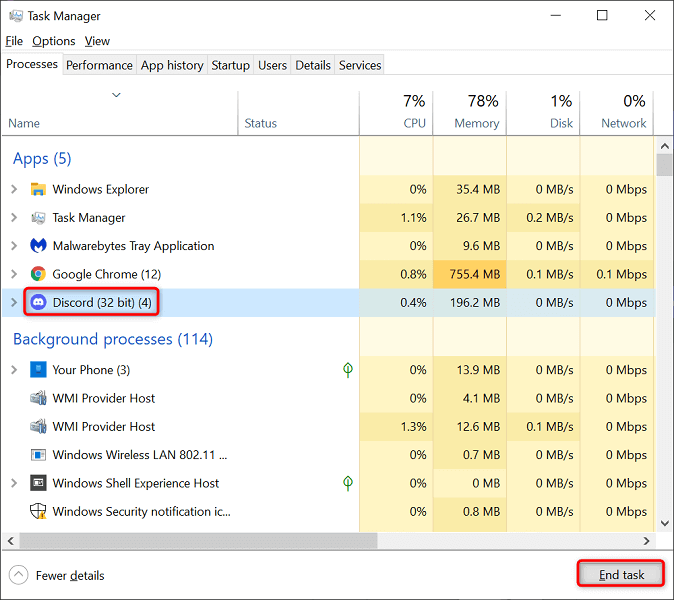
- Choose Discord in the app list and select End task at the bottom. This closes Discord before you delete the cache files.
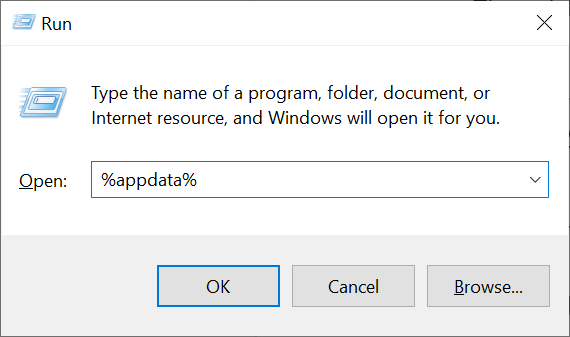
- Open the Run box by pressing Windows + R keys simultaneously.
- Type the following in the Run box and press Enter: %appdata%
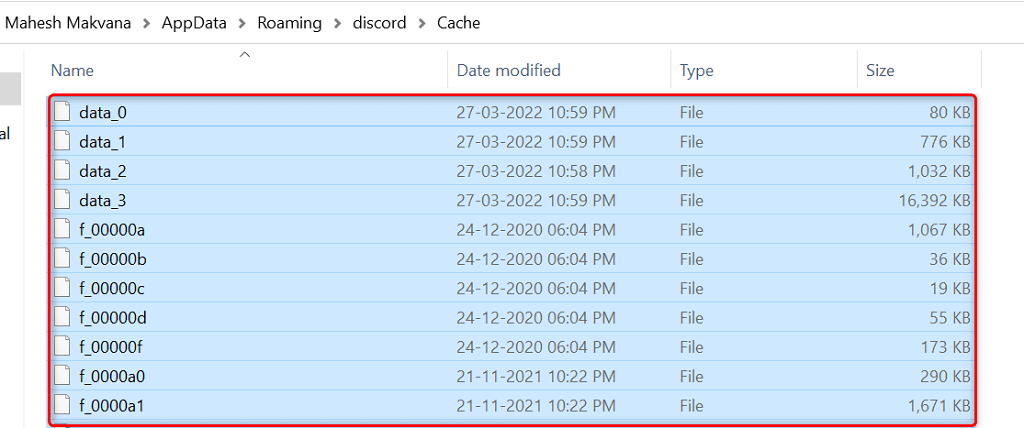
- Access the discord > Cache folder and select all files by pressing Ctrl + A. Then, delete the selected files by pressing the Delete key.
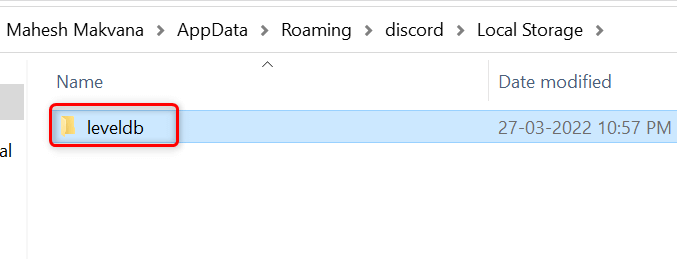
- Go back to the discord folder and open the Local Storage folder. Again, select all files by pressing Ctrl + A and press Delete.
- Launch the Discord app as you normally would.
Enable Legacy Mode in Discord
Discord could crash if your media equipment is not compatible with the app’s standard audio subsystem mode. Luckily, you can revert to legacy mode, so your equipment works and doesn’t cause Discord to close unexpectedly.
- Access Discord on your computer.
- Select User Settings (a gear icon) at the lower-left corner.
- Choose Voice & Video from the sidebar on the left.
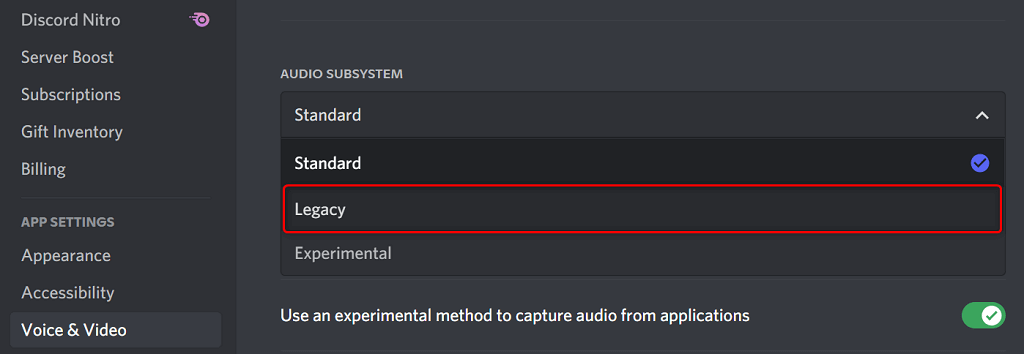
- Select the Audio Subsystem drop-down menu on the right and choose Legacy.
- Choose Okay in the prompt.
- Discord will automatically close and relaunch.
Delete Discord’s Keybinds
Keybinds are custom shortcuts that allow you to perform pre-specified actions in Discord. Sometimes, these binds interfere with your system and Discord, causing the app to freeze up.
In this case, toggle off your Discord keybinds and see if that makes the app stable again. Later, you can re-enable these keybinds from within Discord’s settings menu.
- Open Discord and select User Settings (a gear icon) at the bottom-left corner.
- Choose Keybinds on the left sidebar.
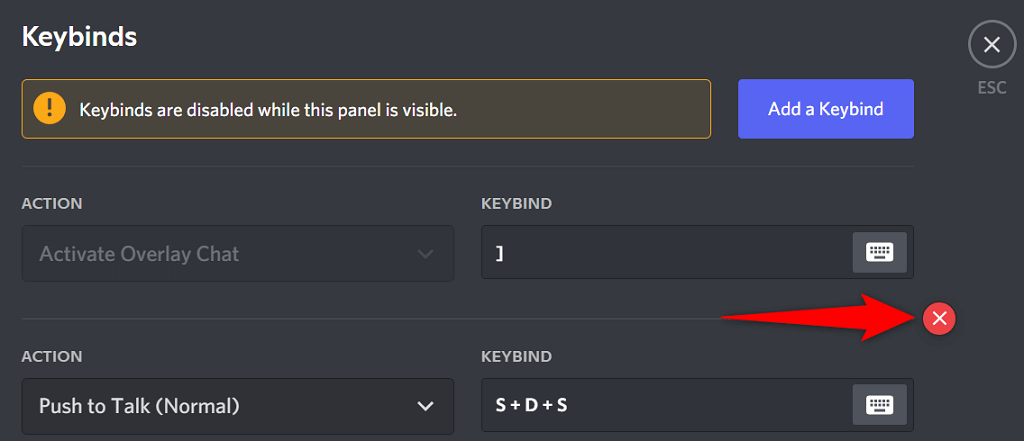
- Bring your cursor over your custom keybinds and choose the X icon. Repeat this step to remove each keybind.
- Reopen Discord when all your keybinds are removed.
Update the App to Fix Discord Crashing Issues
Discord’s obsolete versions can cause various problems, including leading the app to a total crash. This is why the company regularly pushes app updates, so you always get the smoothest experience possible out of your app.
It’s free and easy to check for and install Discord updates on your computer.
- Right-click Discord’s icon on your system tray.
- Choose Check for Updates.
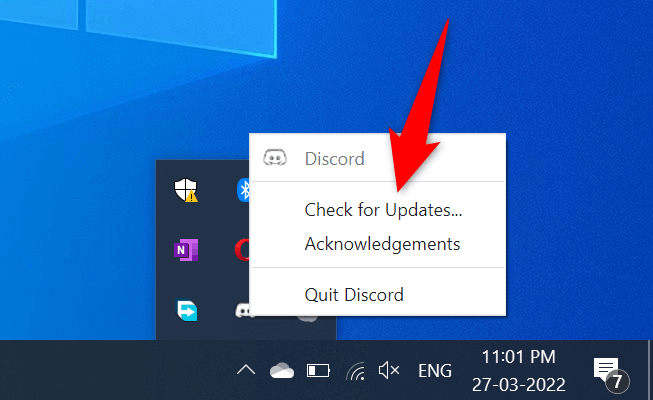
- Wait for the app to find and install the available updates.
- Launch the Discord app.
Reinstall Discord
If you’re experiencing crash issues even after updating the Discord app, your app’s core files might have problems. There are many reasons these files go corrupt or become problematic.
Luckily, you can repair these files by reinstalling Discord on your computer. Doing so deletes all old app files and brings fresh new files. Your account data is not deleted when you uninstall and reinstall the app.
- Open Settings on your PC by pressing Windows + I keys simultaneously.
- Select Apps on the Settings window.
- Choose Discord on the list, then select Uninstall.
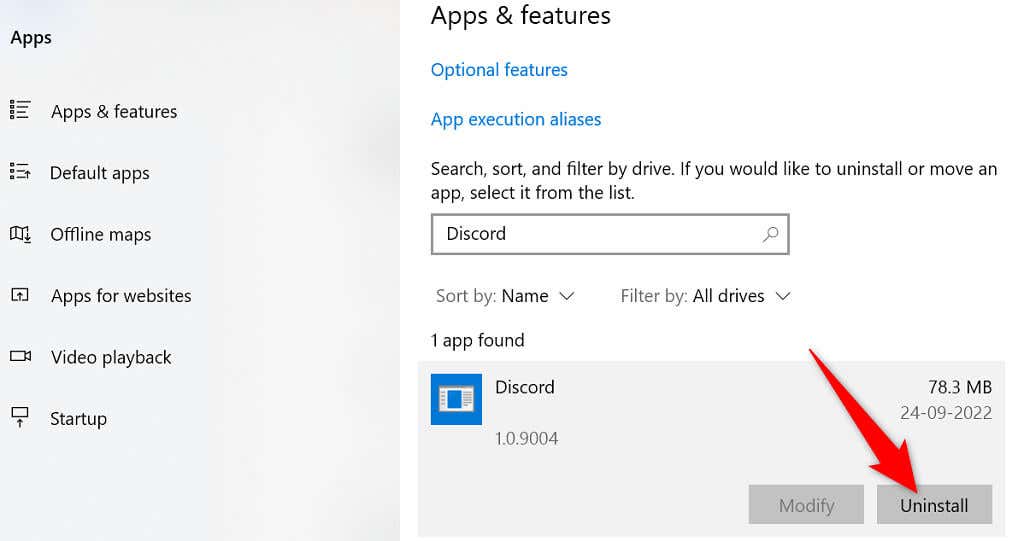
- Select Uninstall in the prompt to remove Discord from your PC.
- Open Discord’s official website and download the app for your computer.
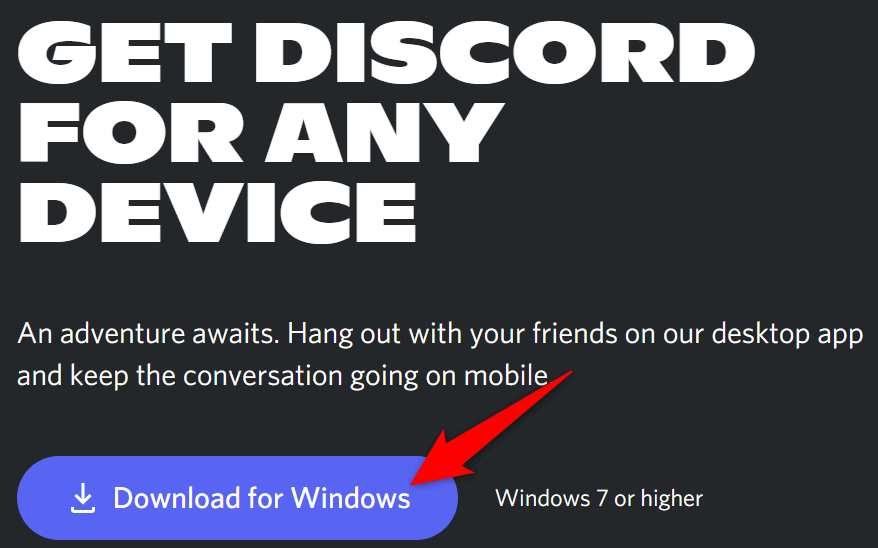
- Launch the downloaded file to install the Discord app on your computer.
Switch to Discord’s Browser Version
Discord’s desktop app where you’re experiencing issues isn’t the only way to access the platforms’ services. The company offers multiple Discord versions, which means you can use an alternative option when you have problems with a specific app.
For example, if your Discord desktop app continues to crash, move to Discord’s browser version. You can use this version from any modern web browser available on your computer. The web version works pretty much the same way as the desktop app.
Keep your Discord account logins handy, as you’ll need those to log in to an alternative version.
- Open your favorite web browser on your computer and launch Discord for the web.
- Log in to your Discord account in the web app.

- You’ll land on the familiar Discord interface allowing you to use all of the platform’s features.
Resolve Discord’s Constant Crash Problems
Discord could stop working and crash for various reasons like all other apps. If this happens to you and you aren’t sure what to do, the guide above should walk you through the possible ways to get around this problem.
Once the underlying issues are fixed, your Discord app will start functioning as before.