

Getting calls from unknown numbers? You’re definitely not alone. Whether it’s a potential scammer, telemarketer, or just someone whose number you don’t recognize, those mystery calls can be pretty annoying. The good news is that identifying unknown callers in 2026 is way easier than it used to be, thanks to AI-powered apps and built-in phone features that can tell you who’s calling before you even pick up.
In this guide, you’ll learn how to use the best caller ID apps, enable your phone’s spam protection, and even get AI assistants to screen calls for you. No more playing phone number detective or accidentally answering robocalls!
What Are Modern Caller ID Tools?
Today’s caller ID tools go way beyond the basic name display you might remember from landlines. Modern solutions use massive community databases, AI screening technology, and real-time spam detection to identify callers instantly.
Key Features:
- AI-powered screening: Apps like Truecaller can actually answer calls for you and ask who’s calling
- Community databases: Millions of users report spam numbers, creating a constantly updated blocklist
- Real-time identification: See the caller’s name, photo, and spam risk before answering
- Automatic blocking: Known scam numbers get blocked without bothering you
- Social media integration: Some apps pull profile photos and info from Facebook, LinkedIn, etc.
How to Set Up Caller ID Apps
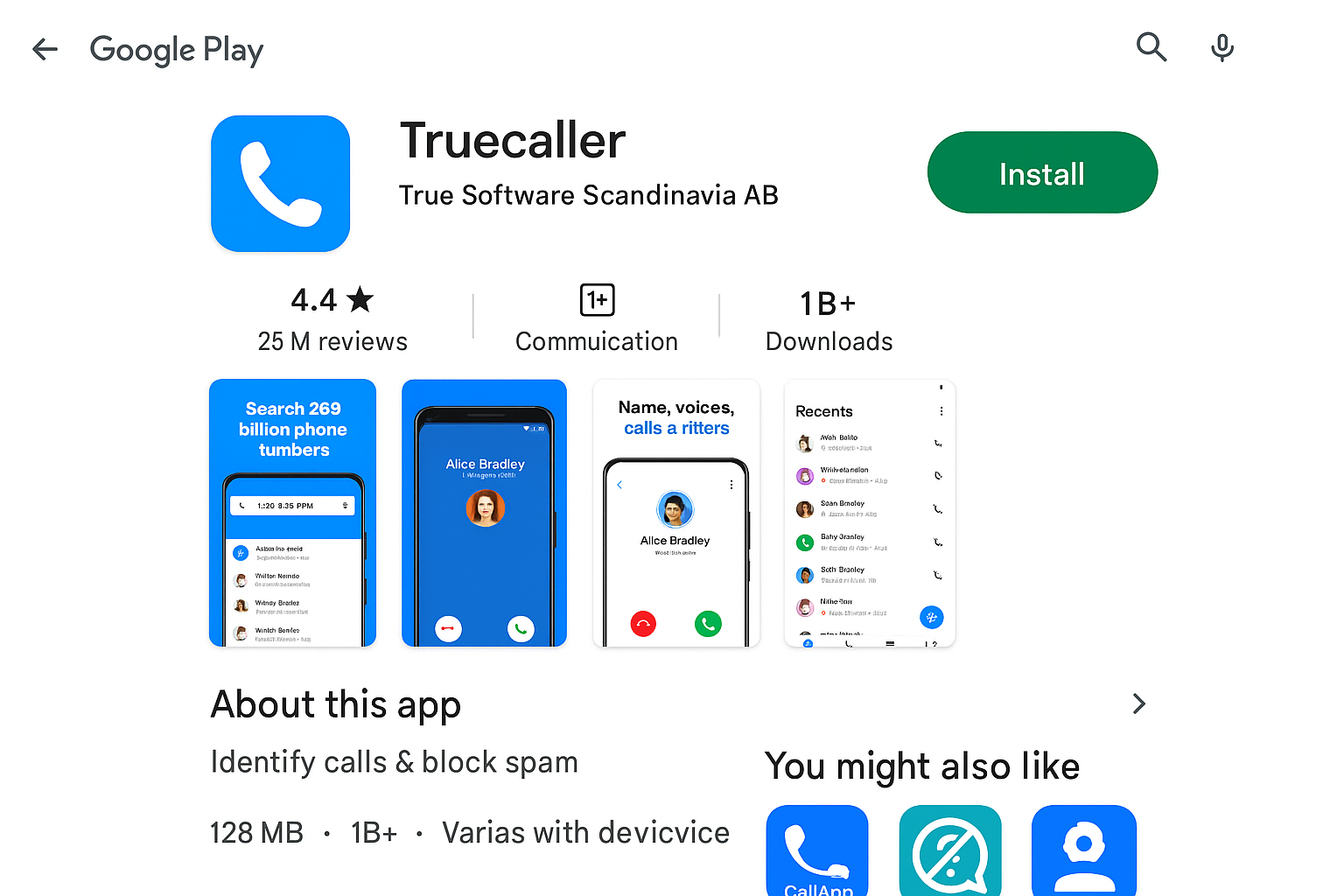
Step 1: Choose Your Caller ID App
The most popular options for 2026 are Truecaller (best overall), Hiya (great for business users), and RoboKiller (if you want aggressive spam blocking). Download your preferred app from the Google Play Store or App Store.
Step 2: Grant Necessary Permissions
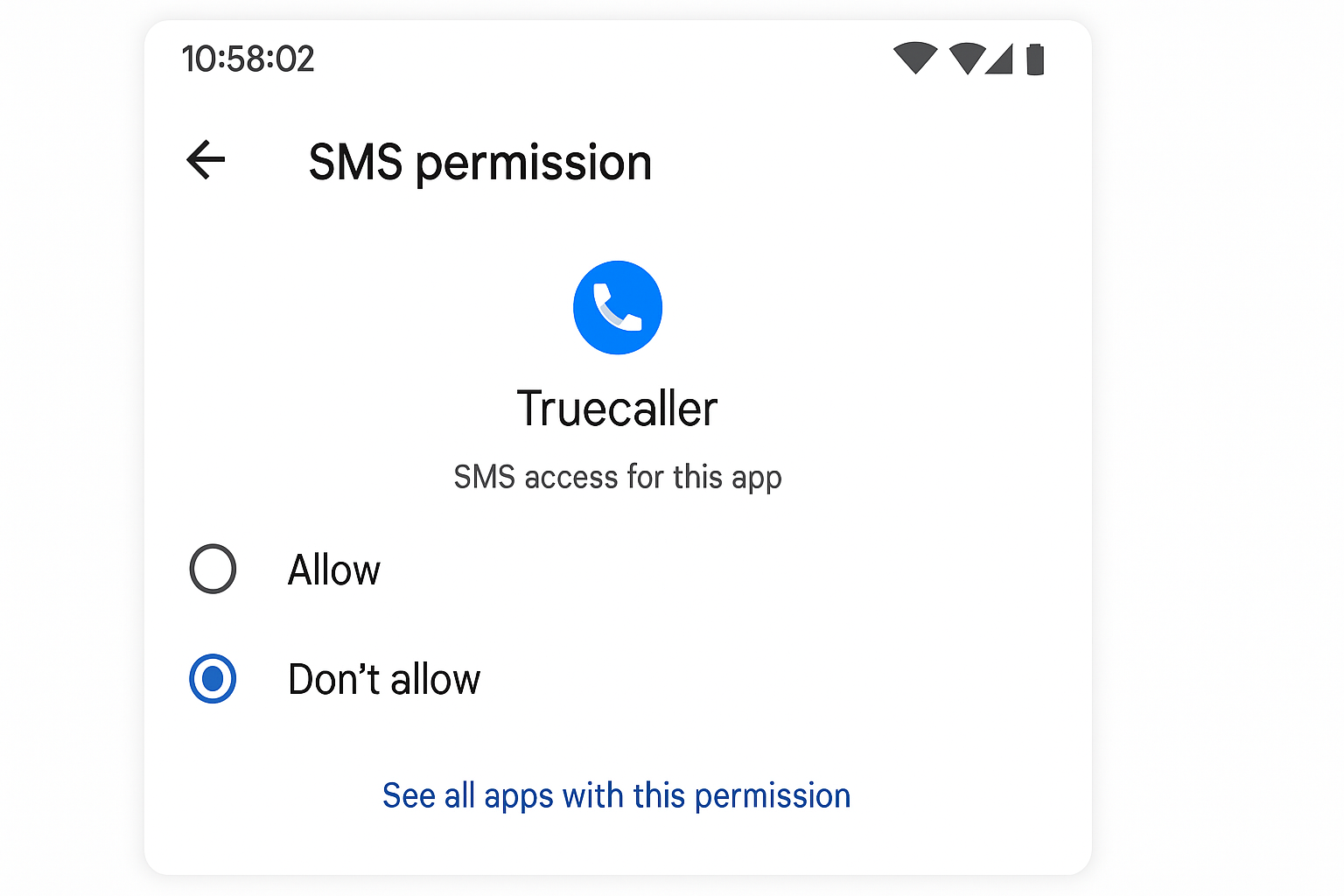
When you first open the app, it’ll ask for permissions to access your contacts, phone calls, and SMS. These permissions are essential for the app to work as it needs to see incoming calls to identify them and access your contacts to avoid flagging your friends as spam.
Tap Allow for each permission request. Don’t worry, reputable apps like Truecaller encrypt your data and let you control what gets shared.
Step 3: Enable Spam Blocking
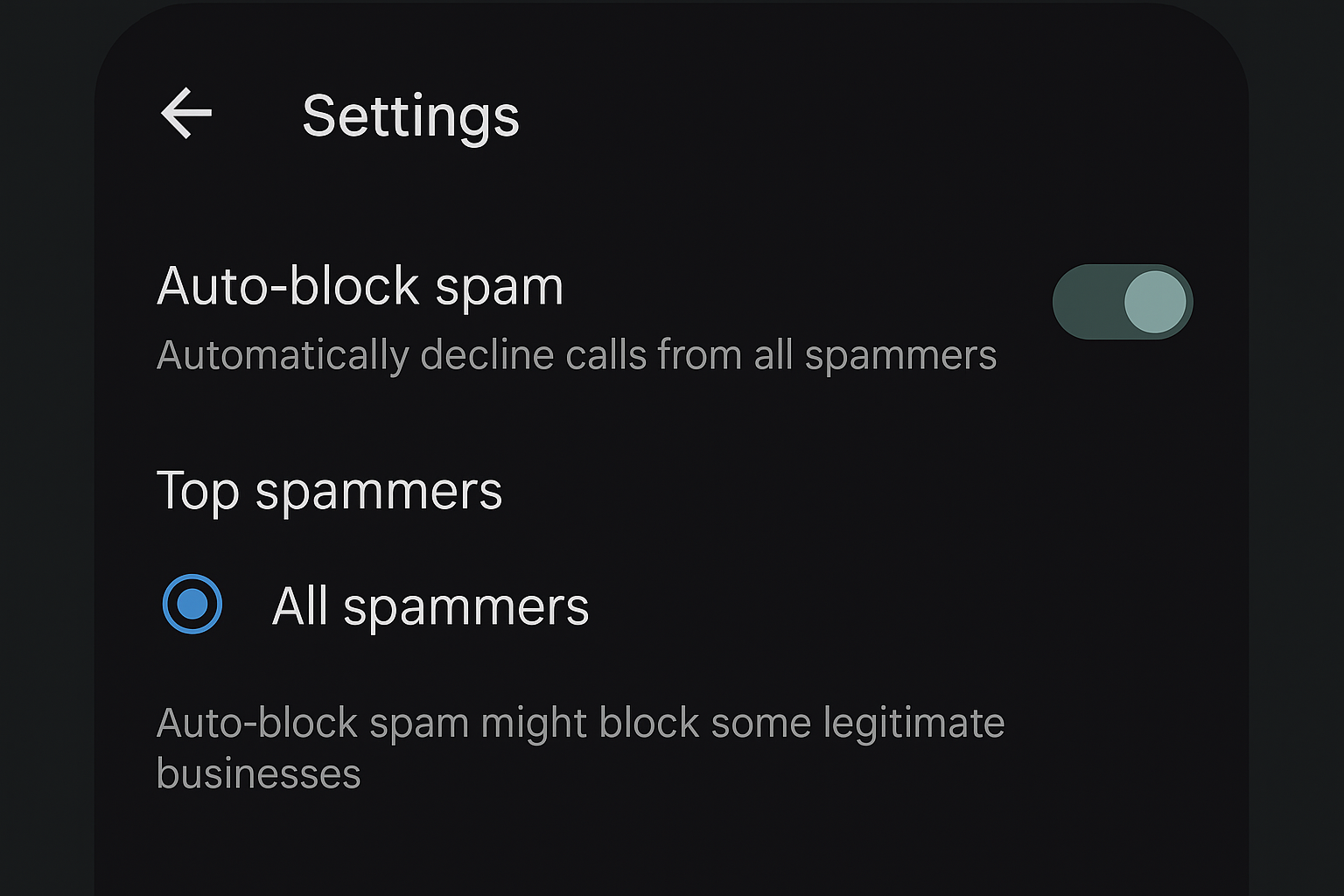
In your app’s settings, turn on automatic spam blocking. This varies by app:
- Truecaller: Go to Settings > Block > Enable Auto-block top spammers
- Hiya: Tap Protection > Turn on Spam & Fraud Protection
- RoboKiller: The app blocks spam automatically — no setup needed
Step 4: Set Up AI Screening (Premium Feature)
If you have Truecaller Premium, you can enable the AI Assistant to actually answer unknown calls and ask who’s calling. Go to Settings > Assistant > Enable Assistant. The AI will politely ask callers to identify themselves, then give you a transcript of what they said.
This is honestly pretty clever! Legitimate callers will leave their name, while robocalls usually just hang up when they realize they’re talking to a bot.
Using Built-In Phone Features
On Android
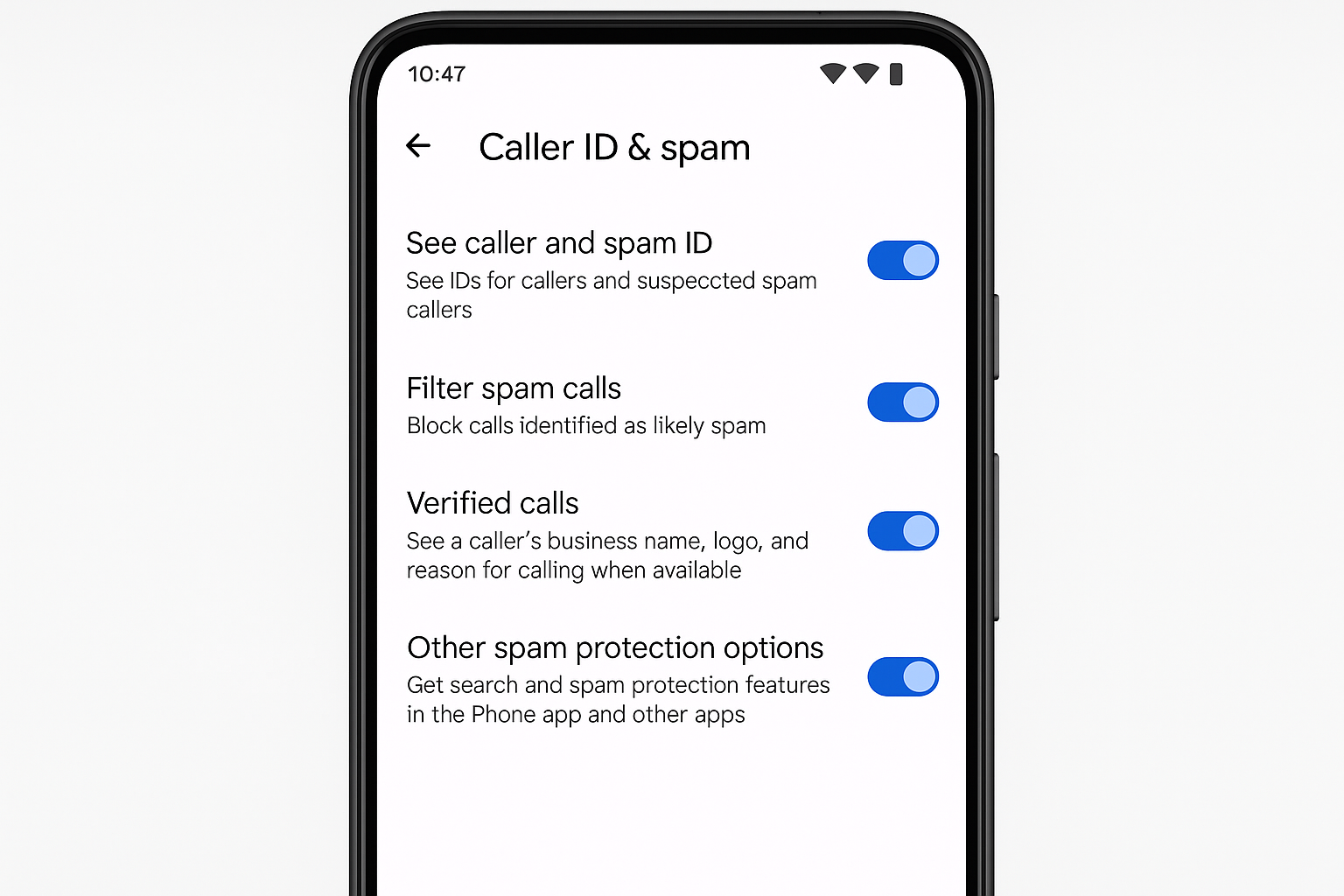
Google’s Phone app (which comes with most Android phones) has built-in caller ID that’s actually quite good. Here’s how to enable it:
- Open the Phone app
- Tap the three-dot menu > Settings
- Select Caller ID & spam
- Turn on See caller and spam ID
- Also enable Filter spam calls to automatically send suspected spam to voicemail
On iPhone
iOS has a feature called “Silence Unknown Callers” that’s pretty effective at stopping spam:
- Open Settings > Phone
- Scroll down and tap Silence Unknown Callers
- Toggle it on
This sends any call from a number not in your contacts, recent calls, or Siri suggestions straight to voicemail. Legitimate callers can still leave a message, but robocalls usually won’t bother.
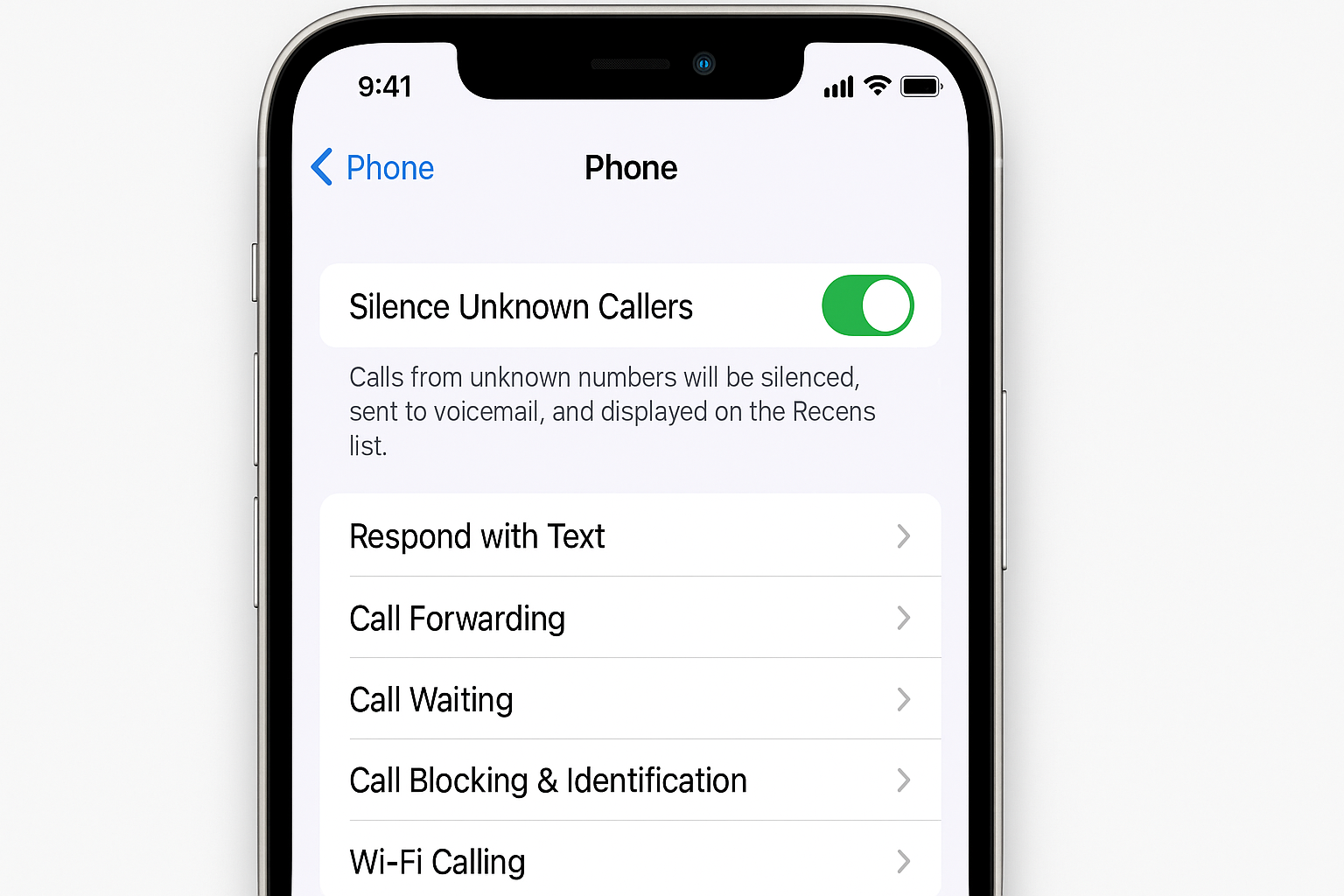
You can also integrate third-party apps like Truecaller with iOS. After installing the app, go to Settings > Phone > Call Blocking & Identification and enable your preferred app.
How to Look Up Unknown Numbers Manually
Sometimes you might want to research a number that already called you. Here are the quickest methods:
Using Caller ID Apps
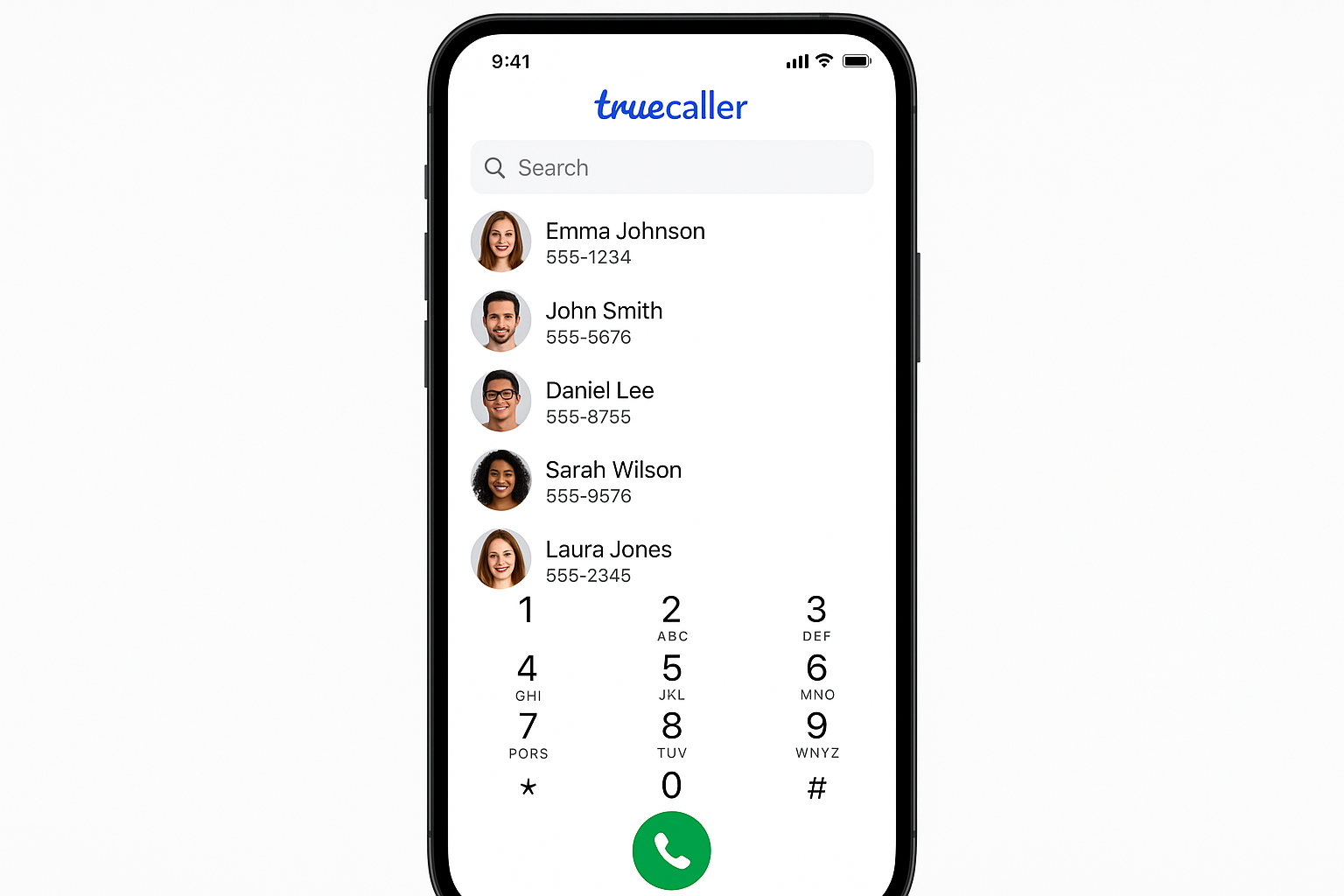
Most caller ID apps let you search numbers manually. In Truecaller, just tap the search icon and enter the number. You’ll see the name (if available), location, and spam reports from other users.
Social Media Search
This old-school method still works surprisingly well. Copy the phone number and paste it into Facebook’s search bar. Many people still list their phone numbers in their profiles, so you might find the person that way.
Google Search
Sometimes a quick Google search of the phone number will turn up business listings, complaint websites, or forum posts from other people who received calls from the same number.
Advanced Protection: AI Call Screening
The latest trend in call protection is AI screening, where a bot answers unknown calls and challenges the caller to identify themselves. Here are the best options:
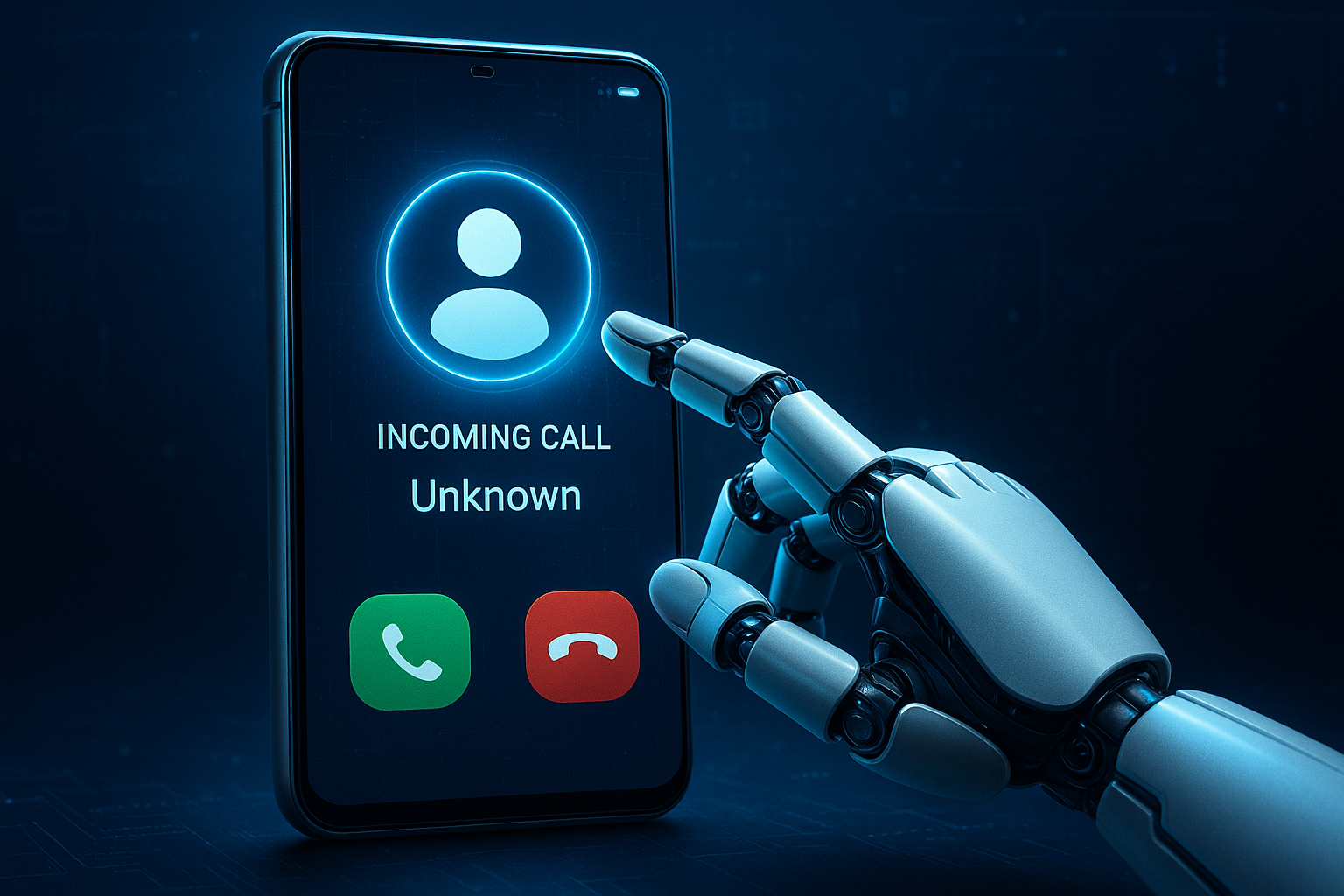
- Truecaller AI Assistant: Answers calls, asks who’s calling, provides transcripts (Premium feature)
- Nomorobo Max: Uses AI to challenge suspicious callers before they reach you
- Google Call Screen: Available on Pixel phones, lets Google Assistant answer and screen calls
These services are particularly good at stopping sophisticated scams. According to the FTC, imposter fraud alone caused over $2.7 billion in losses in 2023, so having an AI gatekeeper can be worth the subscription cost.
Tips and Troubleshooting
Common Issues
Problem: The app is blocking legitimate business calls
This happens when businesses get incorrectly flagged as spam. To fix it:
- Open your caller ID app
- Find the blocked number in your call log
- Mark it as “Not spam” or add it to your whitelist
- Consider creating a custom allow list for important businesses
Problem: Battery drain from caller ID apps
Feature-rich apps like Truecaller can use more battery. If this bothers you, try lighter alternatives like Whoscall (which works offline) or just use your phone’s built-in features.
Problem: Privacy concerns about uploading contacts
Apps like Truecaller build their databases partly by accessing users’ contact lists. If you’re not comfortable with this, use offline apps like Whoscall or stick to your phone’s built-in caller ID.
Pro Tips
- Report spam numbers: When you get a spam call, report it in your caller ID app. This helps protect other users
- Use multiple layers: Combine your phone’s built-in blocking with a third-party app for maximum protection
- Check your carrier’s options: Verizon, AT&T, and T-Mobile all offer their own spam blocking services that work alongside apps
- Don’t answer unknown numbers: Let them go to voicemail first. Legitimate callers will leave a message
The Best Caller ID Apps for 2026
Here’s a quick comparison of the top options:
| App | Best For | Key Features | Price |
|---|---|---|---|
| Truecaller | Most users | AI screening, huge database, social integration | Free with ads, $2-5/month Premium |
| Hiya | Business users | Professional caller ID, fraud alerts | Free with limited features, $3/month Pro |
| RoboKiller | Heavy spam blocking | Answer bots, aggressive blocking | $4-10/month |
| Whoscall | Privacy-focused | Offline database, no contact upload | Free with ads, $1/month Premium |
| Nomorobo | Landline + mobile | AI call screening, robocall blocking | Free for landline, $2/month for mobile |
Wrapping Up
Unknown callers don’t have to be a mystery anymore. With AI-powered apps like Truecaller and built-in phone features, you can identify most callers before you even answer. The spam blocking alone makes these tools worth using as nobody has time for robocalls about extended car warranties!
I’ve been using Truecaller for the past year and it’s honestly been a game-changer. The AI Assistant feature is particularly clever for screening potential scams. If you’re getting a lot of spam calls, start with your phone’s built-in features and then add a third-party app if you need more protection.